
M3U player for Windows and Mac
Watching your playlist on a computer: VLC or a real TV player? Keyboard shortcuts, guide, recording: what to know on Windows and Mac, with the options compared.
Nipo doesn’t provide, sell or host any channel, movie or playlist: it plays what you already own.
DevicesThe Nipo Player team 5 min read
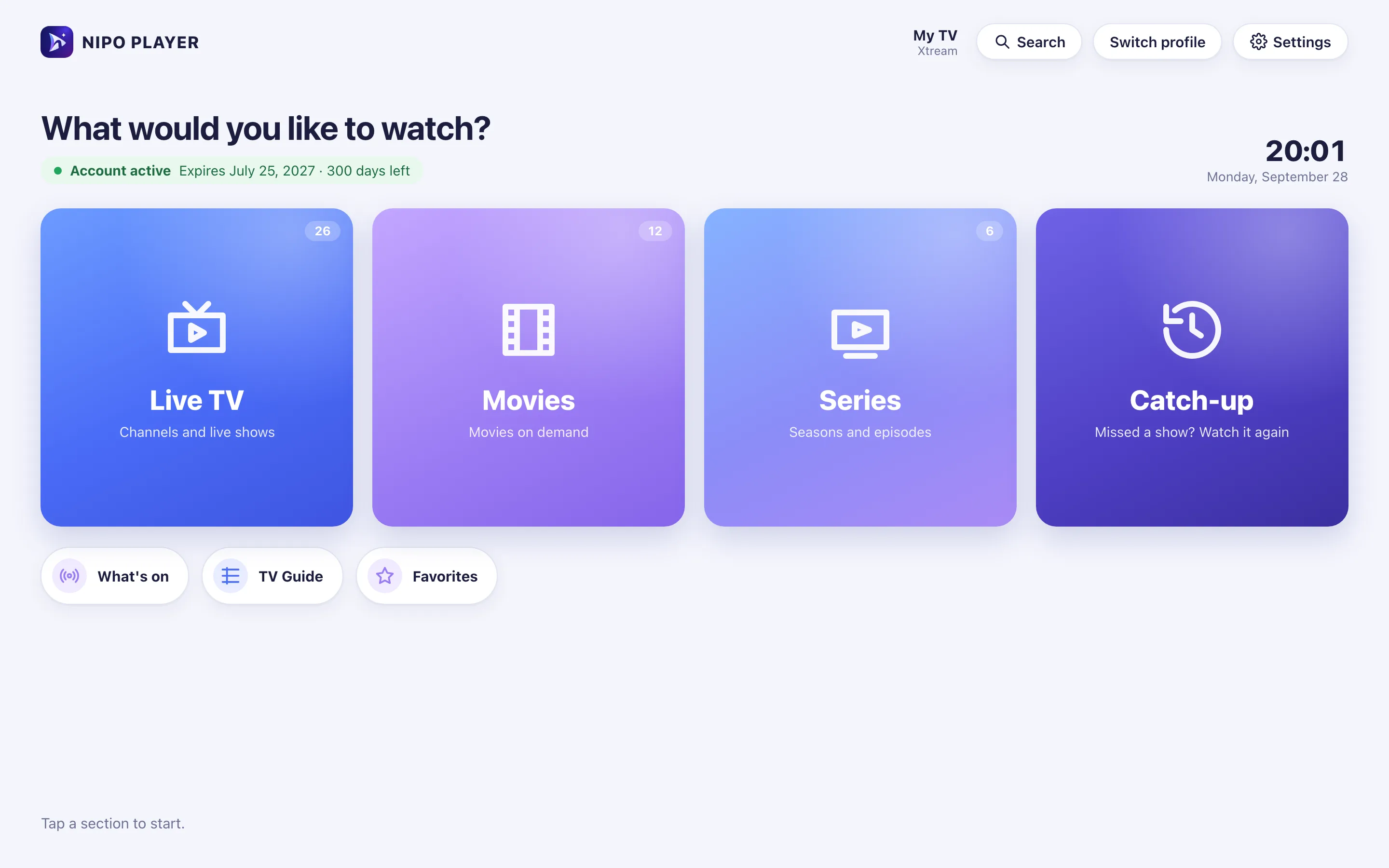
People think of the TV first, but a computer is still a great screen for your playlist: at the office during a break, in a room without a TV, or to record a programme. On Windows and Mac, you can choose between a general video player and a real TV app. Here are the differences, and how to choose an M3U player for your computer.
A reminder: Nipo Player, like any honest player, supplies no channel and no playlist. You add your own, which must be legal.
Is VLC enough?
VLC, the well-known free media player, can open an M3U playlist: choose Media › Open Network Stream, paste the link, and the channel list appears. To troubleshoot or check that a link works, it's perfect.
But VLC is a file player, not a TV:
- no programme guide grid;
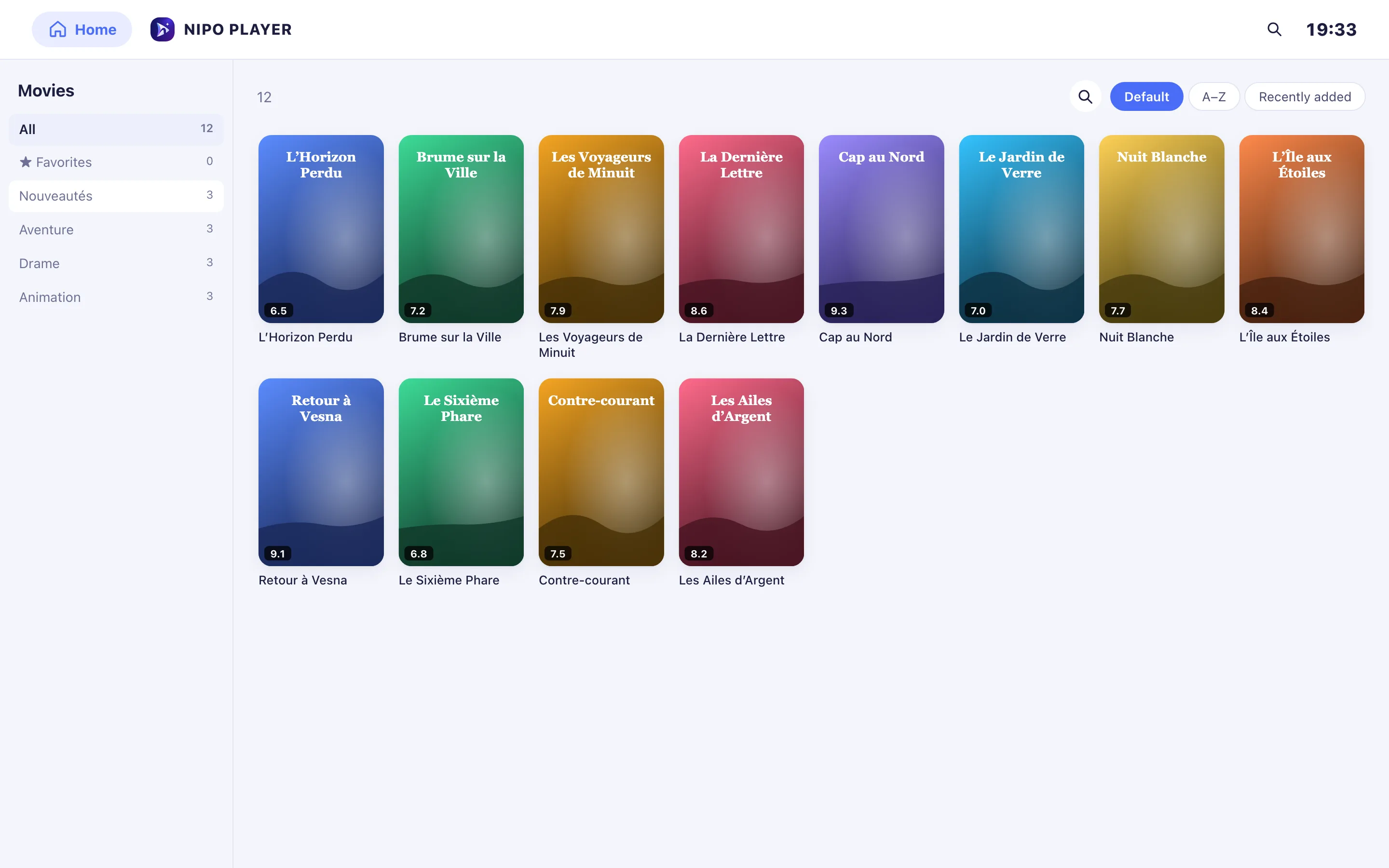
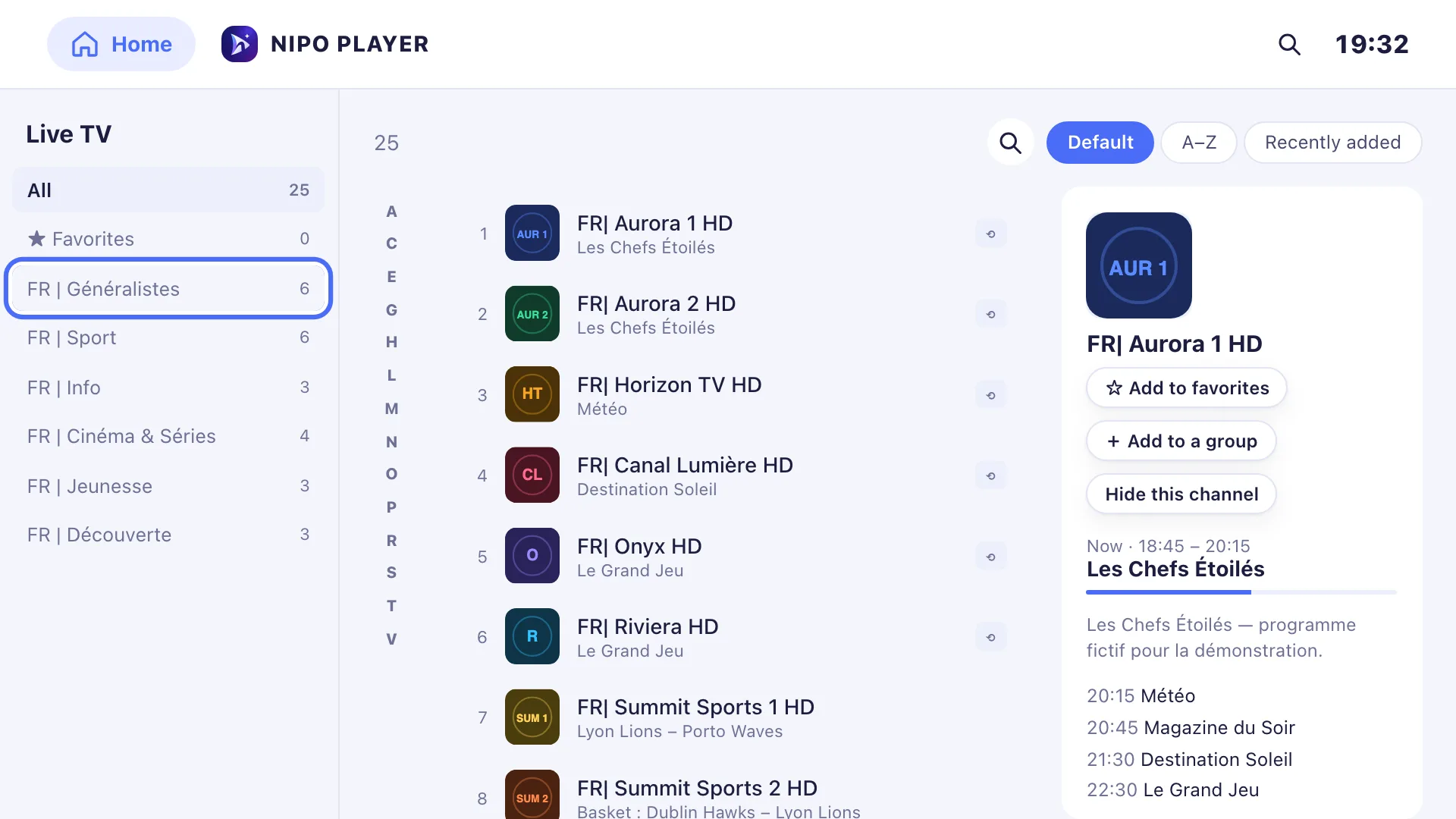
- no clear split between live TV, movies and series;
- no direct Xtream login (server, username, password);
- no resume or "watched" marks for series;
- a list of thousands of channels that's hard to browse.
If you watch on a computer regularly, an app built for television is far more comfortable.
What to expect from a player on a computer
It should behave like a computer app
A TV app simply "dropped" onto a computer is painful: you navigate with arrow keys, and copy and paste don't work. On a computer, you want the mouse, the keyboard, right-click and copy and paste in fields.
Nipo Player behaves like a real desktop app: on a Mac, Mac menus and shortcuts (Settings with ⌘, for example); on Windows, Windows ones (Settings with Ctrl+,). Copy and paste work everywhere, with a right-click Cut / Copy / Paste menu.
Keyboard shortcuts
In Nipo Player's player, a line reminds you of the available keyboard shortcuts. Elsewhere in the app: ⌘F or Ctrl+F for search, ⌘, or Ctrl+, for settings, ⌘[ or Alt+← to go back. A right-click on a channel or a poster opens the quick menu (favourite, hide, move). See Shortcuts.
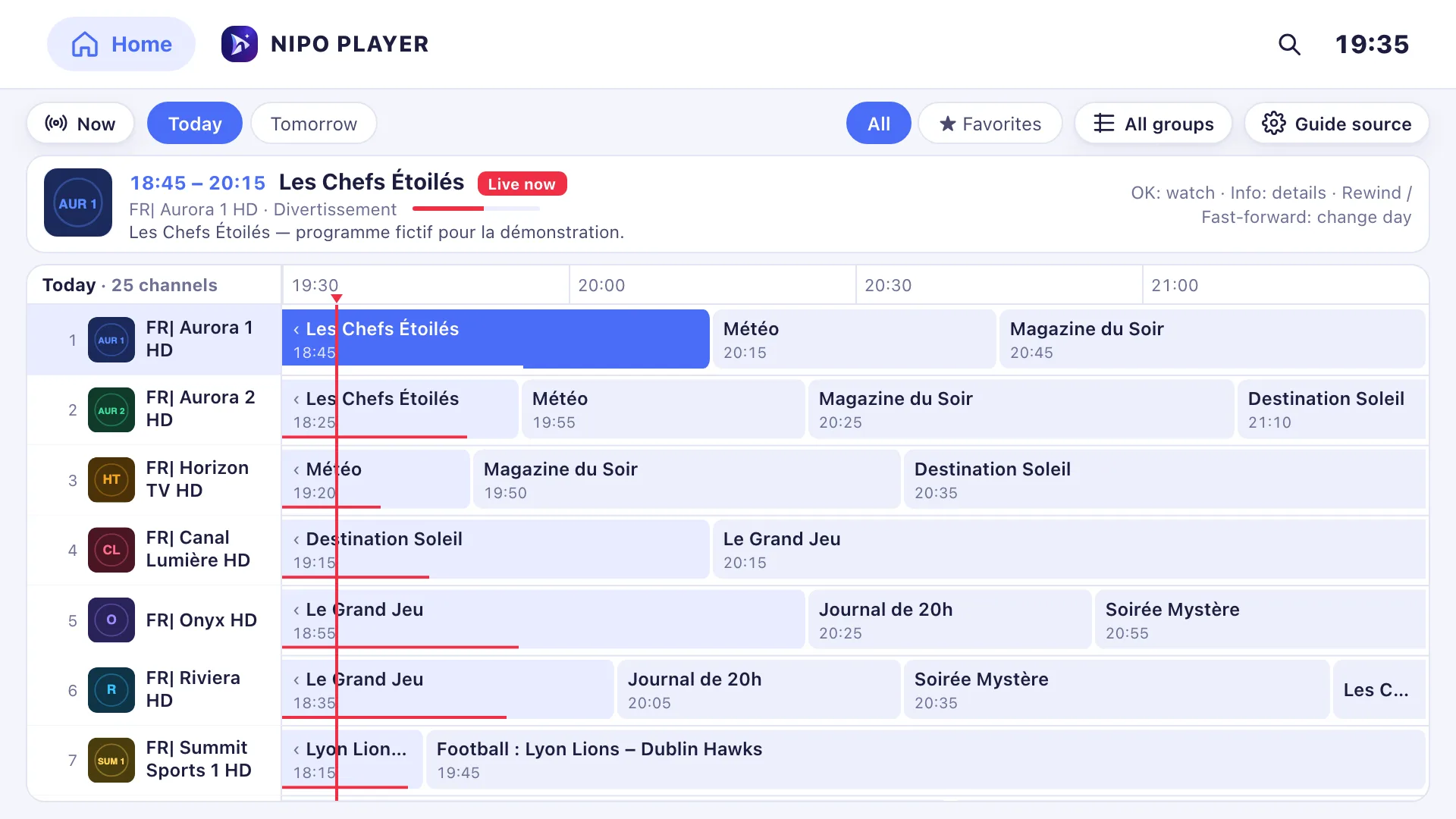
A real TV guide
A grid guide, easy to read on a big screen, with your own XMLTV link if your playlist has no guide. See the TV guide and add an XMLTV guide.
Recording
That's the computer's strength: it has room and stays on. With Nipo Premium, Nipo Player records a live programme, or a programme from the TV guide, to your disk. Note: a recording uses one of your account's connections, like a channel you're watching. See Recording.
Several channels at once
On a big computer screen, multiview makes sense: 2 or 4 channels side by side, in Premium. See Multiview.
Viewing comfort
On a computer, you often watch up close and for a long time. A few settings make the difference, and Nipo Player offers them for free:
- subtitle size, colour and background, and their delay if they come too early or too late;
- audio delay, when voices and pictures aren't in sync;
- a quality badge (for example FHD · H.264 · AAC) so you know what the channel really broadcasts;
- a sleep timer, followed by a "Still watching?" prompt.
See Subtitles and audio delay.
Other players on computers
Facts from official sites, checked 2026-09-29 (sources in our comparisons):
- Smarters Pro: its site offered a Windows and macOS version to download. See the comparison.
- IBO Player: Windows, macOS (Intel) and Linux (Debian/Ubuntu) versions; licence tied to the device, no refund after purchase. See the comparison.
- GSE Smart: its site lists the Mac among its platforms. See the comparison.
- TiviMate and UniPlayer: no computer version (Android TV for one, Apple TV, iPhone and iPad for the other).
Before you start
Three things are enough to watch on a computer:
- your playlist: an M3U link or an Xtream login (server, username, password);
- a stable connection: a network cable beats Wi-Fi if the router is close, especially in the evening when the home network is busy;
- free disk space if you plan to record: recordings are video files and take up a lot of room, so check the folder they go to.
Installing Nipo Player on a computer
Always download a player from the developer's official site or your system's store, never from a third-party download site: modified copies are around.
- On Windows: the Windows page shows how to install it and which versions are supported.
- On a Mac: the Mac page does the same.
On first launch, add your playlist: on a computer, the Xtream login comes first, and you can simply paste the link or the credentials. See add an Xtream login.
One app for all your screens
The point of having the same player on the computer and the TV: you get the same interface and the same settings, and with Nipo Family, one purchase covers up to 5 screens, computers included. The free player works with no account and no ads. See Pricing.
Frequently asked questions
Can I watch my playlist in a web browser?
Some sites offer it, but browsers play many stream formats poorly. An installed app is more reliable.
Does recording work on Mac and Windows?
Yes, with Nipo Premium: on computers and on Android TV. Samsung and LG TVs don't allow recording.
Does Nipo Player supply channels on a computer?
No. Nipo Player supplies, sells and hosts no channel and no playlist, on any device.
My player won't play a channel: what should I do?
Try the same link in VLC. If it doesn't work there either, the problem comes from the playlist's server. Otherwise, see Windows issues or Mac issues.
Read more
Updated on 29 September 2026
Contact supportRead next
 Getting started
Add a TV guide (XMLTV) to your playlist
If your playlist's guide is incomplete, paste a separate XMLTV guide link in the guide settings: Nipo Player matches it to your channels by their ID.
29 September 2026 · 3 min read
 Devices
Best M3U player for LG TV
Which player for an LG TV (webOS)? LG Content Store, Magic Remote, price per TV or per home, refunds: the options compared, with sourced facts about each.
29 September 2026 · 5 min read
- Devices
Best M3U player for Samsung TV
Which player for a Samsung TV (Tizen)? Installing, sound, price per TV or per home, refunds: the options compared, with sourced facts about each player.
29 September 2026 · 5 min read
Try Nipo Player on your TV
The player is free on TV, phone and computer. You add your own playlist.