
How do I adjust subtitles and audio delay?
In the player, open "Audio, subtitles & format" (▶ on live, ▼ on VOD) to set subtitle size, colour and delay, and the audio delay.
Nipo doesn’t provide, sell or host any channel, movie or playlist: it plays what you already own.
These settings live inside the player itself, not in general Settings, because they depend on what's currently playing.
Step by step, with pictures
- 01
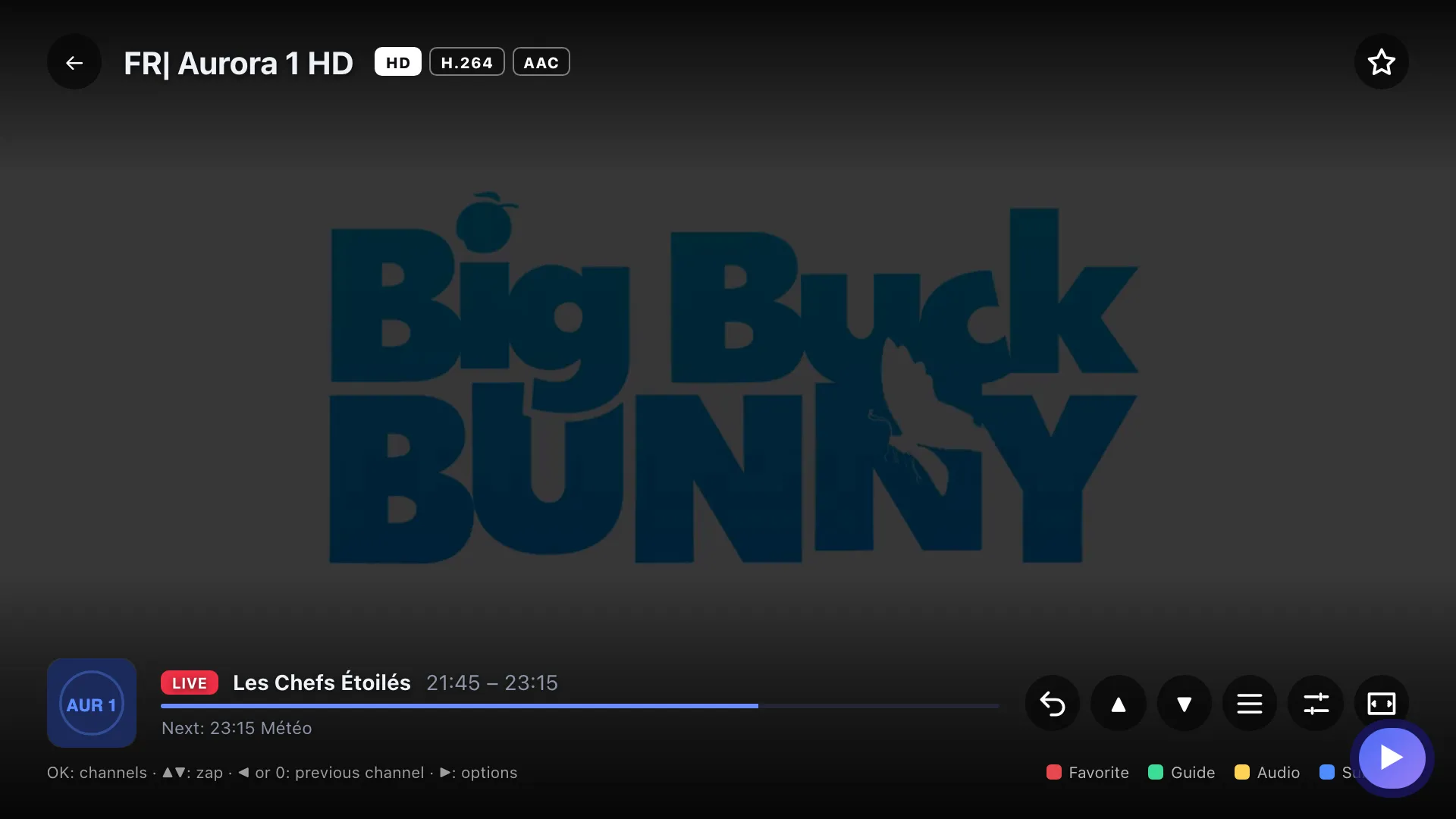
In the player, open the Audio, subtitles & format panel with ▶ (▼ for a movie or series). Key ▶
- 02
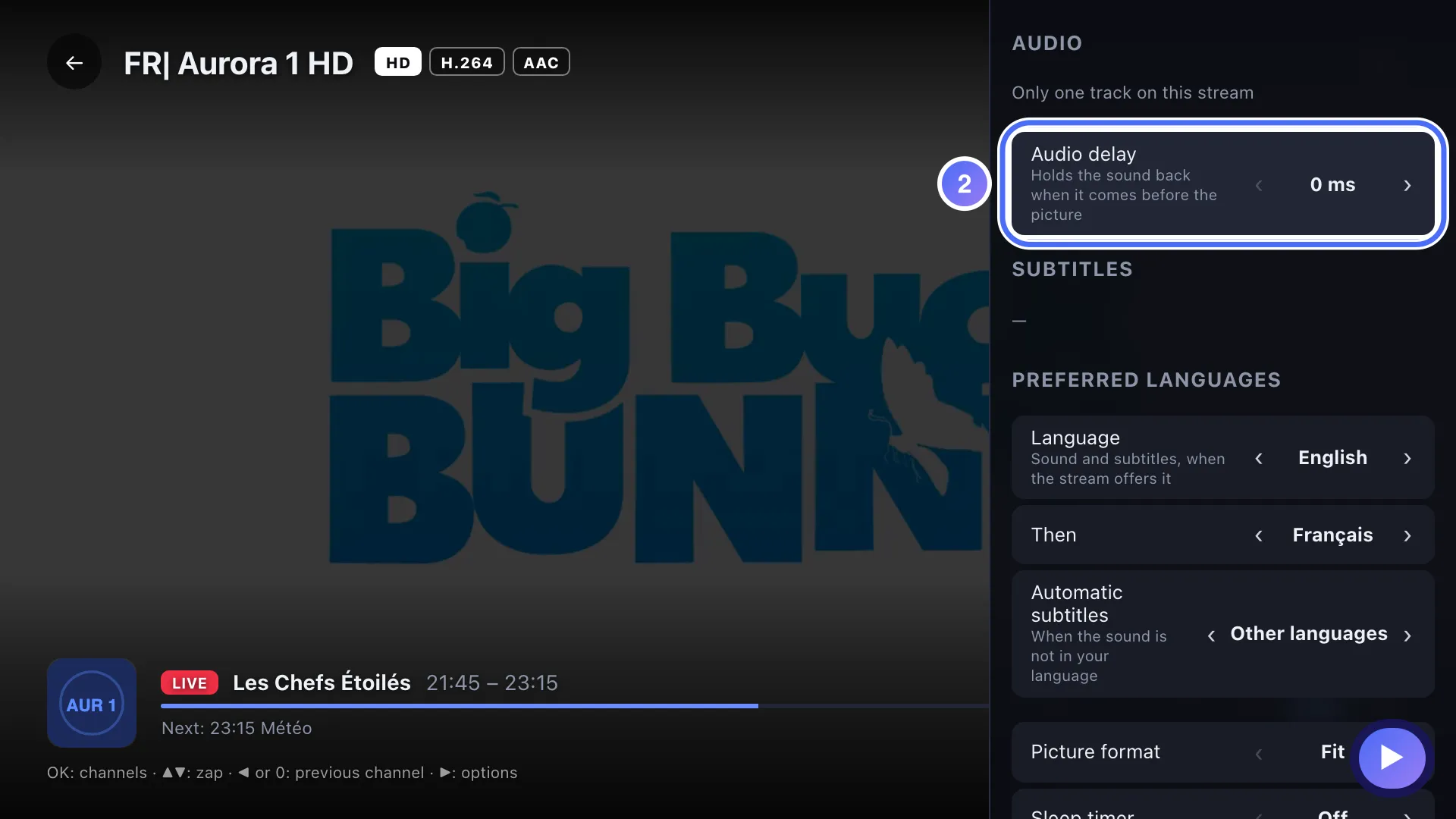
On Audio delay, use ◀ ▶ to adjust if the sound arrives before or after the picture. Key ▶
- 03
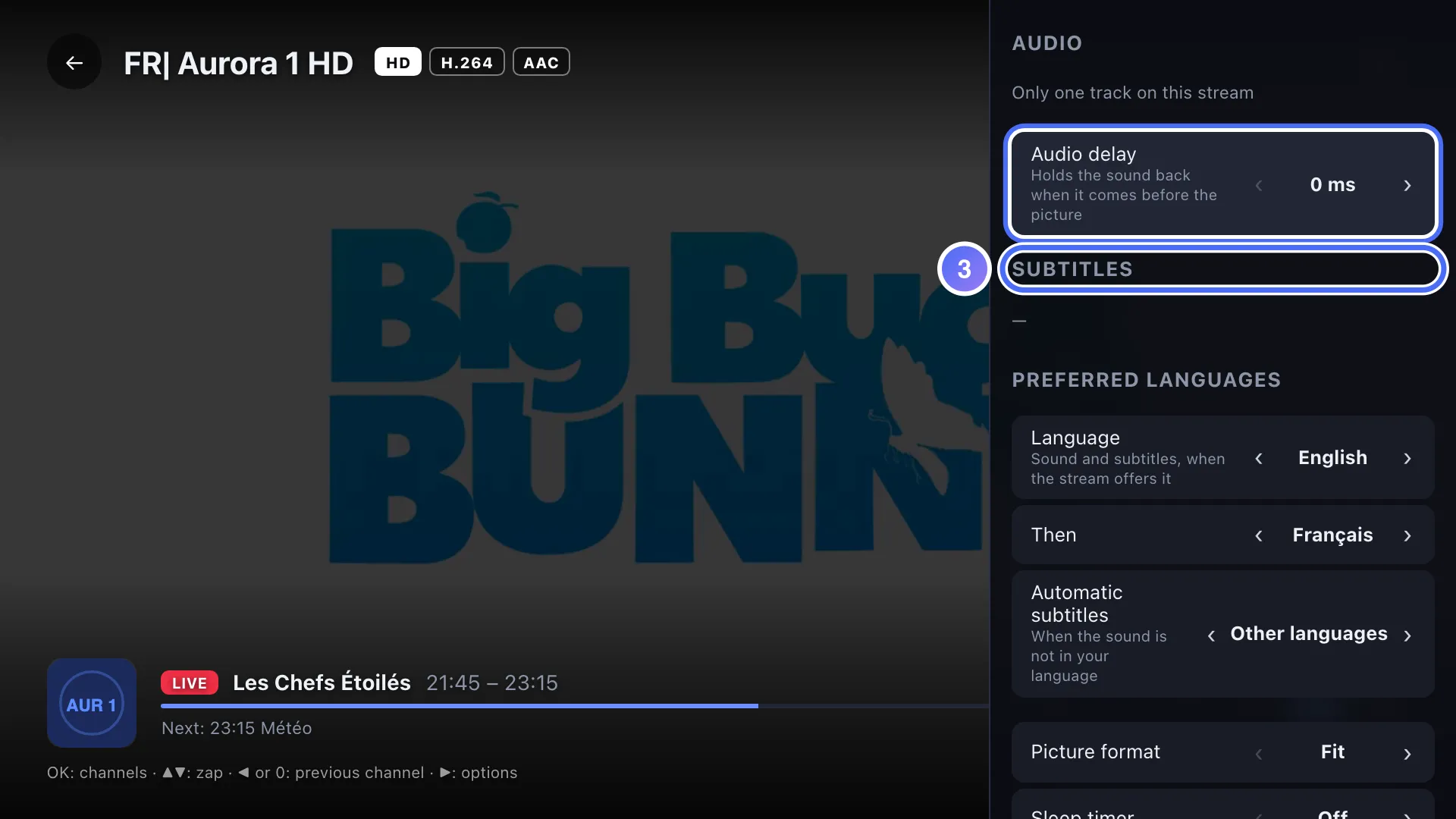
The Subtitles section, just above it, sets the track and then their size, colour, background and delay as soon as a track is available.
- 01
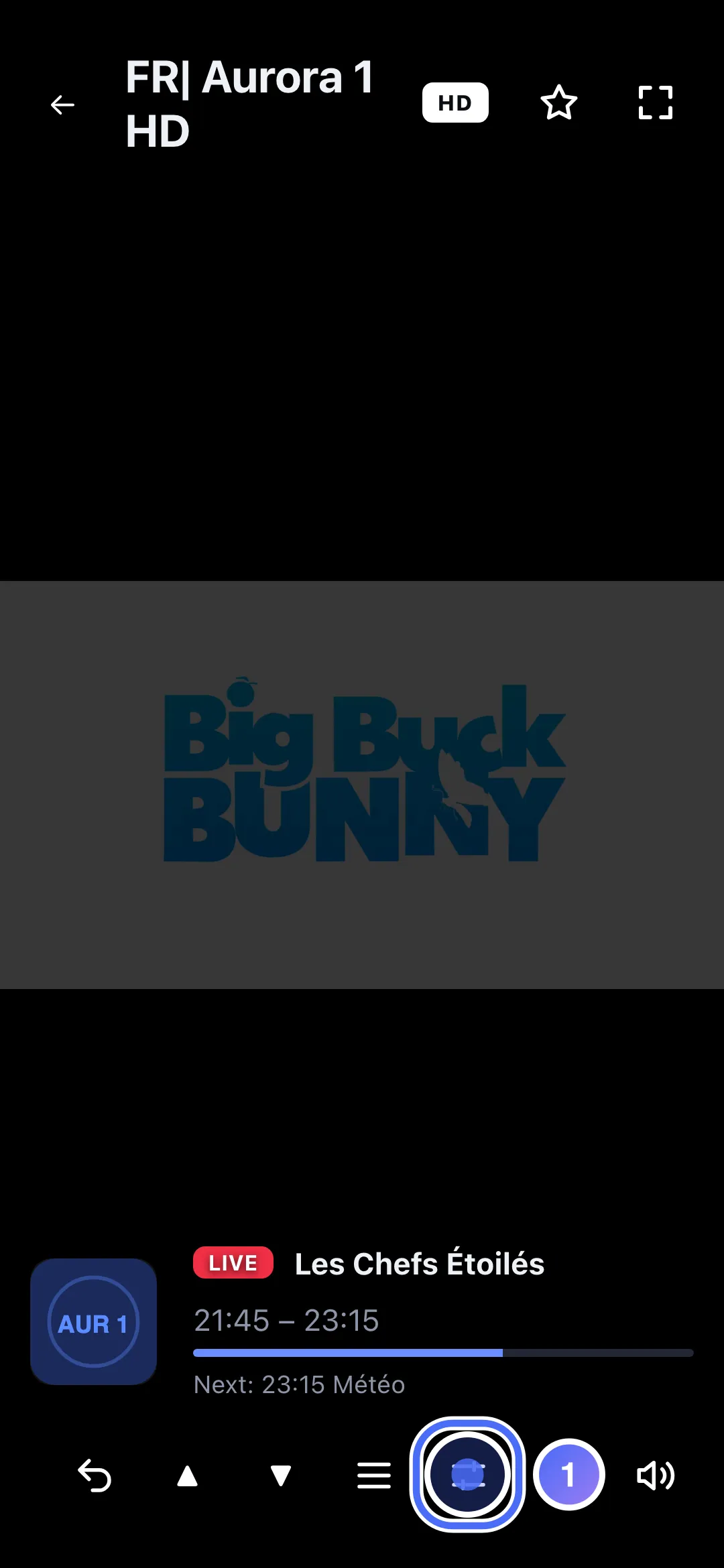
In the player, tap the “Audio, subtitles & format” icon.
- 02
Choose subtitle size, colour and background, and adjust their delay if needed.
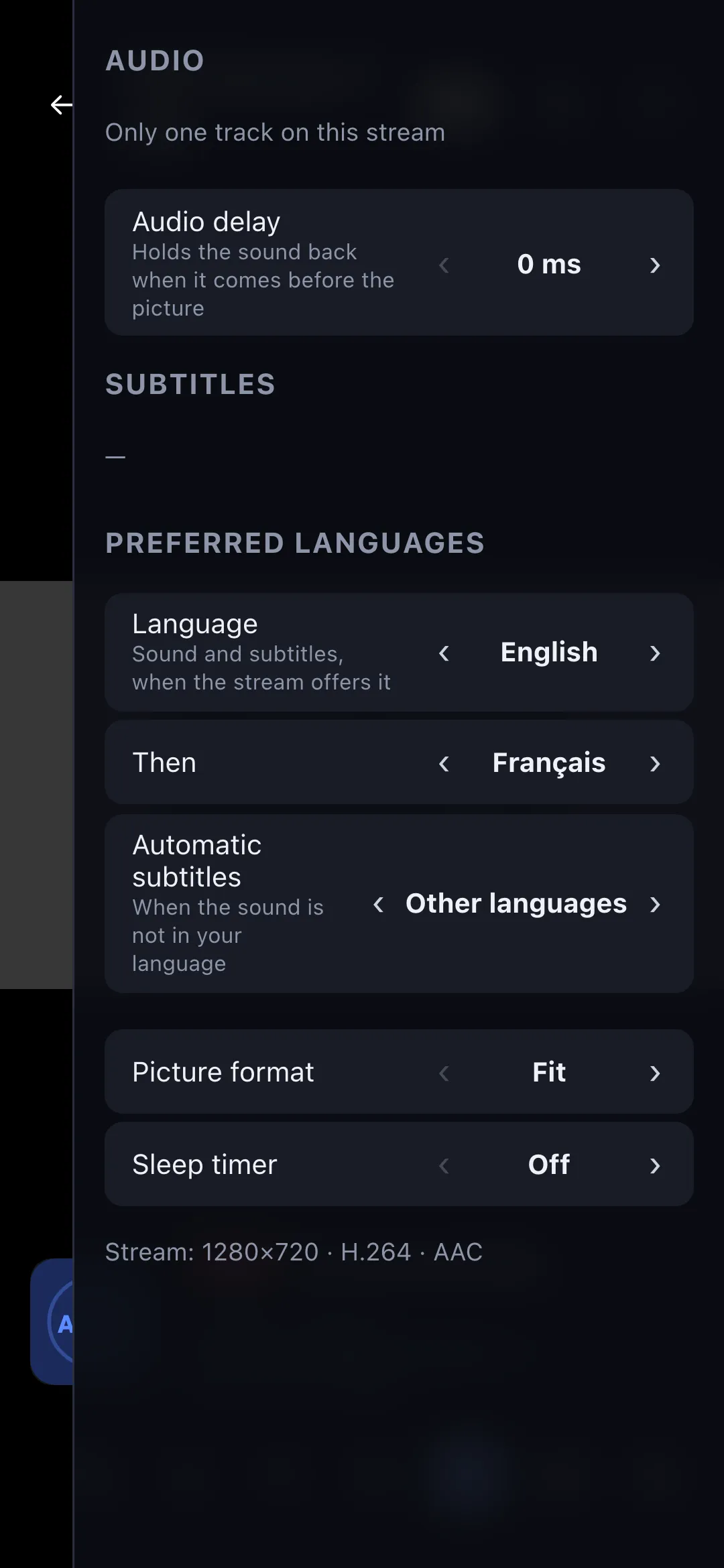
- 01
In the player, click the “Audio, subtitles & format” icon.
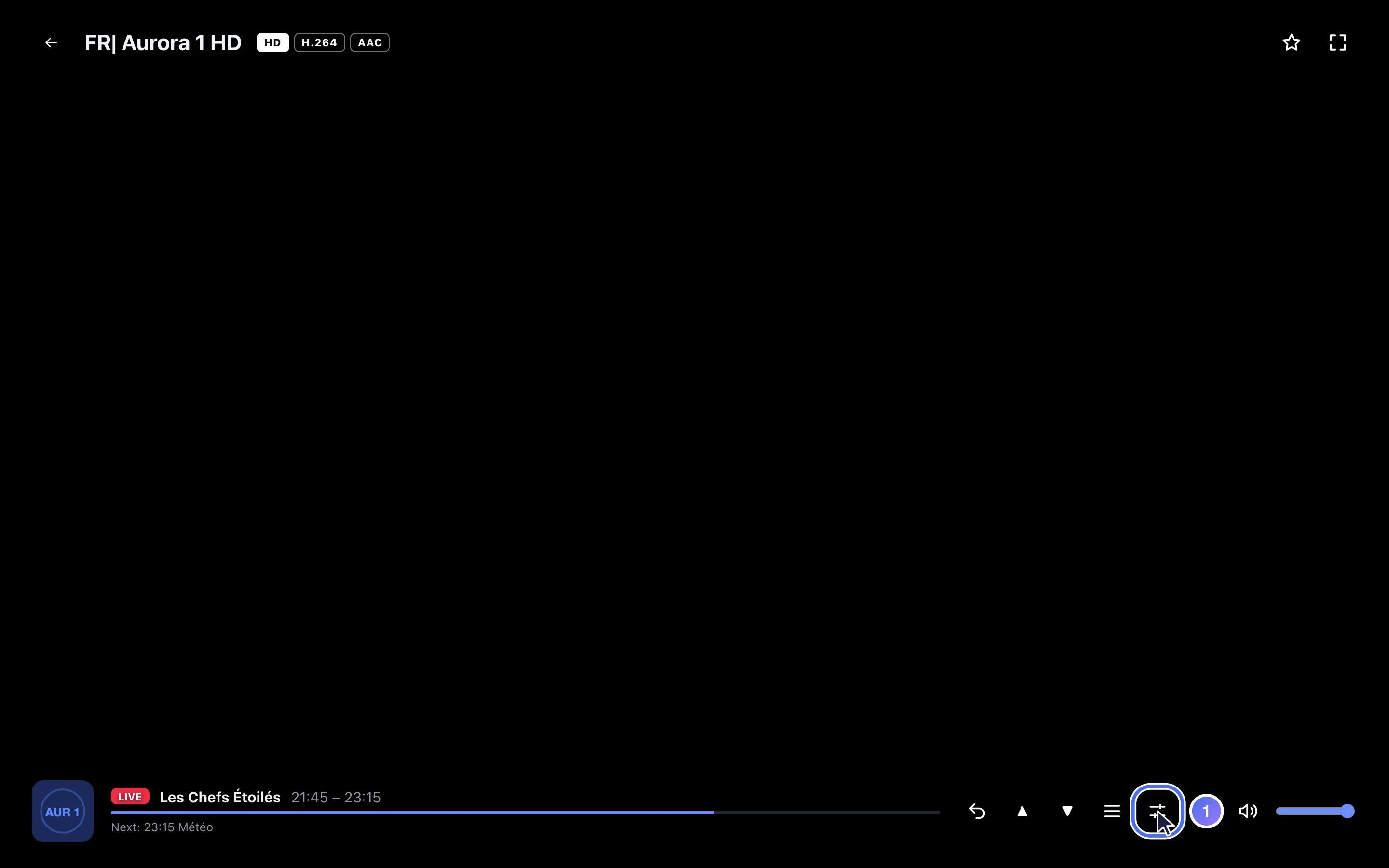
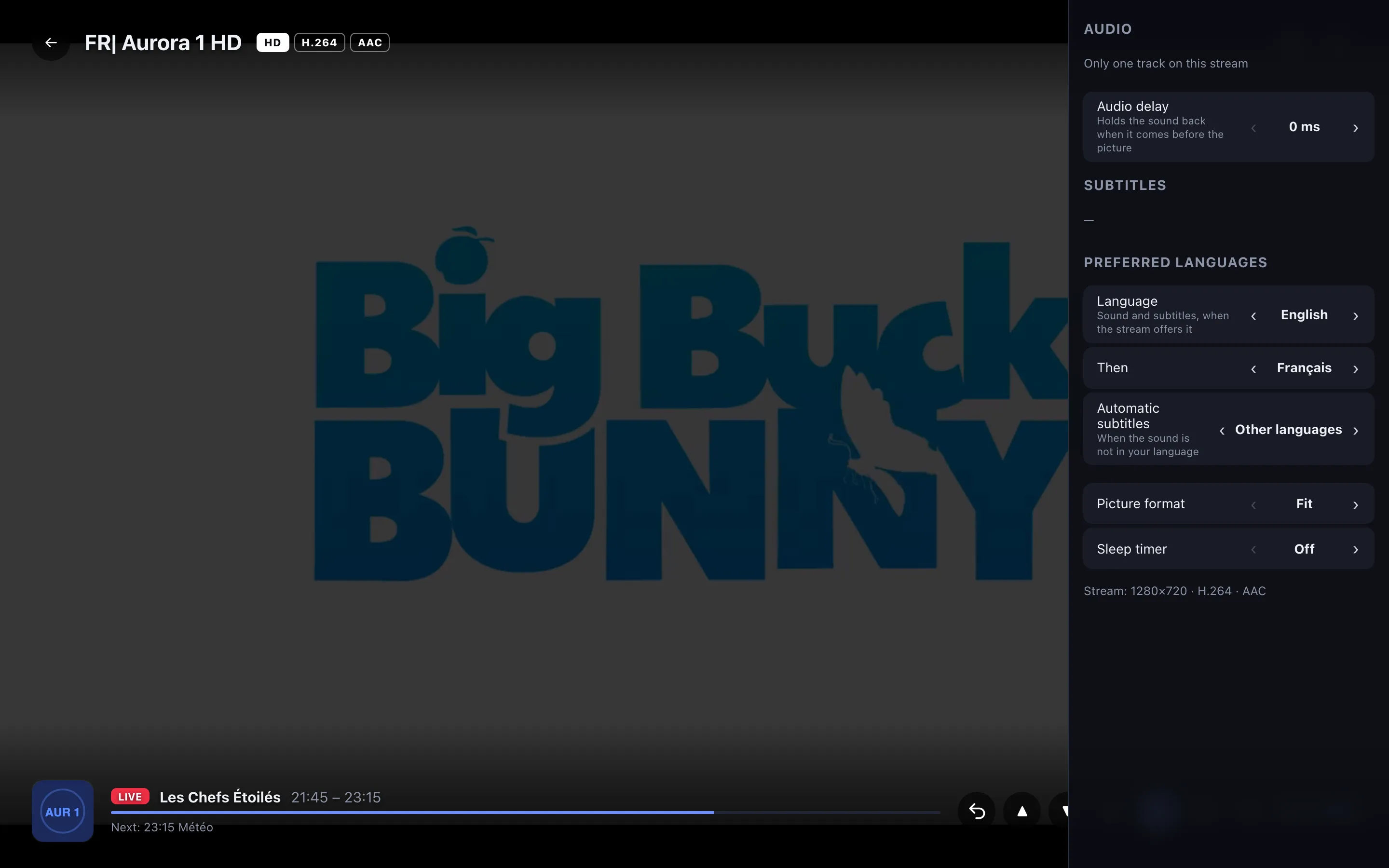
- 02
The panel groups the audio track, subtitles (when the channel has them) and the format.
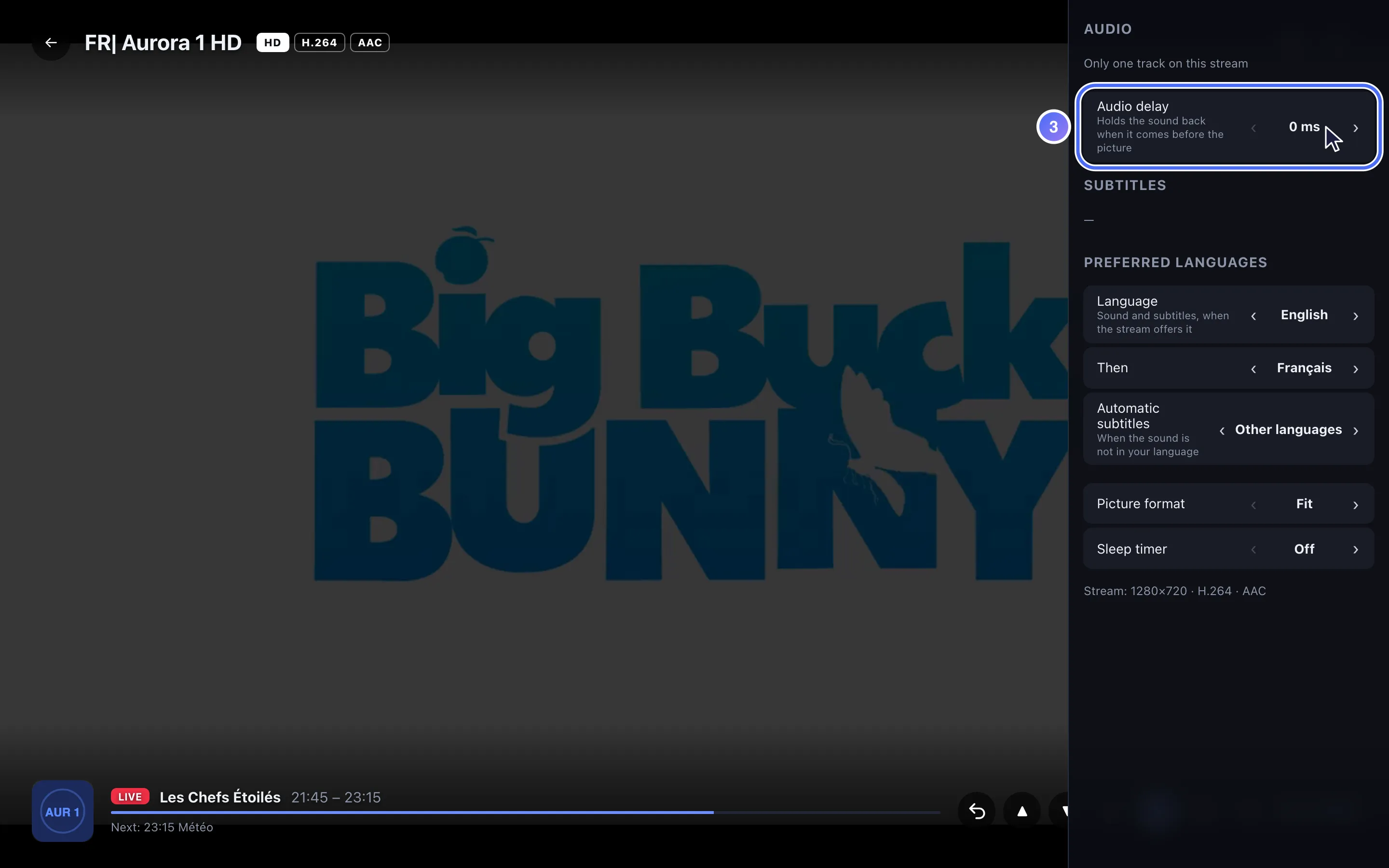
- 03
On a computer, “Audio delay” corrects sound that arrives before the picture.
Steps
- During playback, open the Audio, subtitles & format panel (▶ on live, ▼ on VOD, or the on-screen settings icon).
- Under Subtitle style, choose the size (Small to Extra large), colour and background (Outline or Dark band).
- Adjust Subtitle delay if the text runs ahead of or behind the picture.
- Adjust Audio delay if the sound arrives before the picture.
Tip
On native devices (Android, Fire TV, Android TV…) audio delay ranges from −2 to +2 seconds; on the web, only the desktop browser offers it. On each delay, pressing OK resets it straight to 0. Nipo Player also remembers the audio track and picture format you picked for the last 300 channels watched.
Updated on 28 September 2026
Did this article help you?
Can’t find the answer?
Write to us: we answer about the app and how it works. We can’t recommend a playlist.