
How do I watch live TV and change channels?
Open "Live TV" from Home. With a remote, OK opens the channel list and ▲▼ zap between channels; number keys jump straight to one.
Nipo doesn’t provide, sell or host any channel, movie or playlist: it plays what you already own.
Nipo Player is built to be used with a remote, without opening a menu for every channel.
Step by step, with pictures
- 01
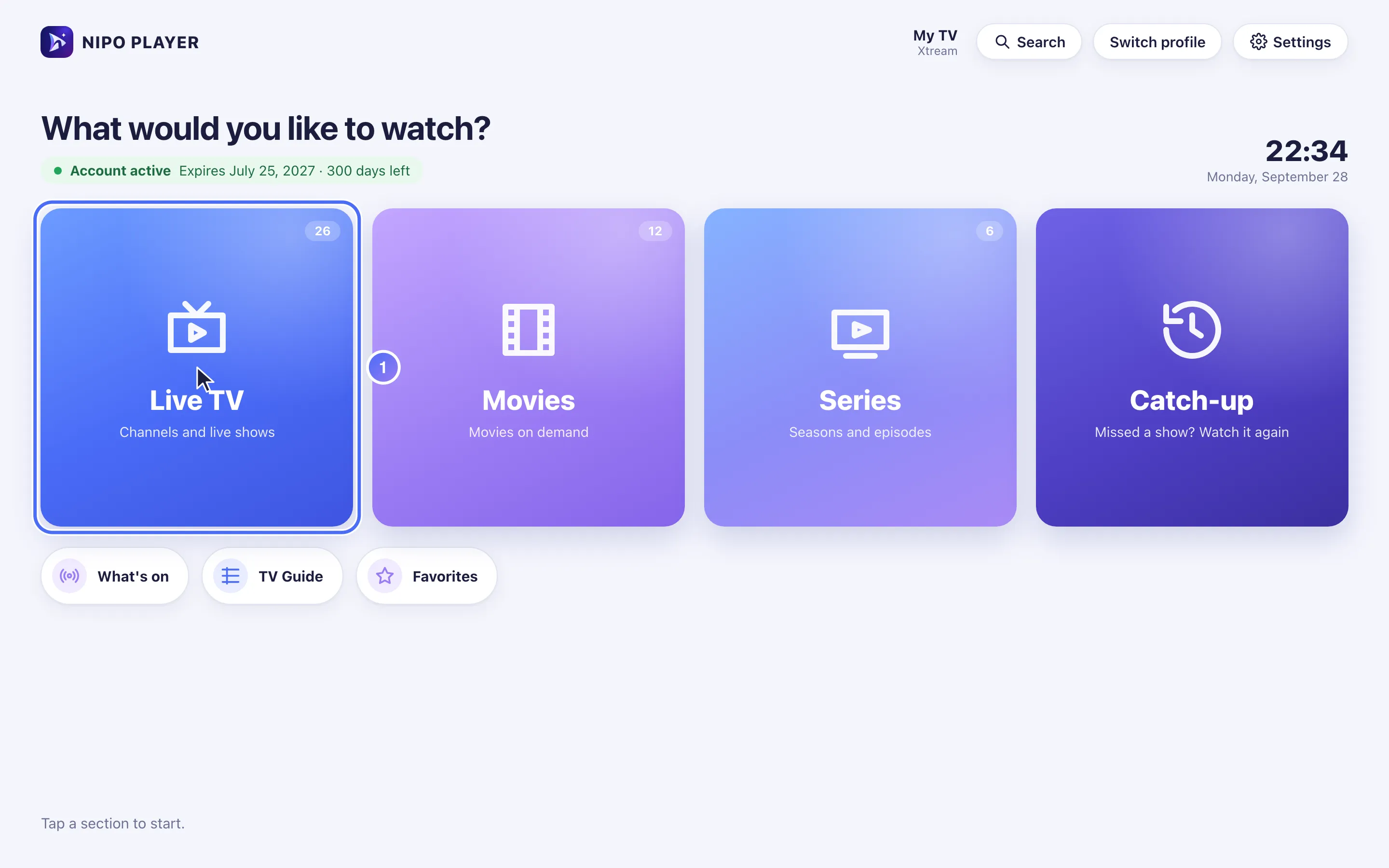
From Home, go to the Live TV door and press OK. Key OK
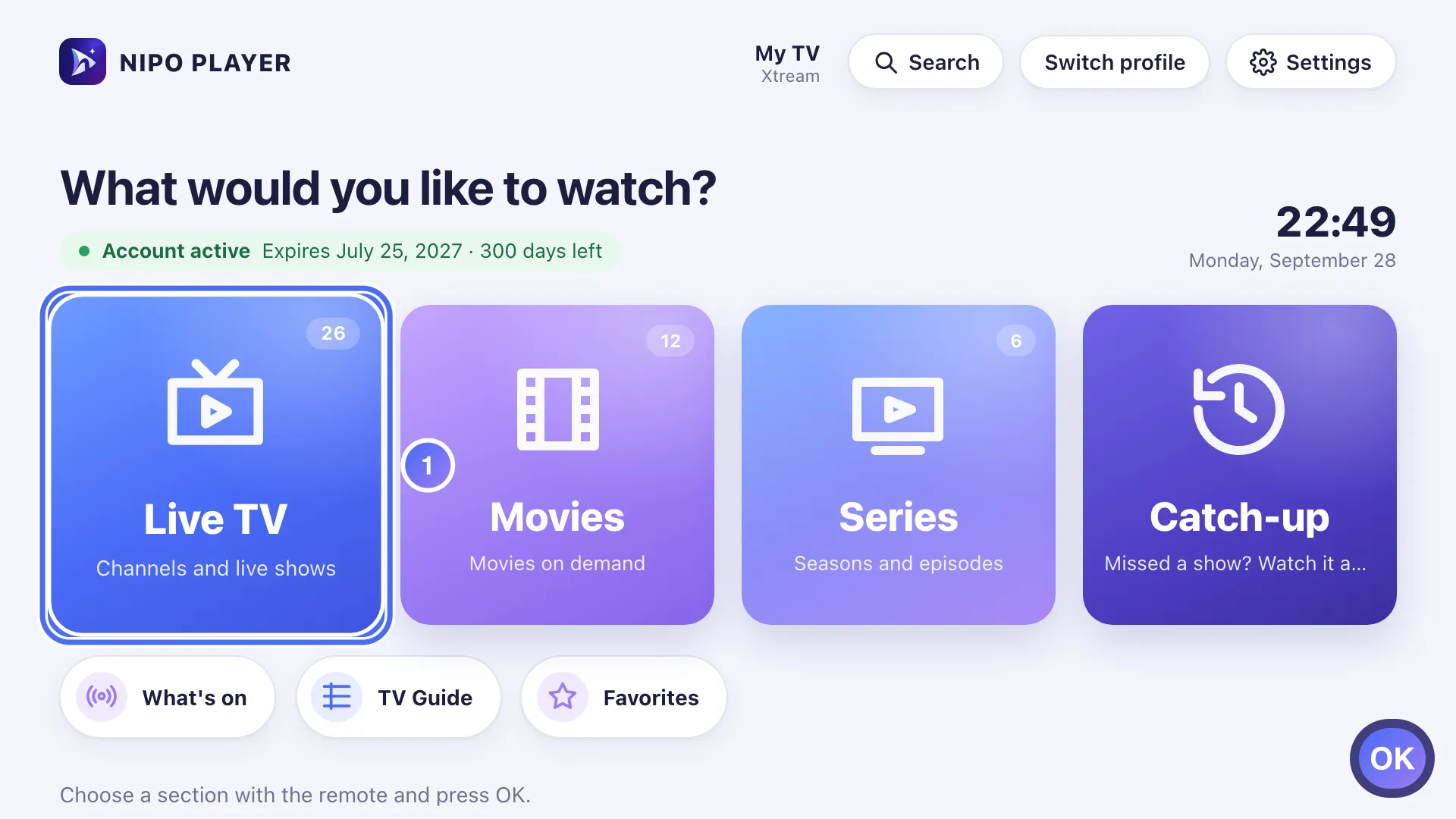
- 02
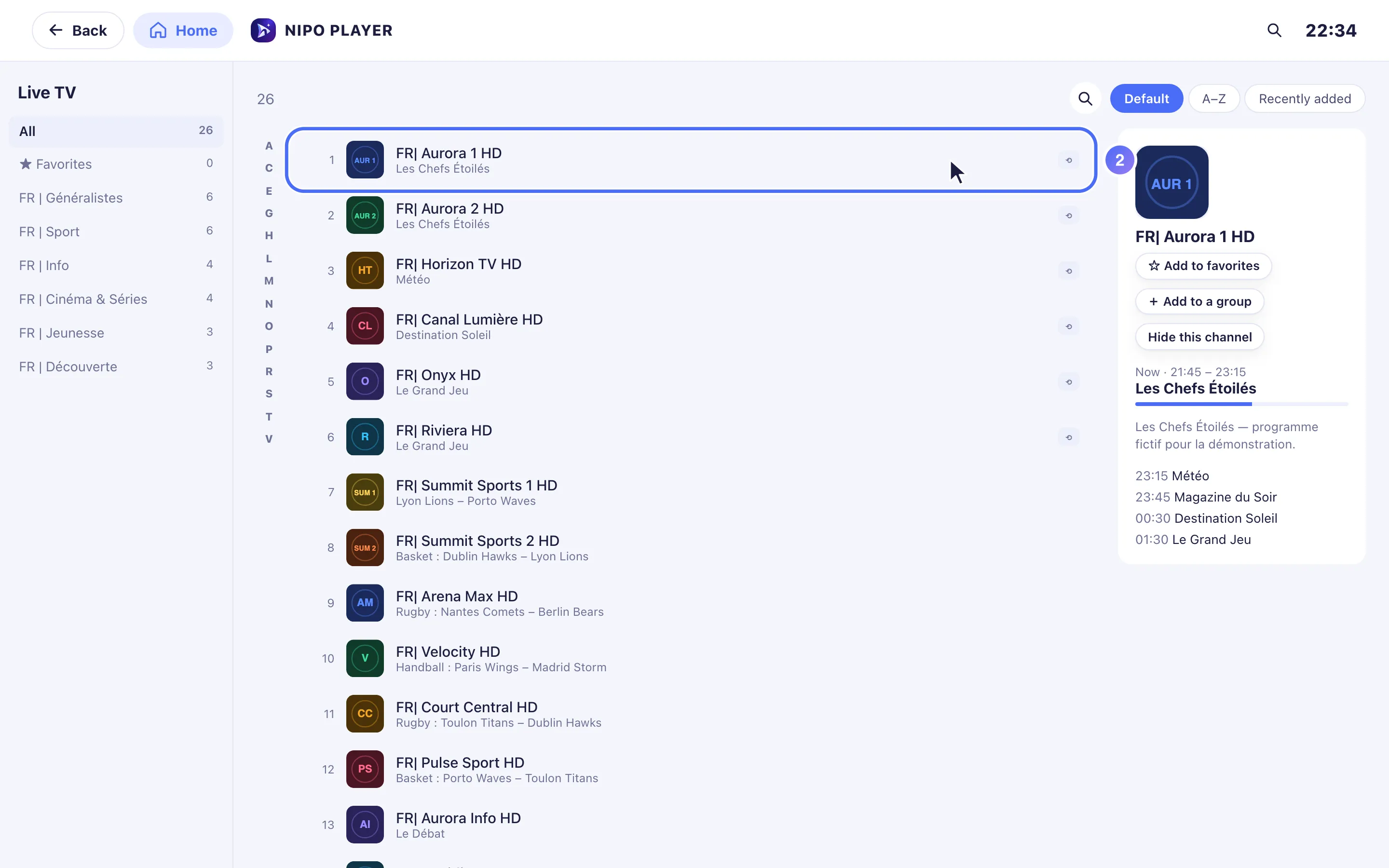
Choose a channel and press OK to watch it. Key OK
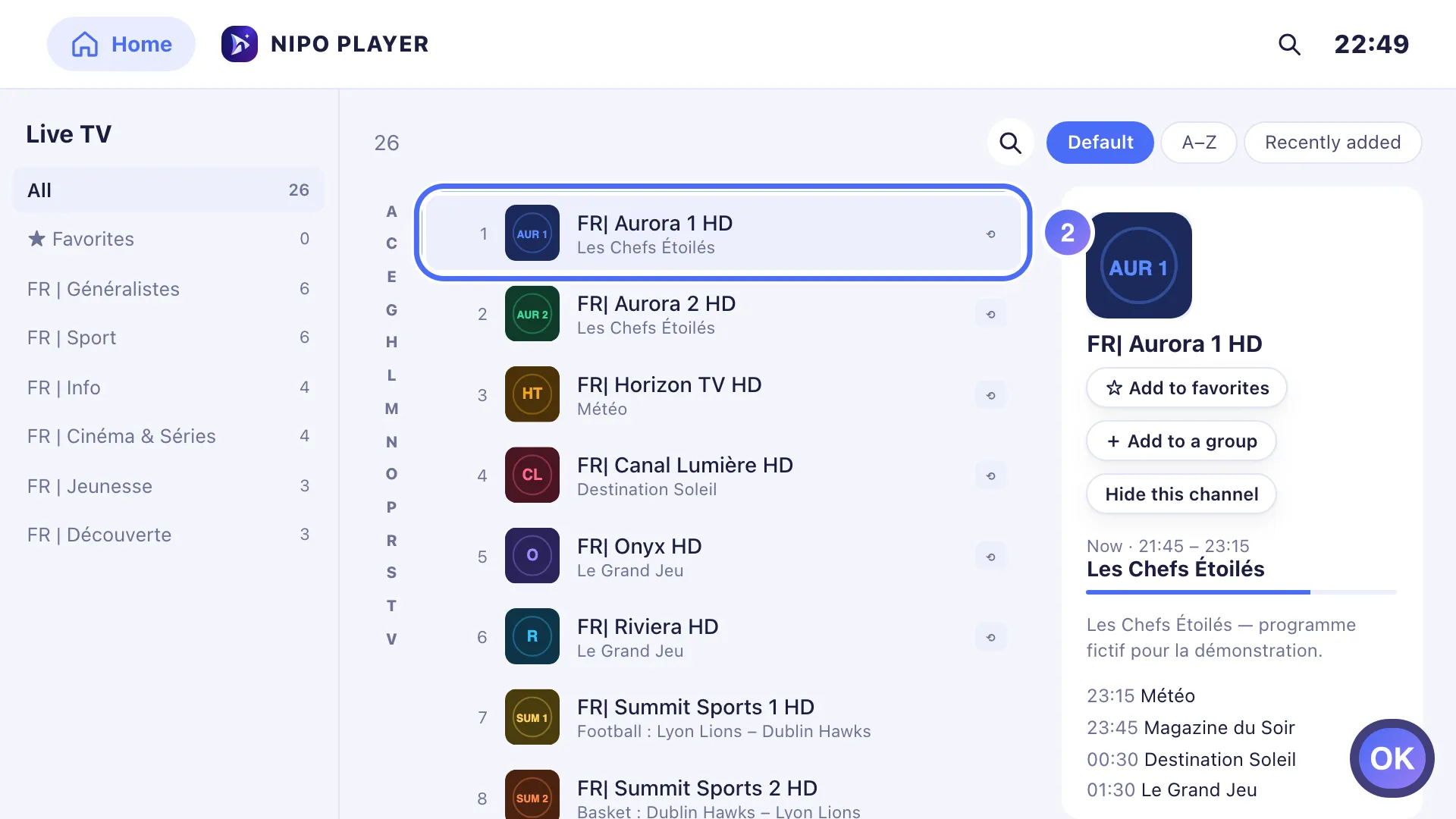
- 03
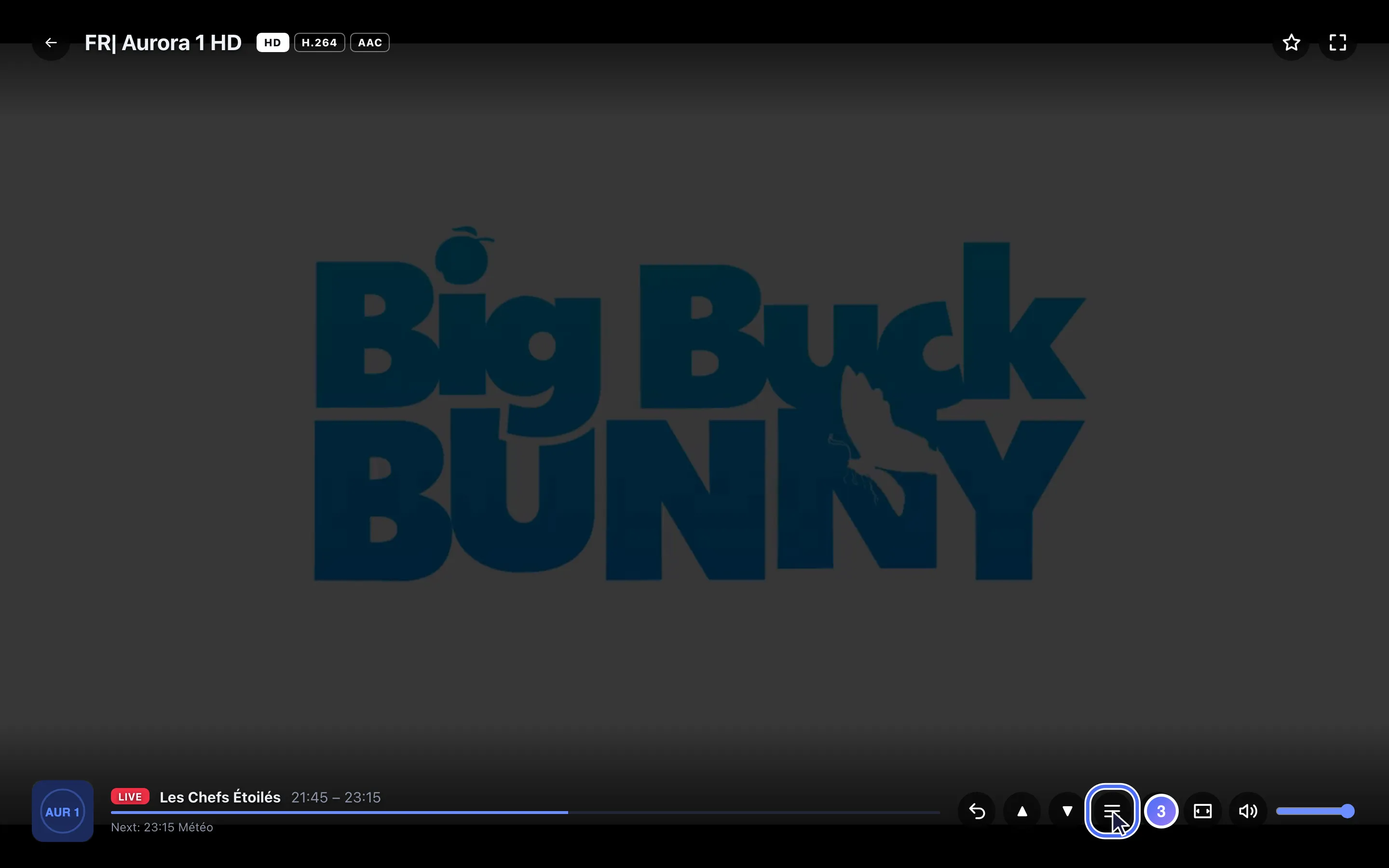
In the player, press ▲ ▼ to zap to the next or previous channel. Key ▼
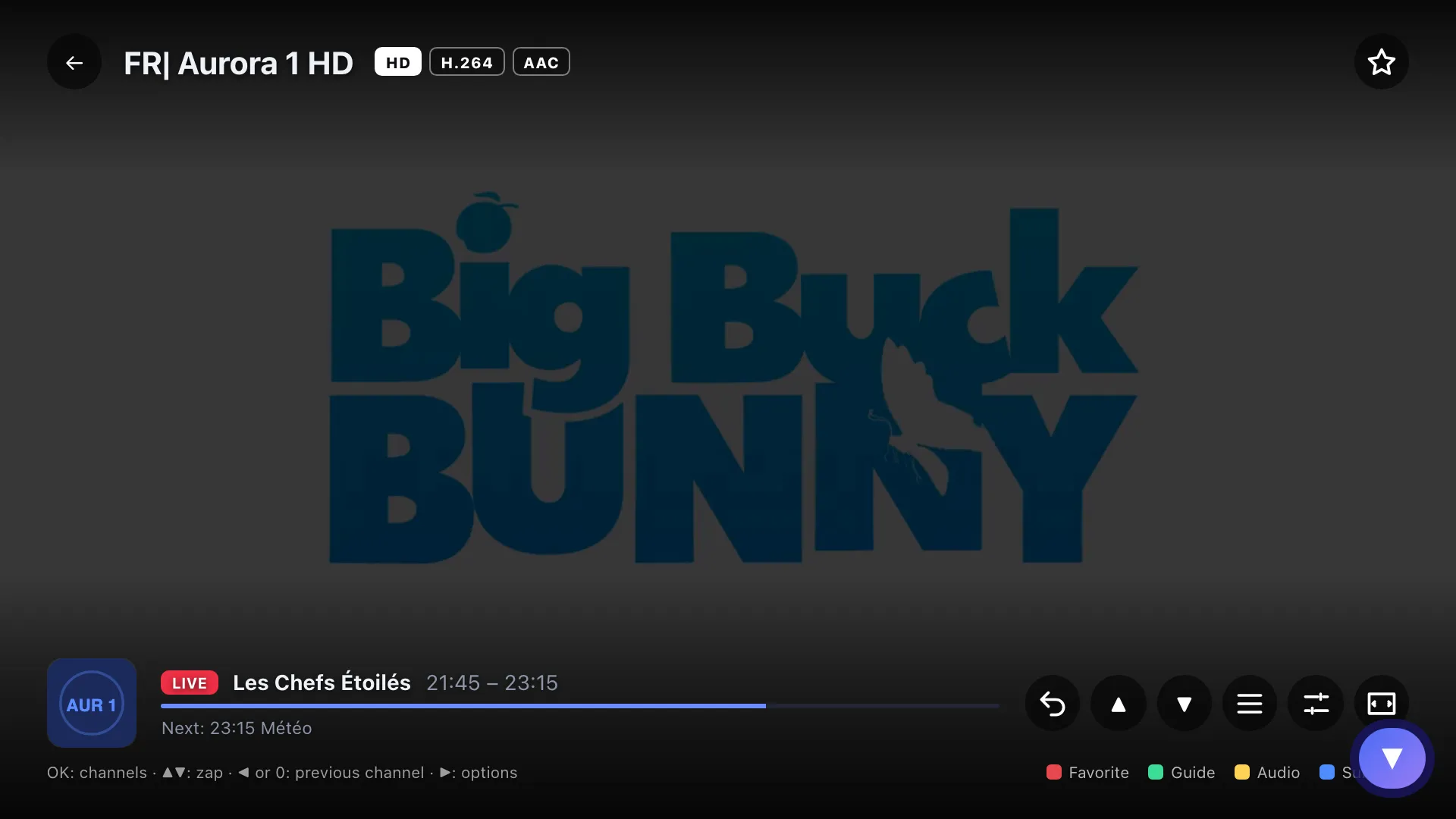
- 04
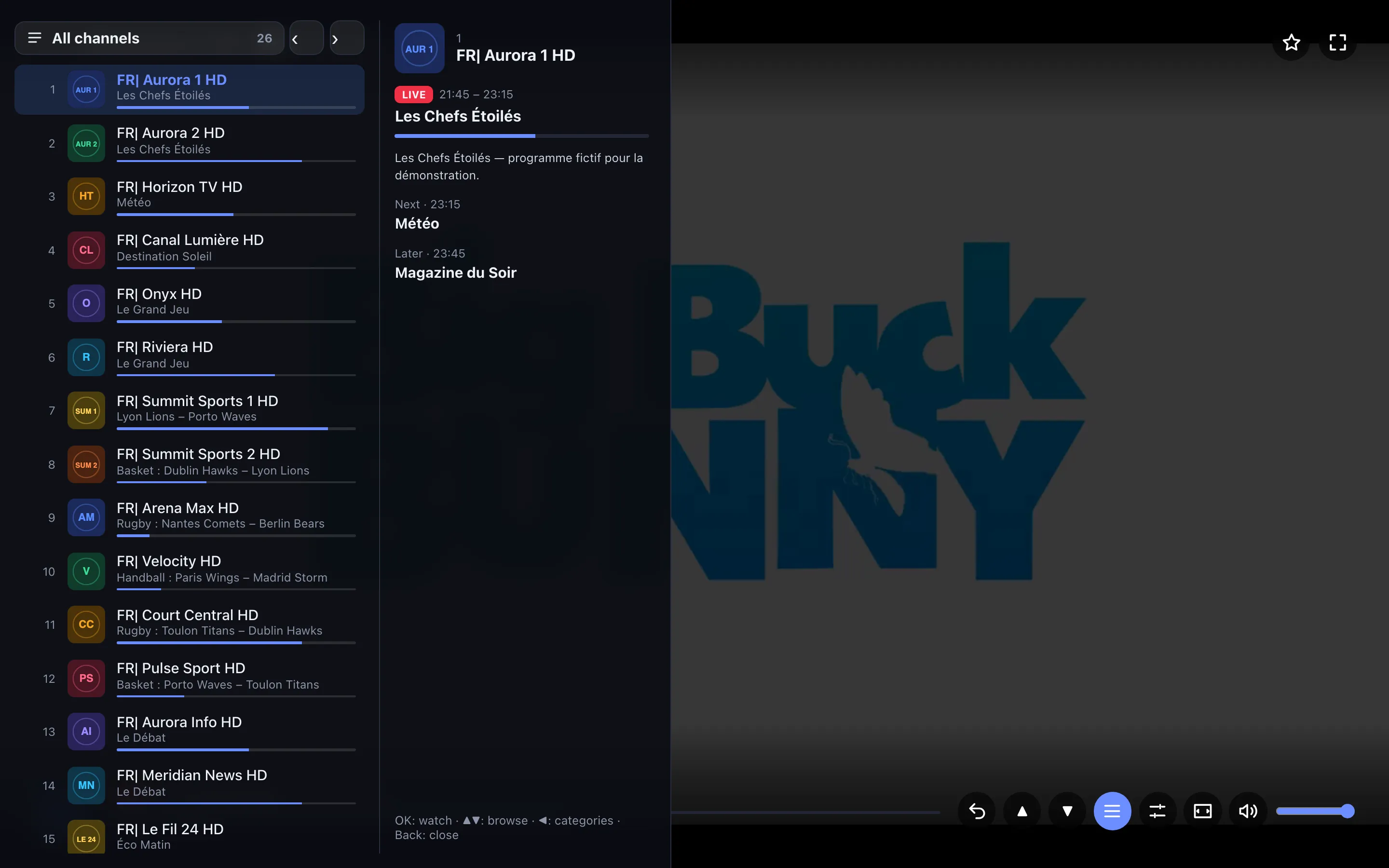
OK opens the channel list to pick one directly. Key OK
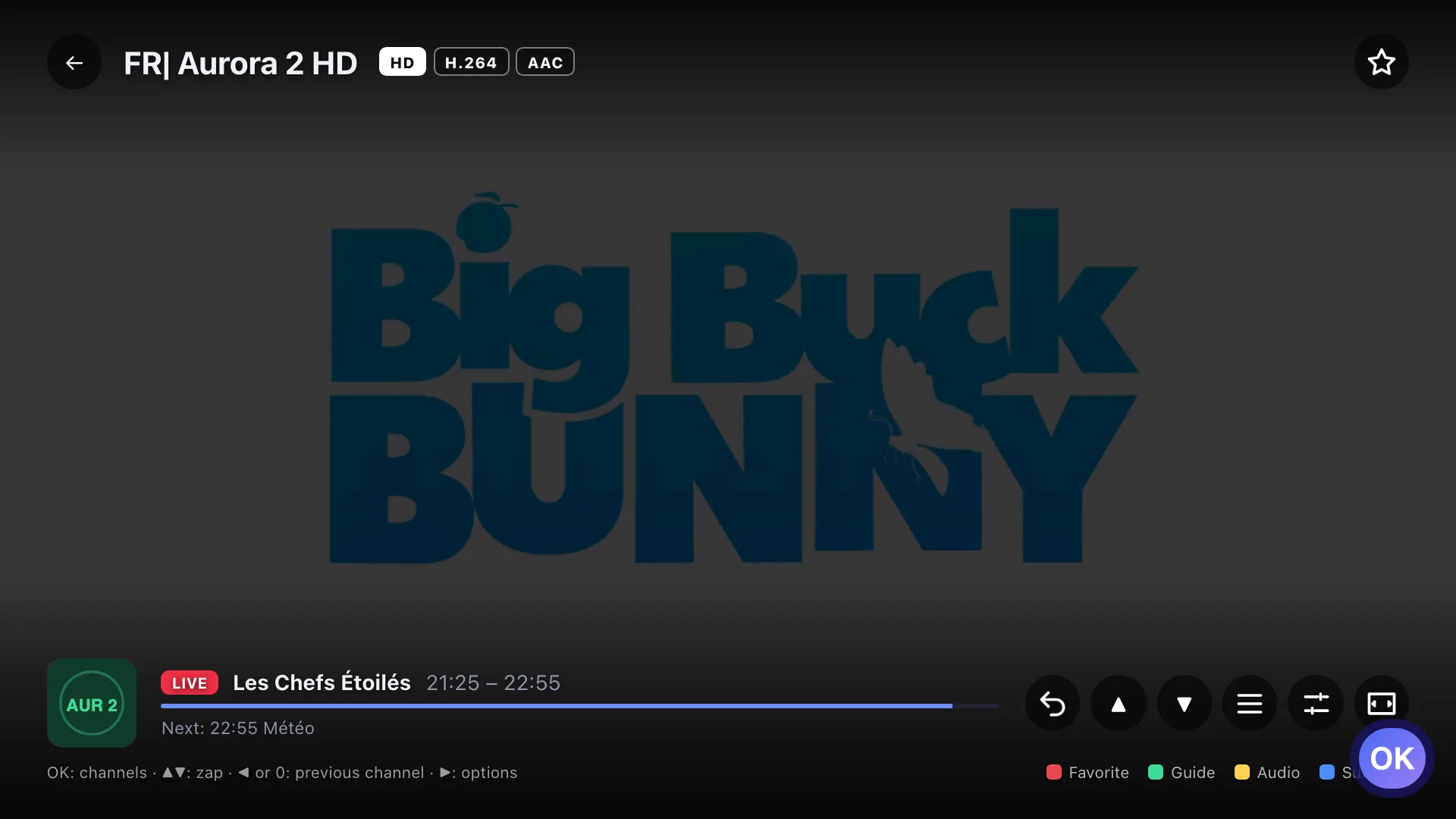
- 01
From Home, tap “Live TV”.
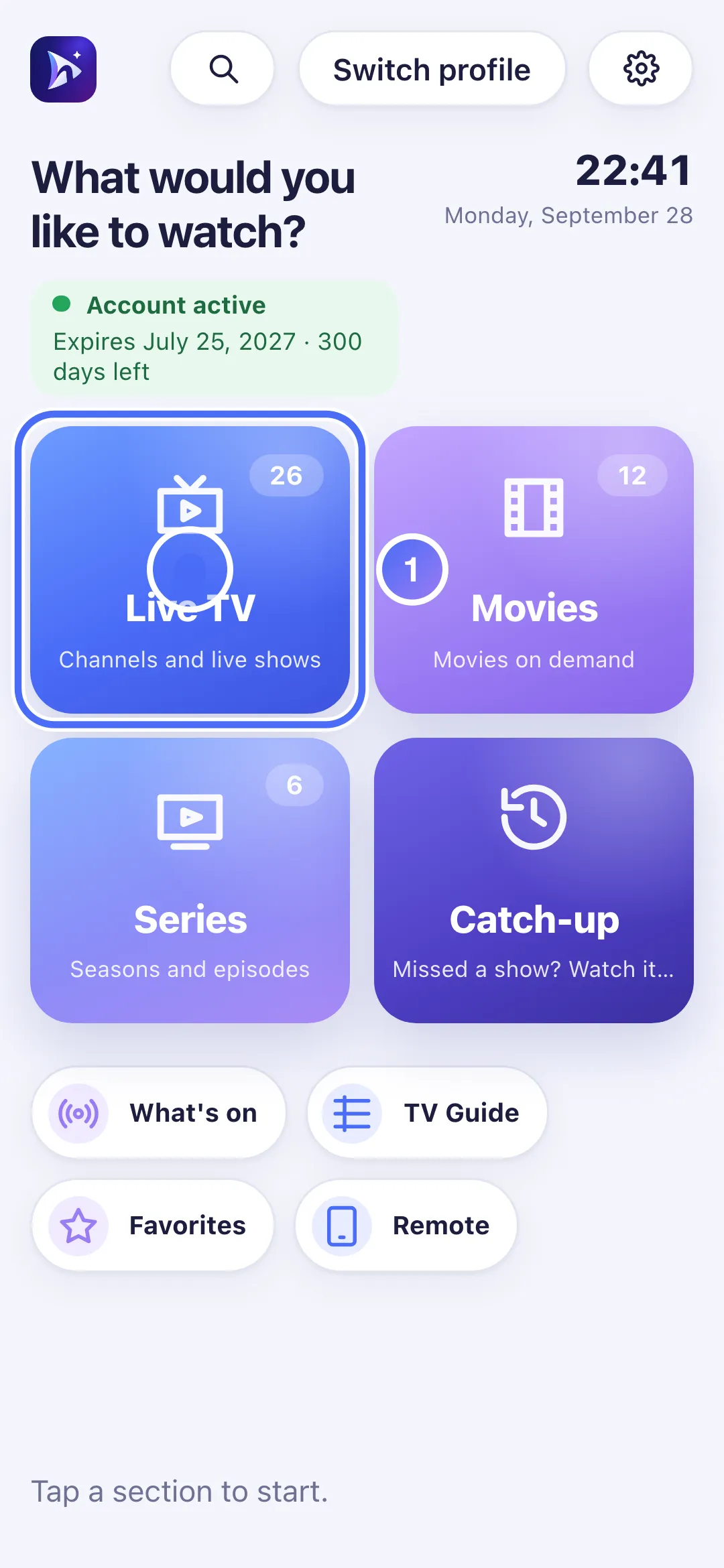
- 02
Tap a channel to watch it.
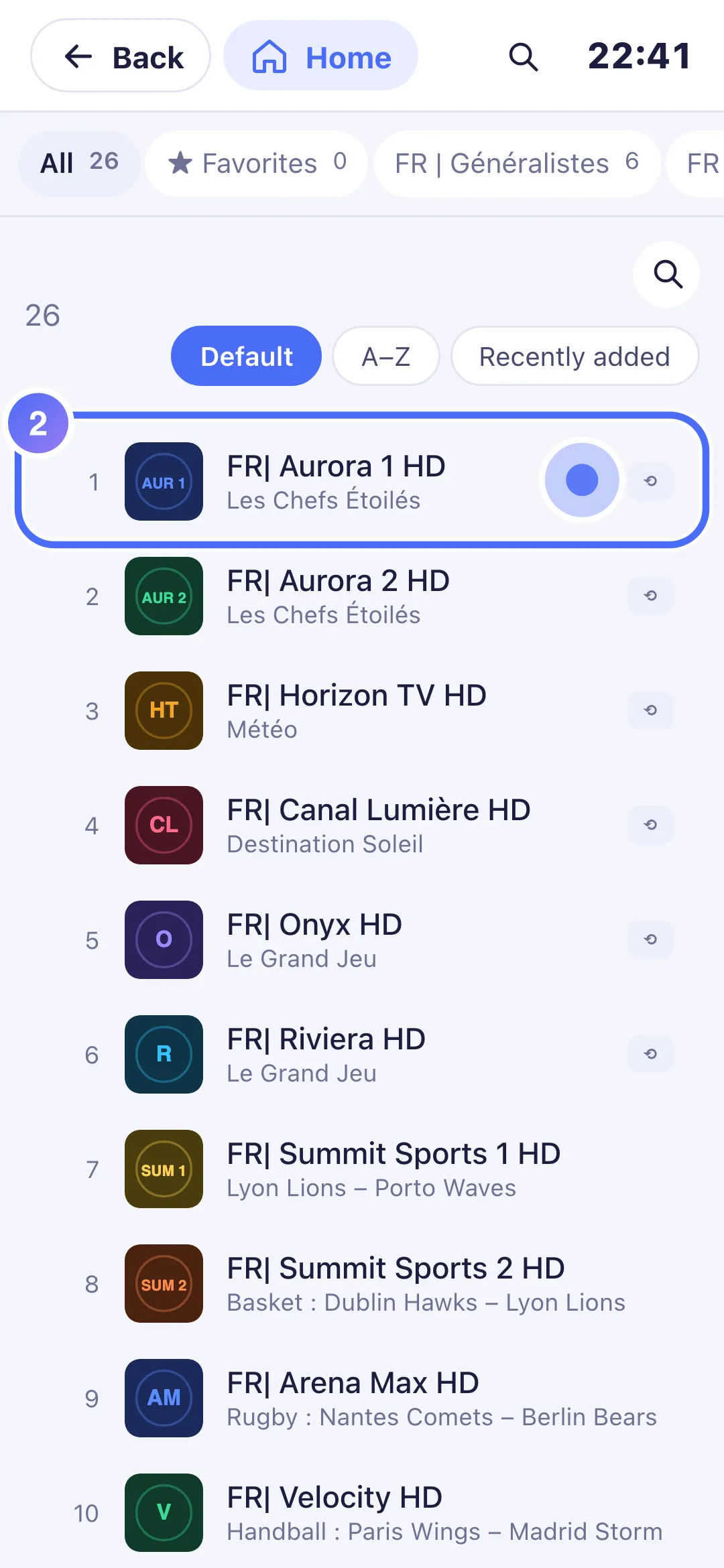
- 03
In the player, tap the “Channels” icon to change channels.
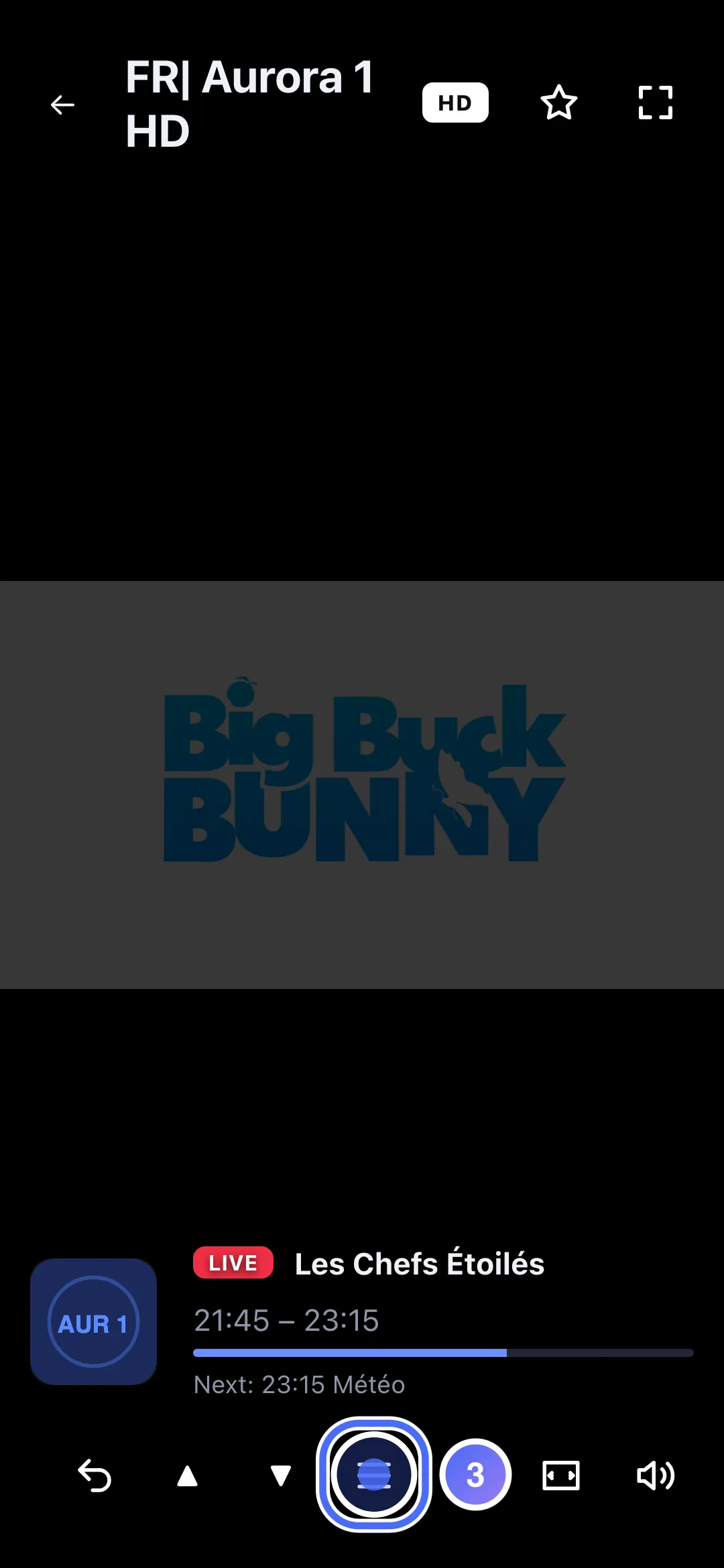
- 04
The channel list opens over the video: tap one to switch.
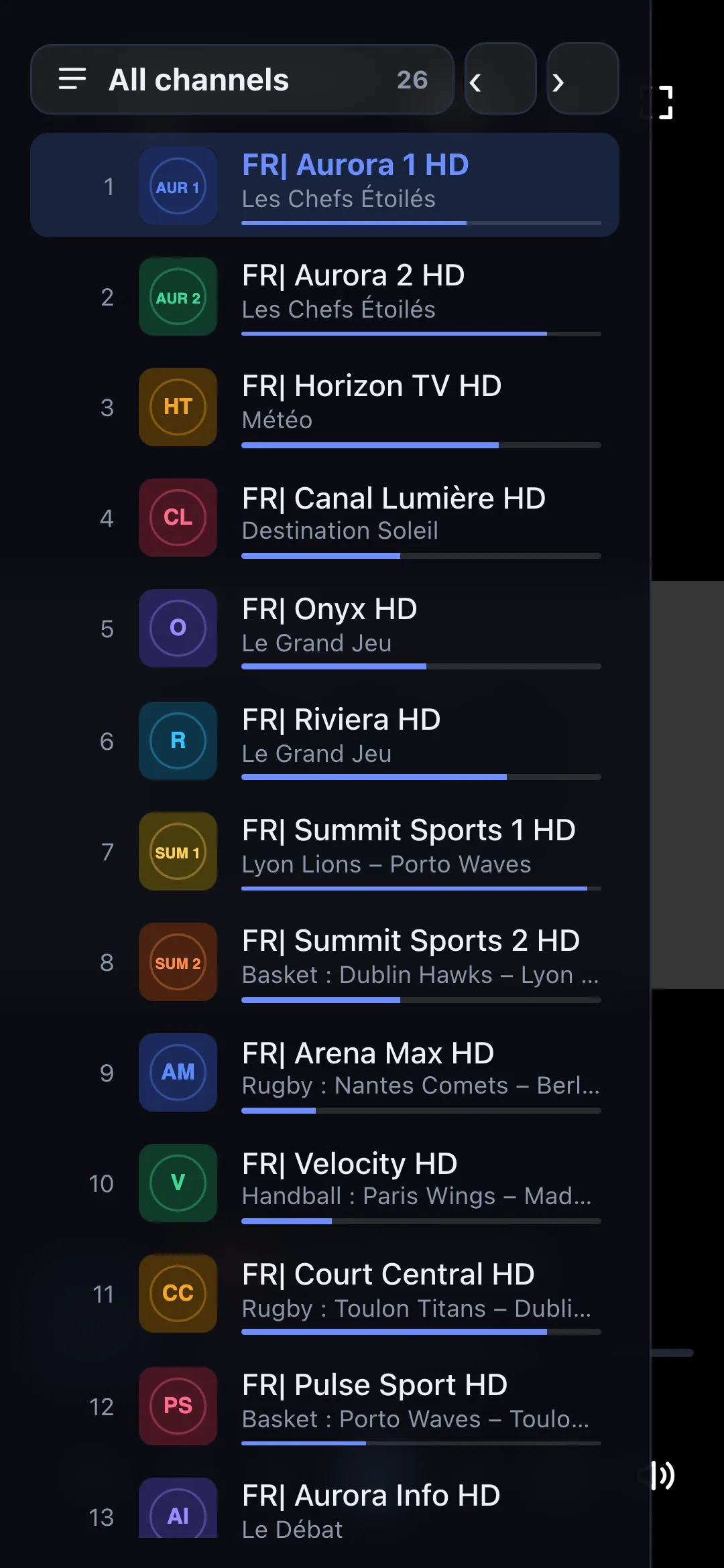
- 01
From Home, click “Live TV”.
- 02
Click a channel to watch it.
- 03
In the player, click the “Channels” icon to change channels.
- 04
The channel list opens over the video: click one to switch.
Steps
- From Home, open the Live TV door (or the "Last channel" shortcut to pick up where you were).
- In the player: OK opens the channel list, ▲ ▼ zap to the next or previous channel, ◀ goes back to the last channel you watched.
- On a remote, the number keys let you type a channel number directly.
- ▶ opens the Audio, subtitles & format panel.
Tip
The red key adds the current channel to your favorites, the green key opens the TV guide straight from the player (on devices with colour keys). A long press on OK on a channel, outside the player, opens a quick menu (favorite, hide, move).
Updated on 29 September 2026
Did this article help you?
Can’t find the answer?
Write to us: we answer about the app and how it works. We can’t recommend a playlist.