
M3U player for LG TV (webOS)
Nipo Player is a media player for LG TVs (webOS): M3U playlists and Xtream logins, TV guide, Magic Remote pointer.
Nipo Player does not provide, sell or host any content. Use it with playlists you are legally allowed to access.
How to install it
LG Content Store
Nipo Player installs from the LG Content Store, like the other apps on your TV.
Compatibility
- Models
- LG TVs running webOS
- Minimum system
- webOS 4.0 or later
- Playback
- The webOS browser’s video player (one video stream at a time, like any webOS app)
- Remote
- Works with the LG Magic Remote pointer
Installation, step by step
LG Content Store
From your LG TV’s app store, search for “Nipo Player” and install it.
First launch
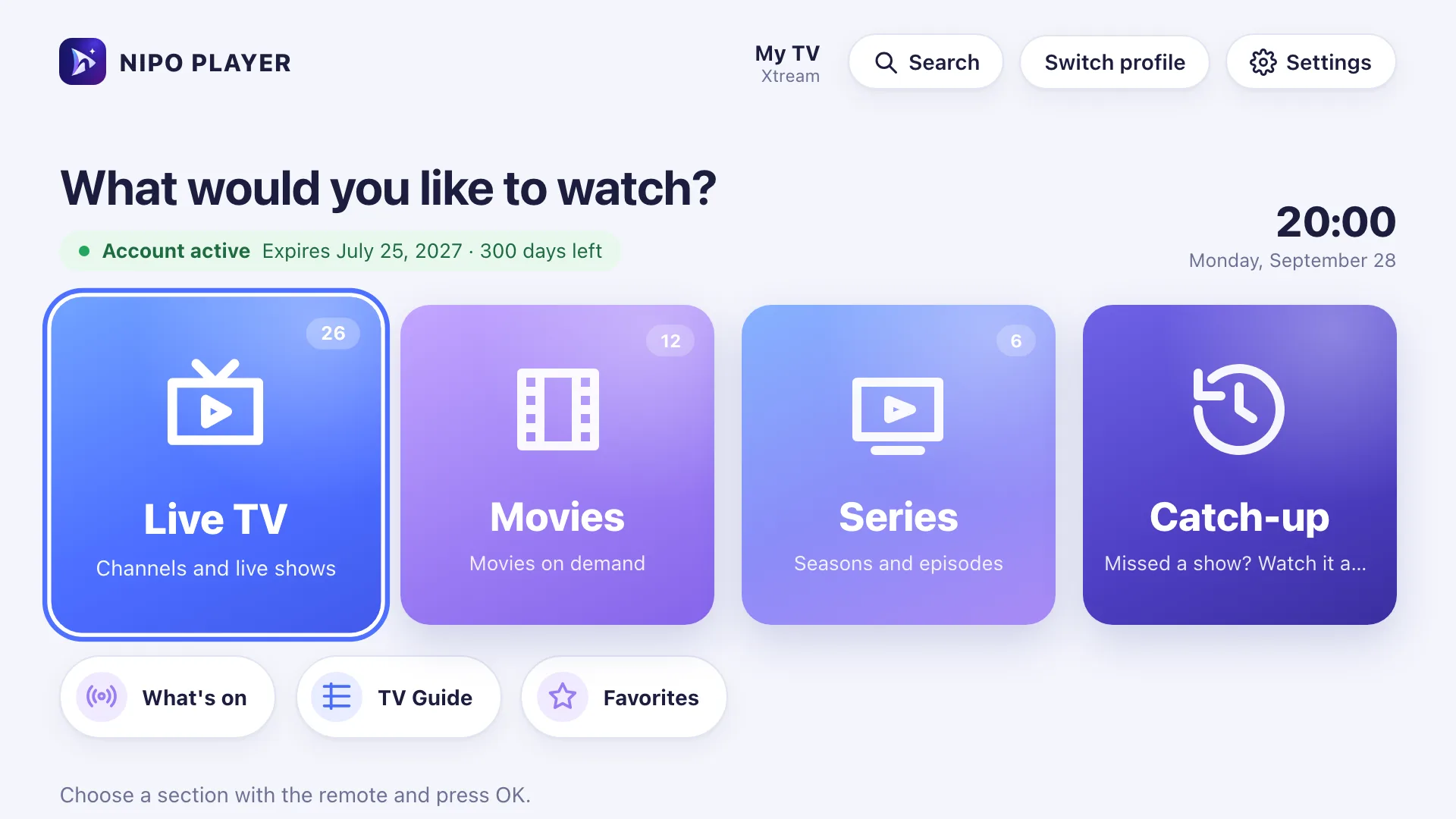
Open Nipo Player: the home screen appears, ready for you to add a playlist.
LG
First setup: scan with your phone
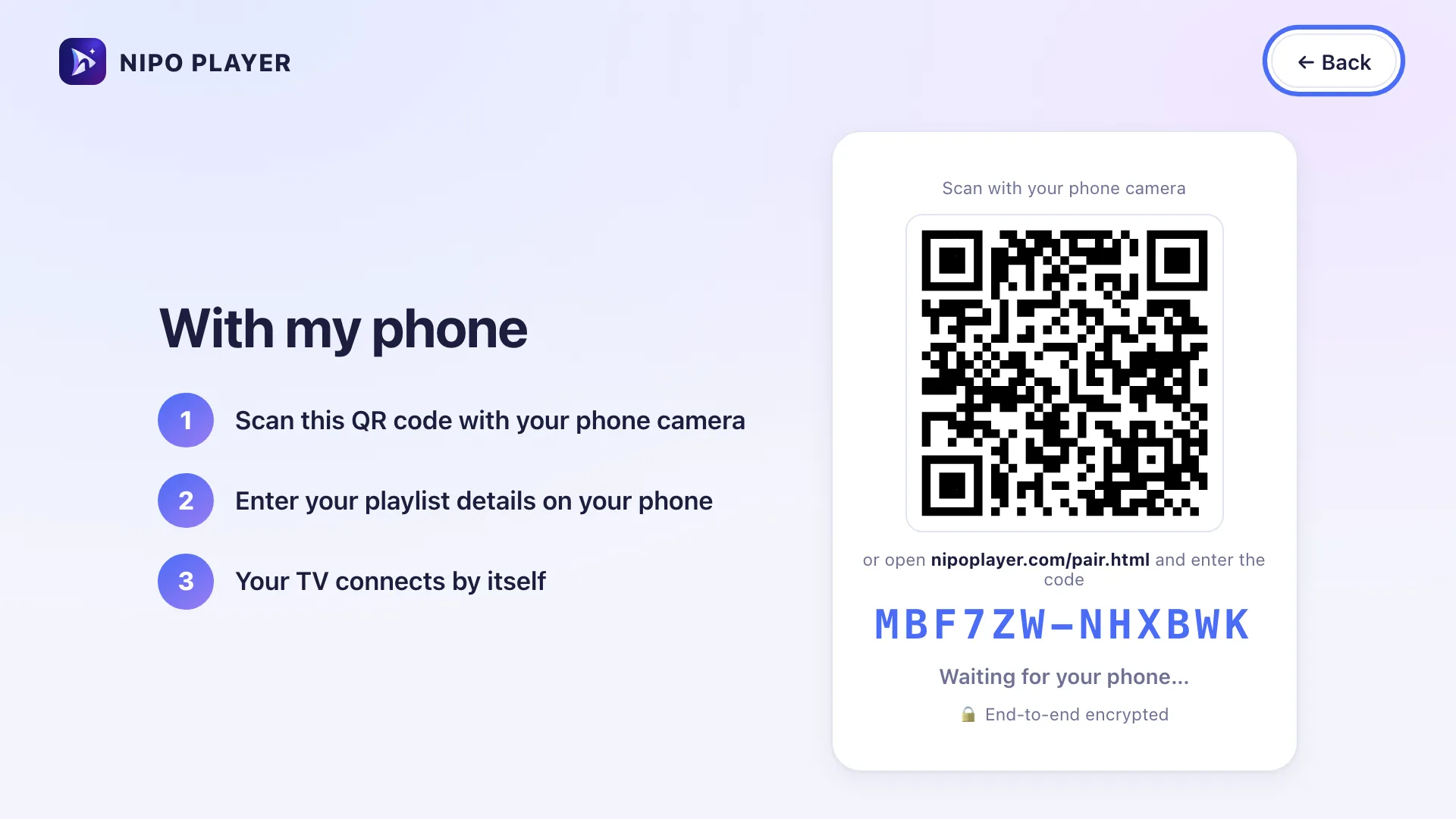
Once the app is open on your LG TV, it shows a QR code. Scan it with your phone, then type your playlist’s address on the phone’s screen.
LG remote (Magic Remote)
The Magic Remote shows an on-screen pointer when you move it: hover an item to focus it, click to open it. Pressing an arrow key switches back to the classic D-pad mode.
Pointer
Back, twice
Long-press OK
Changing channel
Limits on this device
- No recording or multiview on LG: limited to Android TV and computers.
- Automatic frame rate and audio passthrough stay limited to Android TV.
- webOS officially plays only one video stream at a time; some playlist servers may also refuse movies to players they don’t recognise.
Free vs Premium (Nipo Premium or Family)
- Live TV, movies, series, search
- 1 playlist (Xtream or M3U)
- Favourites and resume
- Subtitles, parental PIN, diagnosis
- Several playlists + Mes playlists
- Profiles, including a kids profile
- Pro EPG and What’s on
- Catch-up (watch from the start)
- Pause and rewind live TV
- Phone remote
- Start on live TV, OLED protection
Related features
When something goes wrong
Some movies are refused (error 406)
Some playlist servers only serve movies to recognised players. On webOS, playback goes through the browser’s video tag, which can’t always send the right signature.
The app suddenly closes
On webOS, Back exits the app after two presses from the home screen, never from another screen by mistake.
The pointer doesn’t appear
It only shows up when you physically move the Magic Remote; pressing an arrow key switches back to D-pad mode.
Older TV is slow to show menus
A lighter mode, built for 2016–2019 TVs, reduces animations and effects; it turns on automatically on older browsers.
Frequently asked questions
Does Nipo provide channels?
No. Nipo plays the playlists you already own (M3U or an Xtream login).
How do I install an M3U player on LG?
From your LG TV’s app store, search for “Nipo Player” and install it like any other app.
Is the pointer required?
No, the classic D-pad works everywhere in the app.
Download Nipo for free.
All playback is free, with no ads and no account.