
How do I use the mini-guide and categories in the player?
From the player, open the mini-guide to see what's on other channels and switch category, without leaving live playback.
Nipo doesn’t provide, sell or host any channel, movie or playlist: it plays what you already own.
The mini-guide stays free, no Premium needed: it's a shortcut to what's on other channels right now, without opening the full-screen TV Guide.
Step by step, with pictures
- 01
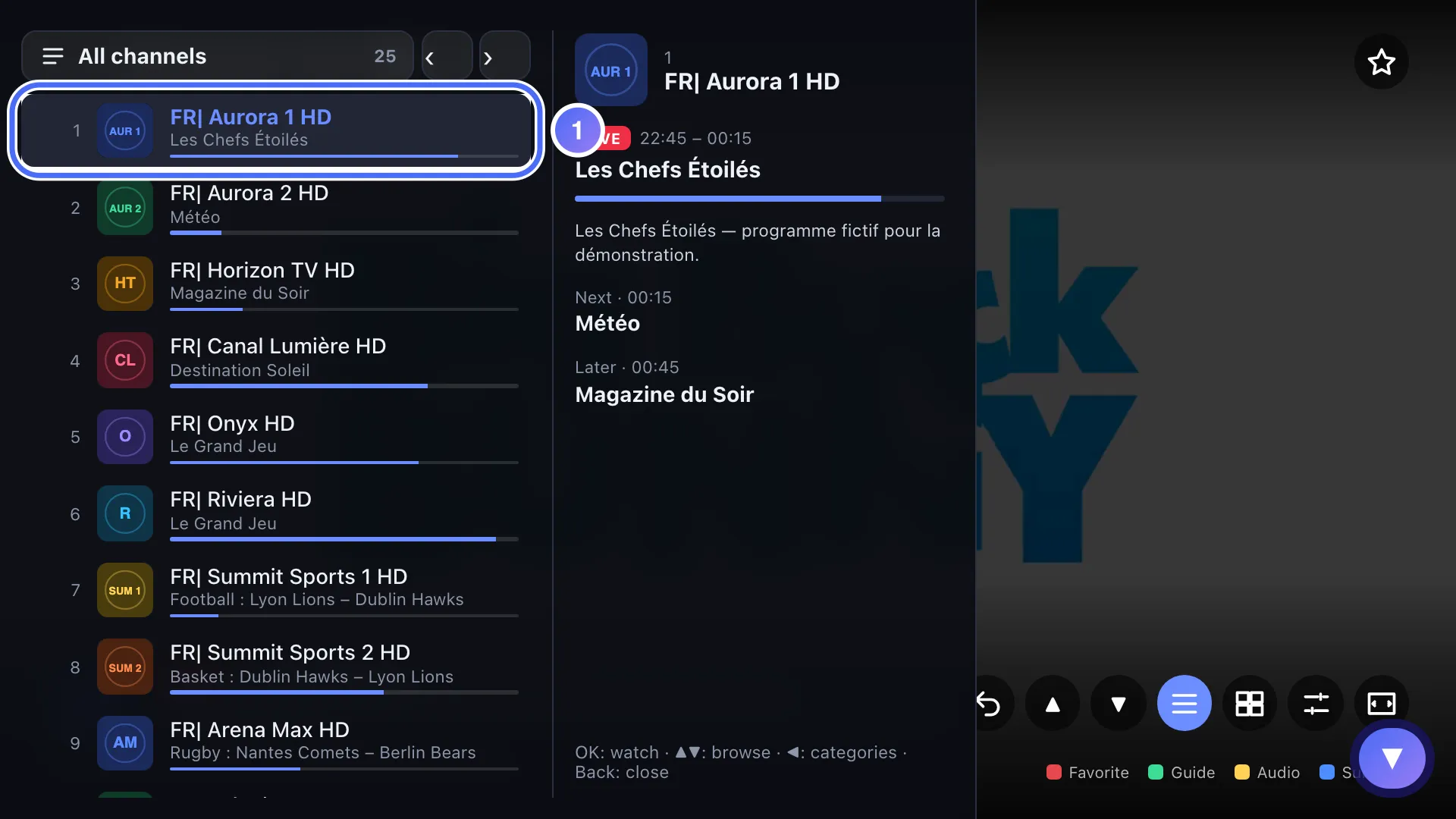
While live, open the mini-guide with OK: ▲ ▼ move through channels with what’s on now. Key ▼
- 02
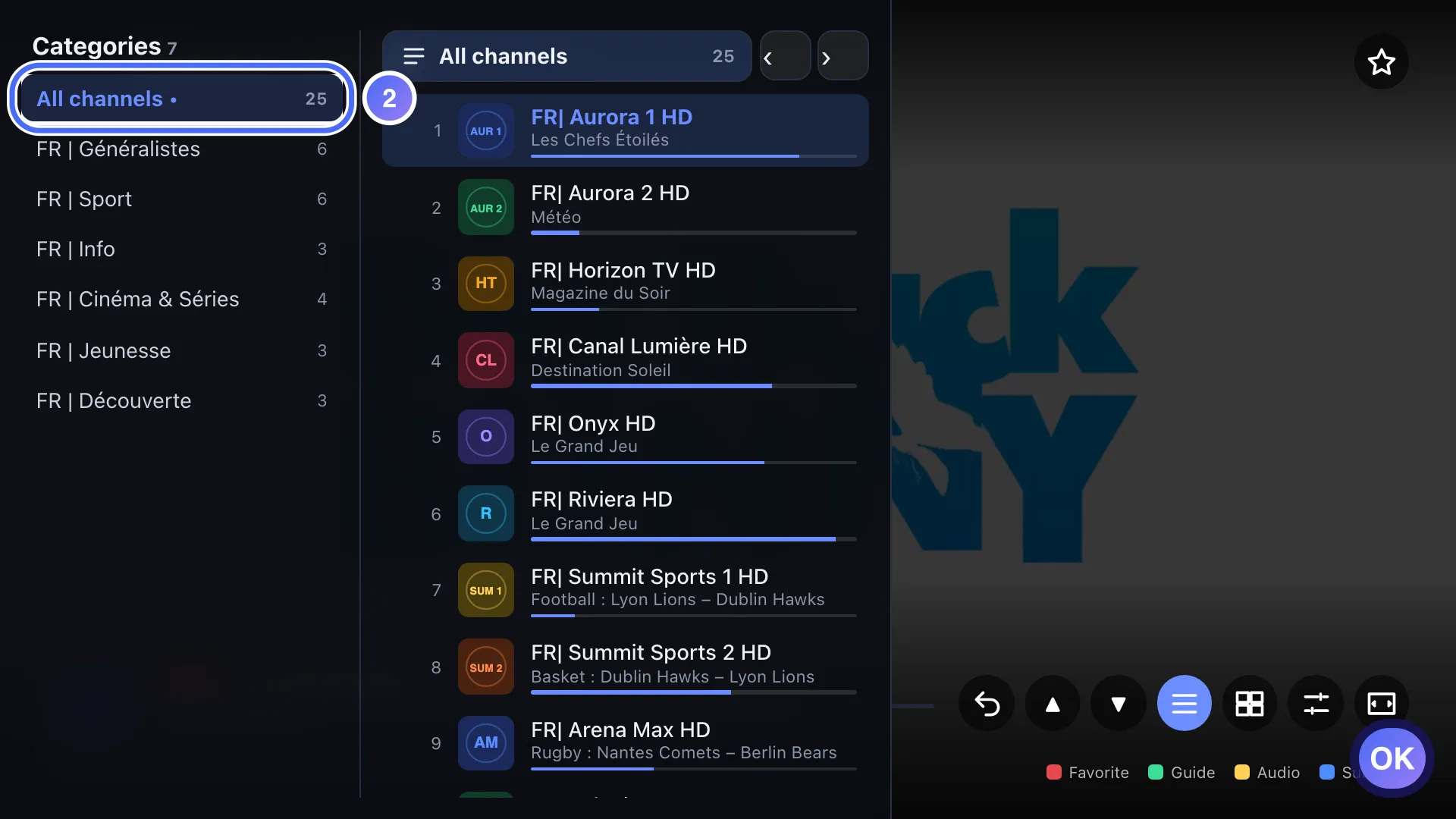
◀ opens the category list: choose one to narrow the mini-guide. Key OK
- 01
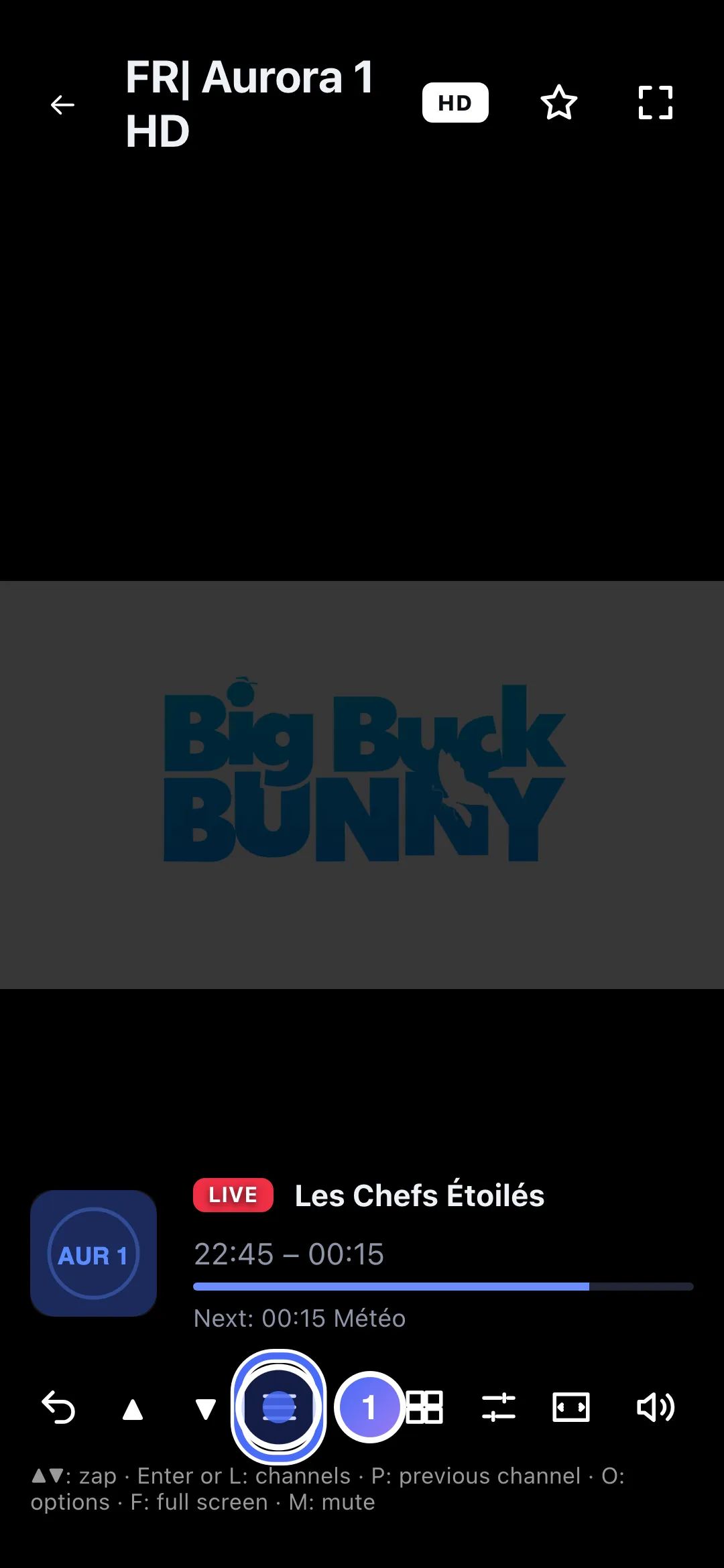
While live, tap the dedicated icon to open the mini-guide.
- 02
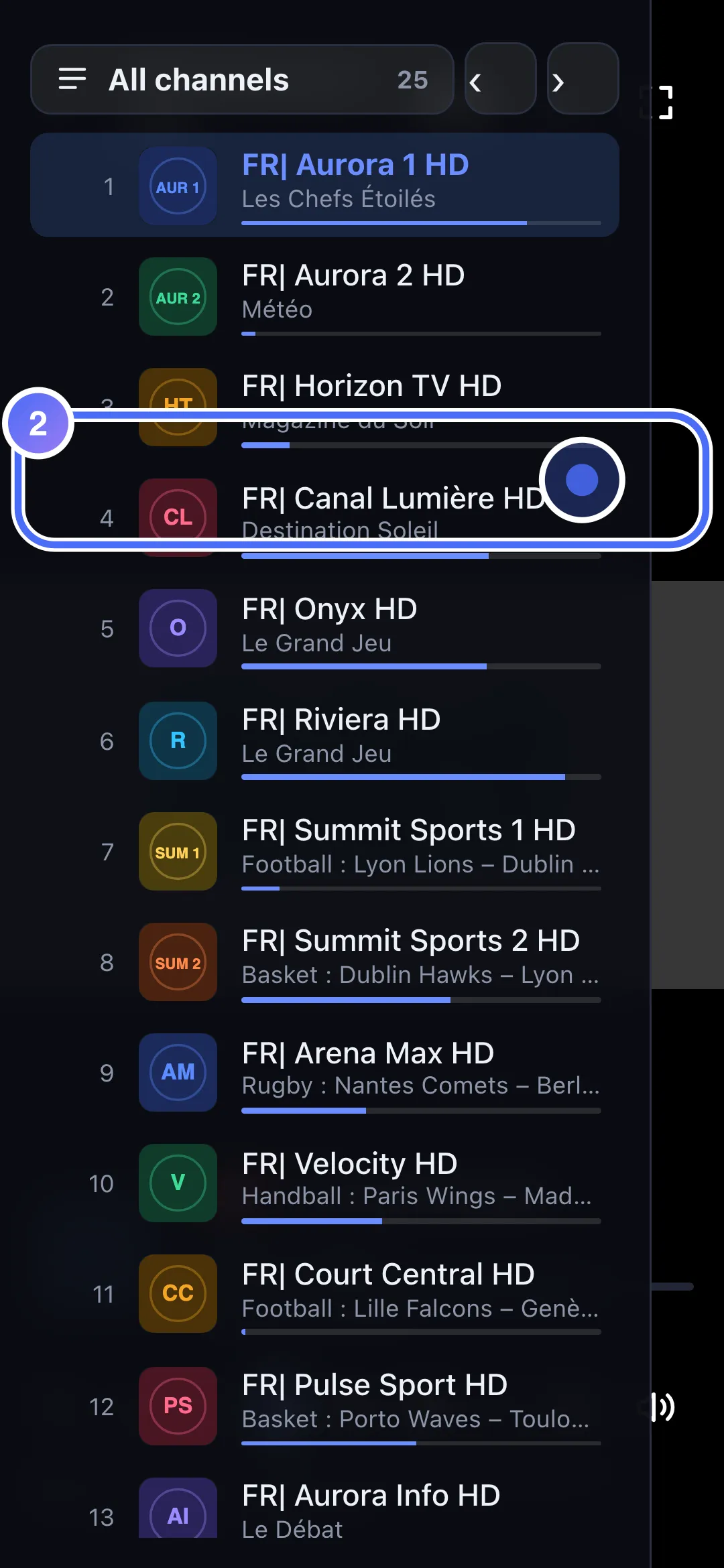
What’s on shows up for every channel; tap one to watch it.
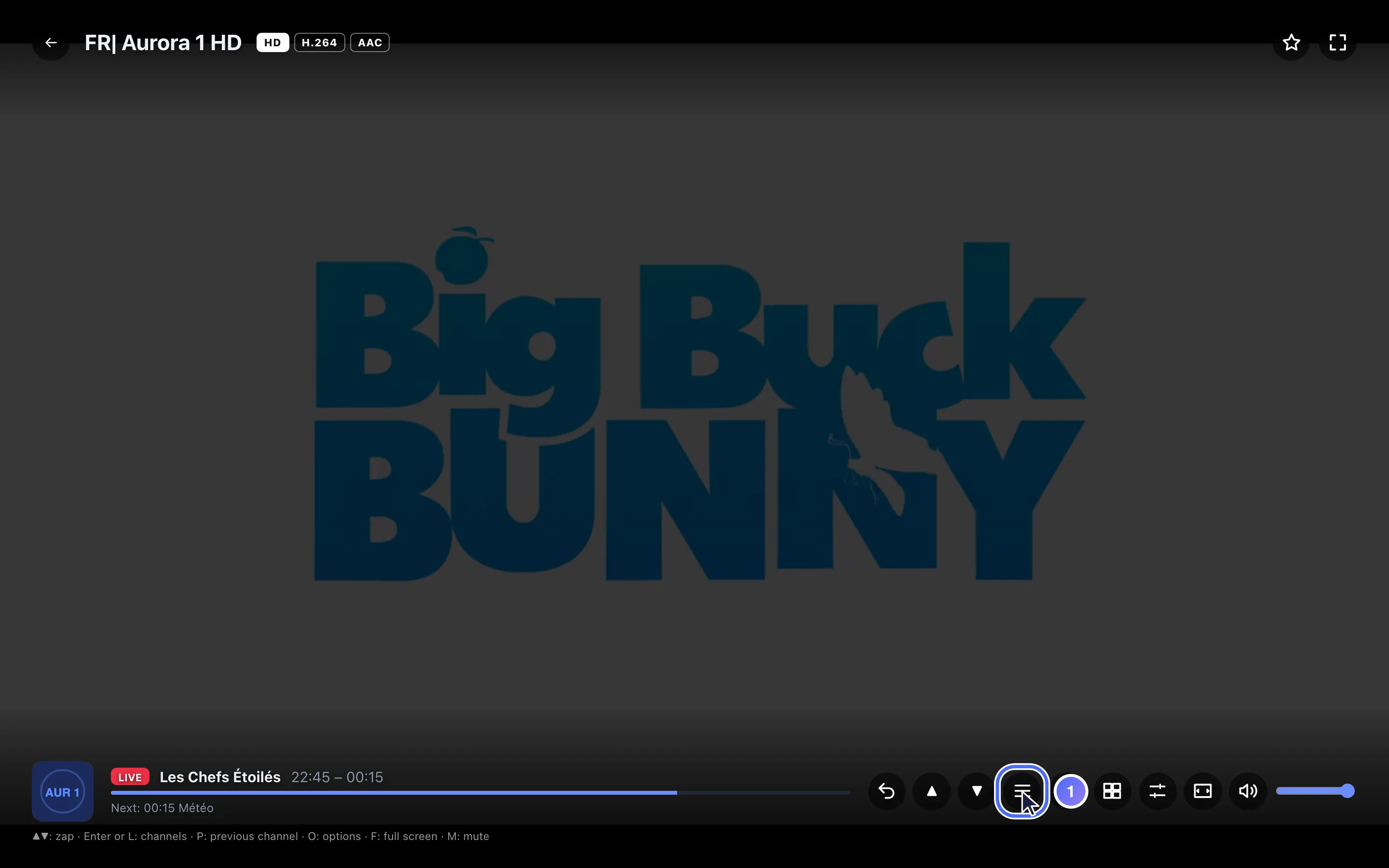
- 01
While live, click the dedicated icon to open the mini-guide.
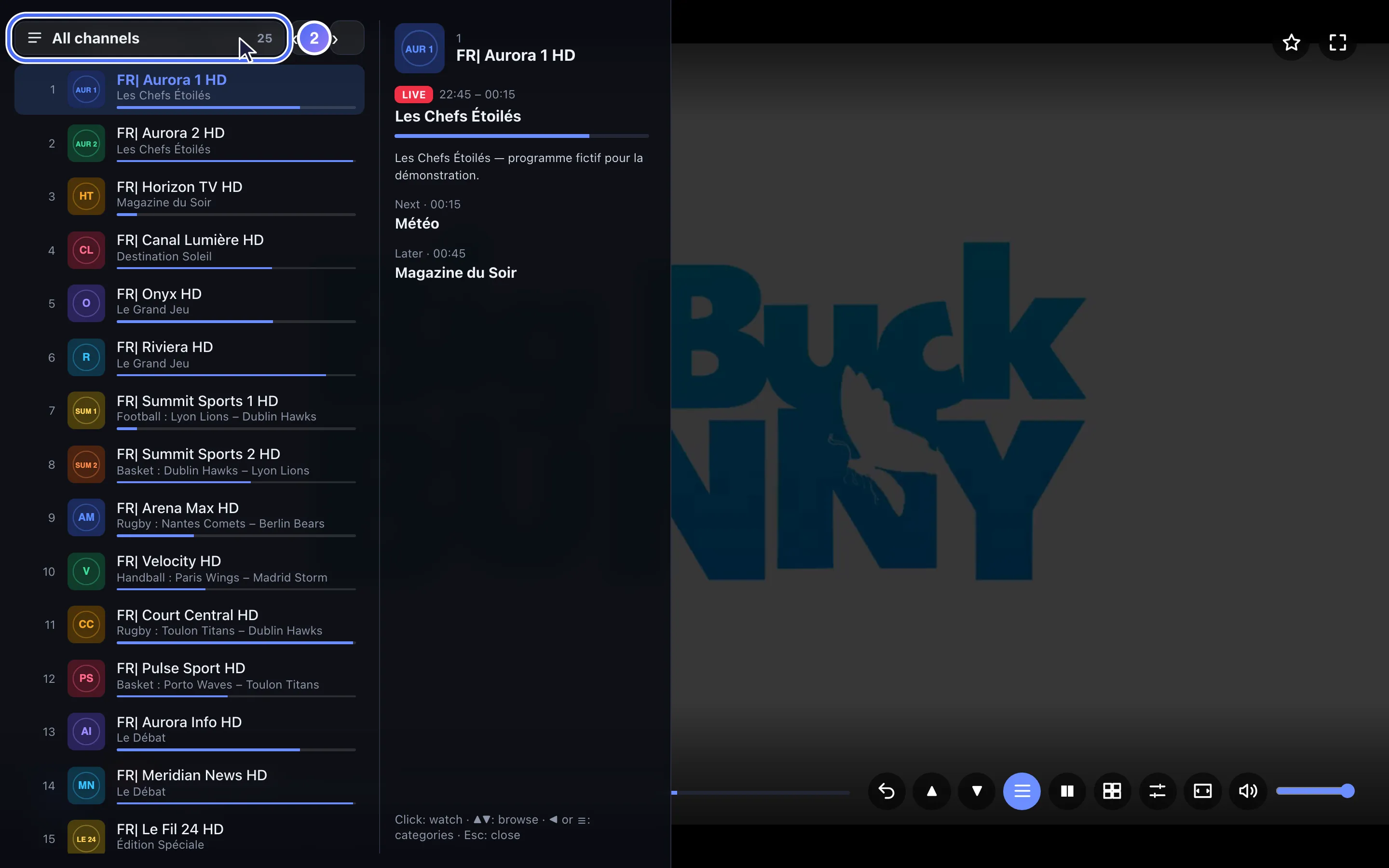
- 02
What’s on shows up for every channel; click the bar to choose a category.
Steps
- In the player, while live, open the mini-guide (OK on a remote, or the dedicated icon on phone and computer).
- ▲ ▼ browse channels, with the current programme shown for each; OK starts playing the selected channel.
- ◀ opens the category list: pick one to limit the mini-guide to its channels instead of all of them.
- Back closes the mini-guide and returns to live playback.
Tip
The mini-guide shows what's on right now, not upcoming times: to see the full programme grid across several hours, open the TV Guide from Home (the remote's green key on devices that have one).
Updated on 29 September 2026
Did this article help you?
Can’t find the answer?
Write to us: we answer about the app and how it works. We can’t recommend a playlist.