
How do I use the TV guide?
Open "TV Guide" from Home: a grid of channels and times. Press OK to watch a channel, and Info to see a programme's details.
Nipo doesn’t provide, sell or host any channel, movie or playlist: it plays what you already own.
The TV guide shows your live channels as a grid, with the day's programmes.
Premium feature (Nipo Premium or Family), already in the app. The mini guide in the player (what's on now / next) stays free, no Premium needed.
Step by step, with pictures
- 01
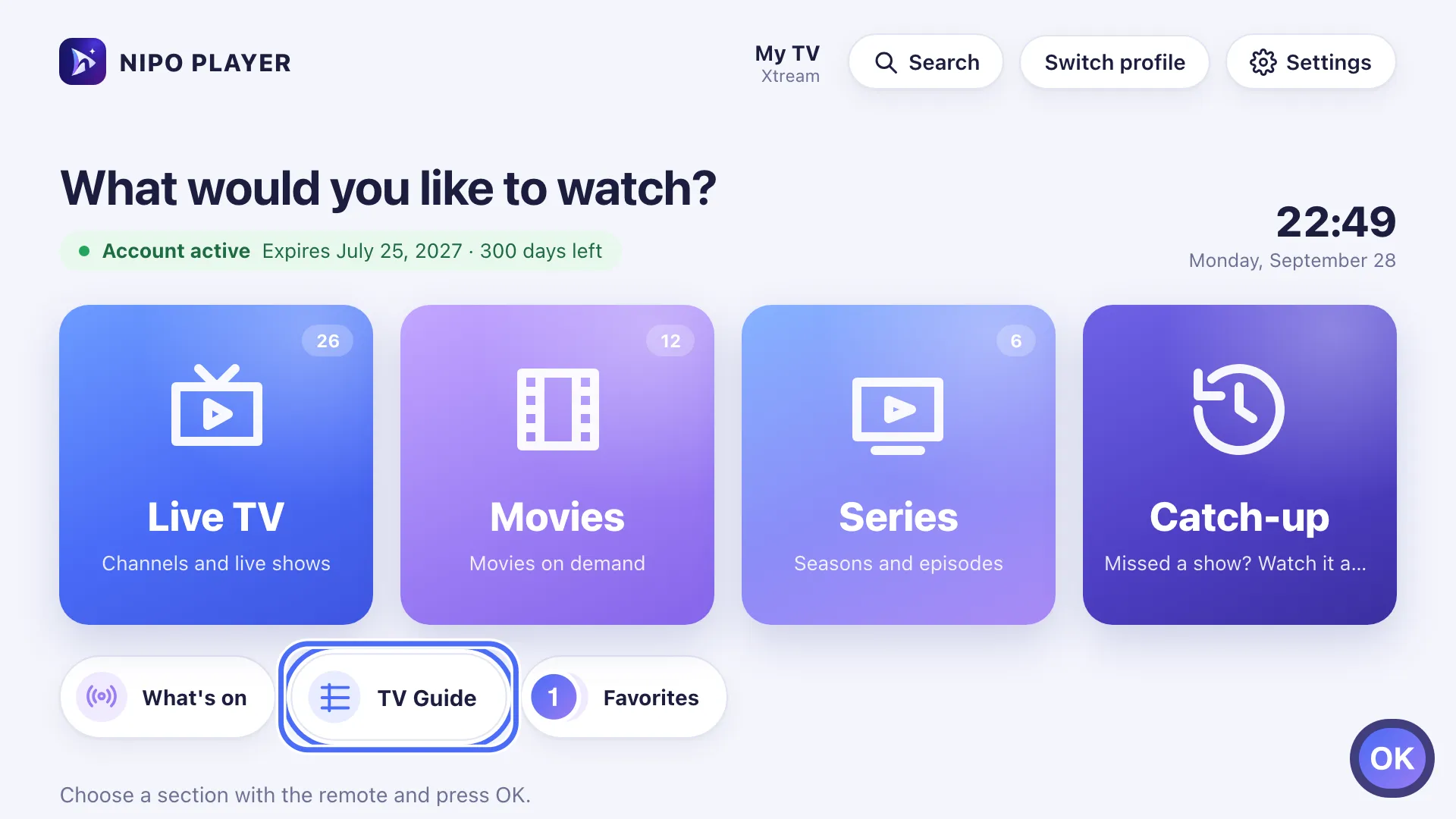
From Home, go to TV Guide and press OK. Key OK
- 02
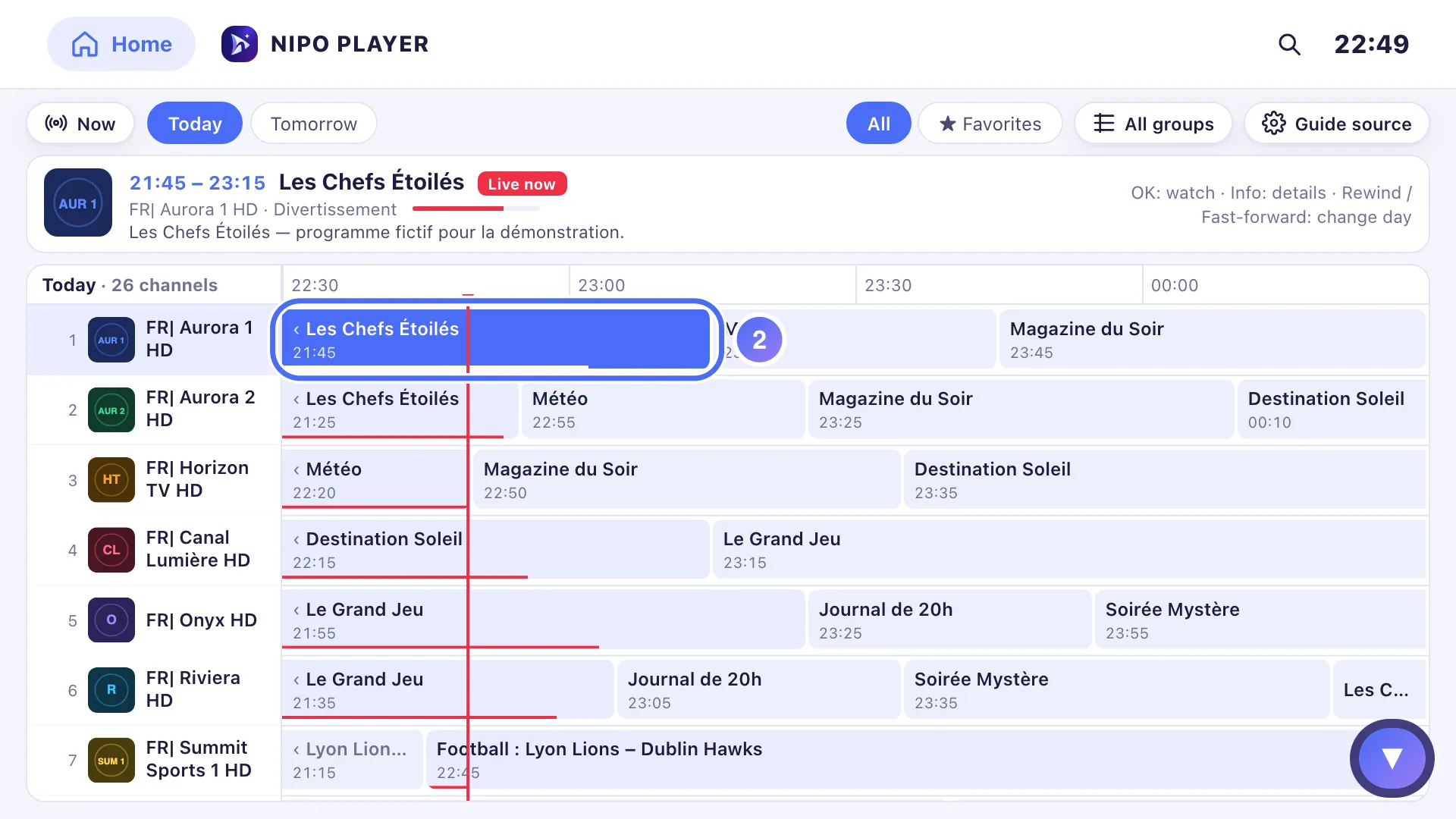
Navigate with the arrows: ▲ ▼ changes channel, ◀ ▶ moves between programmes in time. Key ▼
- 03
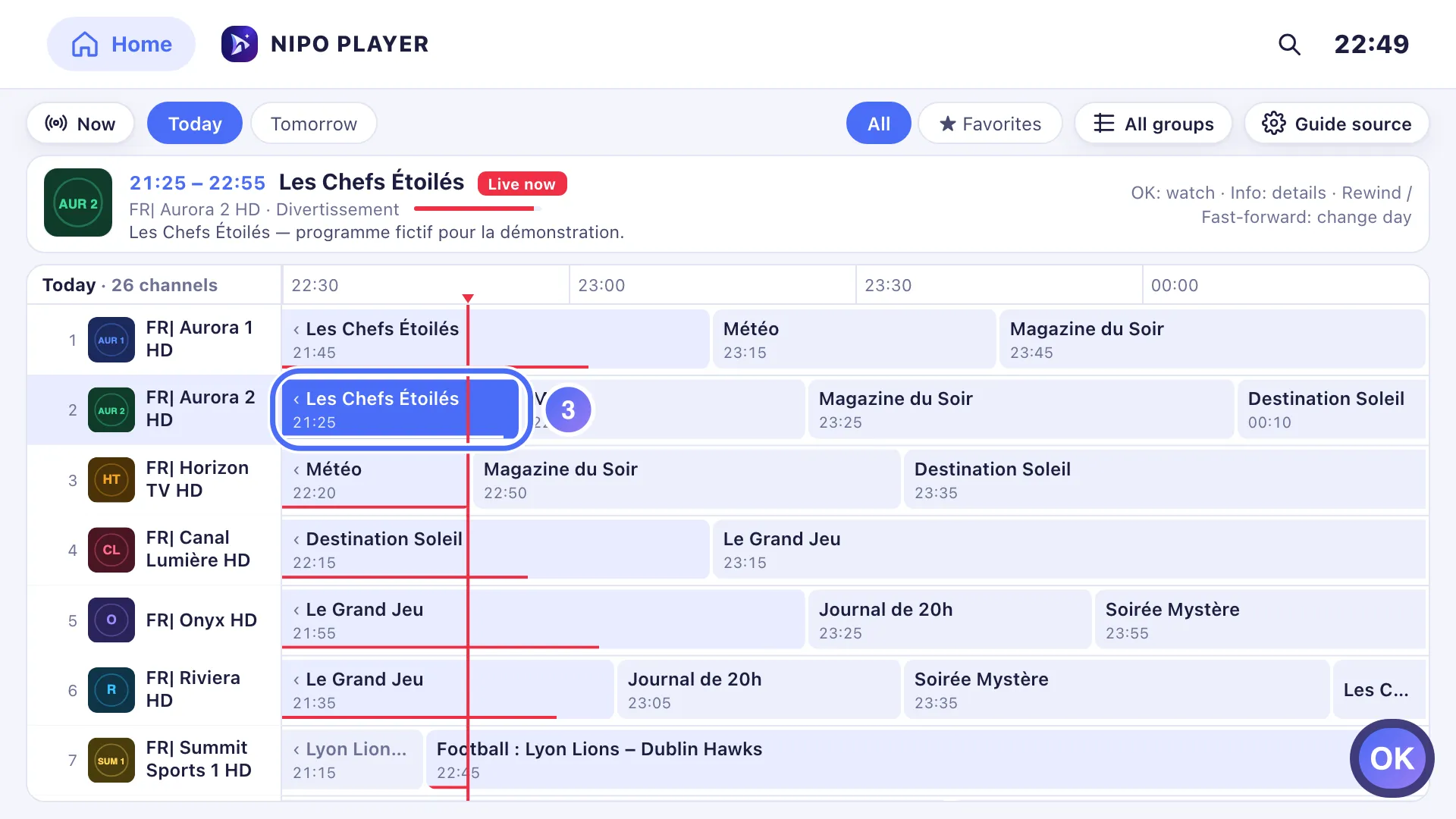
Press OK to watch the selected programme. Key OK
- 01
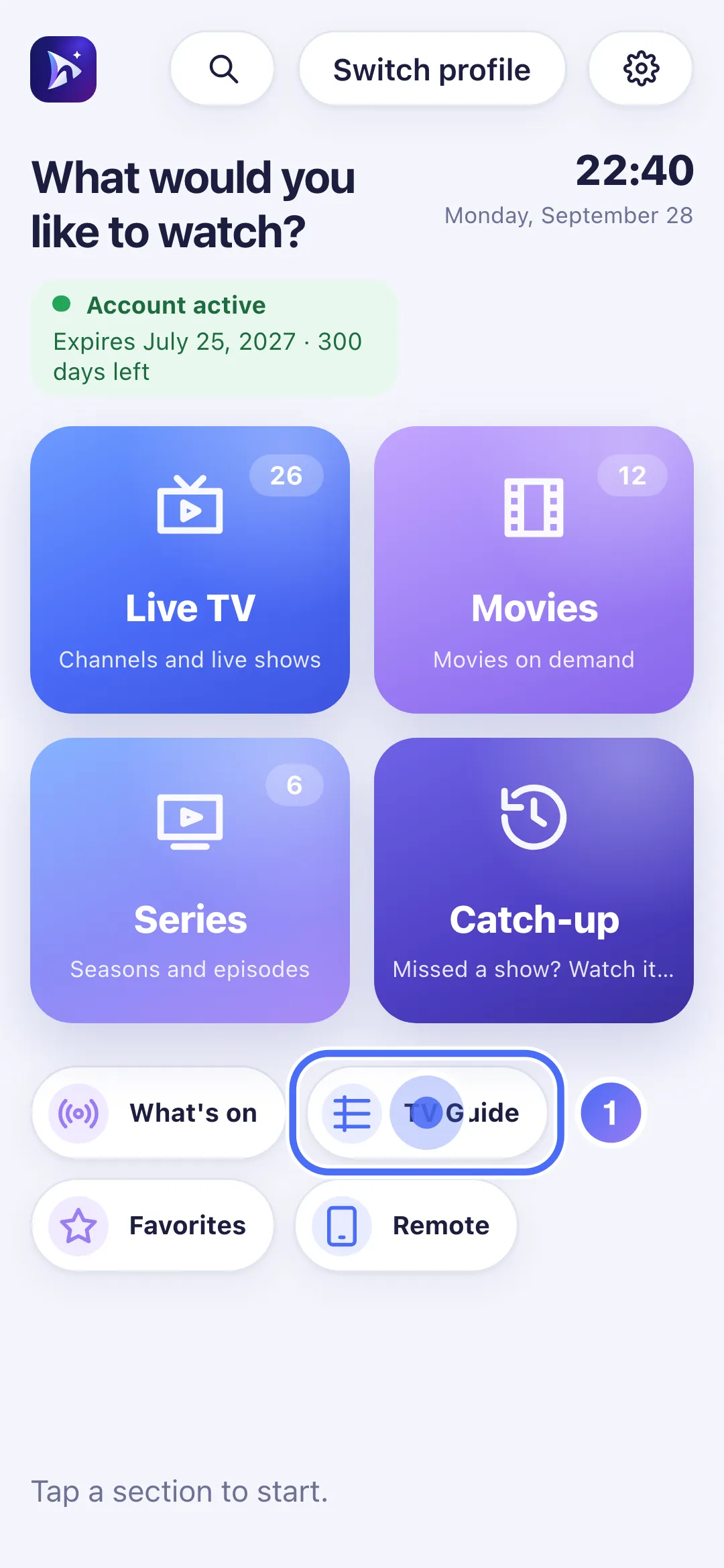
From Home, tap “TV Guide”.
- 02
Your channels show on the left, the chosen channel’s programmes on the right.
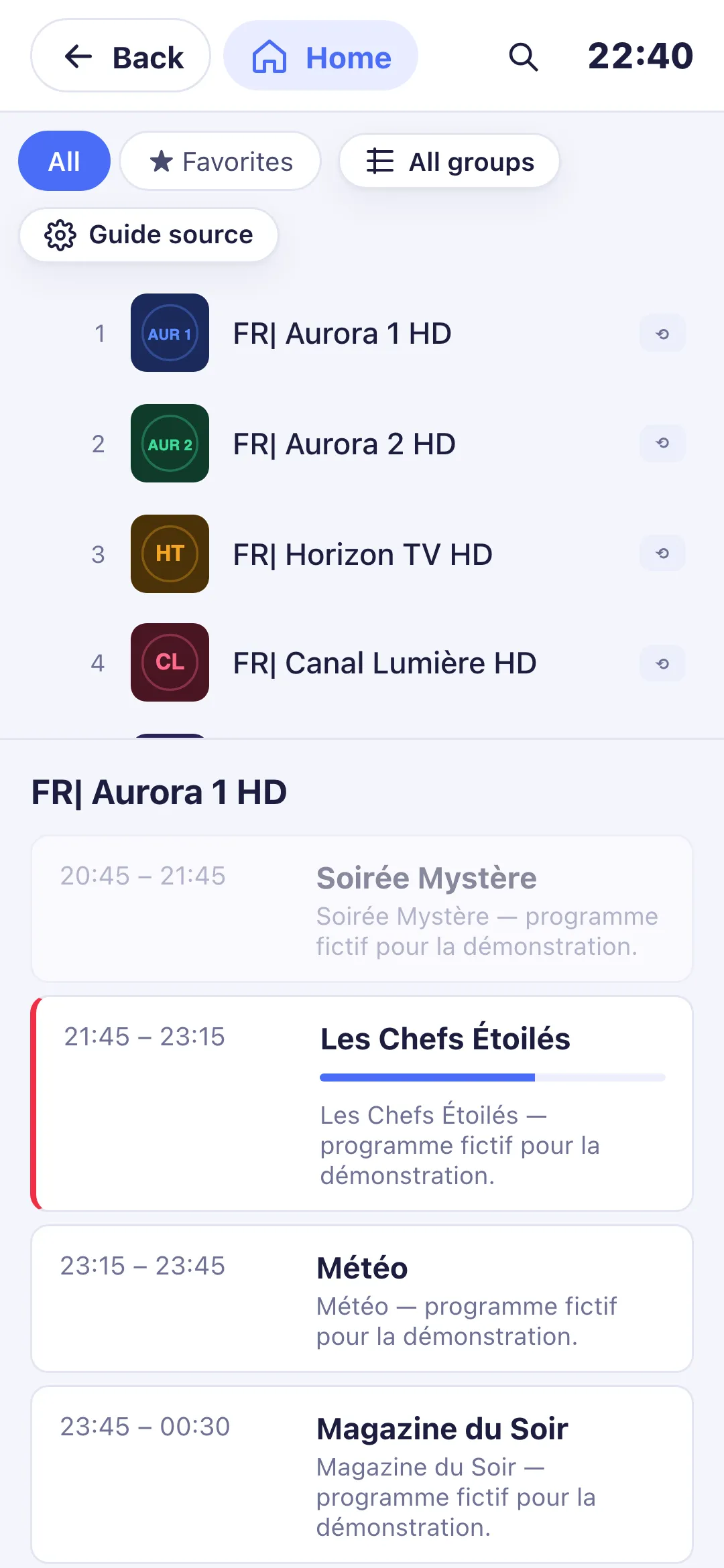
- 03
Tap a channel to watch it right away.
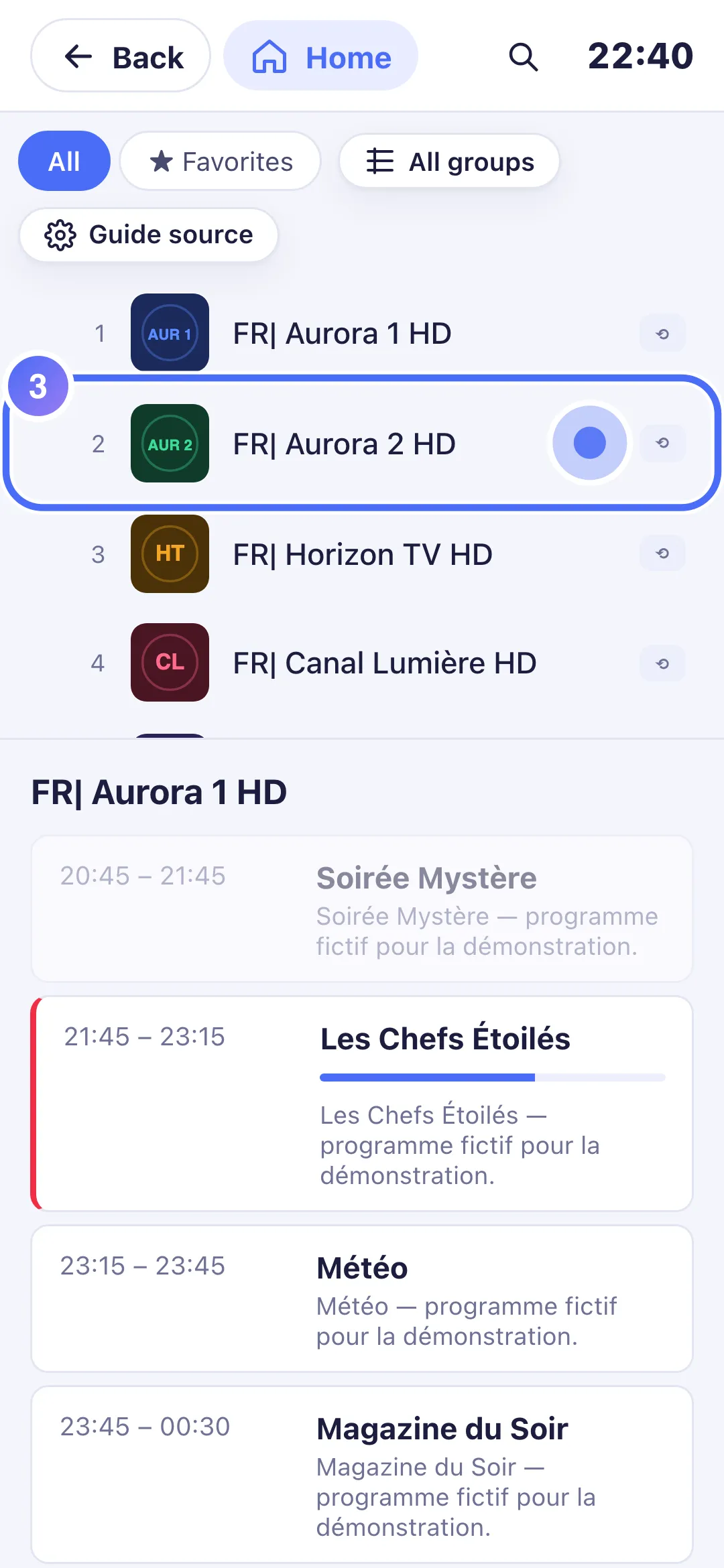
- 04
The channel opens in the player.
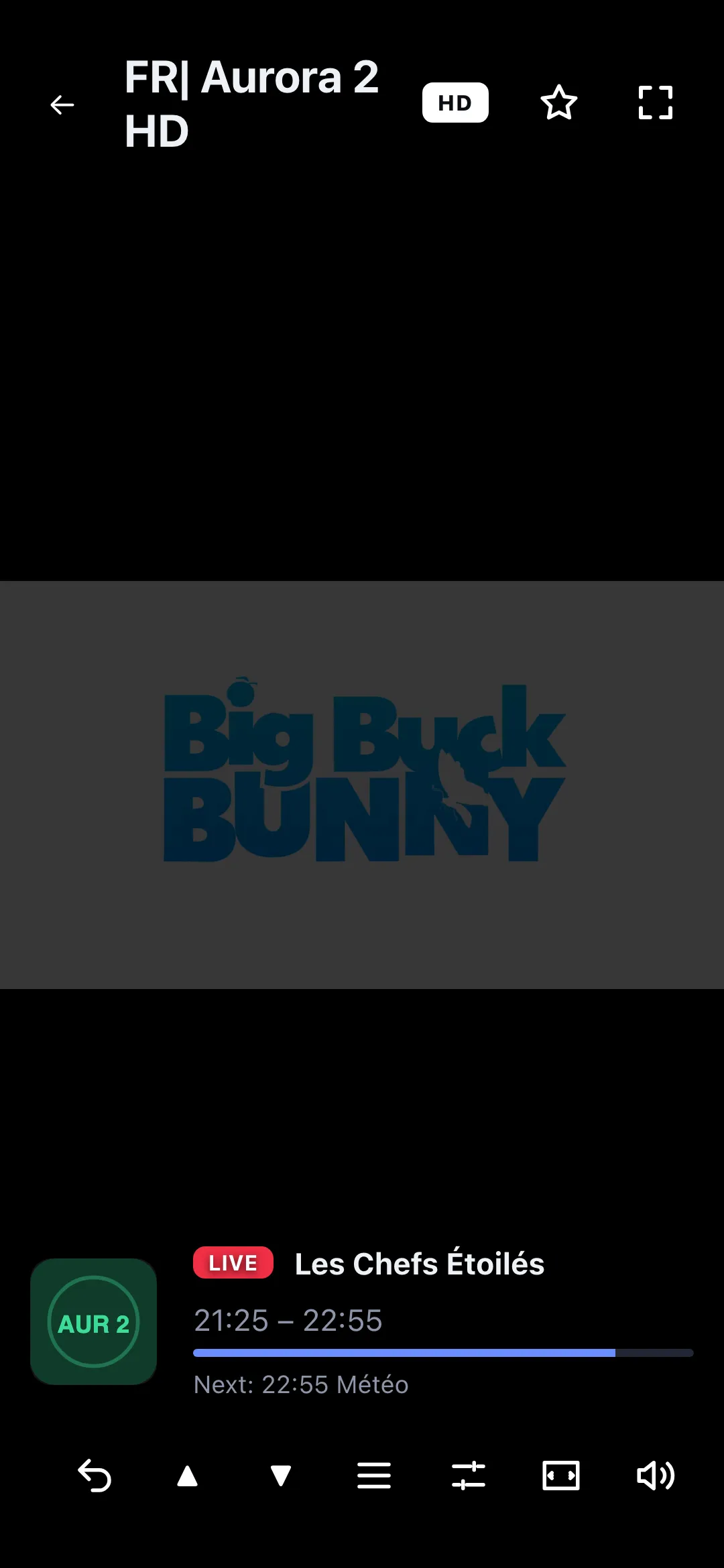
- 01
From Home, click “TV Guide”.
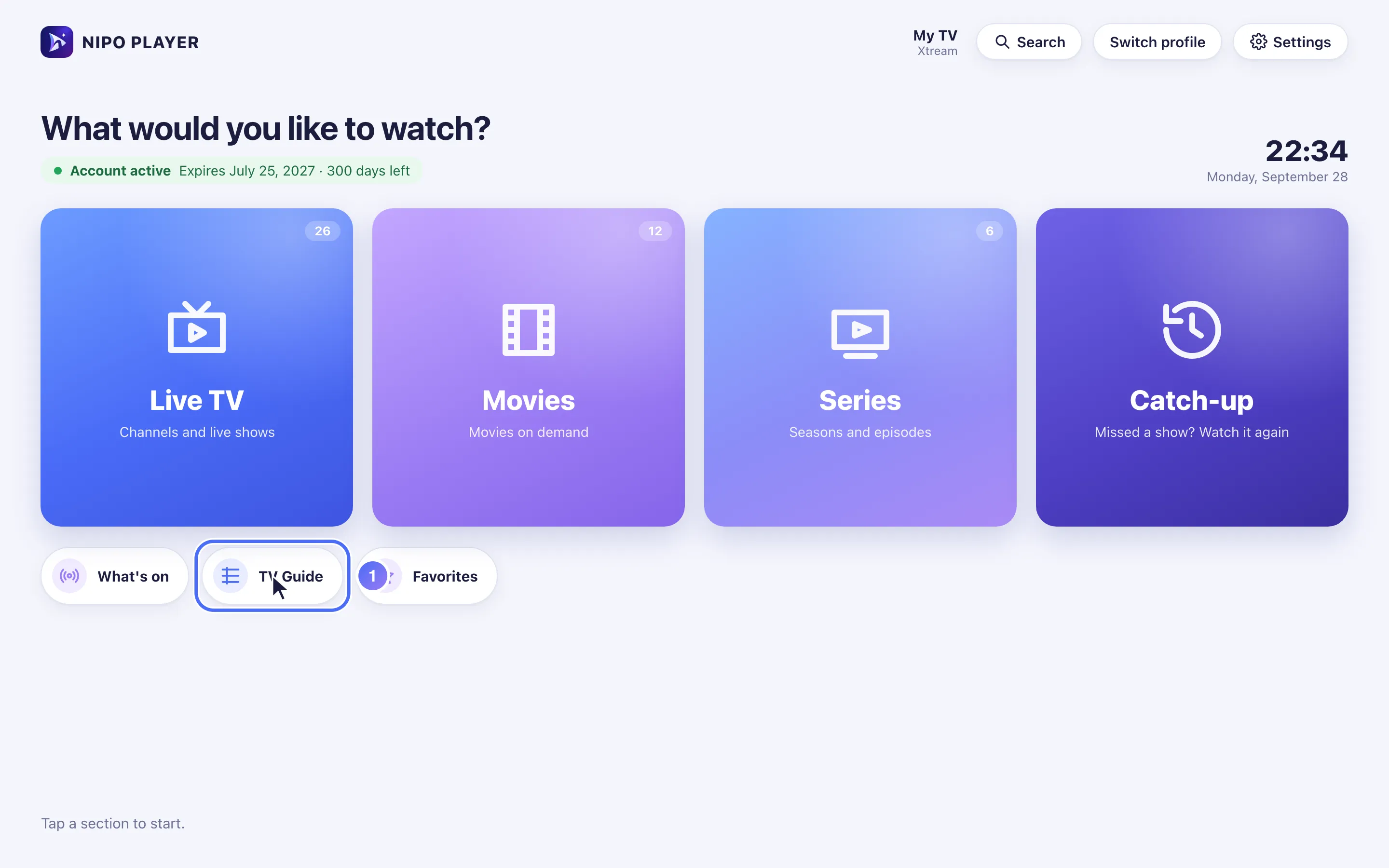
- 02
The grid crosses your channels with the time; the current programme’s progress bar fills up.
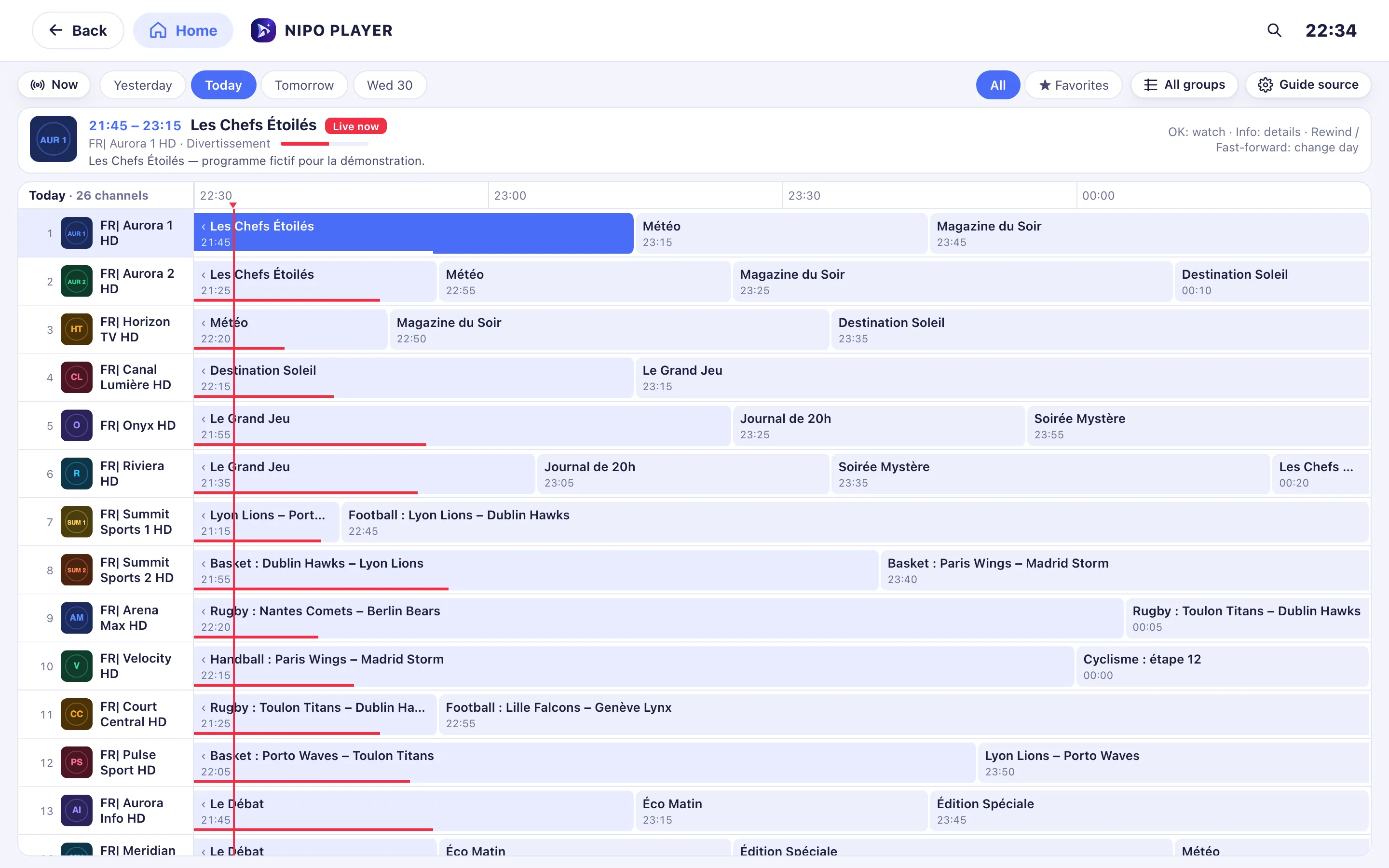
- 03
Click the programme on air to watch it.
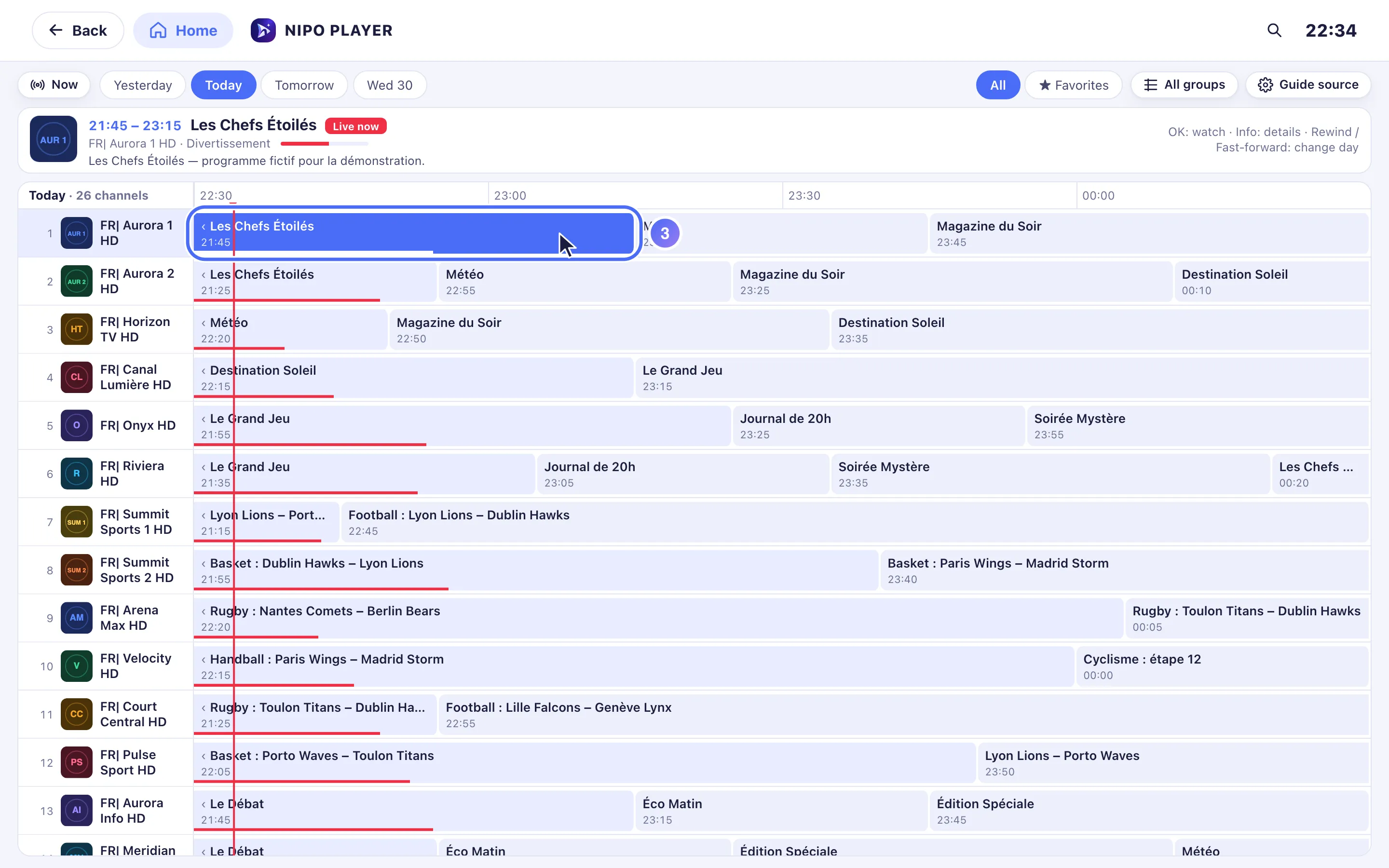
- 04
The channel opens in the player.
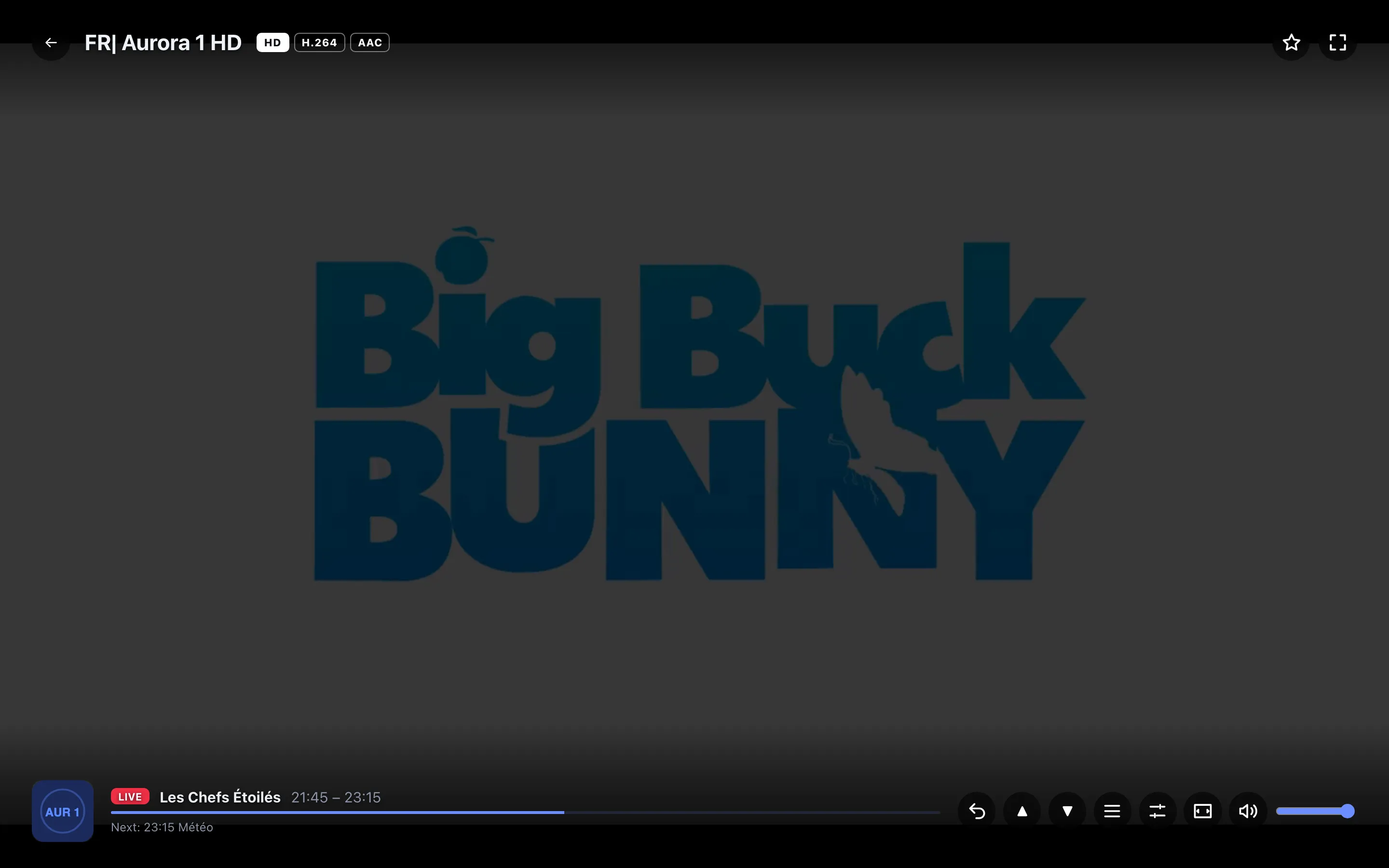
Steps
- From Home, open TV Guide (or the green shortcut on the Home screen).
- Navigate with the arrows: OK watches the selected programme, Info opens its detail sheet.
- Go back or forward a day with the remote's Rewind / Fast-forward keys (or the left/right arrows on phone and computer).
- Filter by channel group or favorites with the buttons above the grid.
Tip
On a programme's info sheet, Remind me shows a banner 5 minutes before it starts (only while the app is open), and for a programme already airing, Watch from the start replays the show from its beginning if your playlist offers catch-up. On phone, the guide shows as a simple list instead of a grid, easier to read on a small screen.
Updated on 29 September 2026
Did this article help you?
Can’t find the answer?
Write to us: we answer about the app and how it works. We can’t recommend a playlist.