
How do I add my own TV guide (XMLTV)?
Open the TV Guide, tap the settings icon then "Guide source", and paste your XMLTV file's link to see the programmes of your channels.
Nipo doesn’t provide, sell or host any channel, movie or playlist: it plays what you already own.
By default, Nipo Player uses the TV guide provided by your playlist (the guide from the server that manages it). If you have the link to a separate XMLTV guide (a .xml or .xml.gz file), you can use it instead.
Step by step, with pictures
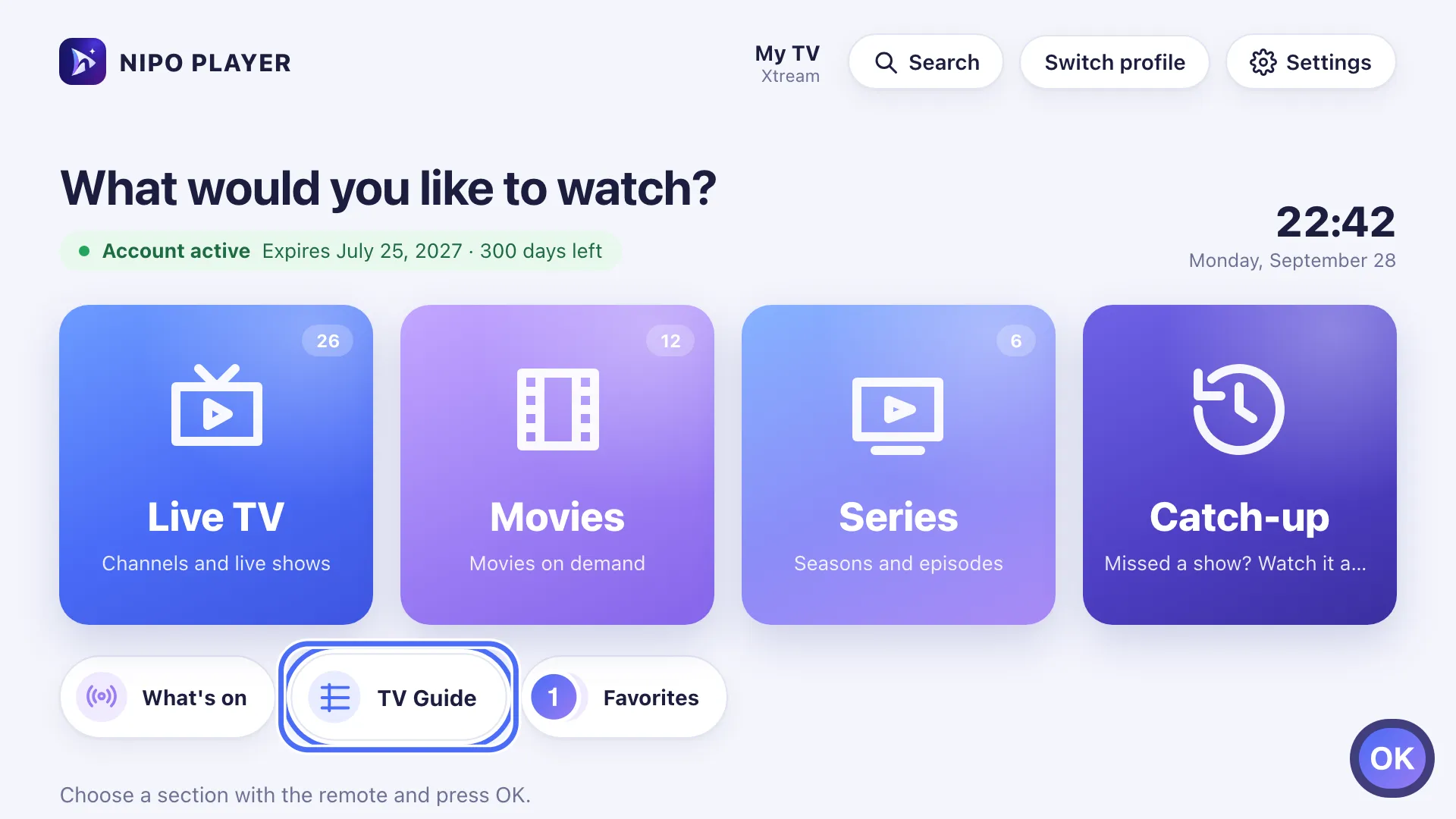
- 01
From Home, go to TV Guide and press OK. Key OK
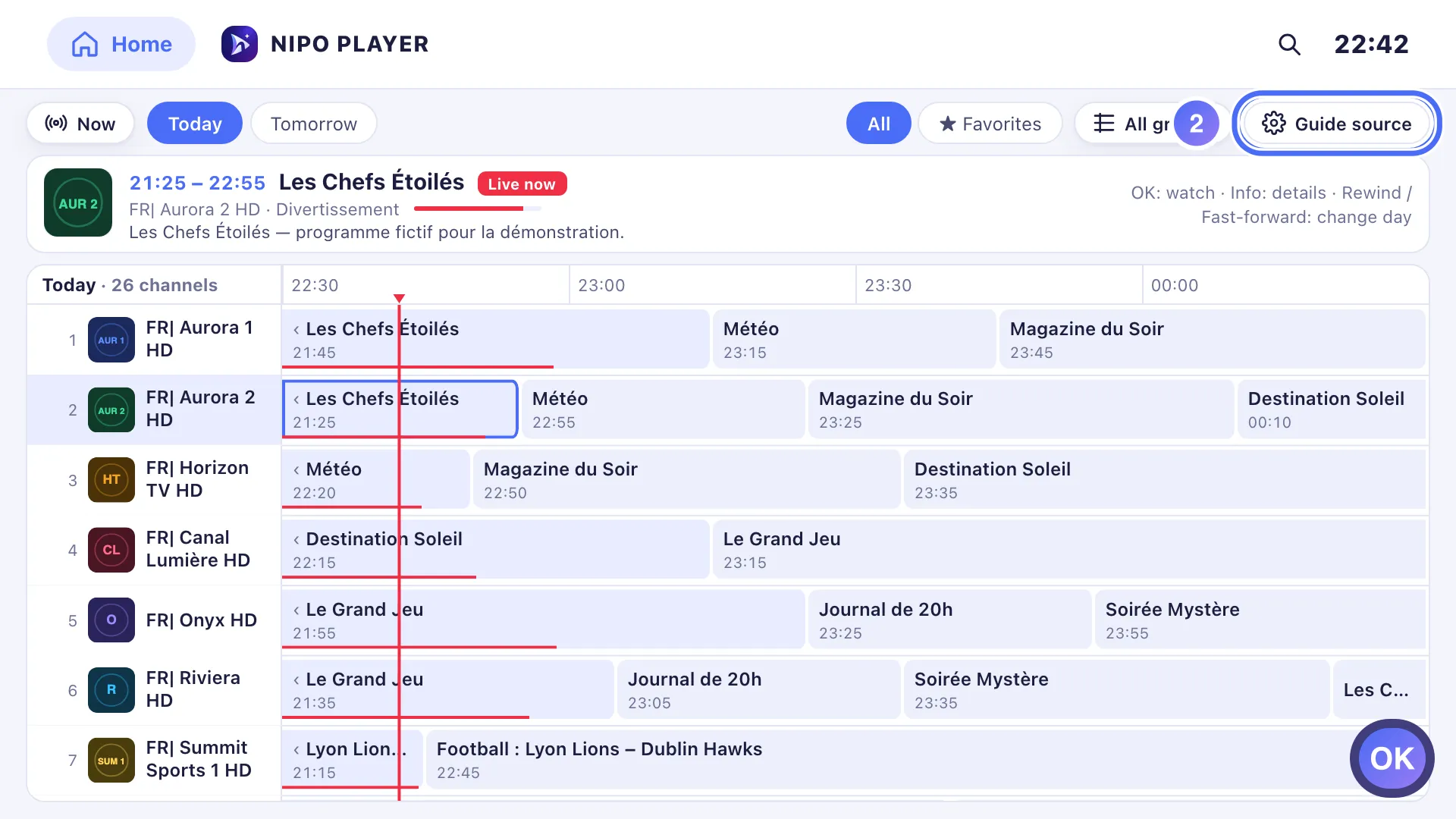
- 02
On the TV guide, go to the Guide source icon and press OK. Key OK
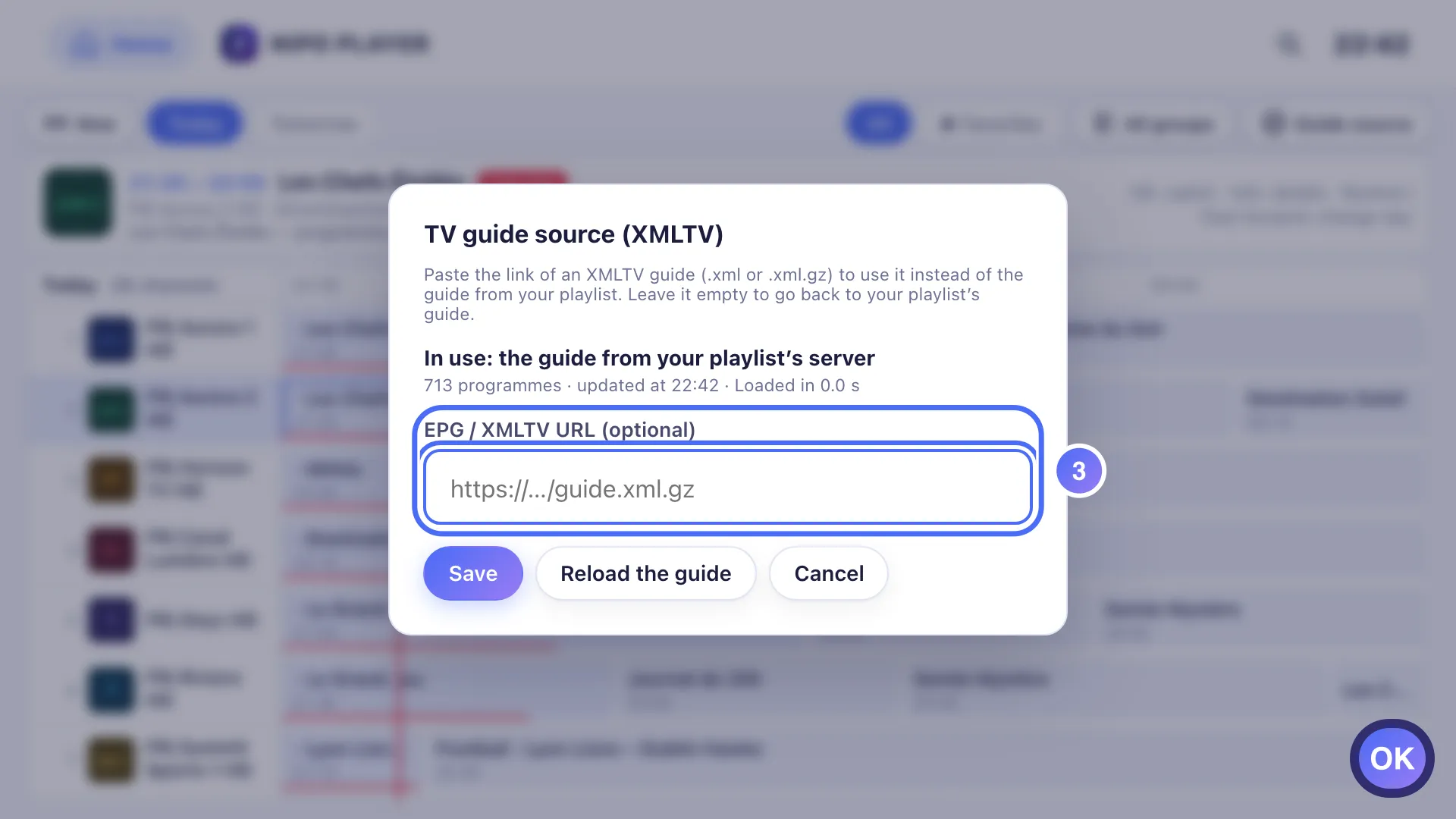
- 03
Select the EPG / XMLTV URL field and press OK to type. Key OK
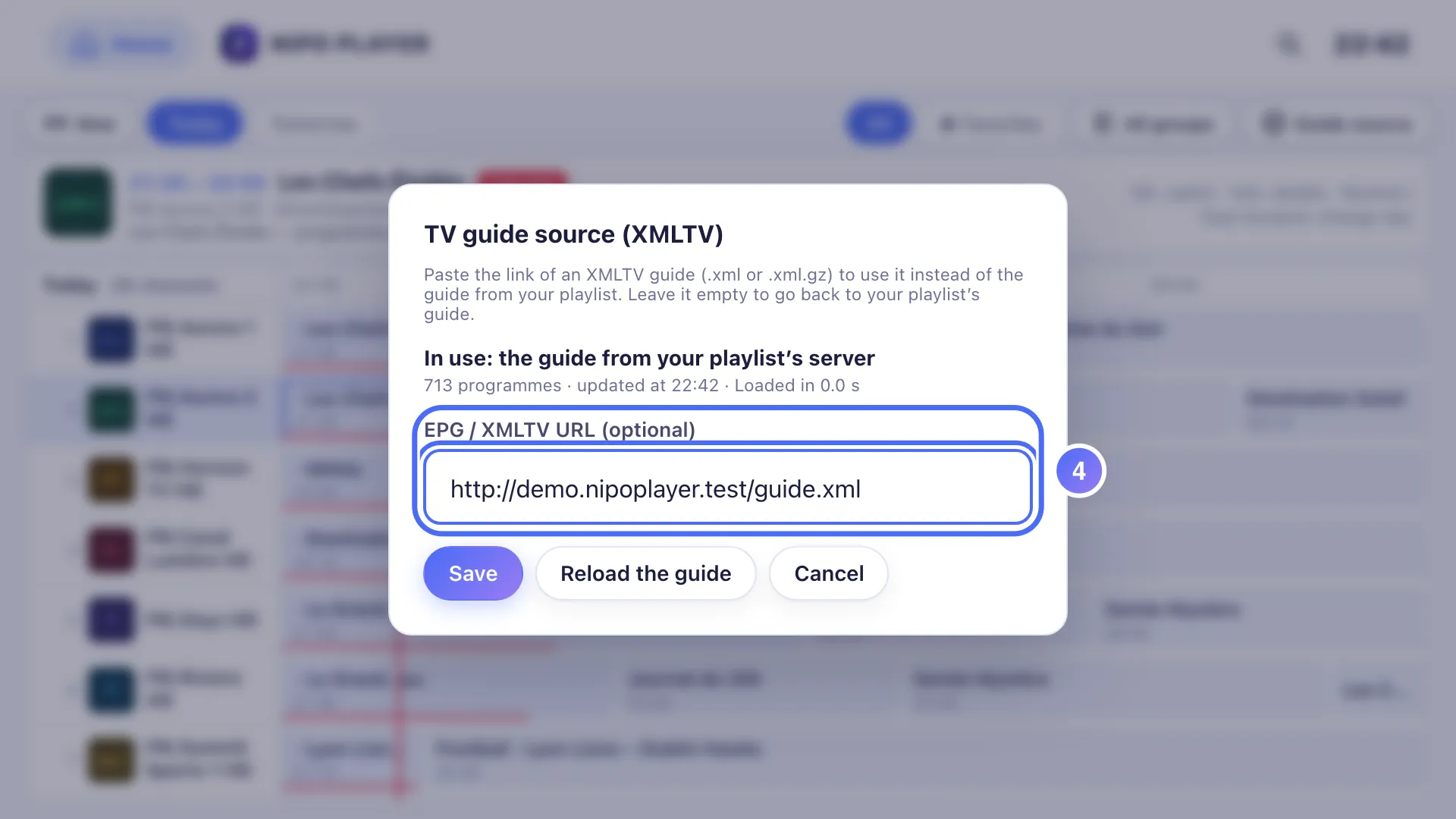
- 04
Paste your XMLTV guide’s link (.xml or .xml.gz), which must start with http:// or https://.
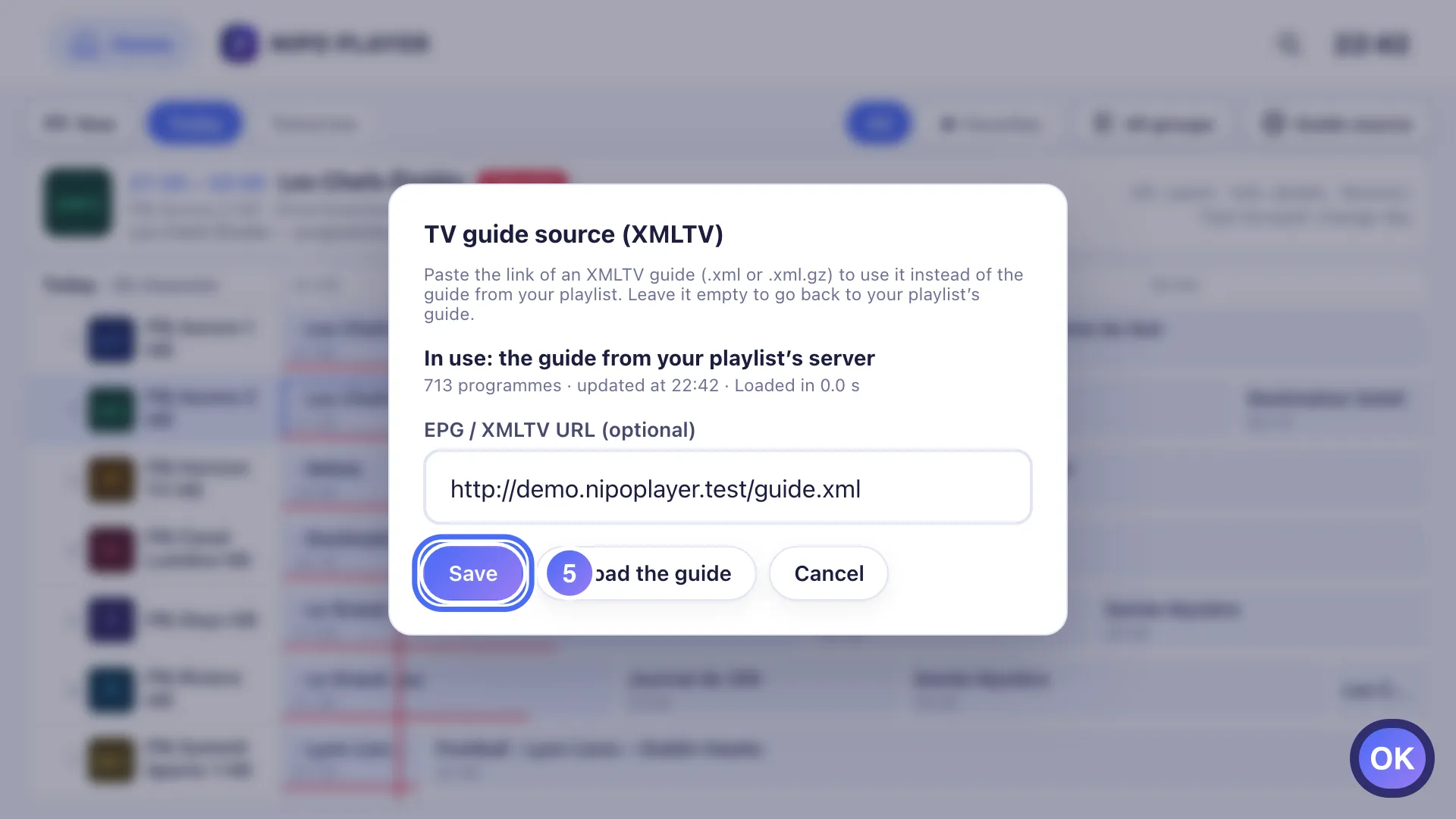
- 05
Go down to Save and press OK. Key OK
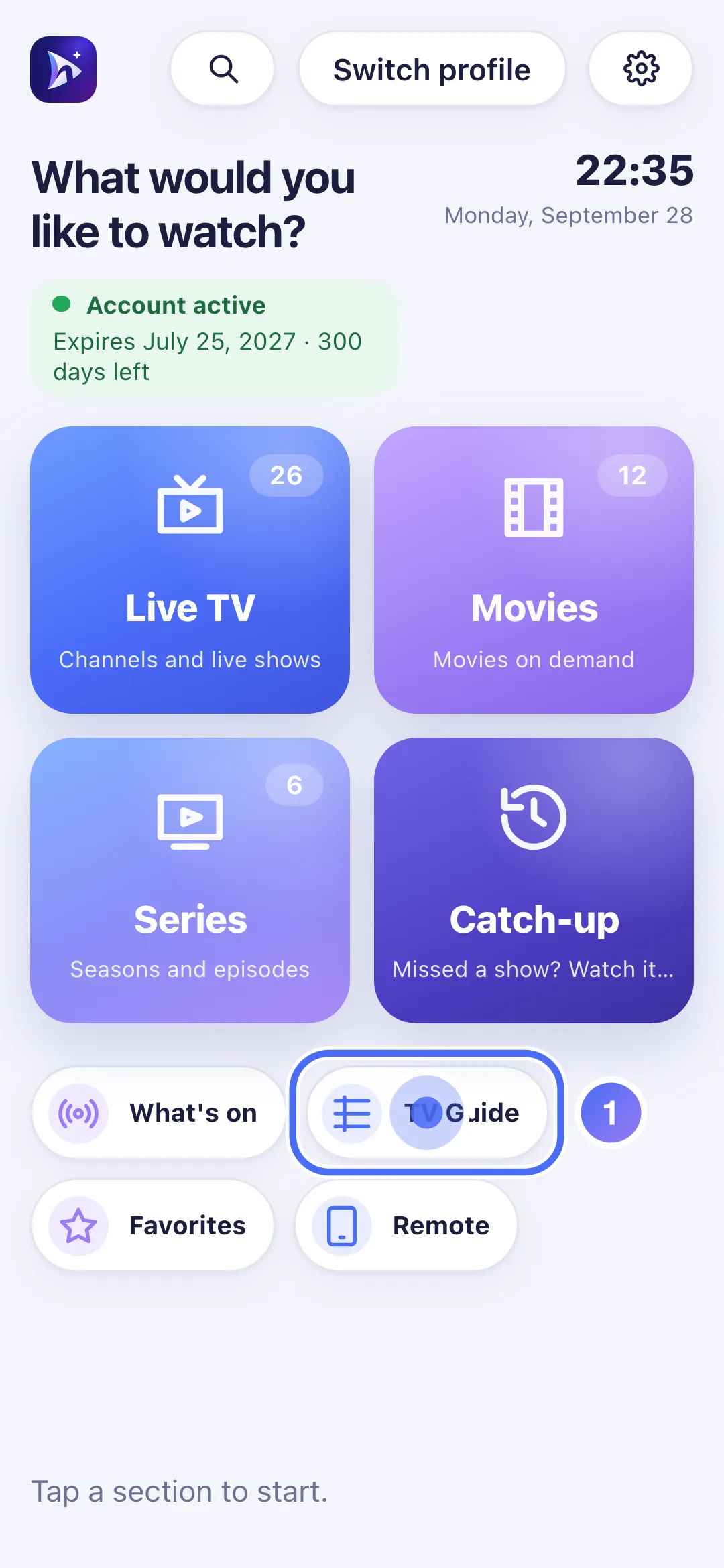
- 01
From Home, tap “TV Guide”.
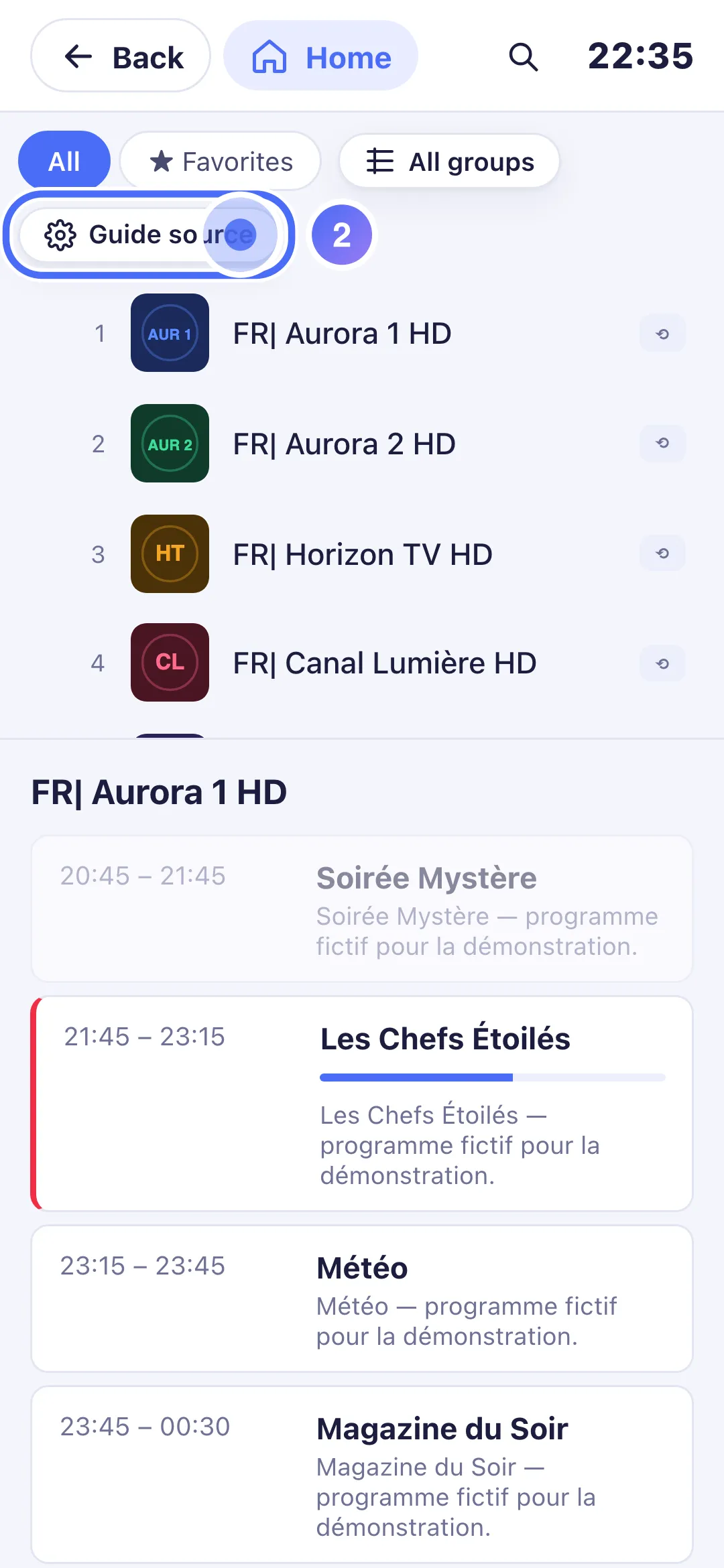
- 02
Above the list, tap the “Guide source” button (settings icon).
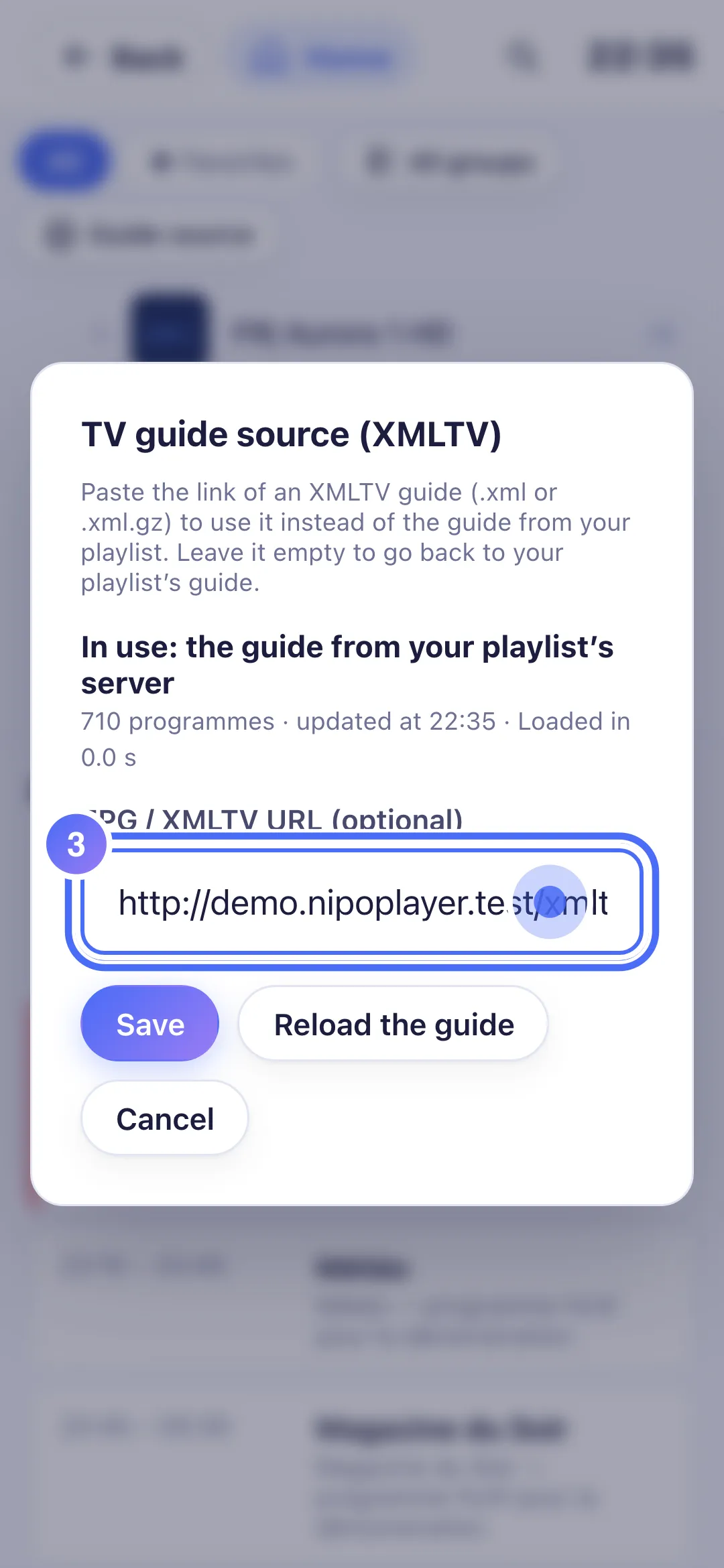
- 03
Paste your XMLTV guide’s link, which must start with http:// or https://.
- 04
Tap “Save”.
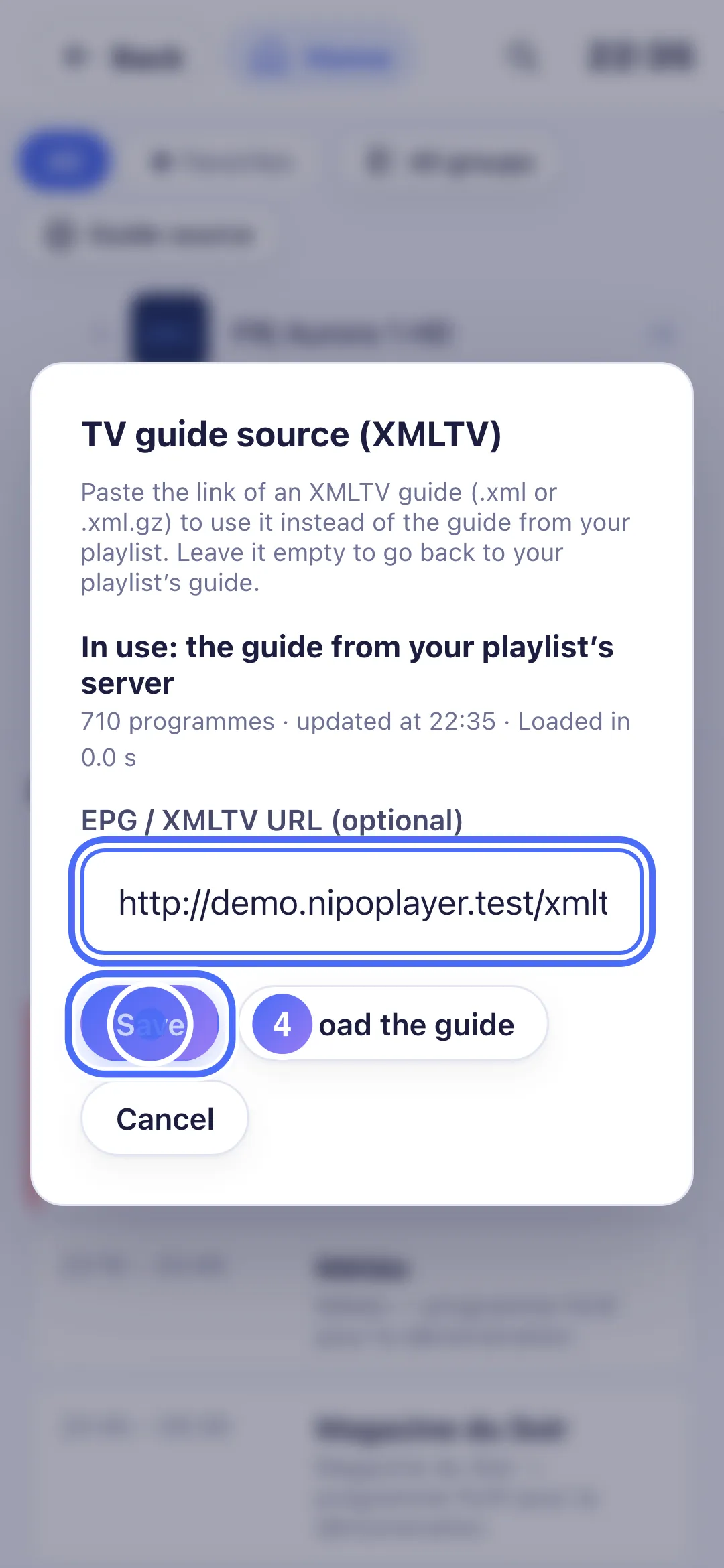
- 05
Your own TV guide is now used: programmes show up.
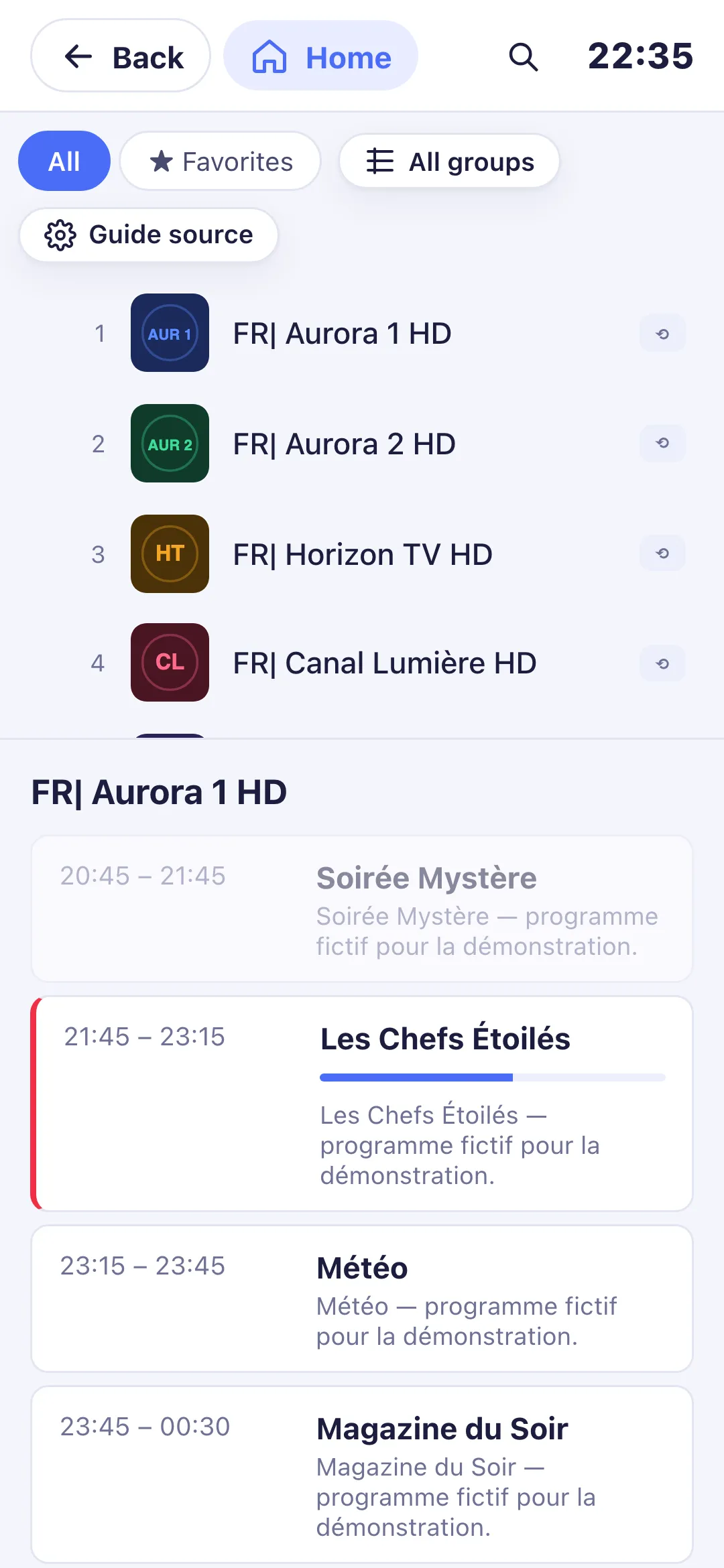
- 01
From Home, click “TV Guide”.
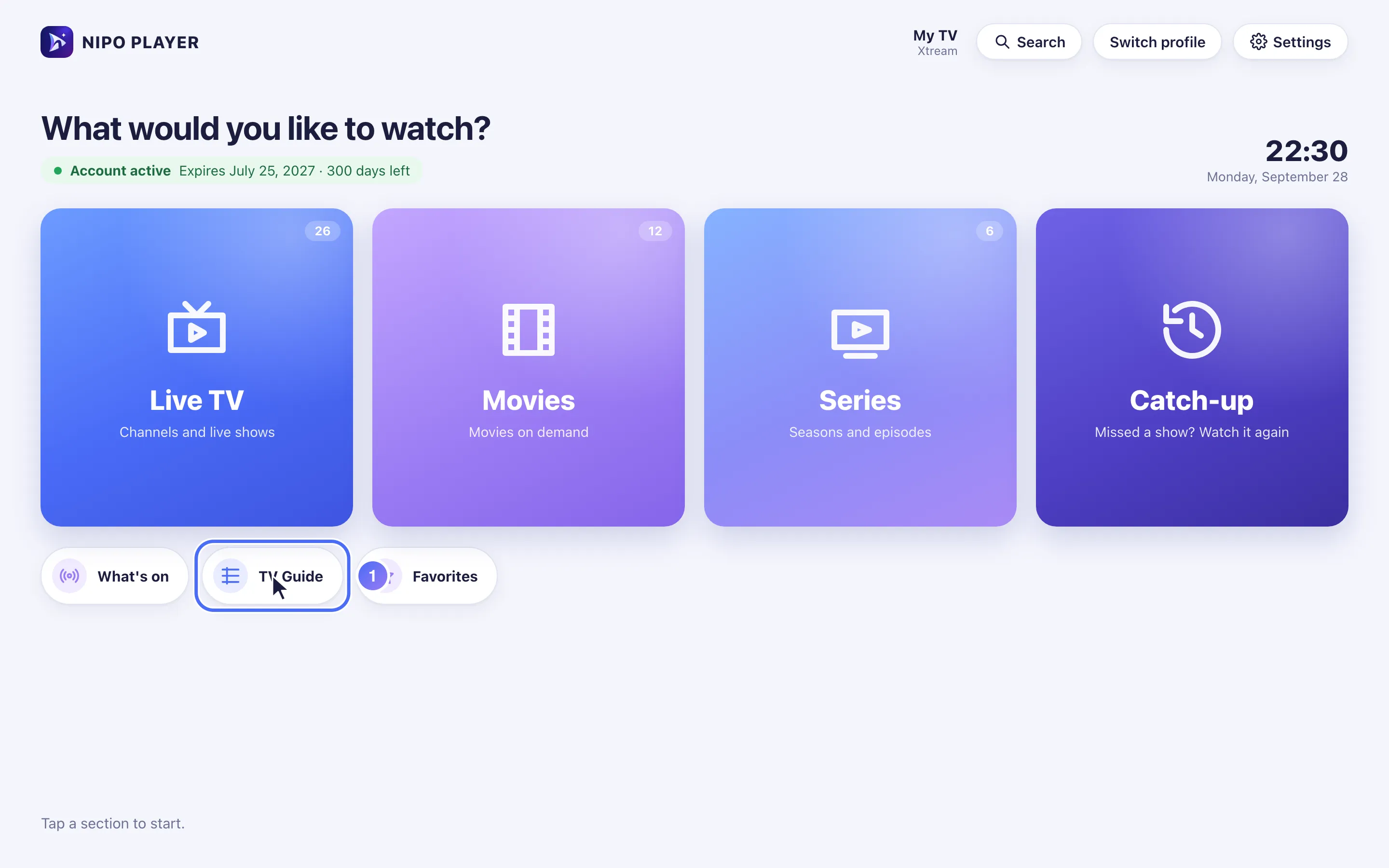
- 02
Next to the guide, click the “Guide source” button.
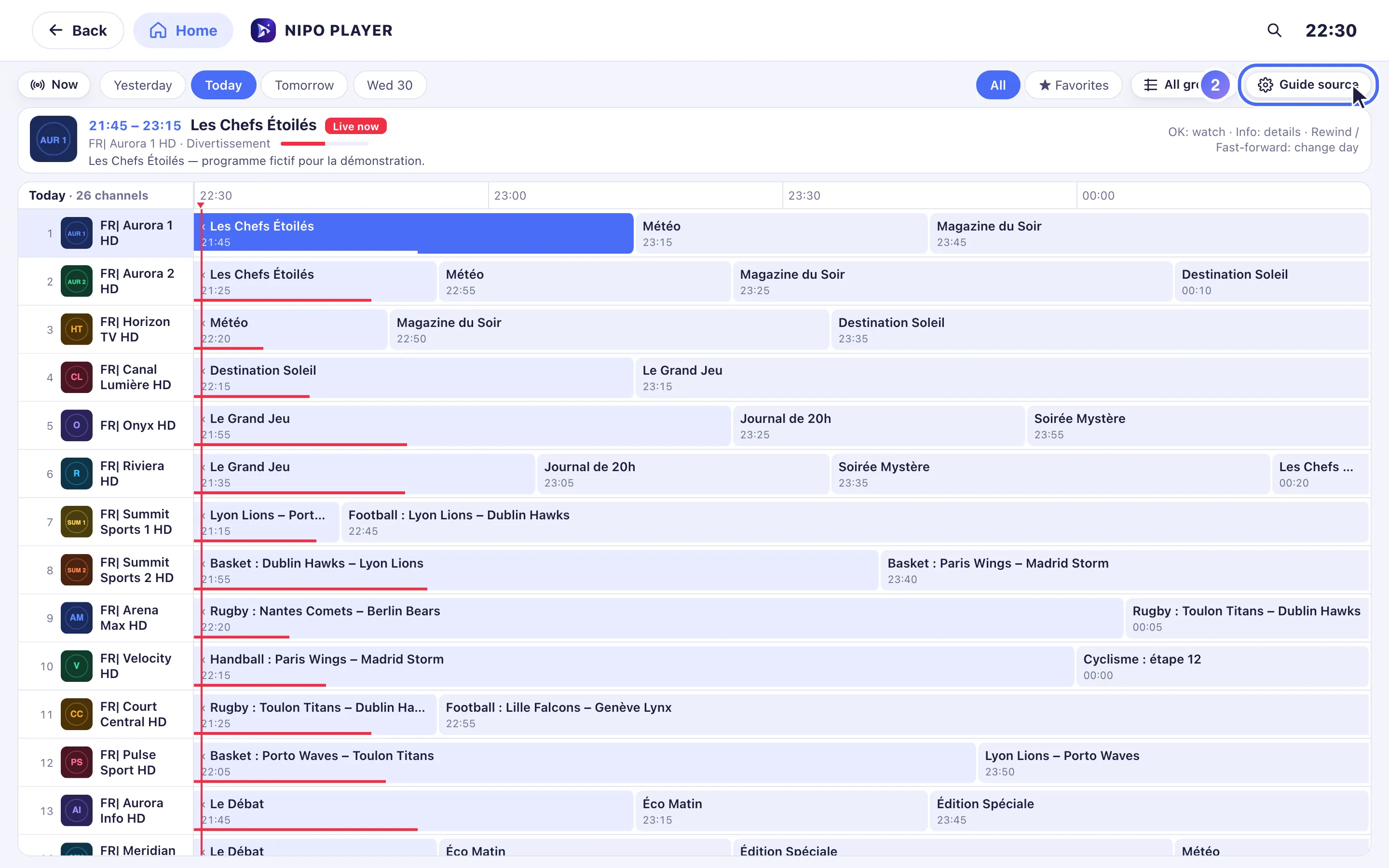
- 03
Paste your XMLTV guide’s link, which must start with http:// or https://.
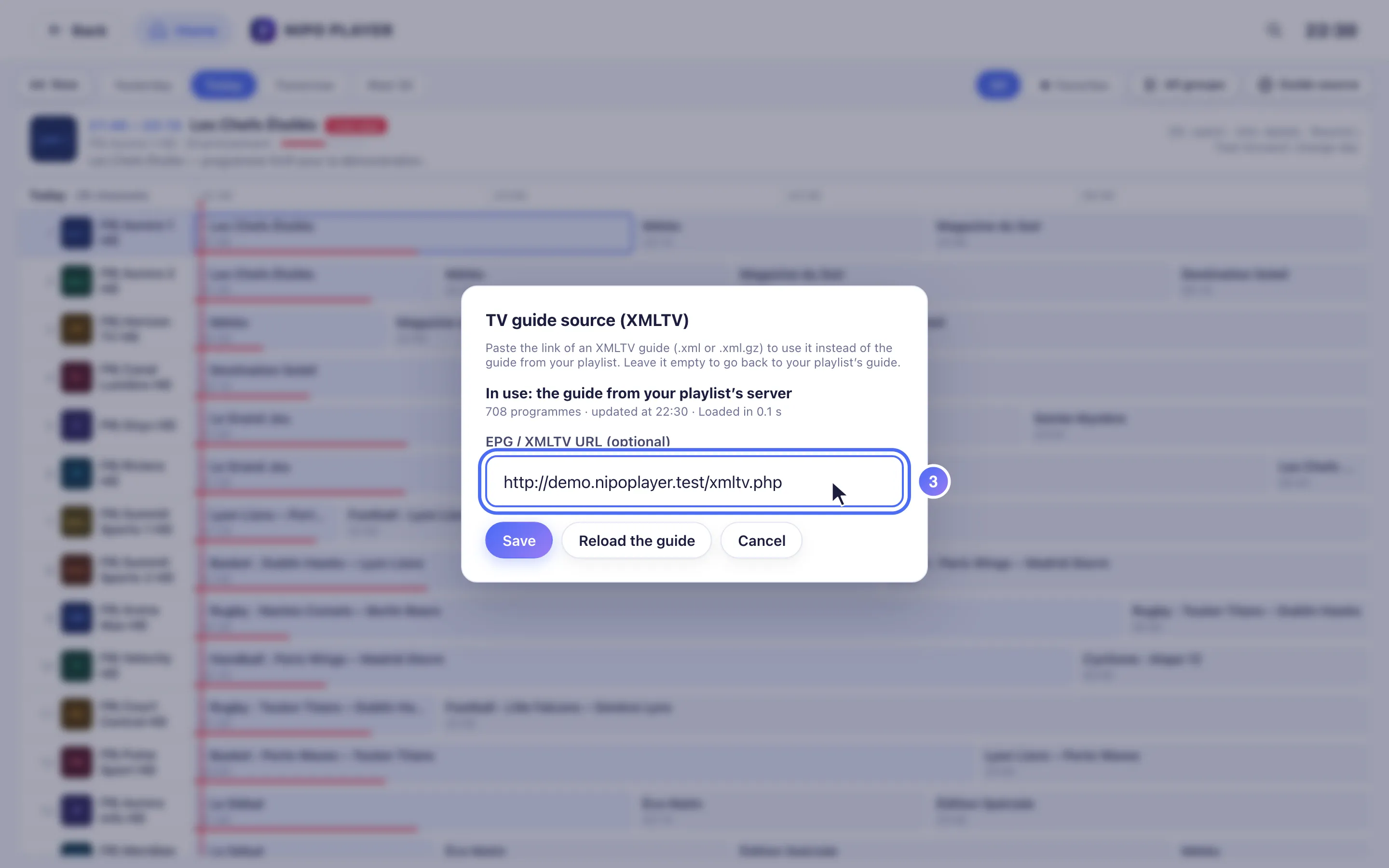
- 04
Click “Save”.
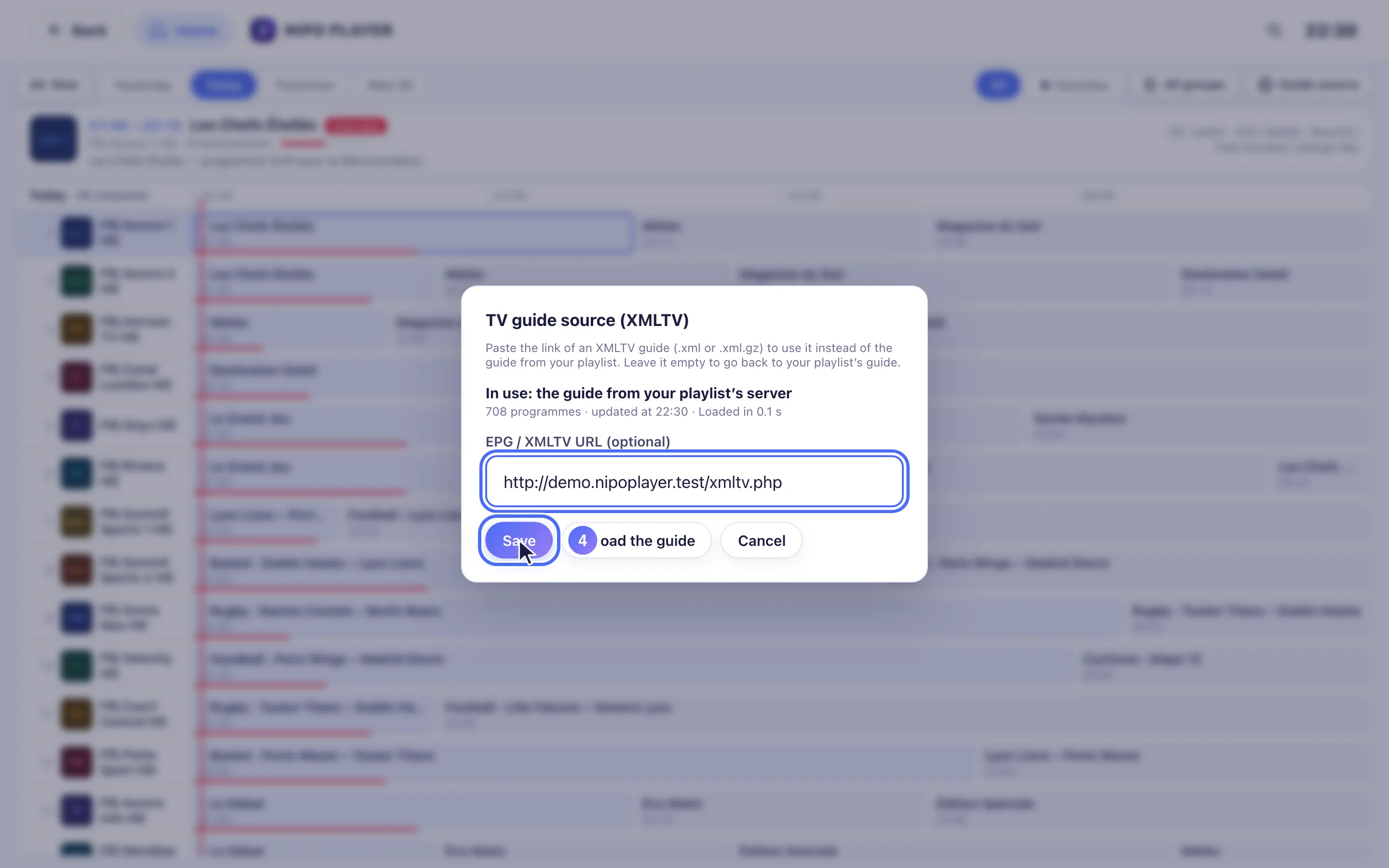
- 05
Your own TV guide is now used: programmes show up.
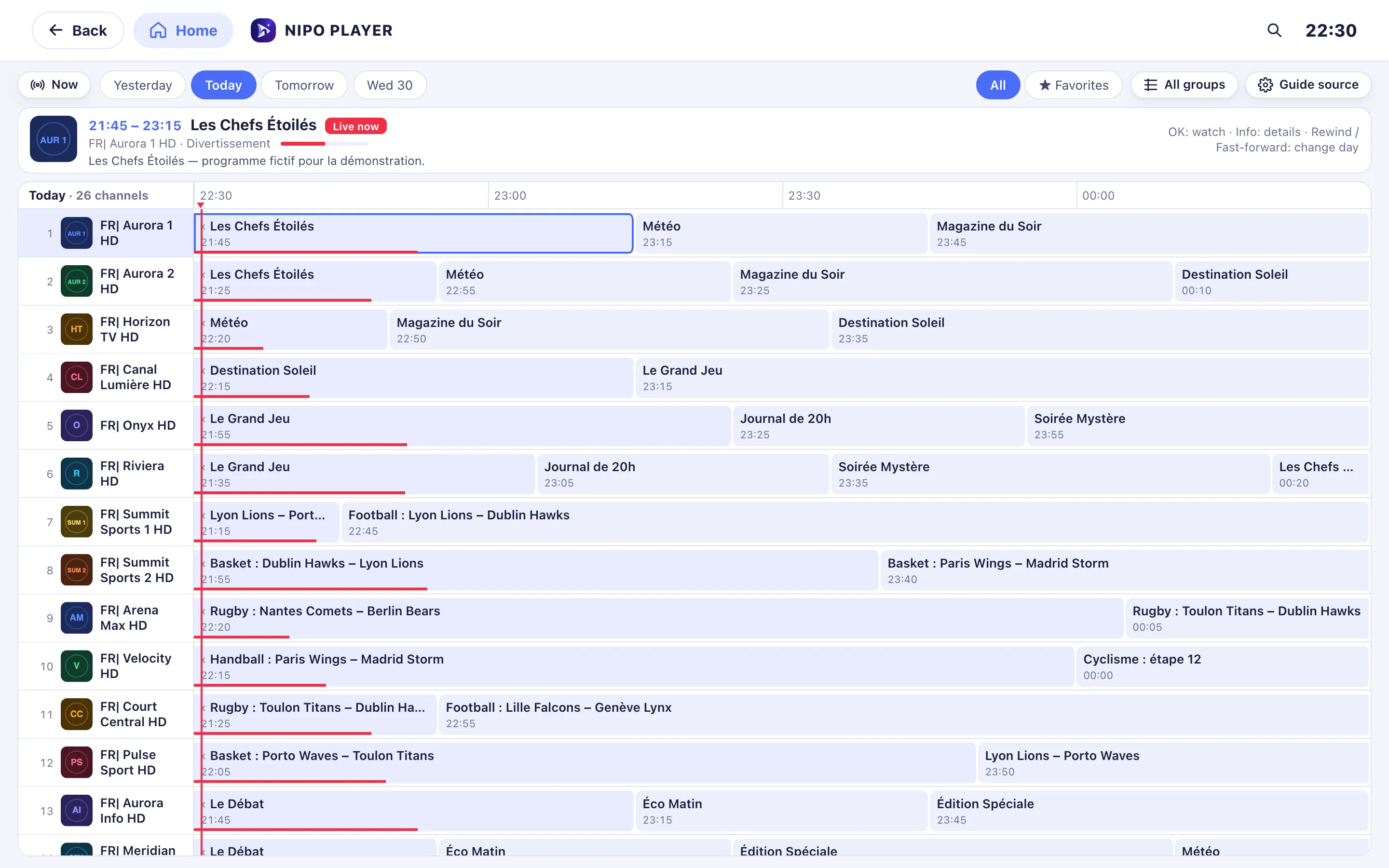
Steps
- From Home, open TV Guide.
- On phone or tablet, tap the Guide source button (settings icon) above the list. On TV and computer, this button sits next to the guide.
- Paste your XMLTV guide's link, which must start with
http://orhttps://. - Leave the field empty and save to go back to your playlist's guide.
Tip
You can also paste this link right when you add the playlist, in the EPG / XMLTV URL (optional) field under "+ More options". If the guide takes a while to load, that's normal for a large file: a guide already cached shows at once while the update happens in the background.
Updated on 28 September 2026
Did this article help you?
Can’t find the answer?
Write to us: we answer about the app and how it works. We can’t recommend a playlist.