
How do I add a playlist with an M3U link?
Choose "M3U URL", paste your playlist's link (starting with http://) and connect: Nipo Player then loads your channels, movies and series.
Nipo doesn’t provide, sell or host any channel, movie or playlist: it plays what you already own.
An M3U link points straight to your list of channels, movies and series.
Step by step, with pictures
- 01
On "How would you like to connect?", choose M3U URL and press OK. Key OK
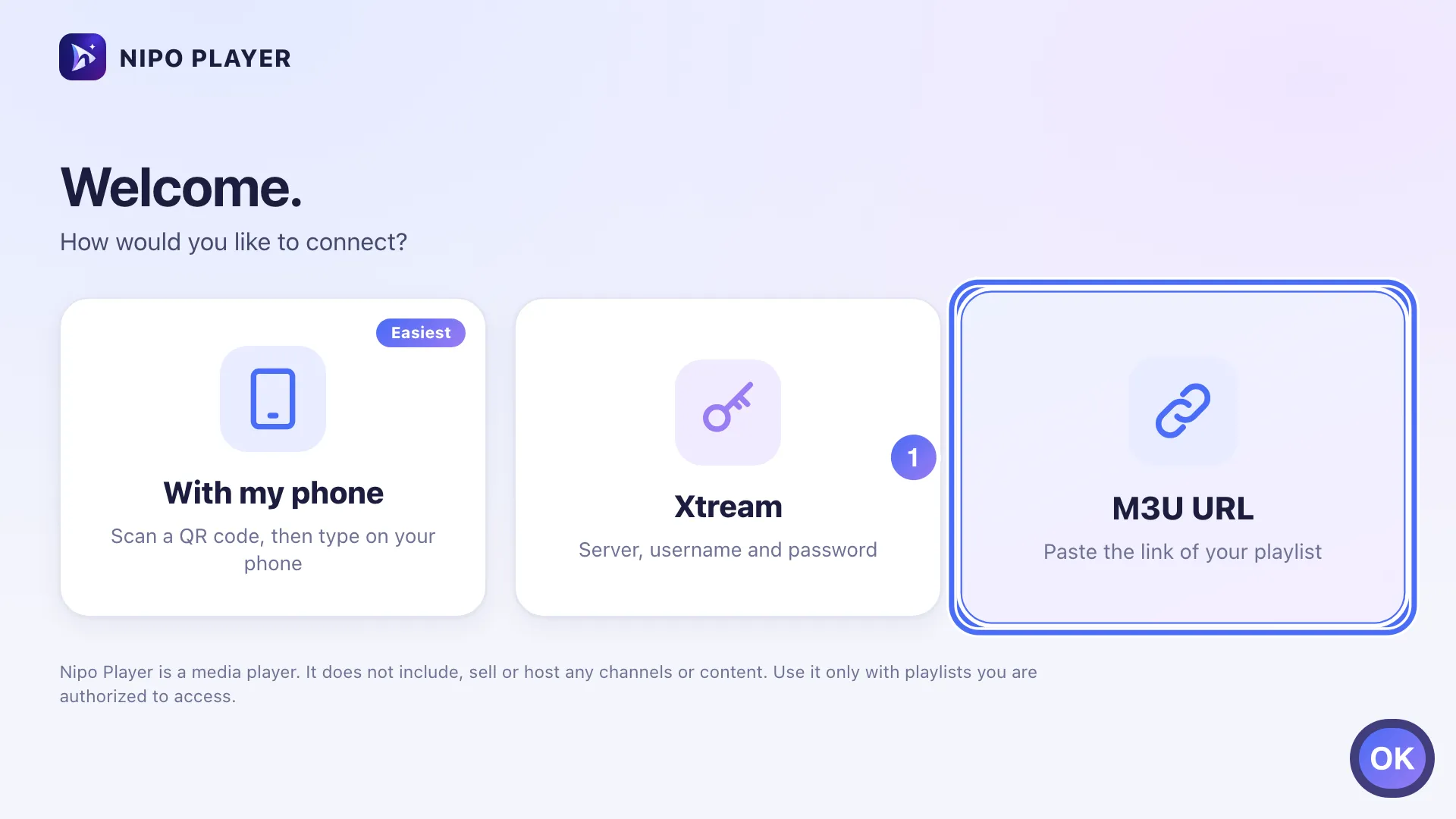
- 02
Select the Playlist URL field and press OK to type. Key OK
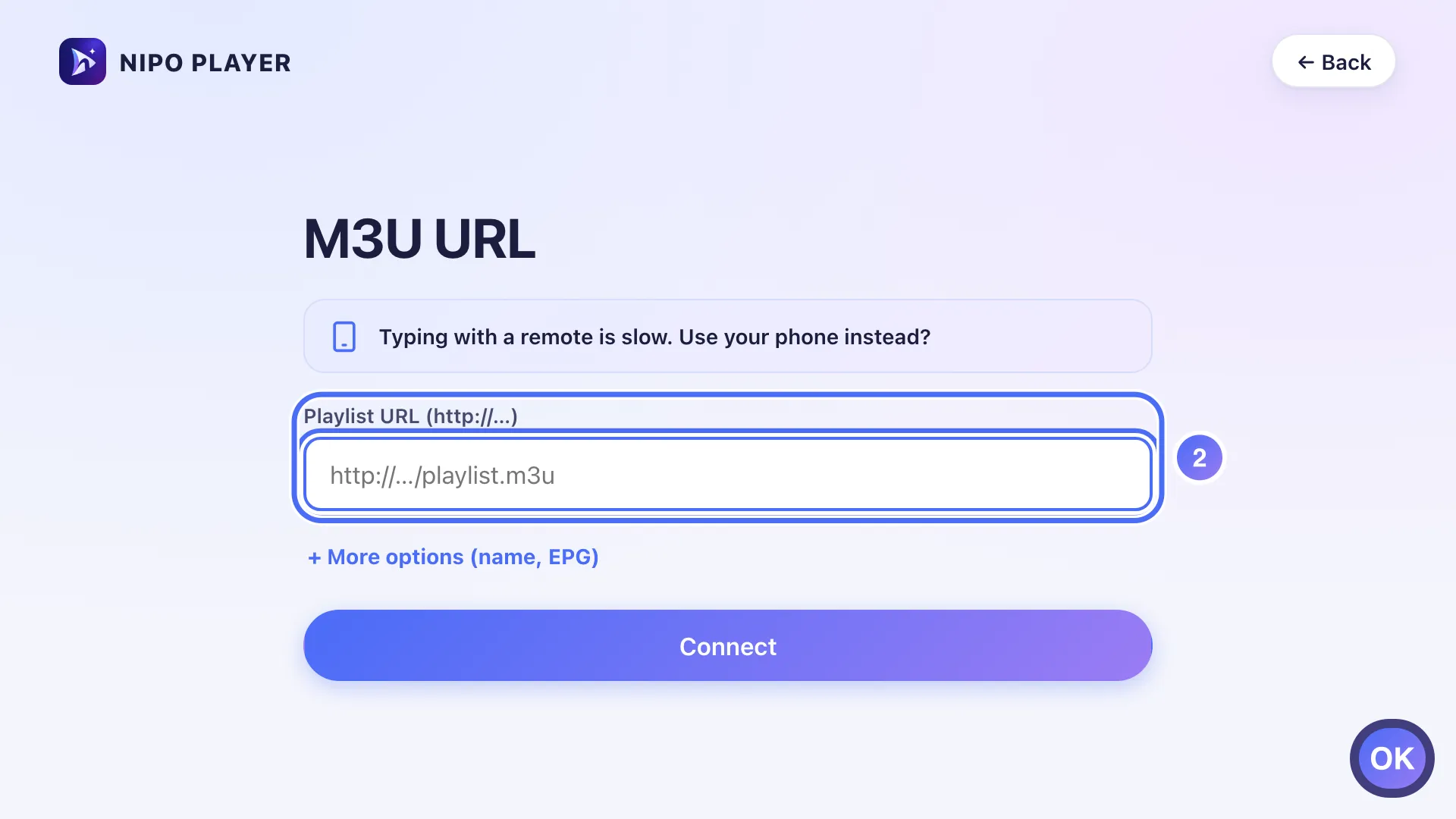
- 03
Paste your playlist’s full address, which must start with http:// or https://.
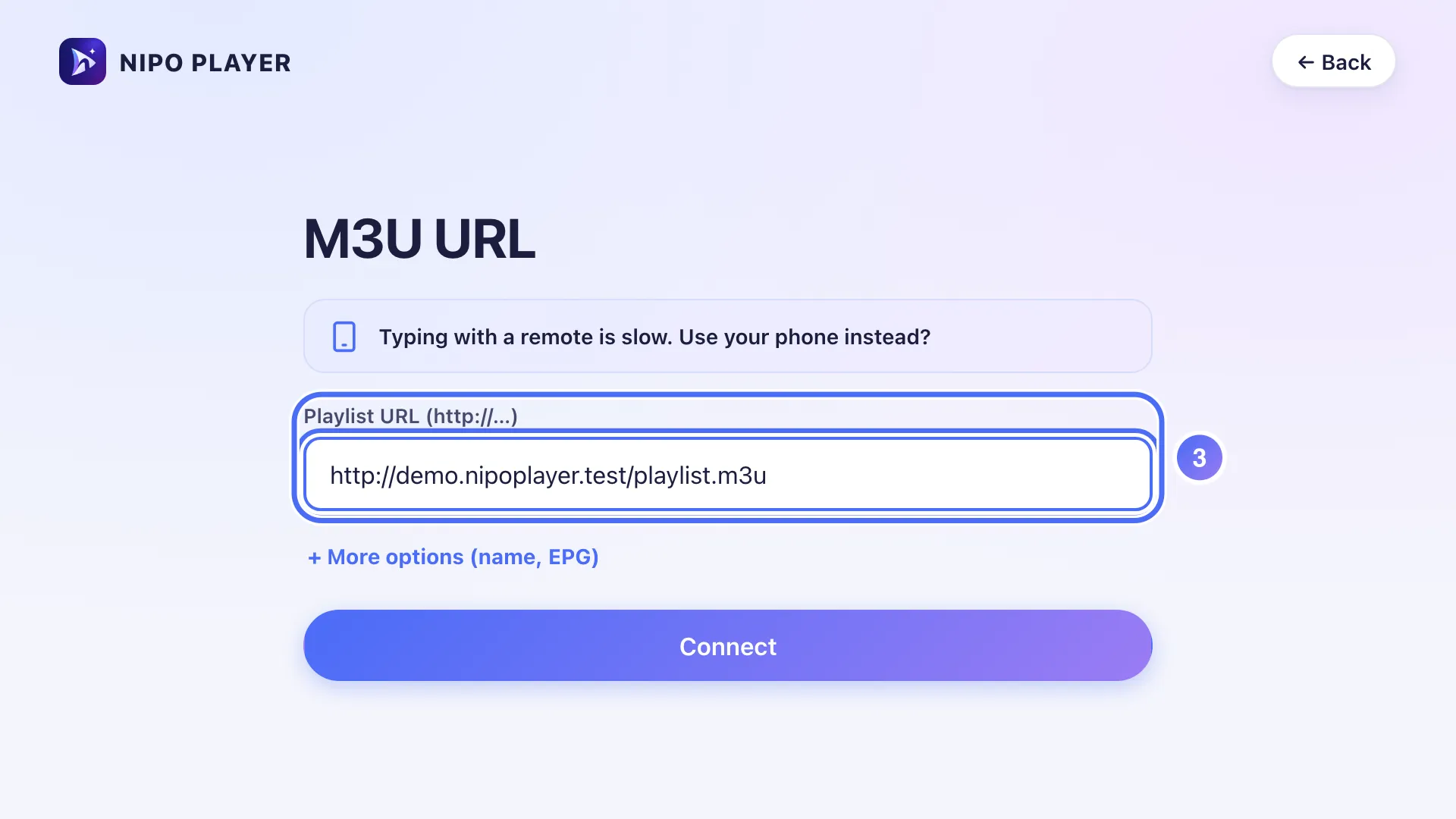
- 04
Go down to Connect and press OK. Key OK
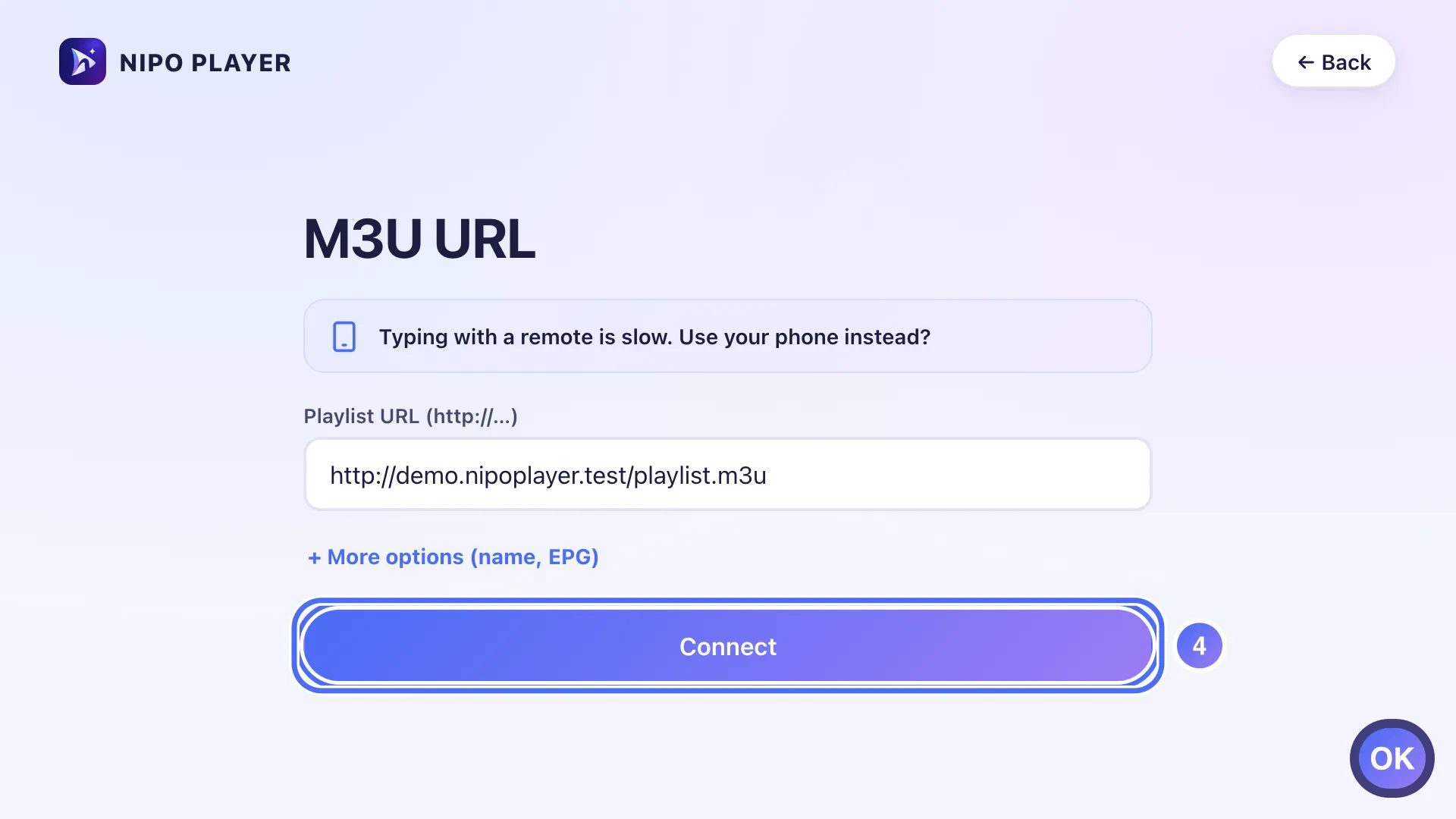
- 01
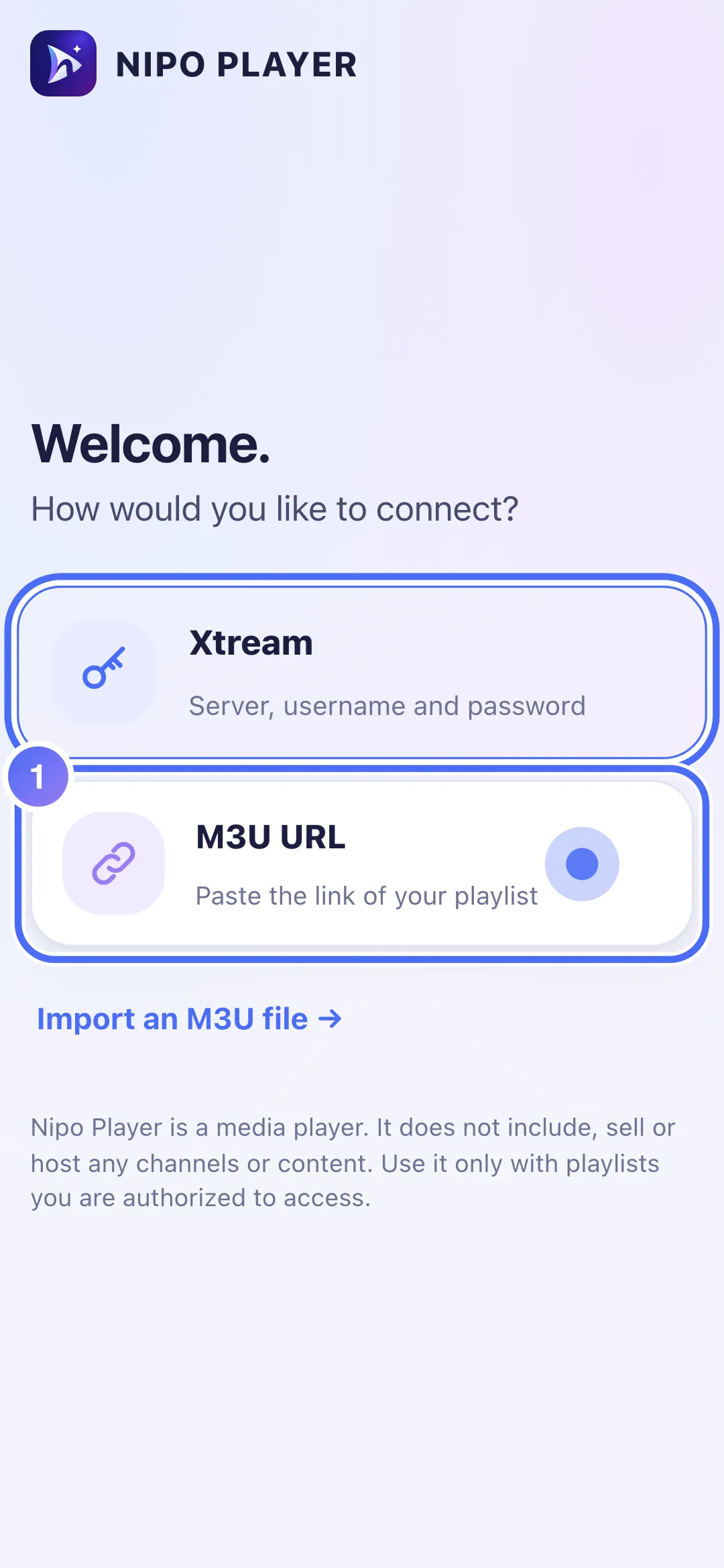
Tap “M3U URL” to paste your playlist’s link.
- 02
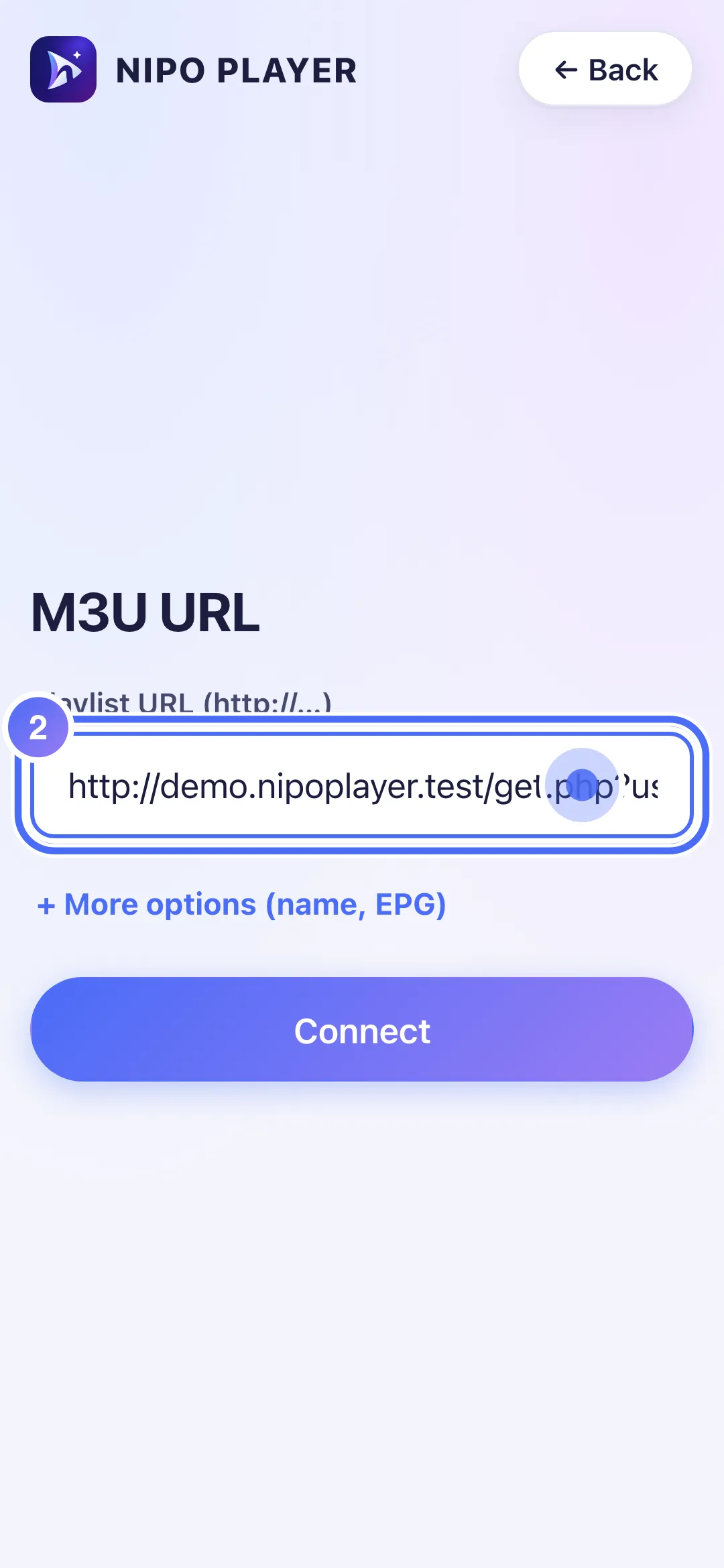
Paste your playlist’s full address into “Playlist URL”.
- 03
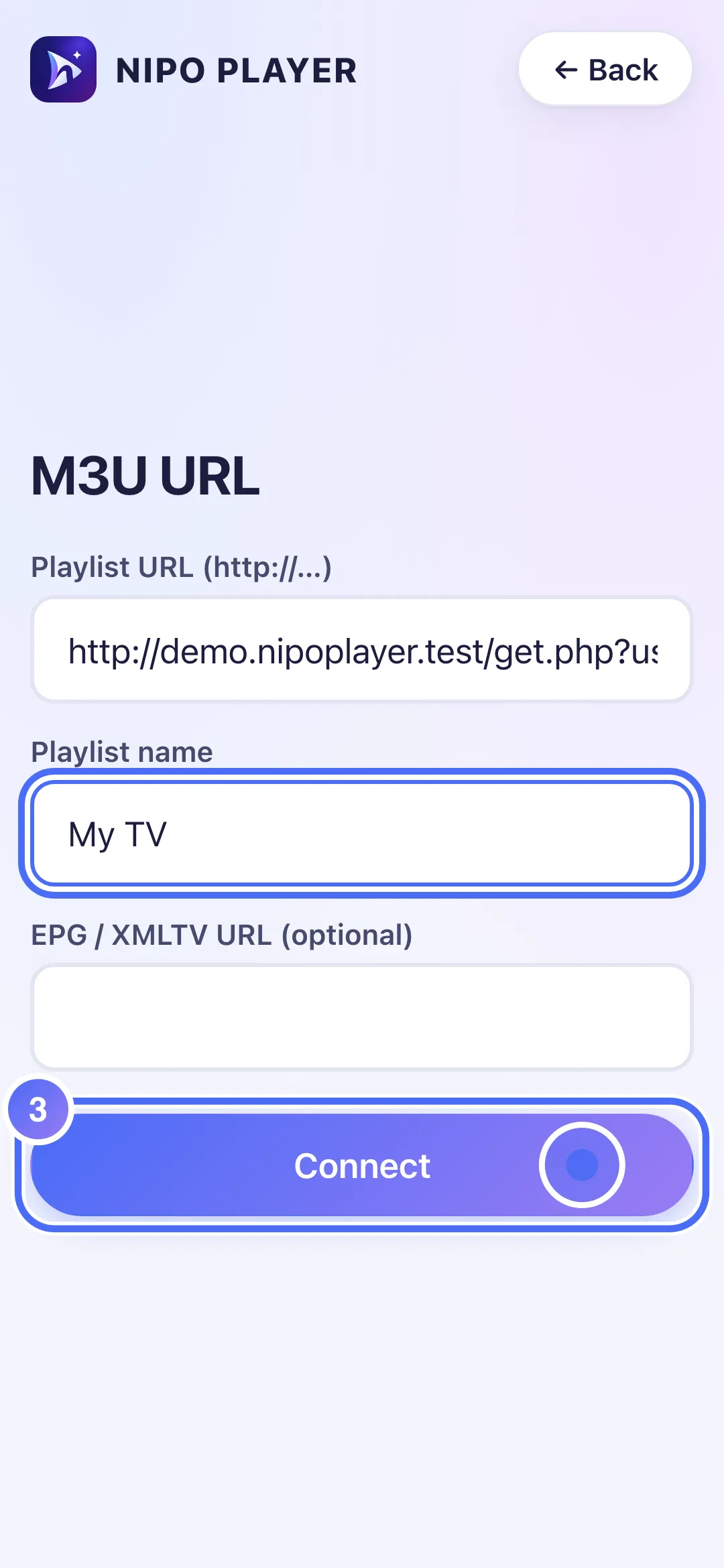
Tap “Connect” to confirm.
- 04
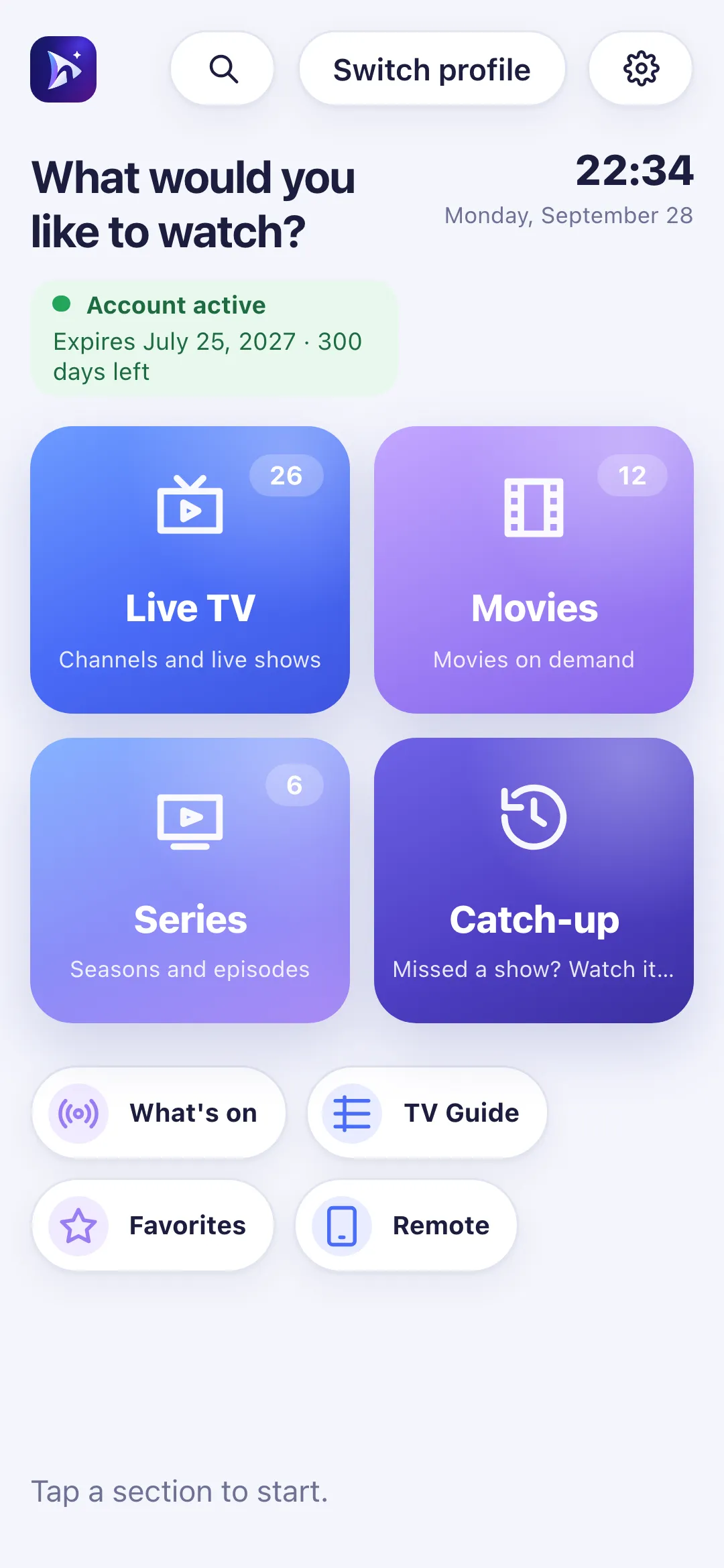
Your playlist is connected: this is Nipo Player’s home screen.
- 01
Click “M3U URL” to paste your playlist’s link.
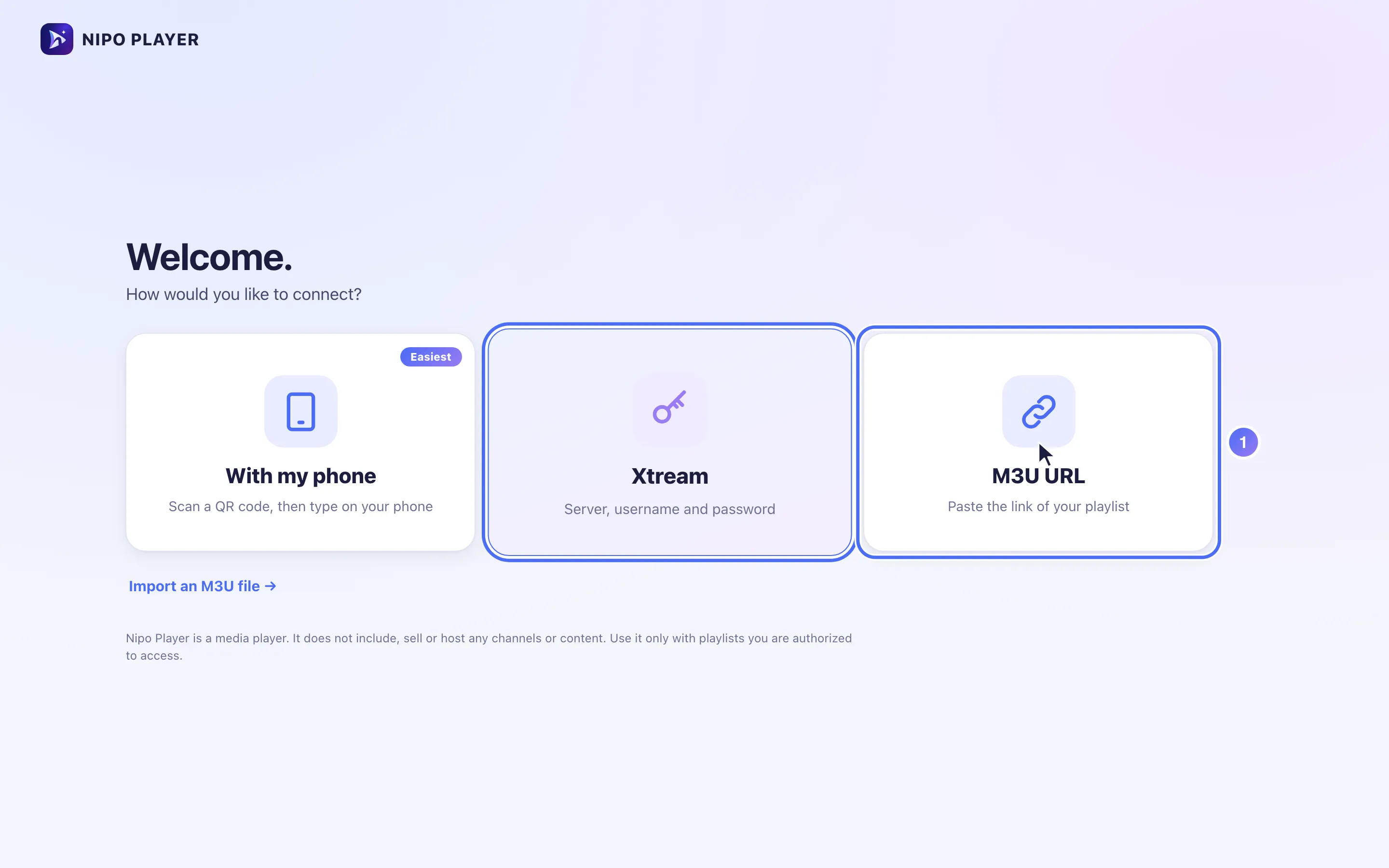
- 02
Paste your playlist’s full address into “Playlist URL”.
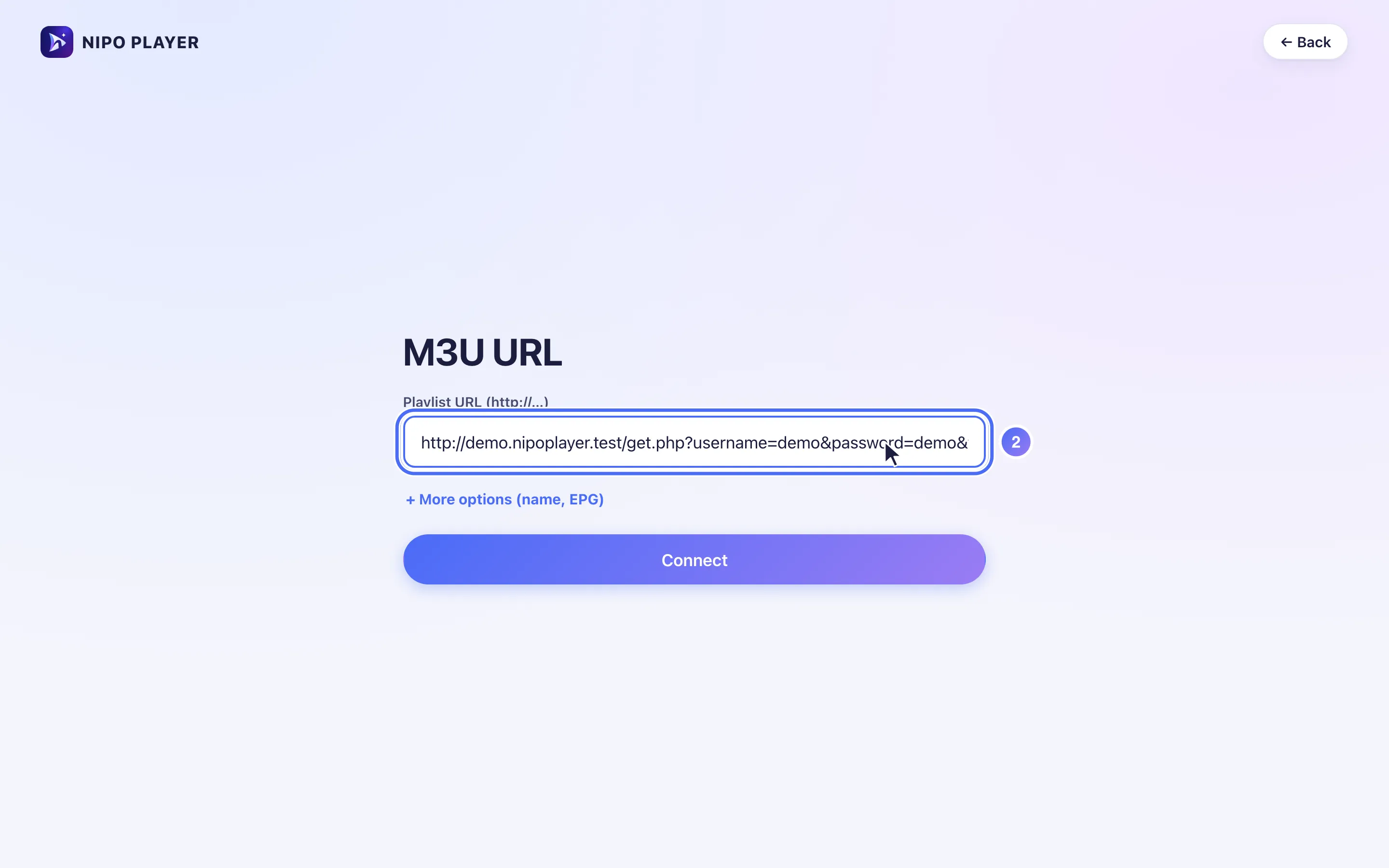
- 03
Click “Connect” to confirm.
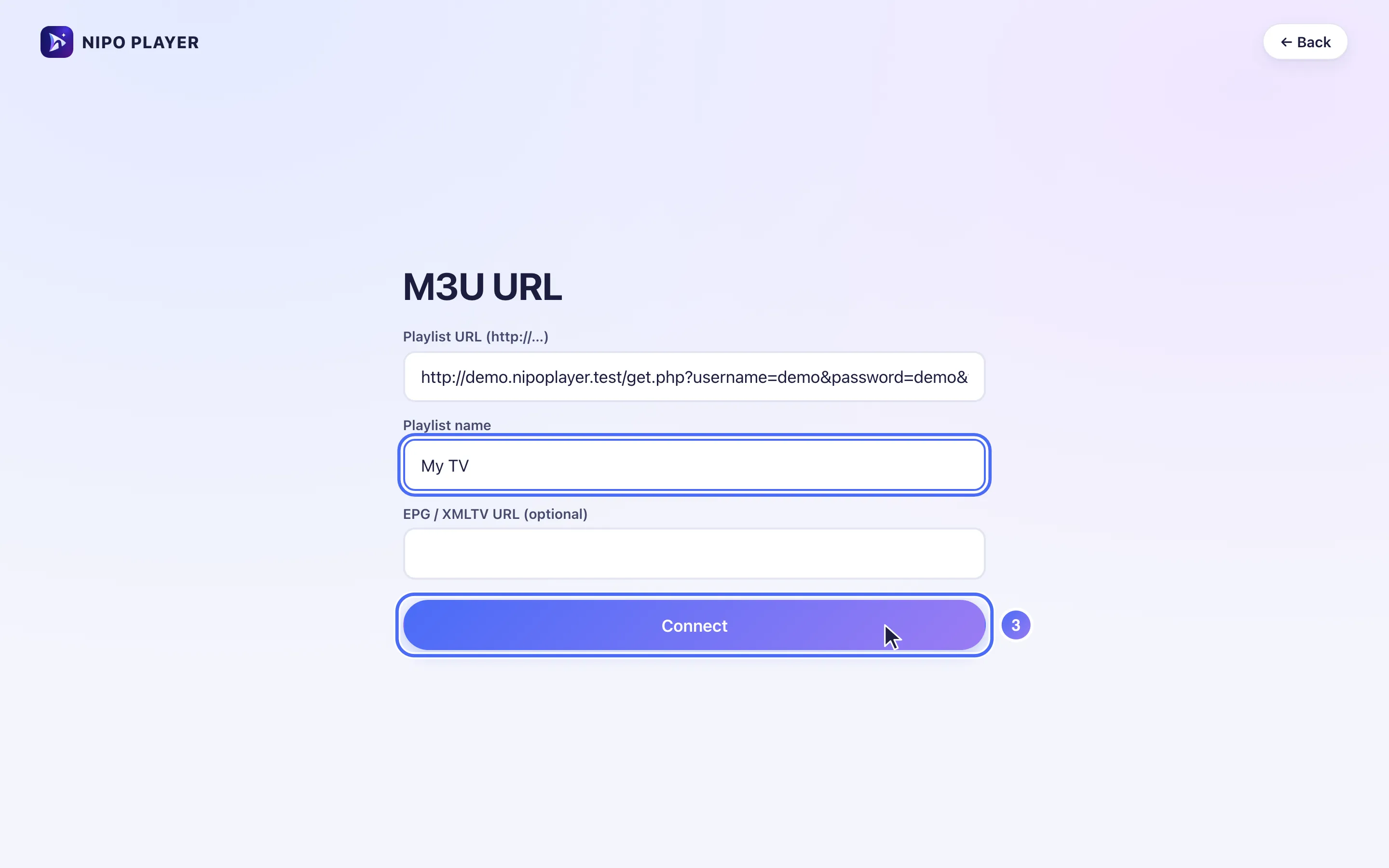
- 04
Your playlist is connected: this is Nipo Player’s home screen.
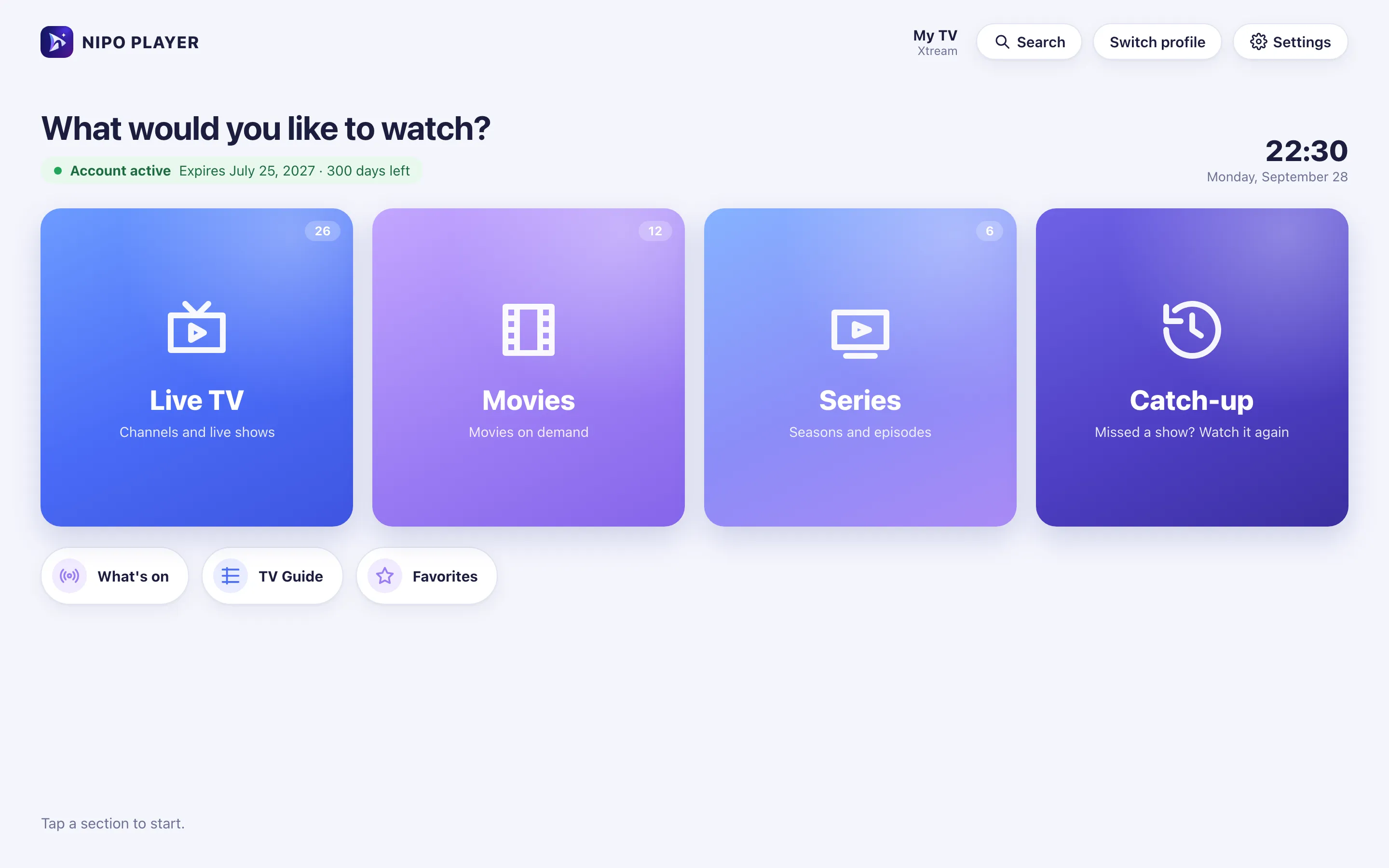
Steps
- On the "How would you like to connect?" screen, choose M3U URL ("Paste the link of your playlist").
- Paste the full address into Playlist URL, which must start with
http://orhttps://. - Tap + More options if you want to name the playlist or add a TV guide (XMLTV) link.
- Confirm with Connect.
If it doesn't work
- "The playlist is empty or invalid": check that the copied link is complete, with no stray space or cut-off character.
- "Could not reach the server": the playlist's server may be down; see Your playlist's server is not responding.
Tip
A link that contains get.php and your login (a server login disguised as an M3U link) also works: Nipo Player recognizes it automatically and unlocks extra features (like full series pages and catch-up) that a plain M3U link doesn't provide.
Updated on 28 September 2026
Did this article help you?
Can’t find the answer?
Write to us: we answer about the app and how it works. We can’t recommend a playlist.