
How do I add my playlist with my phone's QR code?
On the TV, choose "With my phone", scan the code and enter your playlist from your phone: it's the easiest method.
Nipo doesn’t provide, sell or host any channel, movie or playlist: it plays what you already own.
This is the fastest method on a television: typing an address with a remote is slow, while a phone already has a keyboard.
Step by step, with pictures
- 01
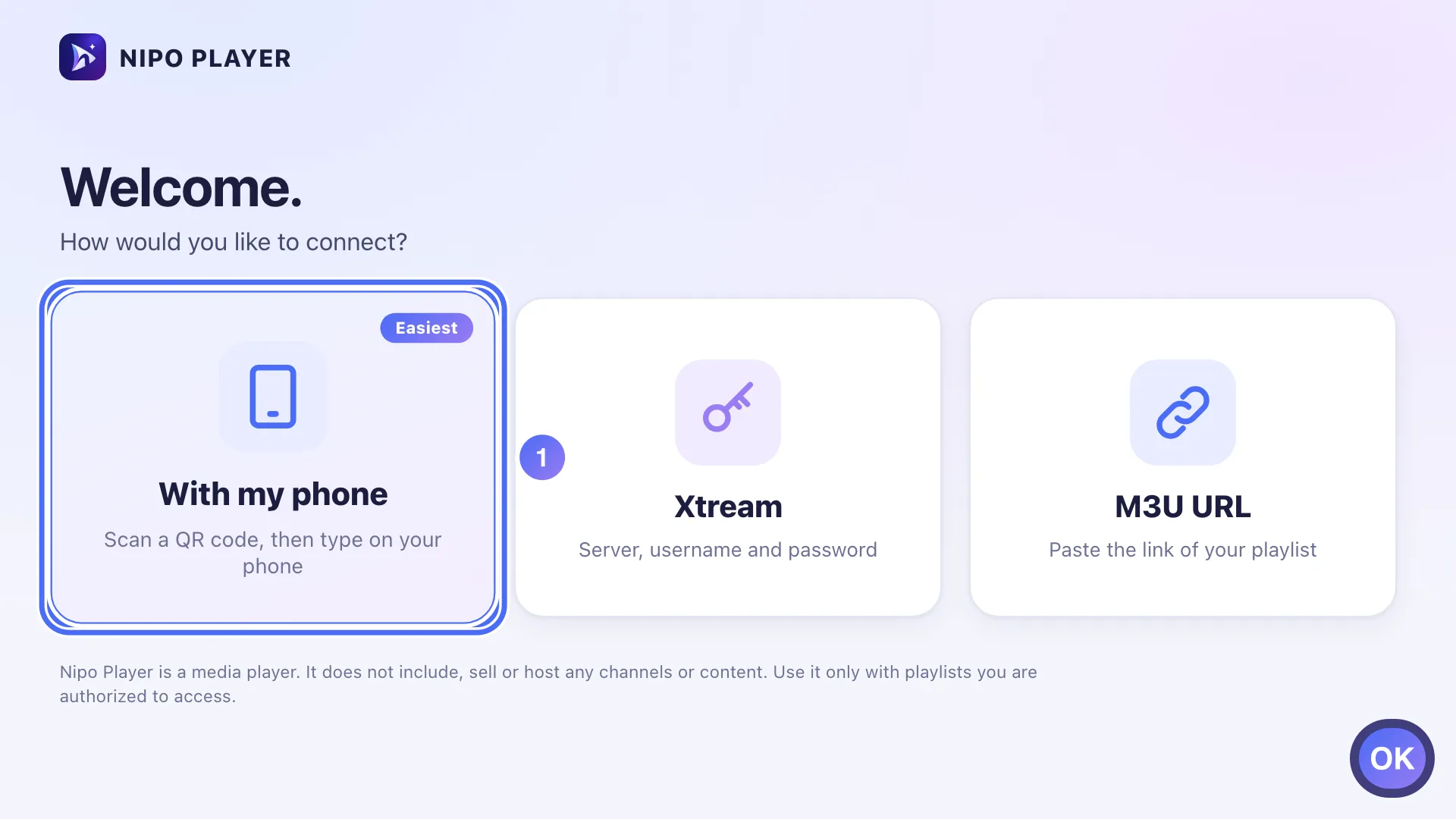
Choose “With my phone” (the easiest) and press OK. Key OK
- 02
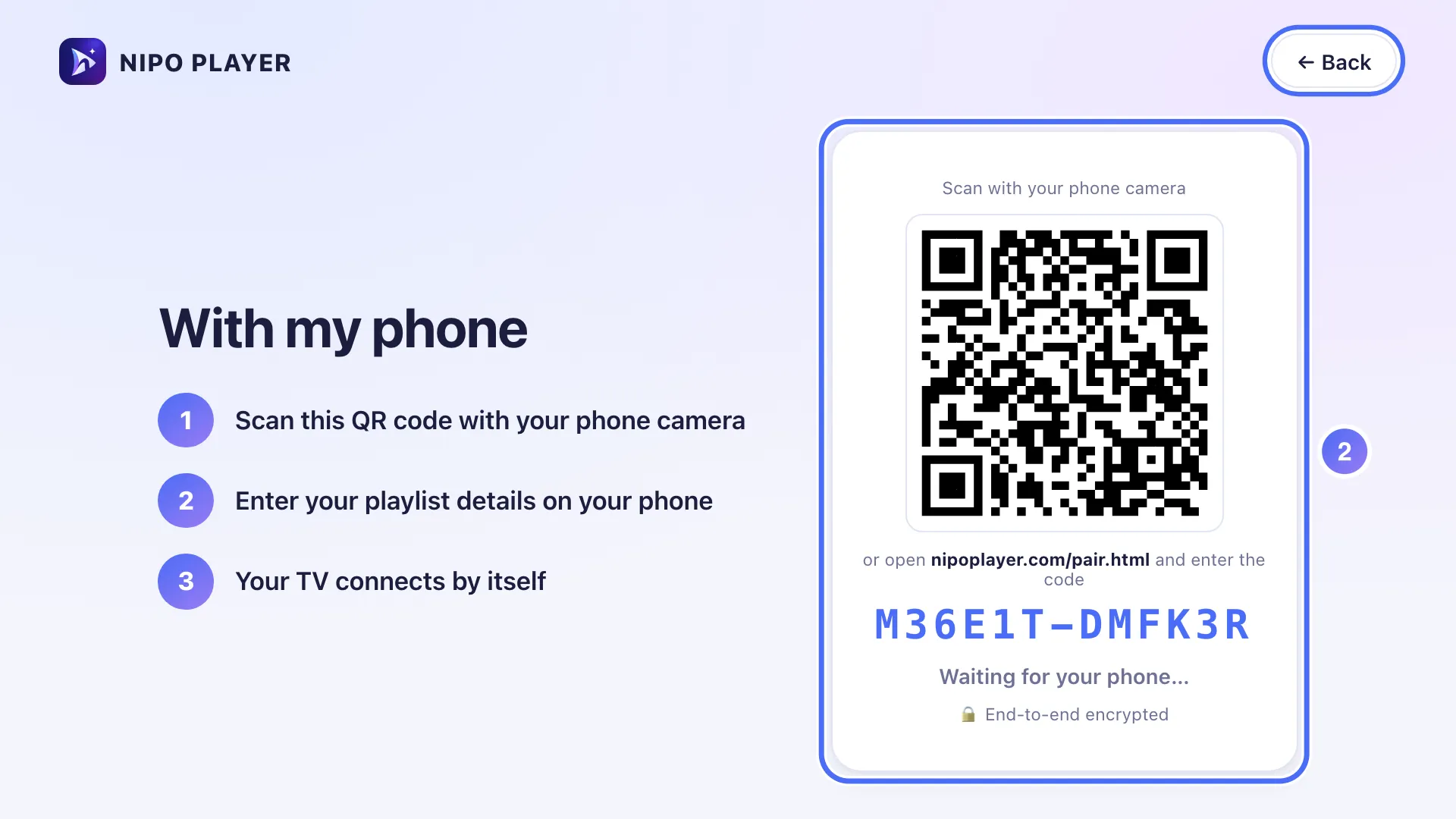
Scan the QR code with your phone: the TV connects as soon as you send the playlist.
- 01
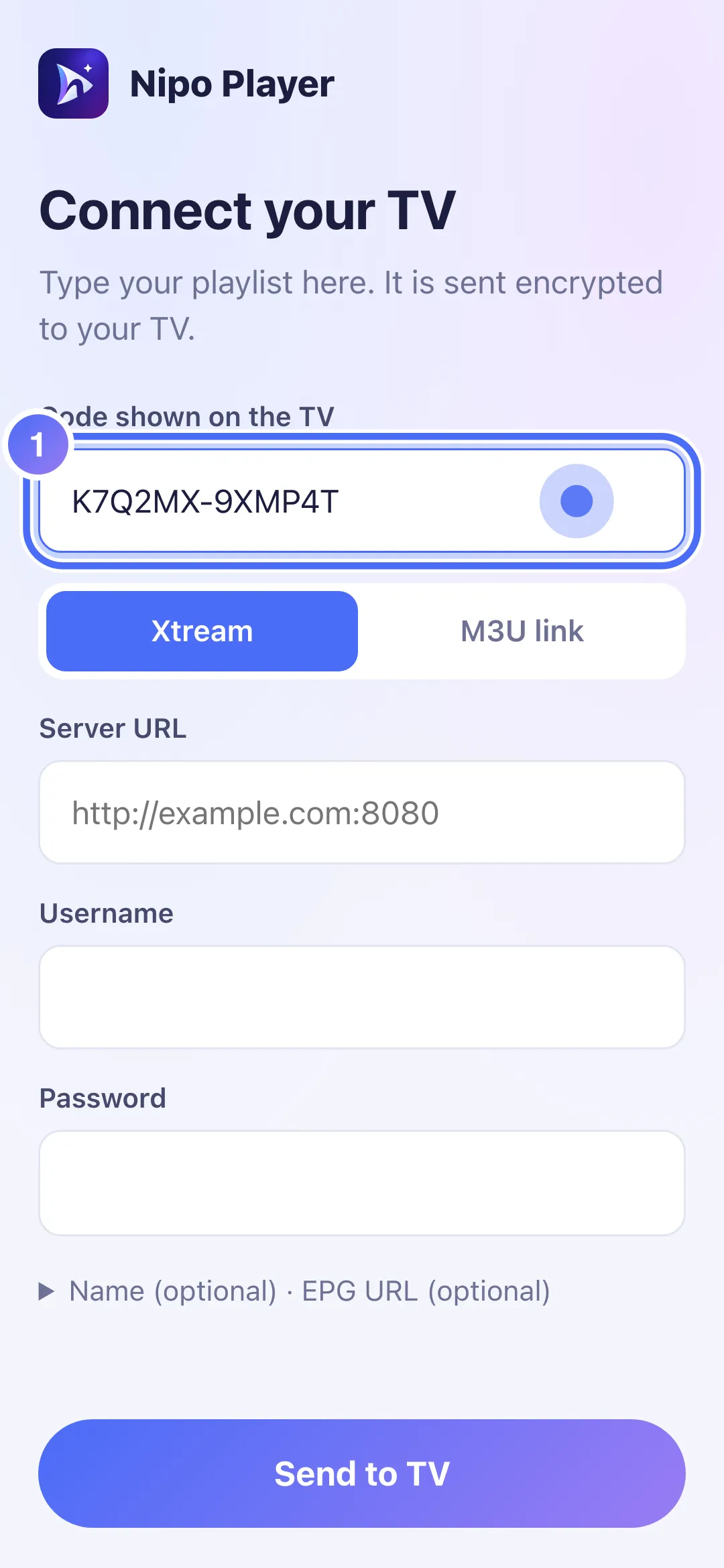
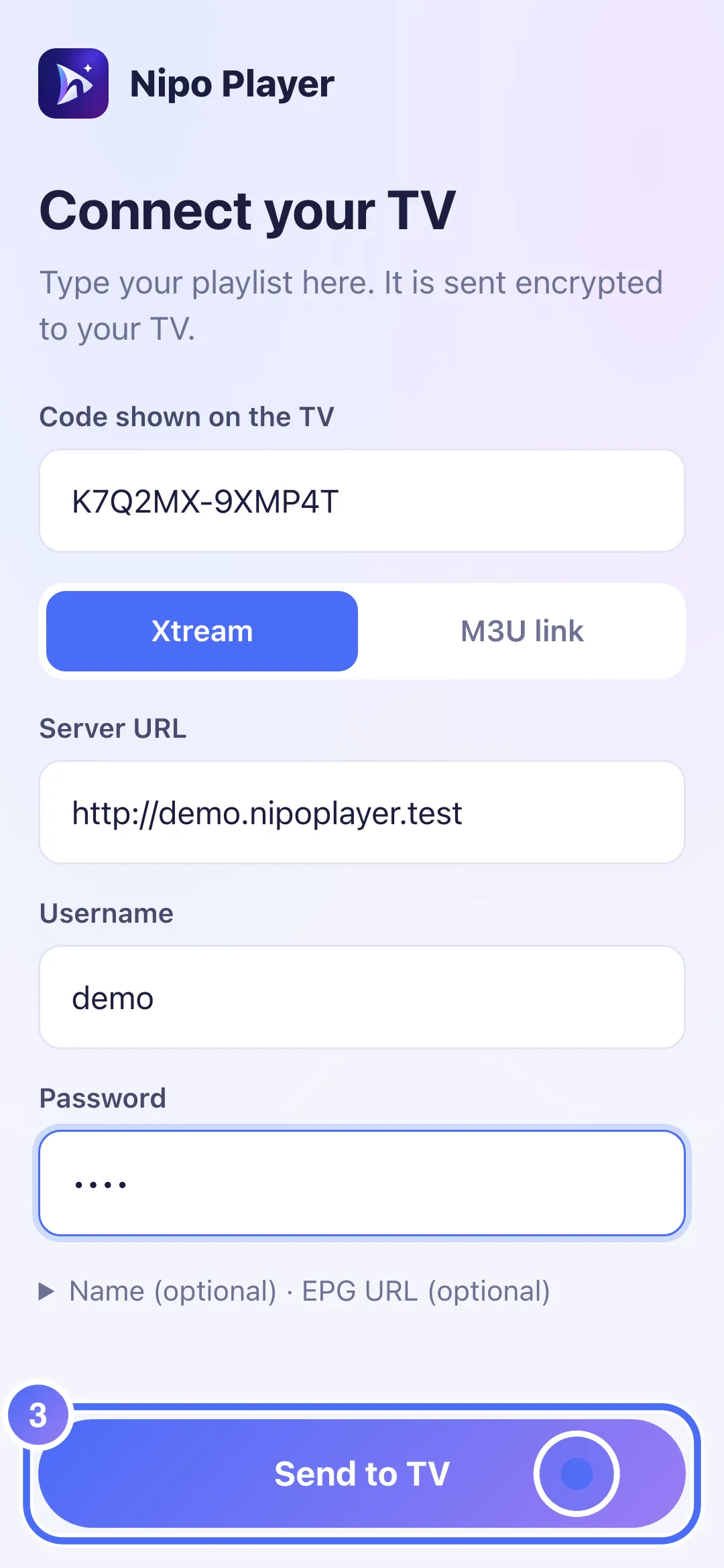
Tap “Code shown on the TV” and type the code shown on your television.
- 02
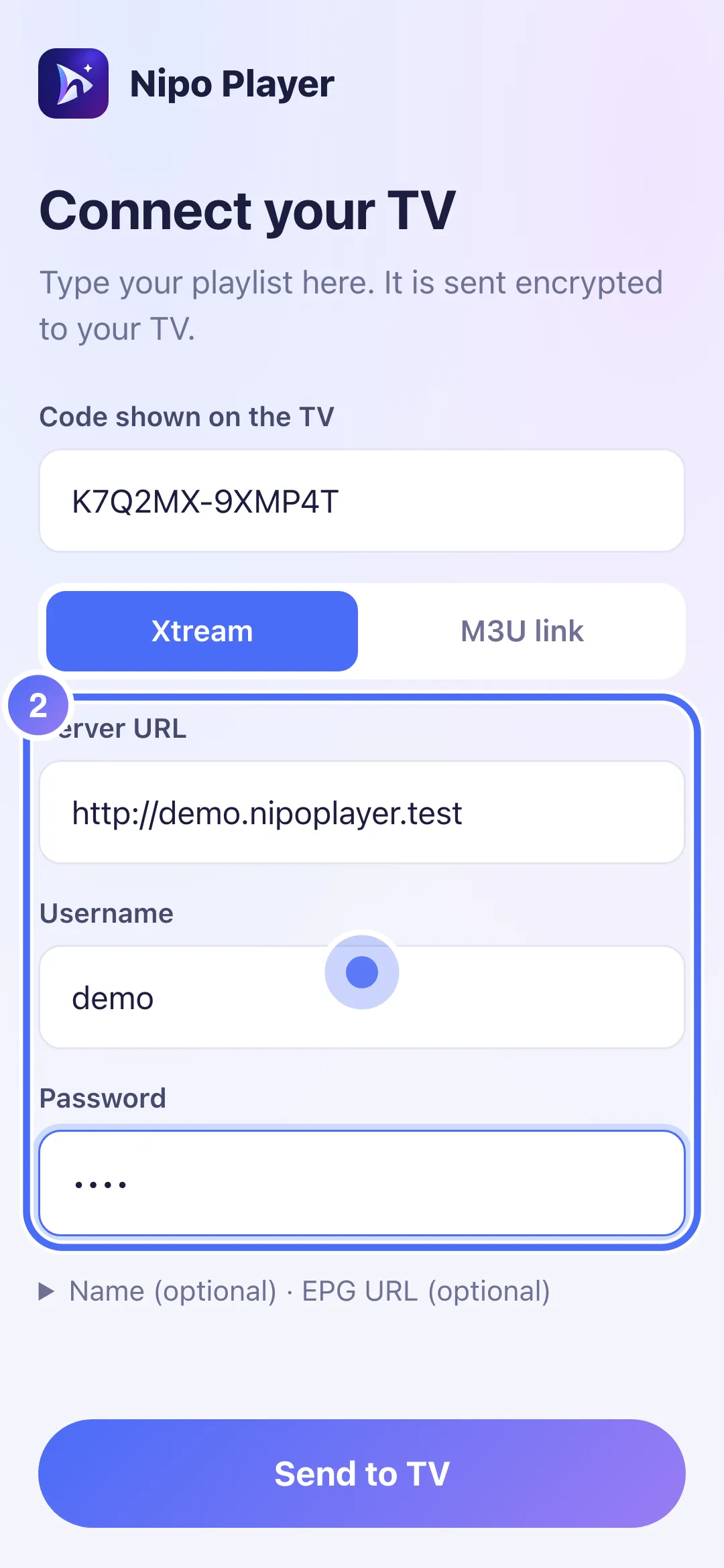
Enter your playlist’s server address, username and password.
- 03
Tap “Send to TV”.
- 04
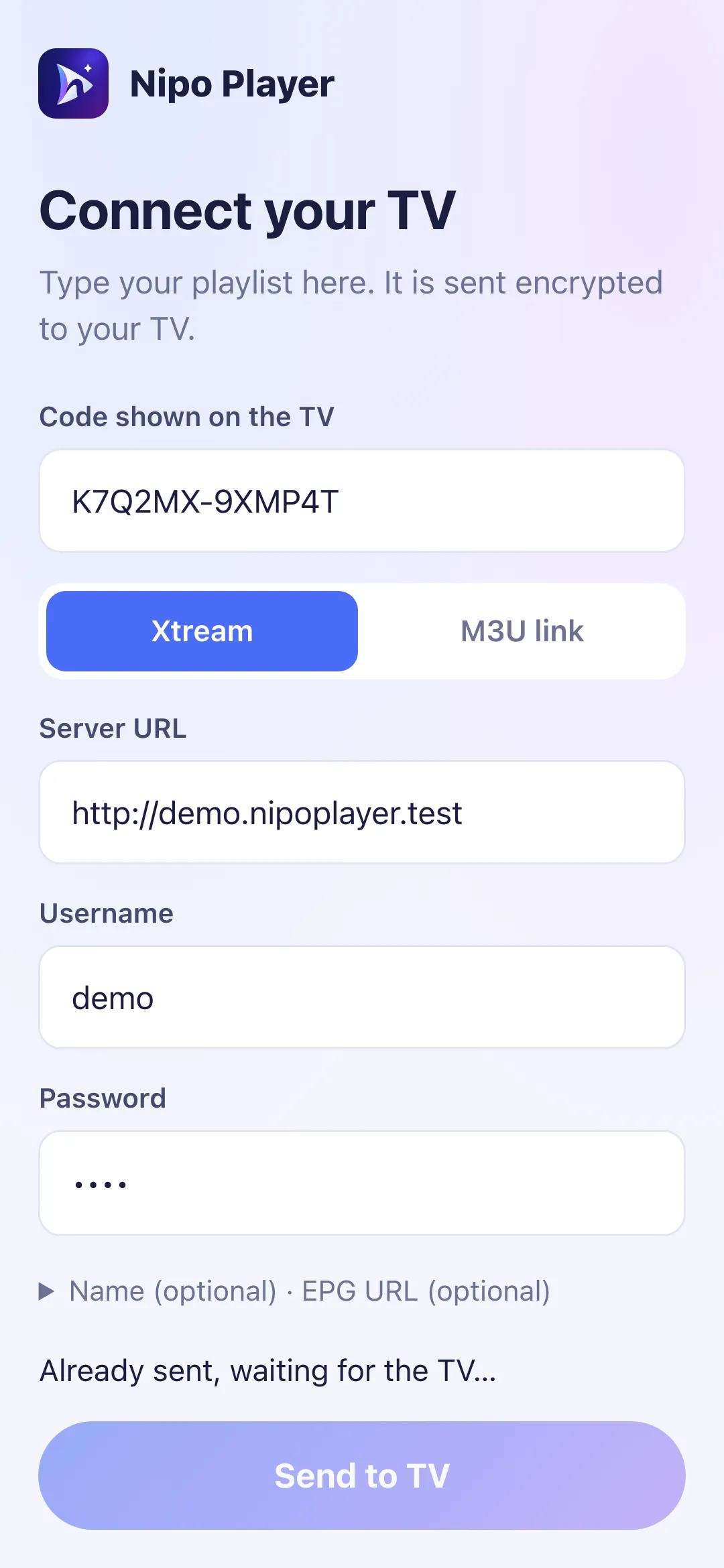
Your phone sends the playlist, encrypted: your TV connects by itself.
Steps
- On the "How would you like to connect?" screen, choose With my phone (marked "Easiest").
- Scan the QR code shown on the TV with your phone's camera.
- On your phone, enter your playlist's details (login, or an M3U link).
- Your TV connects by itself as soon as you send it, with nothing to retype.
Tip
If "With my phone" doesn't appear, your device already is a phone or tablet (a QR code wouldn't make sense there): use the form directly instead. The exchange between your phone and the TV is end-to-end encrypted: see QR pairing security.
Updated on 28 September 2026
Did this article help you?
Can’t find the answer?
Write to us: we answer about the app and how it works. We can’t recommend a playlist.