
How do I add an account with a server, username and password?
Choose this method, enter the server address, username and password that came with your playlist, then connect to load your channels.
Nipo doesn’t provide, sell or host any channel, movie or playlist: it plays what you already own.
Some playlists connect with three pieces of information instead of a single link: this is an Xtream connection (server, username, password). Nipo Player lists this as one of the ways to connect.
Step by step, with pictures
- 01
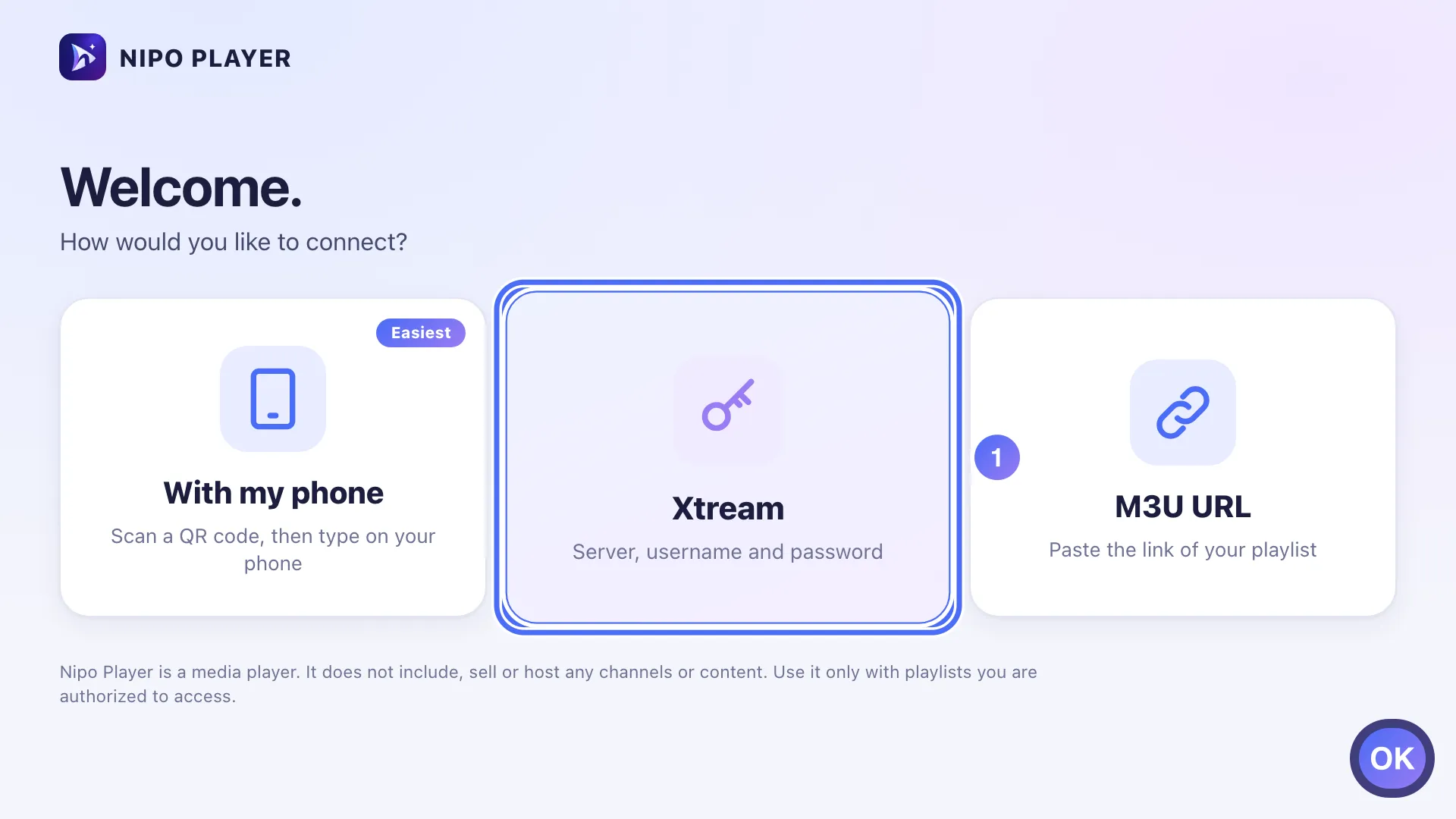
On "How would you like to connect?", choose the server, username and password method and press OK. Key OK
- 02
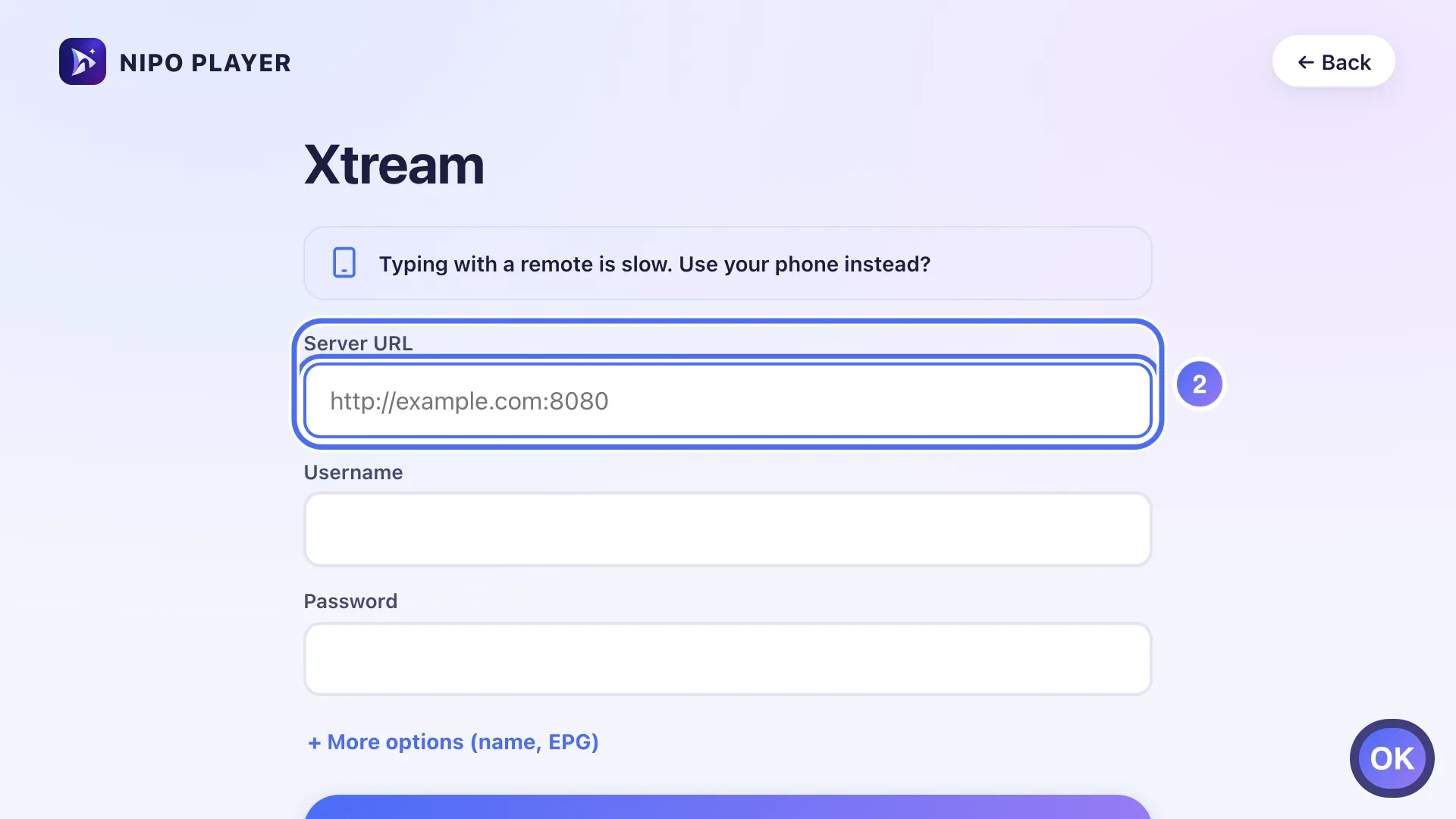
Select the Server URL field and press OK to type. Key OK
- 03
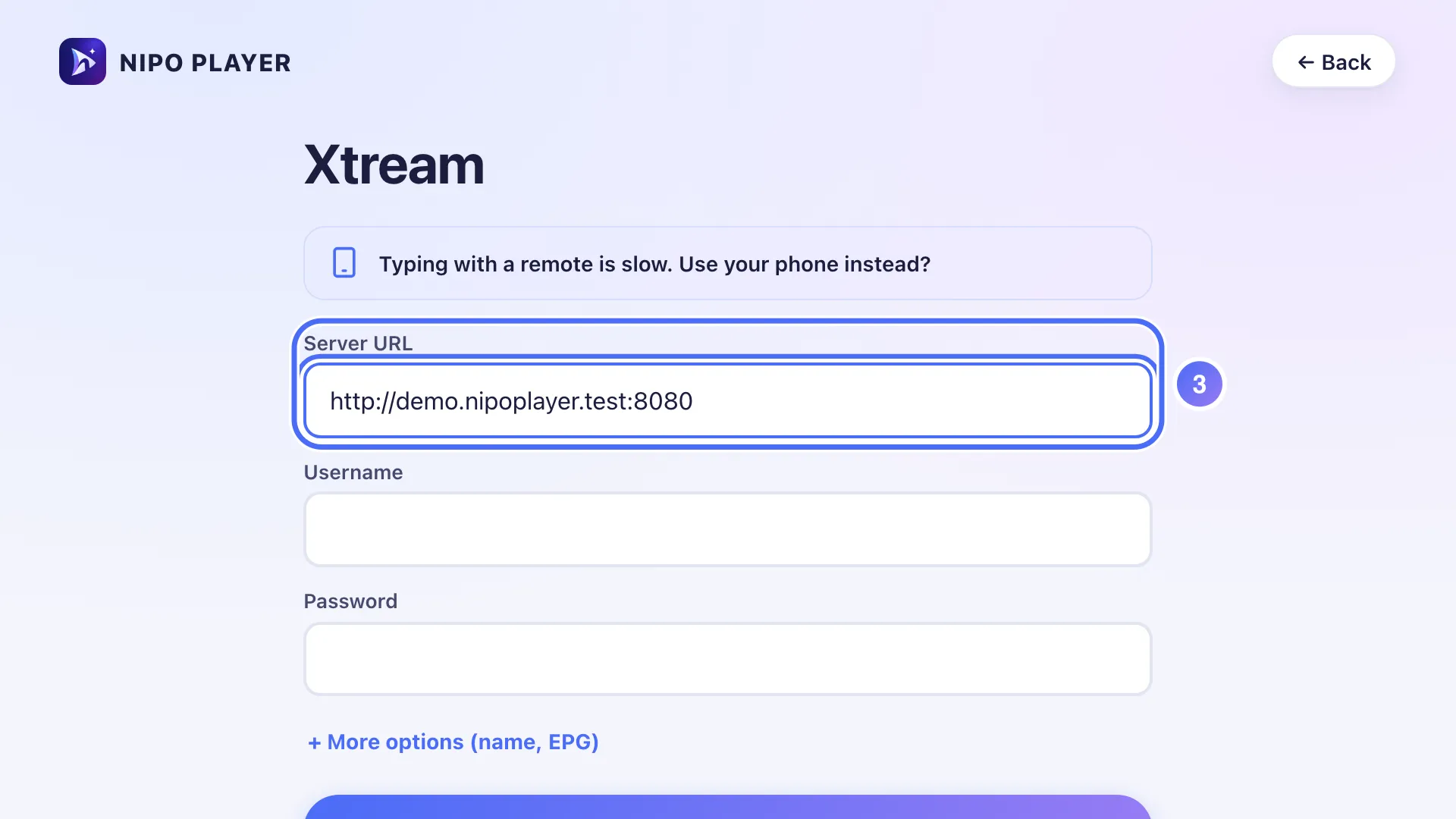
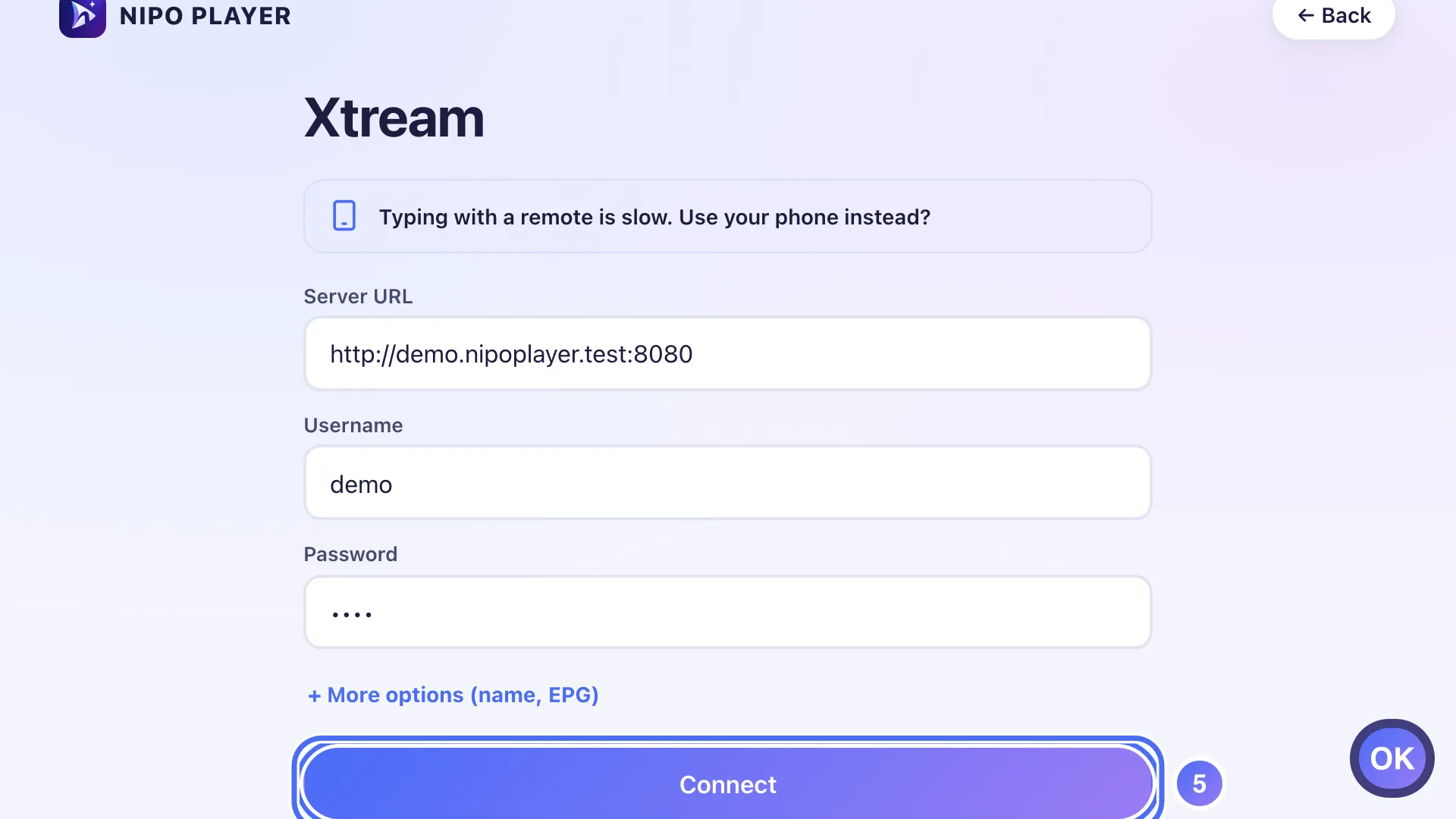
Type the exact address given by the service that manages your playlist, with the port number if there is one.
- 04
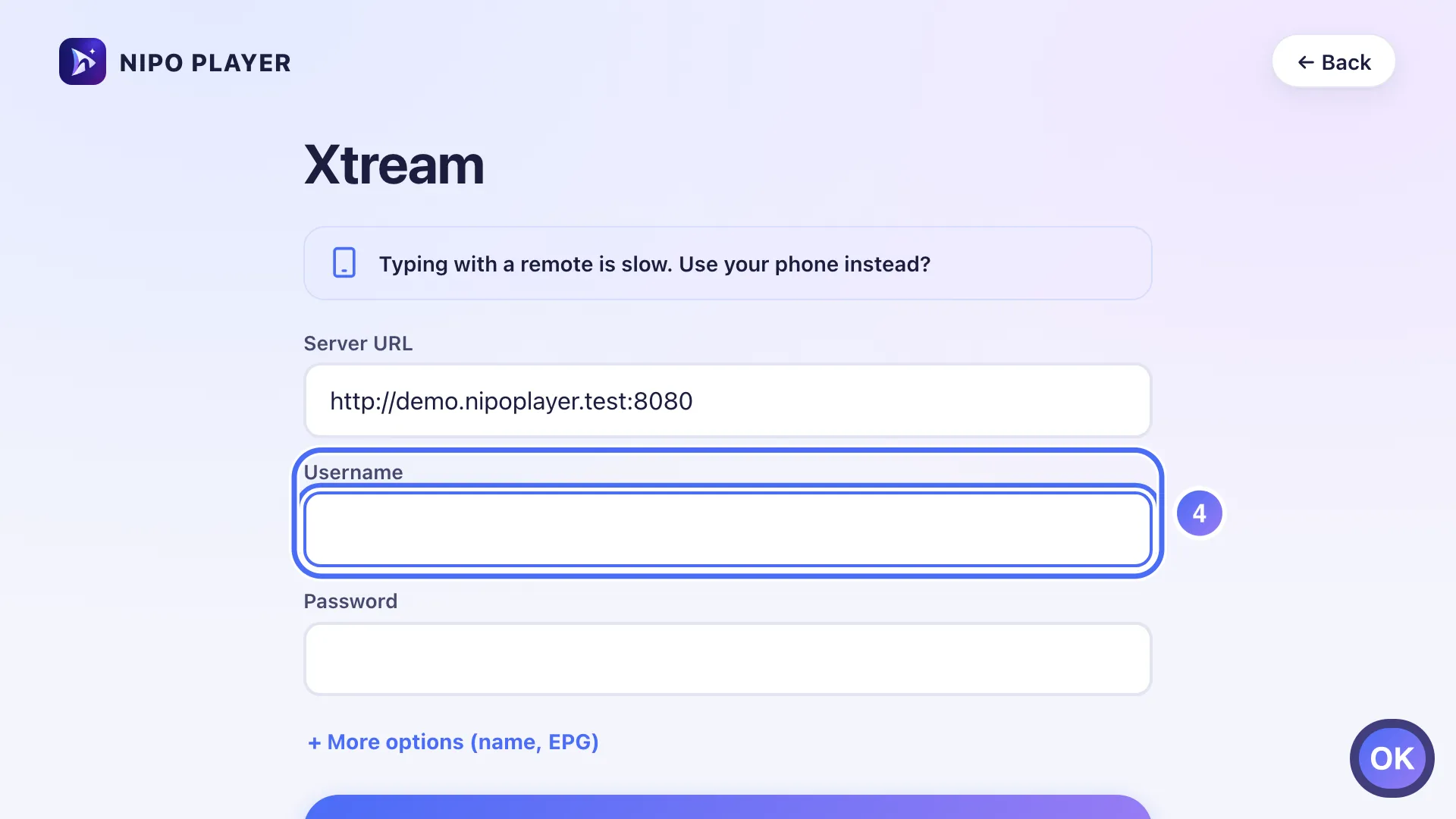
Go down to Username, press OK, then do the same for Password. Key OK
- 05
Once the three fields are filled, go down to Connect and press OK. Key OK
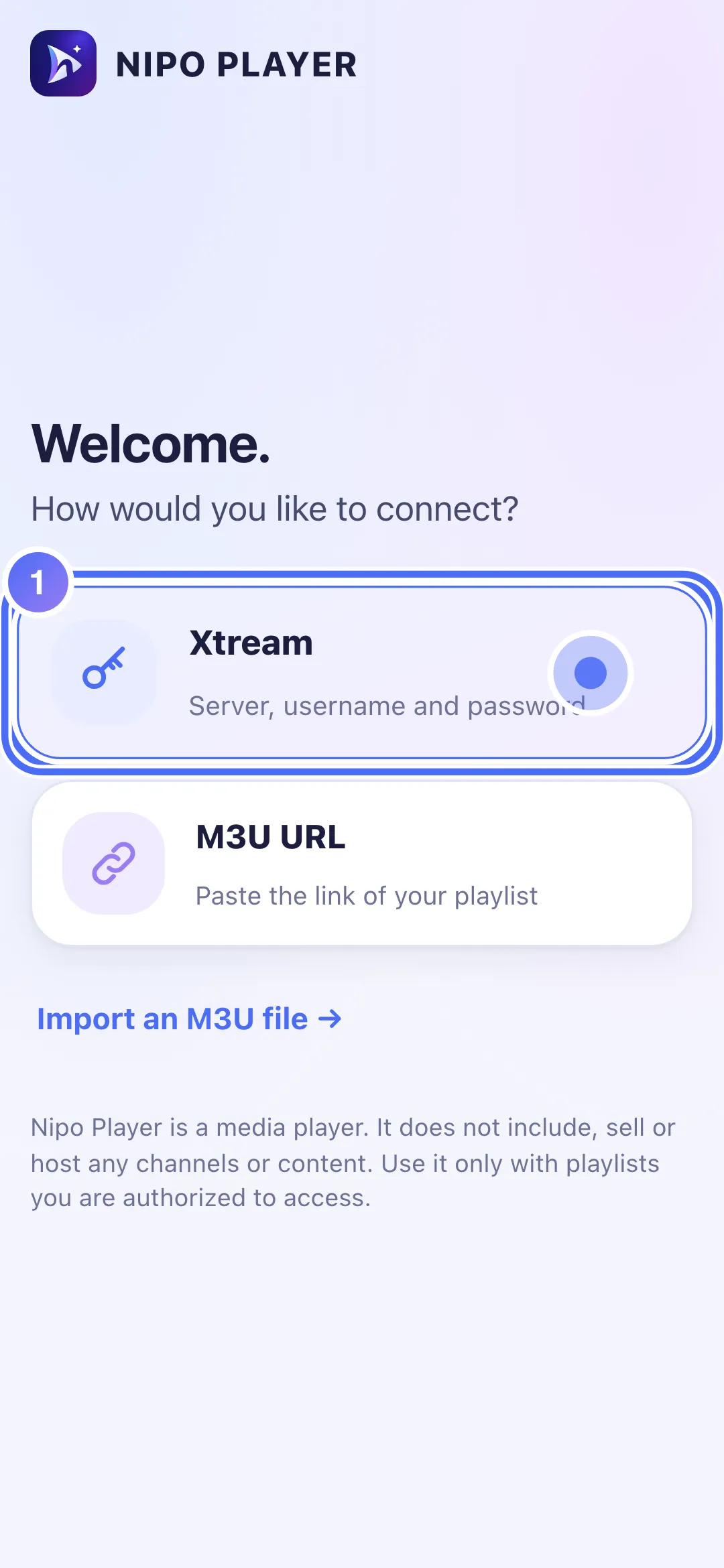
- 01
Tap “Xtream” to connect with a server, username and password.
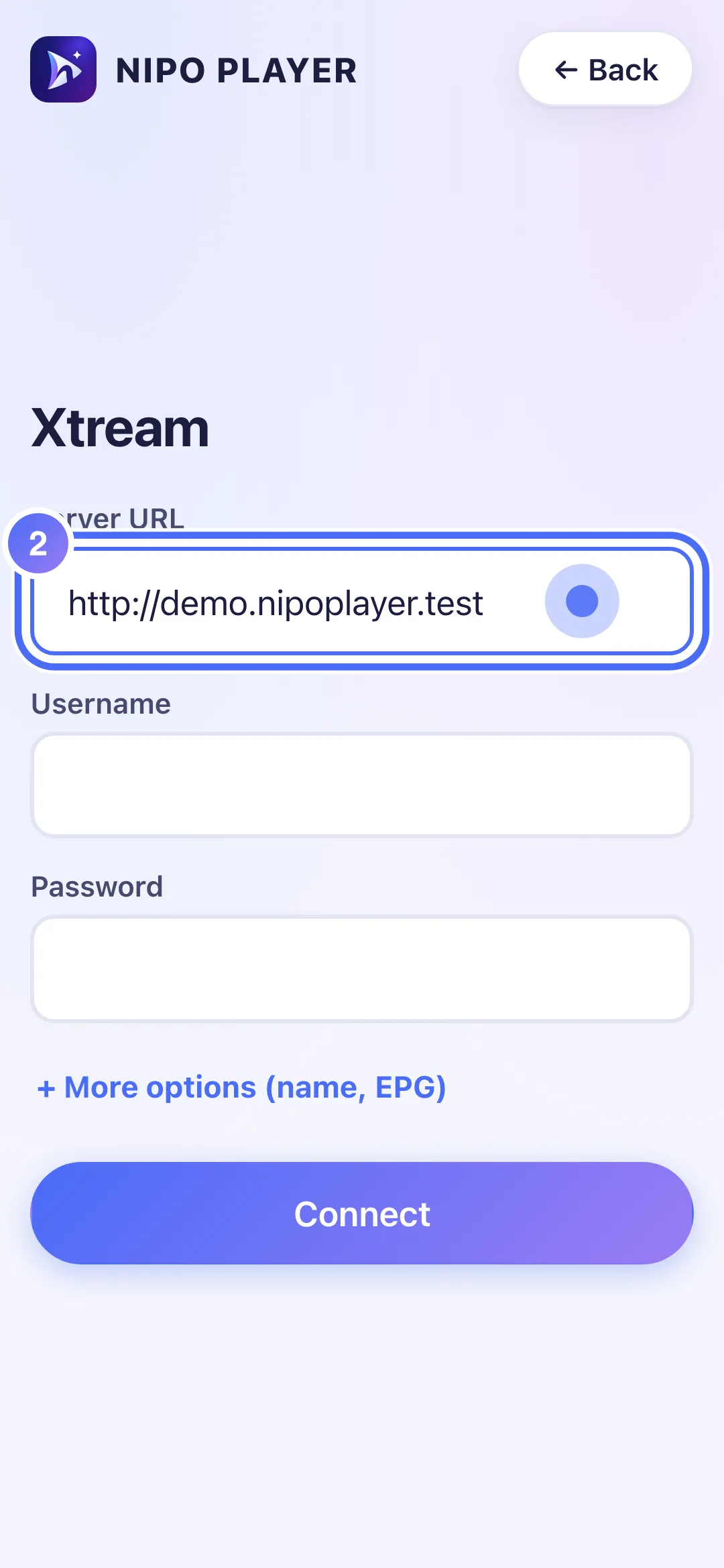
- 02
Tap “Server URL” and enter the address given by the service that manages your playlist.
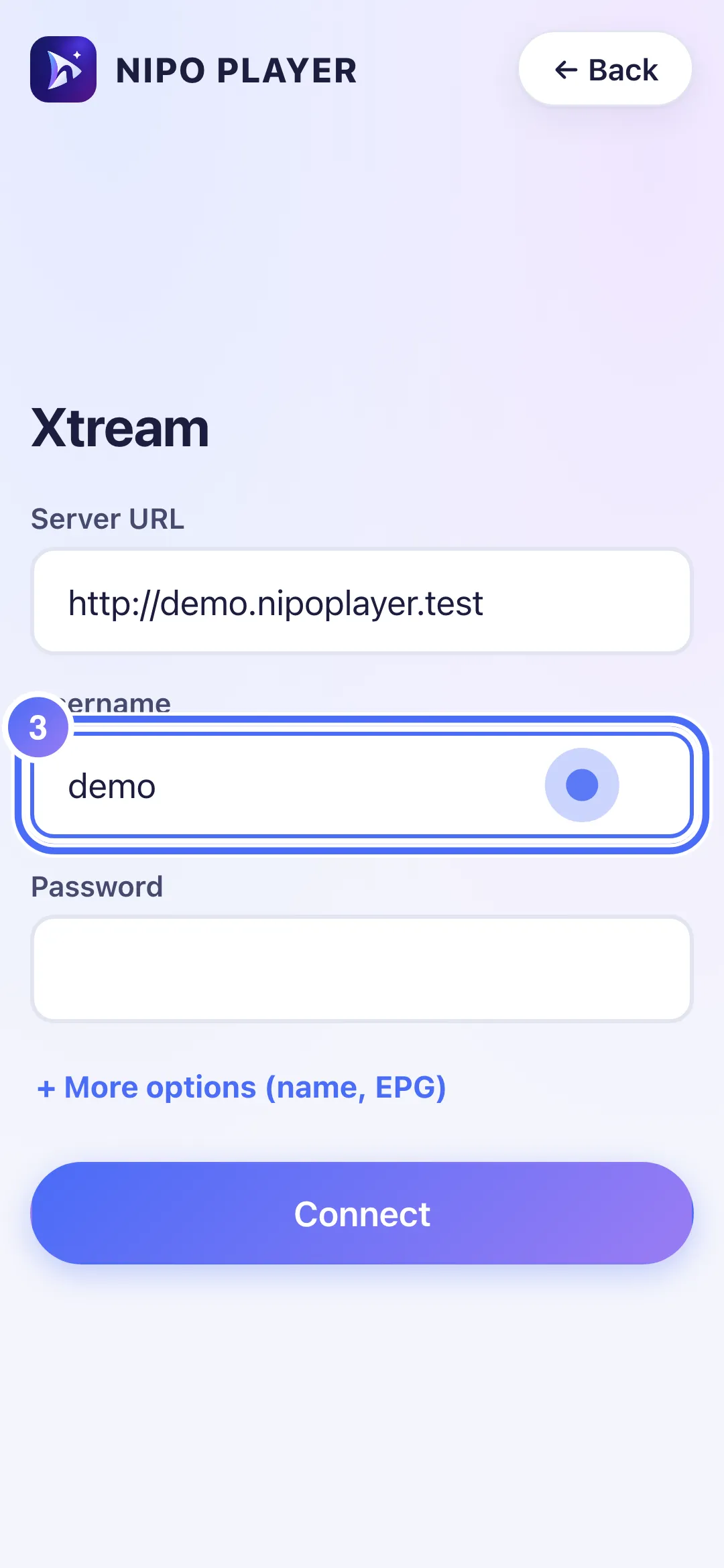
- 03
Tap “Username” and enter it.
- 04
Tap “Password” and enter it.
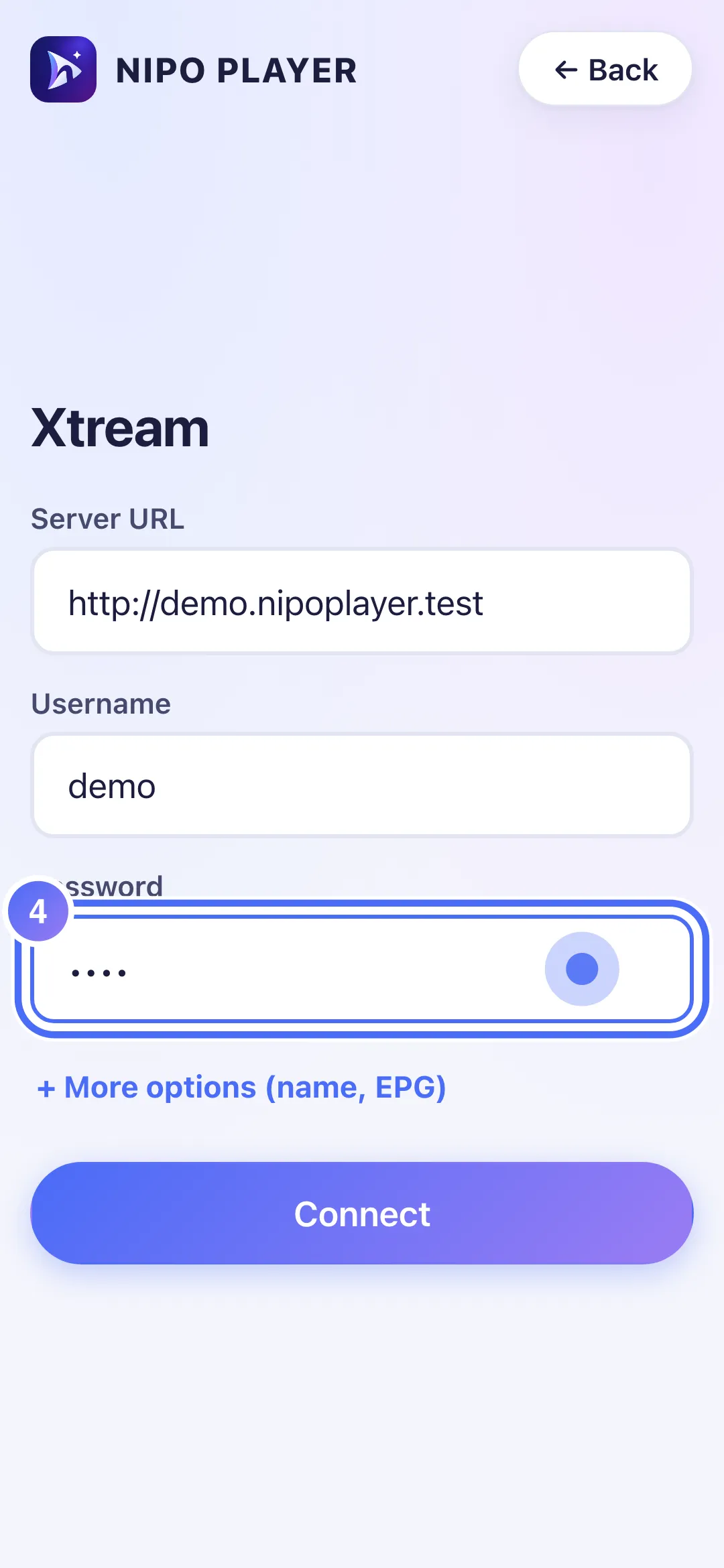
- 05
Tap “Connect” to confirm.
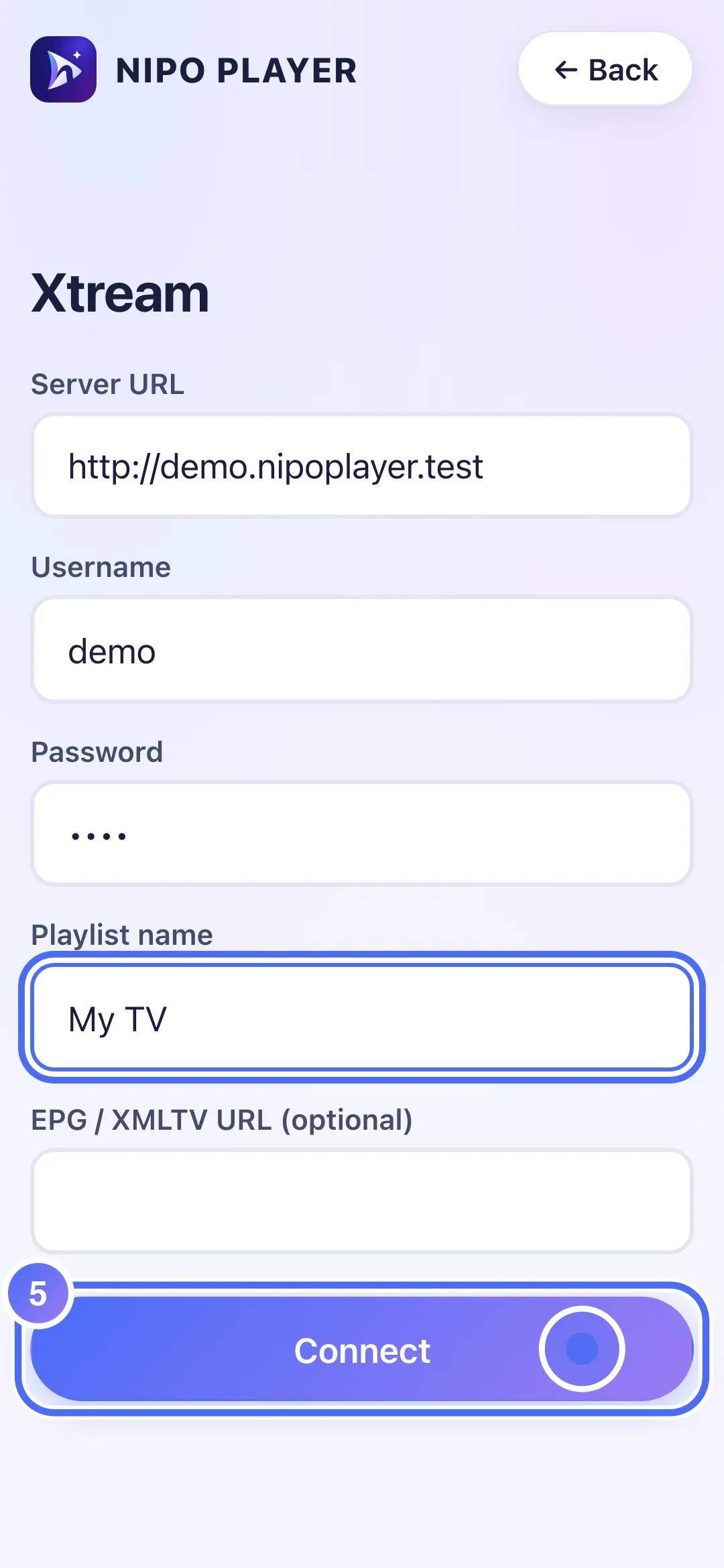
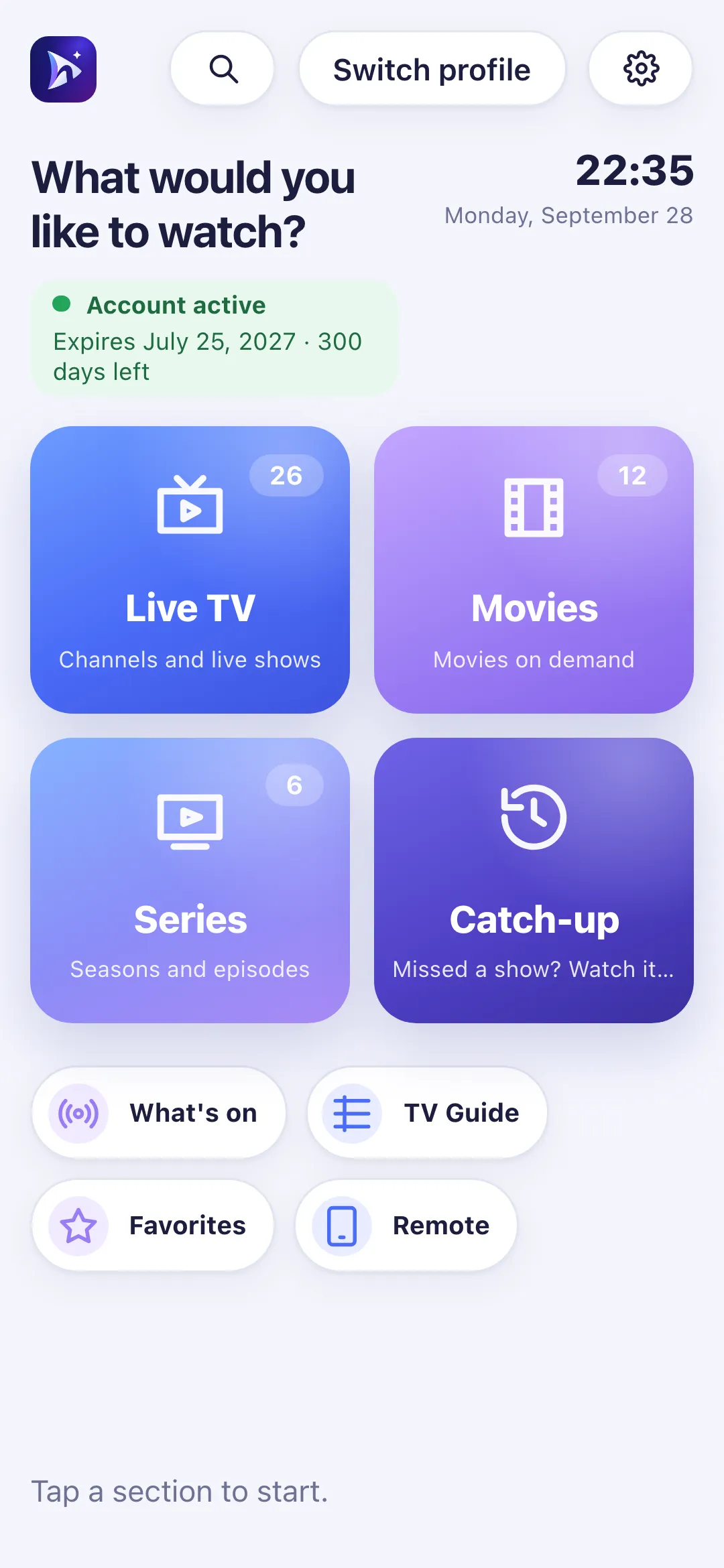
- 06
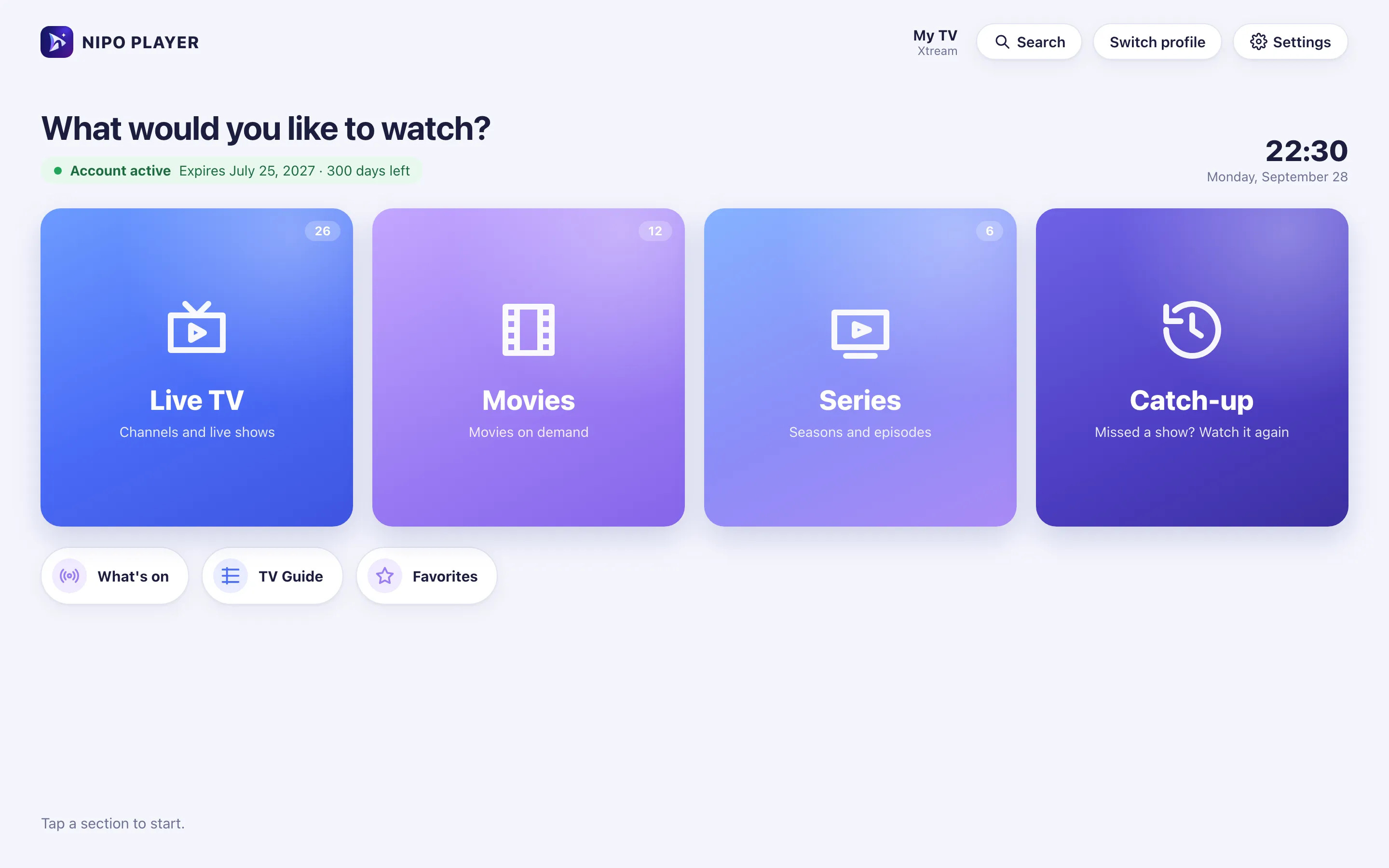
Your playlist is connected: this is Nipo Player’s home screen.
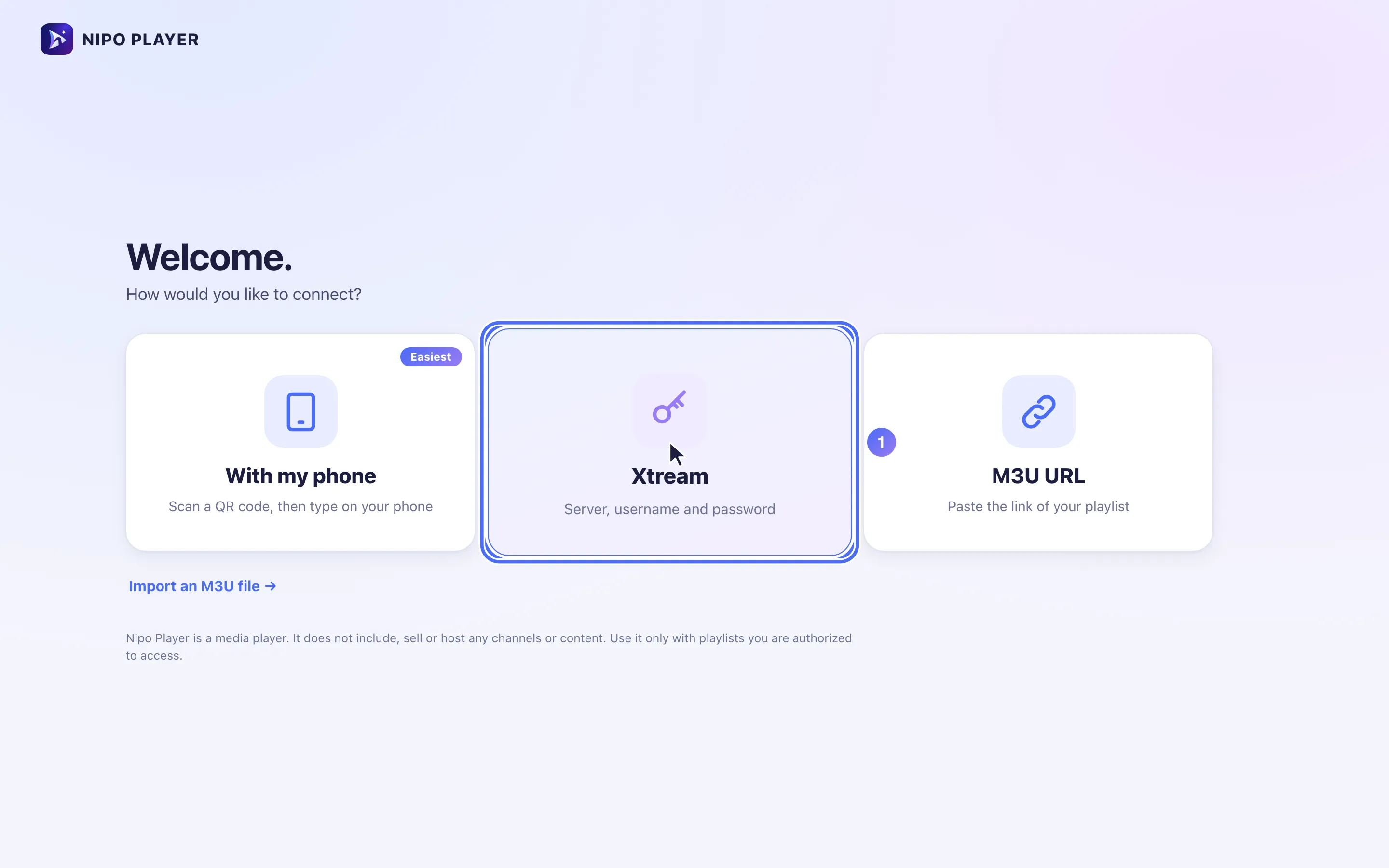
- 01
Click “Xtream” to connect with a server, username and password.
- 02
Click “Server URL” and enter the address given by the service that manages your playlist.
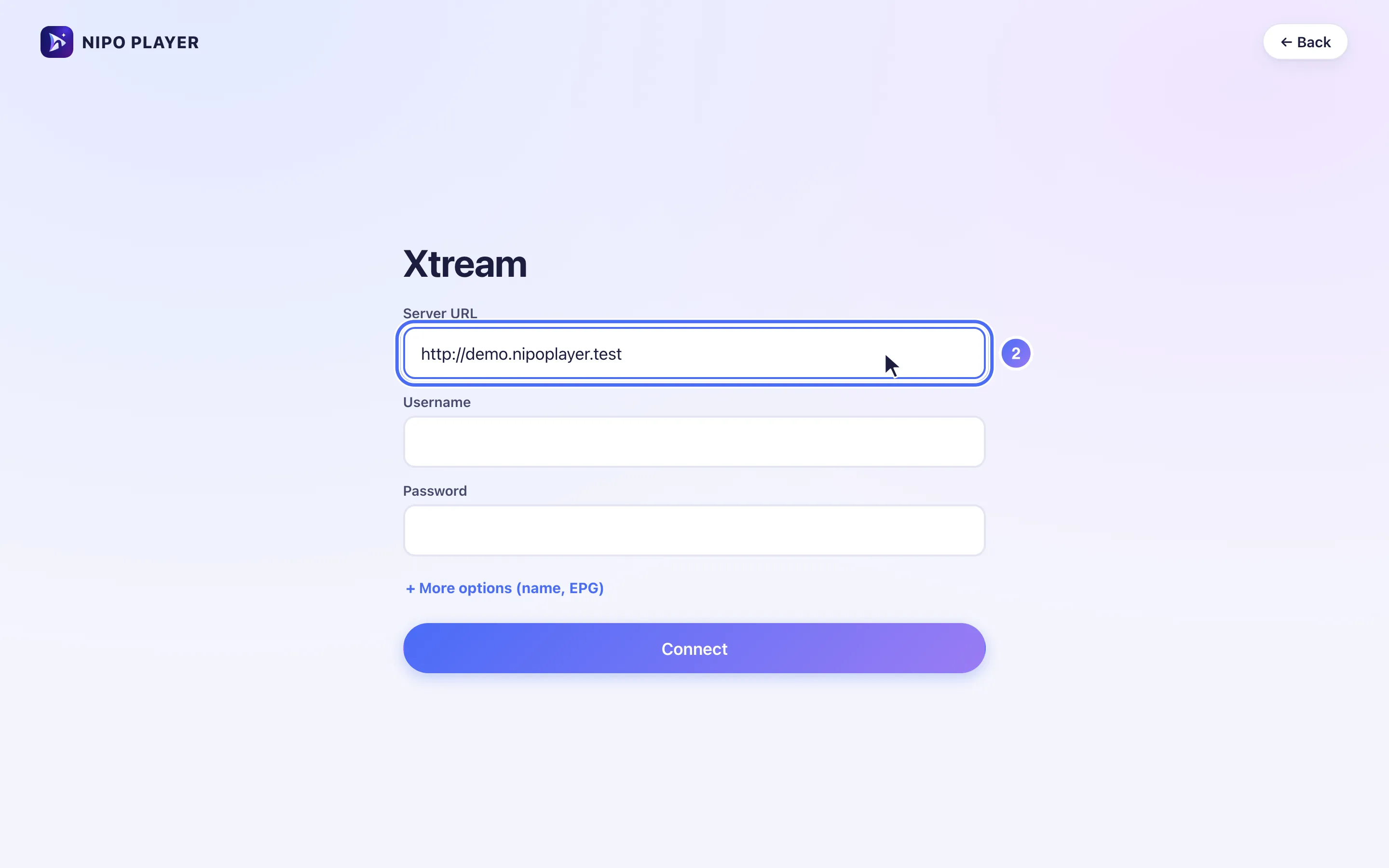
- 03
Click “Username” and enter it.
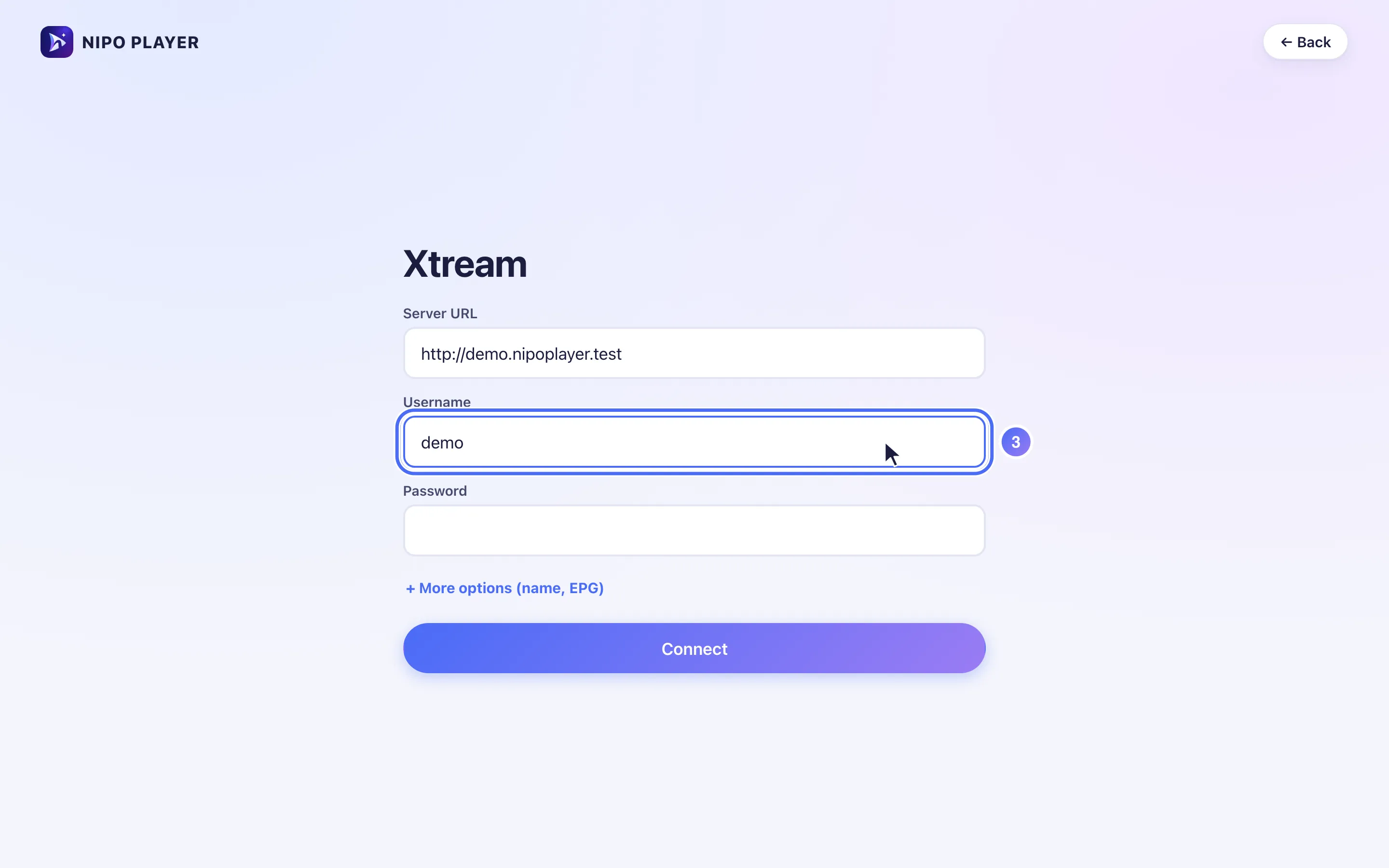
- 04
Click “Password” and enter it.
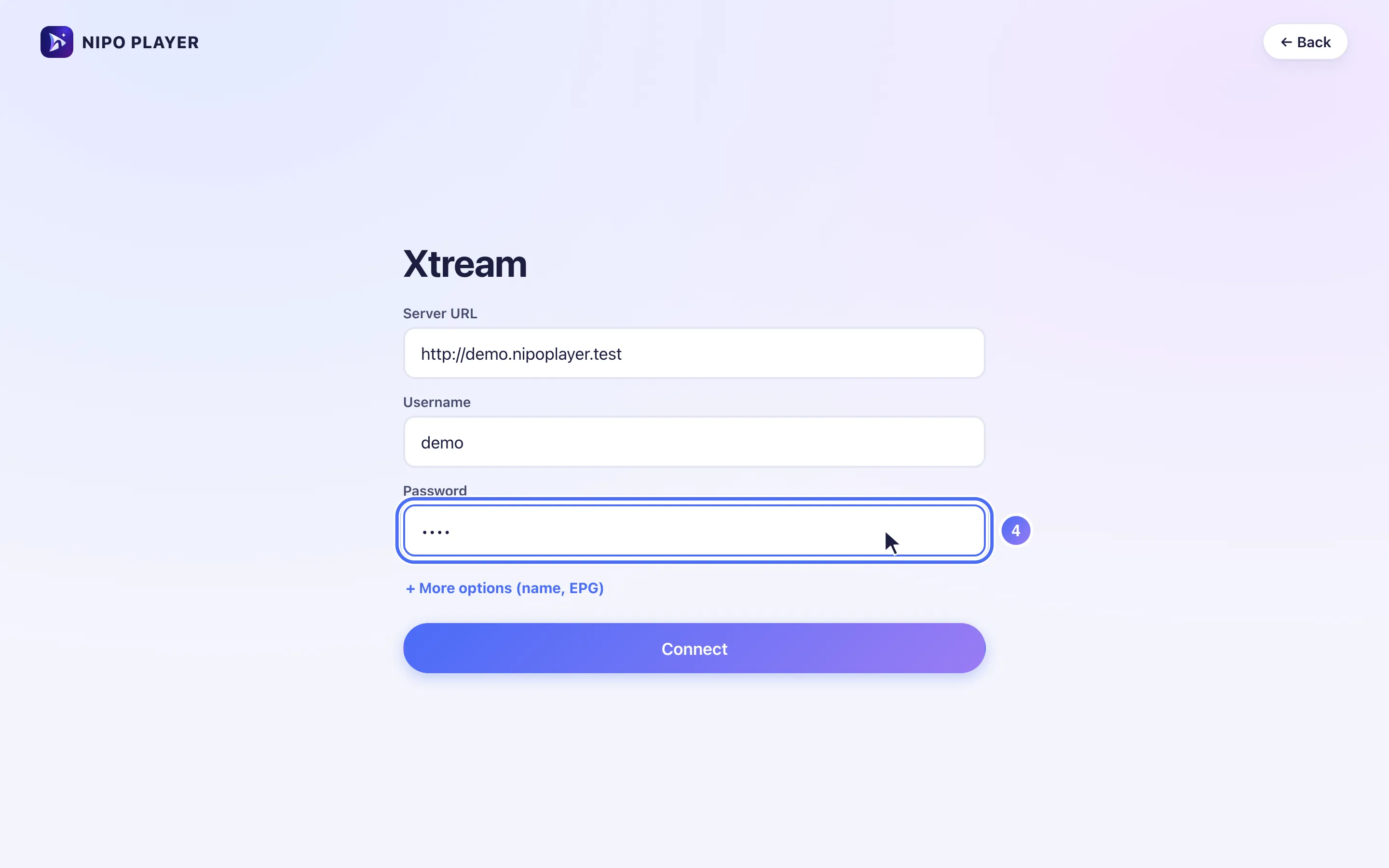
- 05
Click “Connect” to confirm.
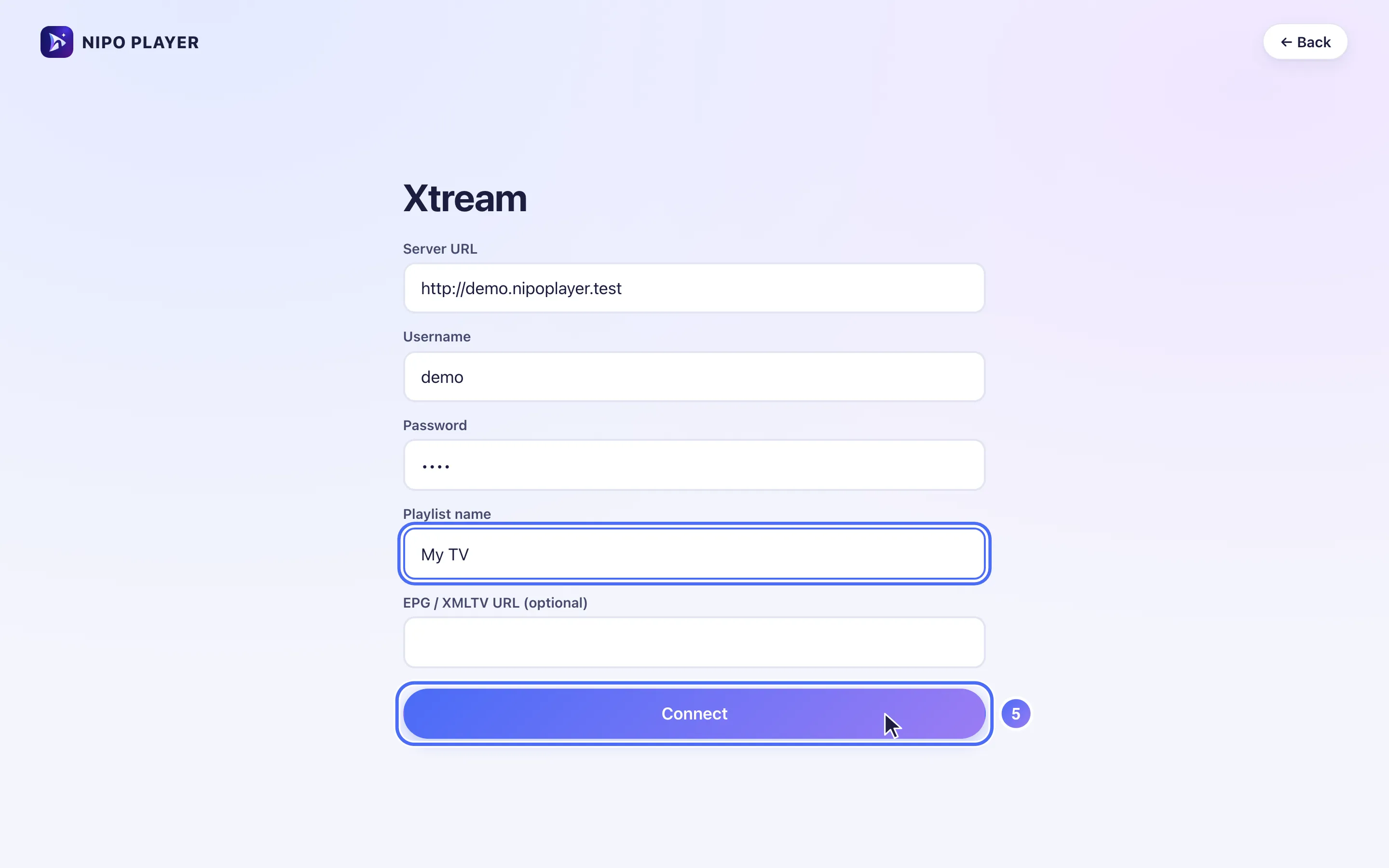
- 06
Your playlist is connected: this is Nipo Player’s home screen.
Steps
- On the "How would you like to connect?" screen, choose the server, username and password method ("Server, username and password").
- Enter the Server URL exactly as given (with
http://and the port number if there is one, e.g.http://example.com:8080). - Enter the Username and Password.
- Tap + More options to name the playlist or add a TV guide link.
- Confirm with Connect.
If it fails to connect
- "Login failed: check server, username and password": one of the three details is wrong. Retype them carefully, including capitalization.
- "Account status: …": the service that manages your playlist has marked the account as expired or disabled; see Account expired.
Tip
Typing these three fields with a remote is tedious: prefer adding the playlist with your phone's QR code, which fills the same fields from your phone.
Updated on 28 September 2026
Did this article help you?
Can’t find the answer?
Write to us: we answer about the app and how it works. We can’t recommend a playlist.