
How do I import an M3U file from my computer or phone?
On a phone, tablet, Mac or Windows PC, tap "Import an M3U file" and choose the .m3u file saved on the device. No link to type.
Nipo doesn’t provide, sell or host any channel, movie or playlist: it plays what you already own.
Step by step, with pictures
- 01
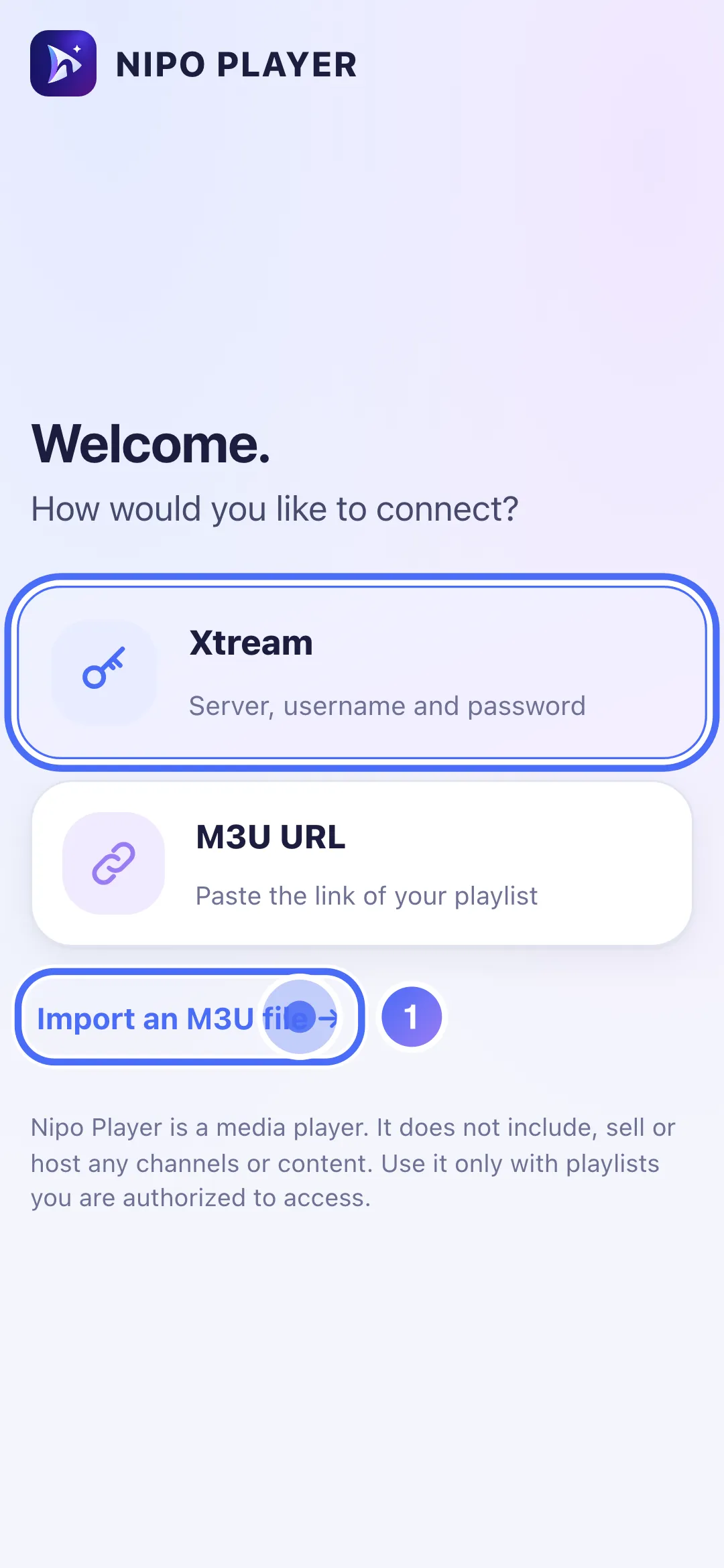
Below the other methods, tap “Import an M3U file”.
- 02
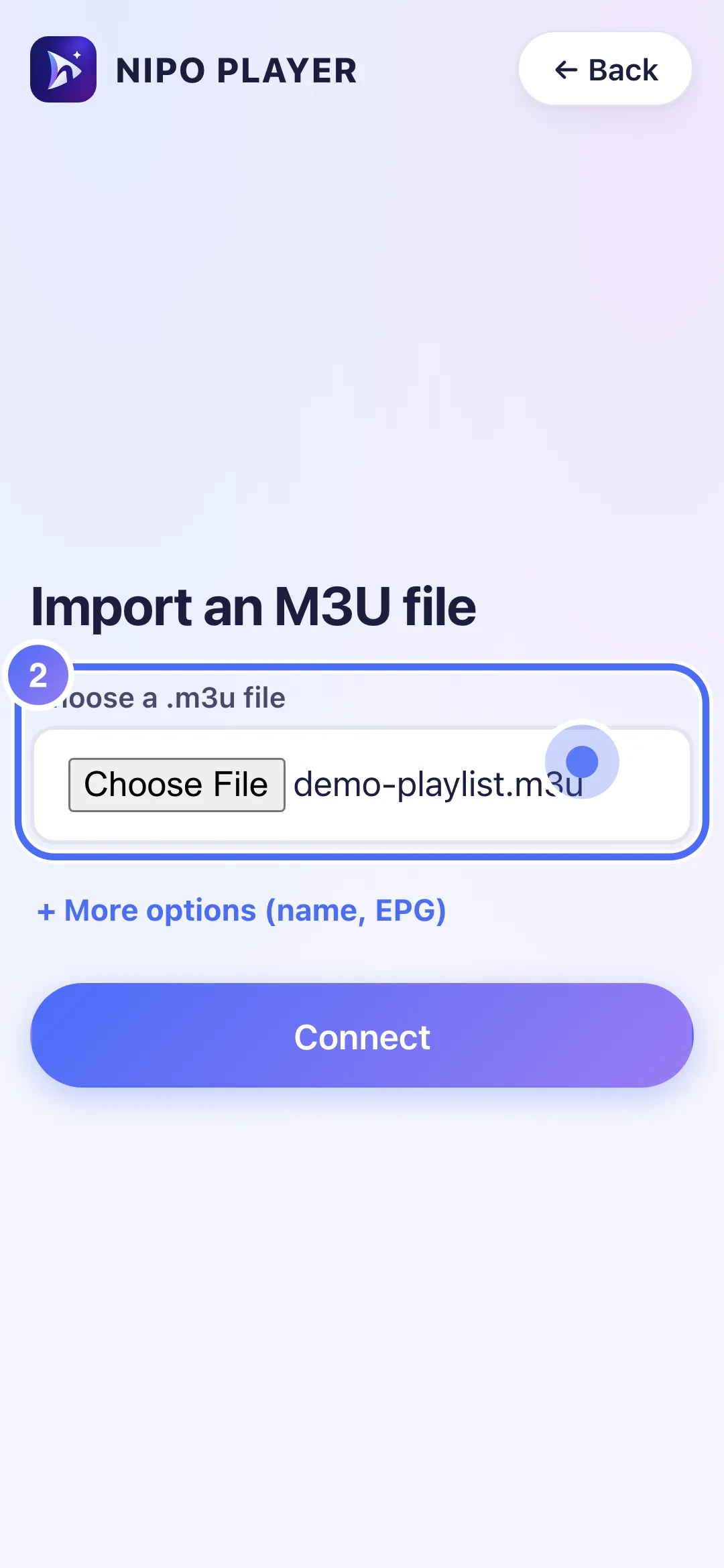
Tap “Choose a .m3u file” and pick the file saved on your phone.
- 03
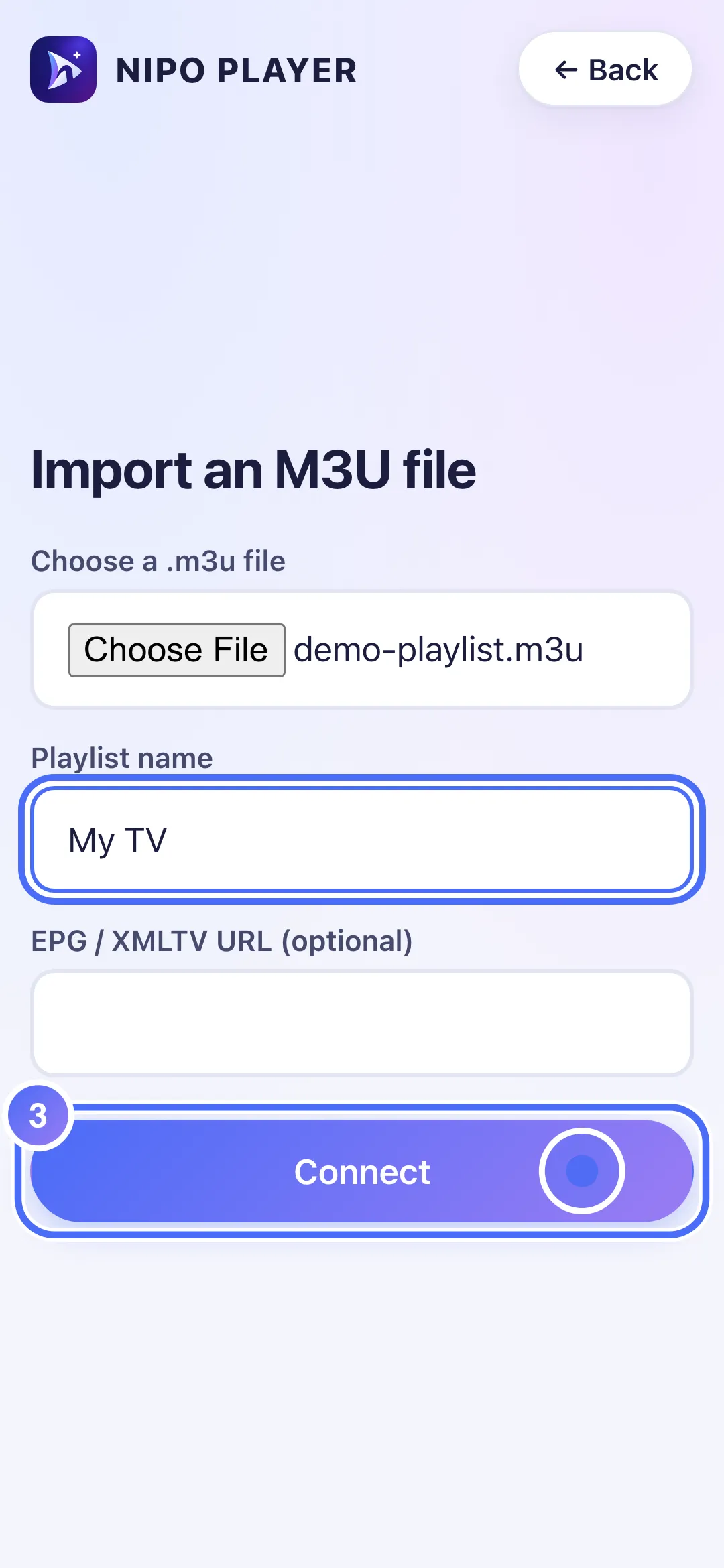
Tap “Connect” to confirm.
- 04
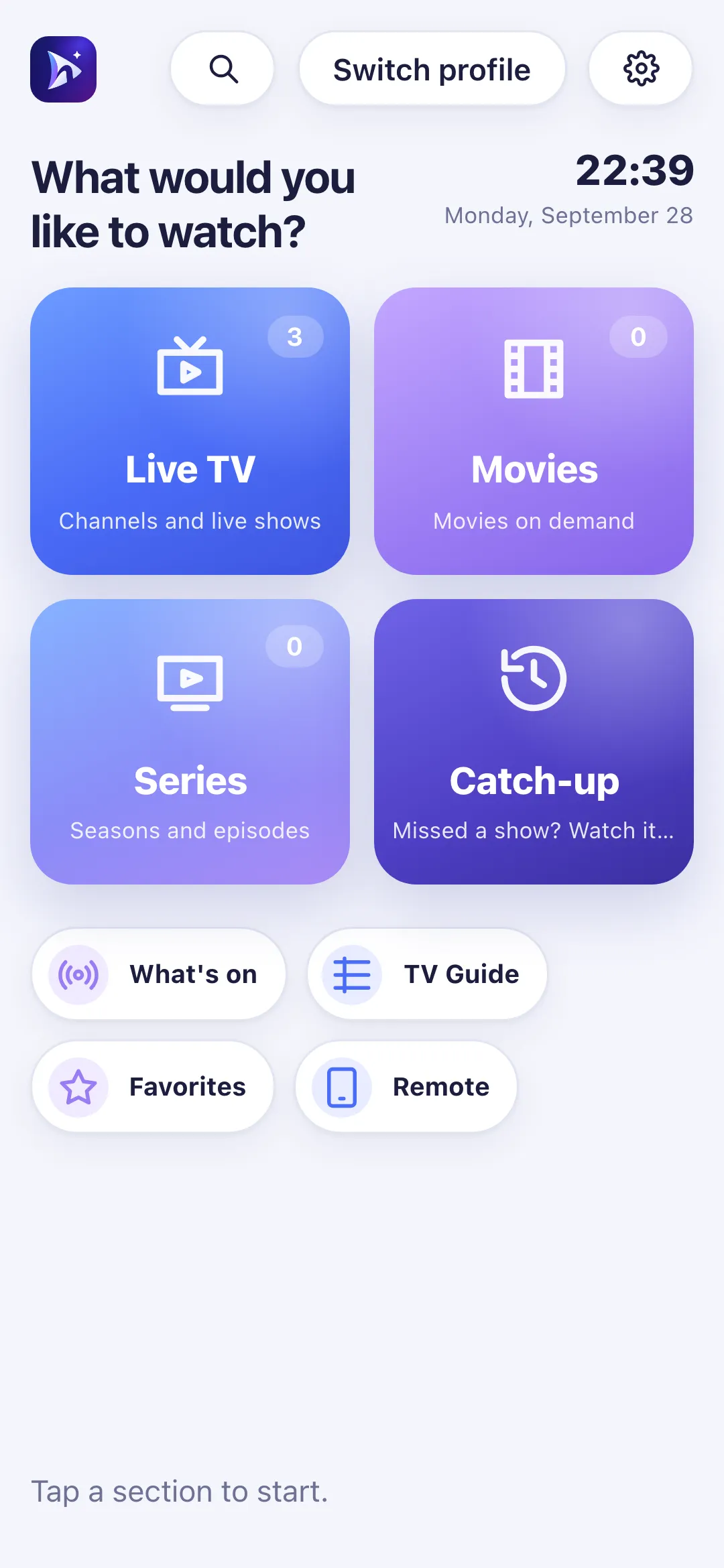
Your playlist is connected: this is Nipo Player’s home screen.
- 01
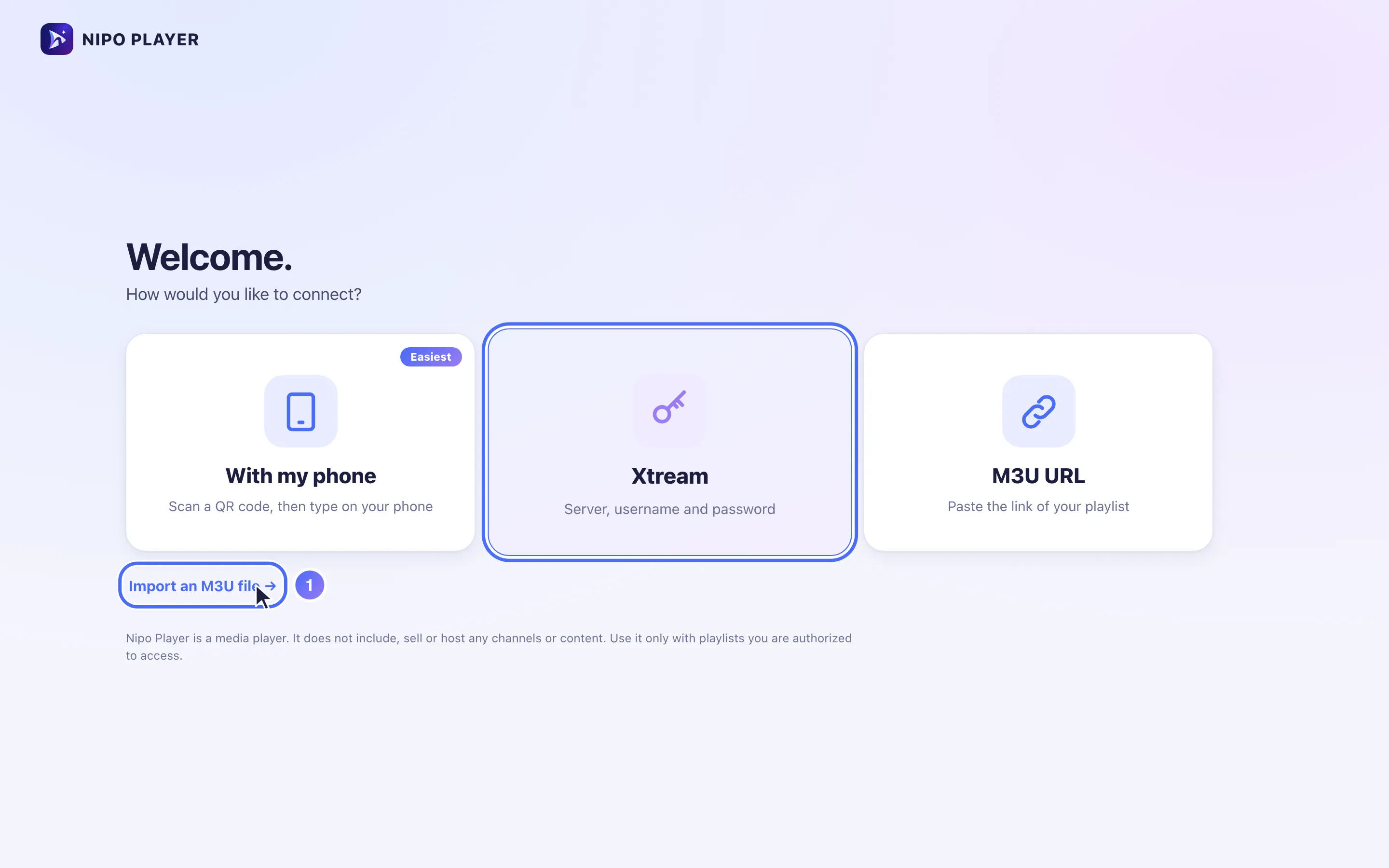
Below the other methods, click “Import an M3U file”.
- 02
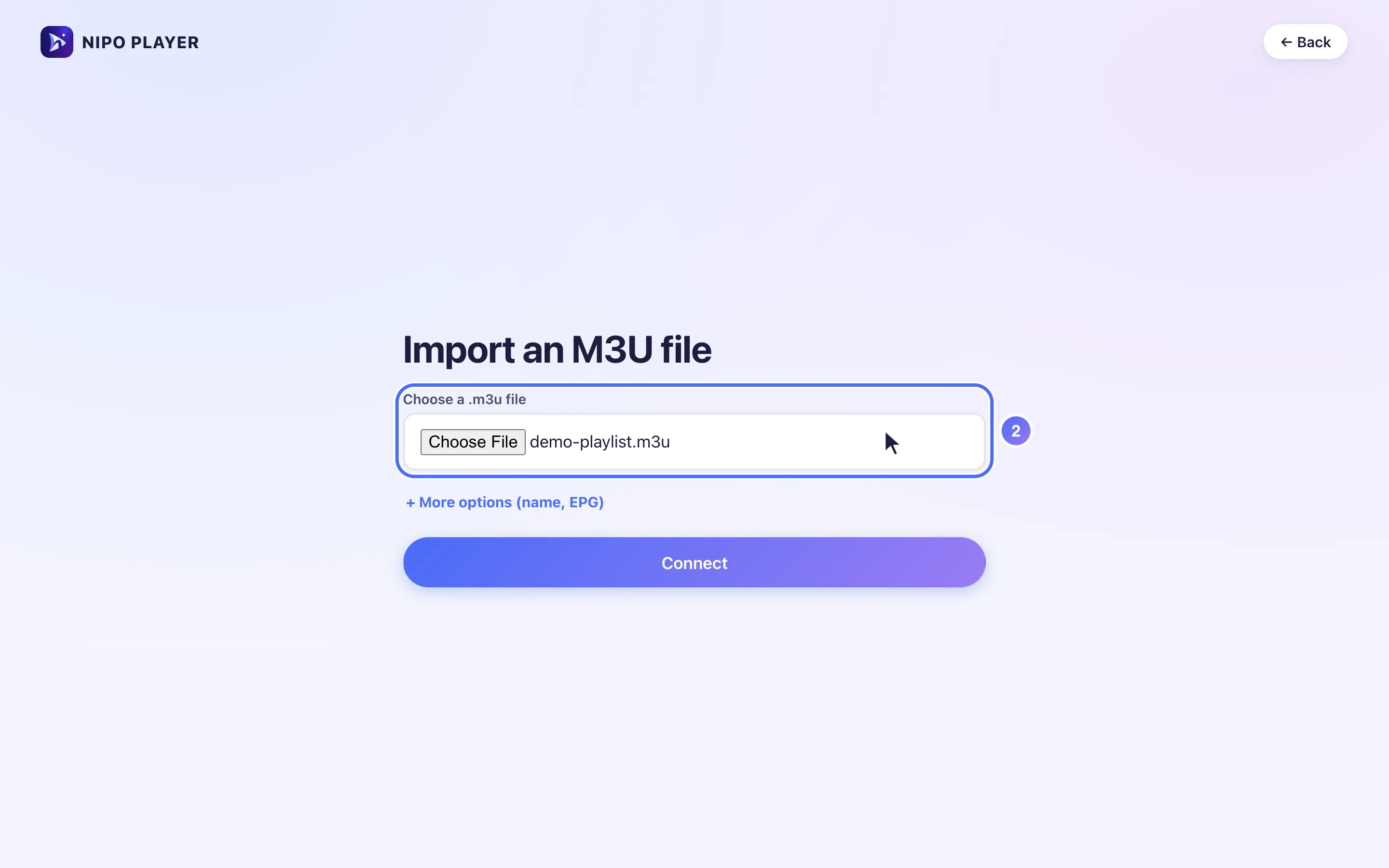
Click “Choose a .m3u file” and pick the file saved on your computer.
- 03
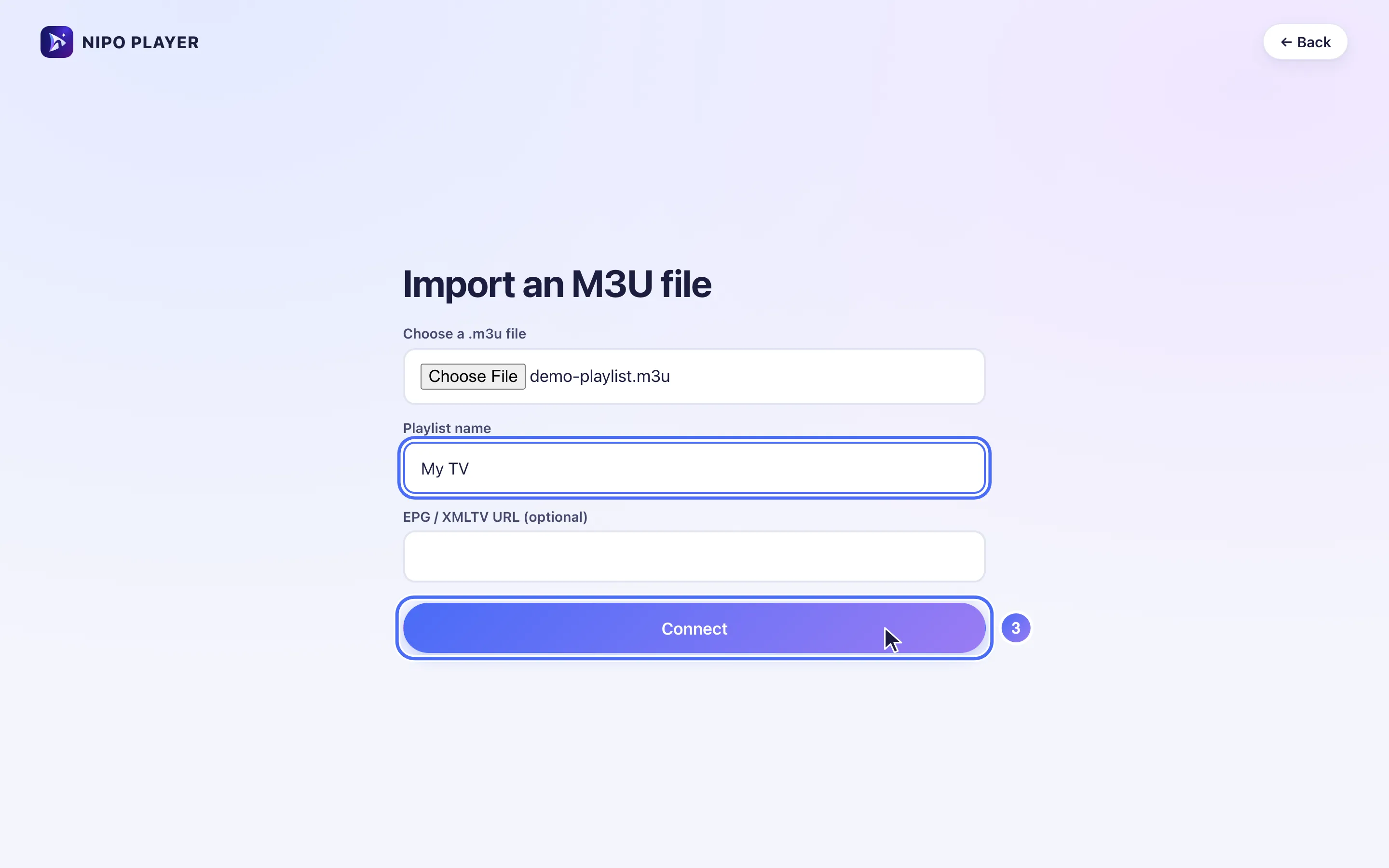
Click “Connect” to confirm.
- 04
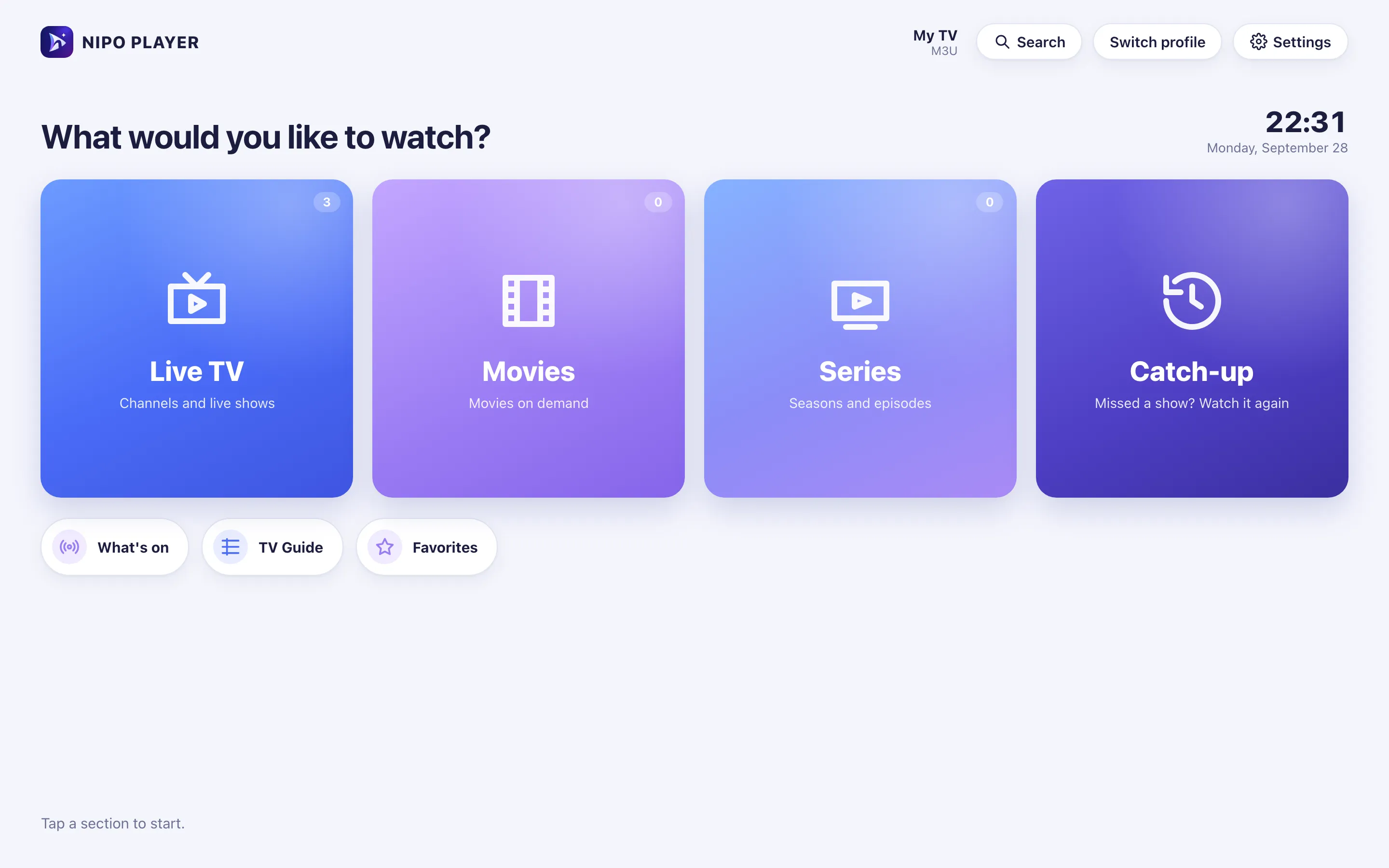
Your playlist is connected: this is Nipo Player’s home screen.
This method imports a .m3u file already saved on the device, without going through an internet link. It isn't offered on TVs, which have no file manager: on a TV, use an M3U link or the QR code instead.
Steps
- On the connection screen, tap Import an M3U file → (below the other choices).
- Tap Choose a .m3u file and pick the file on your device.
- Tap + More options if you want to name the playlist or add a TV guide.
- Confirm with Connect.
Tip
The imported file stays on this device: to change the channels later, import an updated file again (Nipo Player won't re-download it on its own). To move this playlist to another device, use Transfer to a new device.
Updated on 28 September 2026
Did this article help you?
Can’t find the answer?
Write to us: we answer about the app and how it works. We can’t recommend a playlist.