
How do I record from the TV guide in an M3U player?
Open an upcoming programme's info sheet in the TV guide and tap "Record": the recording starts on its own at the scheduled time.
Nipo doesn’t provide, sell or host any channel, movie or playlist: it plays what you already own.
Premium feature (Nipo Premium or Family), already in the app. Available on Android TV and computer (Mac and Windows) only.
Step by step, with pictures
- 01
From TV Guide, open a future programme’s info sheet (OK on the cell). Key OK
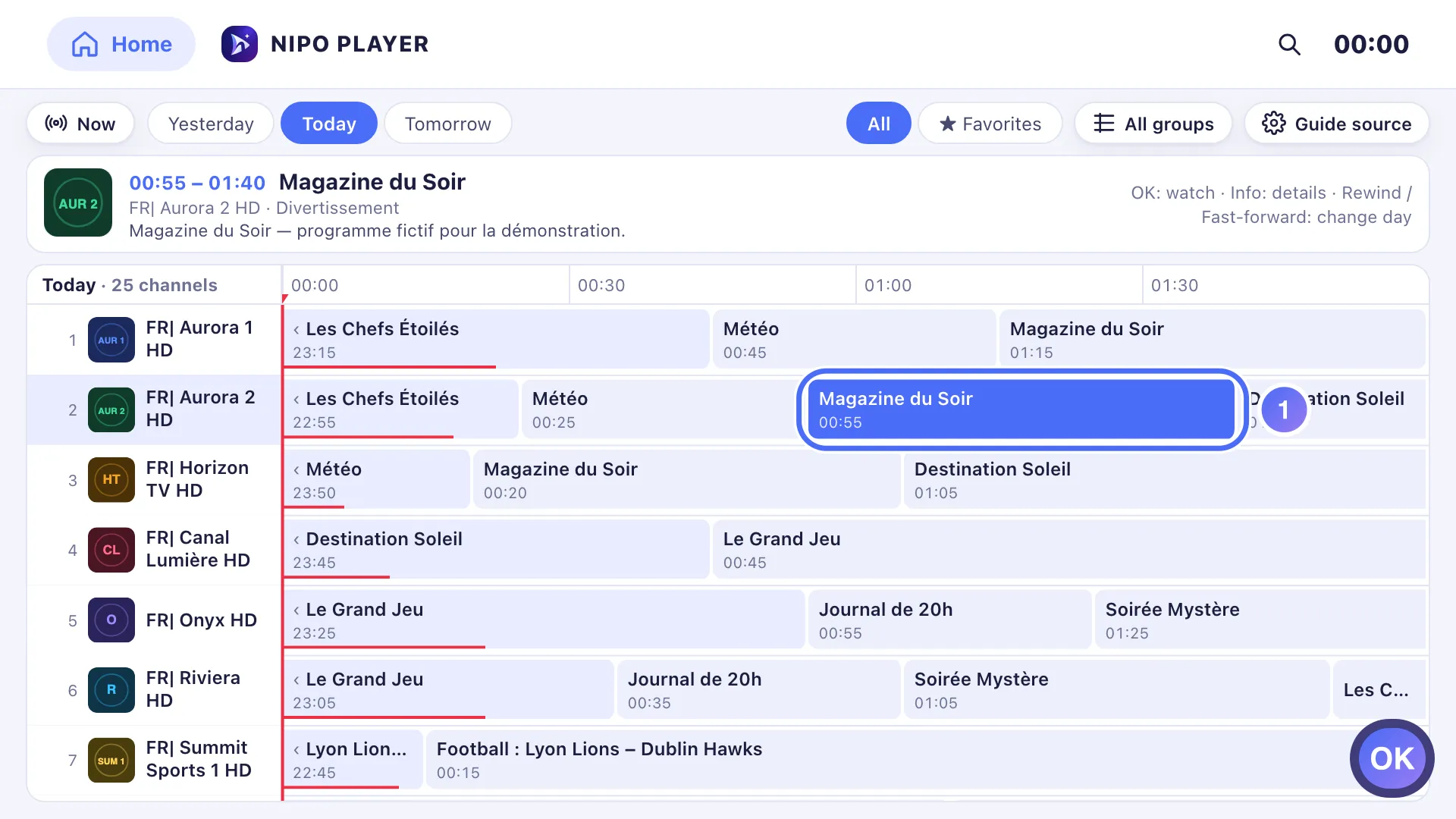
- 02
Tap Record: the recording is scheduled. Key OK
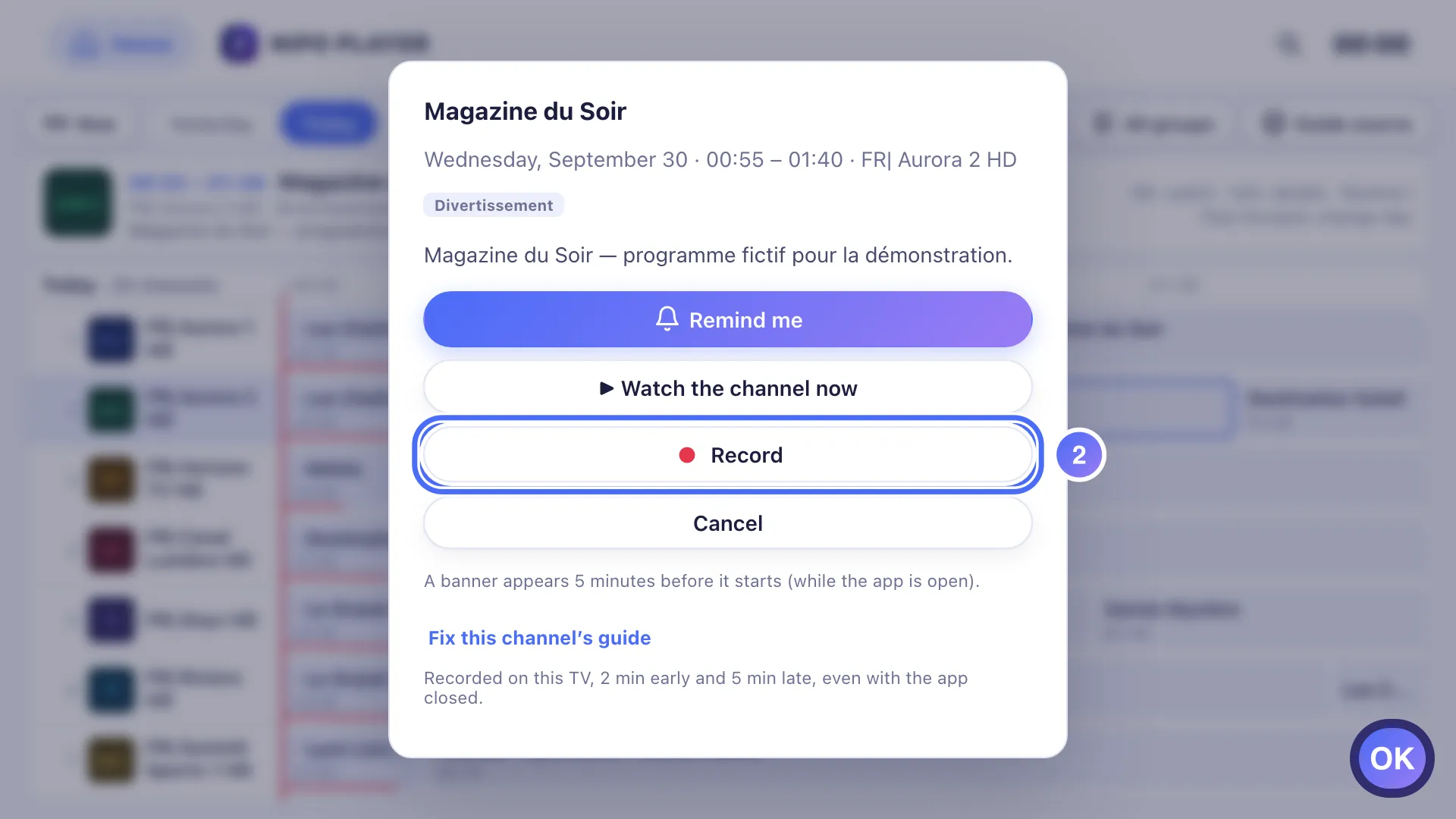
- 03
The same sheet now shows Cancel the recording.
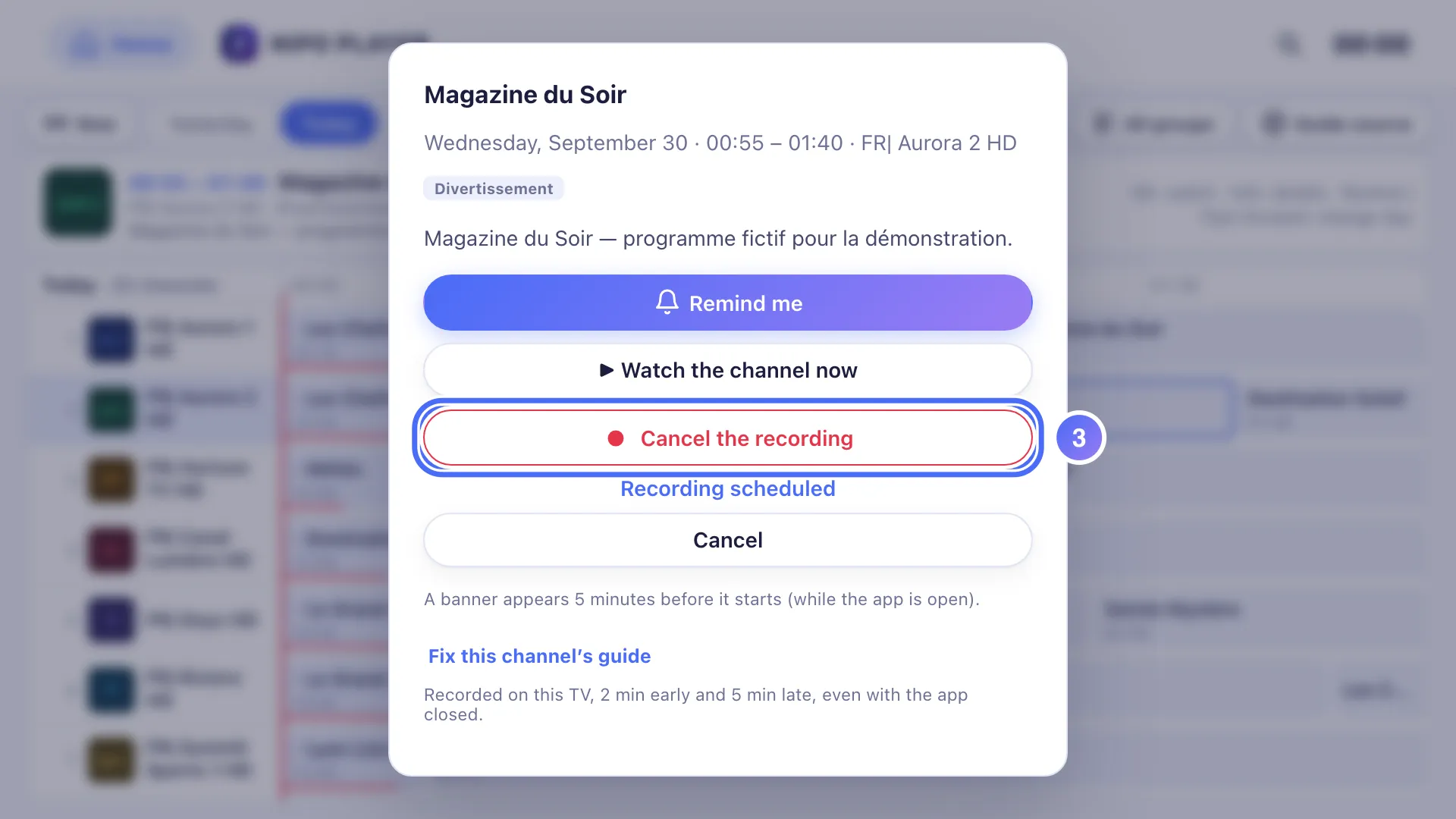
- 01
From TV Guide, click a future programme’s info sheet.
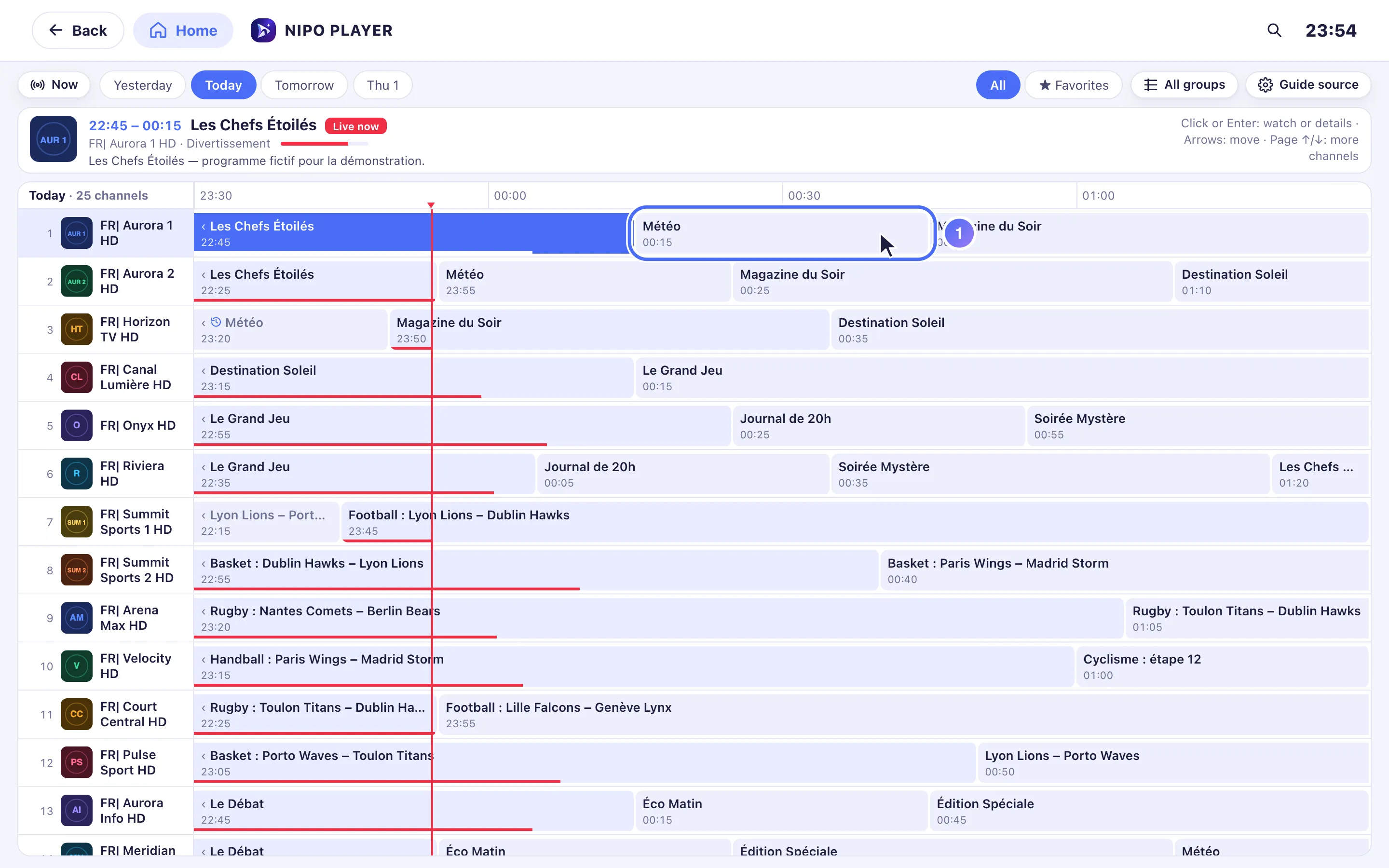
- 02
Click Record: the recording is scheduled.
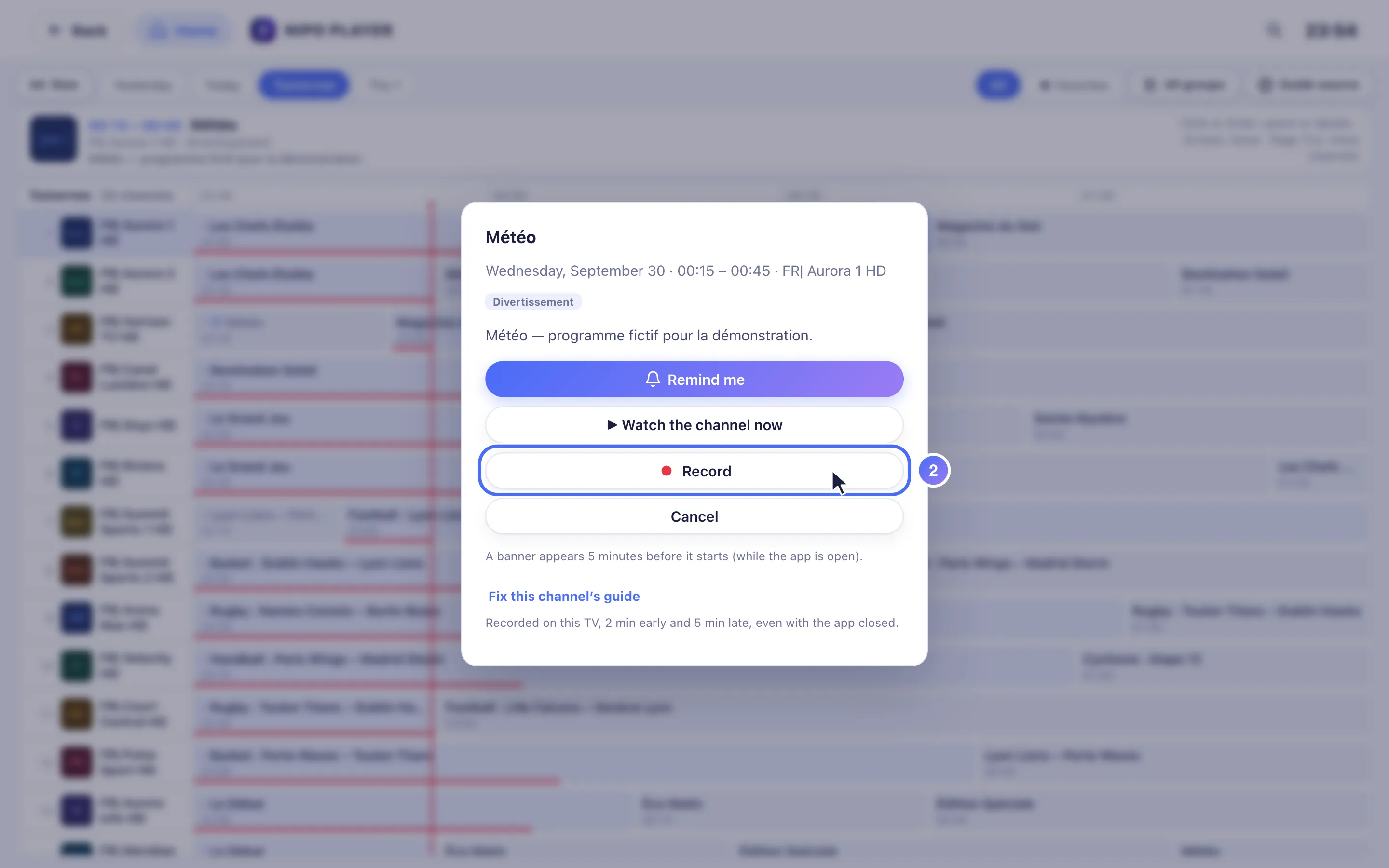
- 03
The same sheet now shows Cancel the recording.
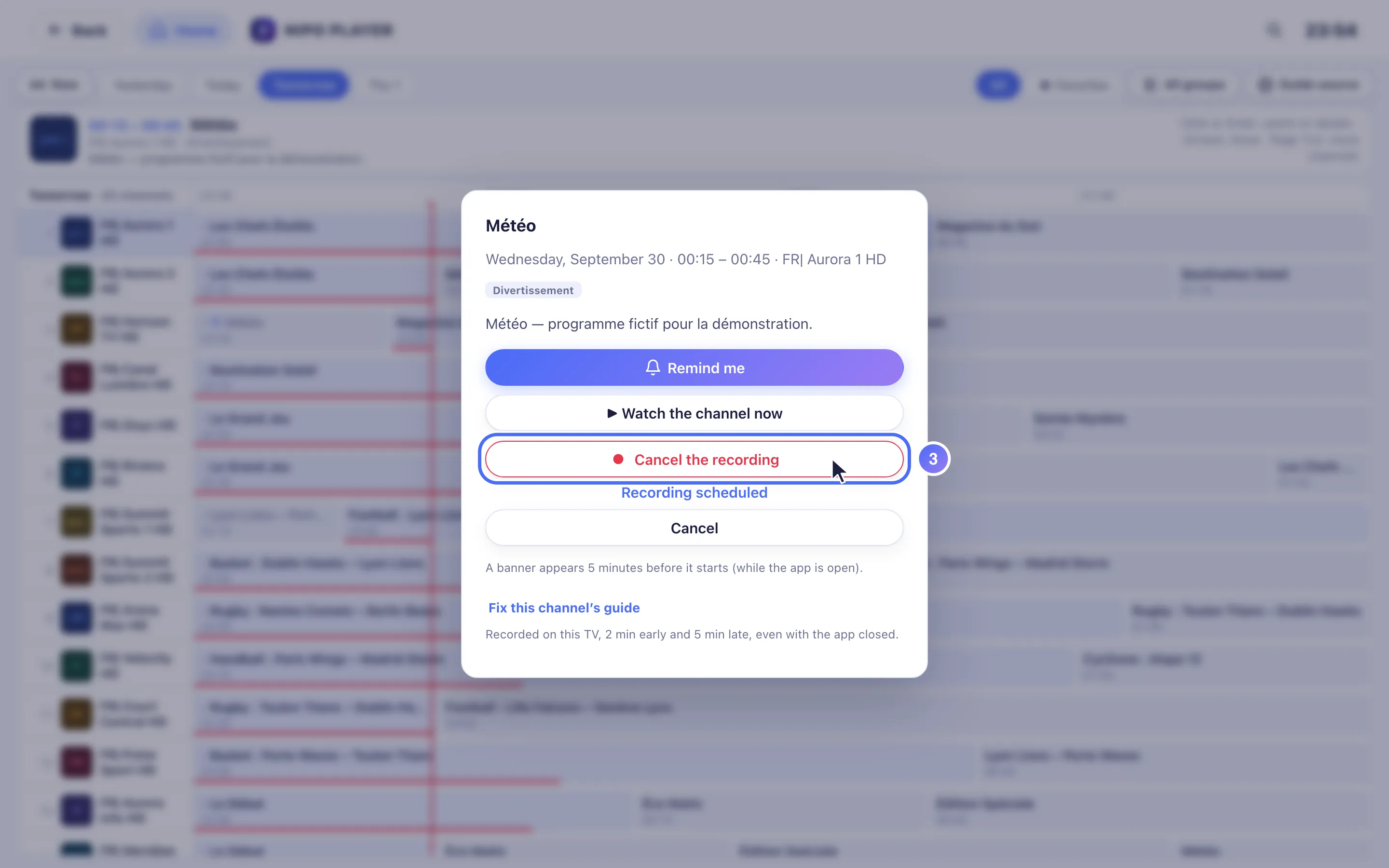
Steps
- From TV Guide, open an upcoming programme's info sheet (OK on TV, click on computer).
- Tap Record: the recording is scheduled, and the same sheet then shows Cancel recording.
- At the scheduled time, Nipo Player starts recording on its own, with a few minutes of margin before and after (adjustable in My recordings).
- Find the result in My recordings, reachable from Home, once it's done.
Tip
On a programme already airing, the same button reads Record until {time} and records from now until it ends. If the TV guide has no information for a programme, Nipo Player schedules a default one-hour recording. A scheduled recording starts even with the app closed on TV; on Mac or Windows, the app must stay open and the computer awake for the recording to happen.
Updated on 29 September 2026
Did this article help you?
Can’t find the answer?
Write to us: we answer about the app and how it works. We can’t recommend a playlist.