
How do I watch, delete and manage my recordings?
"My recordings" (Premium) groups your recordings in progress, scheduled and done, with storage used and the folder you've chosen.
Nipo doesn’t provide, sell or host any channel, movie or playlist: it plays what you already own.
Premium feature (Nipo Premium or Family), already in the app. Available on Android TV and computer (Mac and Windows) only: elsewhere, the screen explains why recording isn't offered.
Step by step, with pictures
- 01
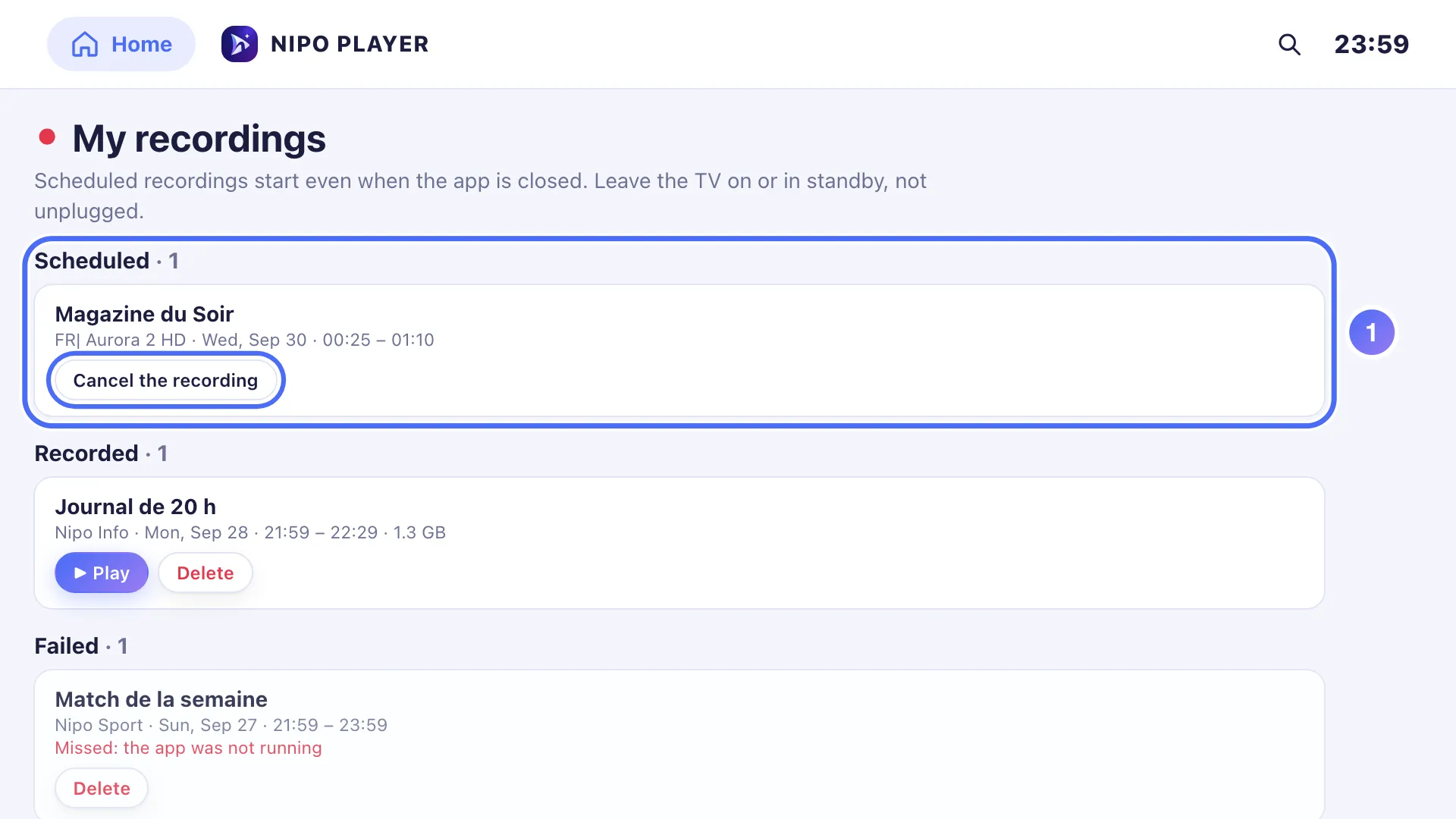
Recordings are grouped: scheduled, done and failed.
- 02
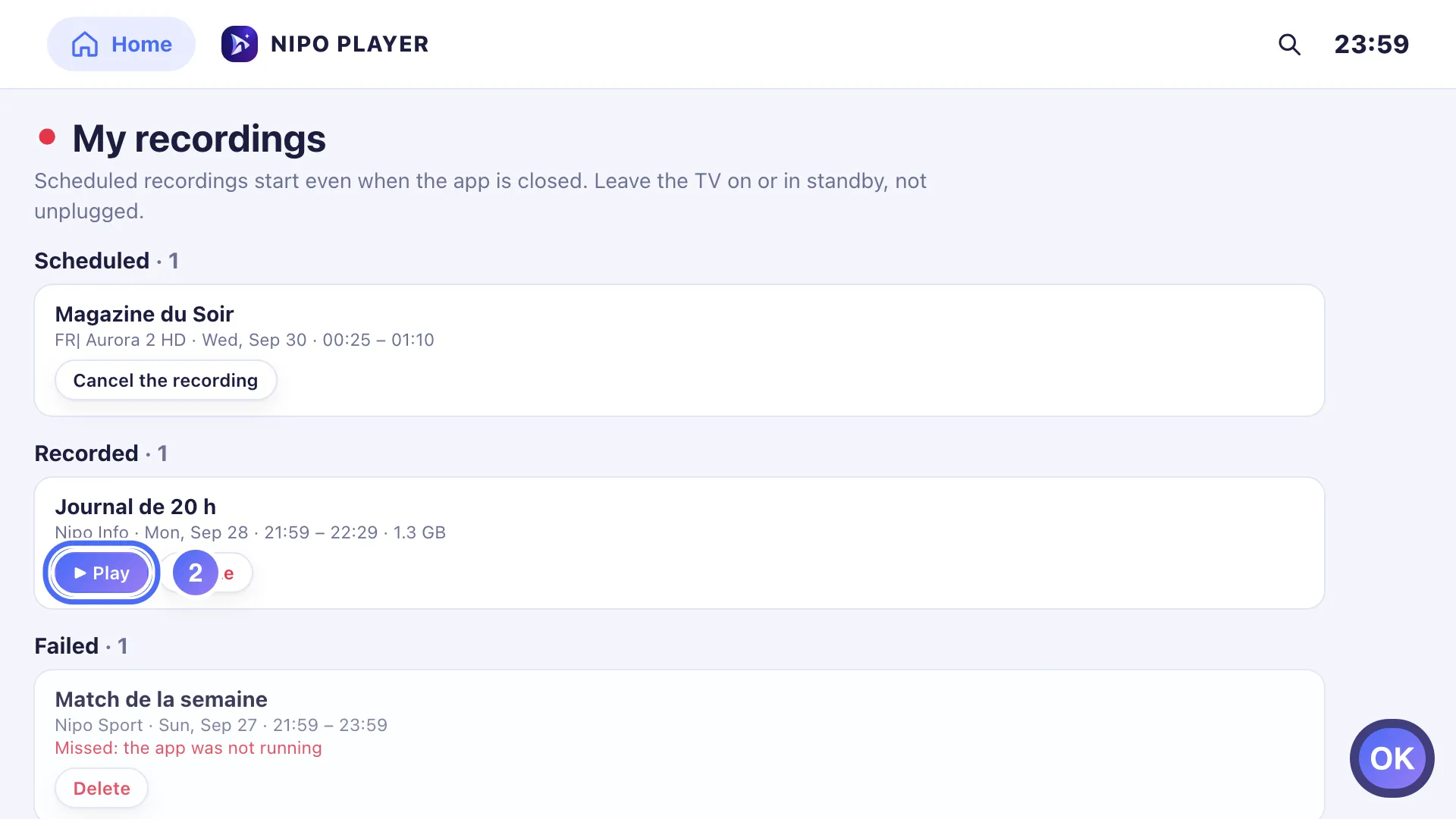
Tap Play to watch a finished recording. Key OK
- 03
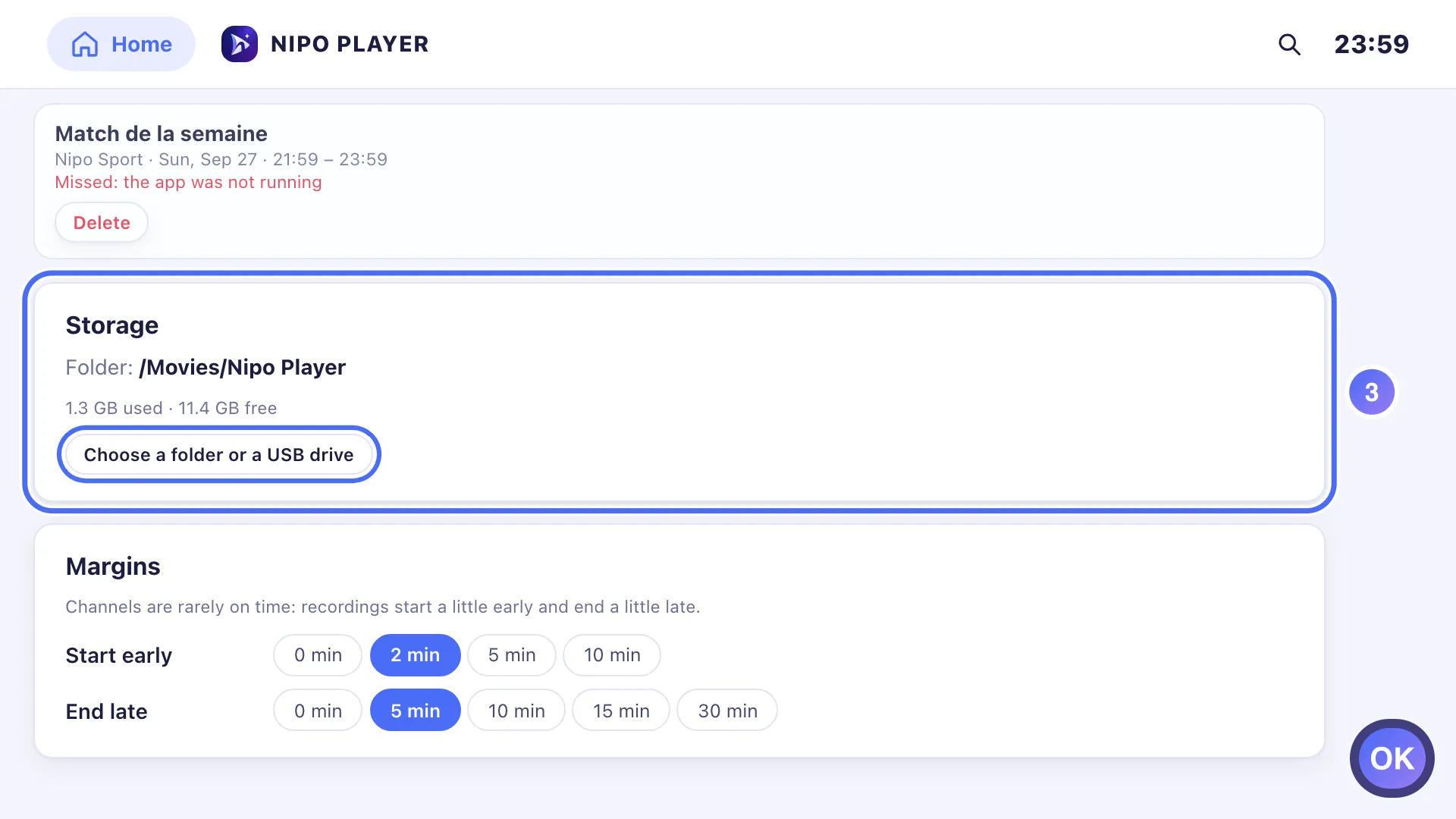
The storage used and free space show up top, with the current folder: Choose a folder or a USB drive records to an external device. Key OK
- 01
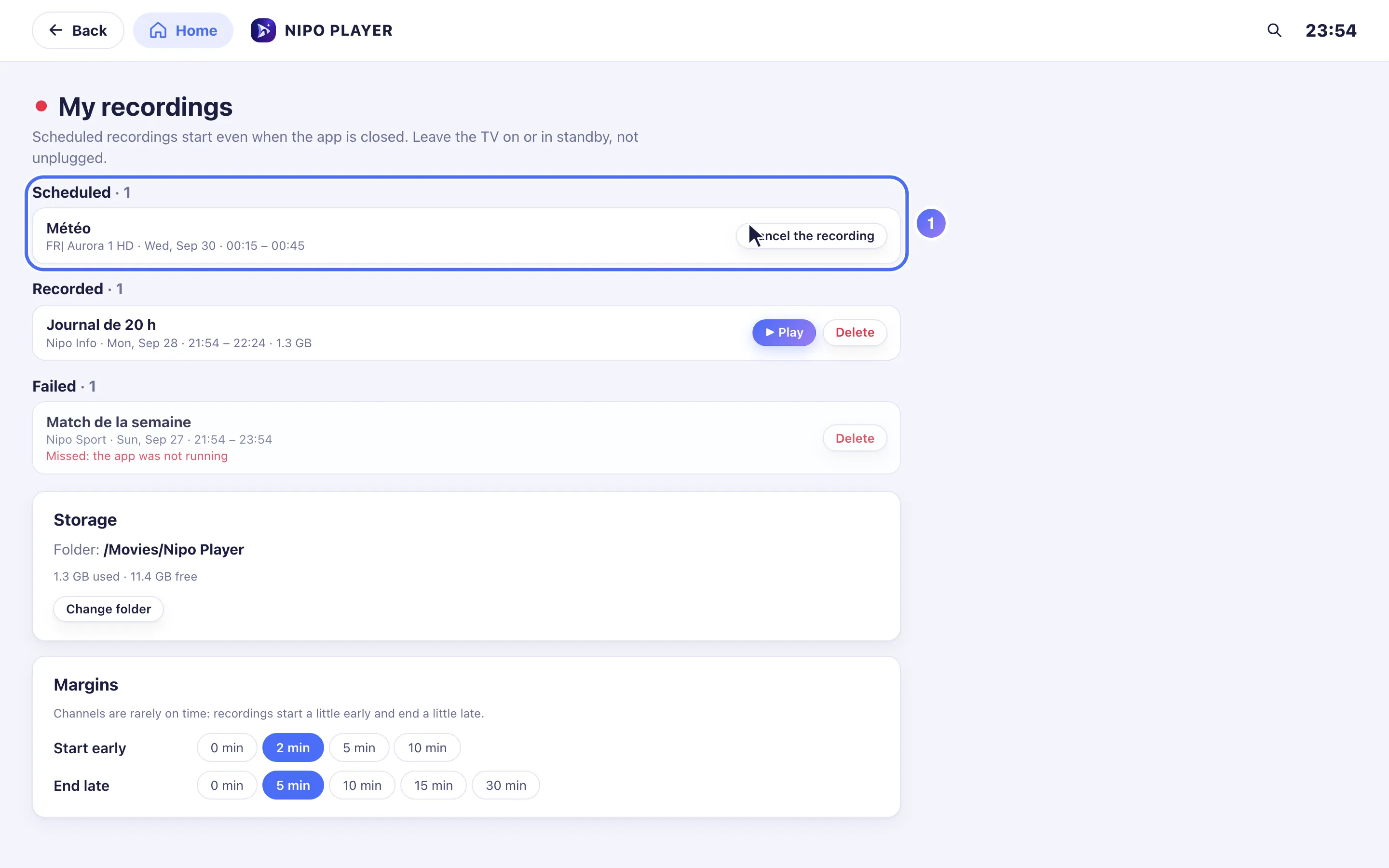
Recordings are grouped: scheduled, done and failed.
- 02
Click Play to watch a finished recording.
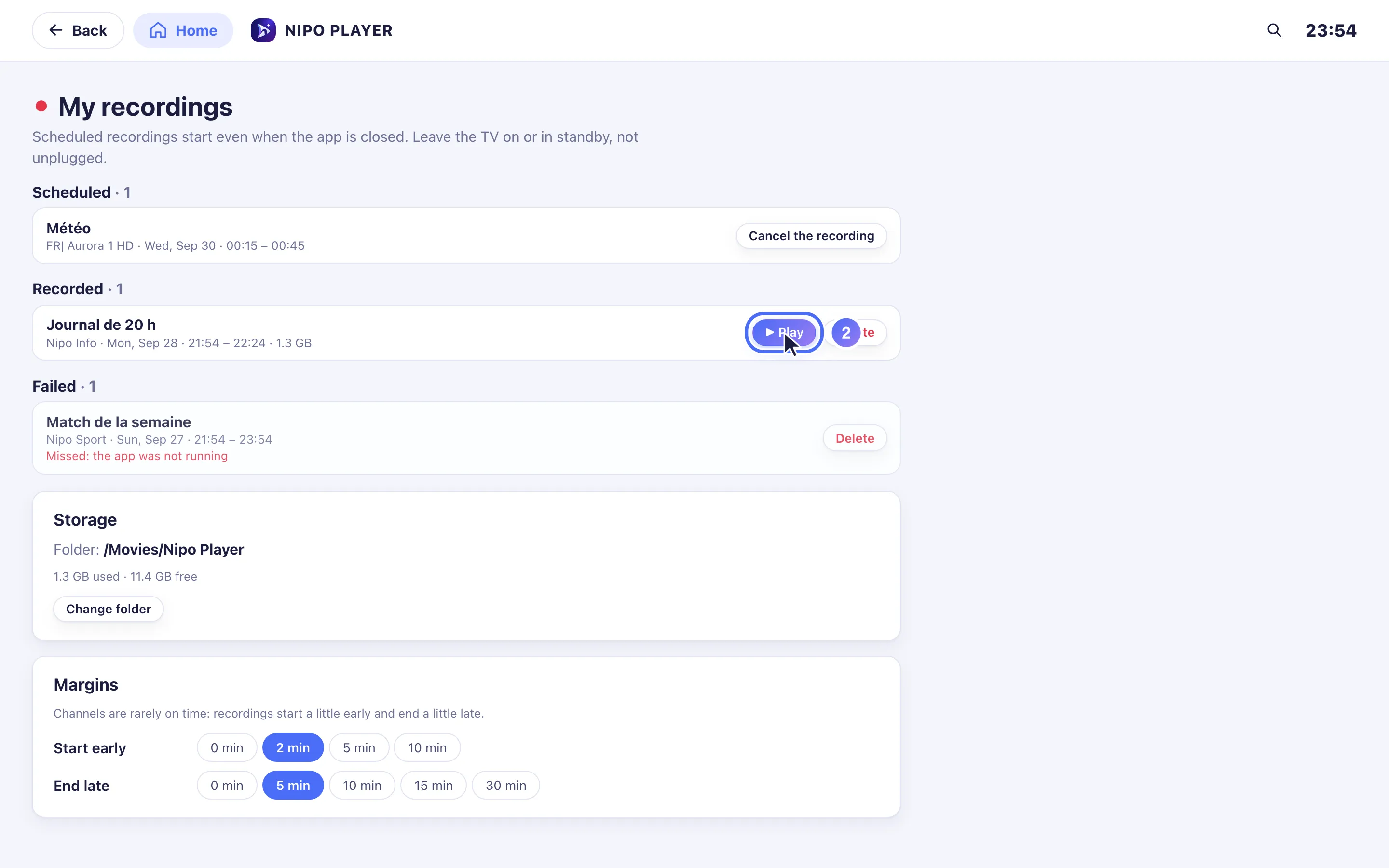
- 03
The storage used and the current folder show up top; Show in Finder opens the file’s location.
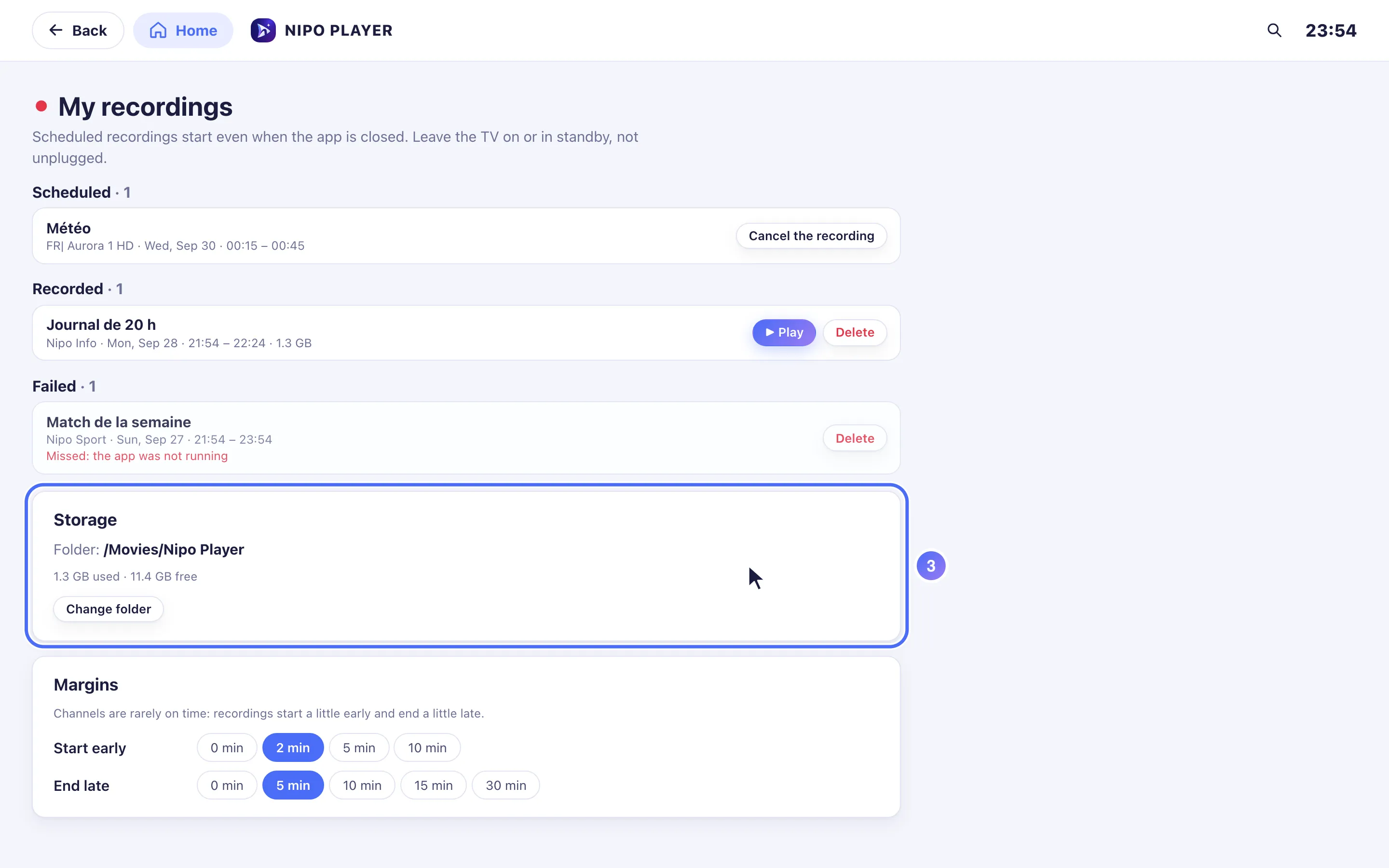
How it works
- Open My recordings from Home: recordings are grouped into Recording, Scheduled, Done and Failed.
- Tap Play to watch a finished recording, or Delete to remove it (a confirmation is asked, and the file is erased).
- Storage used and free space show at the top of the screen, along with the current folder.
- On Android TV, Choose a folder or a USB drive lets you record onto external storage instead of the TV's built-in storage (erased if the app is uninstalled); on Mac or Windows, Show in Finder/Explorer opens the file's location.
Tip
Each recording counts as an active stream: if your playlist's server limits how many connections can run at once, Nipo Player warns you before starting a recording that would go over that limit, and offers Record anyway. A recording that was missed (app closed at the wrong time) or interrupted (disk almost full) shows up in Failed, with the reason.
Updated on 29 September 2026
Did this article help you?
Can’t find the answer?
Write to us: we answer about the app and how it works. We can’t recommend a playlist.