
How do I add and find my favorites?
Press ★ in the player or on a movie or series page to add a favourite, then find them all from the "Favorites" shortcut on Home.
Nipo doesn’t provide, sell or host any channel, movie or playlist: it plays what you already own.
Favorites are kept separate by type: channels, movies and series.
Step by step, with pictures
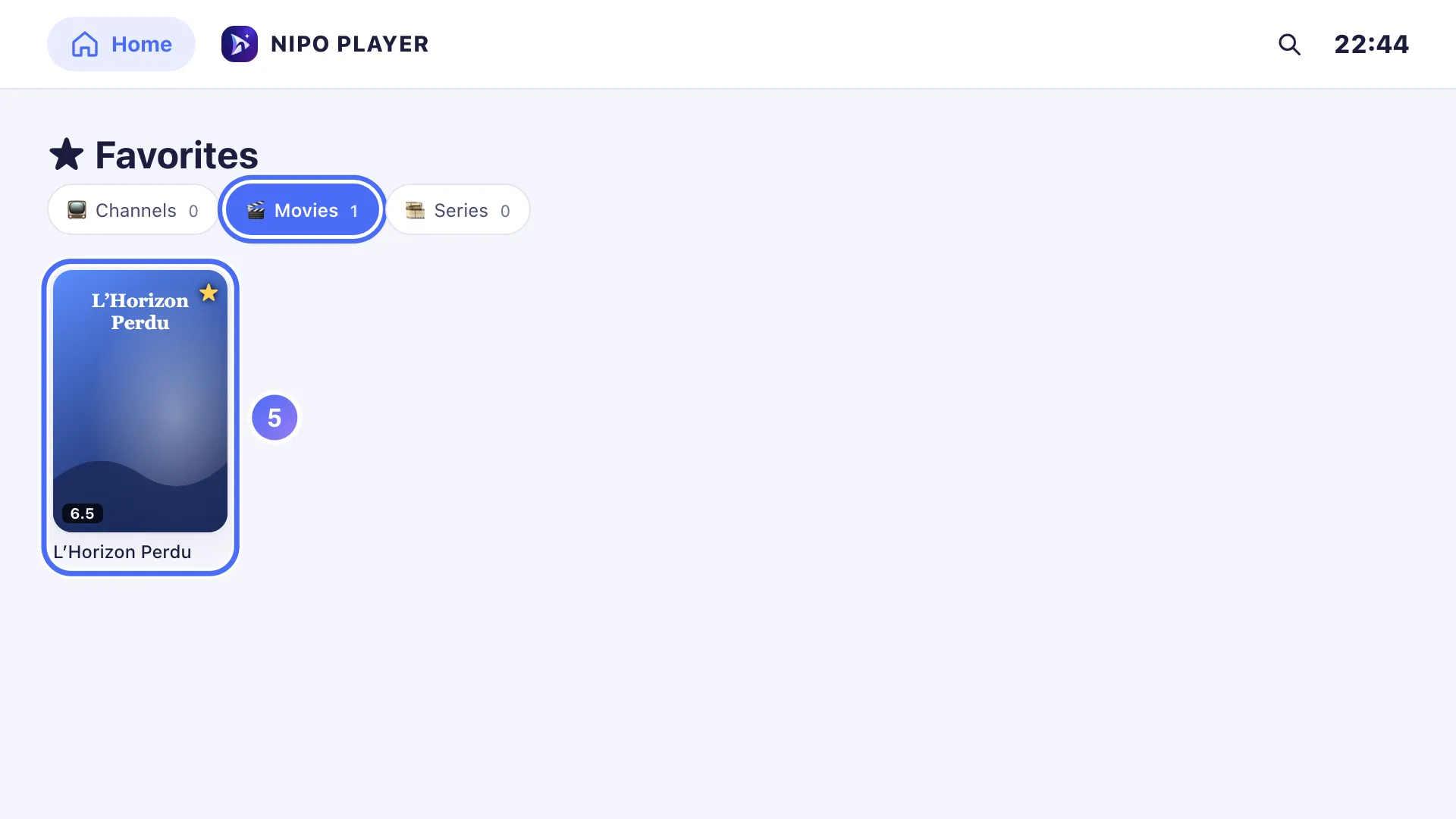
- 01
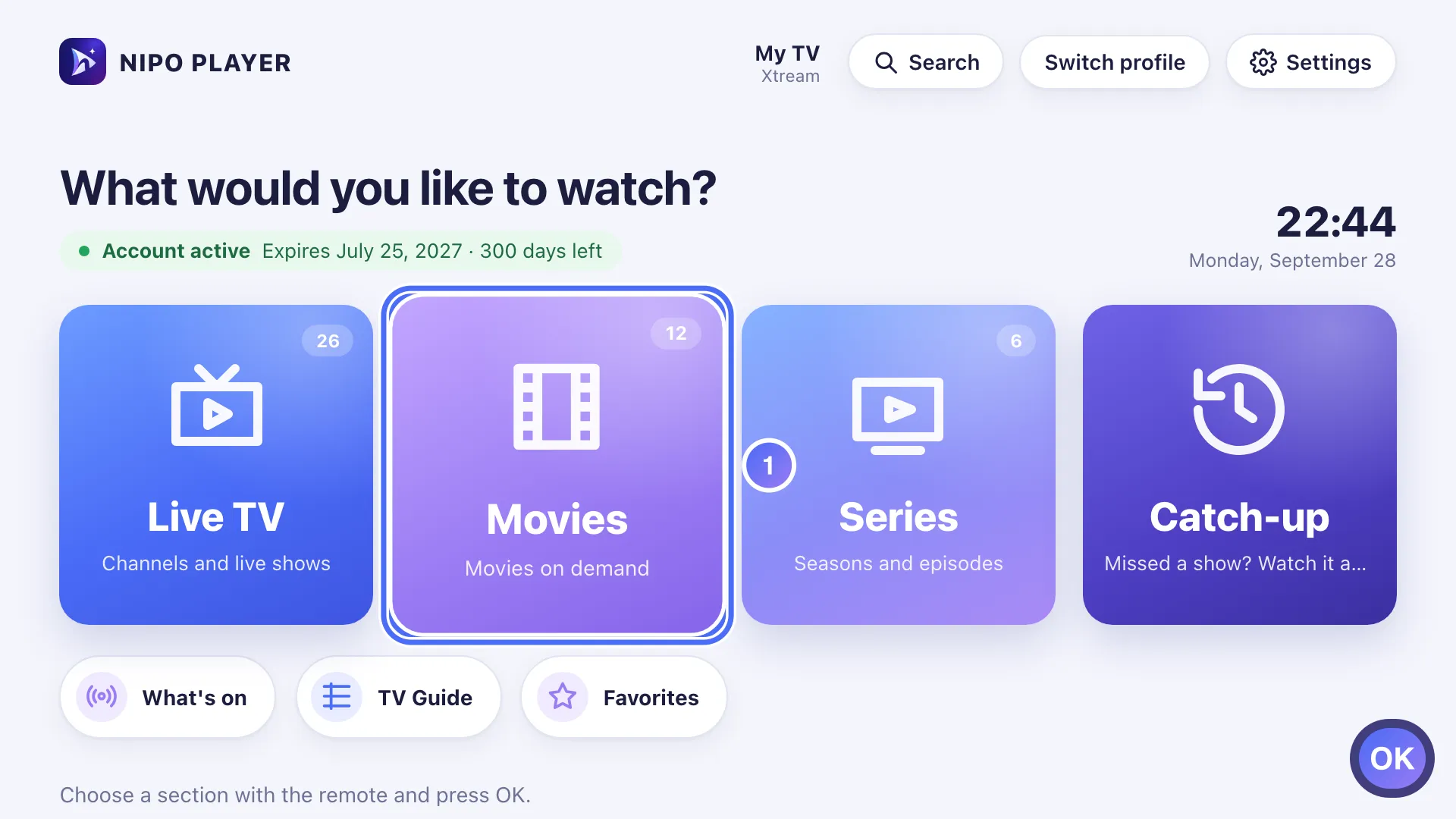
From Home, go to the Movies door and press OK. Key OK
- 02
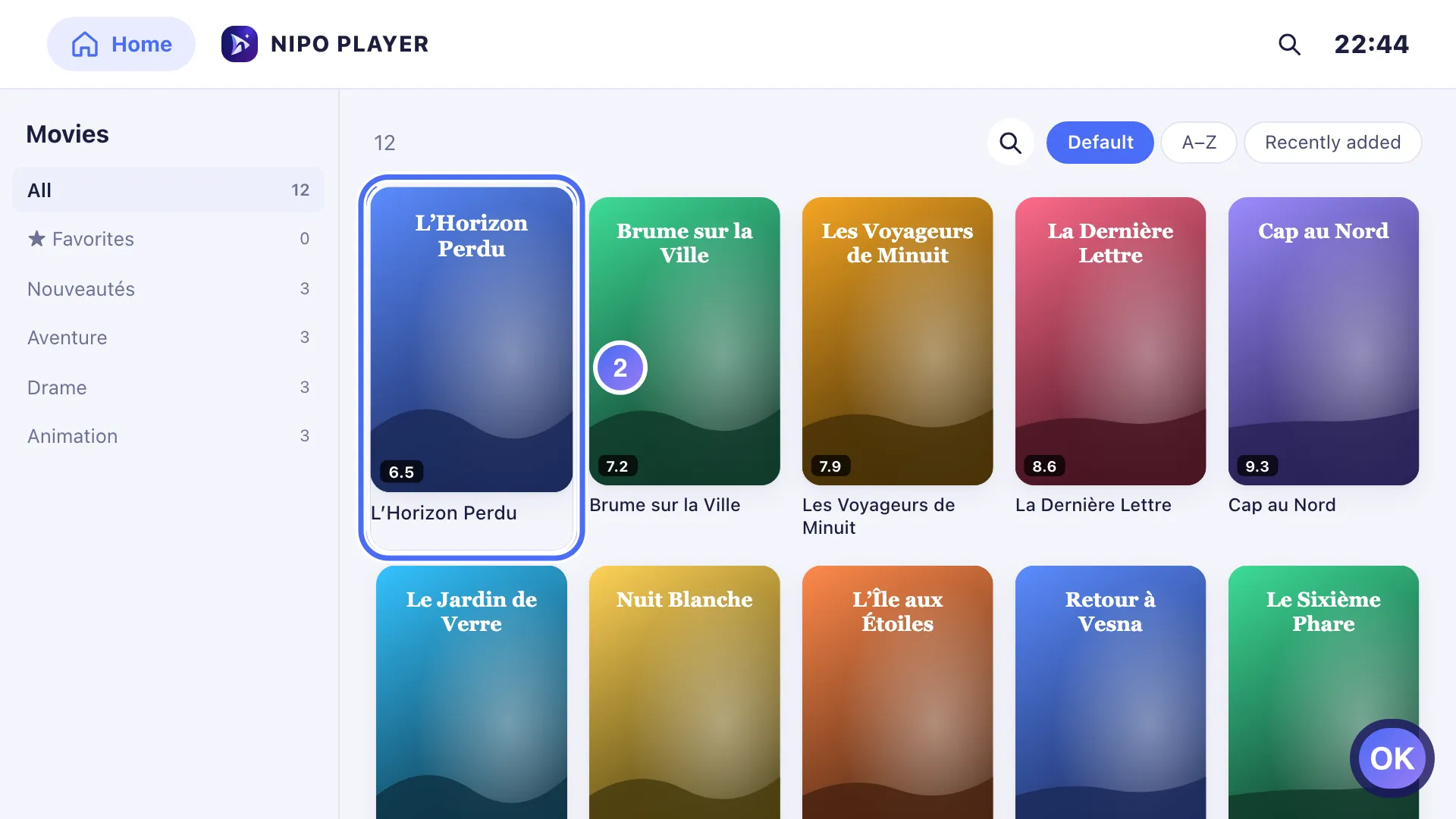
Choose a movie and press OK to open its page. Key OK
- 03
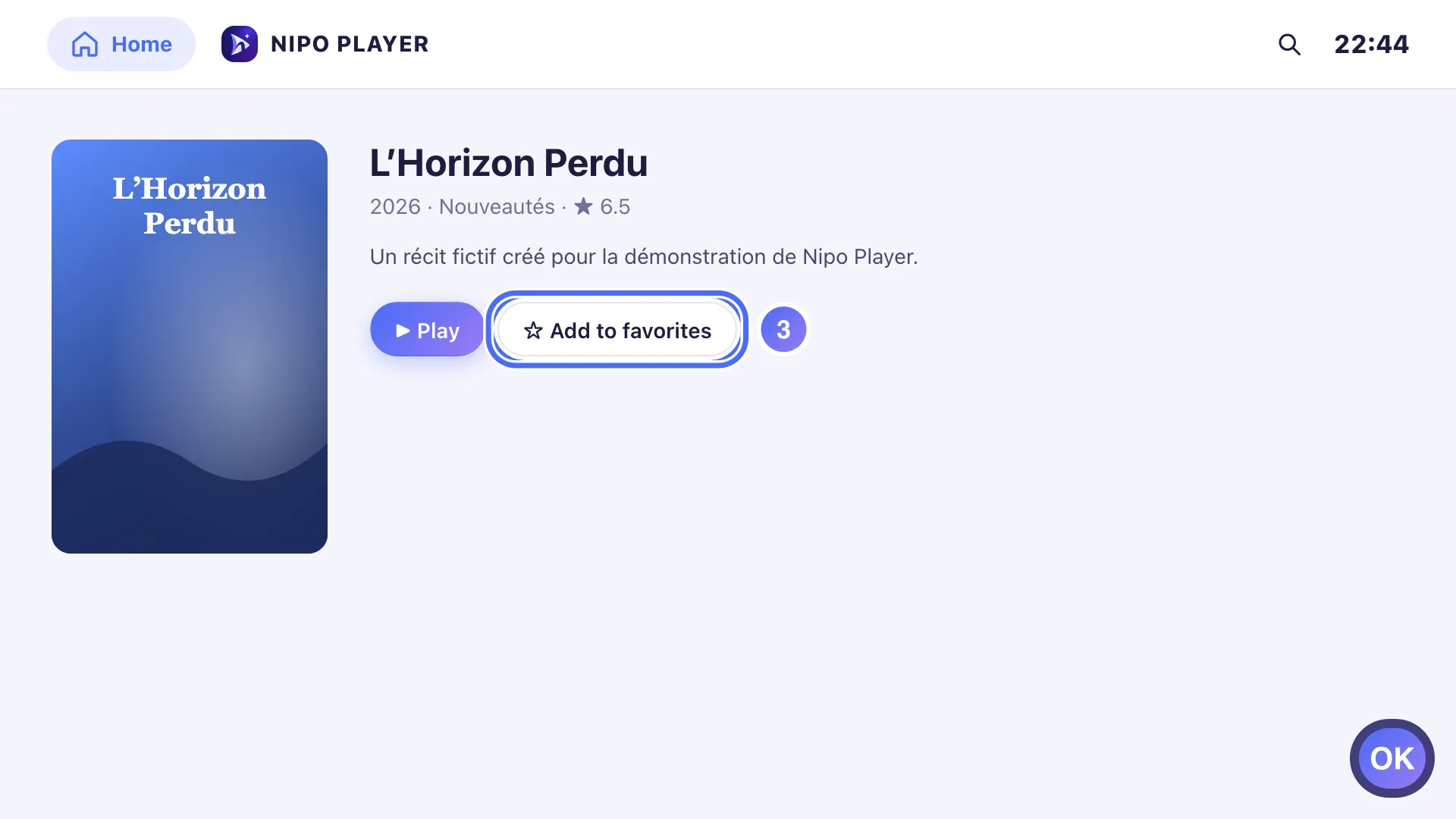
Go down to ☆ Add to favorites and press OK. Key OK
- 04
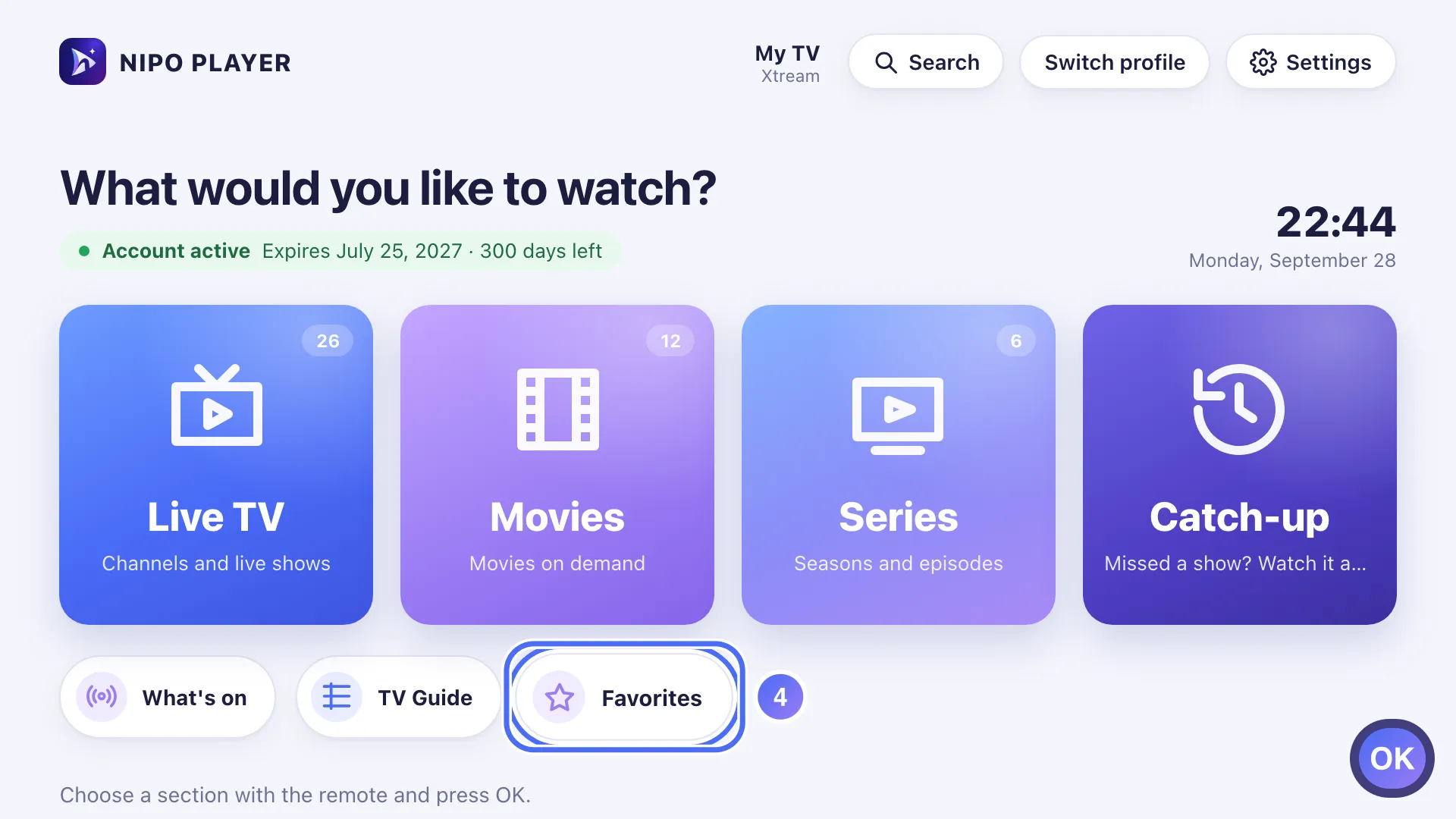
From Home, tap the Favorites shortcut to see the full list. Key OK
- 05
Favorites are kept separate by type: channels, movies and series.
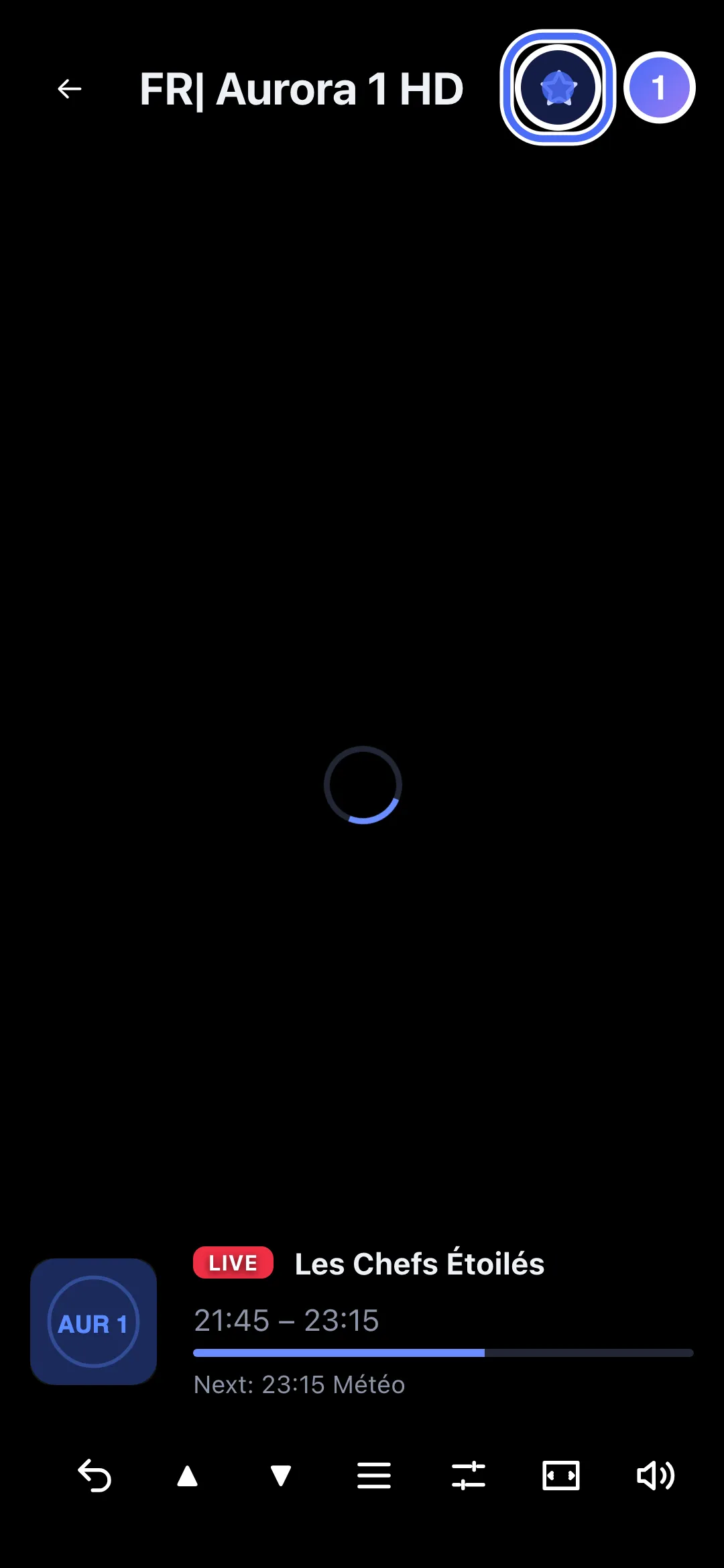
- 01
In the player, tap ★ to add the channel to your favorites.
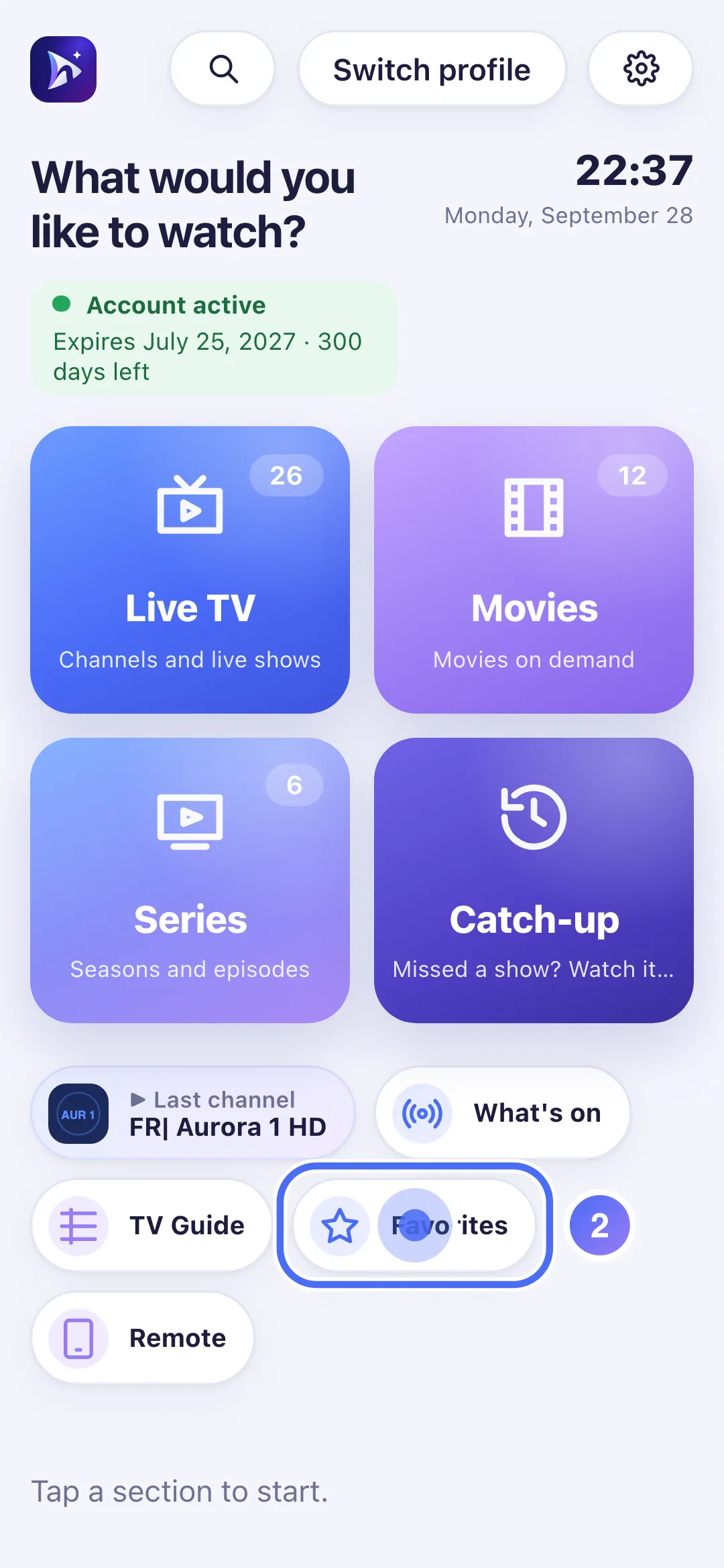
- 02
From Home, tap “Favorites” to see the full list.
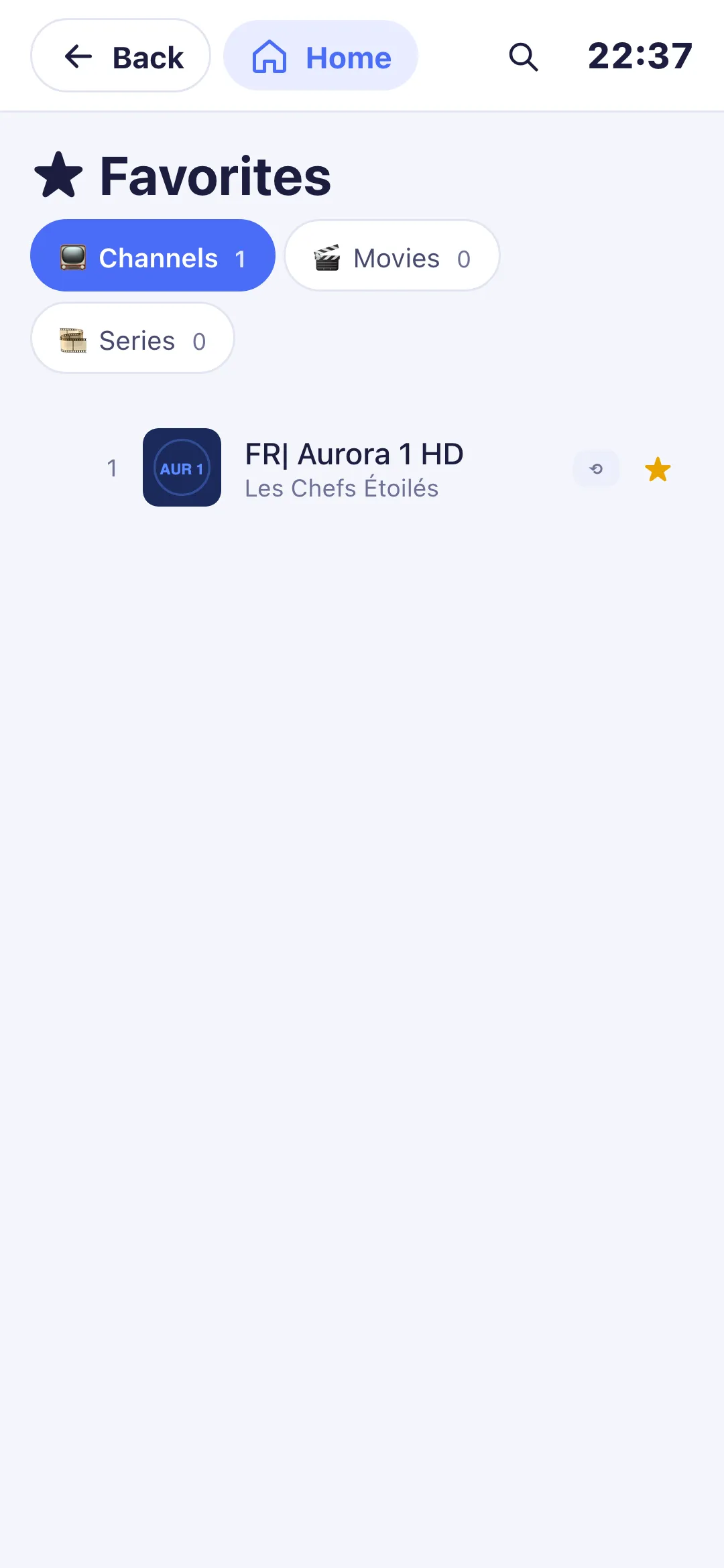
- 03
Your favorite channels, movies and series are here, by type.
- 01
In the player, click ★ to add the channel to your favorites.
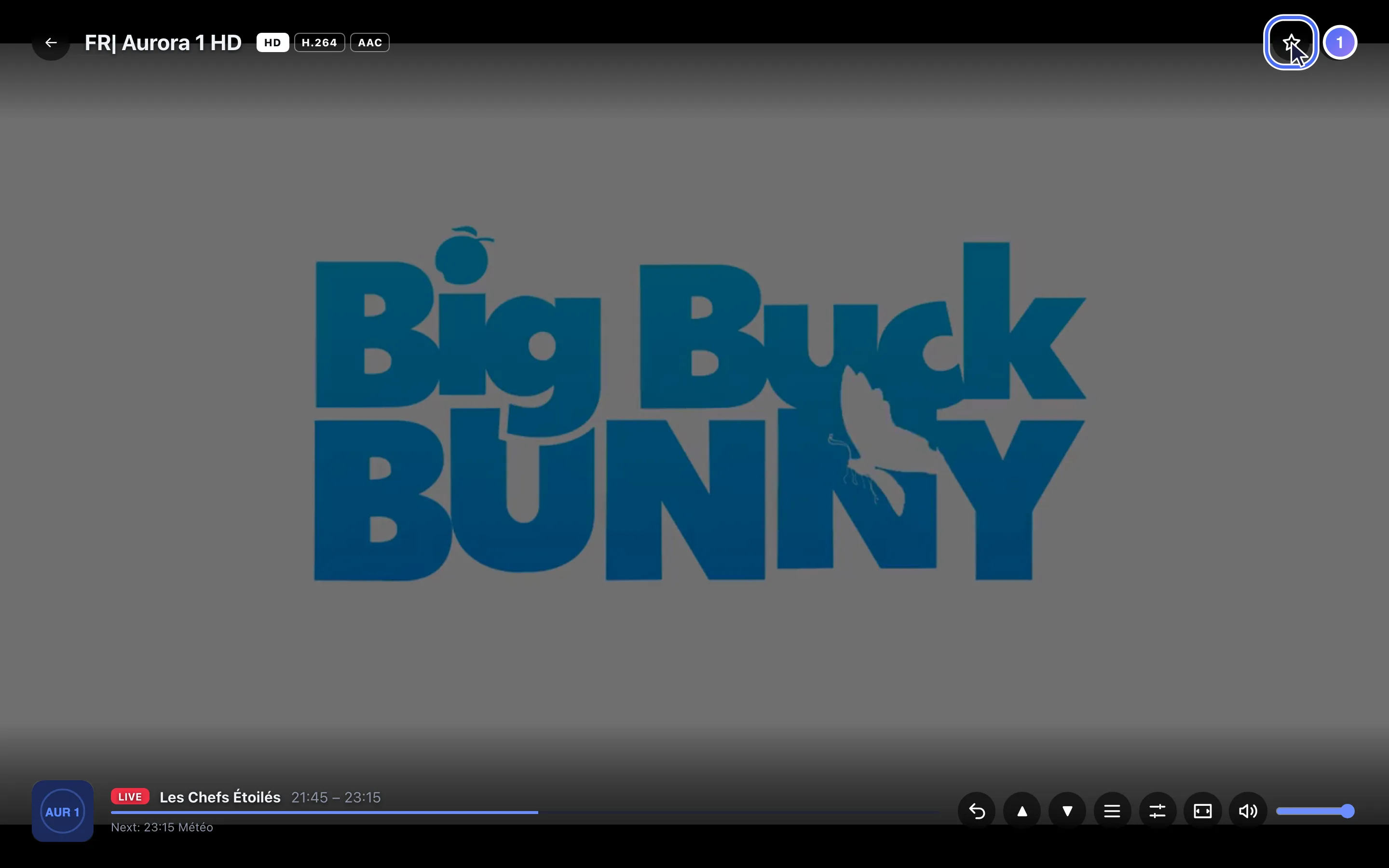
- 02
From Home, click “Favorites” to see the full list.
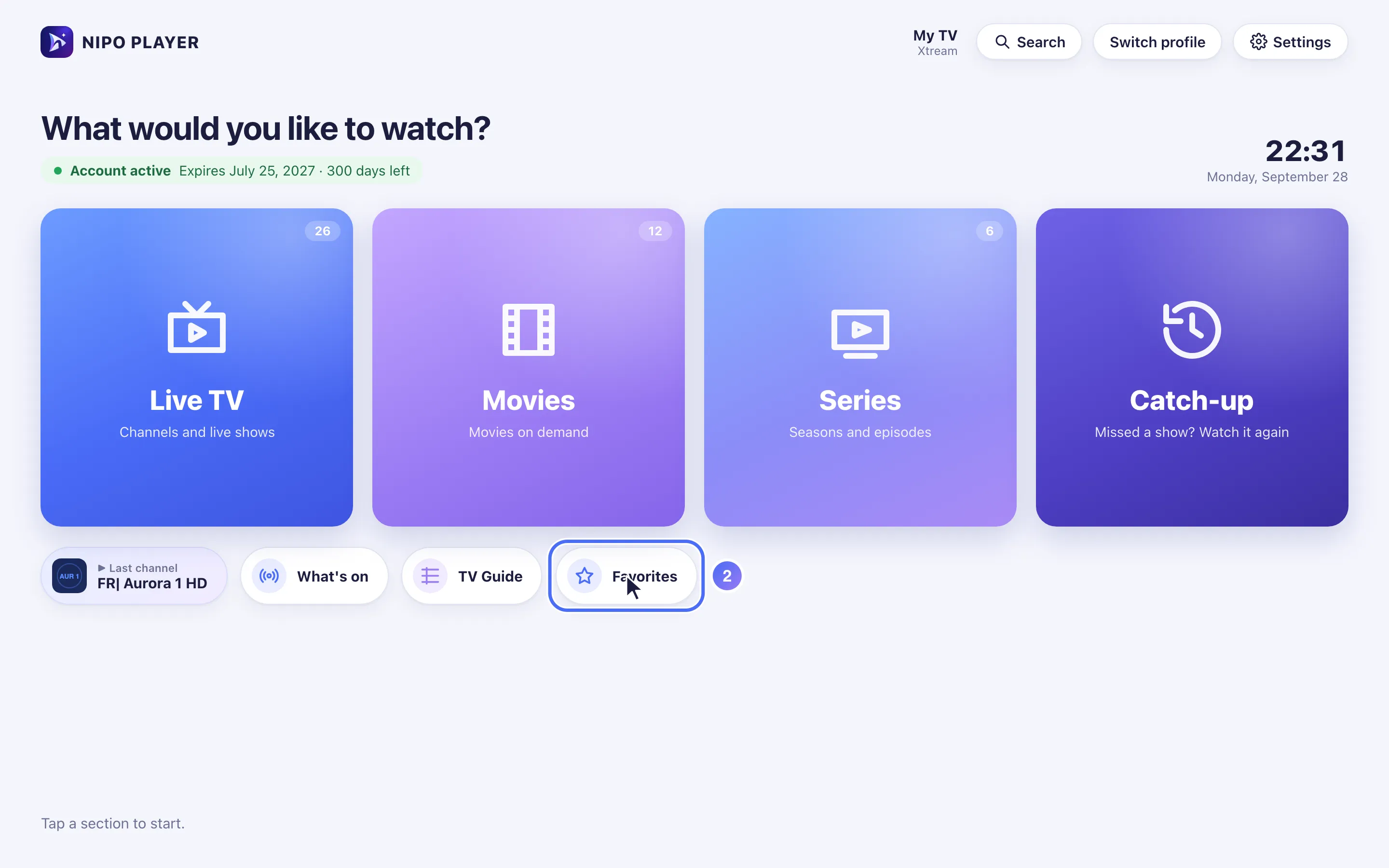
- 03
Your favorite channels, movies and series are here, by type.
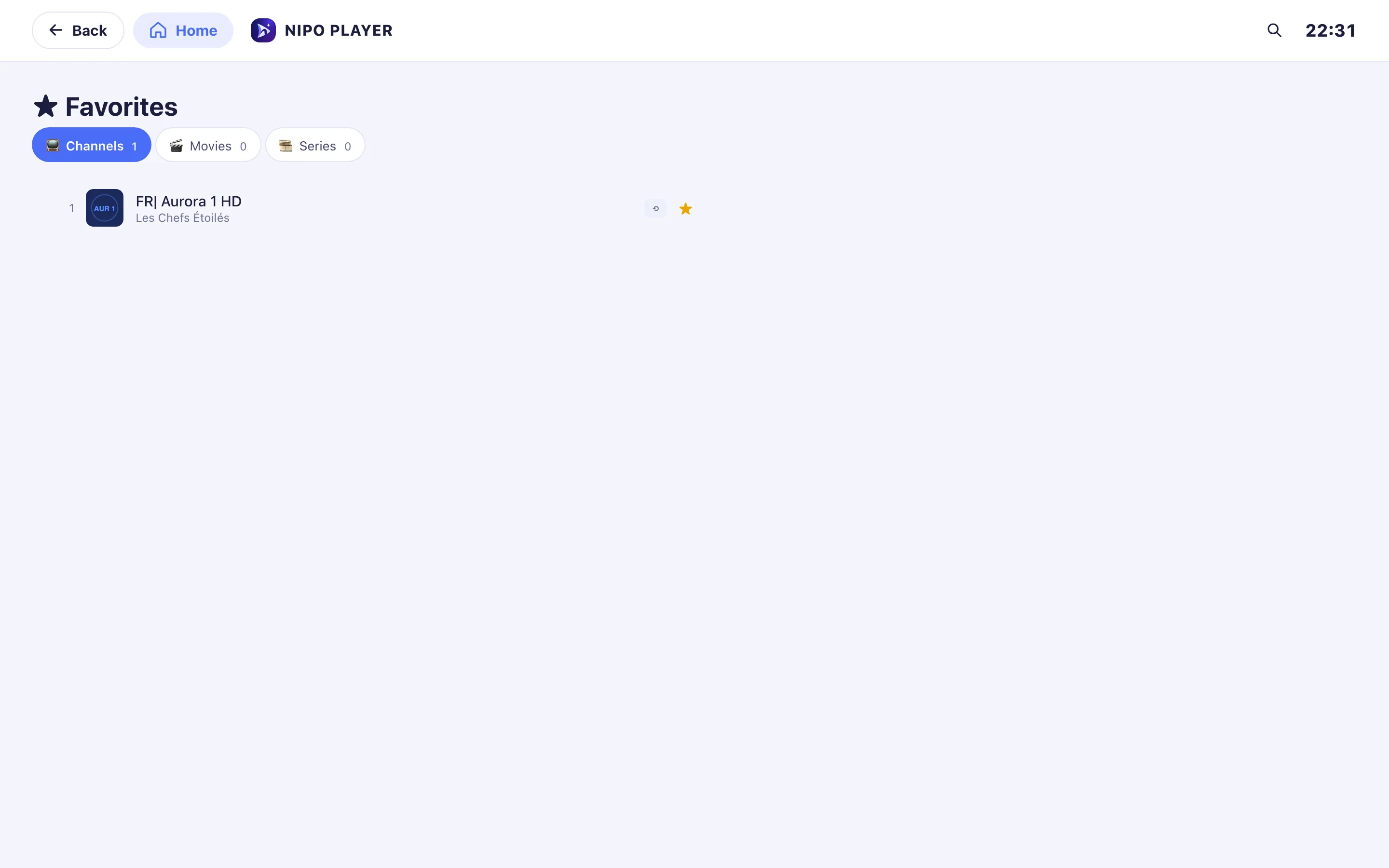
Steps
- In the live player, press the remote's red key (or the ★ icon) to add the current channel to your favorites.
- On a movie or series page, tap ★ to add it.
- From Home, tap the Favorites shortcut to see the full list.
- To remove a favorite, press ★ again in the same place.
Tip
"No favorites here yet" shows until you've added something: that's normal on first launch. The TV guide also has a ★ Favorites filter to see just the grid of your favorite channels.
Updated on 28 September 2026
Did this article help you?
Can’t find the answer?
Write to us: we answer about the app and how it works. We can’t recommend a playlist.