
How do I keep only my countries and hide the rest?
In Settings → Countries and languages, pick the countries you watch: everything else is hidden, and you can change this anytime.
Nipo doesn’t provide, sell or host any channel, movie or playlist: it plays what you already own.
Large playlists sometimes cover thirty countries or more, while most households only watch two or three. "My countries" trims the lists down to what you care about.
Step by step, with pictures
- 01
On Home, go to Settings and press OK. Key OK
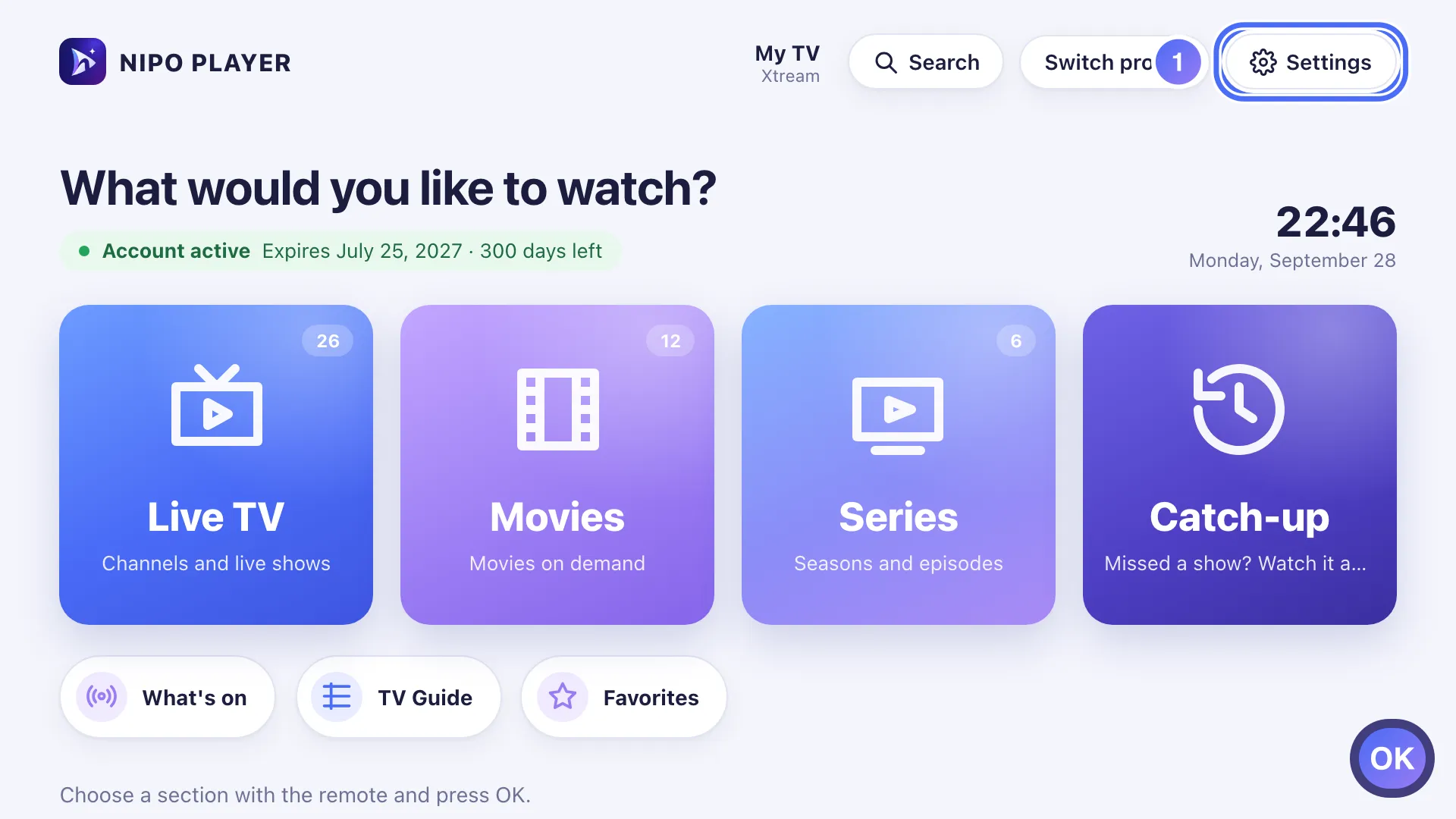
- 02
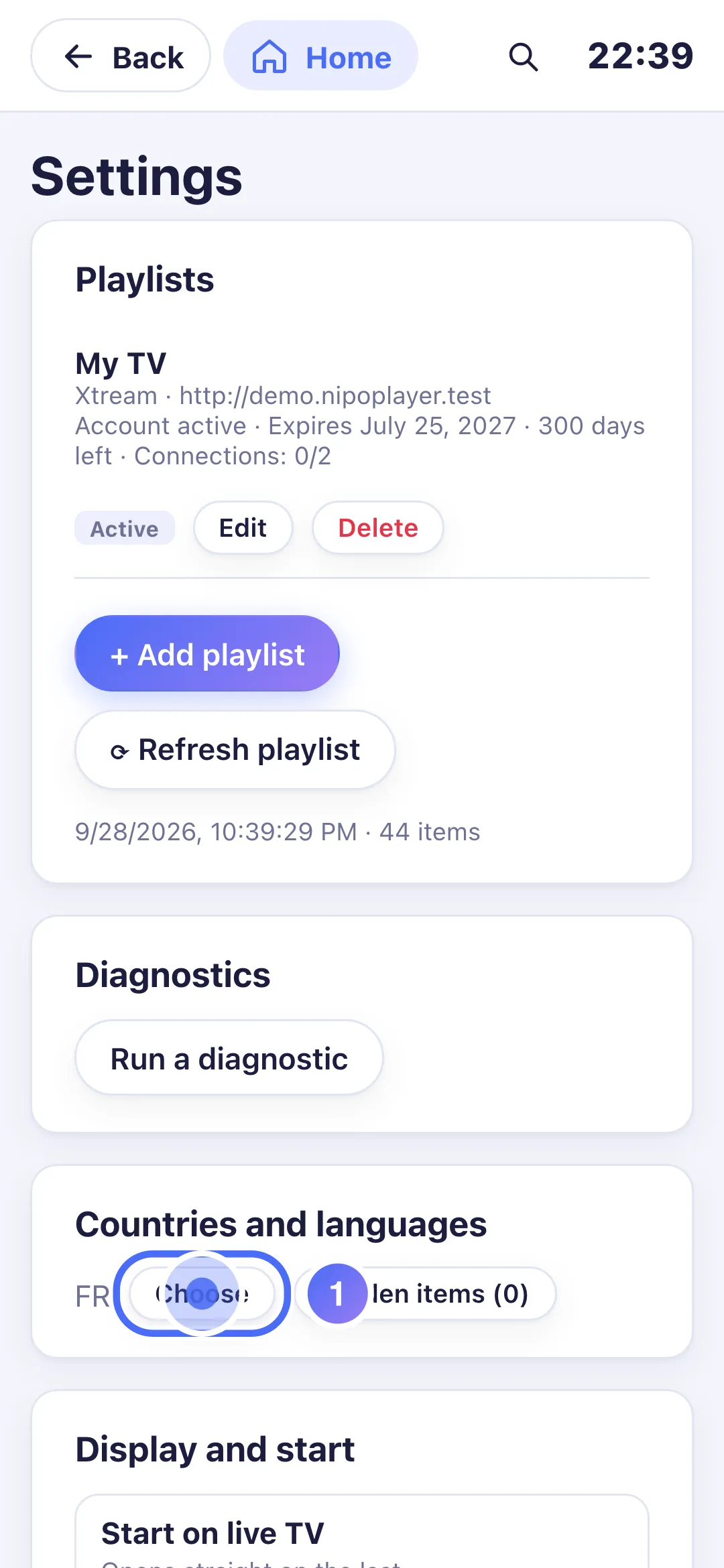
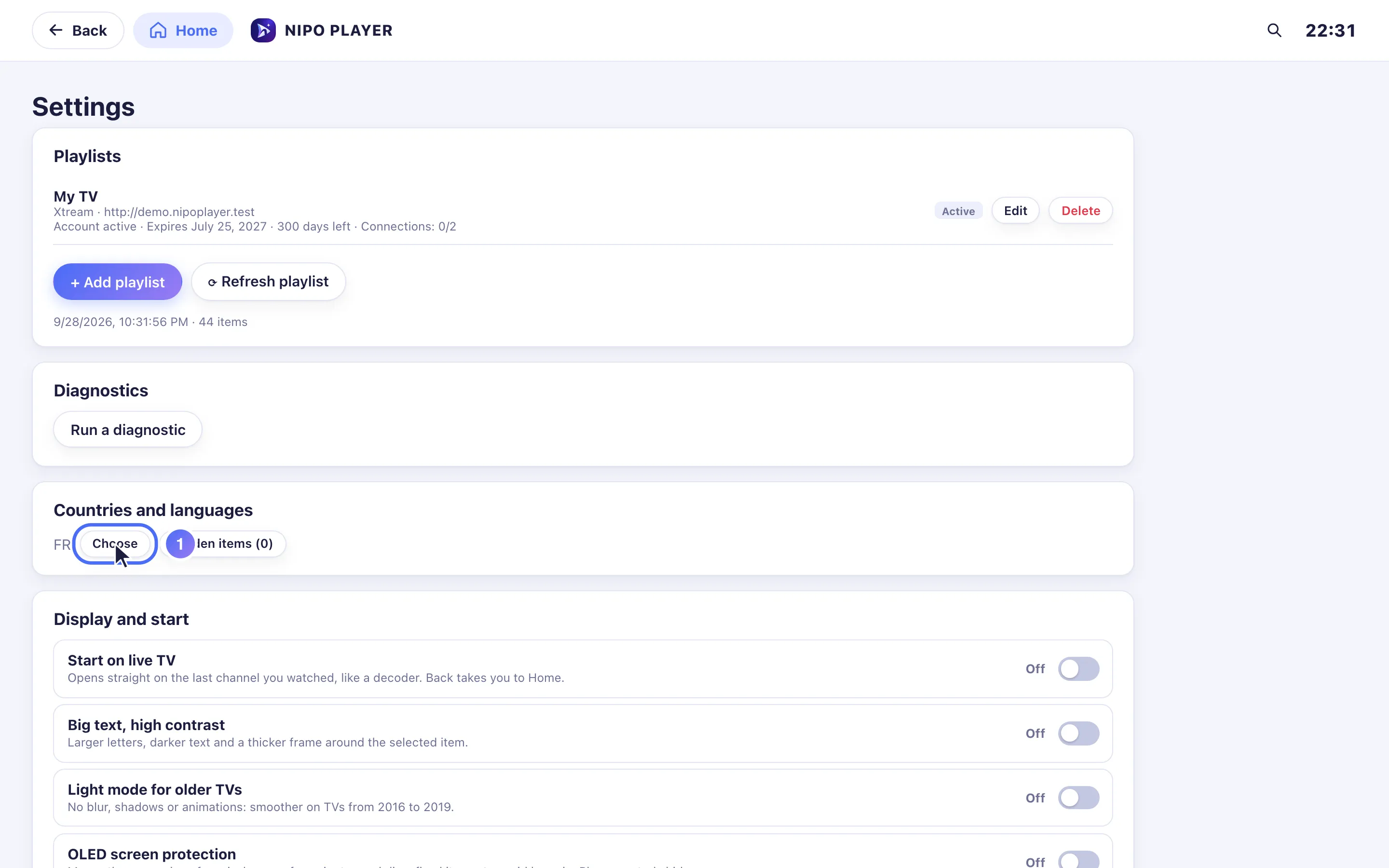
Go down to Countries and languages and press OK on Choose. Key OK
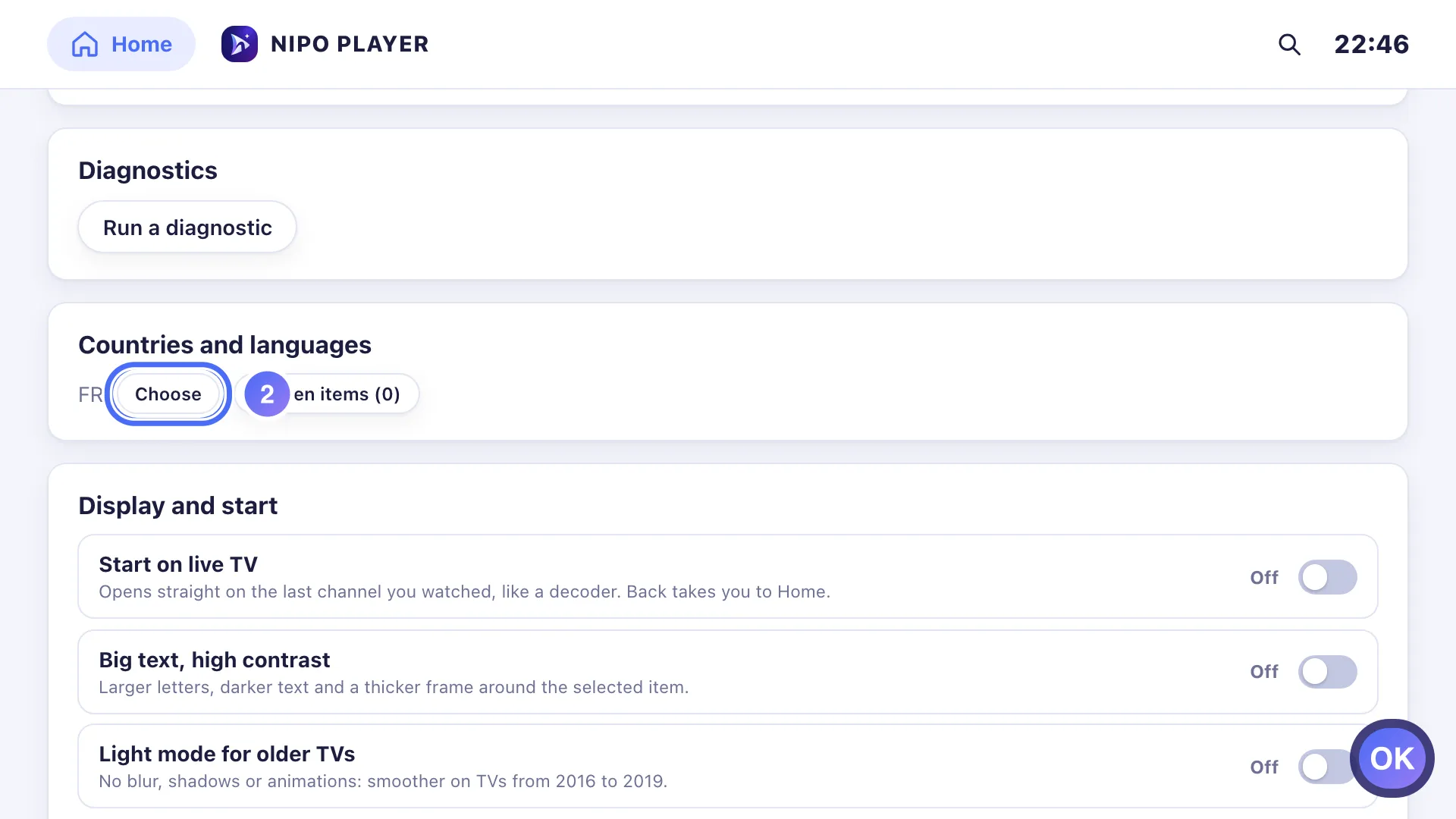
- 03
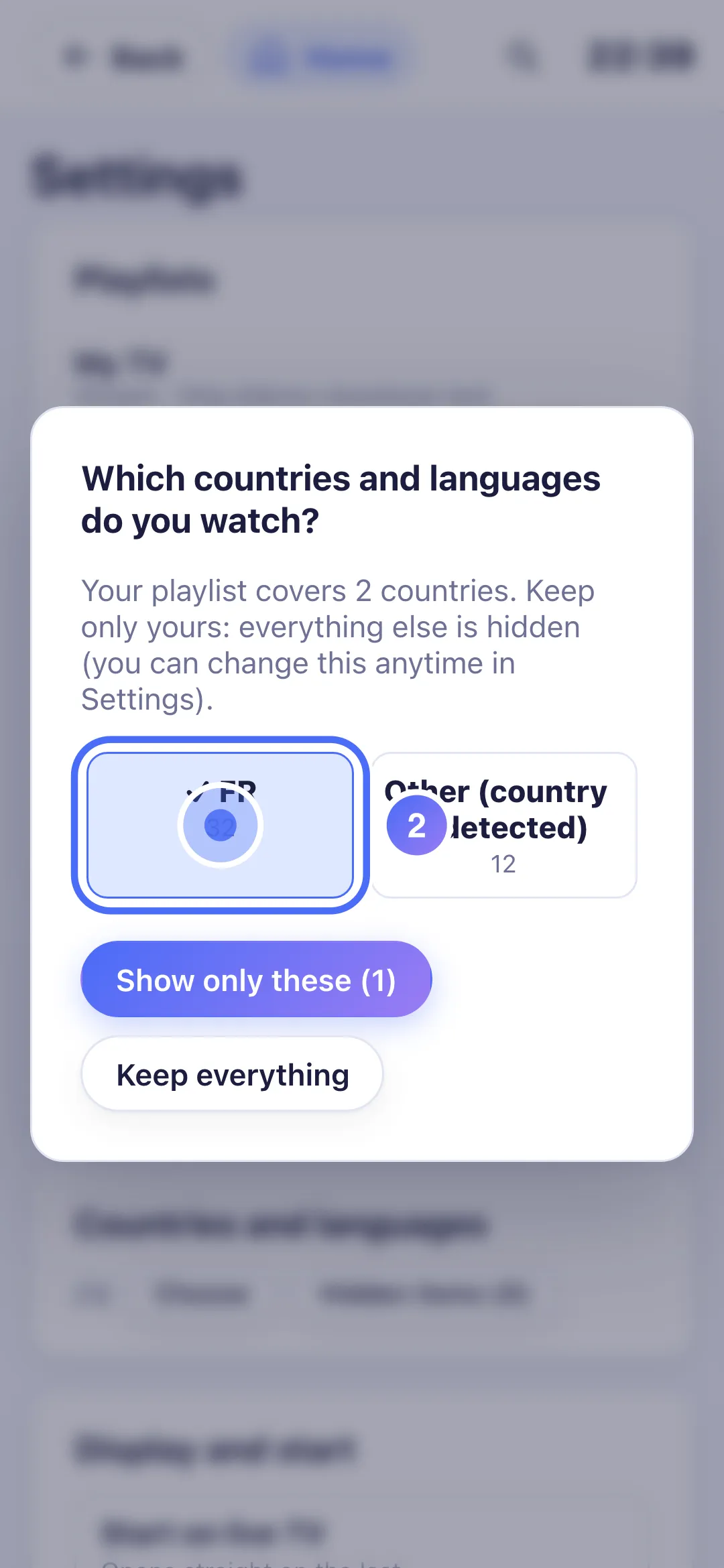
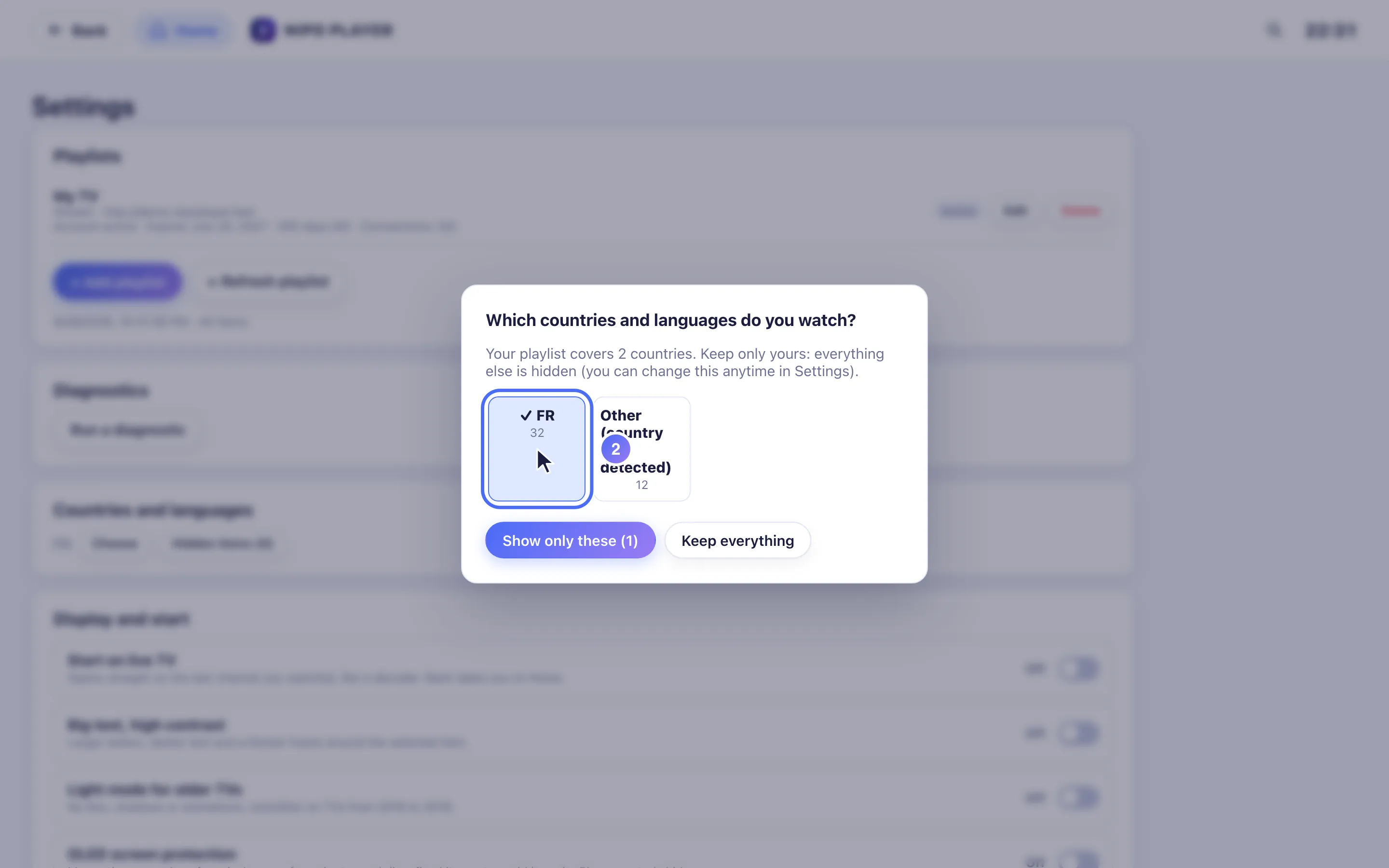
Press OK on each country to keep; the channel count shows next to it. Key OK
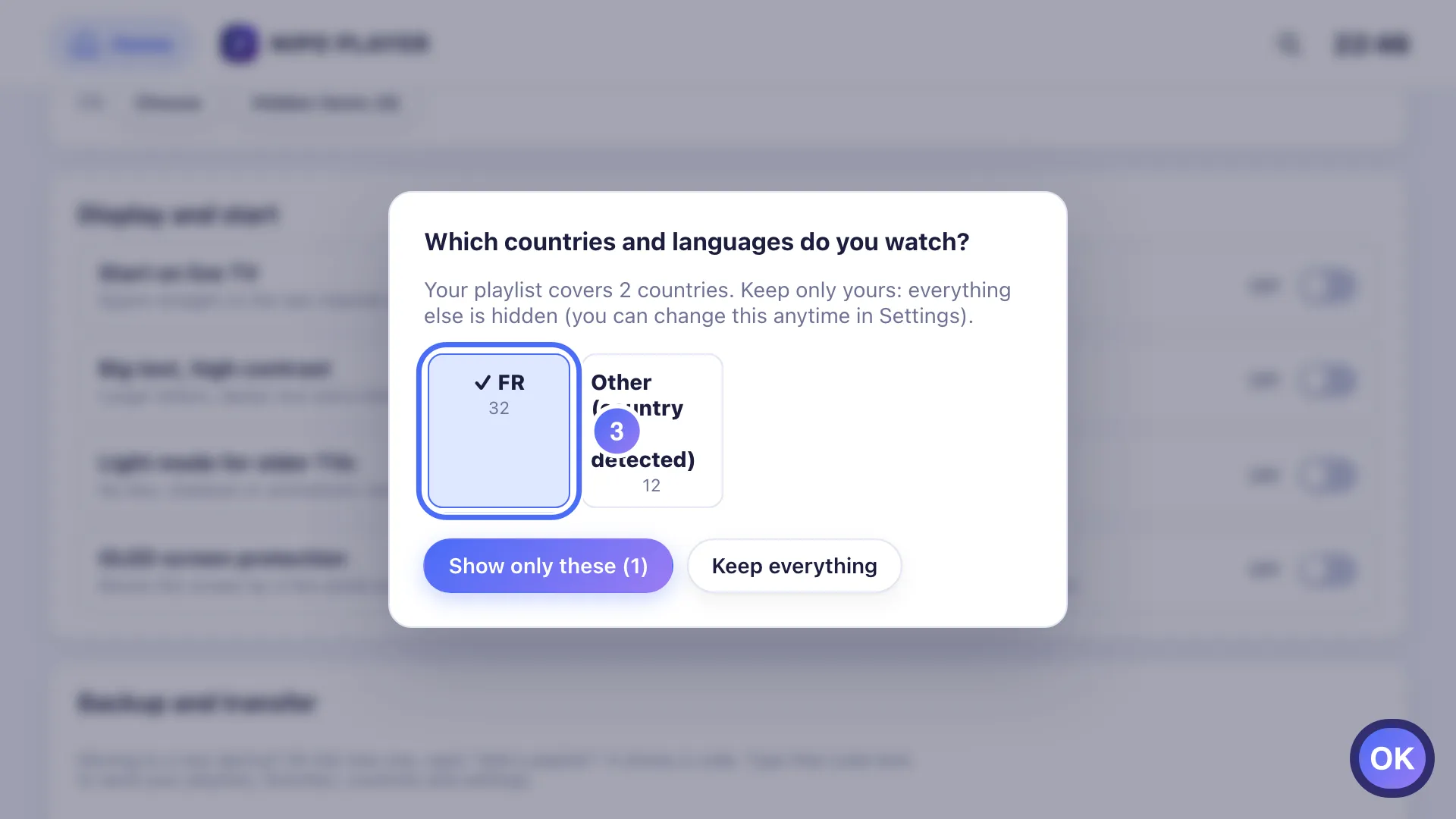
- 04
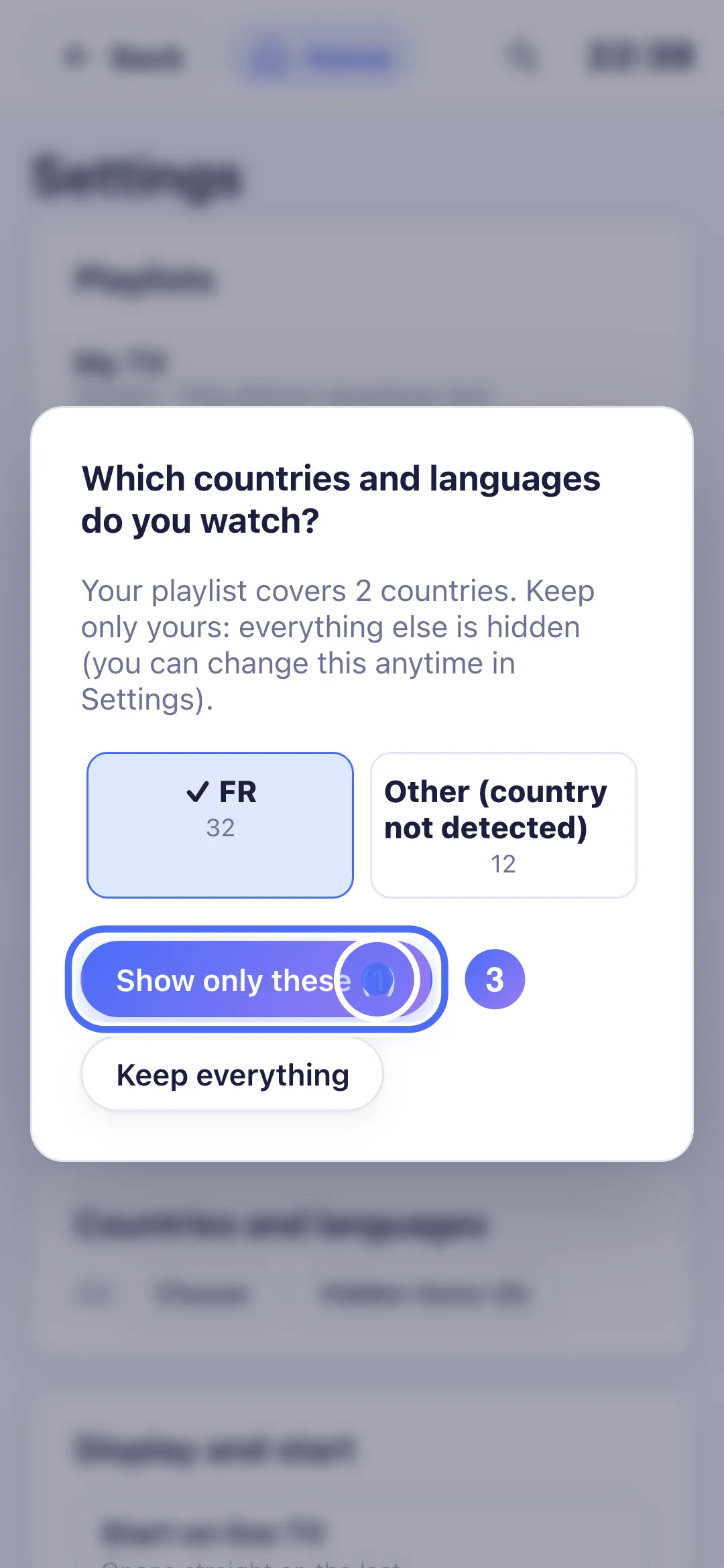
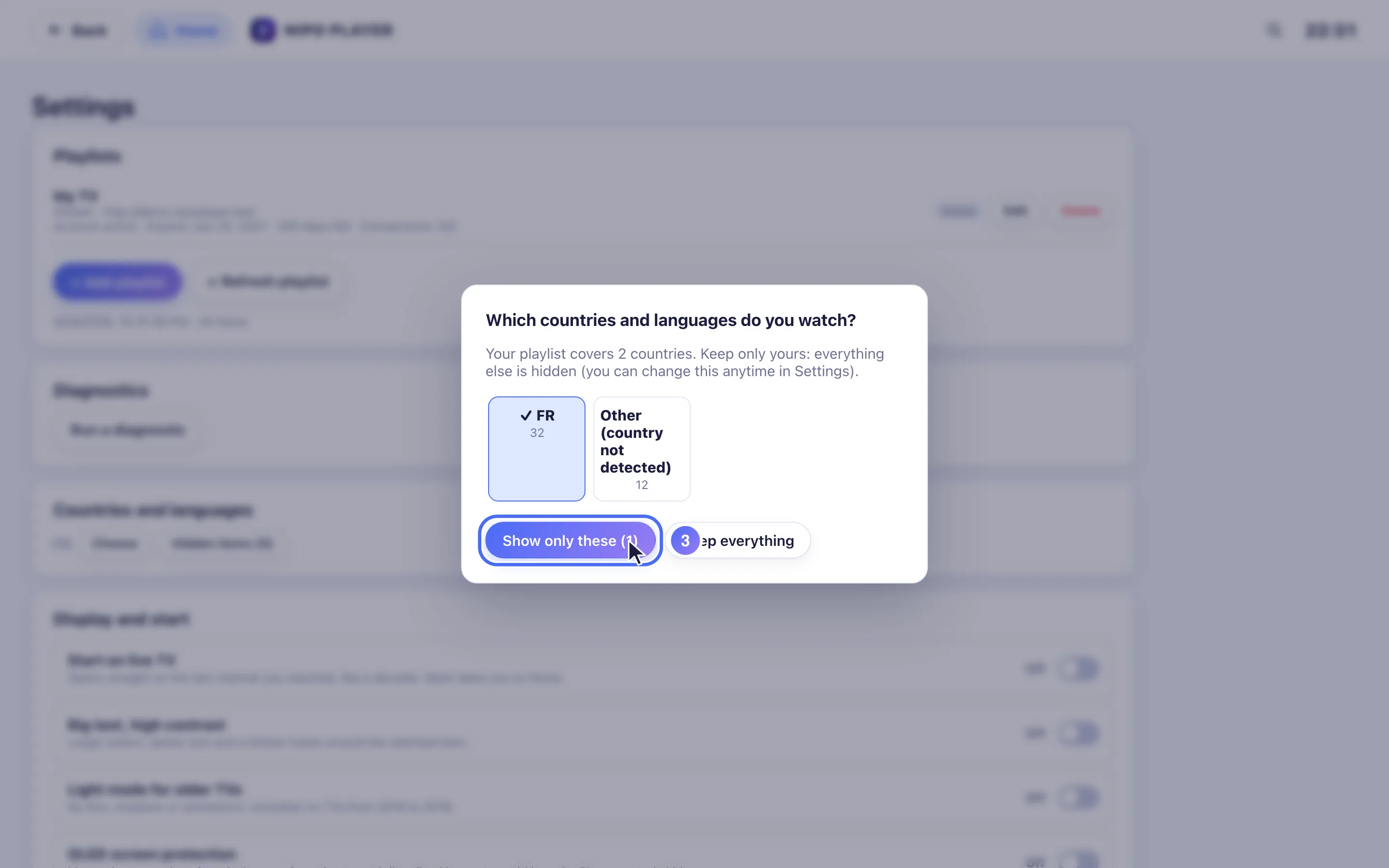
Confirm with Show only these, or tap Keep everything to hide nothing. Key OK
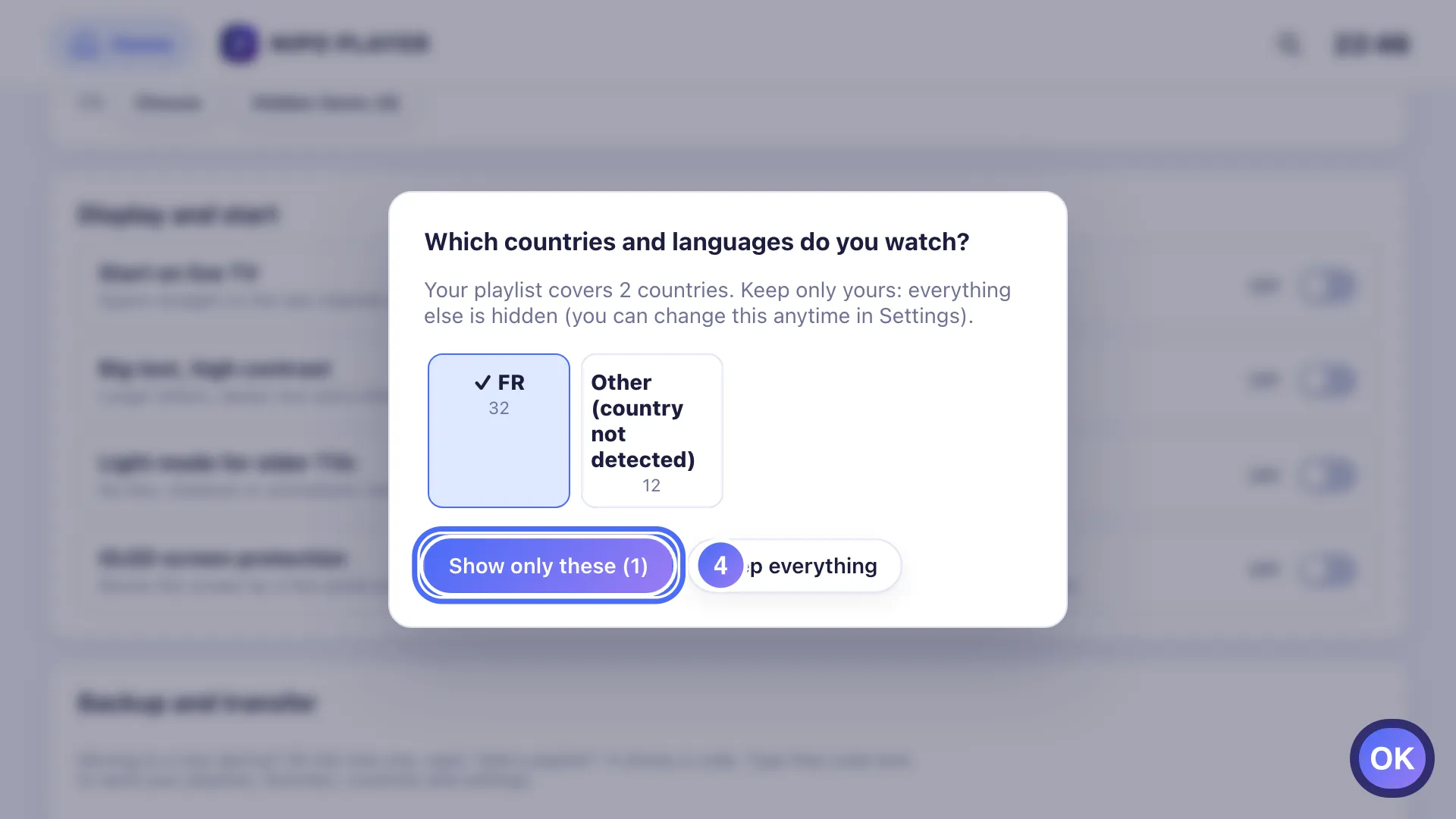
- 01
Under “Countries and languages”, tap “Choose”.
- 02
Tap each country to keep; the number of channels involved shows next to it.
- 03
Confirm with “Show only these”.
- 04
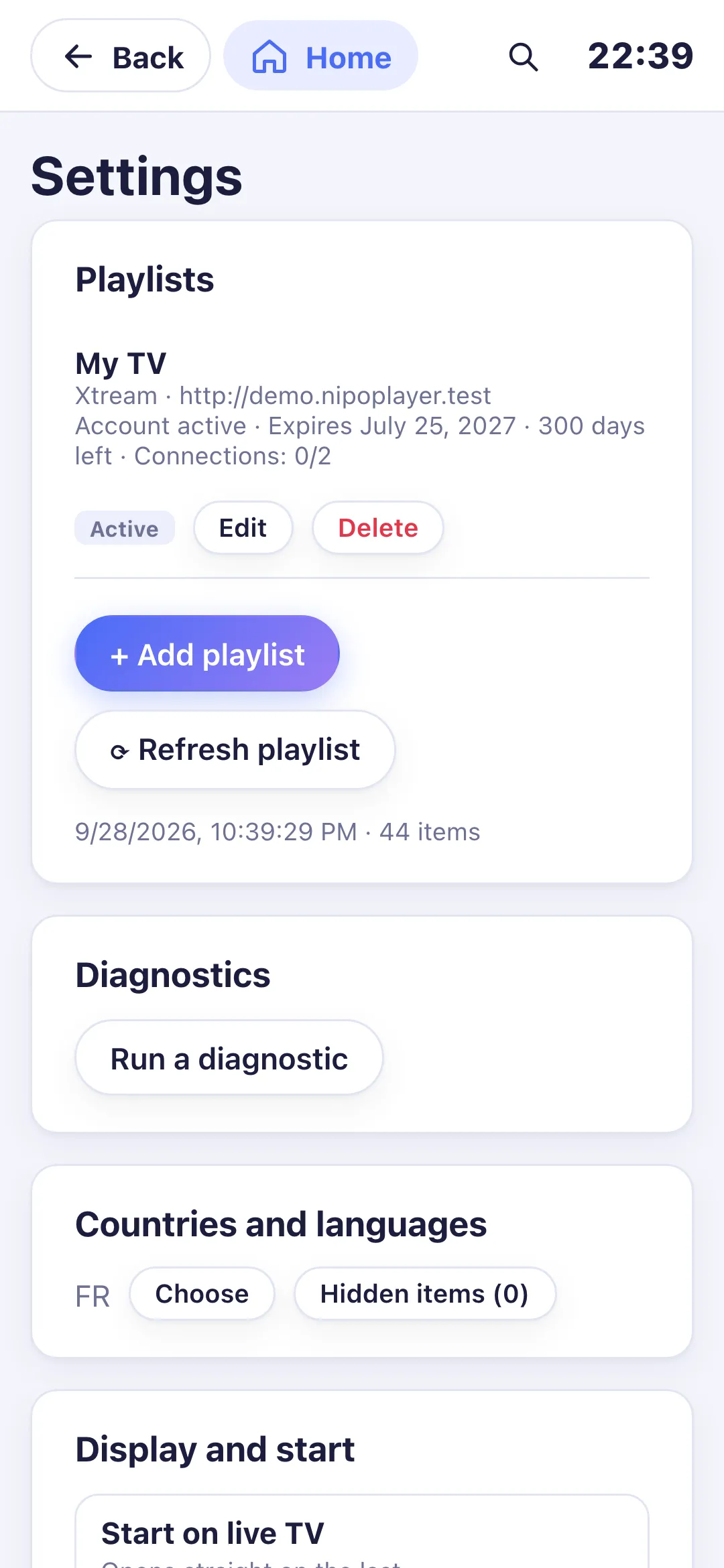
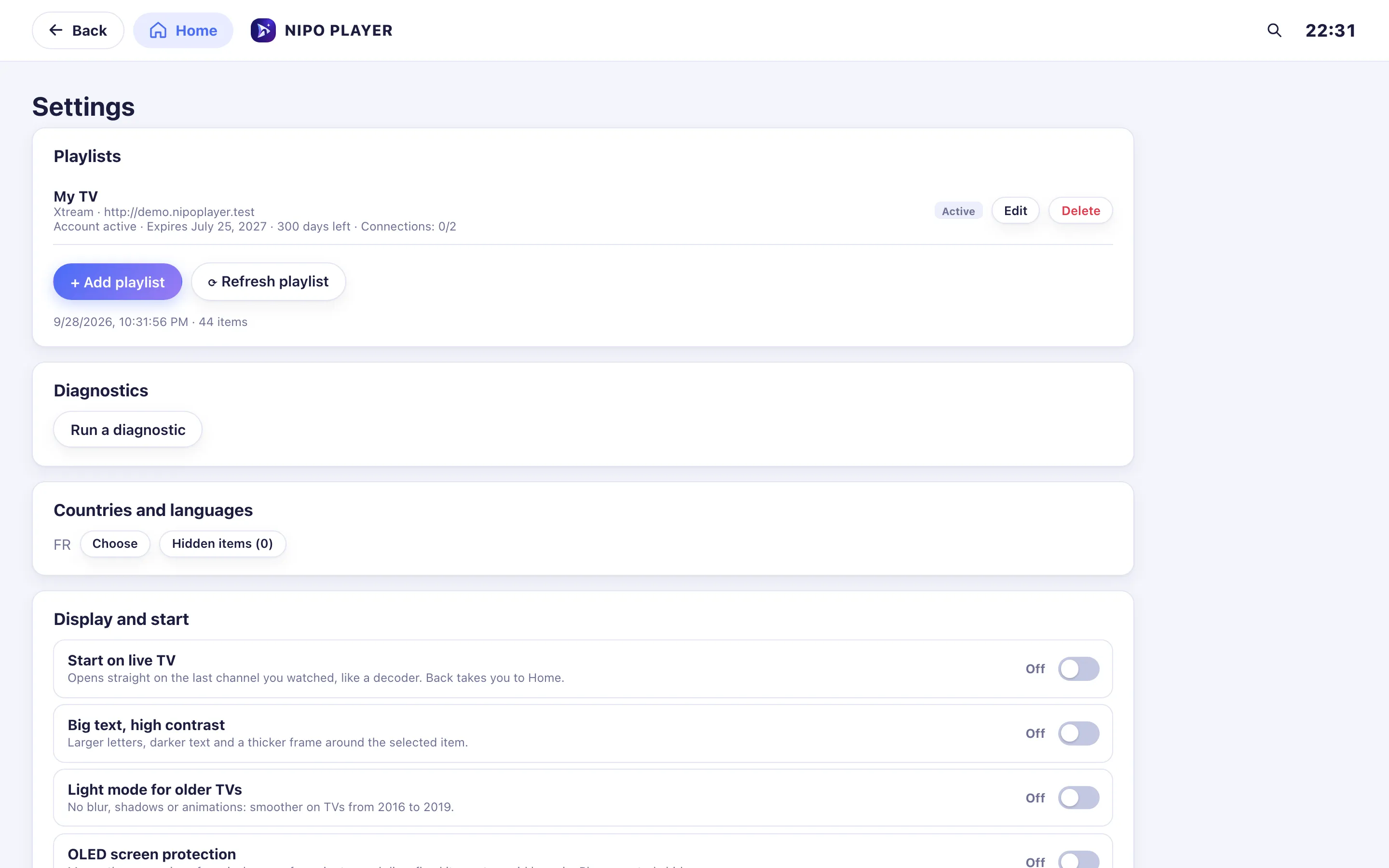
Only the chosen countries stay visible; you can change this here anytime.
- 01
Under “Countries and languages”, click “Choose”.
- 02
Click each country to keep; the number of channels involved shows next to it.
- 03
Confirm with “Show only these”.
- 04
Only the chosen countries stay visible; you can change this here anytime.
Steps
- If your playlist covers several countries, the "Which countries and languages do you watch?" screen offers itself automatically when you add the playlist. Otherwise, open Settings → Countries and languages → Choose.
- Tap each country to keep; the number of channels involved shows next to it.
- Confirm with Show only these, or tap Keep everything to hide nothing.
- To change this later, reopen Settings → Countries and languages.
Tip
Hiding one specific channel or category (rather than a whole country) is done with a long press on its name (the "Hide" quick menu). The list of everything hidden, with a button to show it again, lives under Settings → Countries and languages → Hidden items.
Updated on 28 September 2026
Did this article help you?
Can’t find the answer?
Write to us: we answer about the app and how it works. We can’t recommend a playlist.