
How does parental control work, and how do I change the PIN?
The default PIN is 0000. Change it under Settings → Parental control, then lock the categories children shouldn't open.
Nipo doesn’t provide, sell or host any channel, movie or playlist: it plays what you already own.
Parental control locks whole categories (for example an "Adults" category, if your playlist has one) behind a 4-digit code.
Step by step, with pictures
- 01
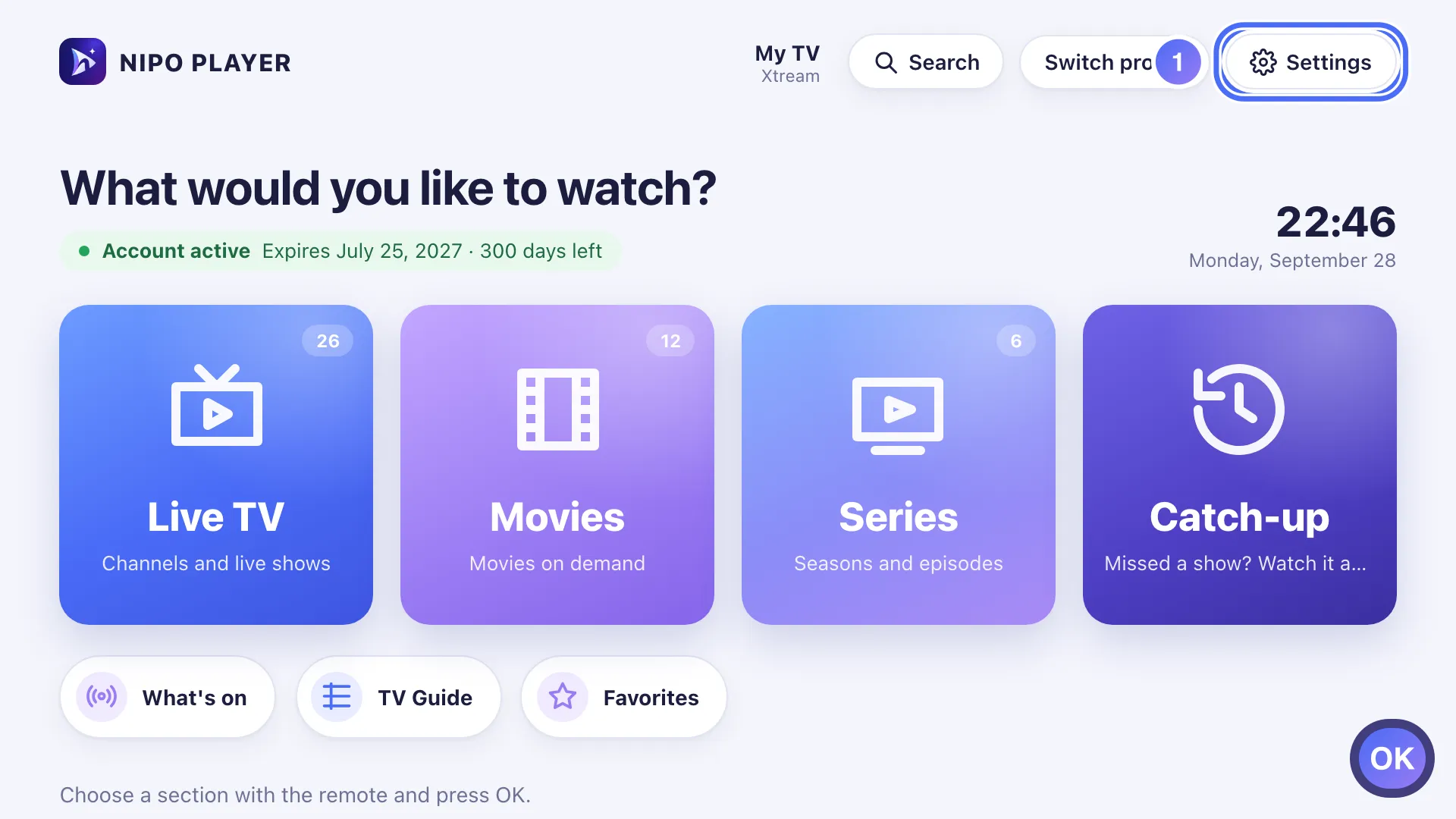
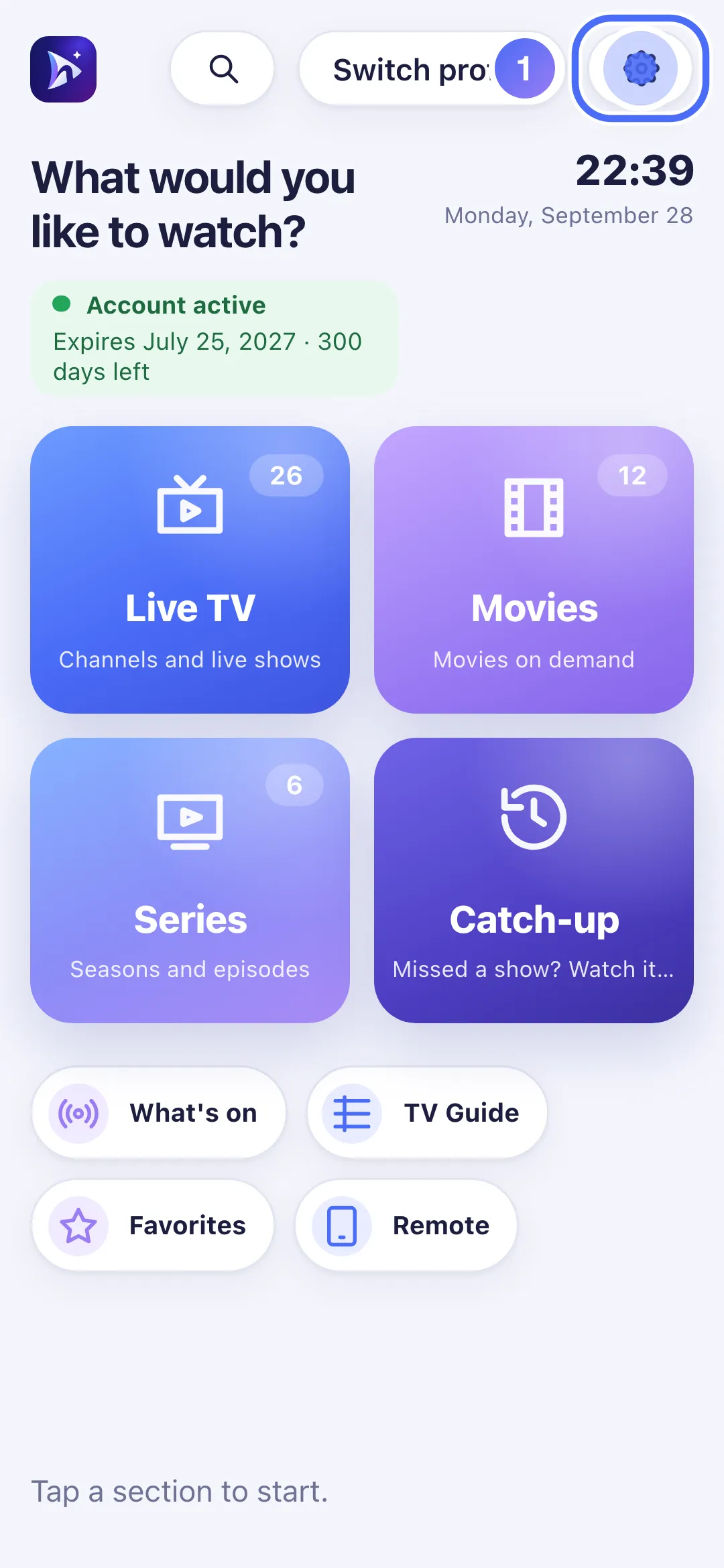
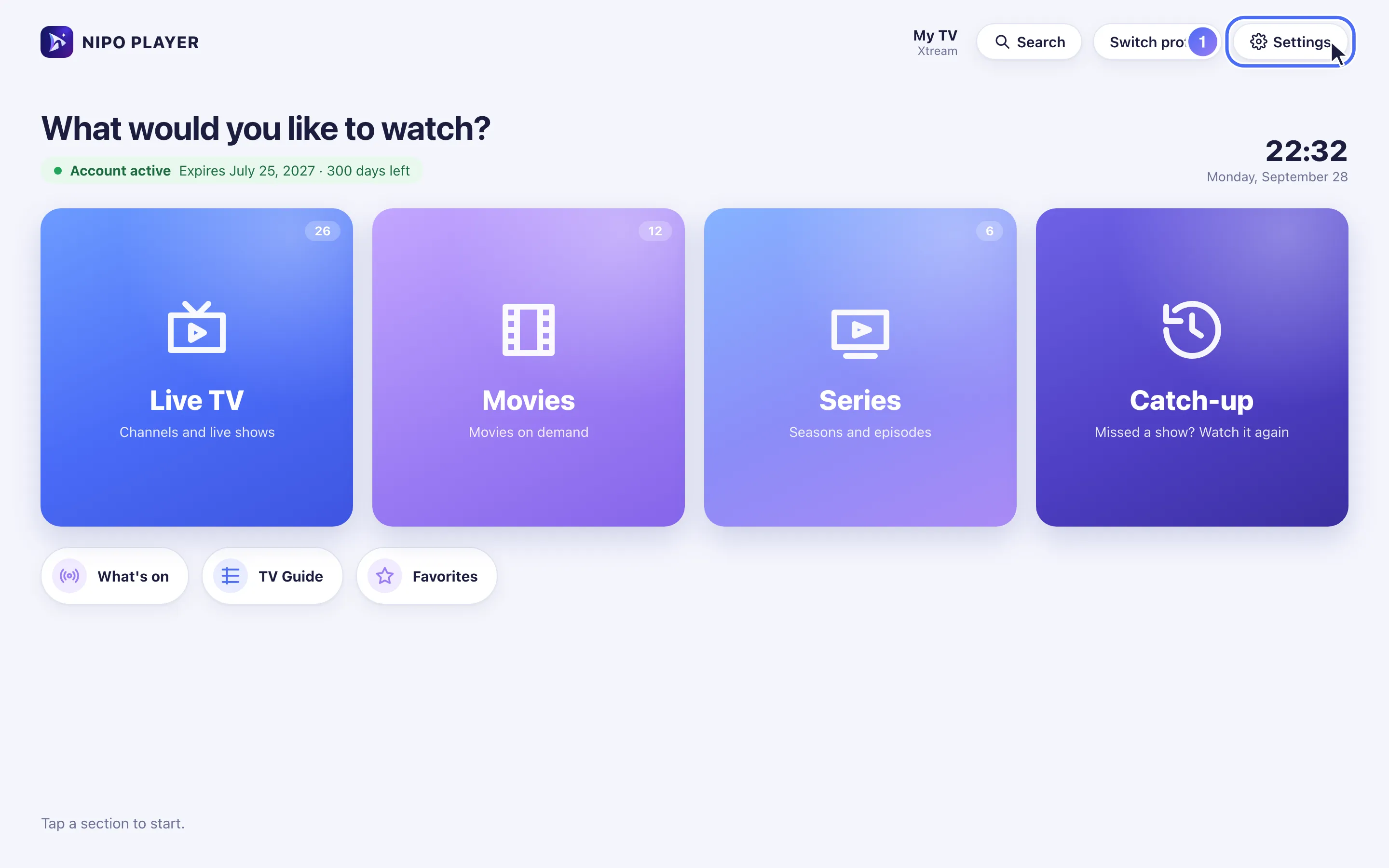
On Home, go to Settings and press OK. Key OK
- 02
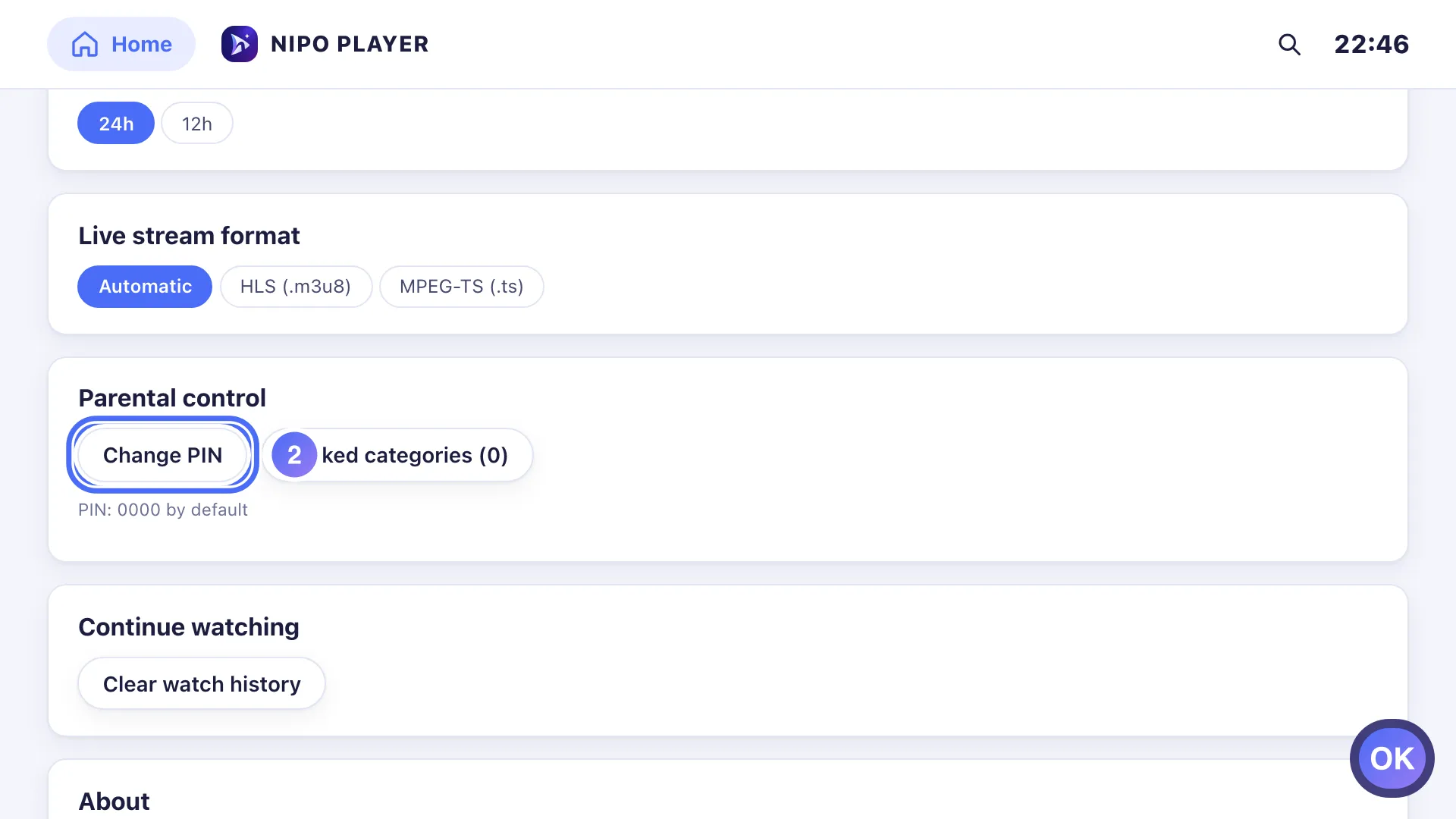
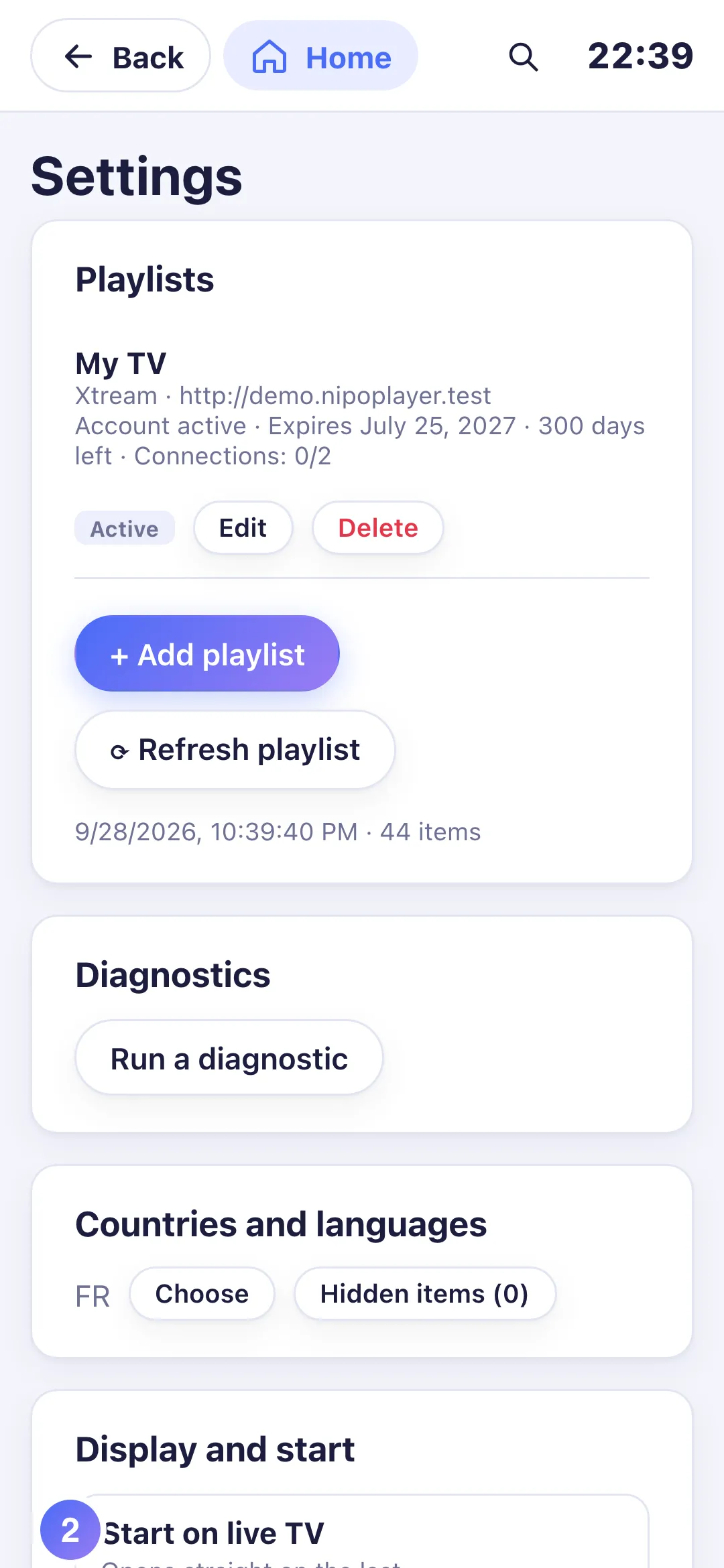
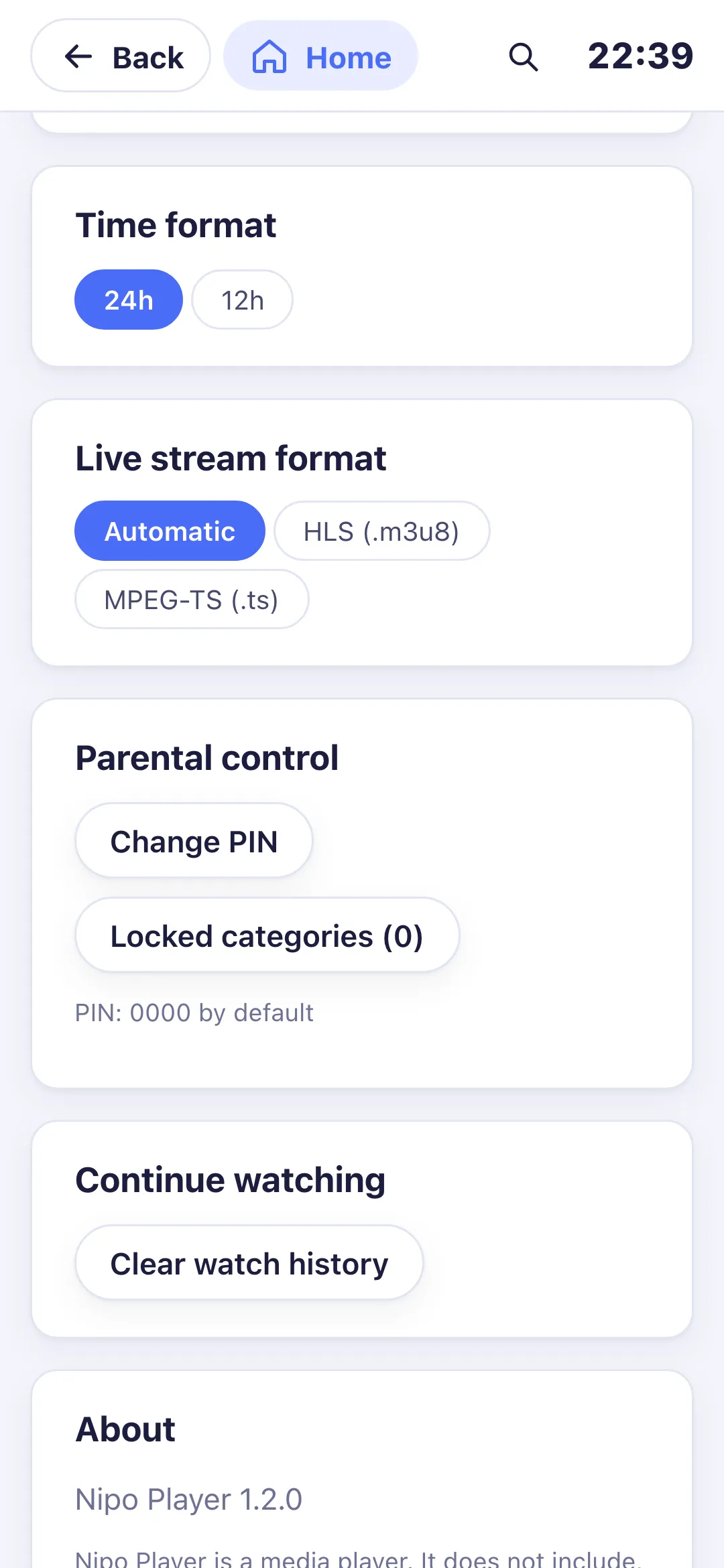
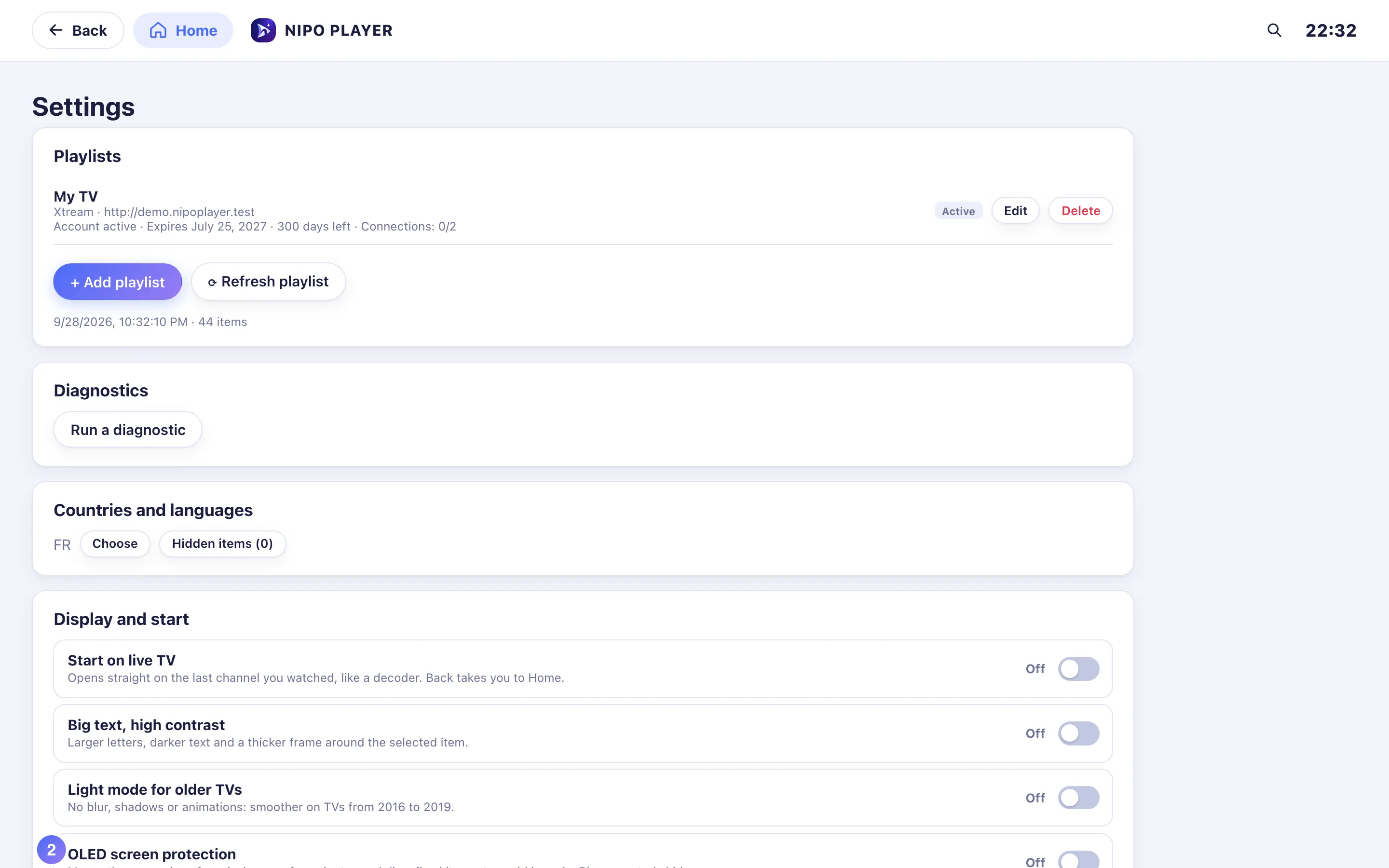
Go down to Parental control and press OK on Change PIN. Key OK
- 03
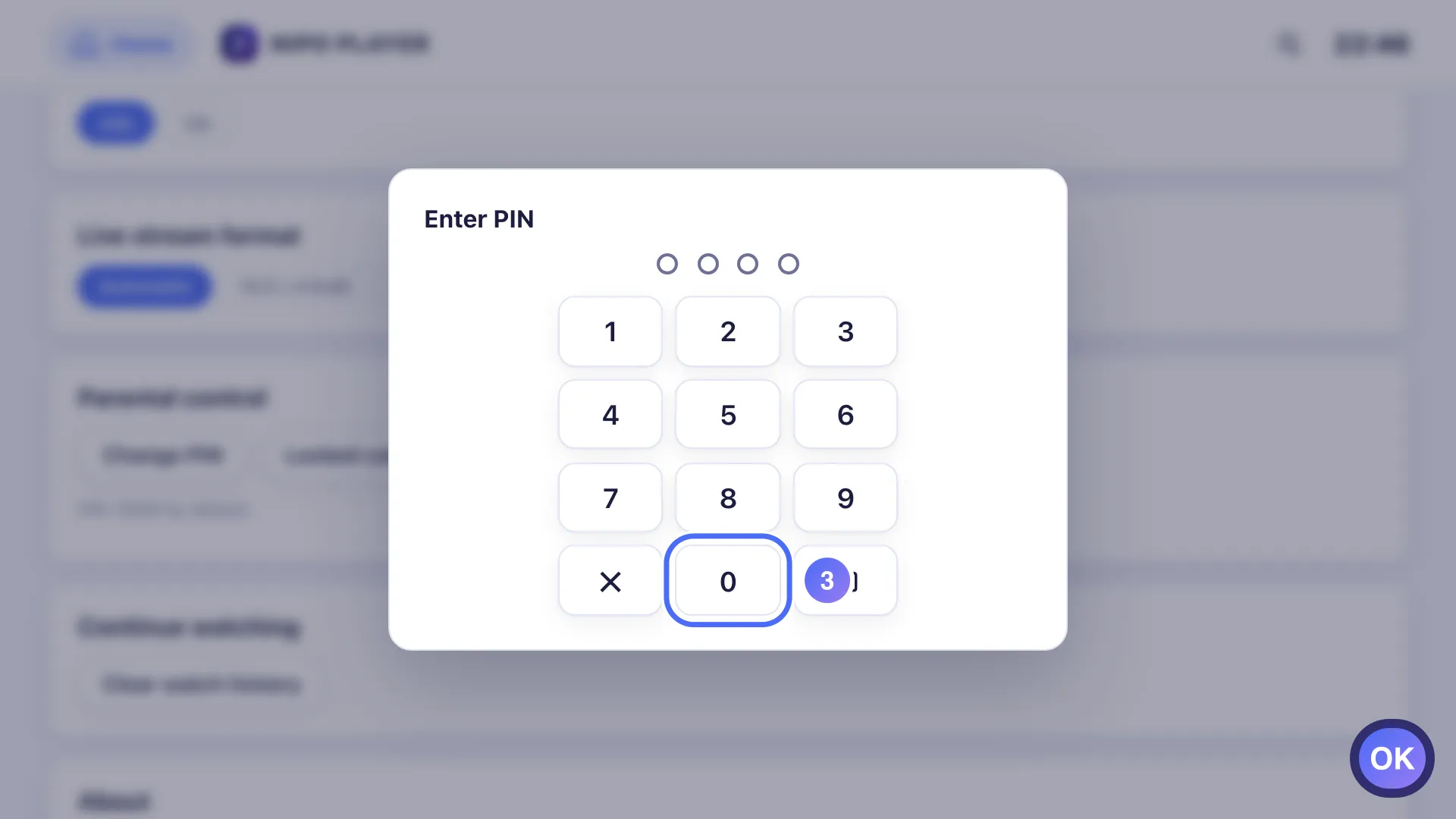
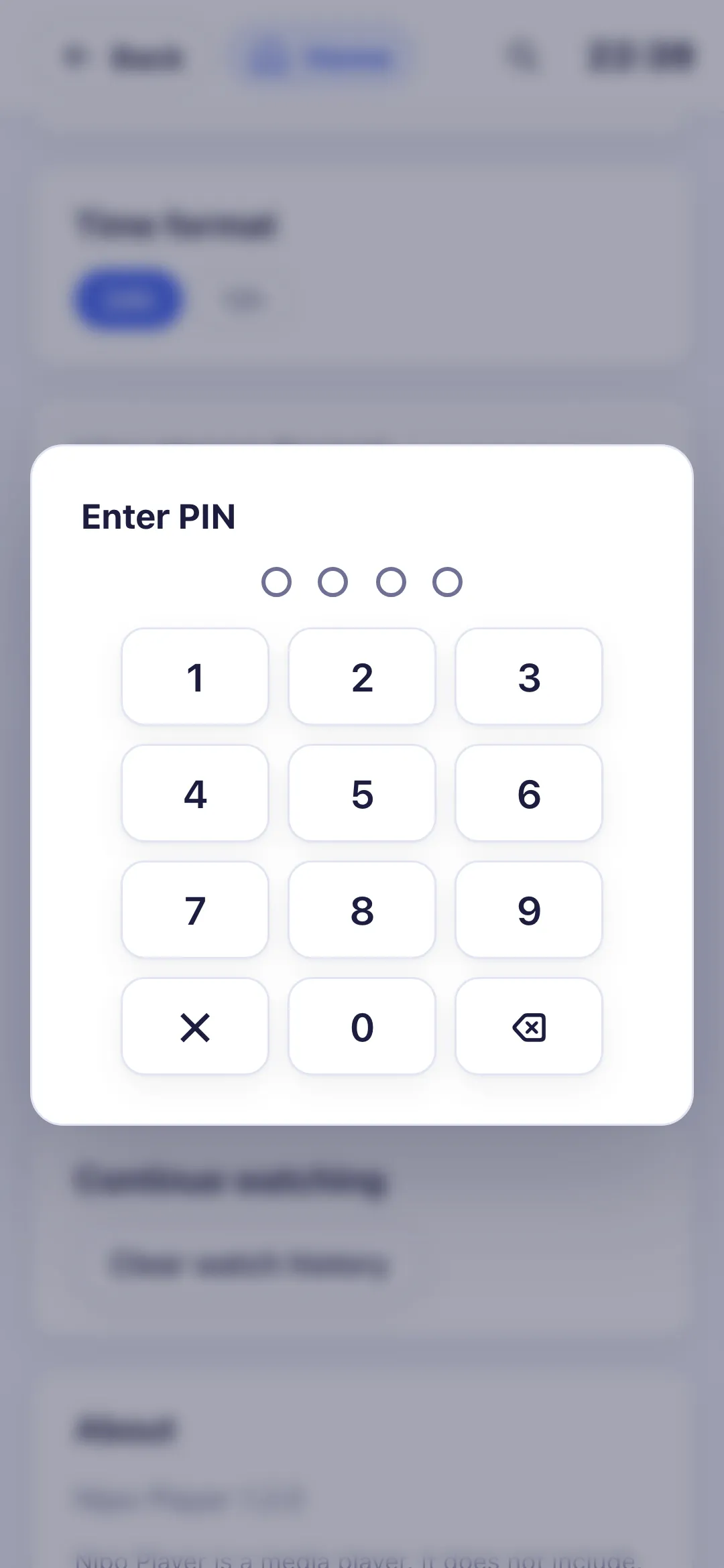
Enter the current code: 0000 by default, one digit at a time. Key OK
- 04
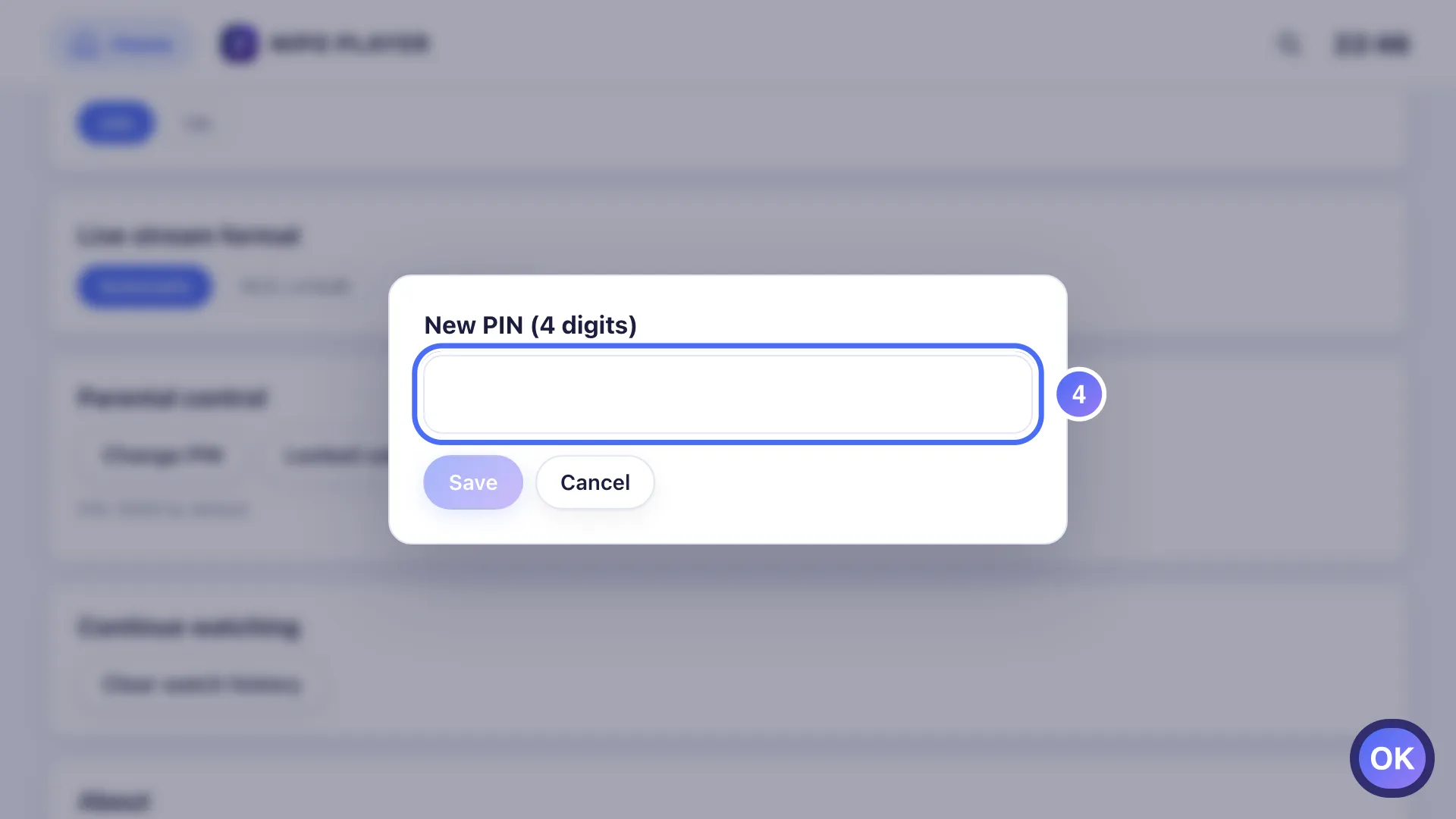
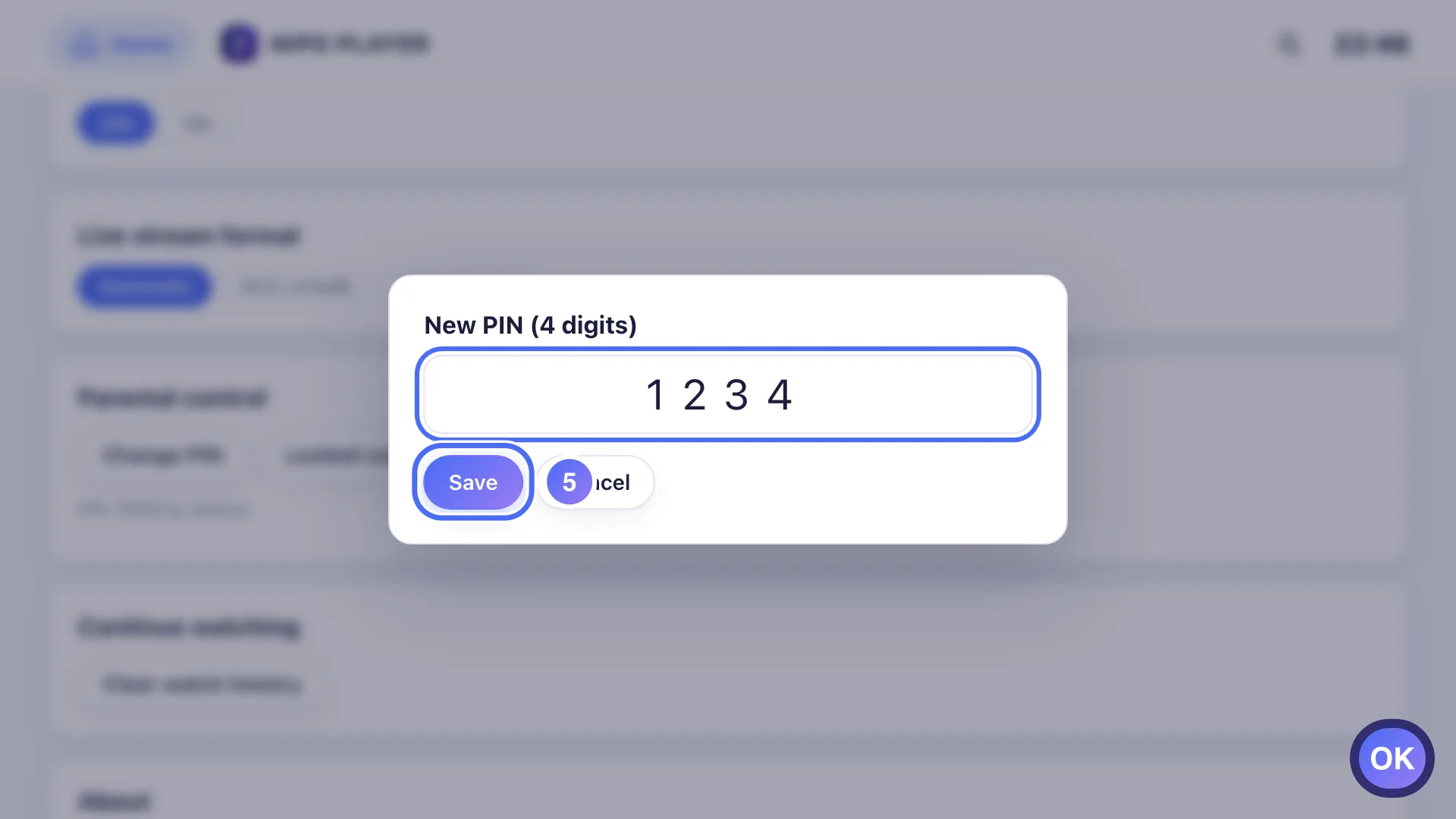
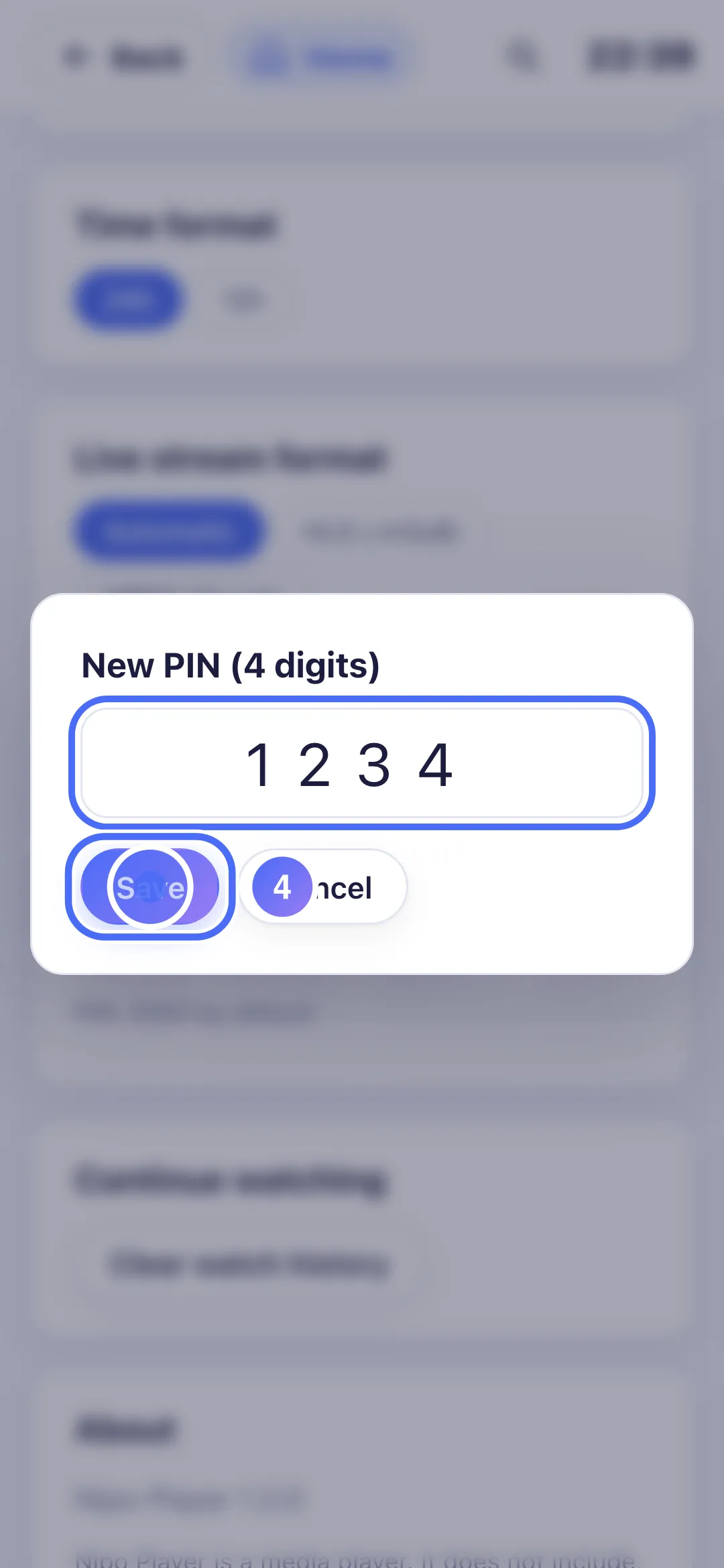
Type the new 4-digit code. Key OK
- 05
Once the 4 digits are typed, press OK on Save. Key OK
- 01
From Home, tap “Settings”.
- 02
Under “Parental control”, tap “Change PIN”.
- 03
Enter the current code (0000 by default if you never changed it).
- 04
Enter the new 4-digit code, then tap “Save”.
- 05
The new code is active: it will be asked for when opening a locked category.
- 01
From Home, click “Settings”.
- 02
Under “Parental control”, click “Change PIN”.
- 03
Enter the current code (0000 by default if you never changed it).
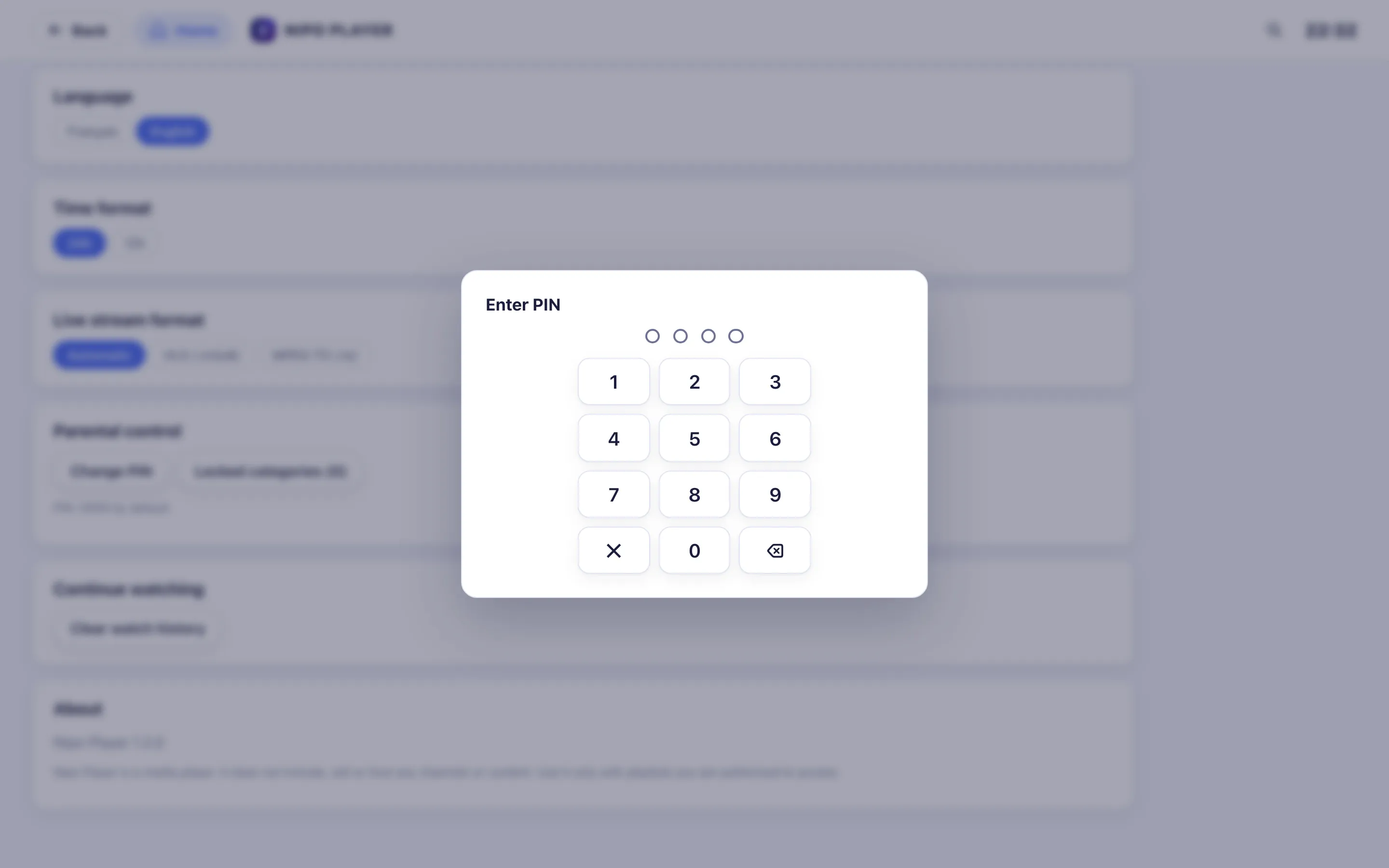
- 04
Enter the new 4-digit code, then click “Save”.
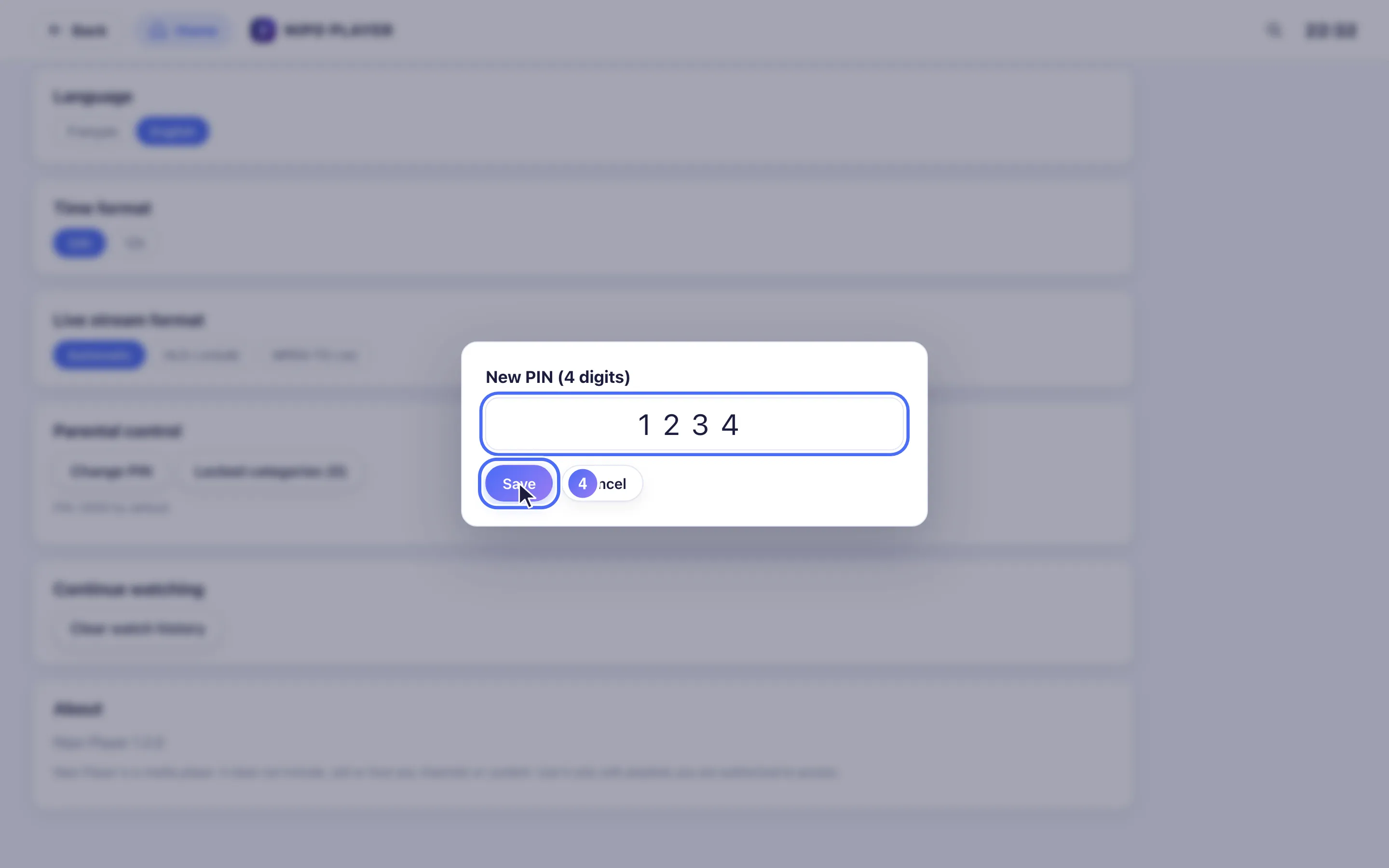
- 05
The new code is active: it will be asked for when opening a locked category.
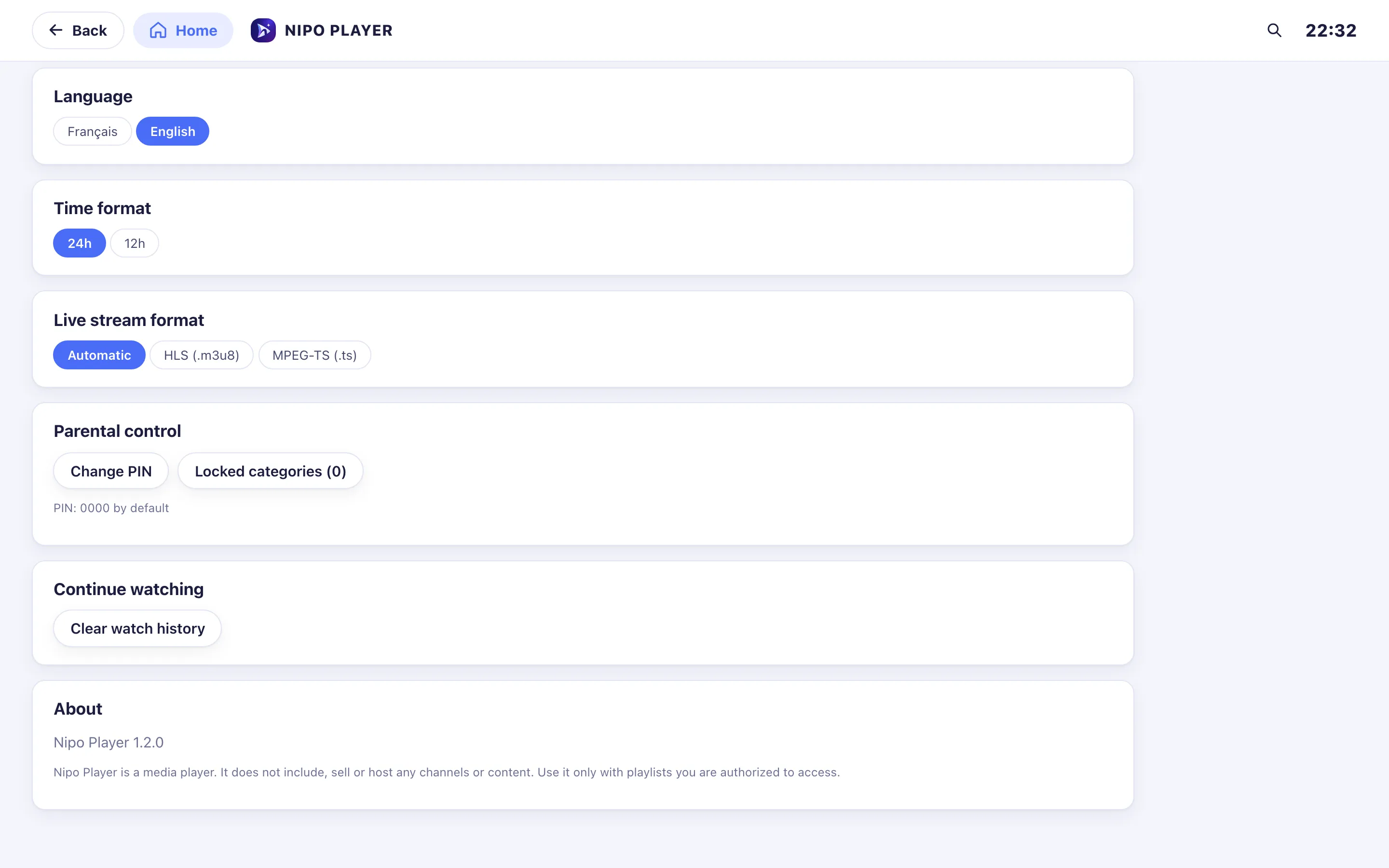
Steps
- Open Settings → Parental control.
- Tap Change PIN, enter the current code (0000 by default if you've never changed it), then the new 4-digit code.
- Tap Locked categories, enter the code, then choose which categories to lock (a 🔒/🔓 icon for each).
- A locked category asks for the PIN every time it's opened.
Tip
Change the default code as soon as you install the app if children use the device: 0000 is well known. Parental control locks categories in the playlist, not usage hours or time limits: it's a per-category setting, not a timer.
Updated on 28 September 2026
Did this article help you?
Can’t find the answer?
Write to us: we answer about the app and how it works. We can’t recommend a playlist.