
How do I reorder my channels and create custom groups?
A long press on OK opens the quick menu: move a channel in the list, or add it to a custom group you create yourself.
Nipo doesn’t provide, sell or host any channel, movie or playlist: it plays what you already own.
Reordering channels and creating groups stays free, no Premium needed.
Step by step, with pictures
- 01
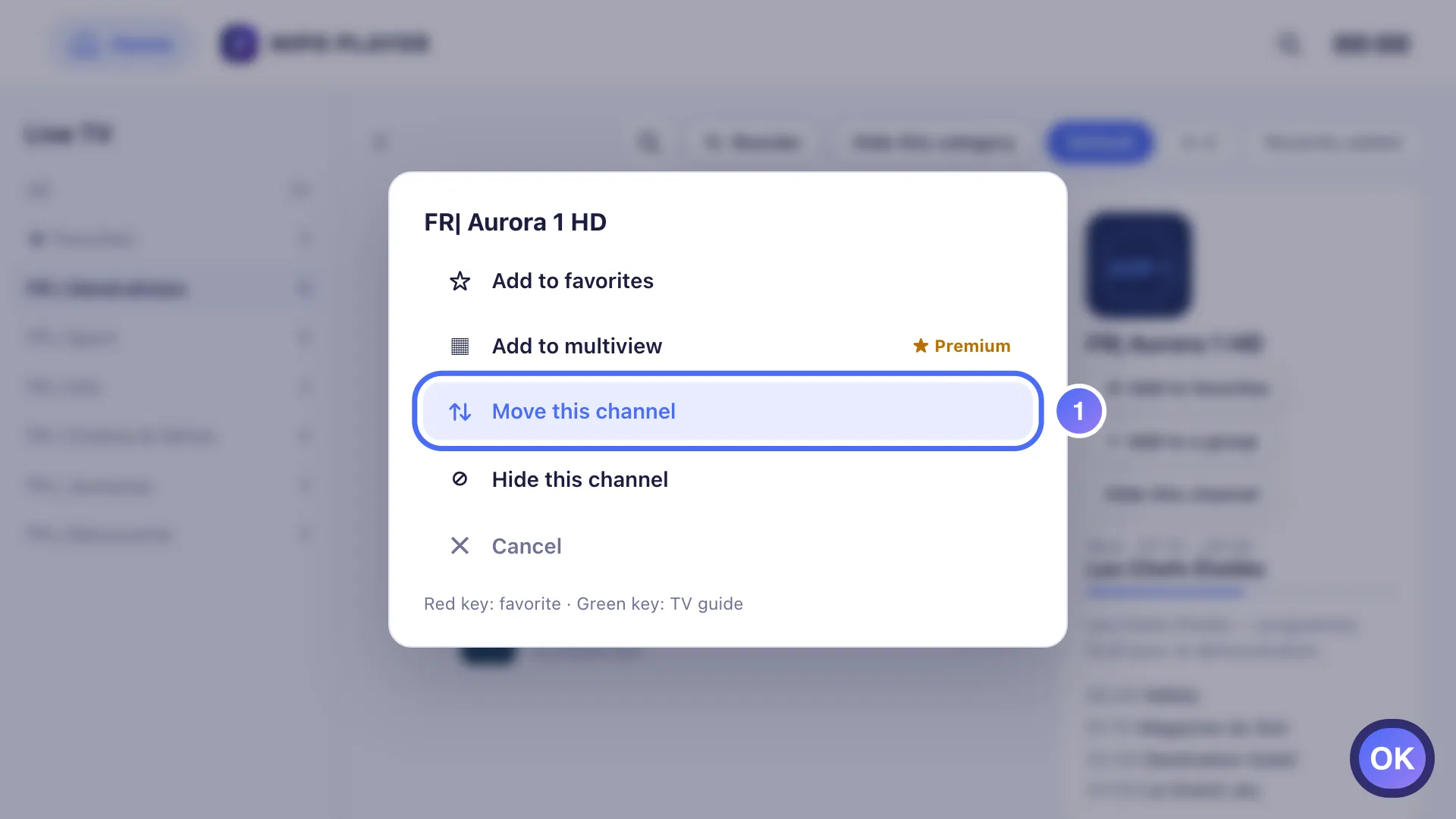
On a channel, a long press on OK opens the quick menu: choose Move this channel. Key OK
- 02
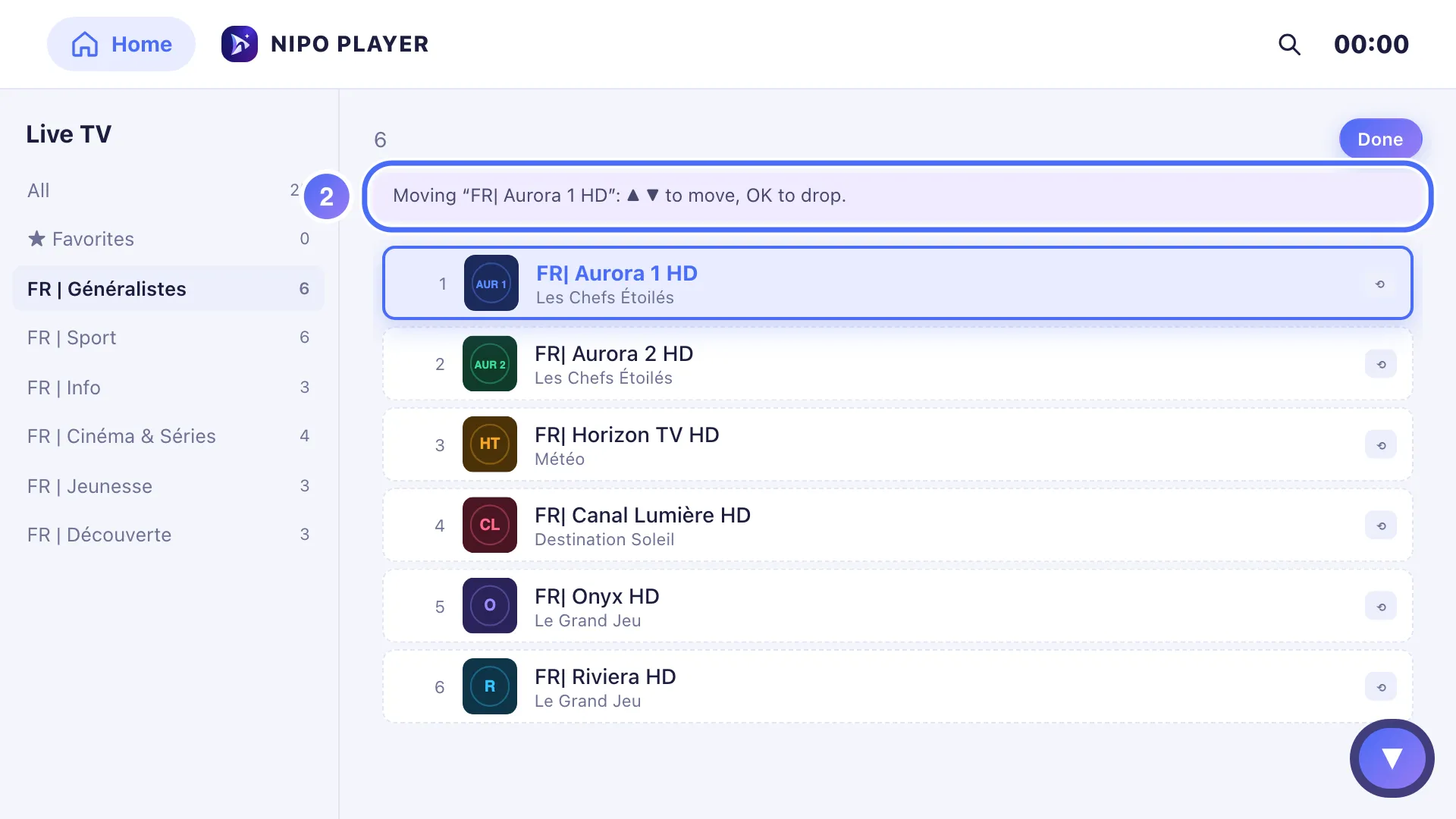
The channel is picked up: ▲ ▼ move it in the list, OK puts it back down. Key ▼
- 03
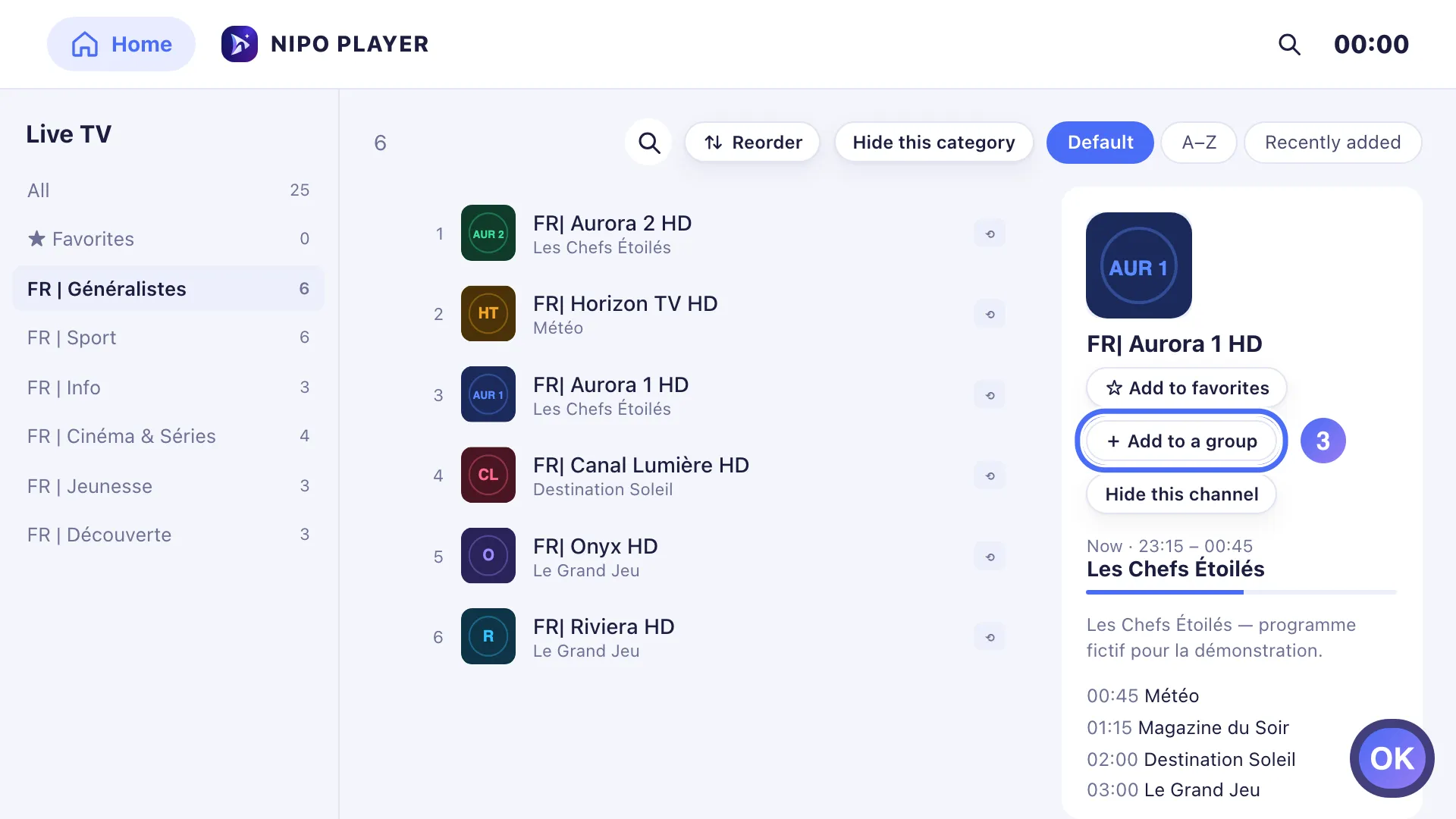
On a channel, open Add to a group from the right-hand panel. Key OK
- 04
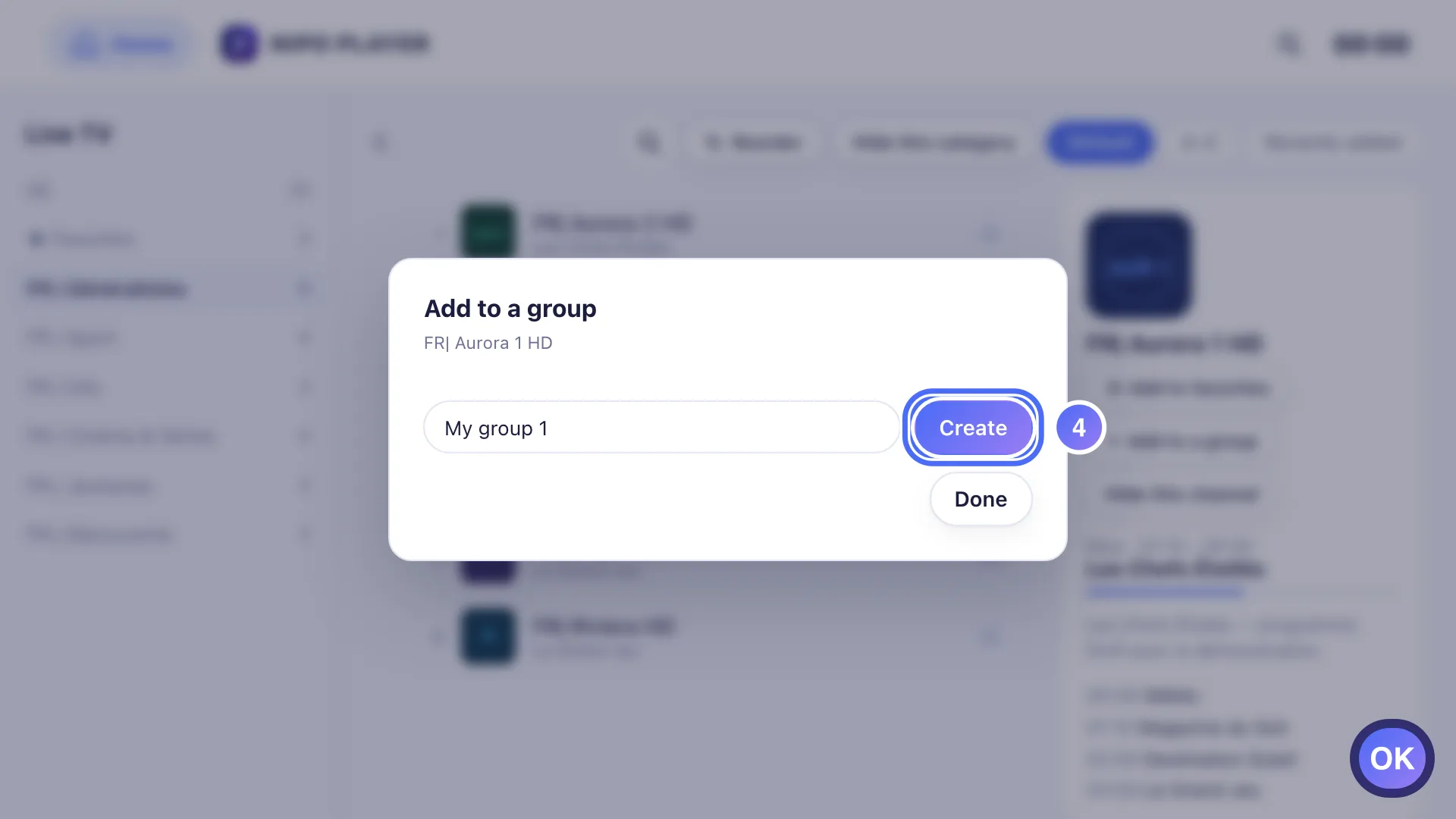
Choose New group, give it a name, or add the channel to an existing group. Key OK
- 01
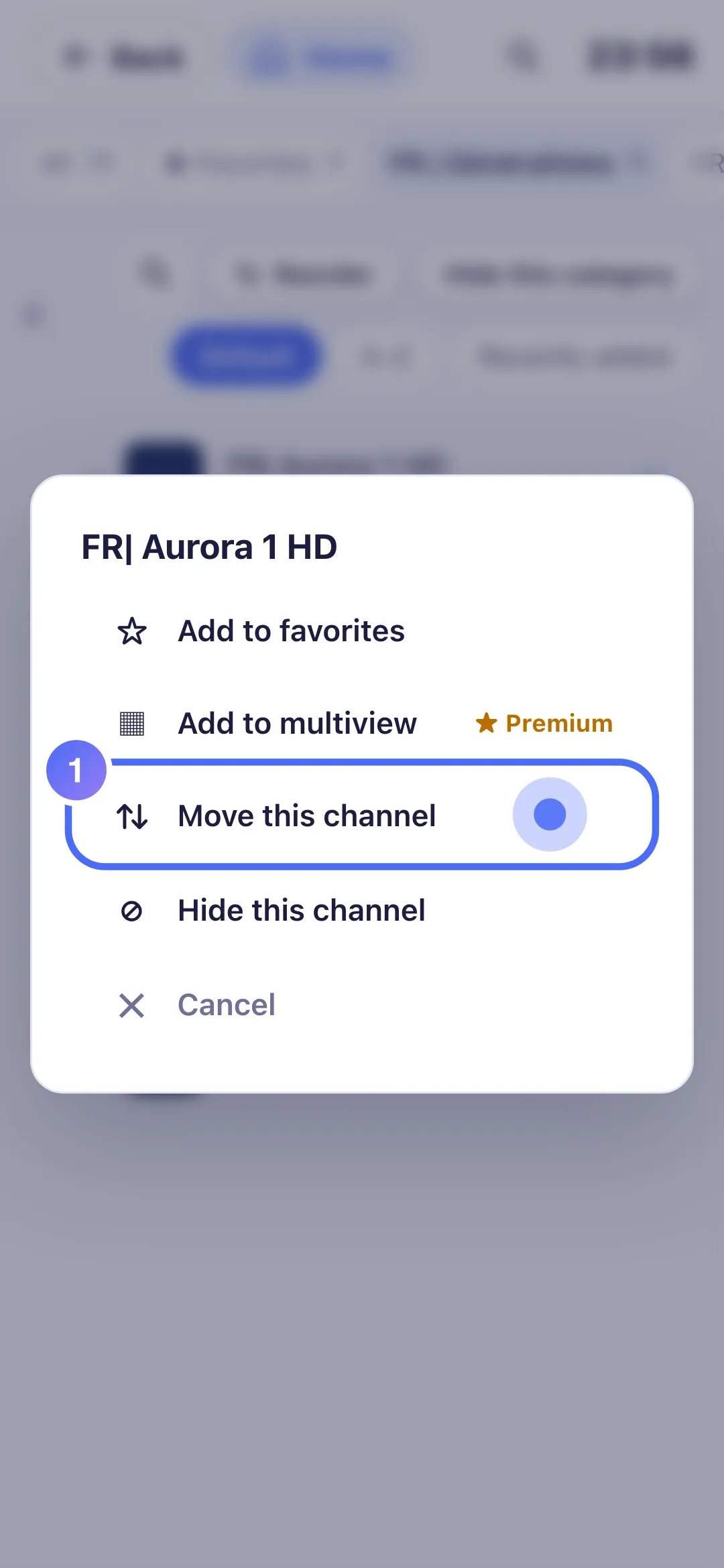
On a channel, a touch hold opens the quick menu: tap Move this channel.
- 02
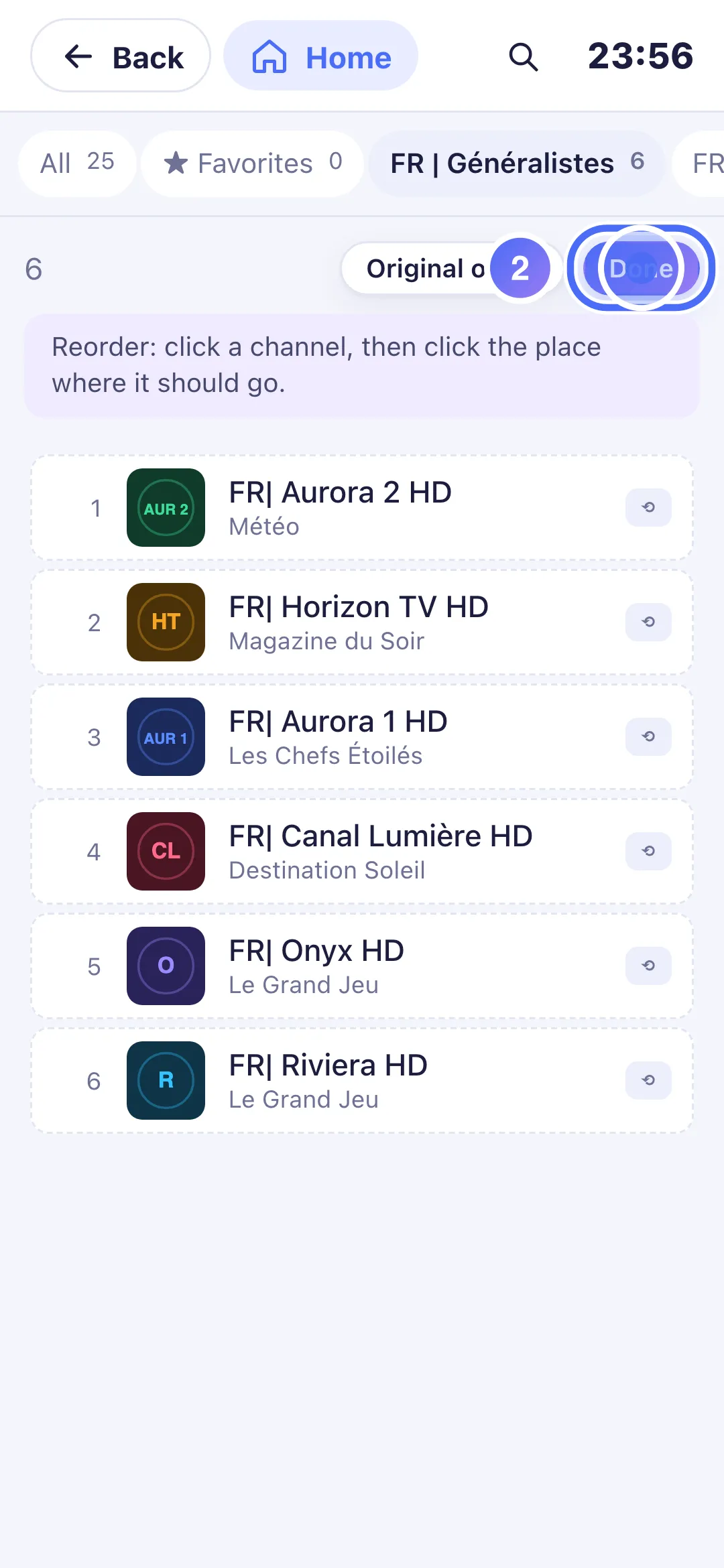
Tap the channel, then the spot to place it.
- 01
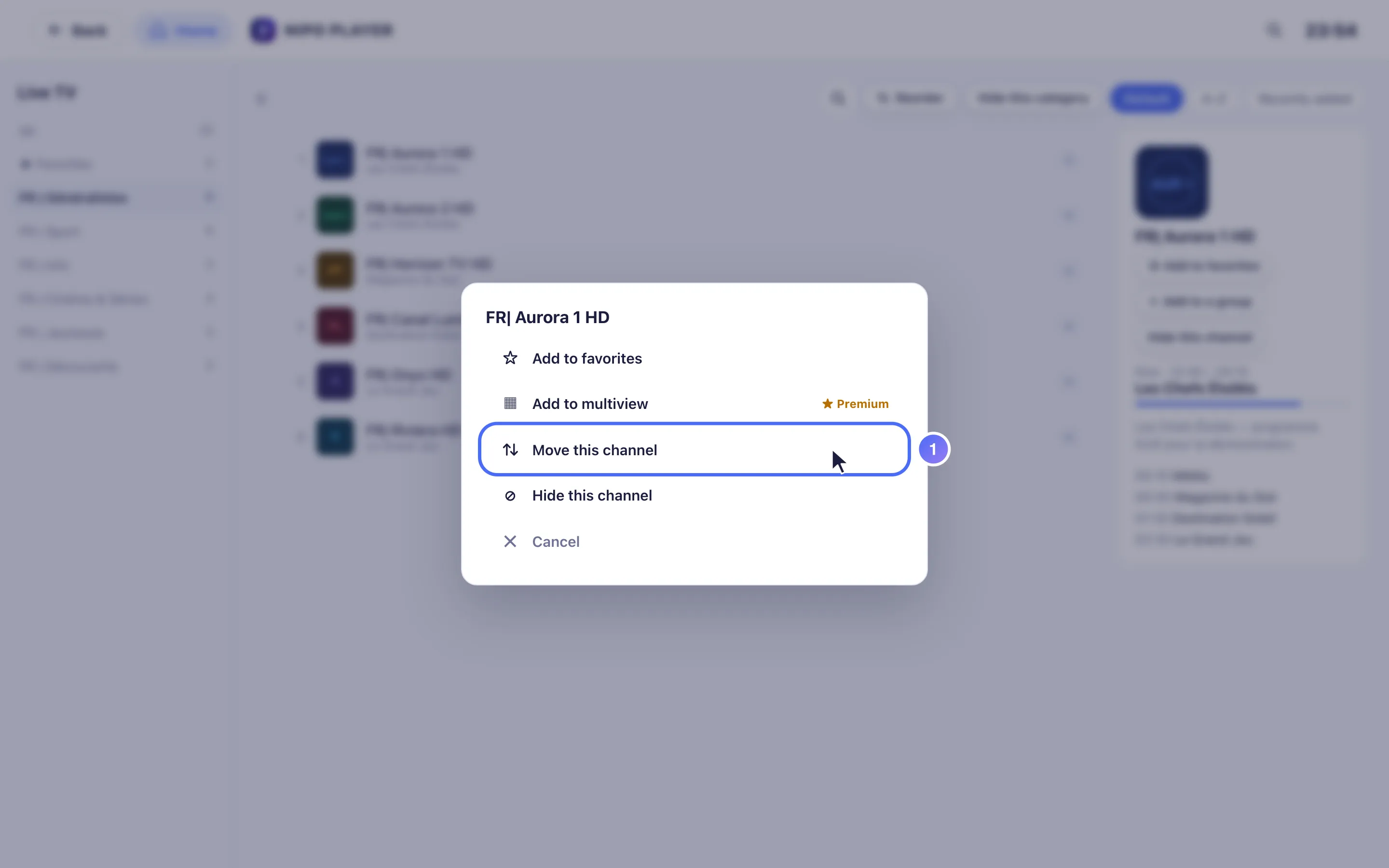
On a channel, right-click opens the quick menu: choose Move this channel.
- 02
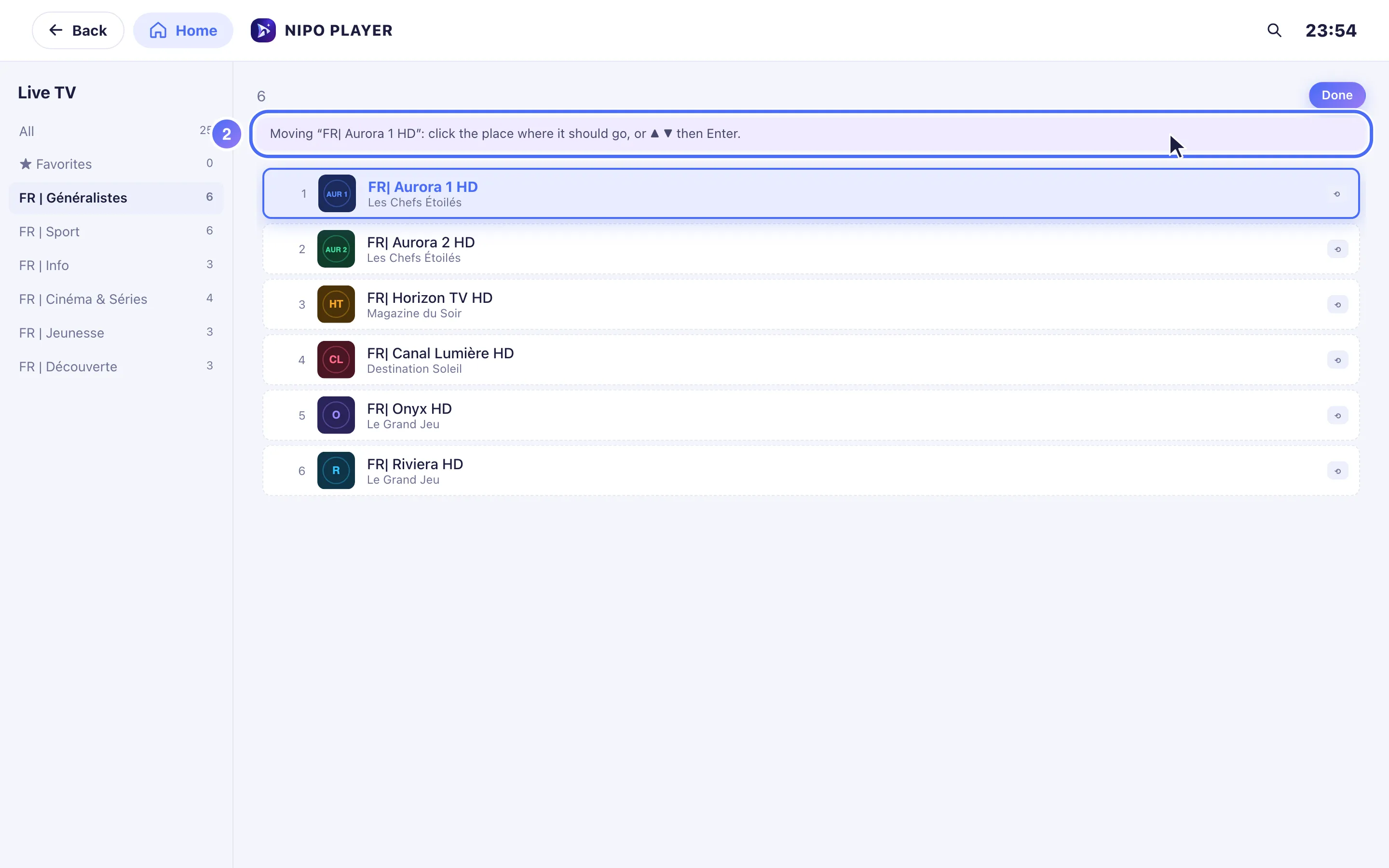
The channel is picked up: the ▲ ▼ arrows move it, Enter puts it back down.
- 03
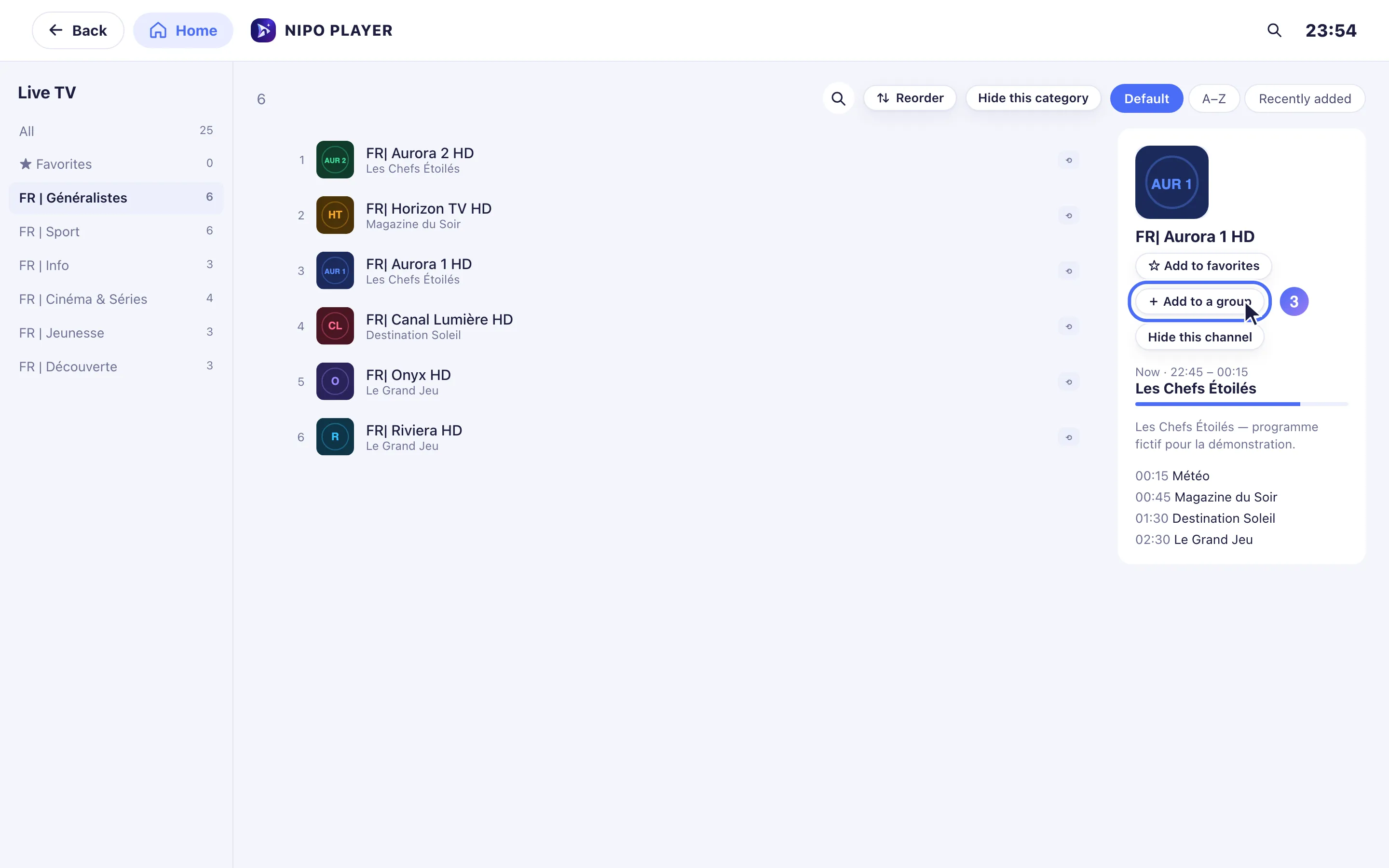
On a channel, click Add to a group in the right-hand panel.
- 04
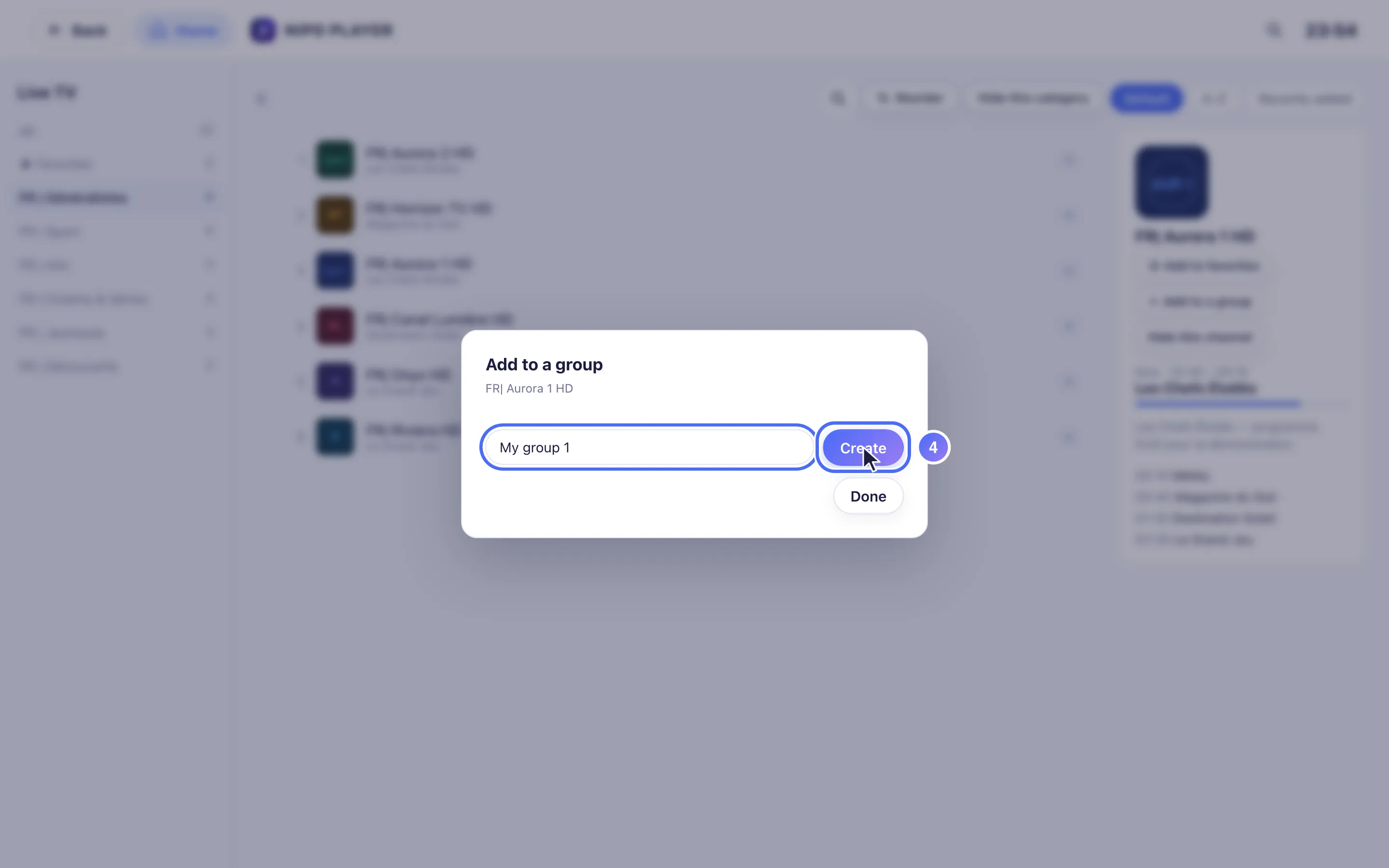
Choose New group, give it a name, or add the channel to an existing group.
Reordering channels
- On a channel, open the quick menu (long press OK, or right-click / long press on phone and computer) and choose Move this channel.
- On a remote: OK picks the channel up, ▲ ▼ move it, OK drops it; Back finishes.
- On phone or tablet: tap the channel, then where to place it.
- Original order undoes your changes and restores the order your playlist provides.
Creating a custom group
- On a channel, open Add to a group from the quick menu.
- Choose New group, give it a name, or add the channel to an existing group.
- Your custom groups show up as extra categories, alongside the ones your playlist provides.
- A group can be renamed or deleted from within itself (deleting needs two taps to confirm, to avoid removing one by accident).
Tip
Order and groups are specific to this device: they don't automatically carry over to another screen. An empty group shows a prompt to add a first channel to it.
Updated on 29 September 2026
Did this article help you?
Can’t find the answer?
Write to us: we answer about the app and how it works. We can’t recommend a playlist.