
How do I hide a channel or a whole category?
Hide a channel from the quick menu, or a whole category from its list; find and unhide everything again from settings.
Nipo doesn’t provide, sell or host any channel, movie or playlist: it plays what you already own.
Hiding a channel or a category stays free, no Premium needed. It's different from the parental PIN control: hiding simply removes the item from lists, with no PIN needed to bring it back.
Step by step, with pictures
- 01
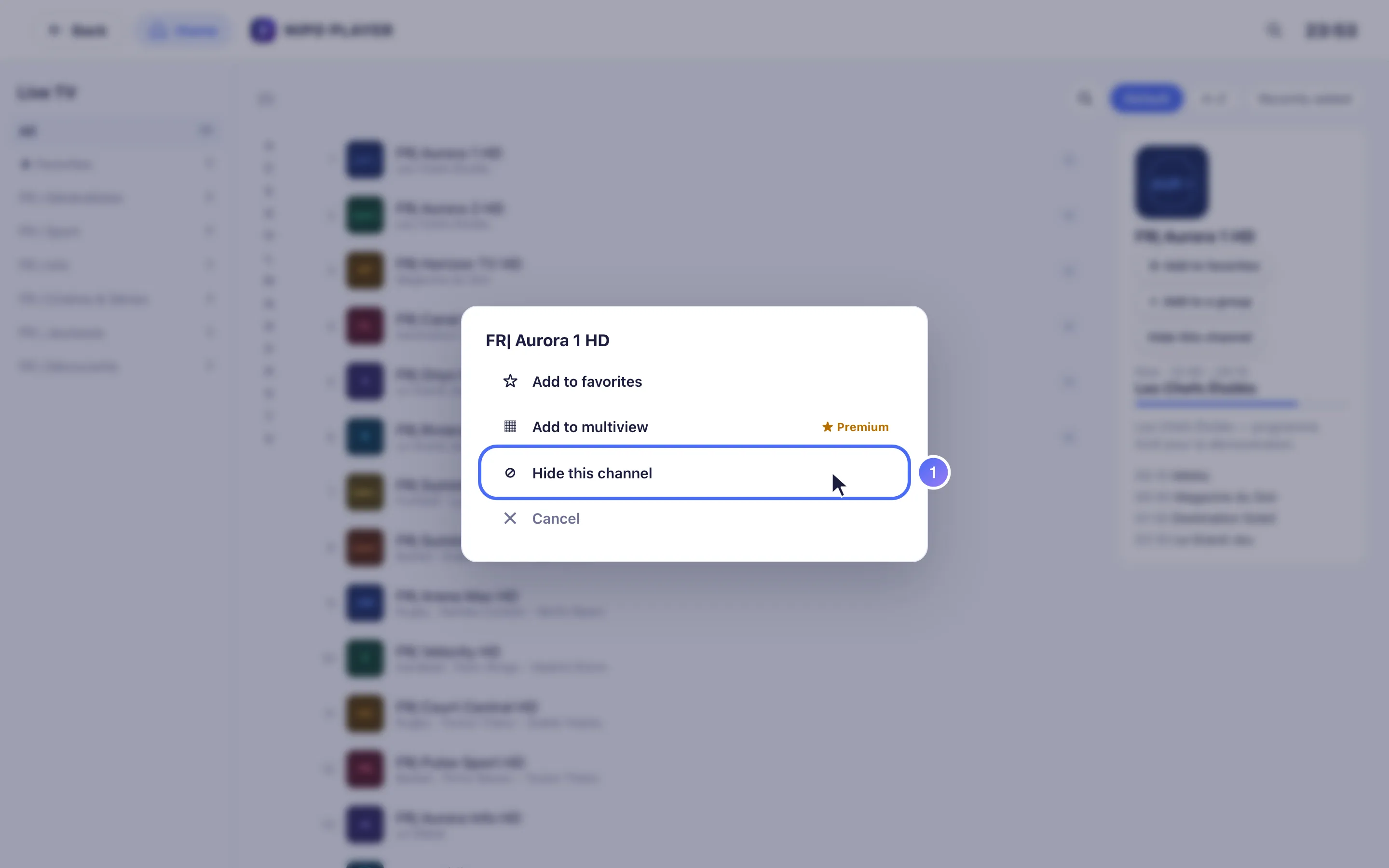
On a channel, open the quick menu (long press OK) and tap Hide this channel. Key OK
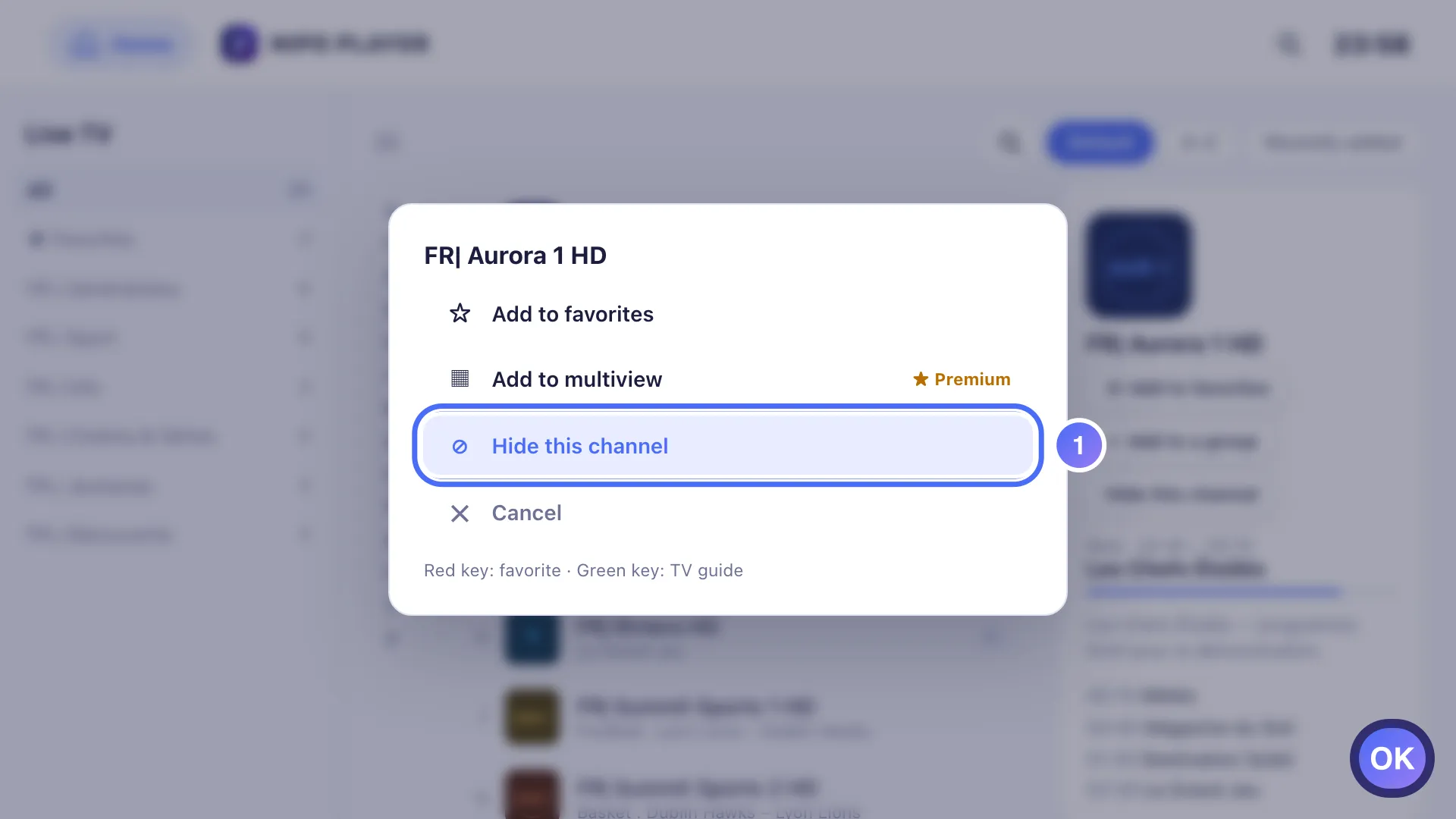
- 02
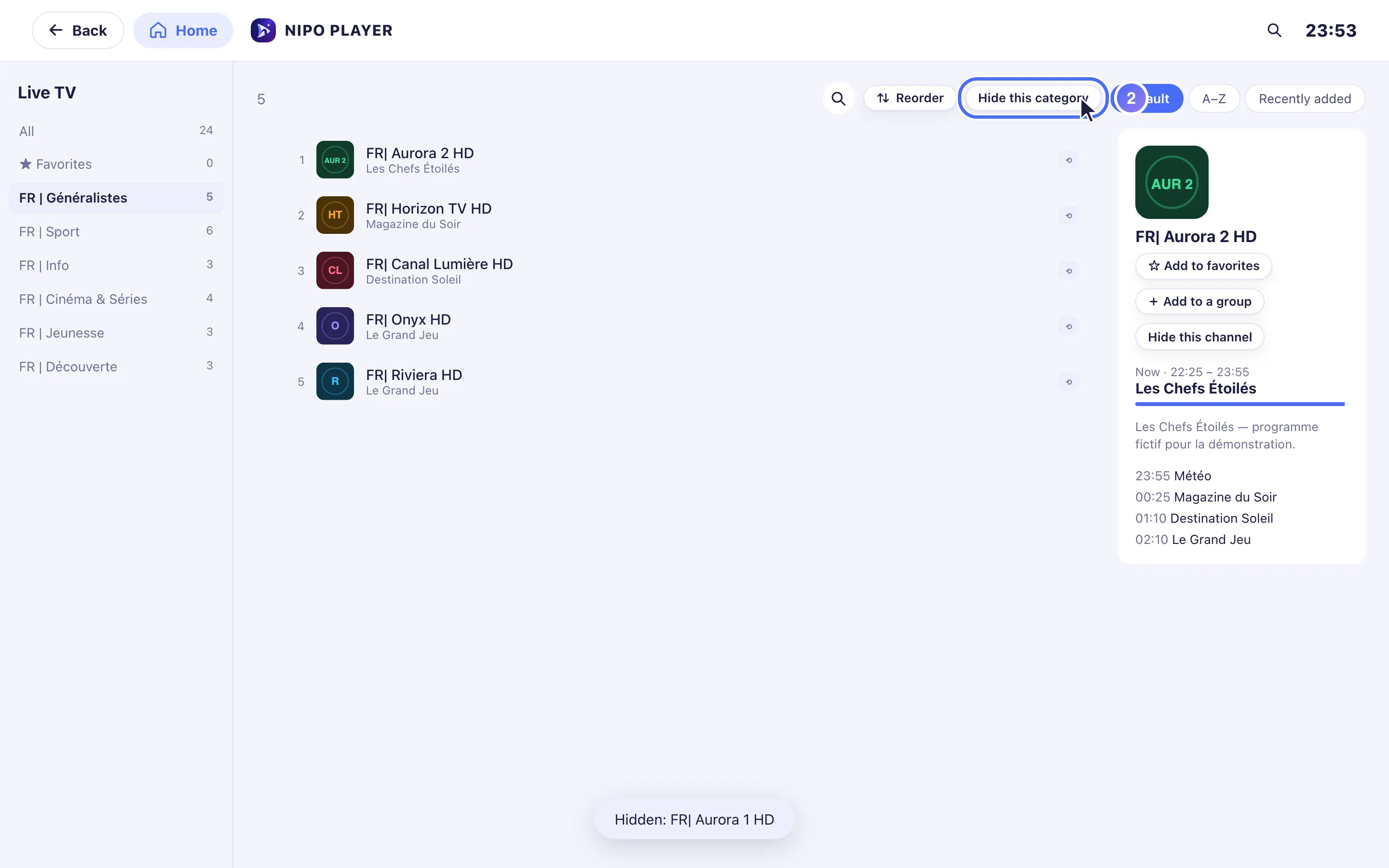
Open a category (not All or Favorites) and tap Hide this category, above the list. Key OK
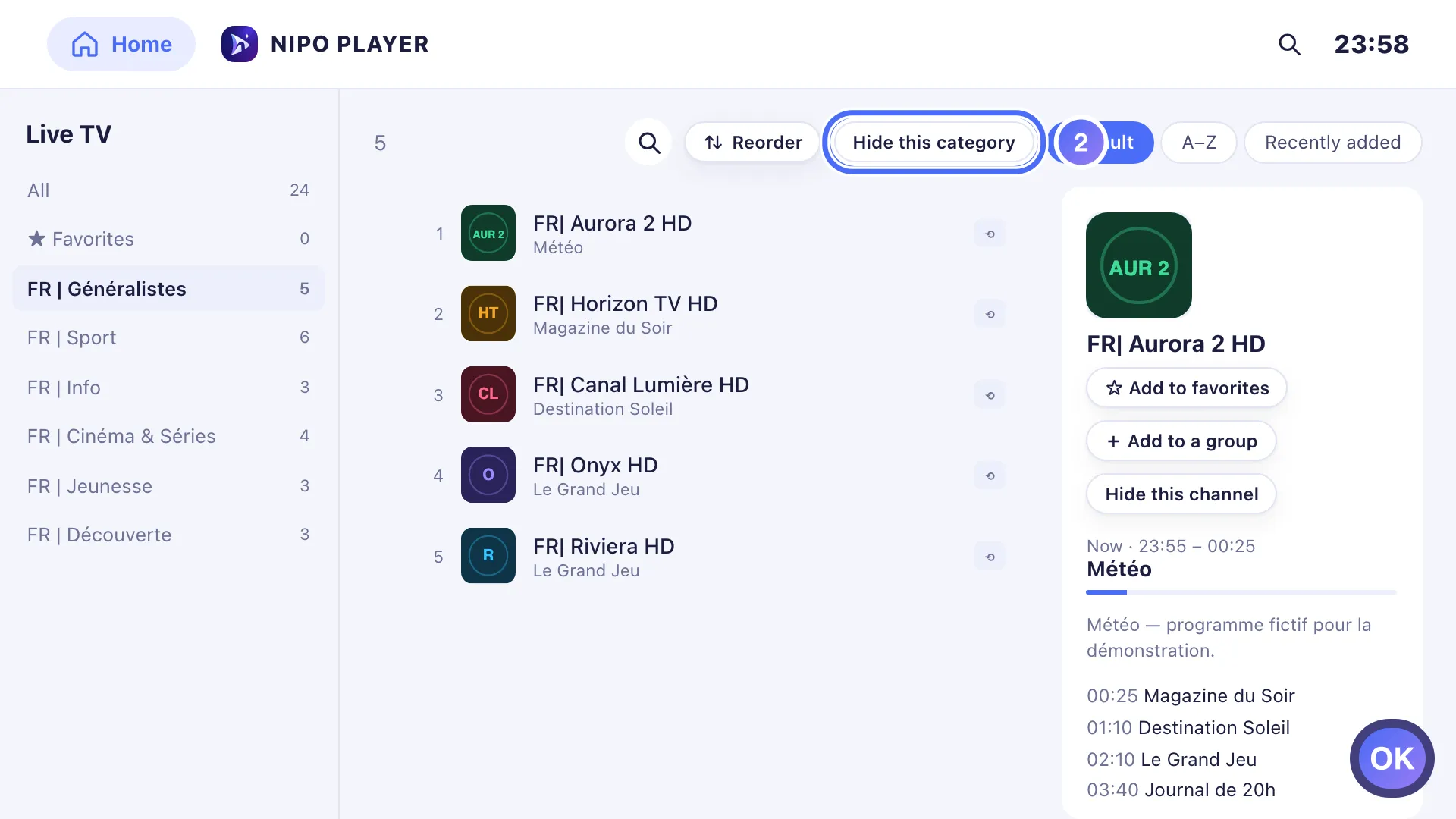
- 03
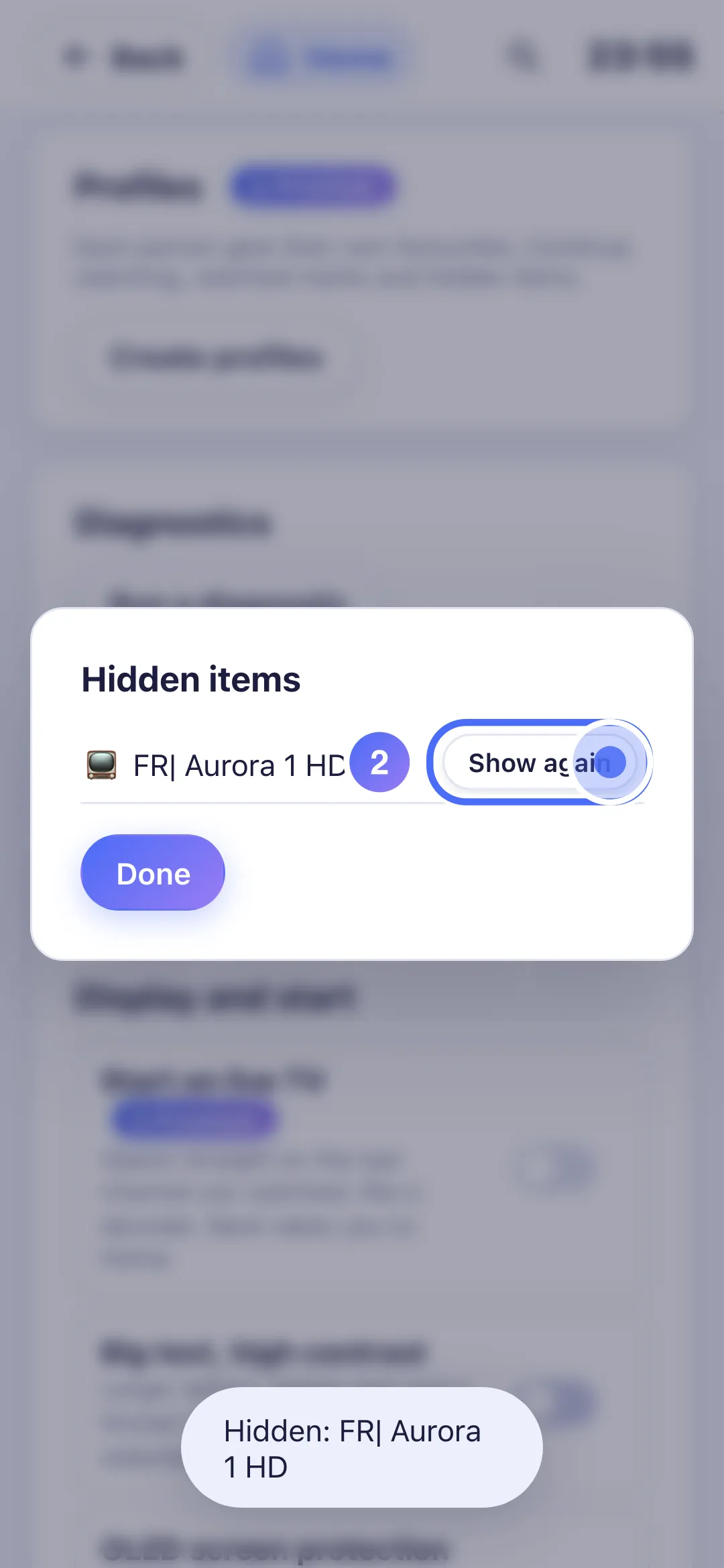
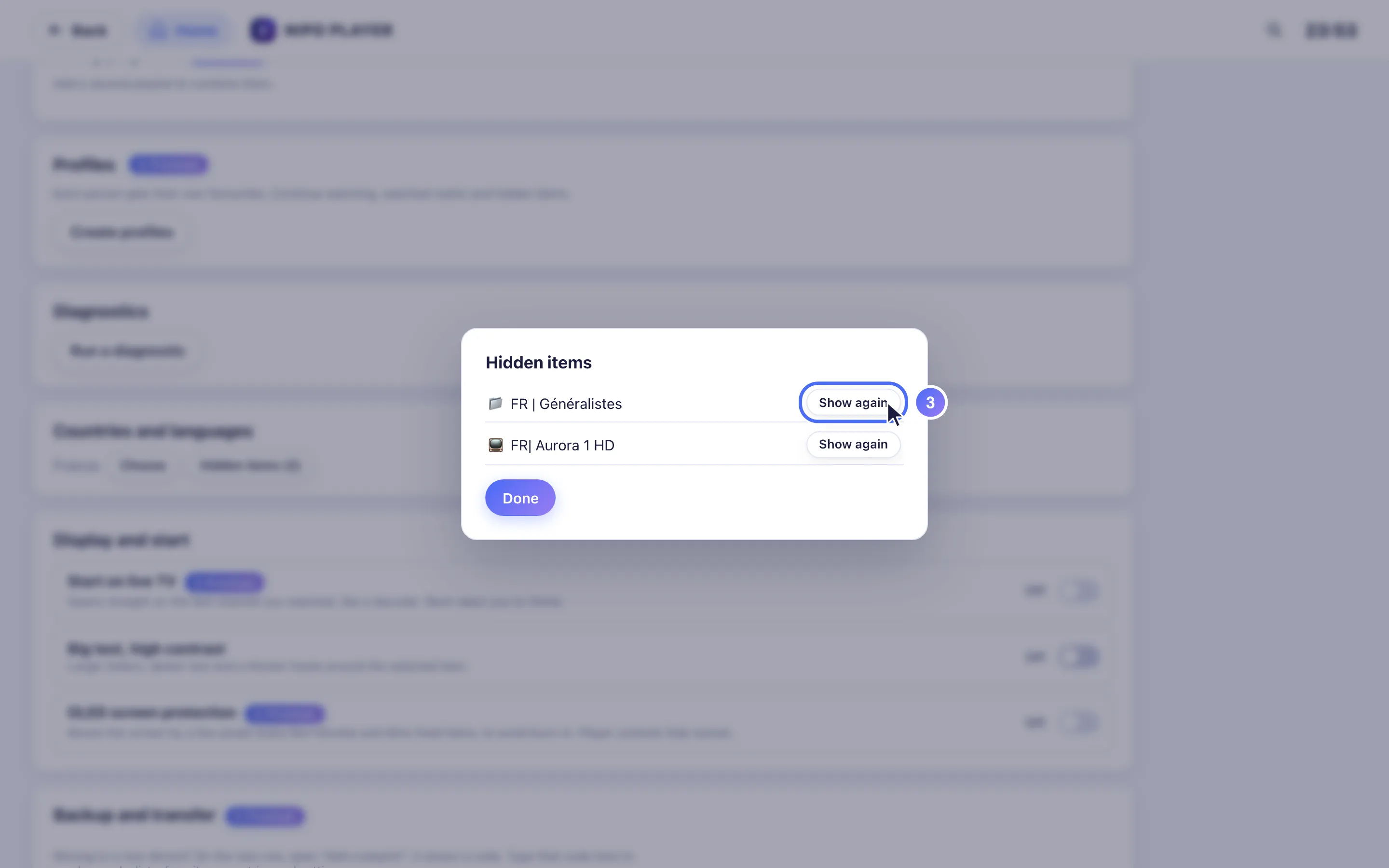
In Settings, Hidden items lists every hidden channel or category, with Show again to undo it. Key OK
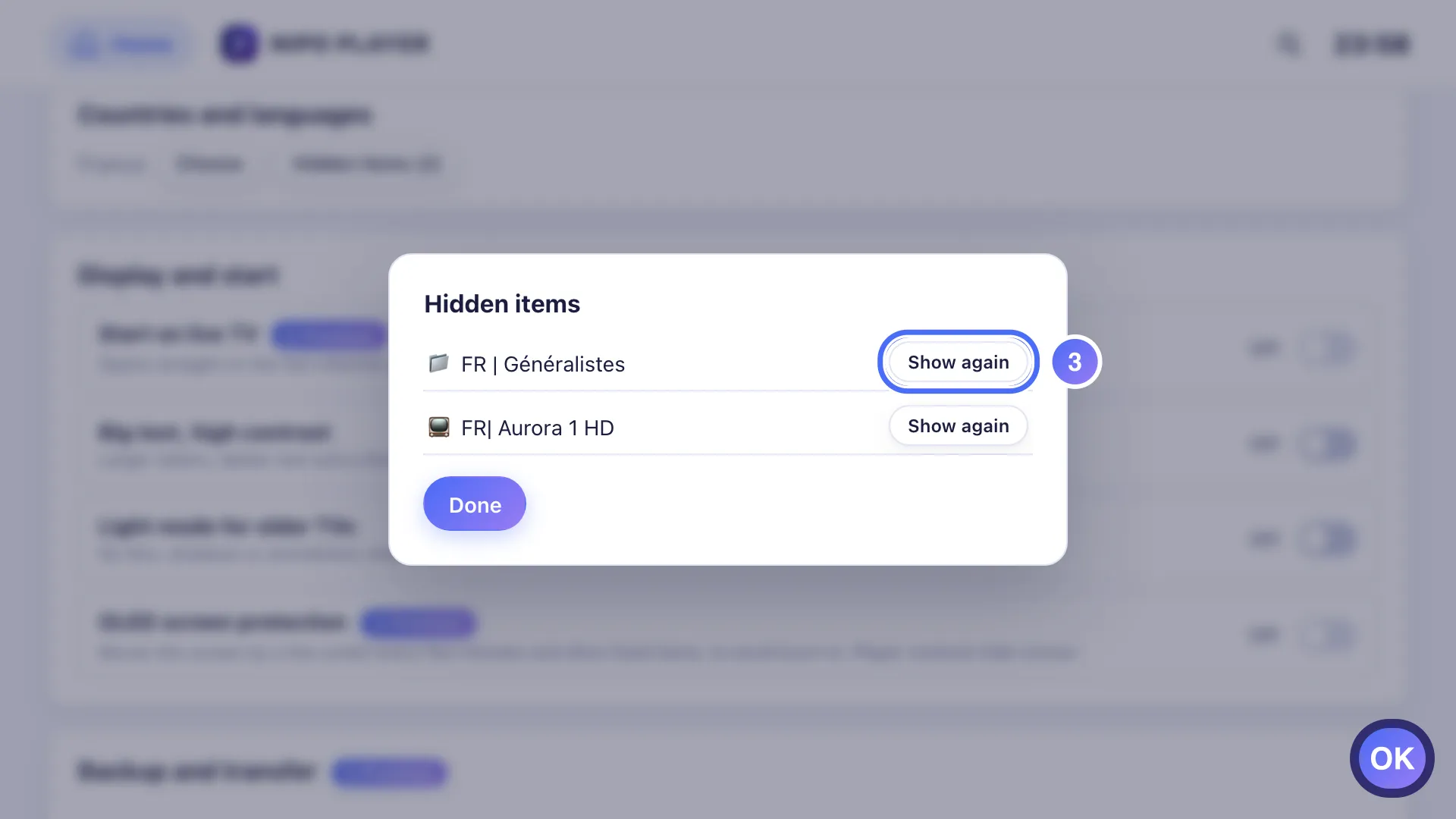
- 01
On a channel, a touch hold opens the quick menu: tap Hide this channel.
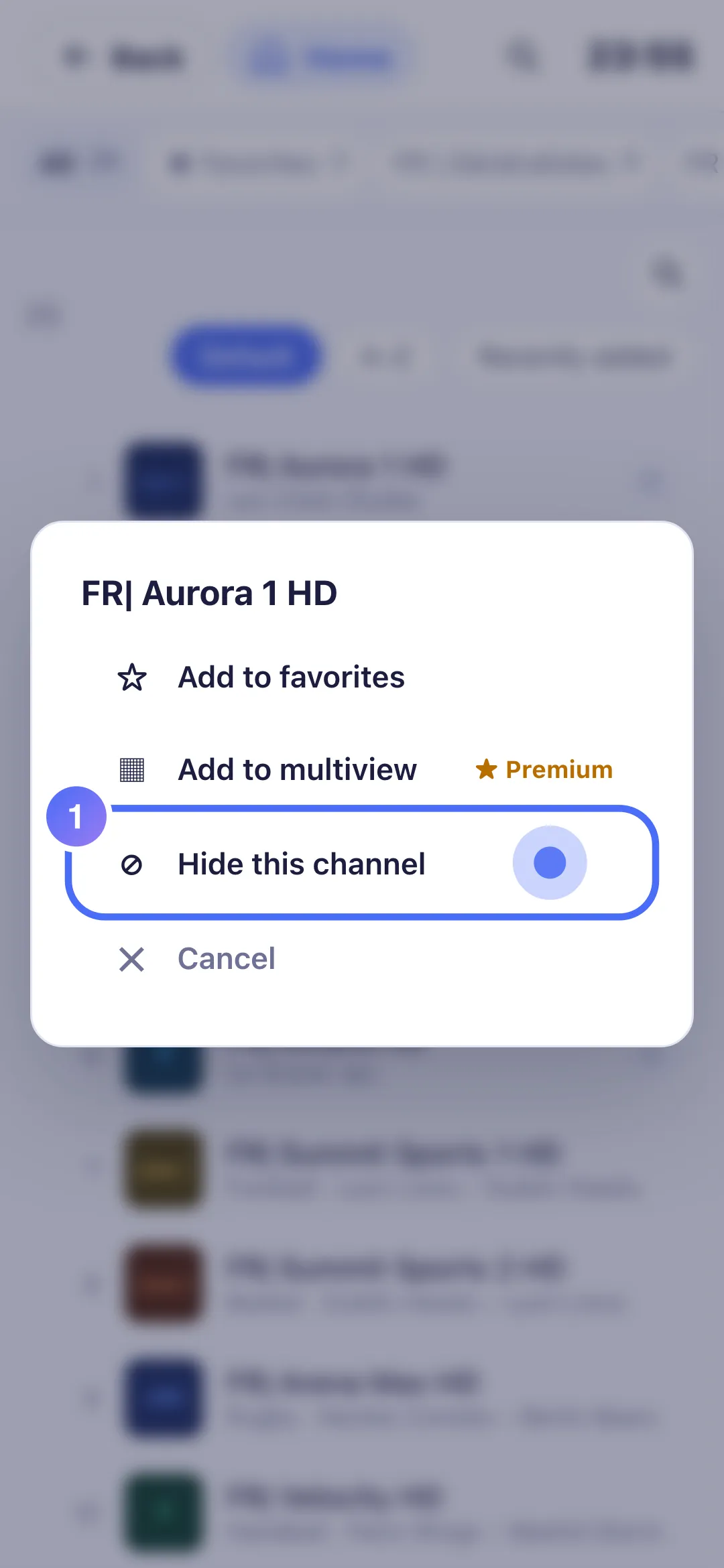
- 02
In Settings, Hidden items lists every hidden channel, with Show again to undo it.
- 01
On a channel, right-click opens the quick menu: click Hide this channel.
- 02
Open a category (not All or Favorites) and click Hide this category.
- 03
In Settings, Hidden items lists every hidden channel or category, with Show again to undo it.
Hiding a channel
- On a channel, open the quick menu (long press OK, or right-click / long press on phone and computer).
- Tap Hide this channel.
- The channel disappears from lists right away; a toast confirms it was hidden.
Hiding a whole category
- Open the category you want to hide (not "All" or "Favourites").
- Tap Hide category, above the list.
- The category disappears from navigation.
Bringing back a hidden item
In settings, open Hidden items: every hidden channel or category is listed there, with an Unhide button to undo it at any time.
Tip
To lock a category behind a code rather than hide it completely, use the parental PIN control instead, available separately in settings.
Updated on 29 September 2026
Did this article help you?
Can’t find the answer?
Write to us: we answer about the app and how it works. We can’t recommend a playlist.