
Add a TV guide (XMLTV) to your playlist
If your playlist's guide is incomplete, paste a separate XMLTV guide link in the guide settings: Nipo Player matches it to your channels by their ID.
Nipo doesn’t provide, sell or host any channel, movie or playlist: it plays what you already own.
Getting startedThe Nipo Player team 3 min read
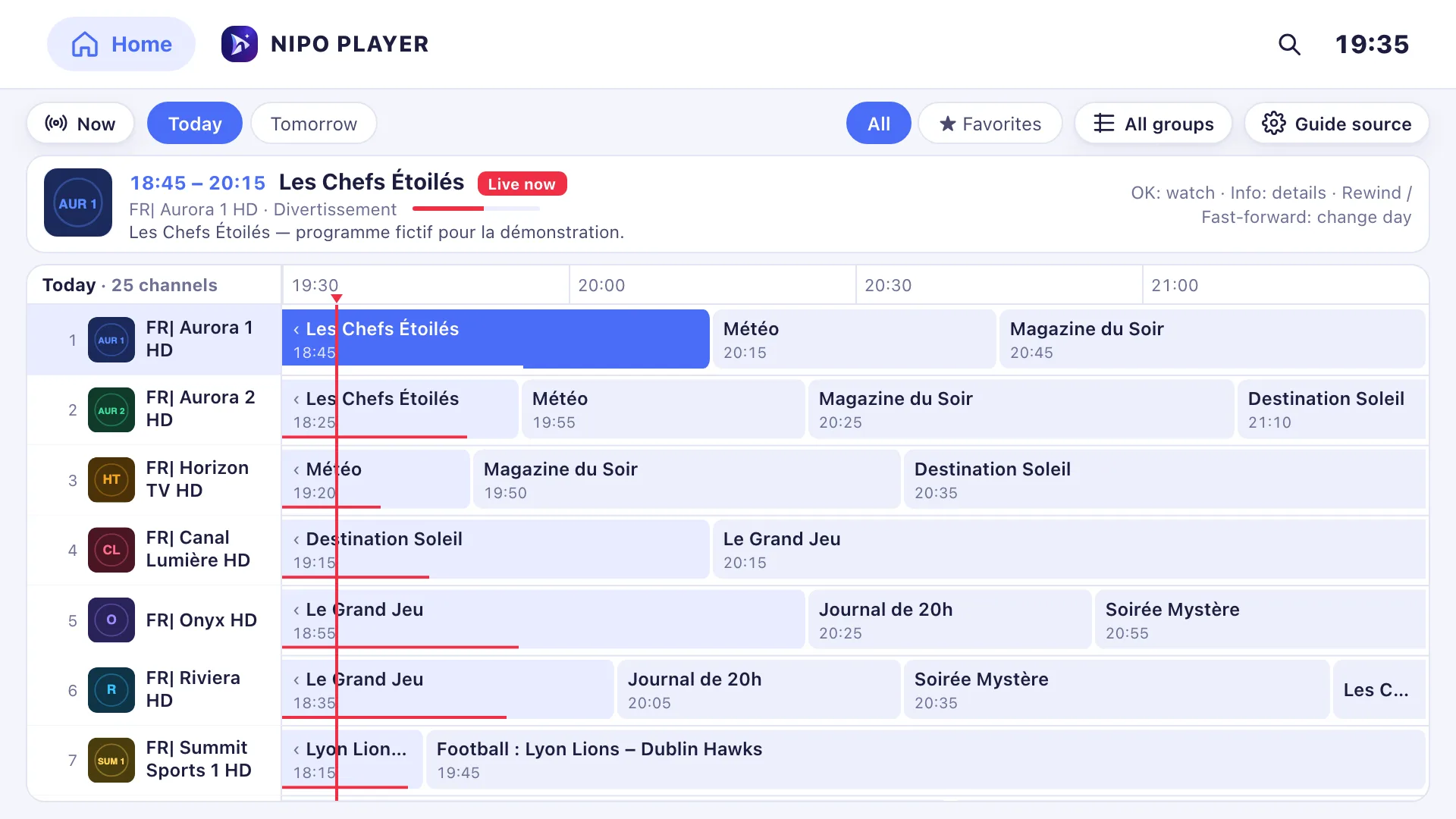
Why add a separate guide?
By default, Nipo Player shows the TV guide provided by your playlist, meaning the service that manages it. If that guide is missing, stops after a few hours, or doesn't cover all your channels, you can replace it with a separate XMLTV guide (an .xml or .xml.gz file), without changing playlist.
Does every playlist need this?
No. Most services already include a working guide with their playlist, matched to their own channels — you'll only need this if that guide is missing, incomplete, or you'd rather use one you trust more.
What is an XMLTV guide?
XMLTV is a standard format for describing a programme guide: a list of channels, and for each one, its programmes with a start and end time. Nipo Player matches it to your playlist by ID, in this order:
- The
tvg-idattribute of your M3U playlist is compared with the channel IDs in the guide. - If no
tvg-idmatches, Nipo falls back to the channel name (tvg-name). - If nothing matches, the channel still plays normally, simply without a programme shown in the guide.
Adding your XMLTV link, step by step
- From the home screen, open TV Guide.
- On phone or tablet, tap the Guide source button (settings icon) above the list; on TV and computer, this button sits next to the guide.
- Paste your XMLTV guide's link, which must start with
http://orhttps://. - Confirm: the guide updates with the new schedule.
To go back to the guide provided by your playlist, leave the field empty and save.
Compressed files work too
A .xml.gz link is decompressed automatically by Nipo Player, even when the link doesn't clearly say so. No need to decompress it yourself before pasting it.
Where the guide shows up next
Once added, the new guide feeds both the TV Guide's time grid and the mini guide shown during playback (now, next, later). There's nothing else to do: the setting applies across the whole app, not just the screen where you typed it.
If the guide stops updating
An XMLTV guide is refreshed by whoever publishes it, not by Nipo Player. If the schedule looks stuck for several days, the source file is probably the cause: try a different link, or temporarily go back to the guide provided by your playlist by clearing the field.
Frequently asked questions
How many days does an XMLTV guide cover? That depends entirely on the guide used: some cover a week, others only the current day.
Can I use a guide in a different language than my playlist? Yes, as long as the channel IDs (tvg-id) or names match, the language of the titles doesn't matter for matching.
What happens if a channel has no programme in the guide? It still plays normally; only the programme panel stays empty, in the guide and in the player's mini guide.
Where to find an XMLTV link
Nipo Player supplies no channel and no playlist, and doesn't provide or recommend any guide either: like a playlist, this link comes from the service you chose on your own, or a source you manage yourself. We can't recommend a guide.
Go further
- XMLTV guide: structure and channel matching, the
<channel>and<programme>tags in detail. - Nipo Player's TV Guide, time grid, search and reminders.
- How do I add my own TV guide (XMLTV)? in the help center.
Updated on 29 September 2026
Contact supportRead next
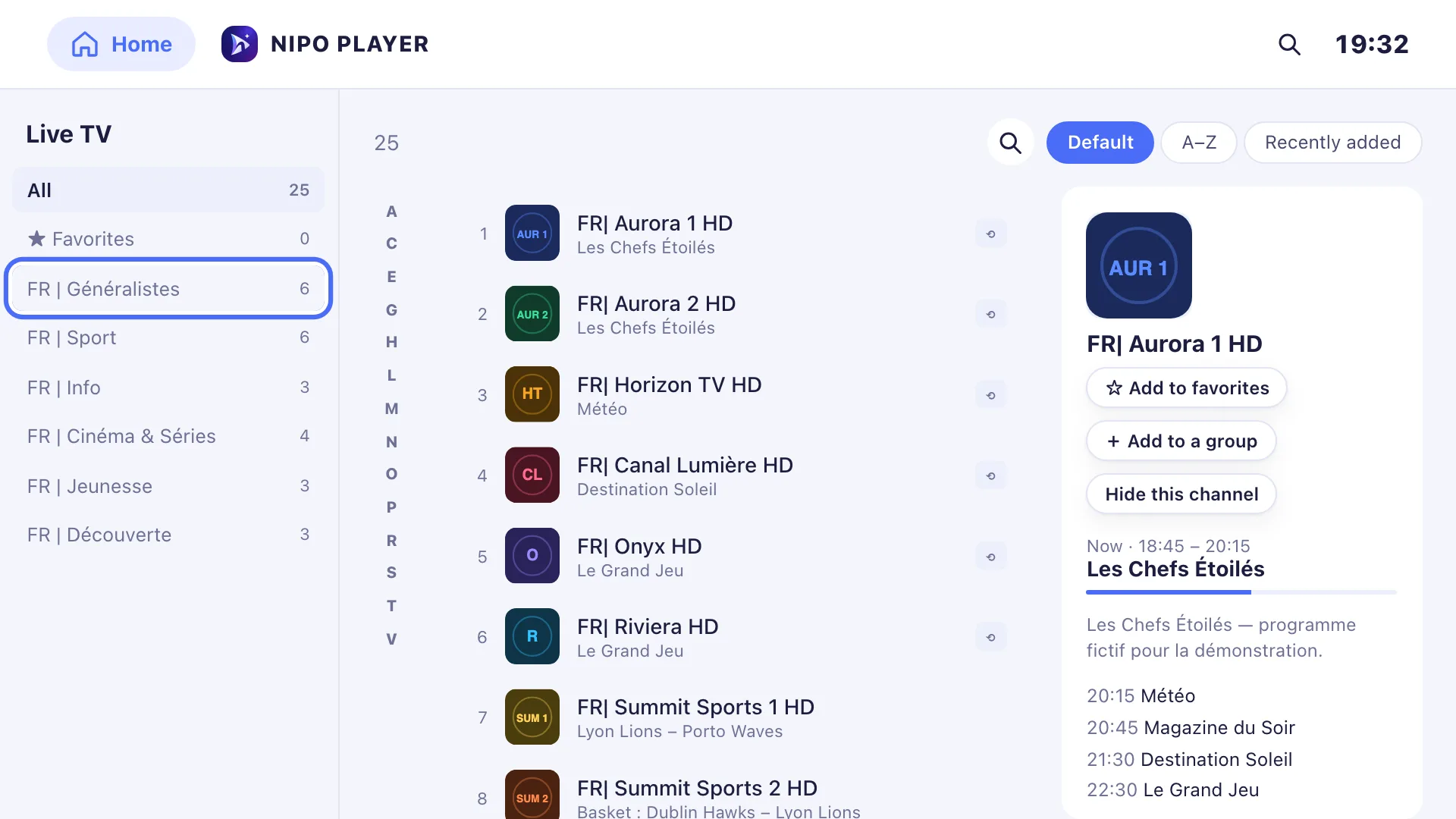 Devices
Best M3U player for LG TV
Which player for an LG TV (webOS)? LG Content Store, Magic Remote, price per TV or per home, refunds: the options compared, with sourced facts about each.
29 September 2026 · 5 min read
- Devices
Best M3U player for Samsung TV
Which player for a Samsung TV (Tizen)? Installing, sound, price per TV or per home, refunds: the options compared, with sourced facts about each player.
29 September 2026 · 5 min read
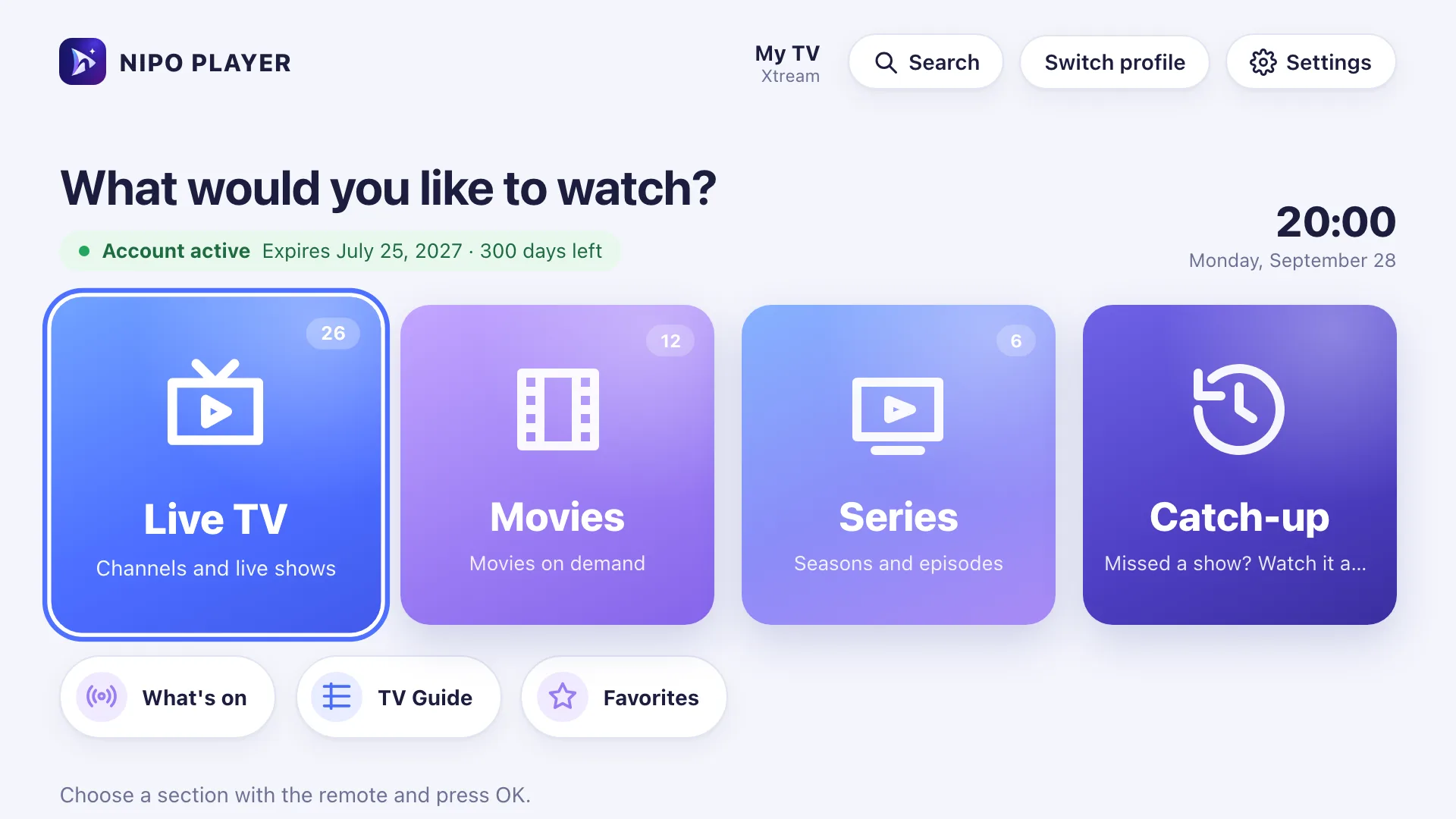 Tips
TipsChoosing a TV player: 7 things to check
Formats, TV guide, remote-friendly interface, parental control, refunds, per-device or per-home pricing, ads: seven things to check before choosing a TV player.
29 September 2026 · 3 min read
Try Nipo Player on your TV
The player is free on TV, phone and computer. You add your own playlist.