
M3U player for Windows 10 and 11
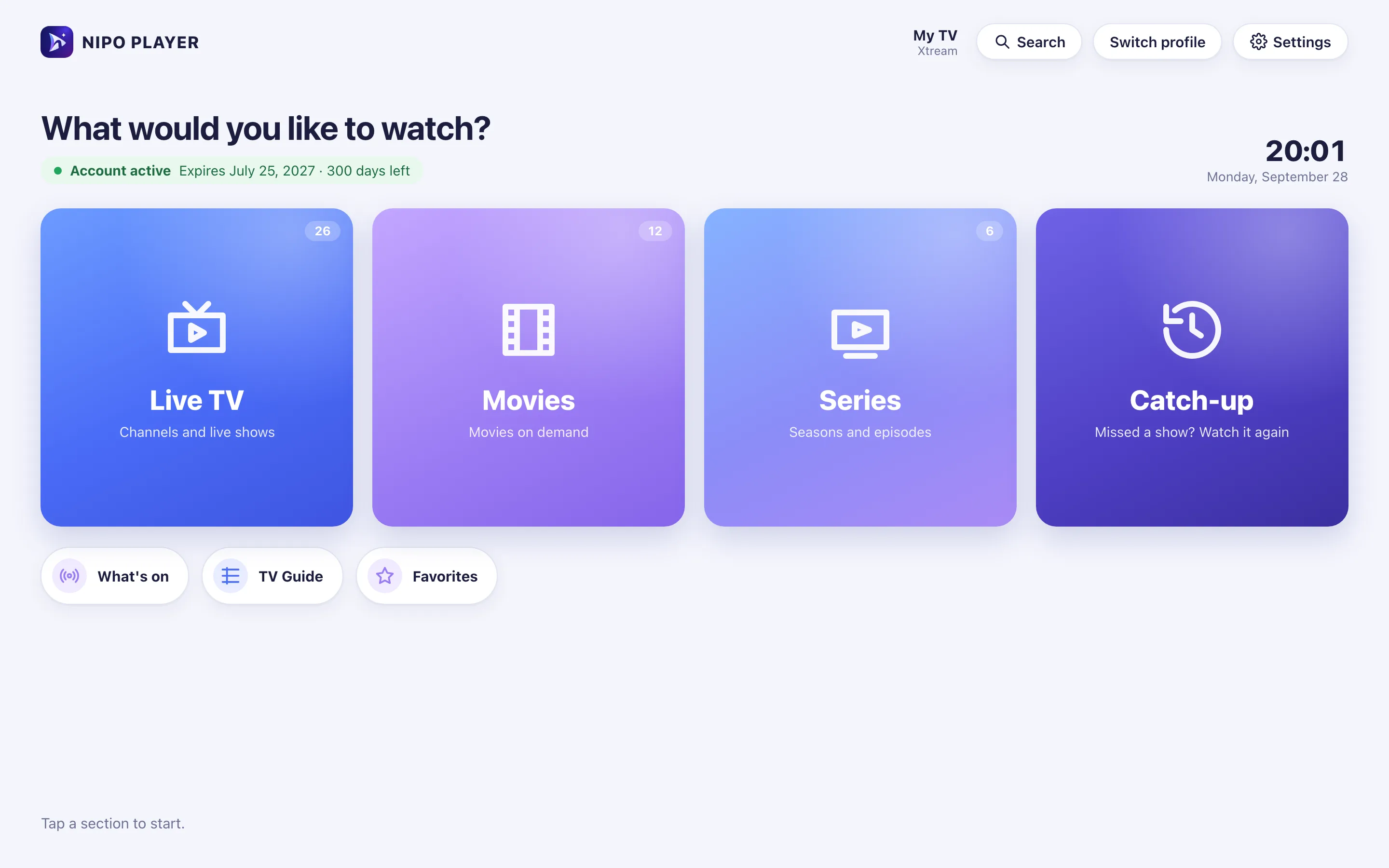
Nipo Player is a media player for Windows 10 and 11: M3U playlists and Xtream logins, TV guide, recording and multiview, with keyboard or mouse.
Nipo Player does not provide, sell or host any content. Use it with playlists you are legally allowed to access.


How to install it
Microsoft Store
Nipo Player installs from the Microsoft Store, with no warning, or as a direct download (a .exe file, about 91 MB) on this page.
Compatibility
- System
- Windows 10 or 11, 64-bit (x64) only
- File size
- About 91 MB (.exe), 124 MB (.zip)
- Playback
- Web player (Electron/Chromium), native File menu, full keyboard shortcuts
Installation, step by step
Microsoft Store
Search for “Nipo Player” on the Microsoft Store and install it, with no security warning.
Or the direct file
This page and the Download page also offer the .exe file, with its SHA-256 checksum.
First launch
Open Nipo Player: the home screen appears, ready for you to add a playlist.
Windows
First setup: add your playlist
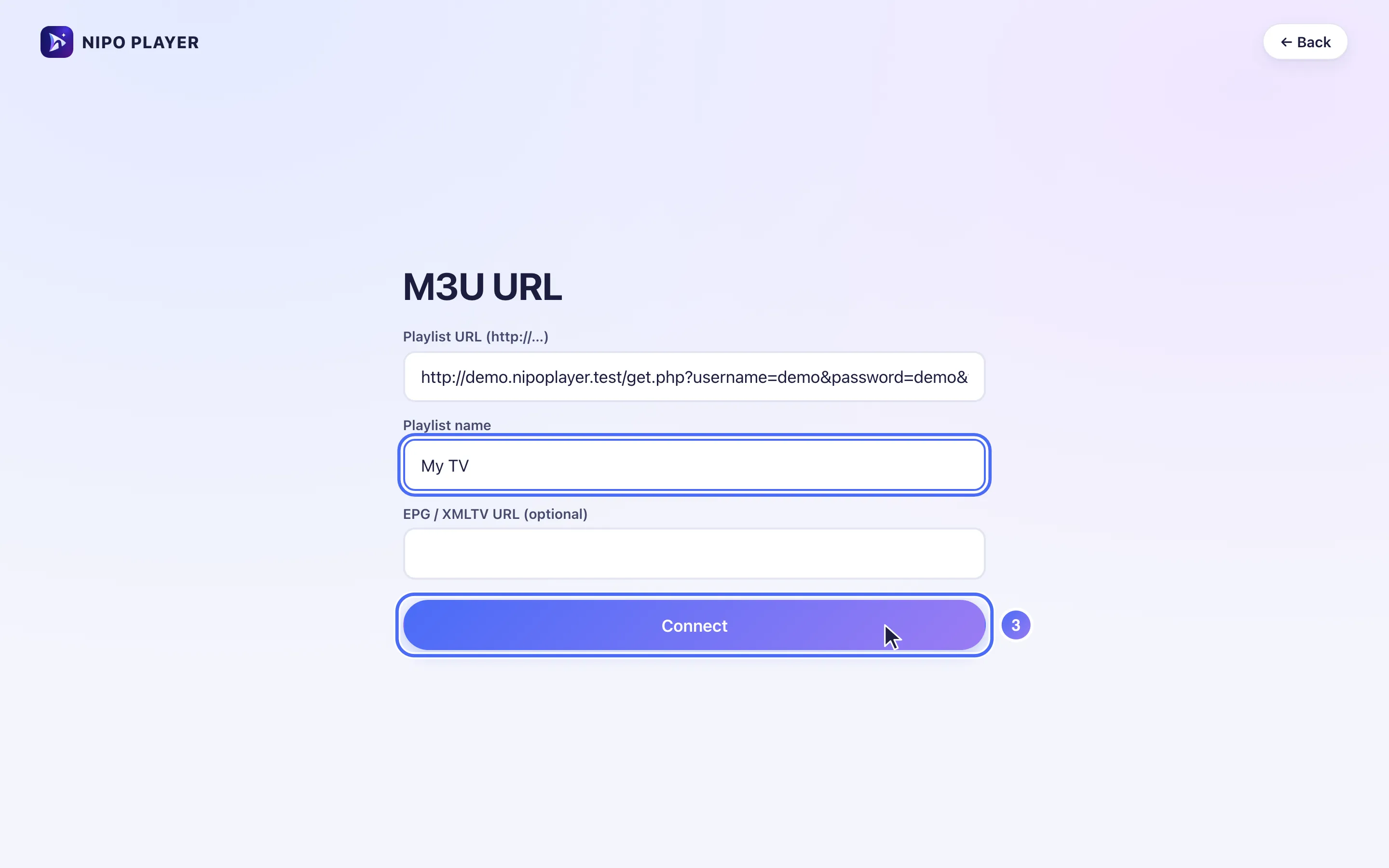
On Windows, type your playlist’s address (M3U or an Xtream login) directly into the app, or scan the QR code Nipo shows with your phone.
Keyboard, mouse and menu
On Windows, Nipo is driven with the mouse like any app, and with the keyboard inside the player.
Arrows, Enter, Escape
Space bar
Ctrl+F — Search
Ctrl+, — Settings
Copy/paste
Right-click
Limits on this device
- The direct file (.exe) isn’t code-signed yet: Windows shows a SmartScreen warning until then (the Microsoft Store version has no such warning).
- Automatic frame rate and audio passthrough stay limited to Android TV.
Free vs Premium (Nipo Premium or Family)
- Live TV, movies, series, search
- 1 playlist (Xtream or M3U)
- Favourites and resume
- Subtitles, parental PIN, diagnosis
- Several playlists + Mes playlists
- Profiles, including a kids profile
- Pro EPG and What’s on
- Catch-up (watch from the start)
- Pause and rewind live TV
- Recording
- Multiview 2 / 2×2
- Backup and transfer to another device
Related features
When something goes wrong
Windows shows a SmartScreen warning
It appears as long as the direct file (.exe) isn’t digitally signed; the Microsoft Store version has no such warning.
The file won’t install on a 32-bit PC
Only a 64-bit (x64) build is offered for now.
Nothing happens when opening a channel
Nipo shows a step-by-step diagnosis (connection, account, channel) and a report you can copy for support.
Frequently asked questions
Does Nipo provide channels?
No. Nipo plays the playlists you already own (M3U or an Xtream login).
How do I install an M3U player on Windows?
Search for “Nipo Player” on the Microsoft Store, or download the .exe file on this page.
Does the Microsoft Store take a cut?
No, direct payment is allowed for non-game apps, with no Microsoft commission.
Download Nipo for free.
All playback is free, with no ads and no account.