
Install an M3U player on a Fire TV Stick
Installing a player on a Fire TV Stick from the Amazon Appstore or with Downloader: the settings to switch on, the traps to avoid and the Vega OS models.
Nipo doesn’t provide, sell or host any channel, movie or playlist: it plays what you already own.
DevicesThe Nipo Player team 6 min read
A Fire TV Stick is one of the easiest ways to turn an ordinary TV into a smart TV. To watch your own playlist on it, you need a player: an app that reads an M3U playlist or an Xtream login, without supplying any content itself. This guide explains the two ways to install an M3U player on a Fire TV Stick, the settings to know, and the precautions that keep you from installing just anything.
A reminder first: Nipo Player, like any honest player, supplies no channel and no playlist. You add your own, and it's up to you to make sure it's legal.
Which Fire TV do you have?
Before anything else, identify your model, because not every Fire TV works the same way.
Models running Fire OS
The Fire TV Stick Lite, Fire TV Stick 4K, Fire TV Stick 4K Max and Fire TV Cube run Fire OS, a version of Android adapted by Amazon. They accept apps from the Amazon Appstore and, if you allow it, apps installed from a file (APK).
Models running Vega OS
Newer models, such as the Fire TV Stick 4K Select (2025) and the Fire TV Stick HD (2026), run Vega OS, a different system that is no longer based on Android. On these models, installing from a file isn't possible: only Amazon Appstore apps built for Vega OS can be installed.
To find out which system you have, open Settings › My Fire TV › About: the model name and system version are shown there.
Method 1: from the Amazon Appstore
This is the safest method, because Amazon reviews every app before publishing it.
- On the home screen, open the magnifying glass (Search).
- Type the player's name, for example "Nipo Player".
- Pick the app's listing, then Download (or Get).
- Once installed, the app shows up in Your Apps & Channels.
Always check the publisher's name on the listing: apps named after a well-known player, published by someone else, exist in every store.
For Nipo Player, the Fire TV page always shows the install method currently available: store, file, or a sign-up to be notified.
Method 2: with the Downloader app
When a player isn't on the Amazon Appstore, its developer often offers an APK file to install yourself. On Fire TV, you do this with Downloader, a free app available on the Amazon Appstore that downloads a file from an address or a short code.
Step 1: install Downloader
Search for "Downloader" in the Amazon Appstore and install it like any other app.
Step 2: allow file installs
For safety, Fire OS blocks apps that don't come from the Appstore. You need to allow Downloader, and only Downloader:
- Open Settings › My Fire TV.
- If you don't see Developer Options, open About, select your Fire TV's name and press the remote's centre button 7 times: the menu appears.
- In Developer Options, open Install unknown apps (or Apps from Unknown Sources, depending on the version) and switch Downloader on.
Step 3: download the file
In Downloader, type the address or short code given by the developer's official site, then confirm. The file downloads and Fire OS offers to install it. Confirm, then choose Done: Downloader then offers to delete the file, which is safe to do.
Precautions
- Official site only. Many sites copy a well-known player's name to spread their own file. A modified file can contain ads or worse.
- Be wary of "unlocked" files. A file presented as the paid version for free isn't the developer's.
- Switch the permission off afterwards if you no longer need it.
First launch: adding your playlist
When it opens, a player asks for your playlist. In Nipo Player you have several ways to do it:
- Type an Xtream login (server, username, password) with the remote. See the steps.
- Type an M3U link. See the steps.
- Send it from nipoplayer.com with the Nipo code shown in the app, so you don't type everything with the remote: see Send a playlist.
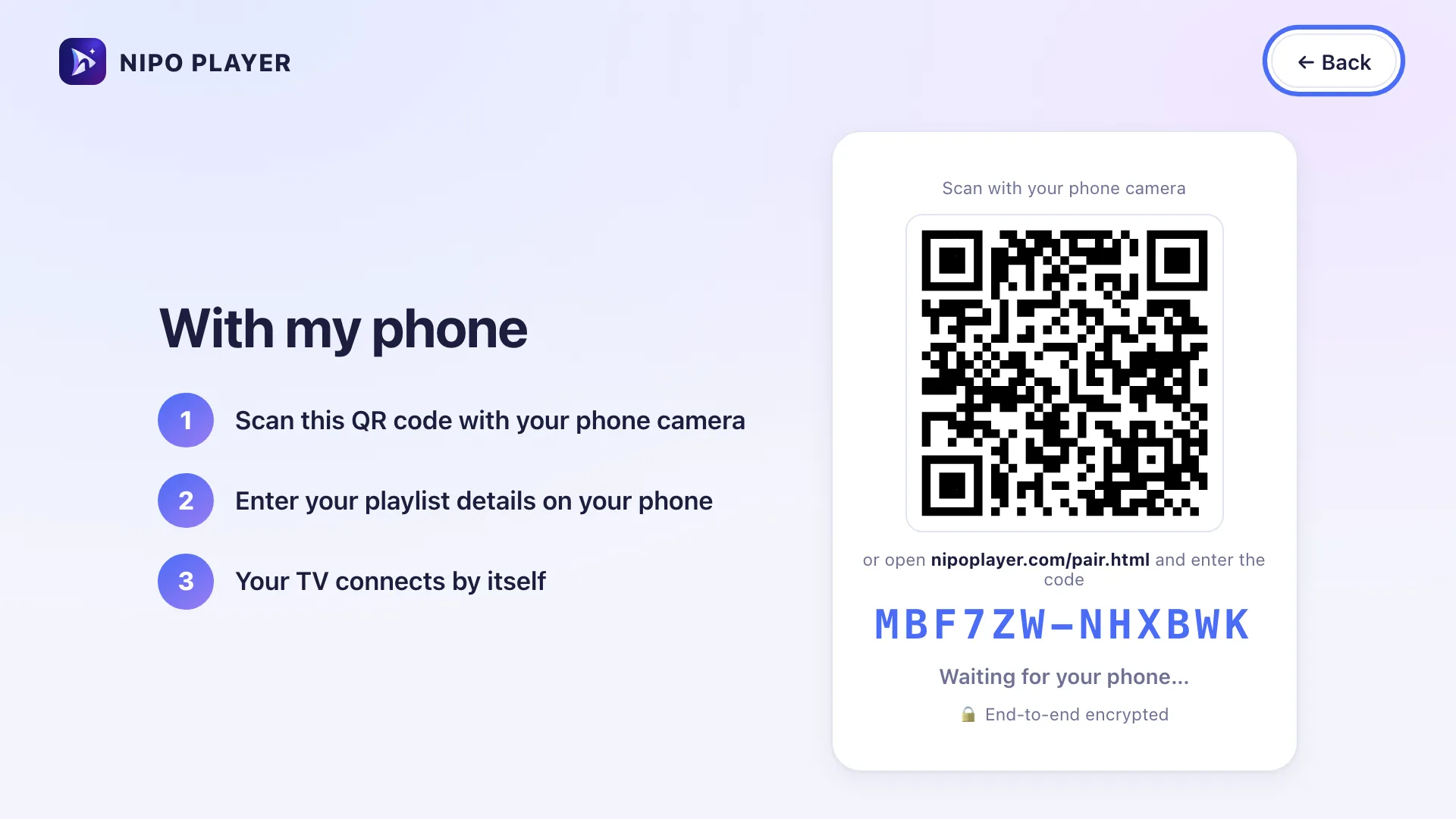
- With Nipo Premium, scan a QR code with your phone and enter the playlist on the phone.
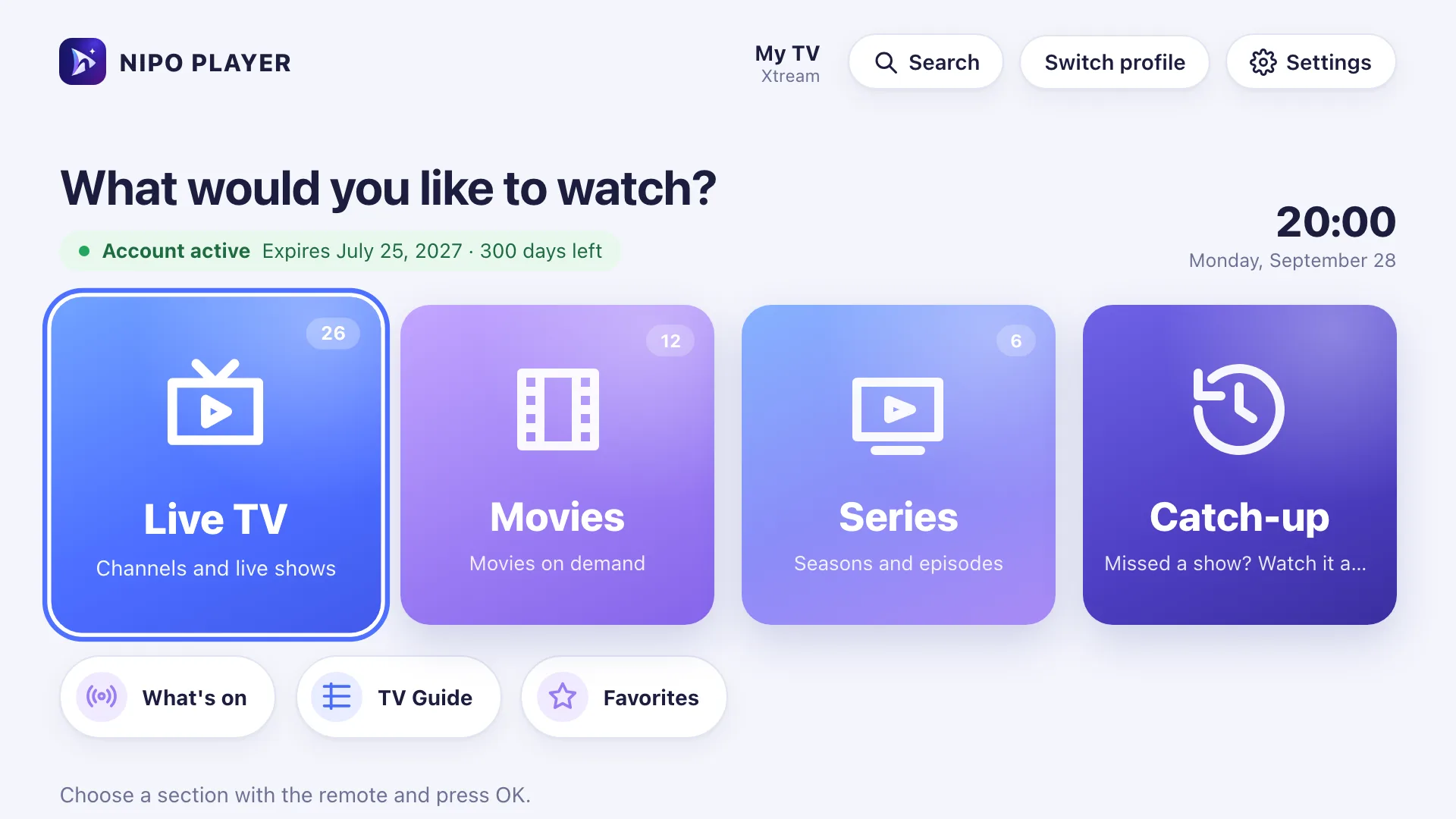
The home screen then shows Live TV, Movies, Series and Catch-up, ready for the remote.
Setting up your Fire TV for playback
A few settings make playback more pleasant:
- Connection: if you can, put the Fire TV close to the router, or use an Ethernet adapter. Wi-Fi is often the first cause of dropouts.
- Resolution: in Settings › Display & Sounds › Display, leave the resolution on automatic.
- Storage: a Fire TV Stick has little memory. Remove the apps you no longer use.
- Frame rate: on Android TV and Fire TV, Nipo Premium can match the display's frame rate to the programme, for smoother motion (see Display comfort).
My player doesn't work: what to check?
If the picture doesn't come, before blaming the player:
- Test the same playlist on another device. If it works nowhere, the problem comes from the playlist's server.
- Check your account's expiry date and the number of connections it allows.
- Restart the Fire TV (unplug it for 30 seconds).
Nipo Player has a built-in diagnosis that tests the internet, the server, the account and then the channel itself, and says plainly where the block is. The Fire TV issues page lists the most frequent cases.
Frequently asked questions
Is an M3U player legal on Fire TV?
Yes. A player is software, like a video player. It's the content you add that must be legal. Nipo Player supplies, sells and hosts no channel and no playlist.
Why does my Fire TV refuse to install the file?
Either "Install unknown apps" isn't switched on for Downloader, or your model runs Vega OS, which doesn't accept installing from a file.
Do I need an account to use Nipo Player?
No. The free player works without an account. An account is only used to manage a Nipo Premium or Nipo Family purchase.
Does Nipo Player work on my Fire TV Stick 4K Select?
That model runs Vega OS. The Fire TV page always says which models are supported.
Read more
- Nipo Player on Fire TV: compatibility and the current install method.
- Install Nipo Player, on every device.
- Best M3U player 2026: comparison, with sourced facts.
- What is an M3U playlist?
Updated on 29 September 2026
Contact supportRead next
 Getting started
Add a TV guide (XMLTV) to your playlist
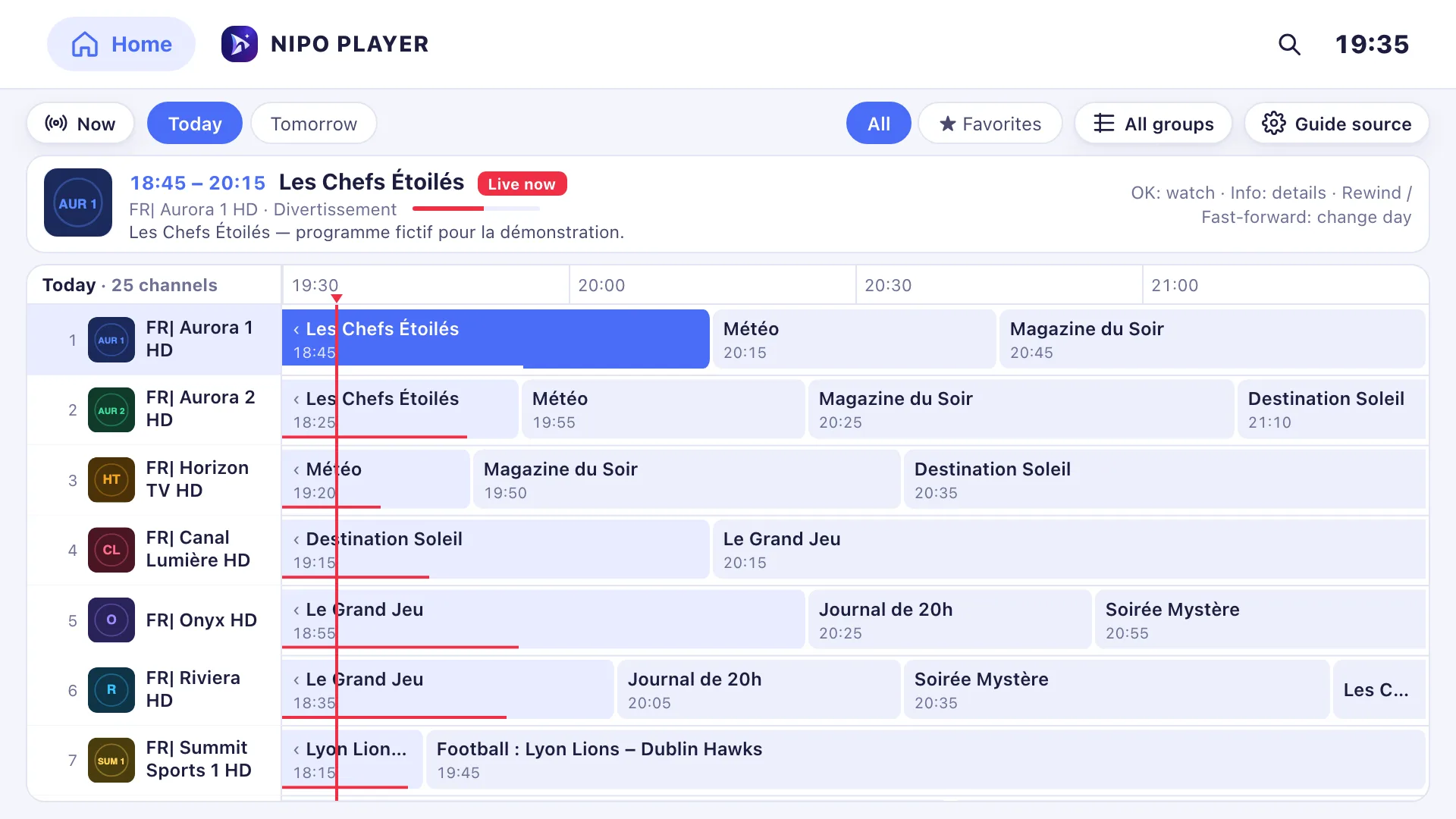
If your playlist's guide is incomplete, paste a separate XMLTV guide link in the guide settings: Nipo Player matches it to your channels by their ID.
29 September 2026 · 3 min read
 Devices
Best M3U player for LG TV
Which player for an LG TV (webOS)? LG Content Store, Magic Remote, price per TV or per home, refunds: the options compared, with sourced facts about each.
29 September 2026 · 5 min read
- Devices
Best M3U player for Samsung TV
Which player for a Samsung TV (Tizen)? Installing, sound, price per TV or per home, refunds: the options compared, with sourced facts about each player.
29 September 2026 · 5 min read
Try Nipo Player on your TV
The player is free on TV, phone and computer. You add your own playlist.