
How do I resume a movie or episode where I left off?
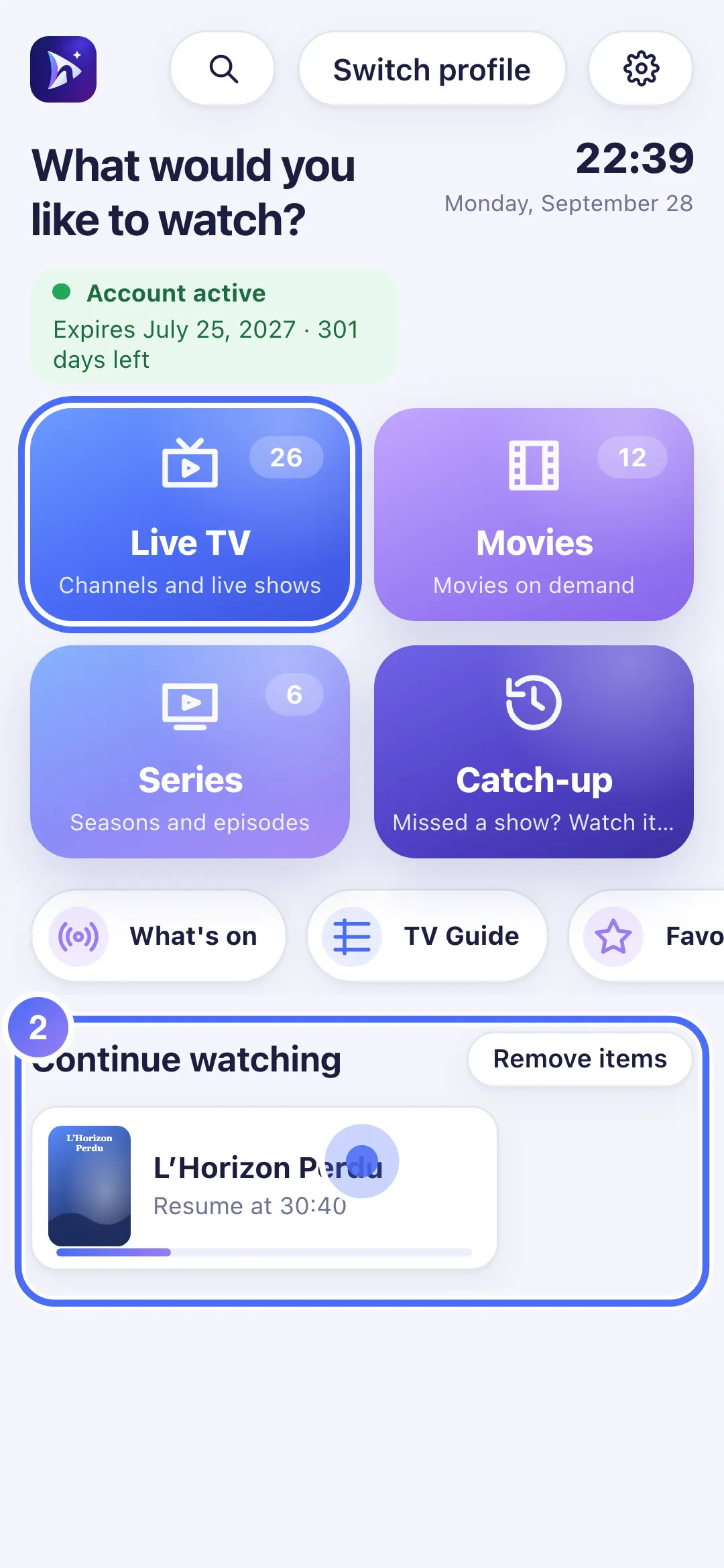
The "Continue watching" row on Home keeps your movies and series in progress; tap a title to pick up exactly where you were.
Nipo doesn’t provide, sell or host any channel, movie or playlist: it plays what you already own.
Nipo Player remembers your position in every movie or episode, on this device.
Step by step, with pictures
- 01
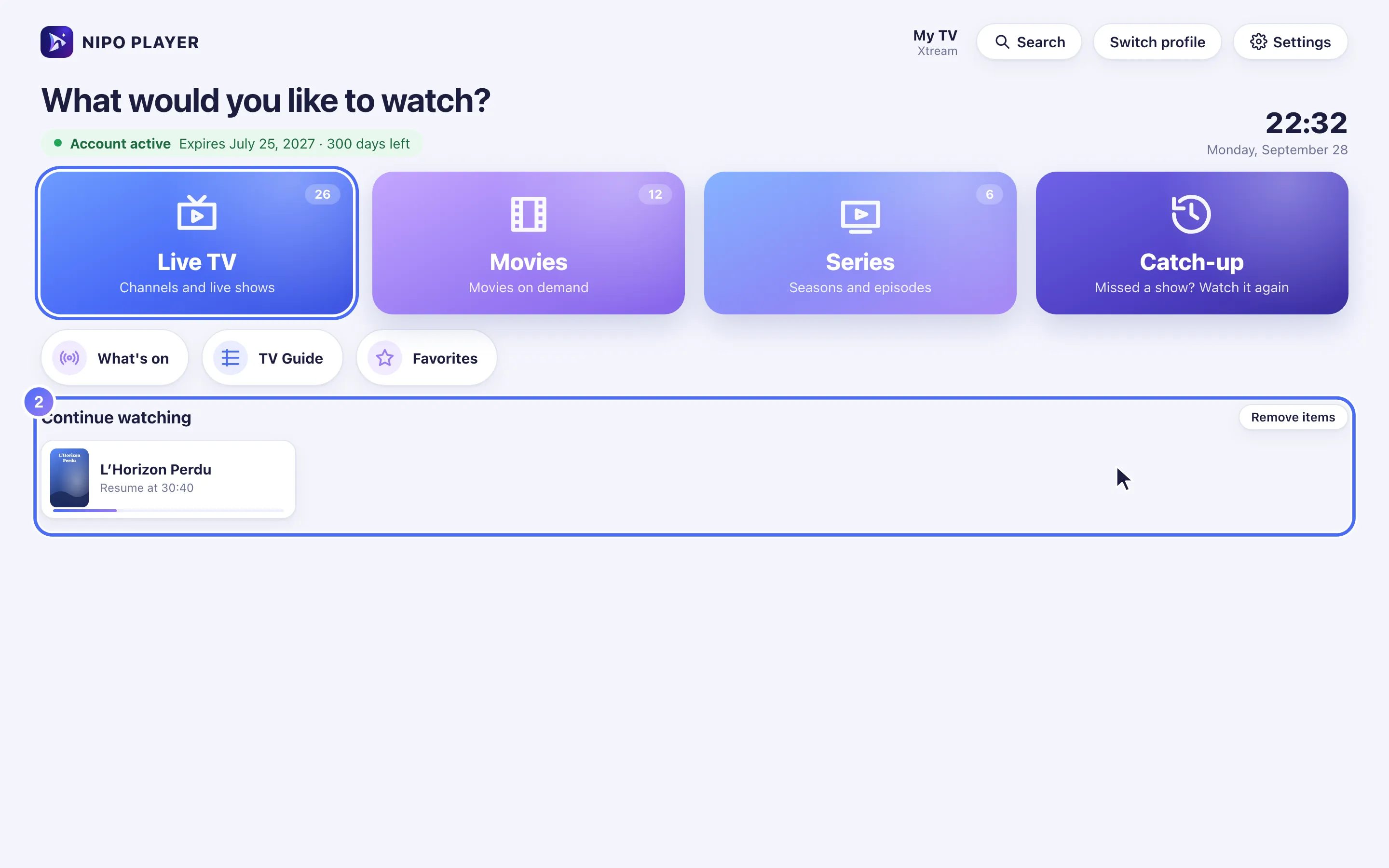
On Home, the Continue watching row keeps your movies and series in progress, most recent first.
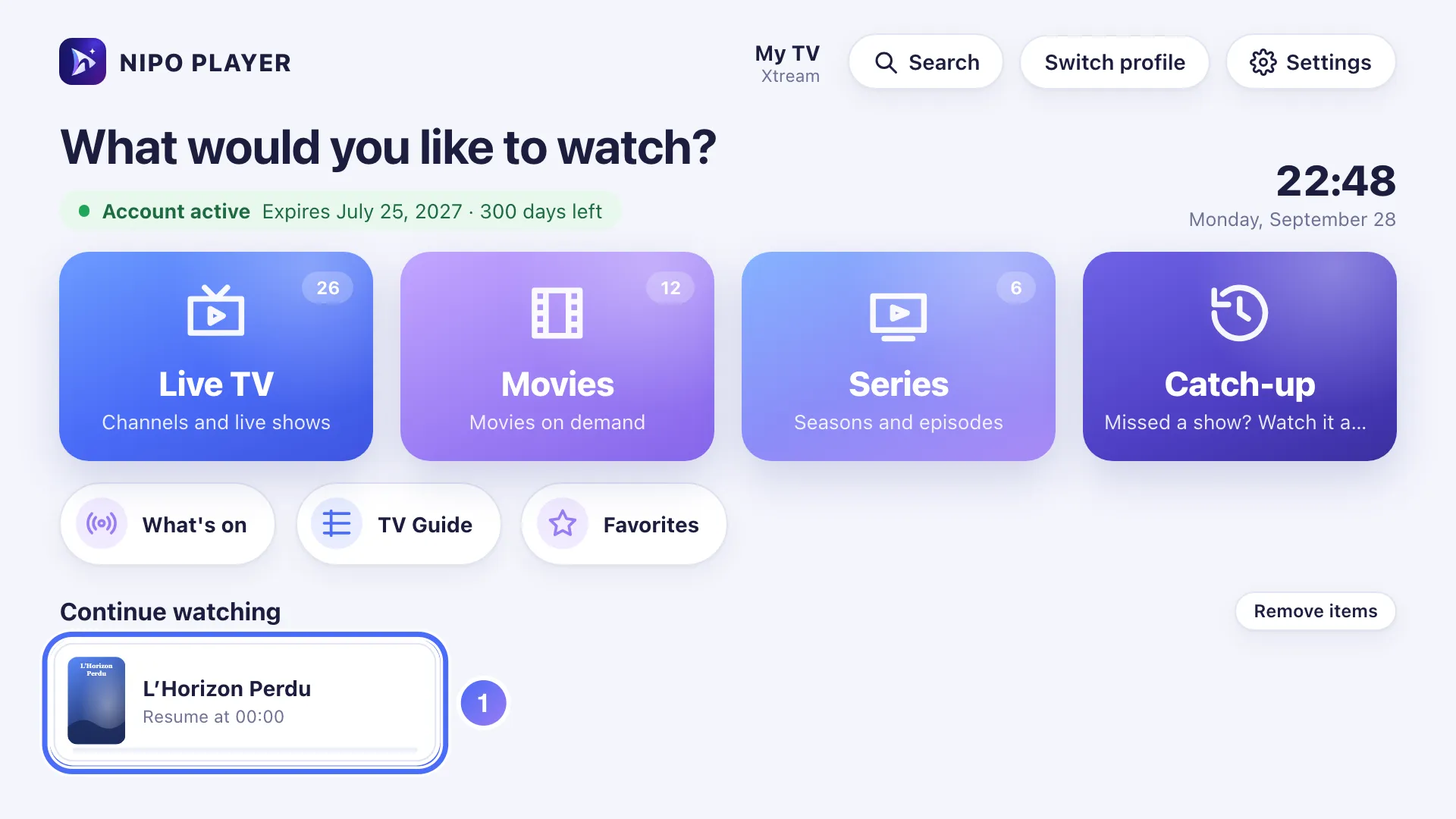
- 02
Press OK on a title to resume exactly where you left off. Key OK
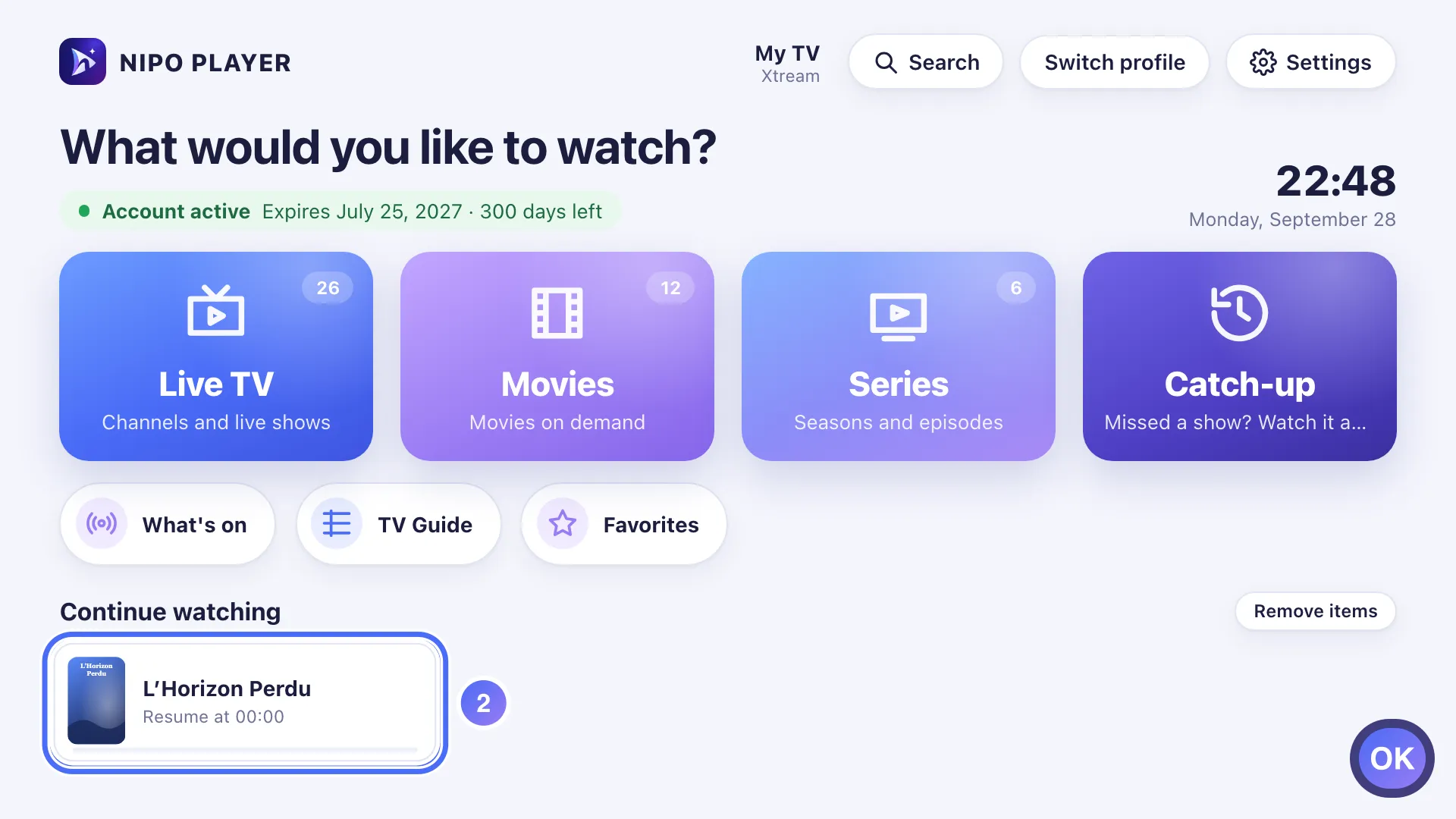
- 03
To remove a title, first press OK on Remove items, at the top of the row. Key OK
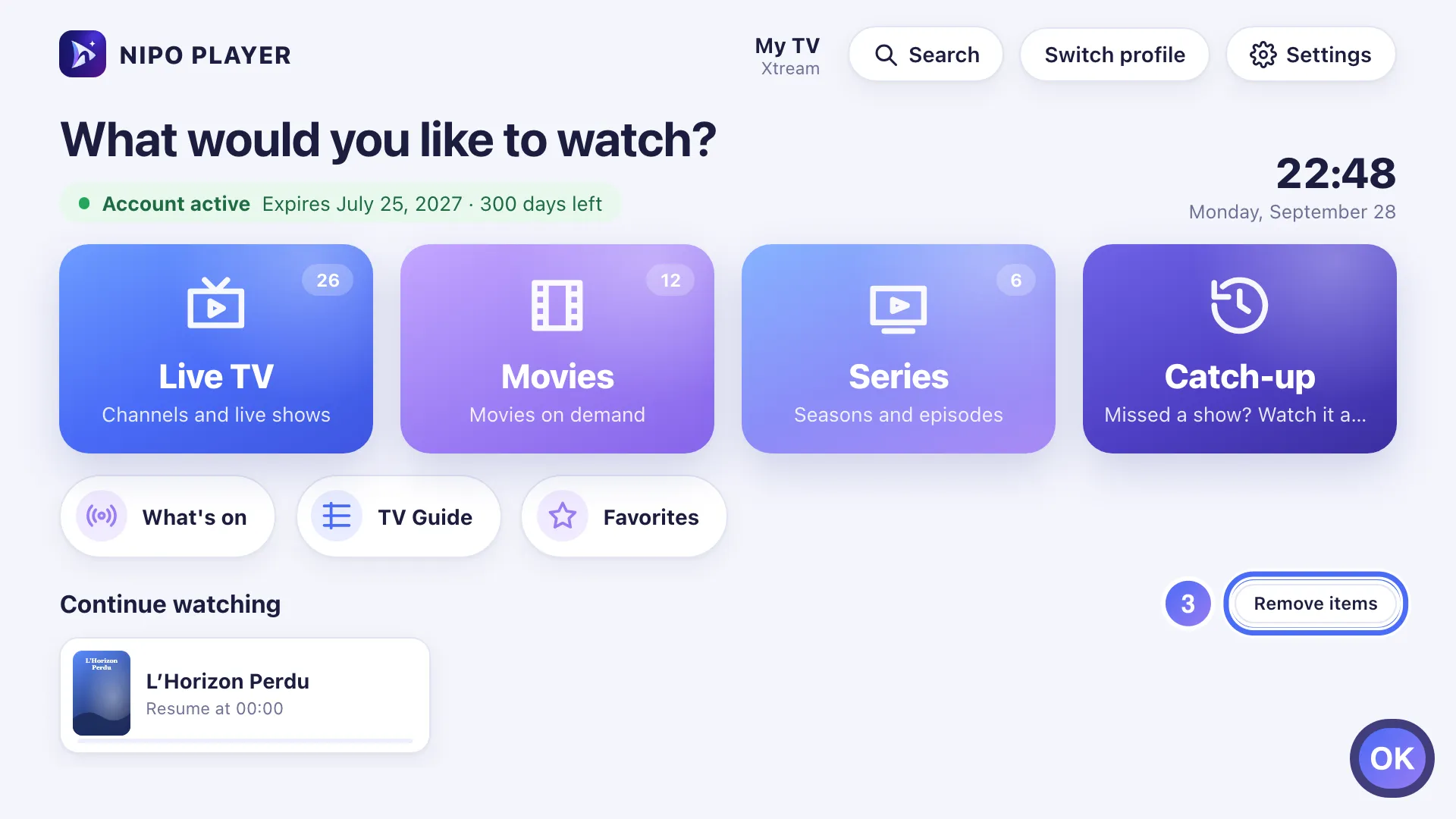
- 01
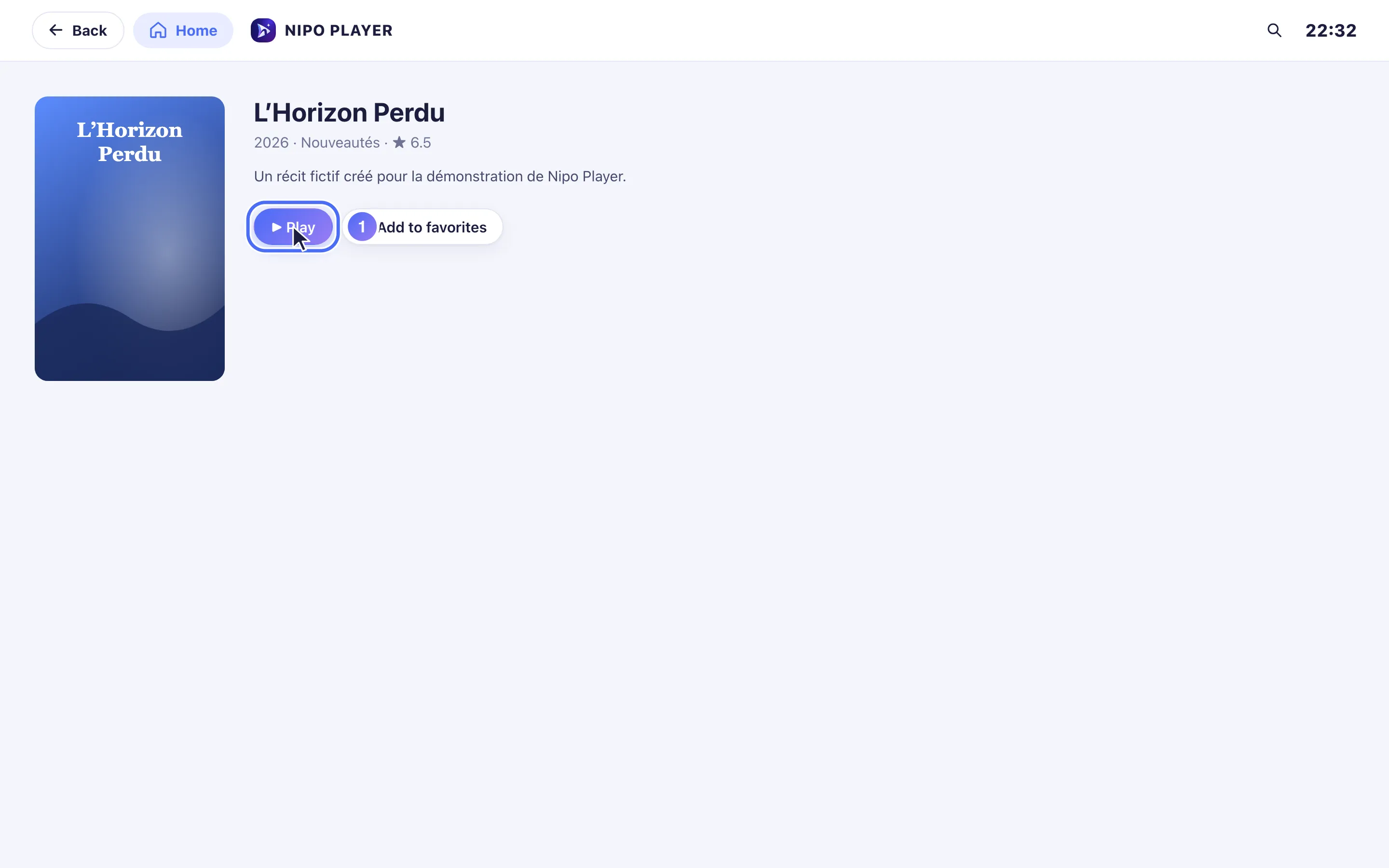
Open a movie or series and tap “Play”.
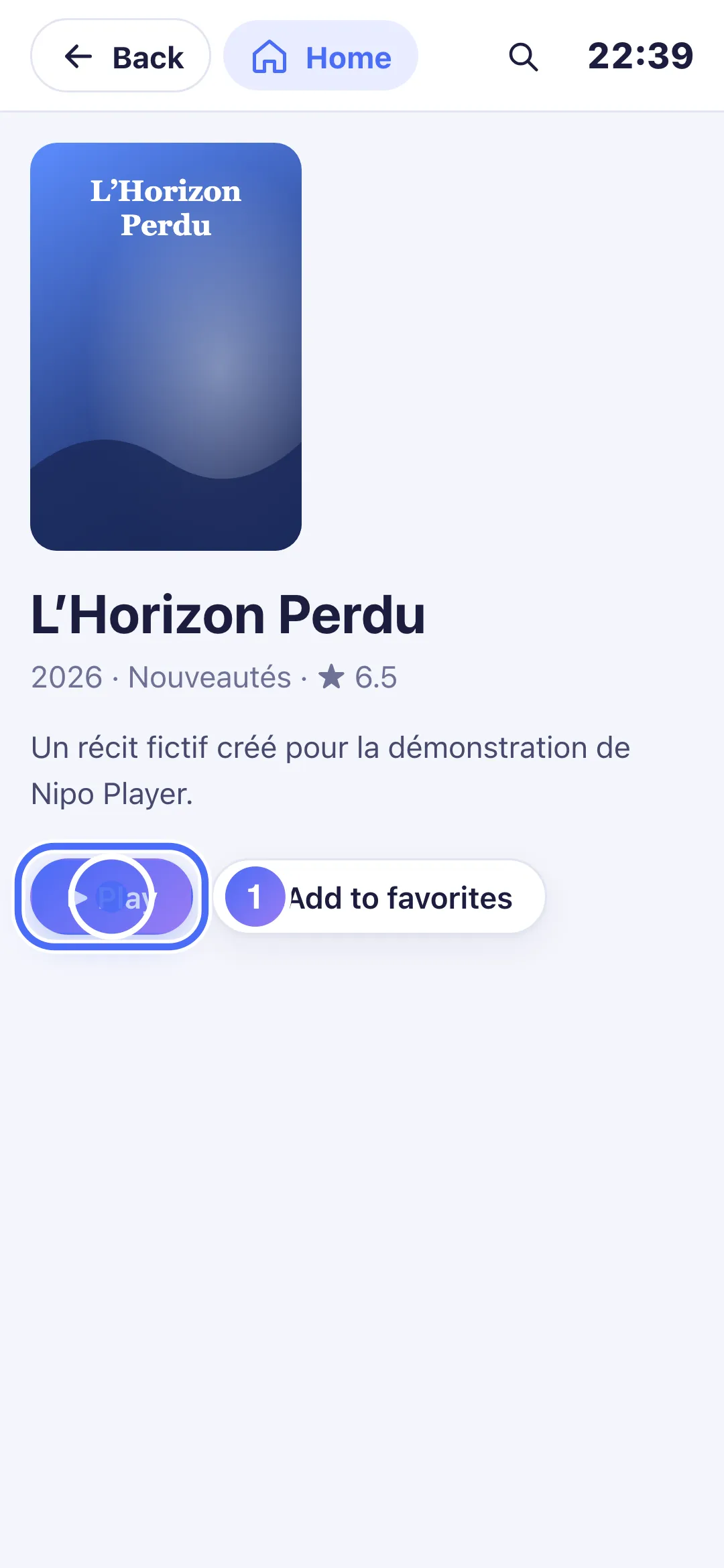
- 02
On Home, the “Continue watching” row keeps your movies and series in progress.
- 01
Open a movie or series and click “Play”.
- 02
On Home, the “Continue watching” row keeps your movies and series in progress.
Steps
- On Home, the Continue watching row lists your unfinished movies and episodes, most recent first.
- Open a title: the player offers Resume (at the exact position) or From start.
- For a series, the next episode is suggested automatically, with a cancellable 10-second countdown.
- A movie or episode watched past 90% (or with less than 30 seconds left) is marked Watched.
Tip
To remove a title from "Continue watching": on TV, press OK on the title in "Remove items" mode (button at the top of the row), then Back. On phone or tablet, just tap the title to remove it. This playback position stays on this device: it doesn't automatically carry over to another screen.
Updated on 29 September 2026
Did this article help you?
Can’t find the answer?
Write to us: we answer about the app and how it works. We can’t recommend a playlist.