
How do I set up and protect a kids profile?
The kids profile (Premium) is limited to the categories you allow; it never shows a locked or adult-rated category.
Nipo doesn’t provide, sell or host any channel, movie or playlist: it plays what you already own.
Premium feature (Nipo Premium or Family), already in the app. The kids profile is one profile among your "Who's watching?" profiles.
Step by step, with pictures
- 01
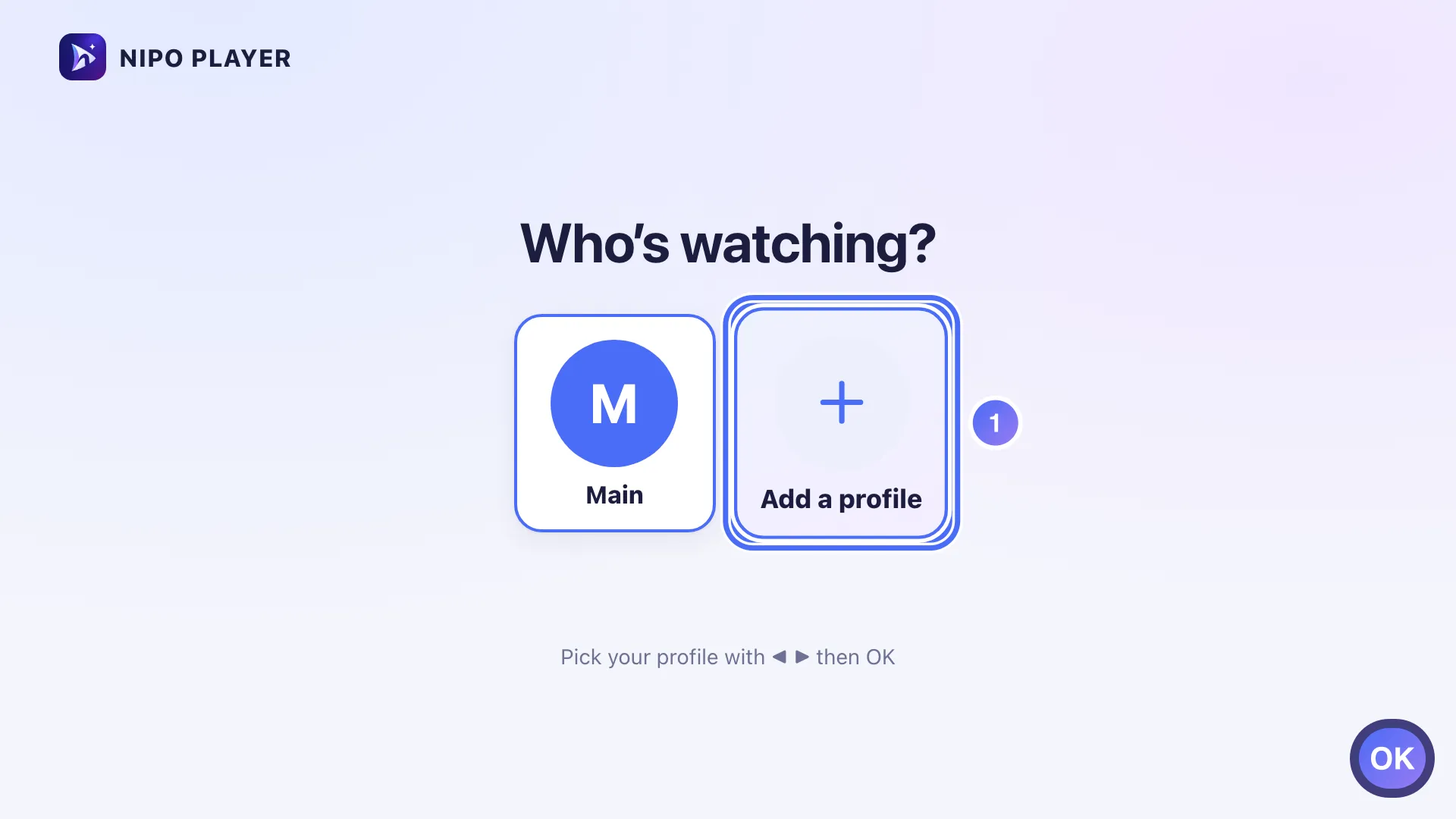
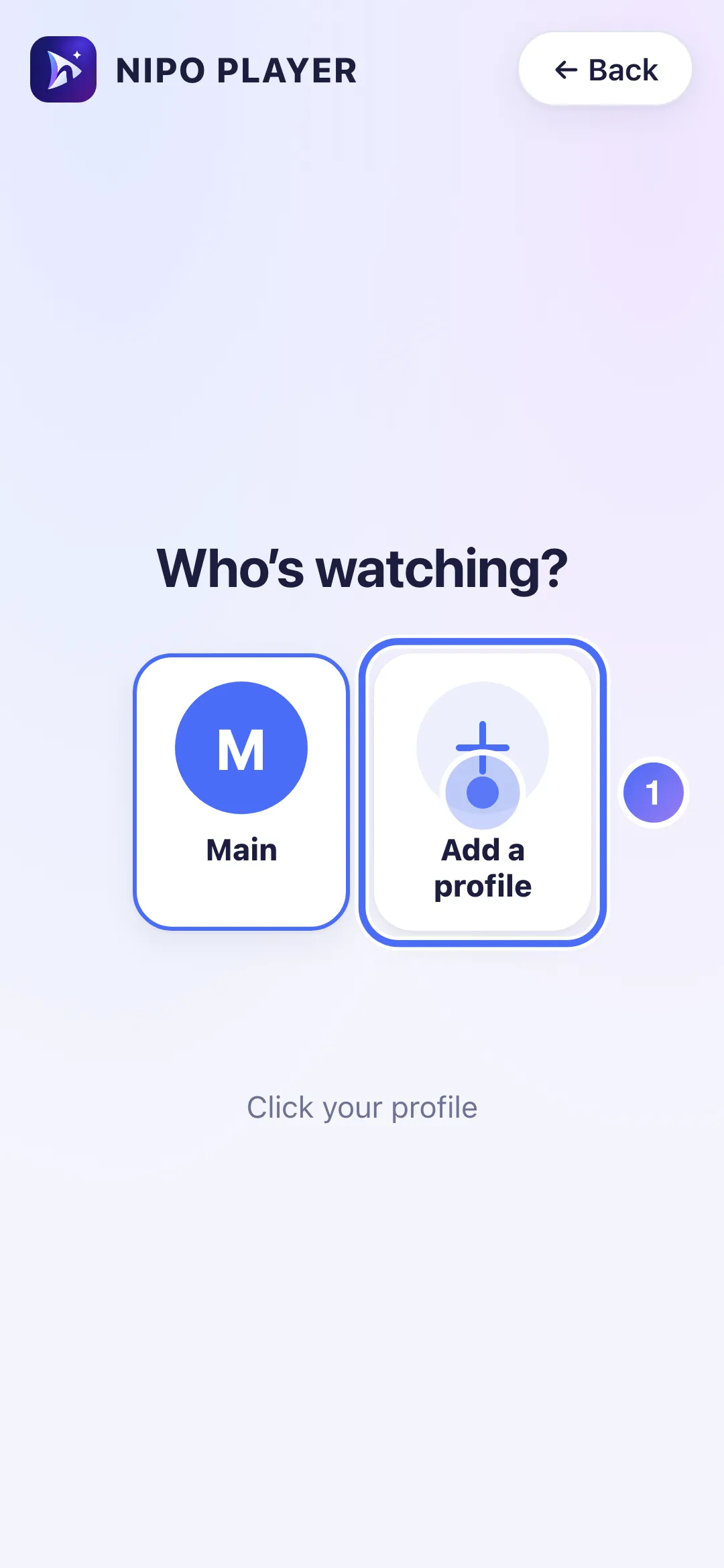
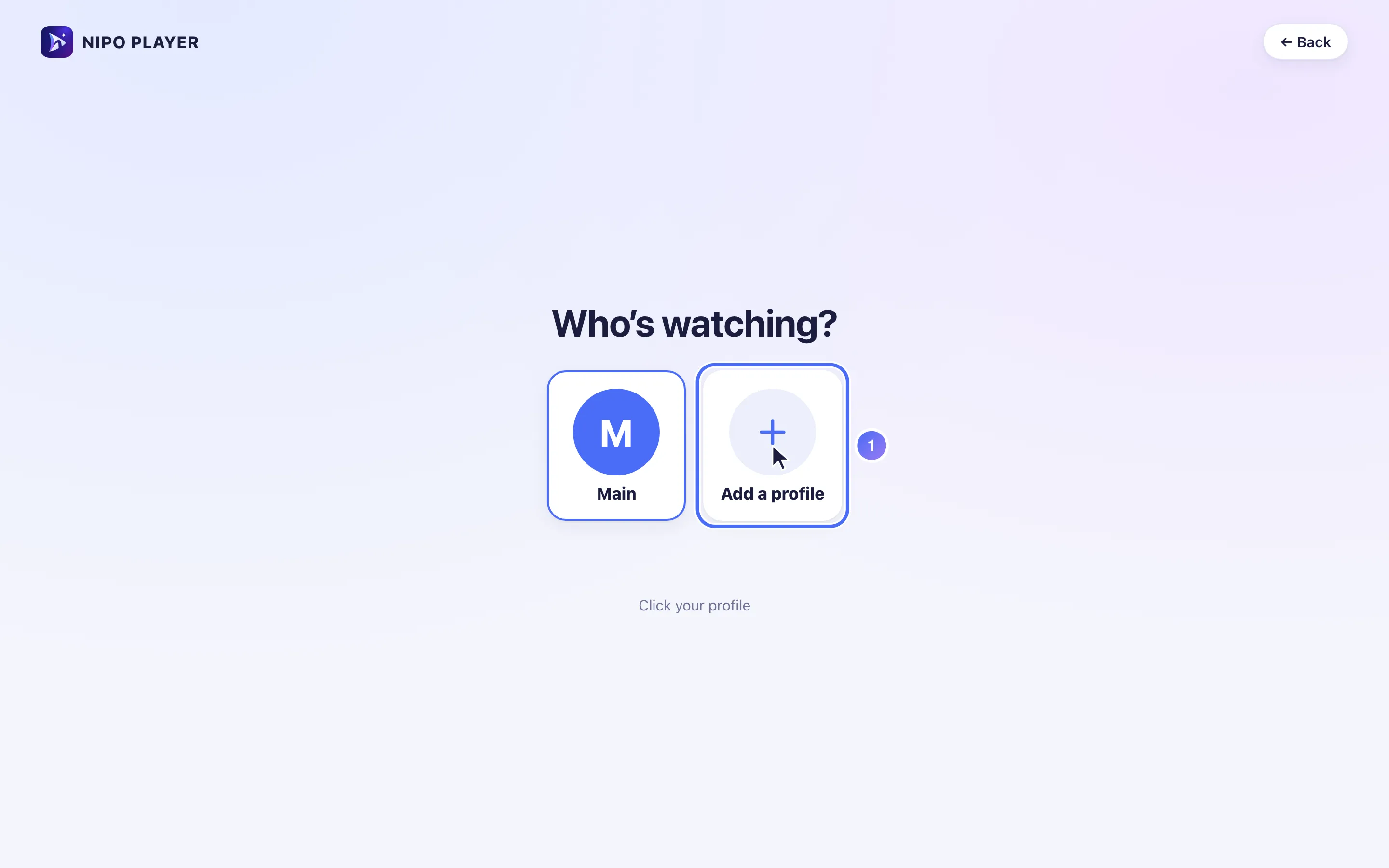
From Who’s watching?, tap Add a profile. Key OK
- 02
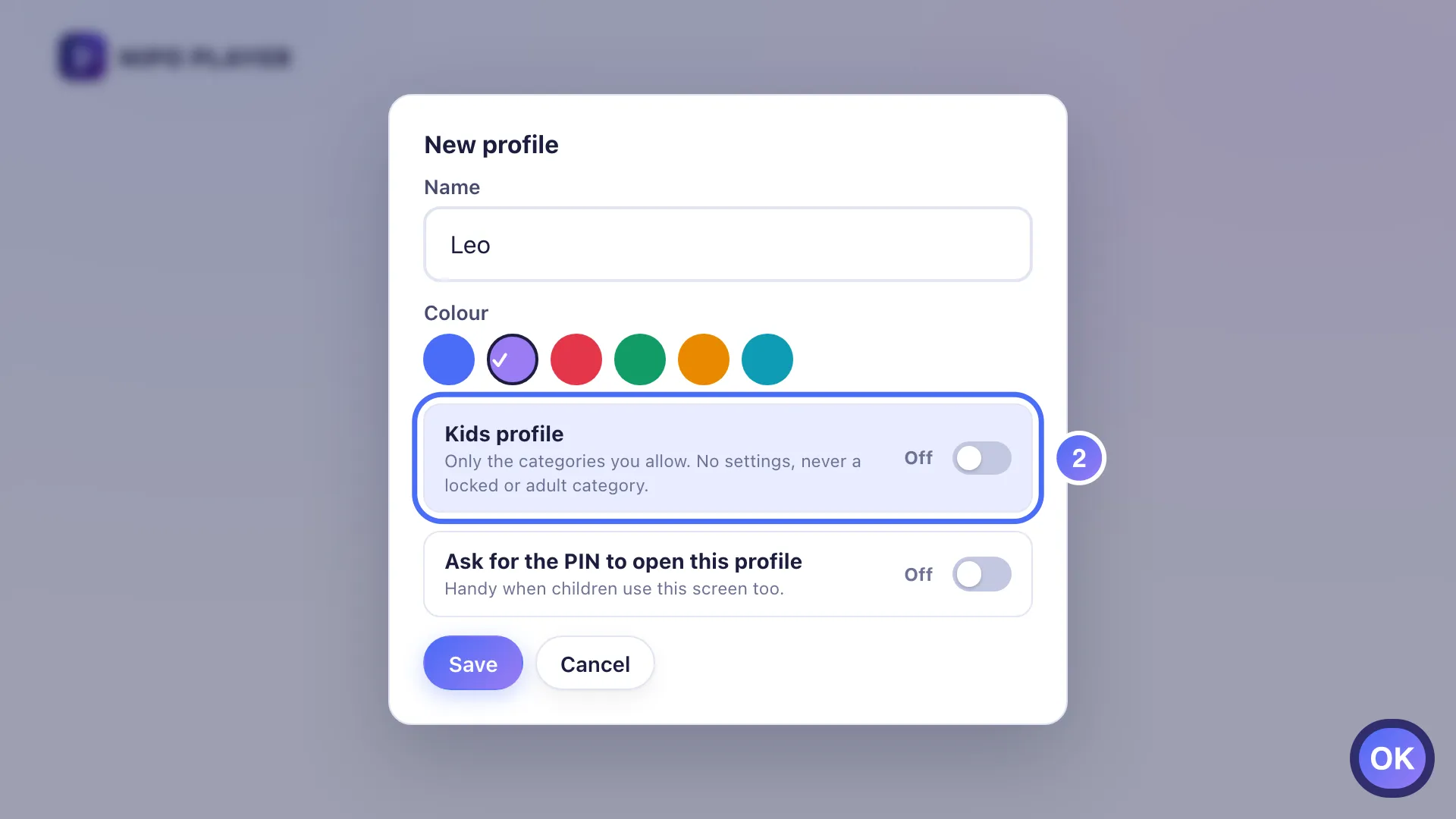
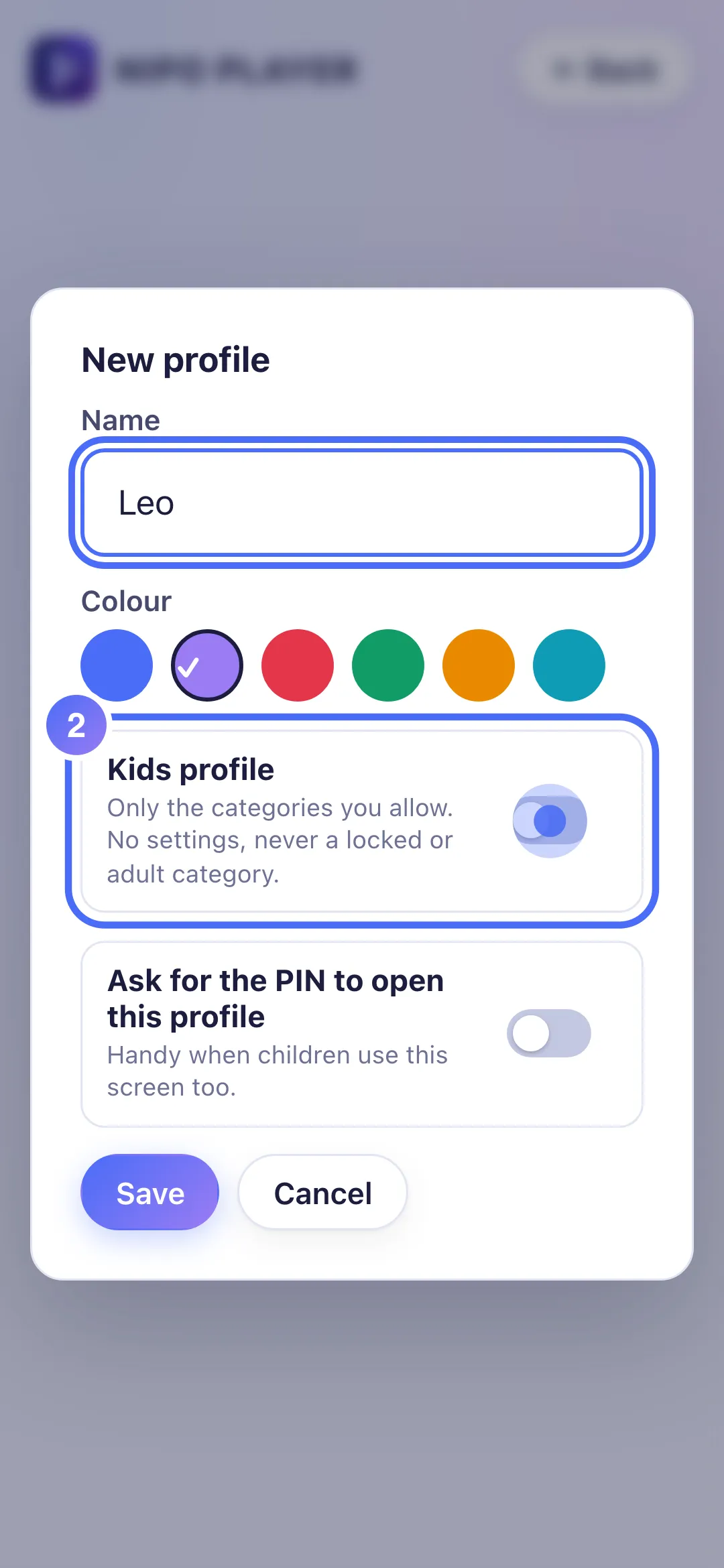
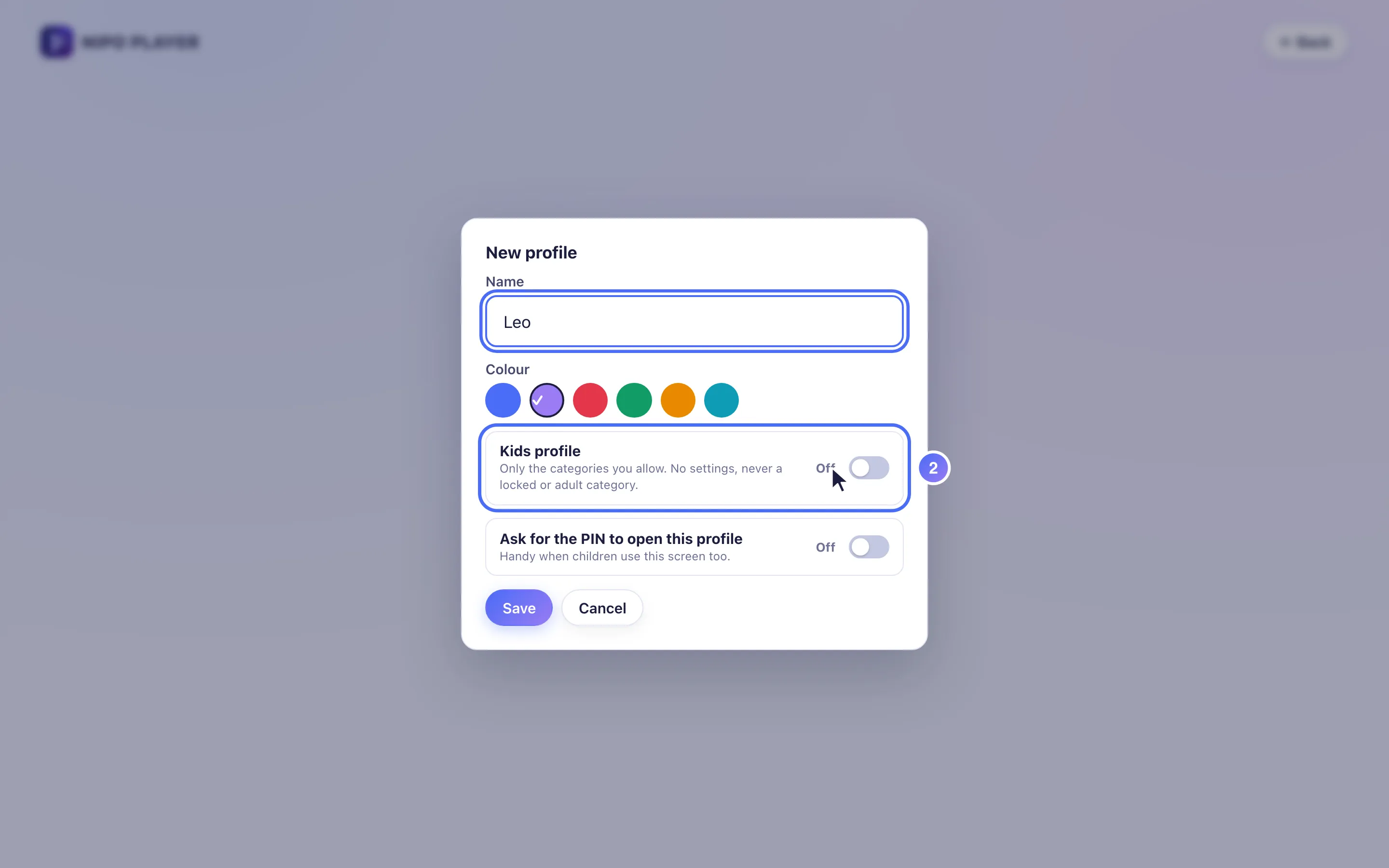
Give it a name and a colour, then turn on Kids profile. Key OK
- 03
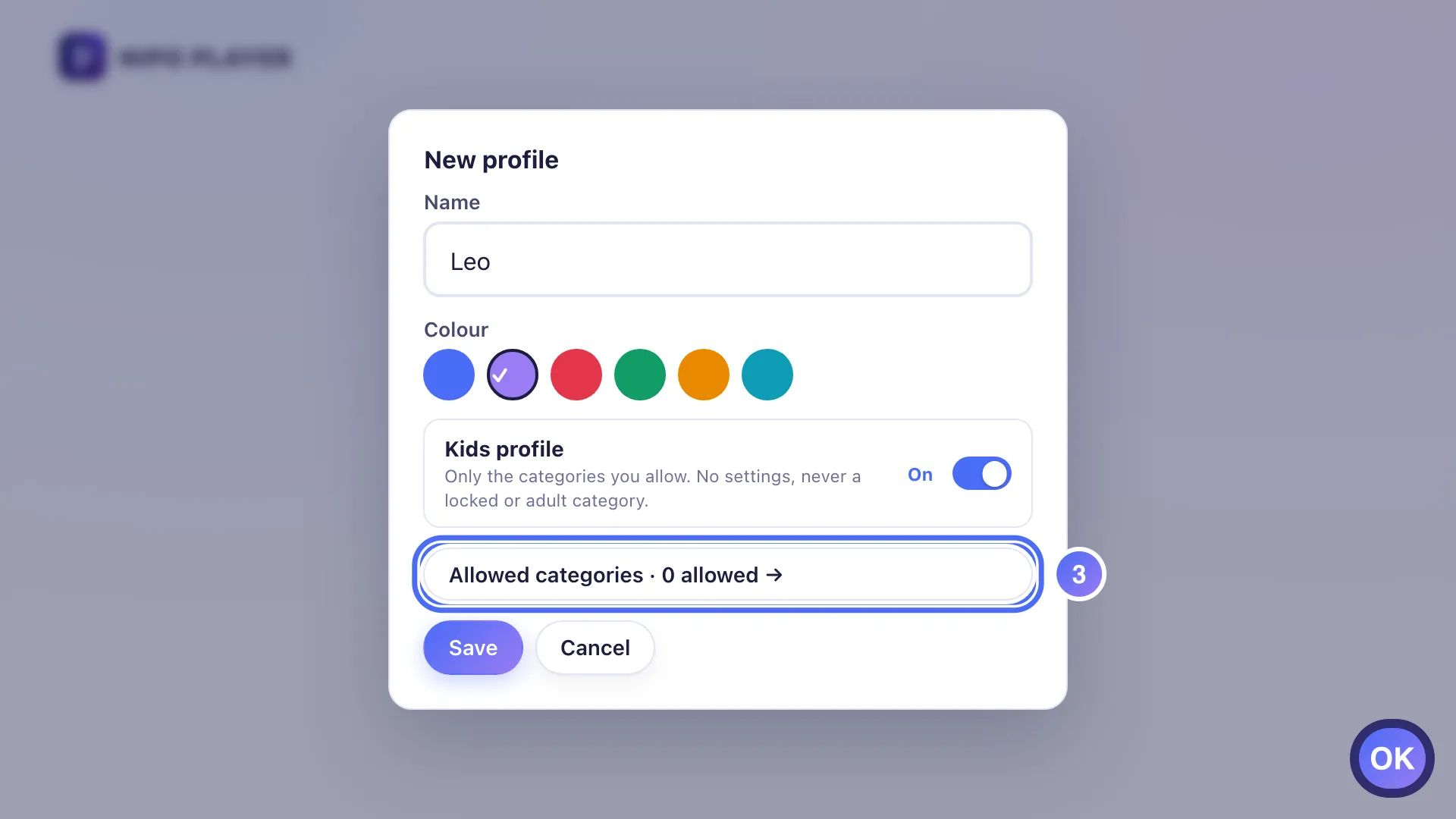
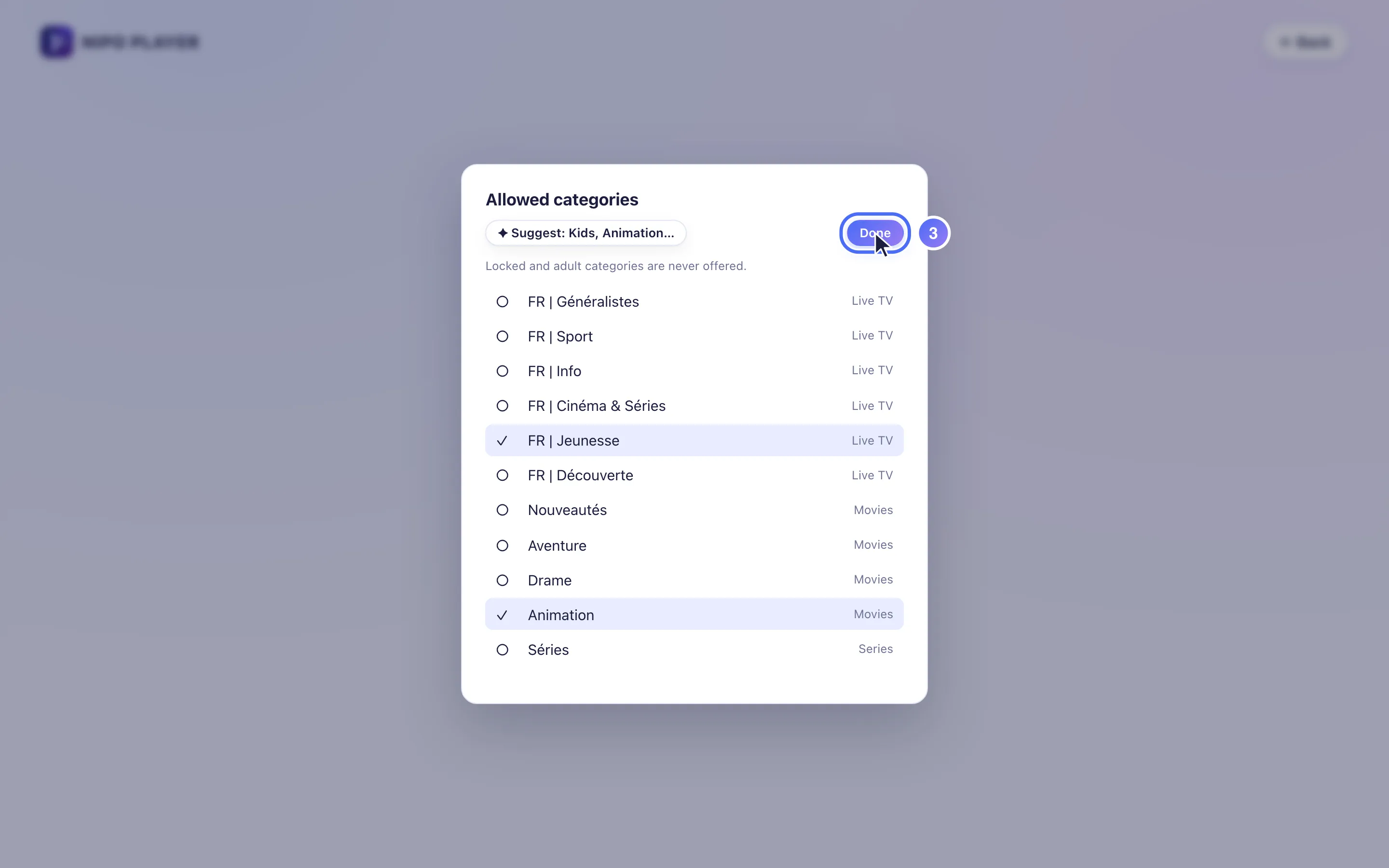
Open Allowed categories to choose what this profile can see. Key OK
- 04
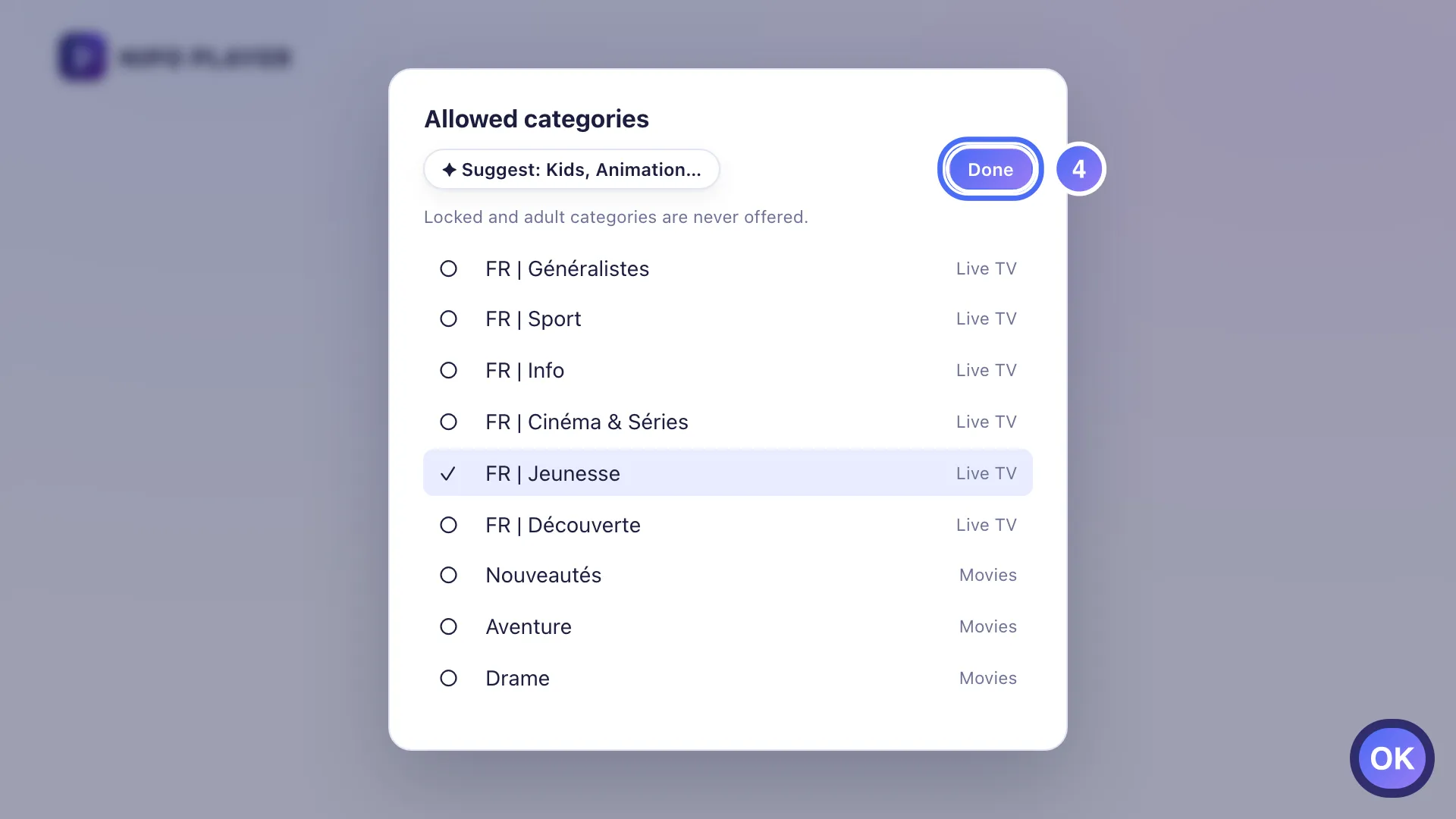
Choose the allowed categories (for example Kids, Youth) then confirm. Key OK
- 01
From Who’s watching?, tap Add a profile.
- 02
Give it a name and a colour, then turn on Kids profile.
- 01
From Who’s watching?, click Add a profile.
- 02
Give it a name and a colour, then turn on Kids profile.
- 03
Choose the allowed categories (for example Kids, Youth) then confirm.
How it works
- From Who's watching?, tap Add a profile, give it a name and a colour.
- In Allowed categories, choose the categories this profile can see (for example Kids, Cartoons, Animation): that's the only thing it will show.
- A locked or adult-rated category is never offered in a kids profile, whatever setting you choose.
- Turn on a profile PIN if you want one: it will be asked when leaving the kids profile for another one.
Tip
If the playlist hasn't finished loading its categories yet, the kids profile shows "Nothing to watch yet": open the playlist normally once, then come back to set the allowed categories. The free parental PIN control (no Premium needed) stays available on top of this, to lock categories for everyone rather than per profile.
Updated on 29 September 2026
Did this article help you?
Can’t find the answer?
Write to us: we answer about the app and how it works. We can’t recommend a playlist.