
How do I switch playlists in my M3U player?
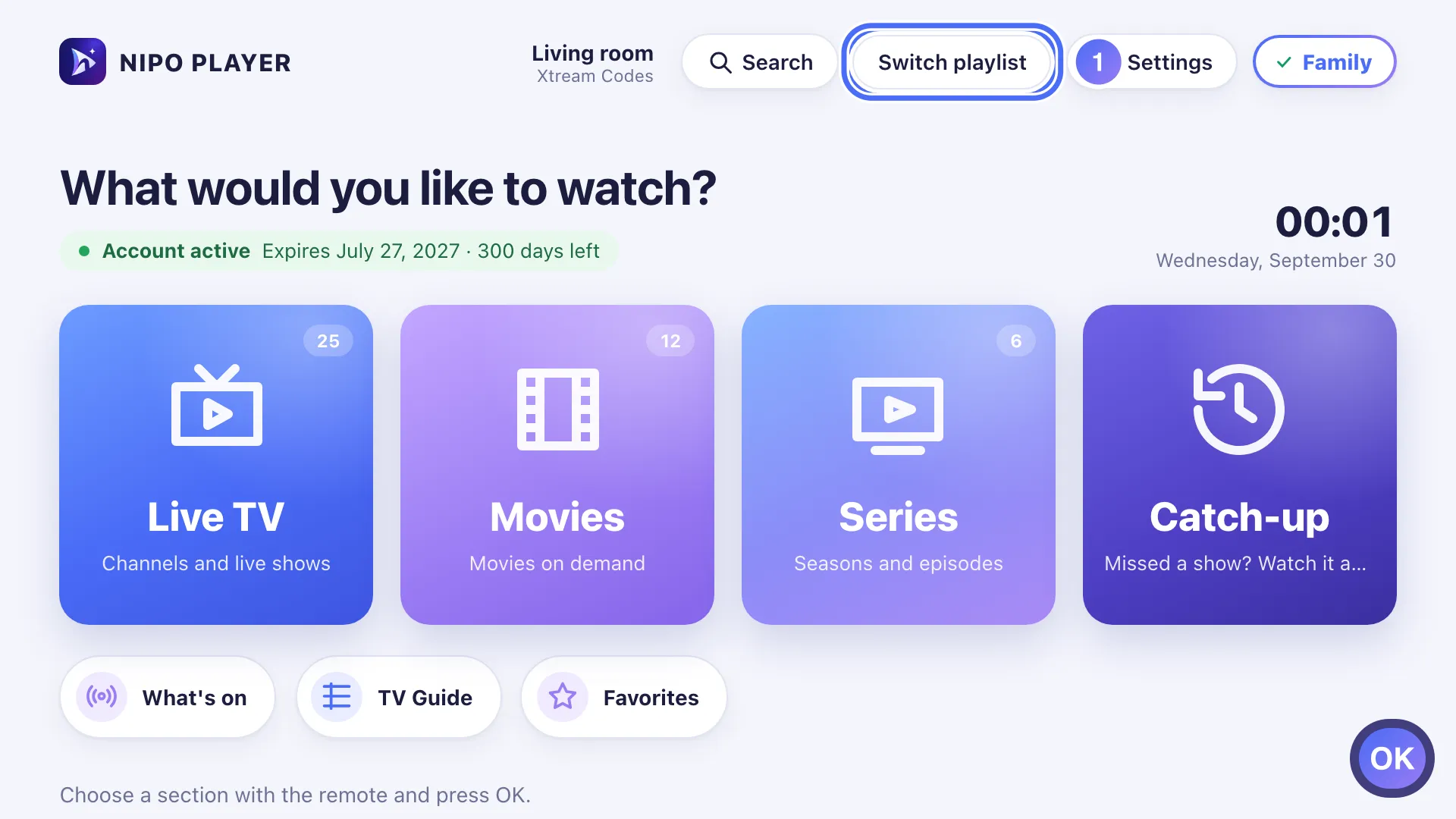
Tap "Switch playlist" on Home, then pick another playlist from the list: Nipo Player switches to it right away.
Nipo doesn’t provide, sell or host any channel, movie or playlist: it plays what you already own.
The Switch playlist button, at the top of Home, lists every playlist added to Nipo Player and switches to another one in one tap.
Step by step, with pictures
- 01
From Home, go to Switch playlist and press OK. Key OK
- 02
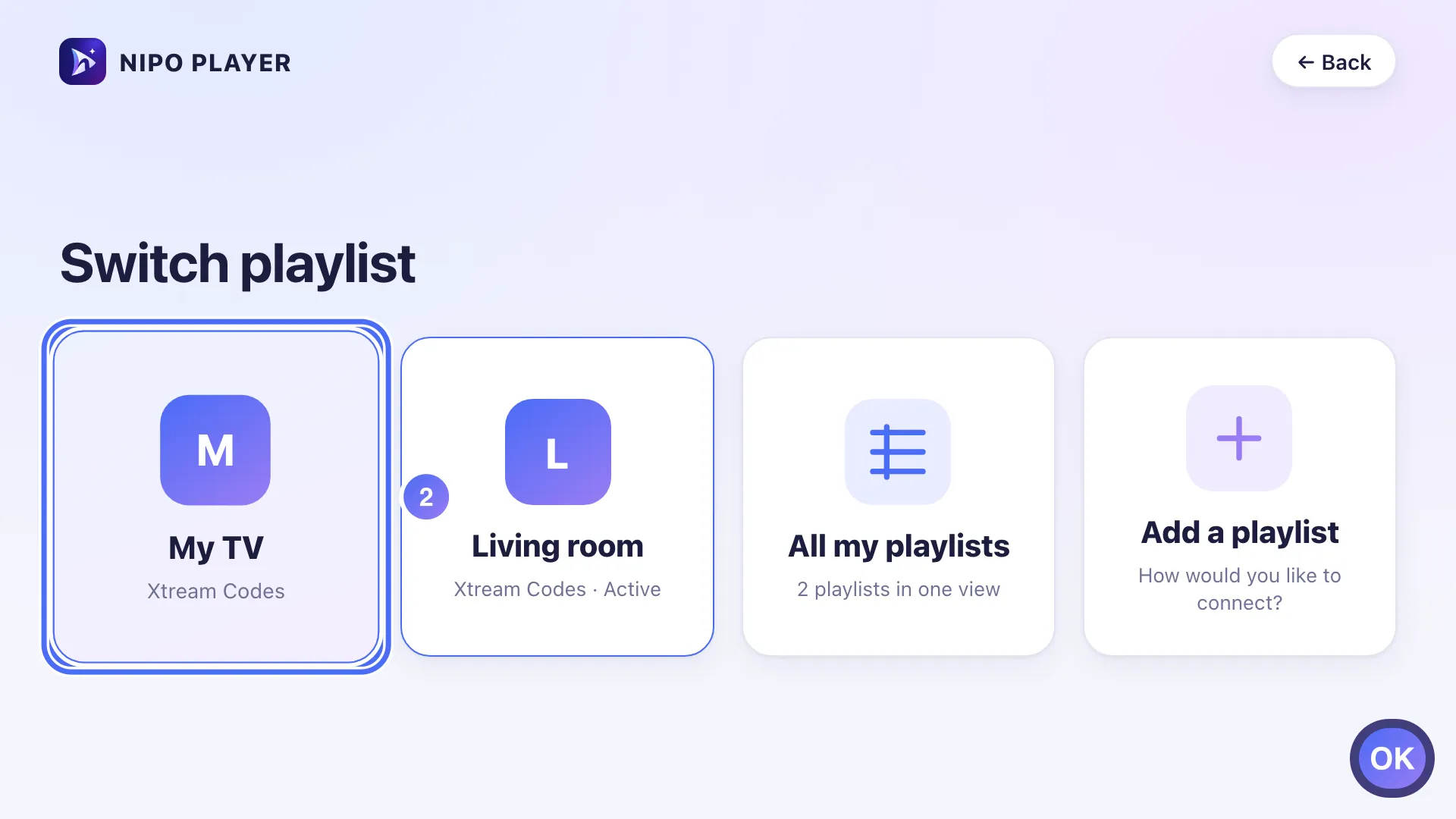
Choose another playlist from the list and press OK. Key OK
- 03
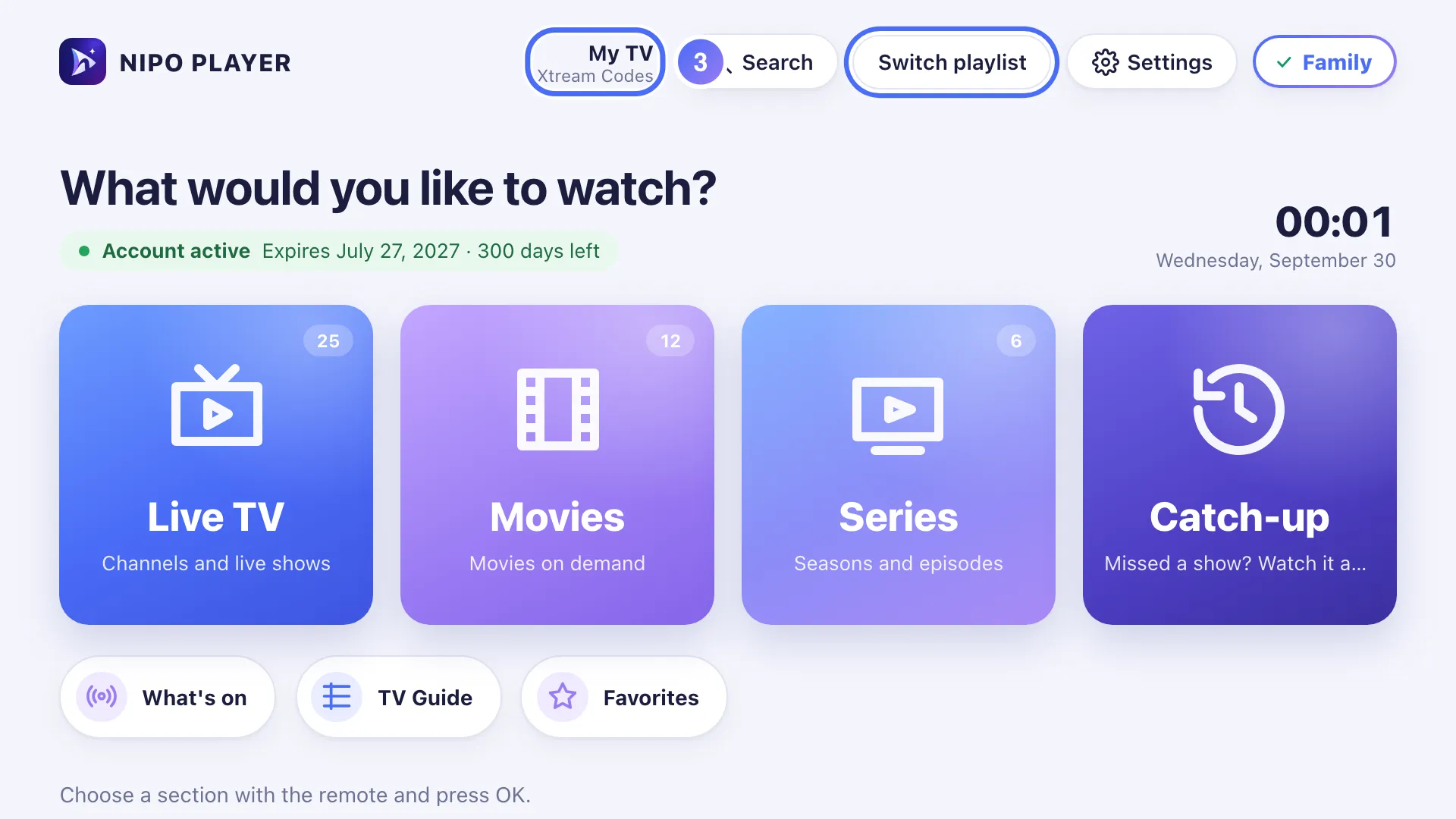
Nipo Player switches to it right away and returns to Home: an Active tag marks it.
- 01
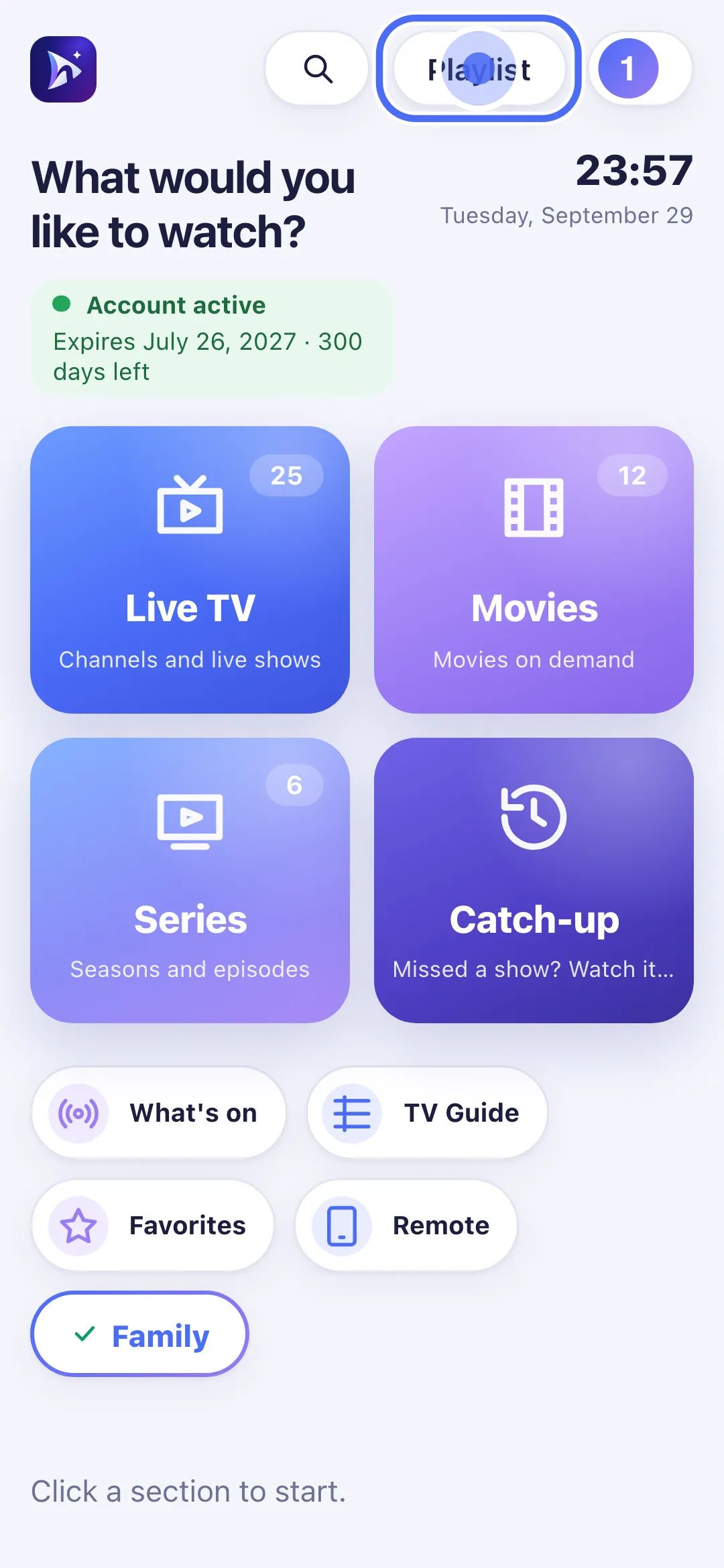
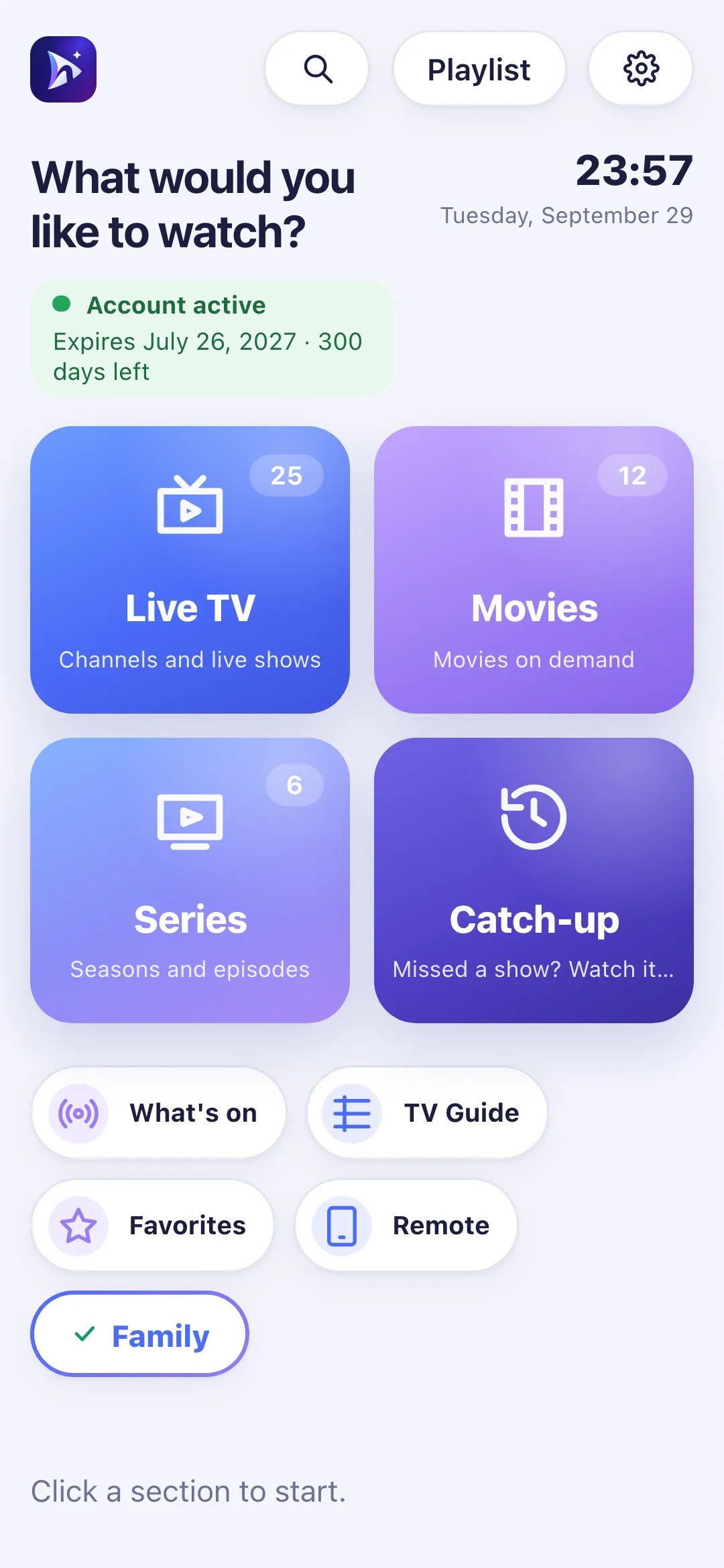
On Home, tap the playlist button (top, next to the name).
- 02
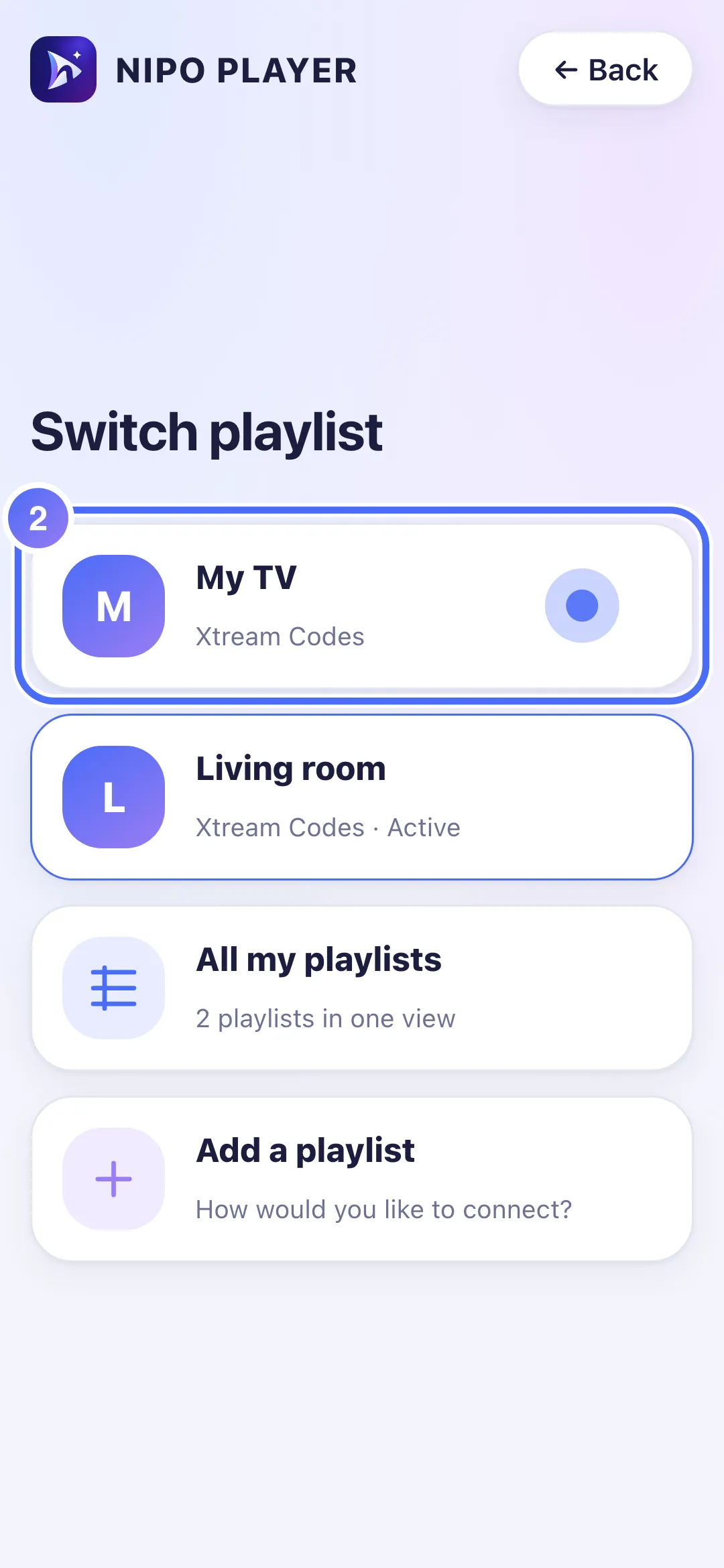
Tap another playlist from the list.
- 03
Nipo Player switches to it right away and returns to Home.
- 01
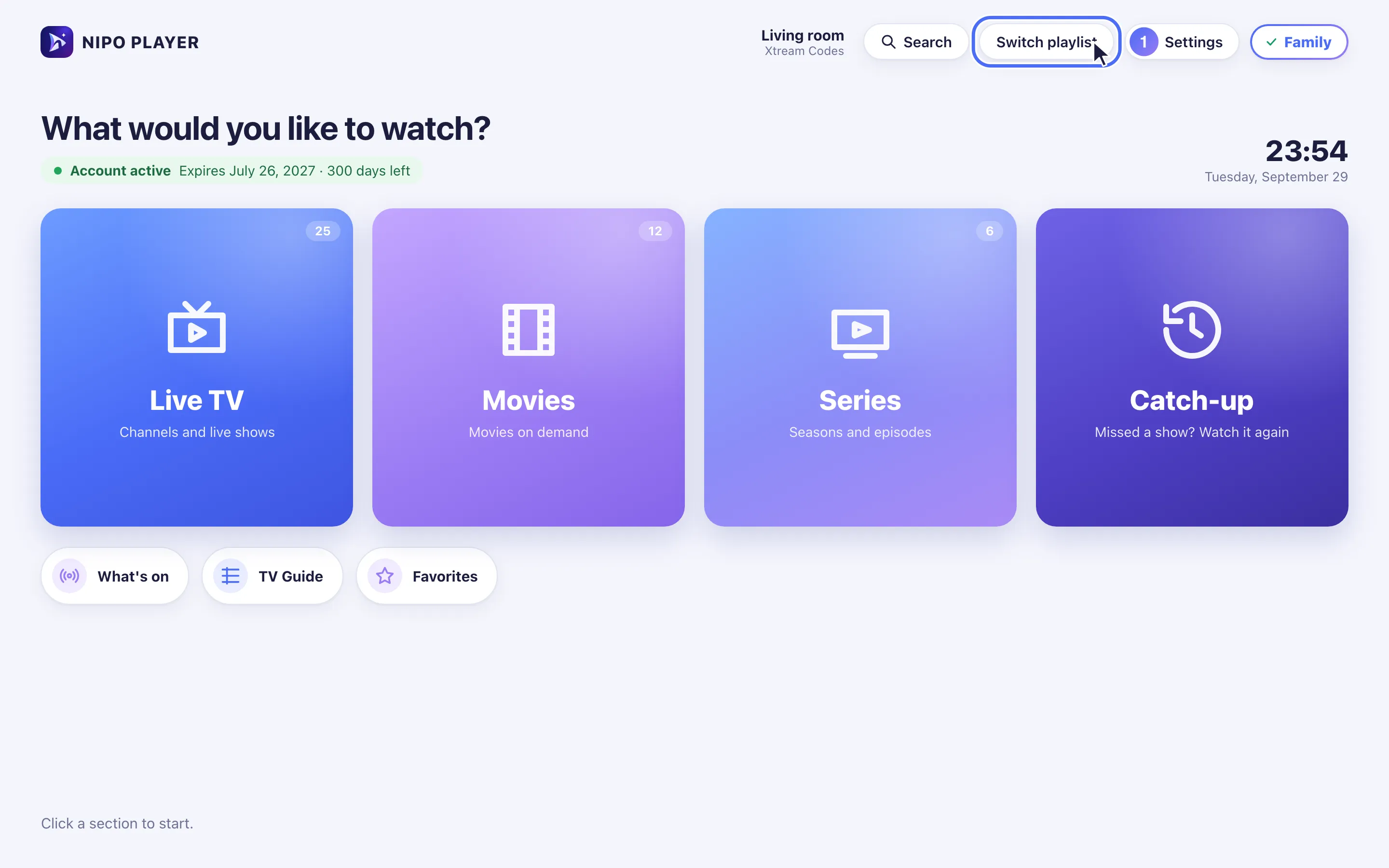
On Home, click Switch playlist (next to the active playlist’s name).
- 02
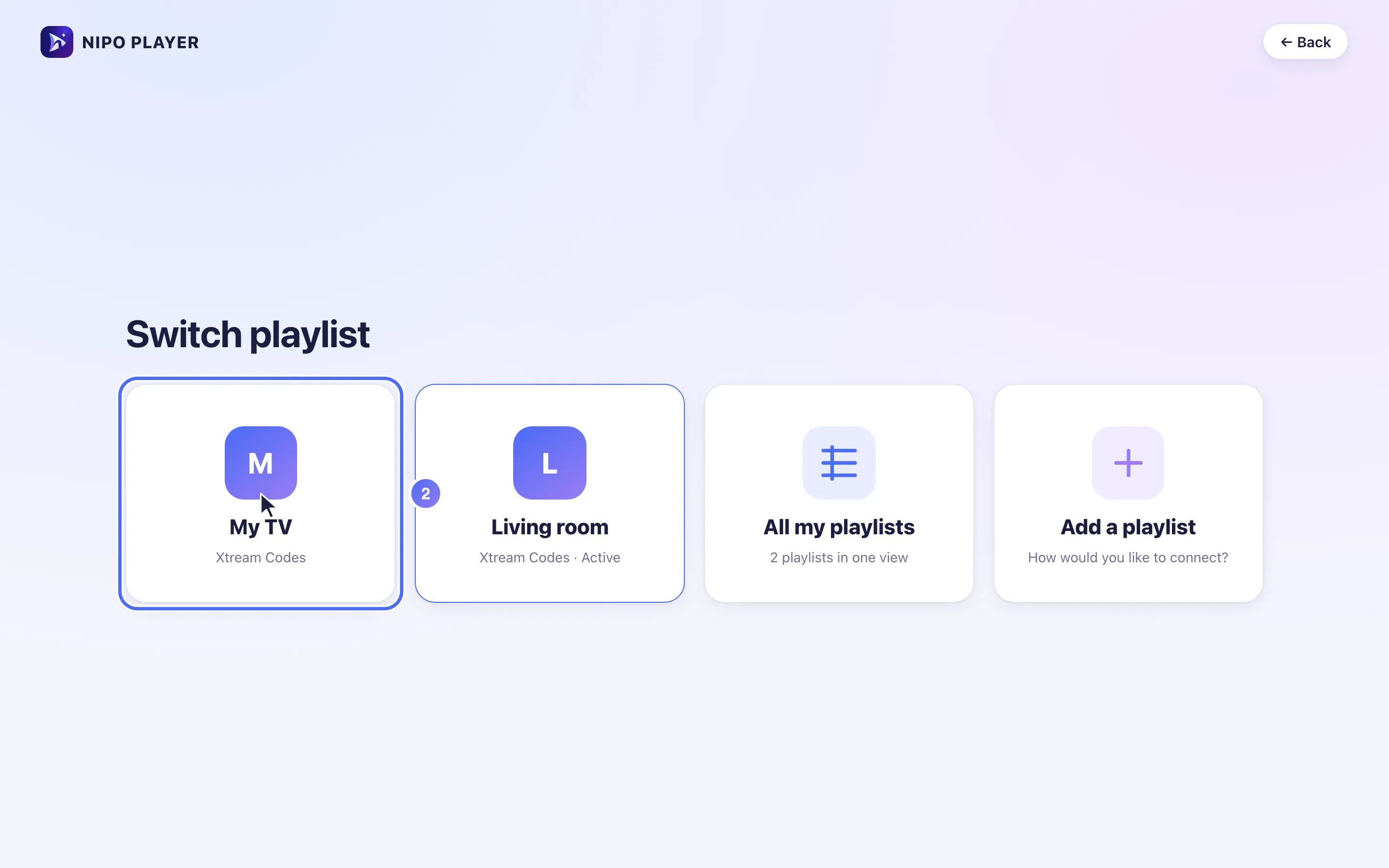
Choose another playlist from the list.
- 03
Nipo Player switches to it right away and returns to Home.
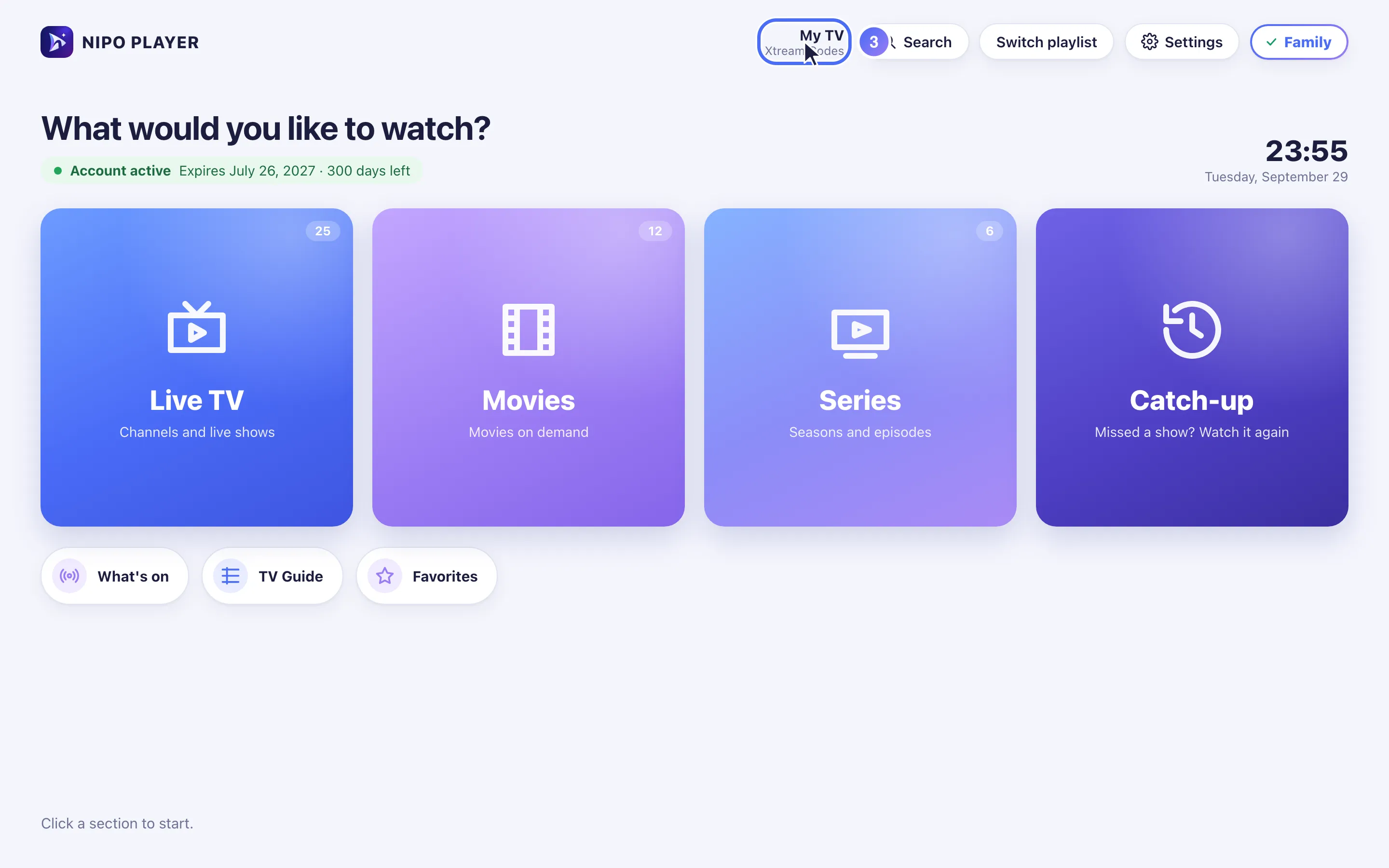
Steps
- On Home, tap Switch playlist (next to the active playlist's name).
- Choose a playlist from the list: Nipo Player switches to it right away and returns to Home.
- An Active tag marks the playlist currently in use.
- Tap Add a playlist to connect a new one (QR code, M3U link, or server/username/password).
Tip
On the free plan, only one playlist can be added: tapping Add a playlist a second time opens the Premium screen instead of the form. With Premium, playlists are unlimited and can even be combined into one view: see All my playlists.
Updated on 29 September 2026
Did this article help you?
Can’t find the answer?
Write to us: we answer about the app and how it works. We can’t recommend a playlist.