
How do I combine all my playlists into one view?
"All my playlists" (Premium) combines channels, movies and series from several playlists, with your groups and order, duplicates merged.
Nipo doesn’t provide, sell or host any channel, movie or playlist: it plays what you already own.
Premium feature (Nipo Premium or Family), already in the app. Needs at least 2 playlists added.
Step by step, with pictures
- 01
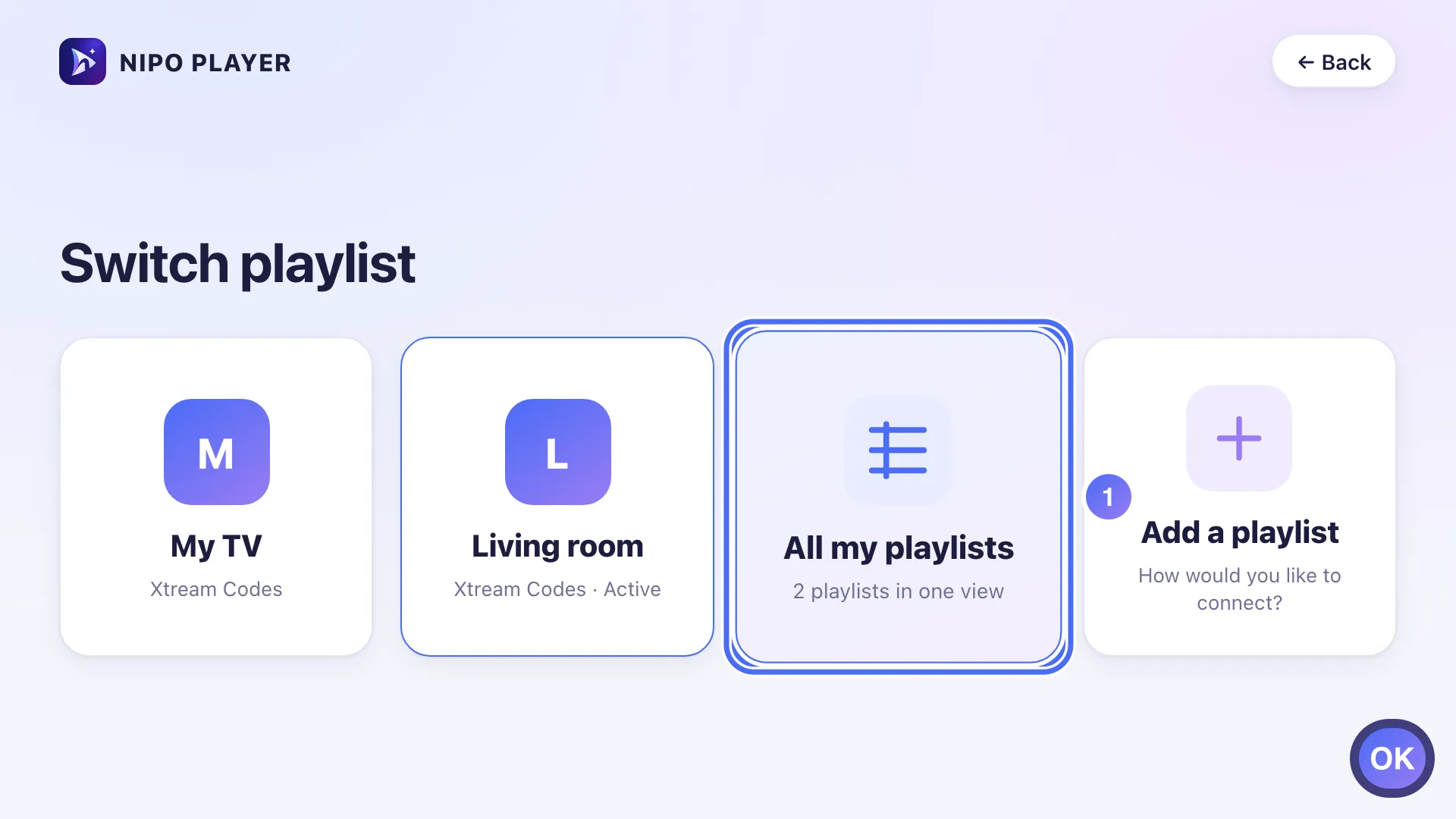
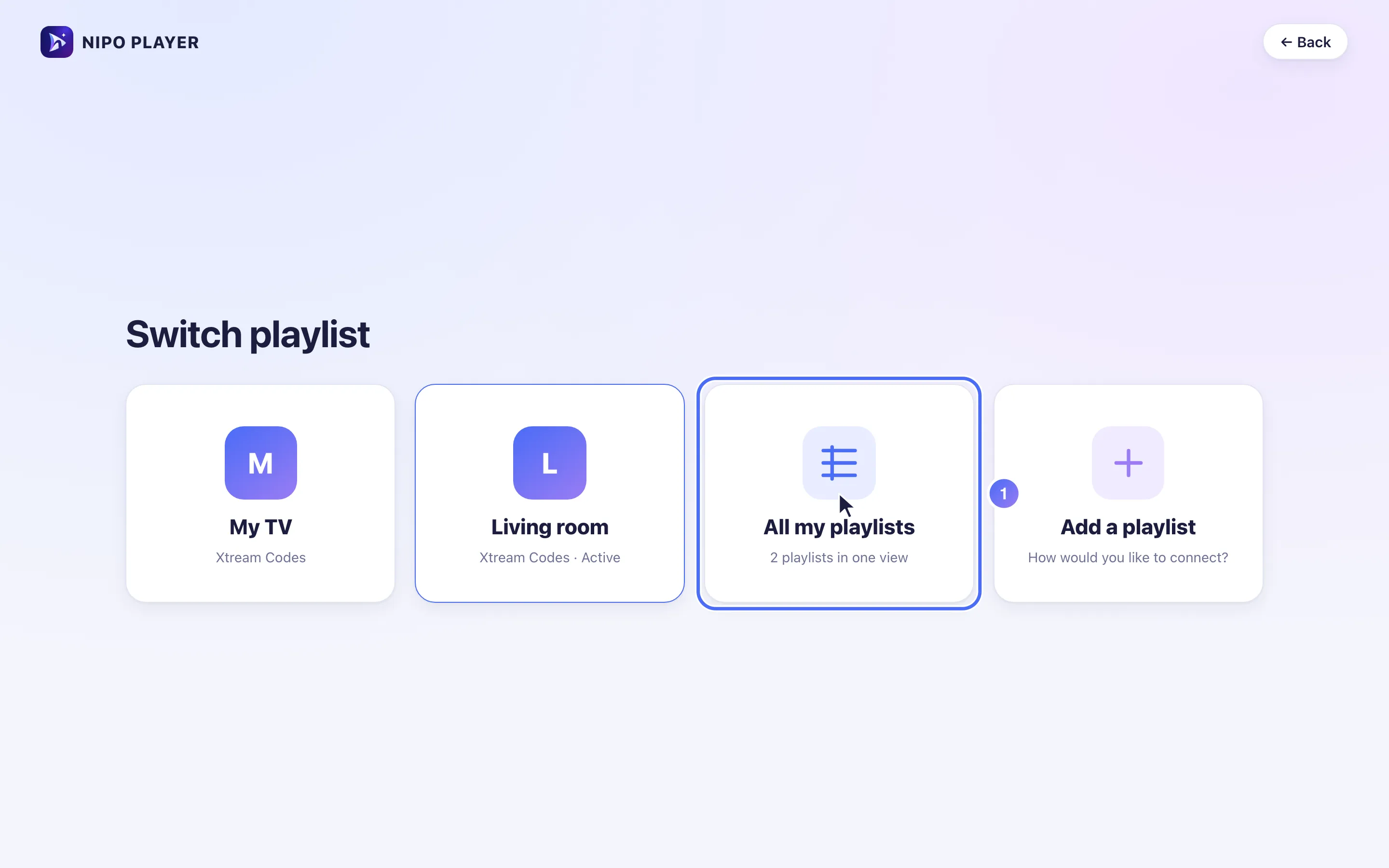
From Switch playlist, once 2 playlists are added, choose the All my playlists tile. Key OK
- 02
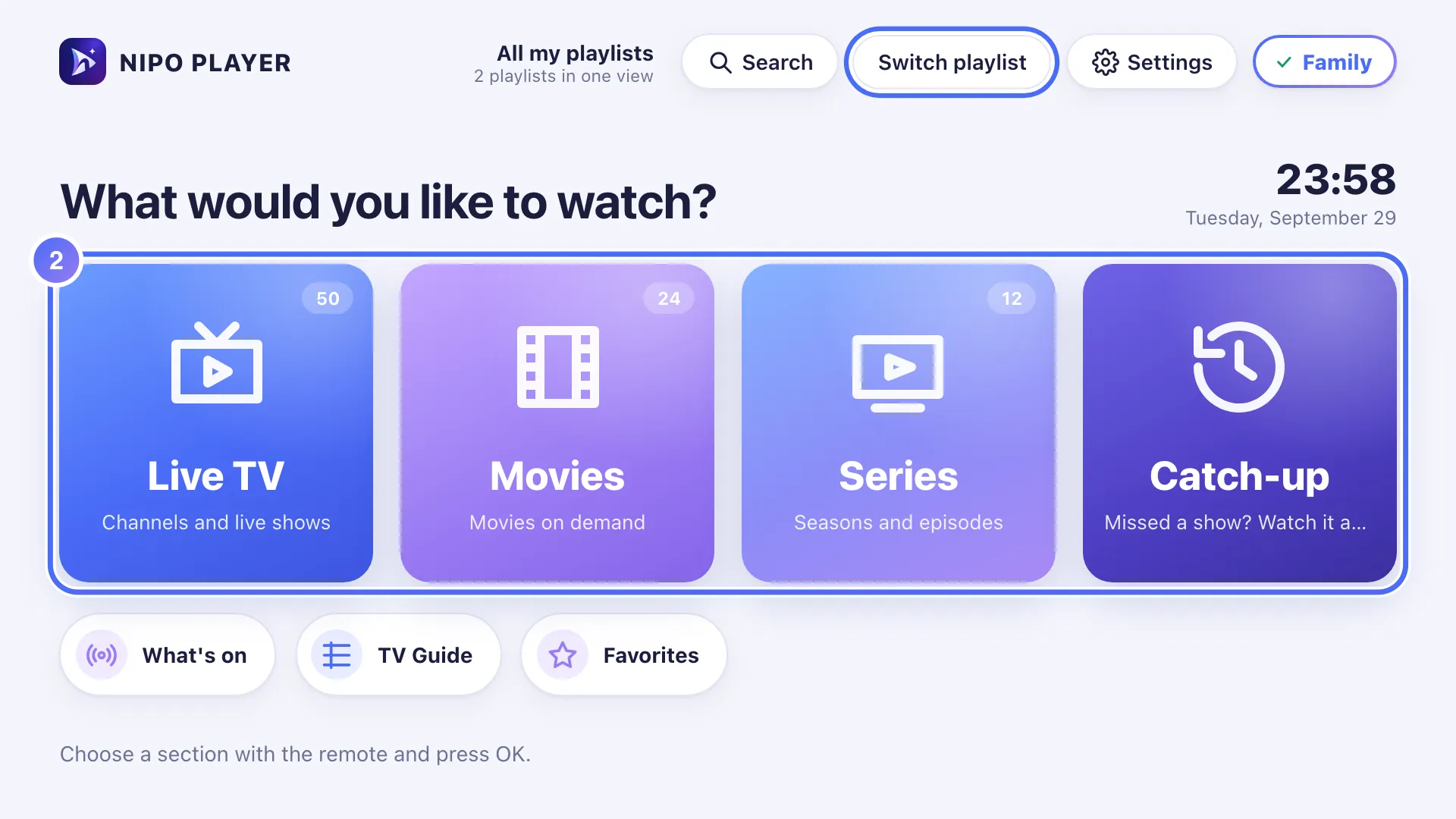
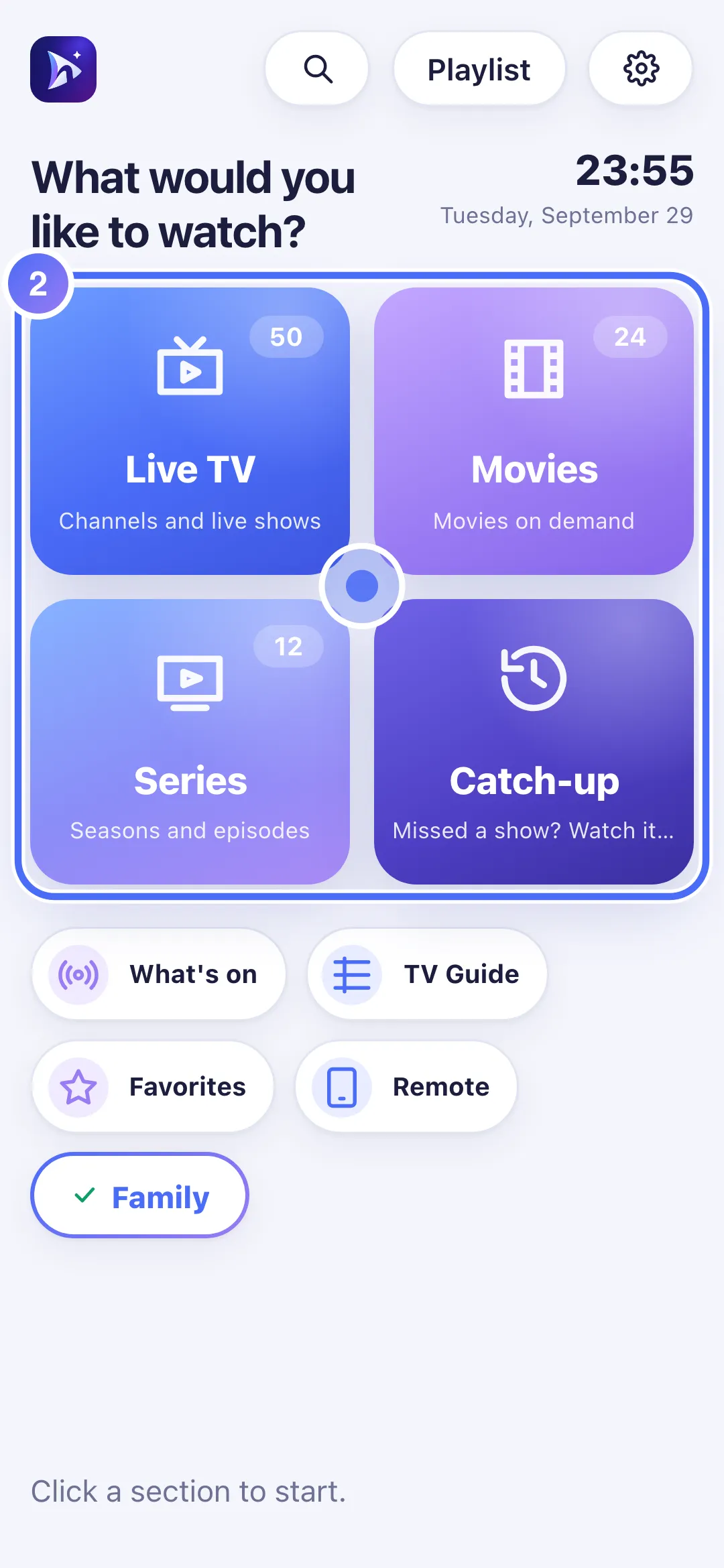
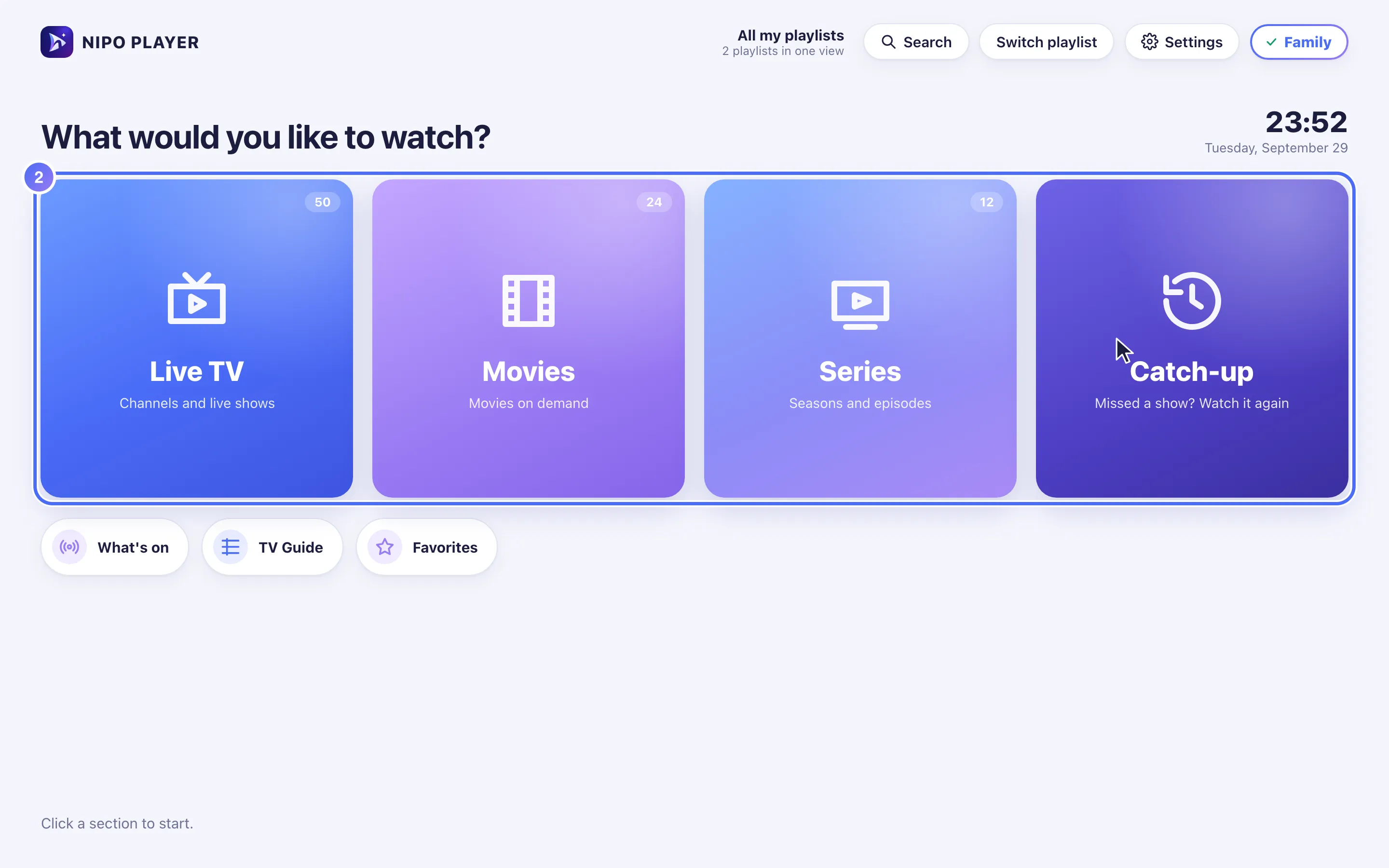
Channels, movies and series from every playlist show up in one list.
- 03
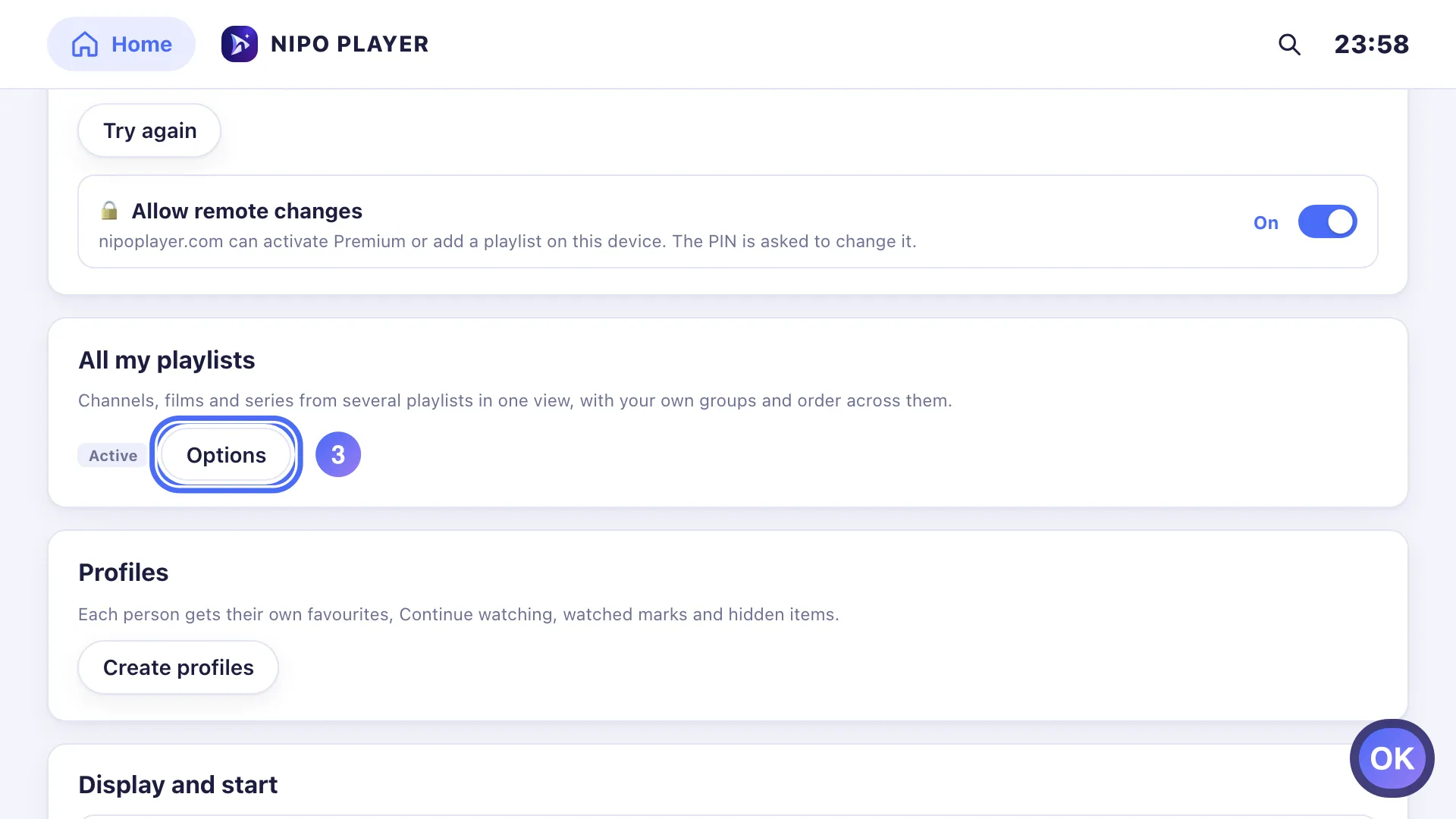
In Settings, open All my playlists → Options for Merge duplicates. Key OK
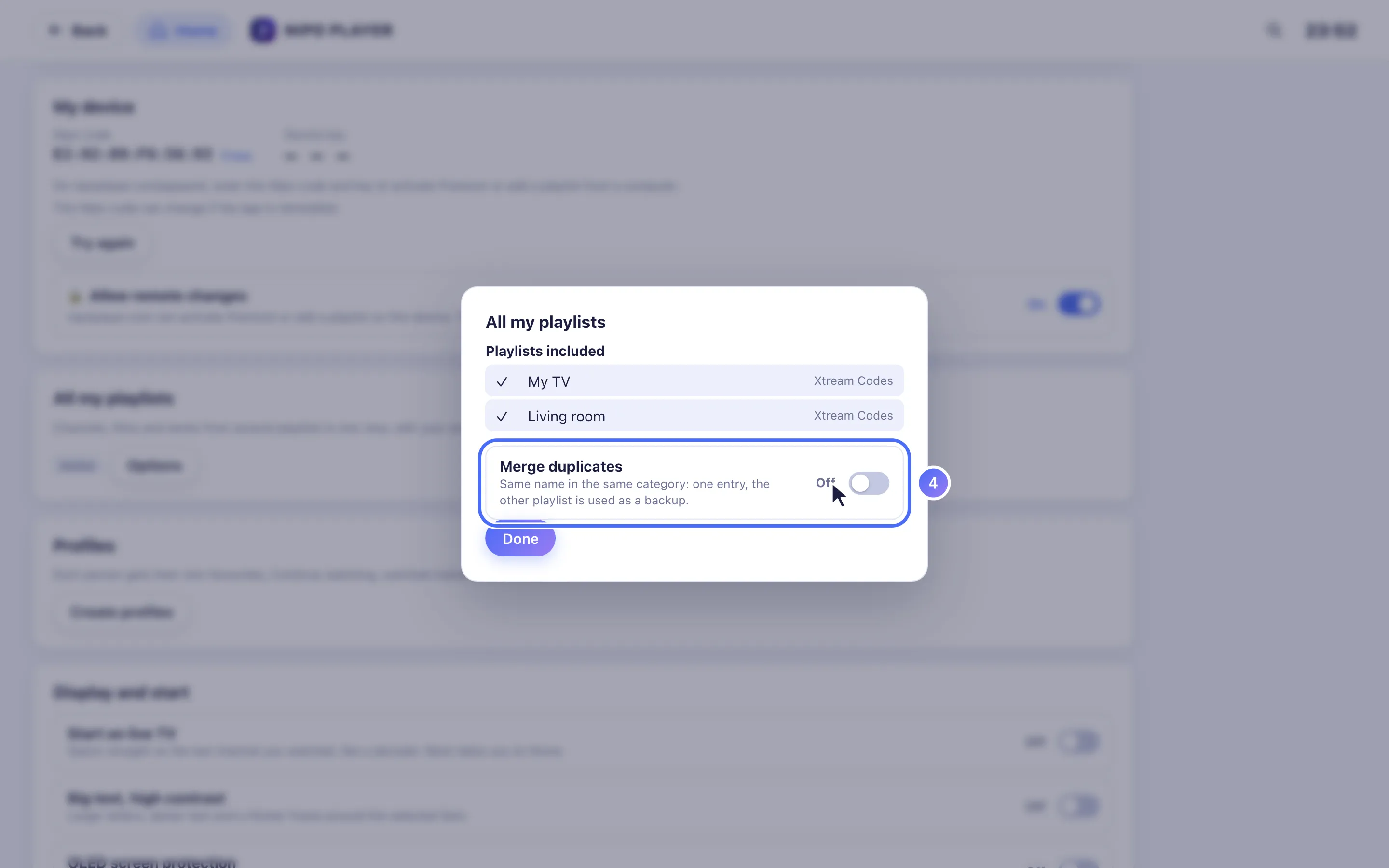
- 04
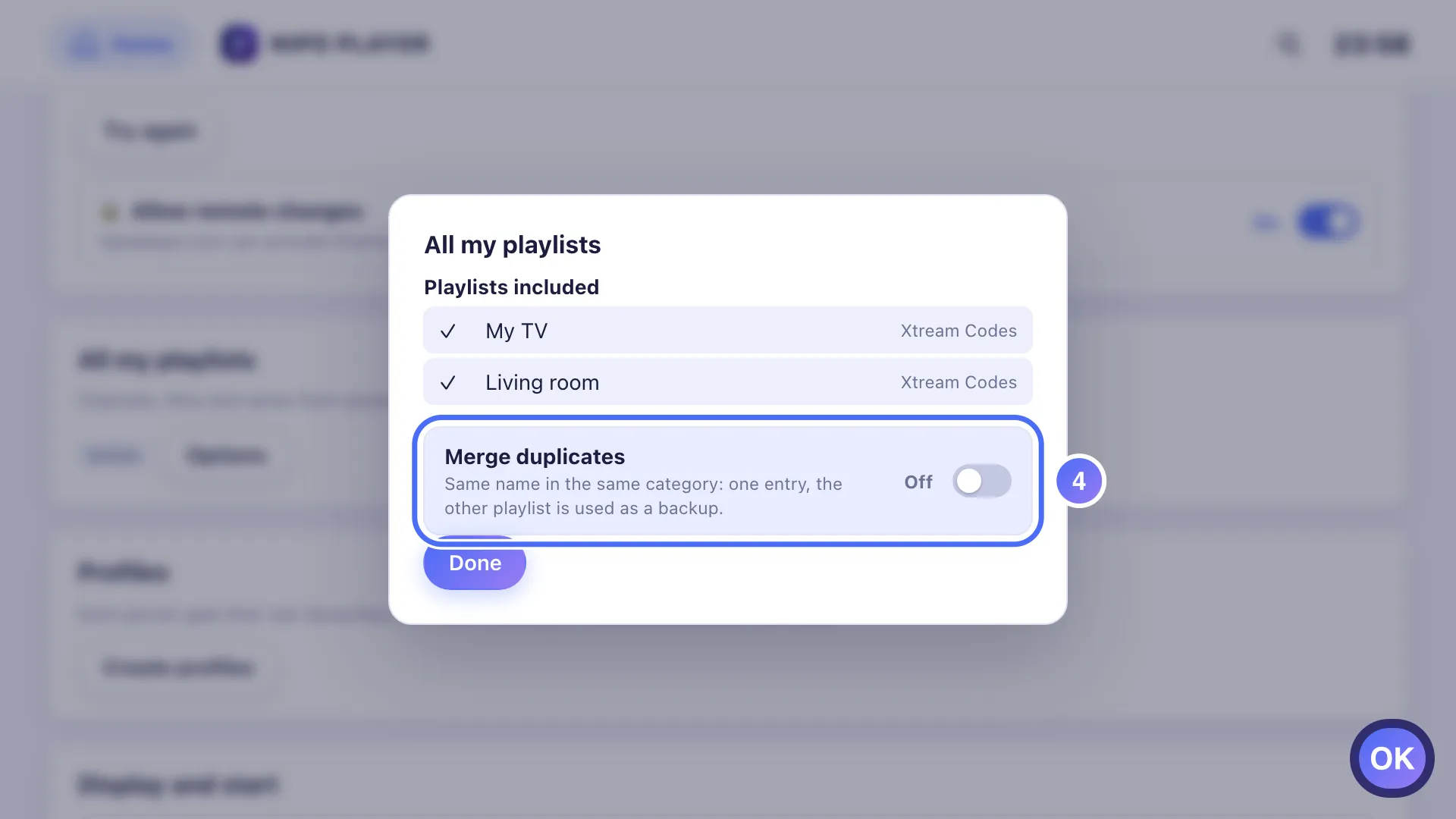
Merge duplicates combines the same channel found in several playlists. Key OK
- 01
Once 2 or more playlists are added, the All my playlists tile appears.
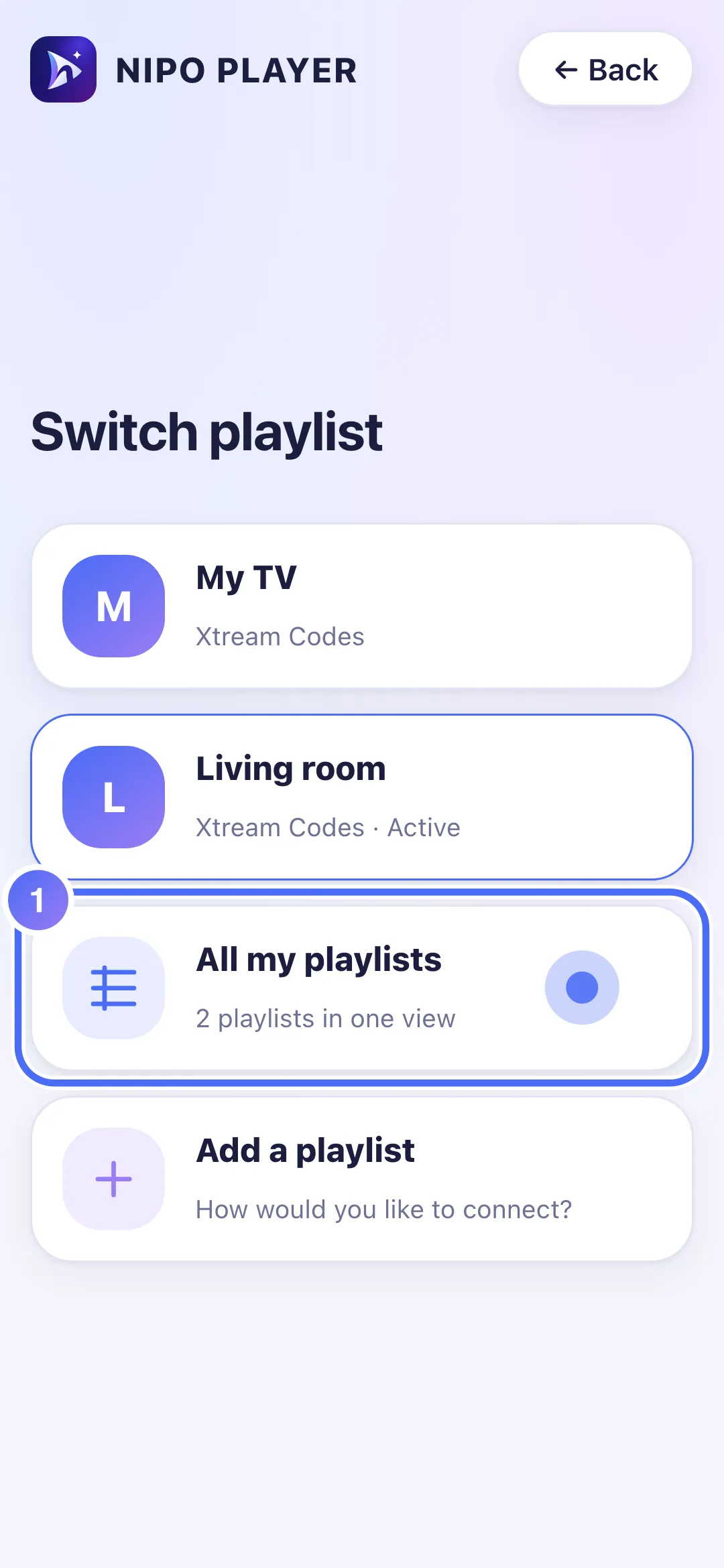
- 02
Channels, movies and series from every playlist show up in one list.
- 01
Once 2 or more playlists are added, the All my playlists tile appears.
- 02
Channels, movies and series from every playlist show up in one list.
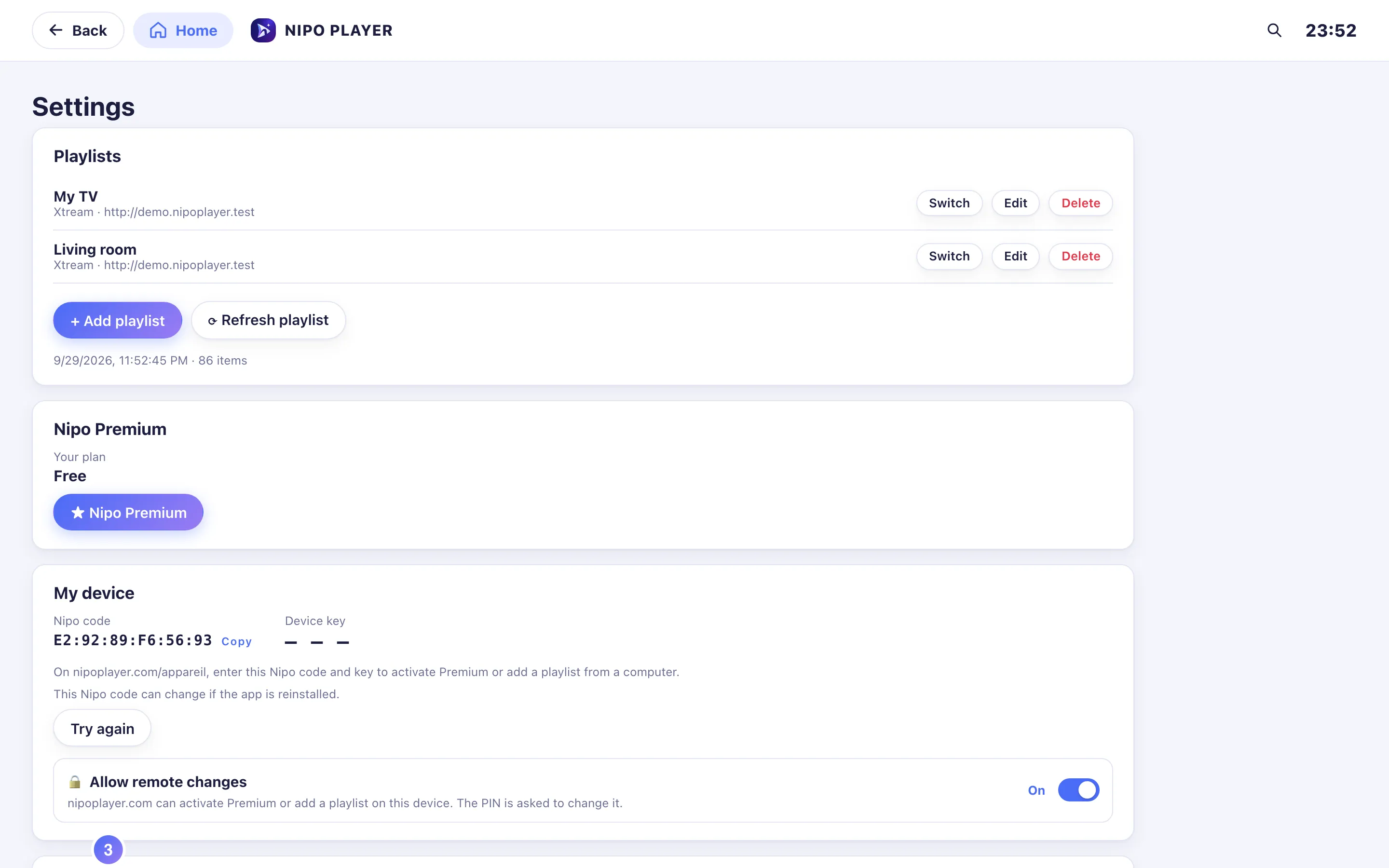
- 03
In Settings, open All my playlists → Options.
- 04
Merge duplicates combines the same channel found in several playlists.
How it works
- From Switch playlist, once 2 or more playlists are added, the All my playlists tile appears.
- It shows the channels, movies and series of every playlist in one list, with your channel groups and order applied across all of them.
- In this view's options, Merge duplicates combines the same channel found in several playlists (same name, same category): one entry is shown, the other playlist is used as a backup if the first one doesn't respond.
- You can switch back to a single playlist at any time from Switch playlist.
Tip
Each combined playlist must first be added normally (QR code, M3U link, or server/username/password): "All my playlists" only assembles playlists already connected, it doesn't add any on its own. With just one playlist, this tile stays hidden; add a second one to see it appear.
Updated on 29 September 2026
Did this article help you?
Can’t find the answer?
Write to us: we answer about the app and how it works. We can’t recommend a playlist.