
How do I search for a programme, a movie or a series?
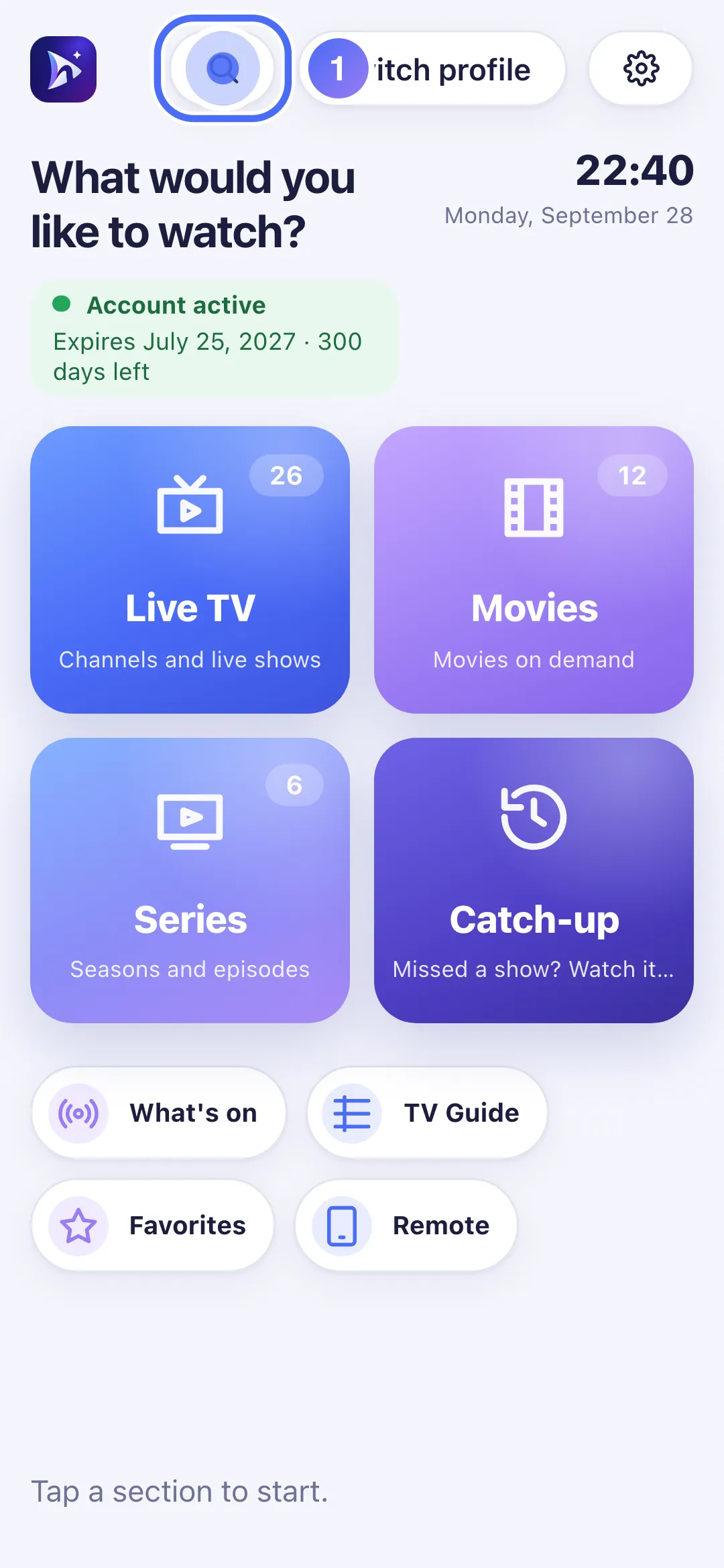
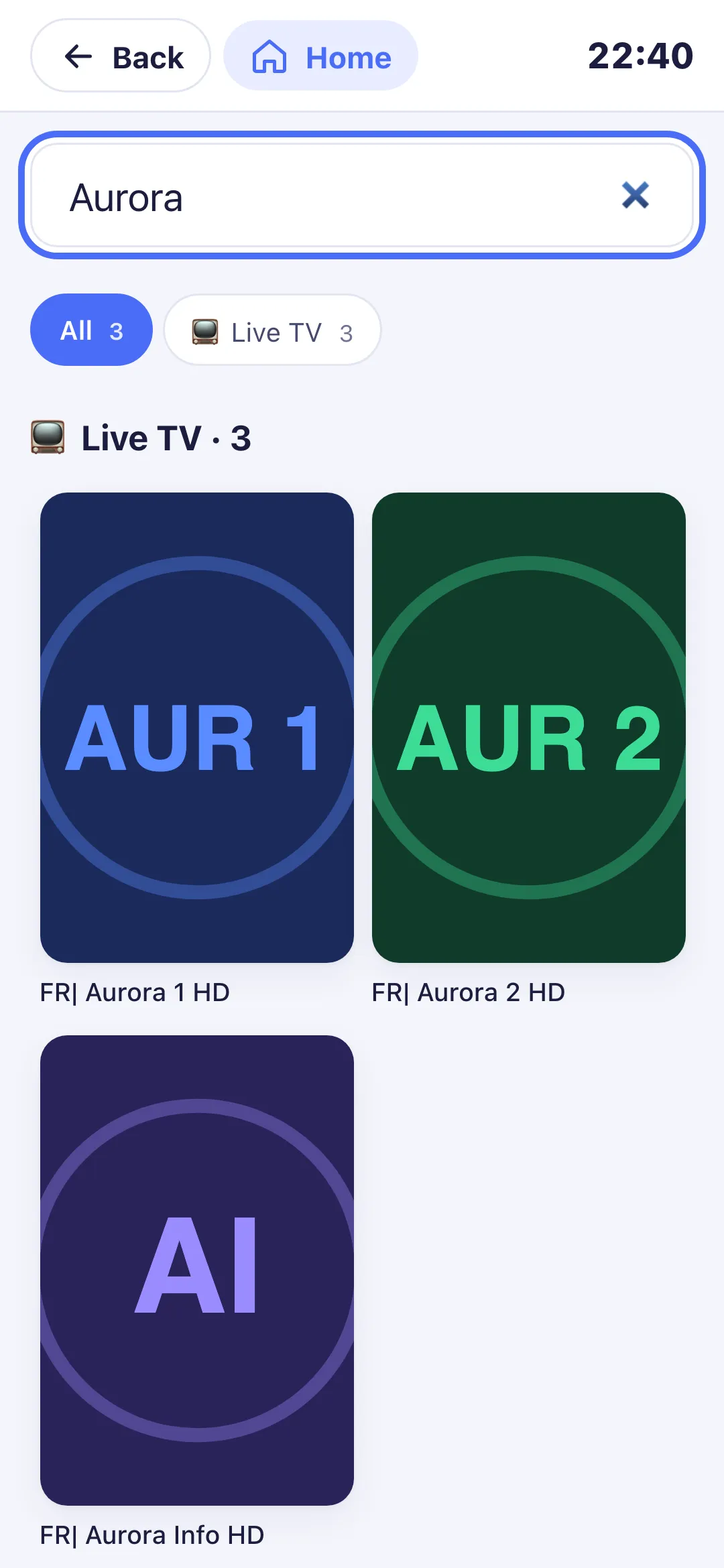
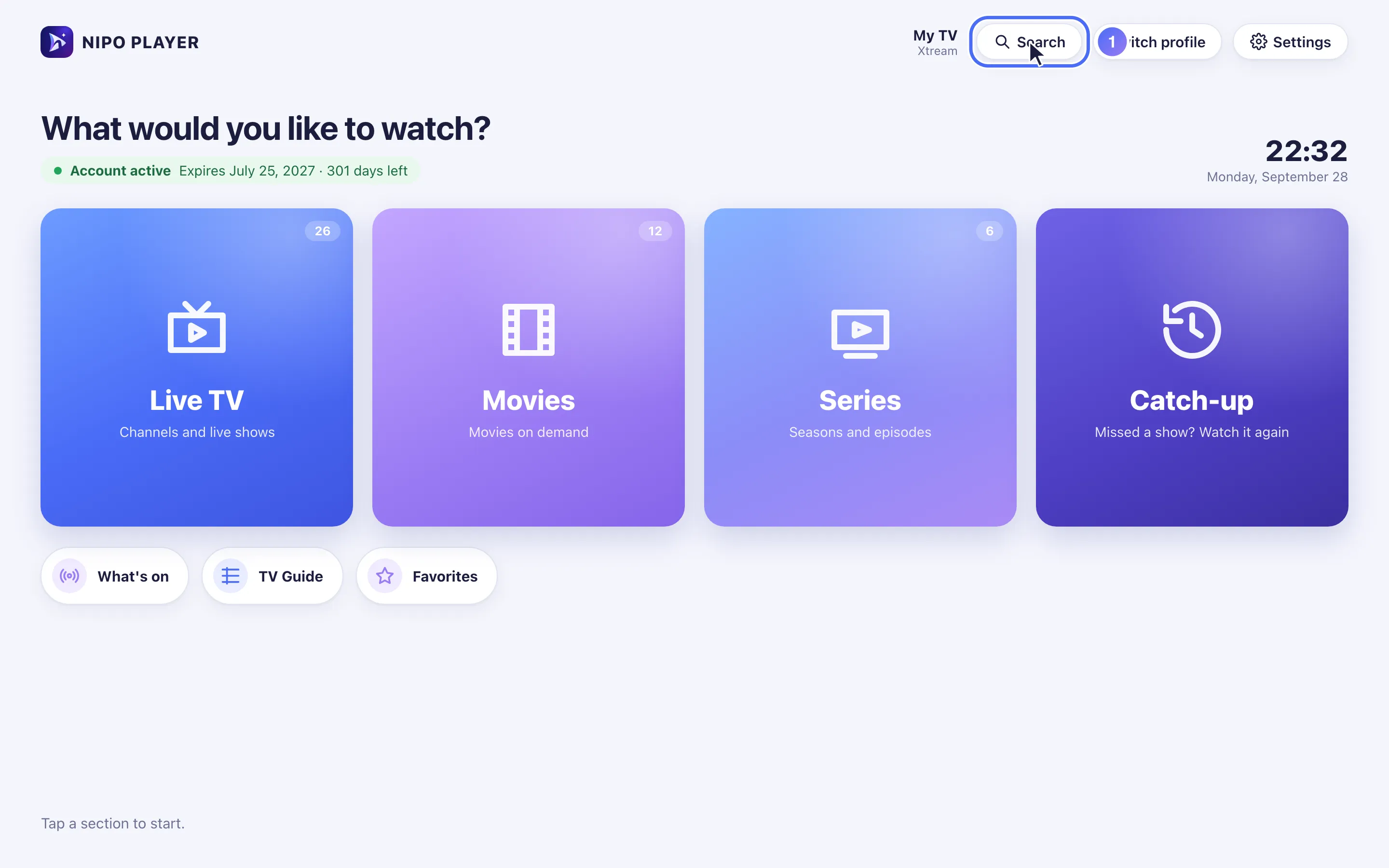
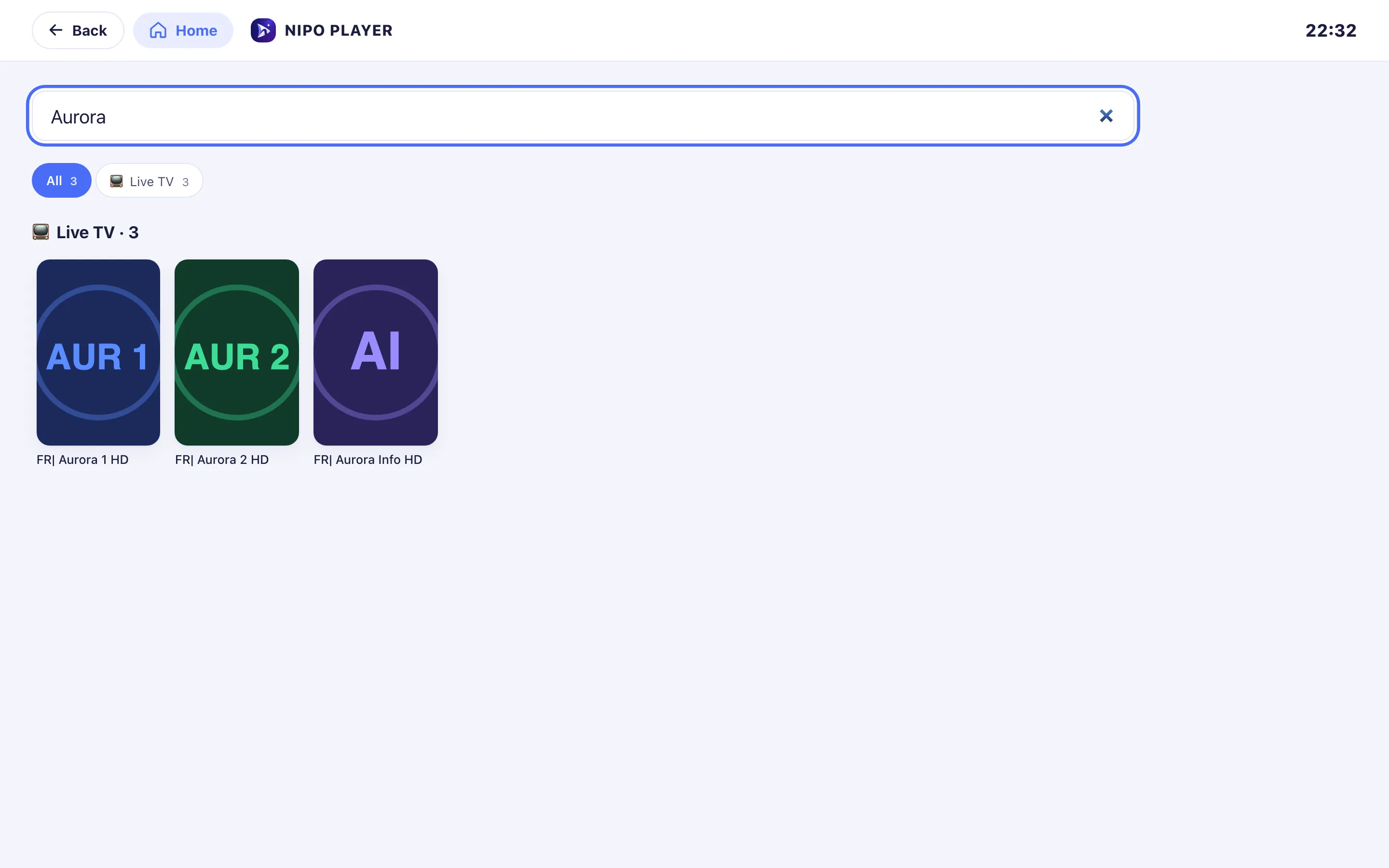
Tap the Search icon at the top of Home and type a word: channels, movies, series and TV guide programmes all appear together.
Nipo doesn’t provide, sell or host any channel, movie or playlist: it plays what you already own.
Search works even without exact accents or punctuation: "ligue 1" also finds "Ligue 1".
Step by step, with pictures
- 01
From Home, go to Search and press OK. Key OK
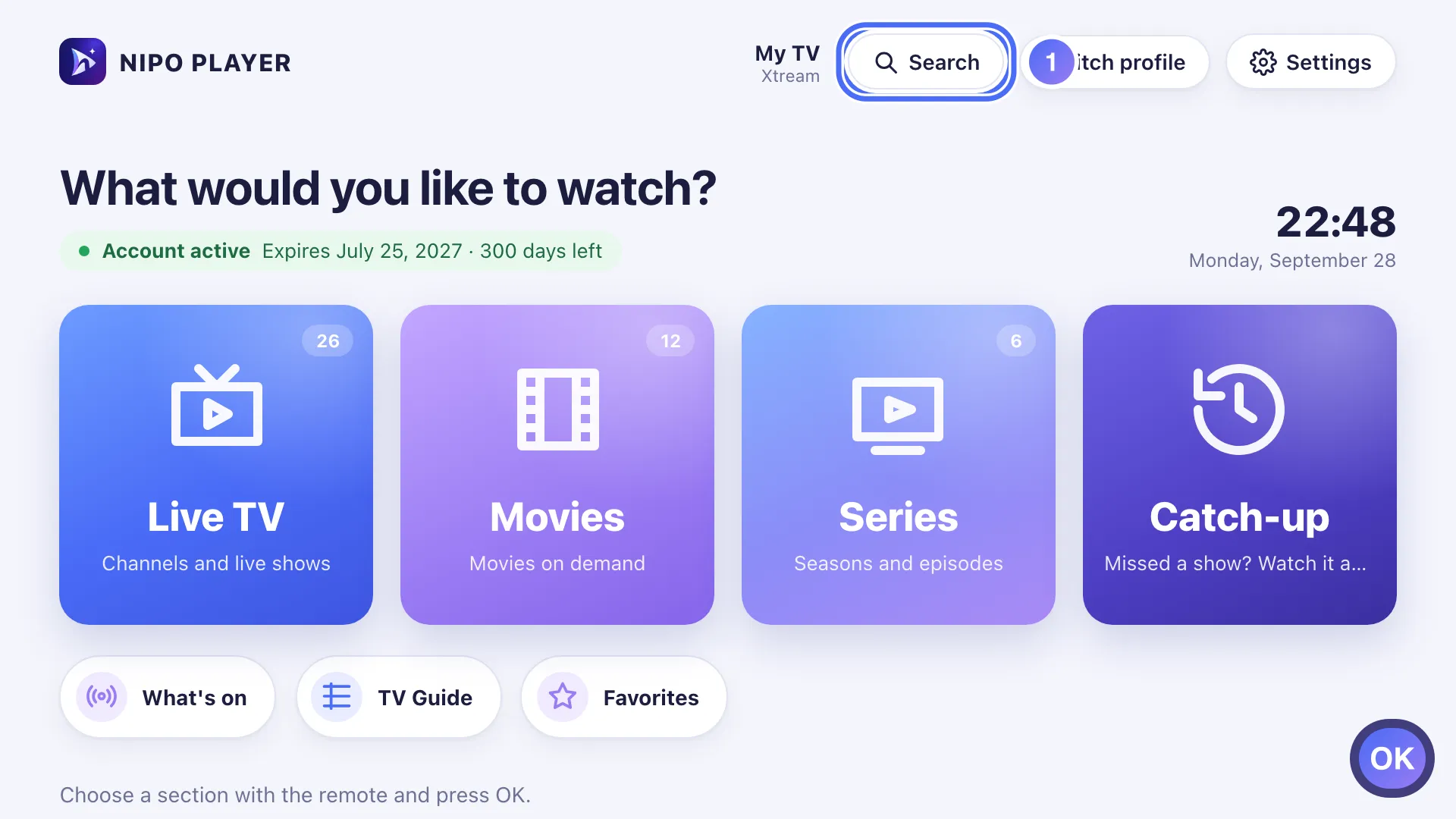
- 02
Select the field and press OK to type. Key OK
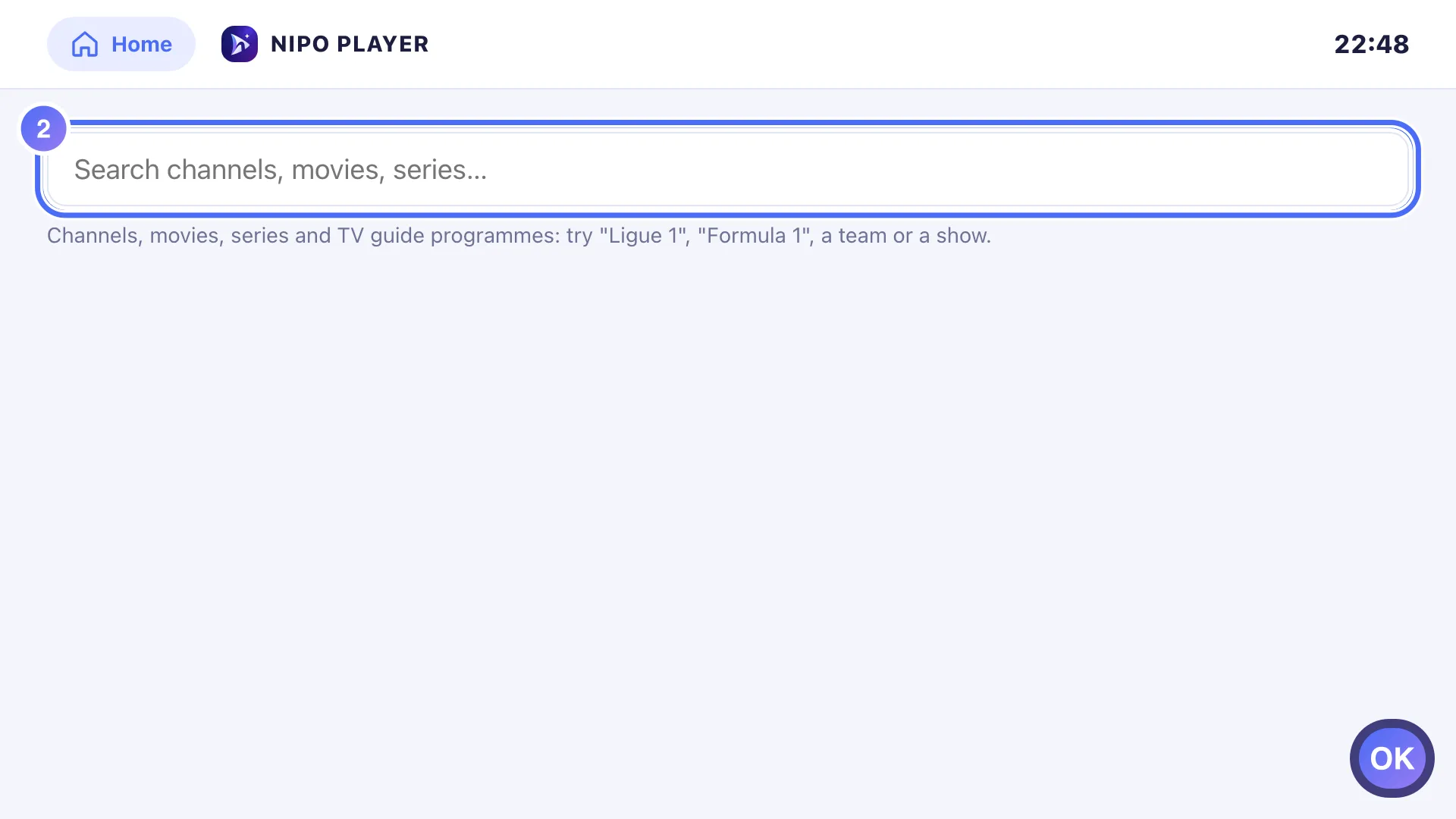
- 03
Type one or more words: channels, movies, series and TV guide programmes all appear together.
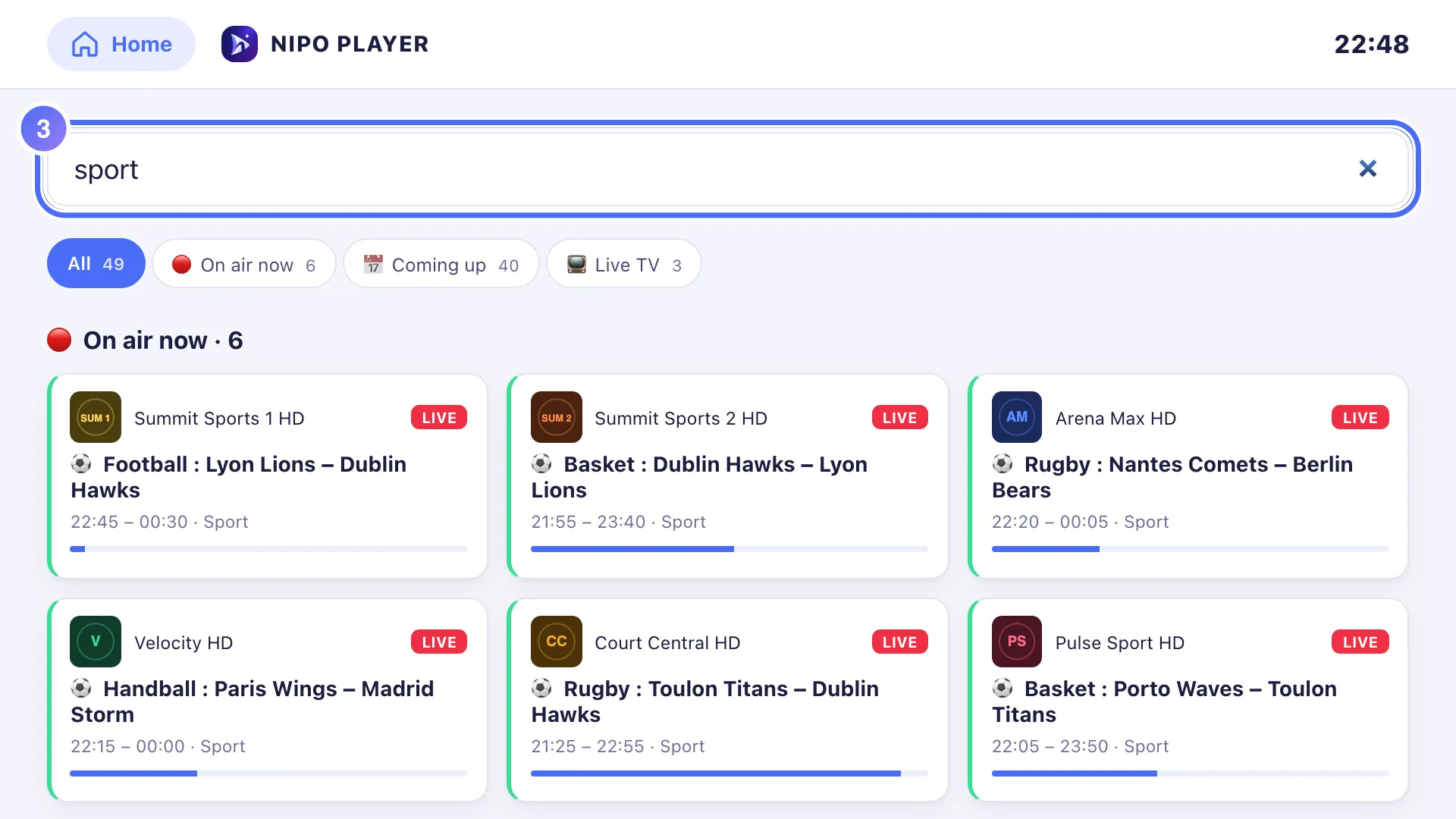
- 04
Filter the result with the chips: 🔴 On air now, 📅 Coming up, or by type. Key OK
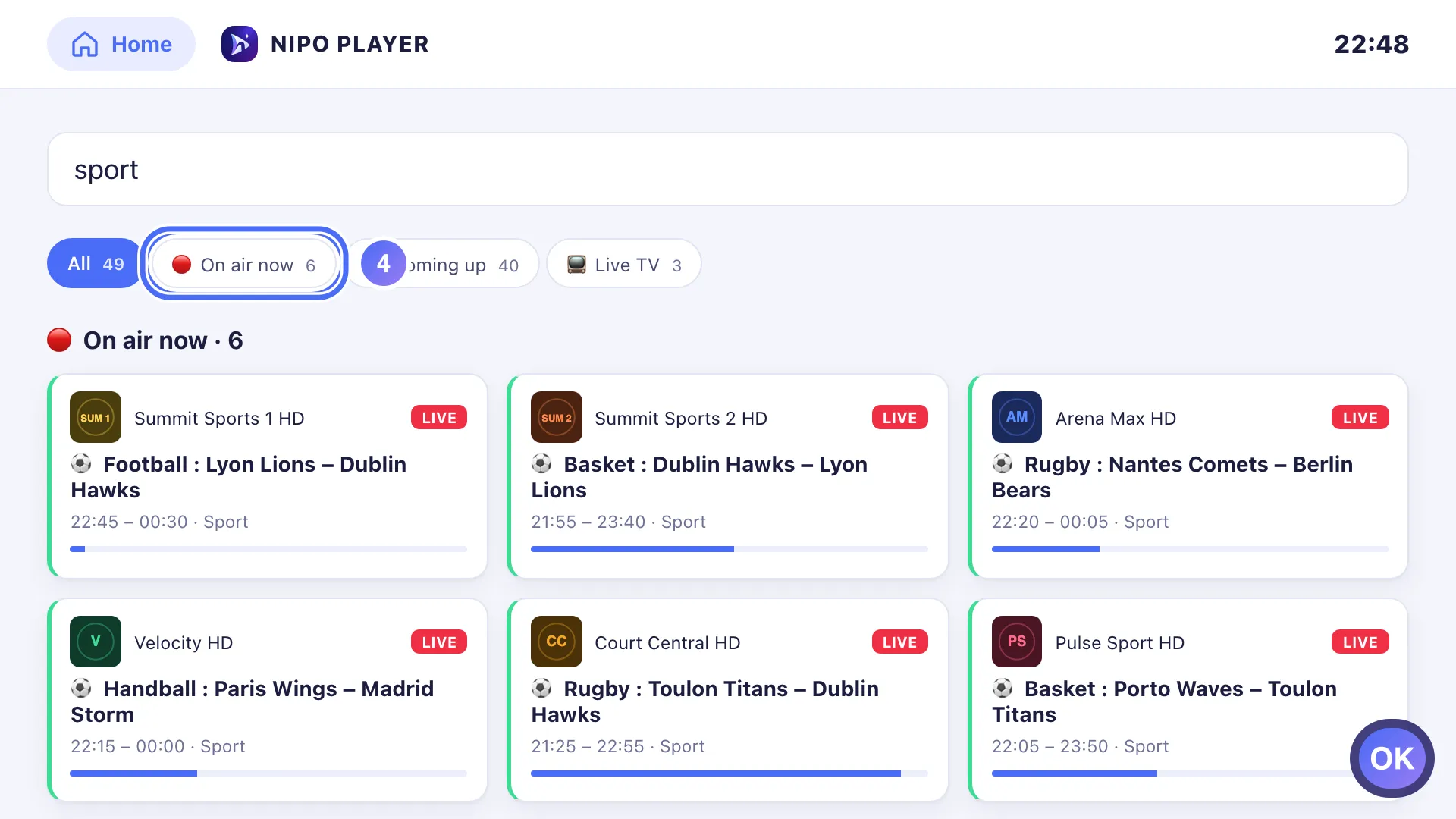
- 01
From Home, tap the “Search” icon.
- 02
Type a word: channels, movies, series and TV guide programmes all appear together.
- 03
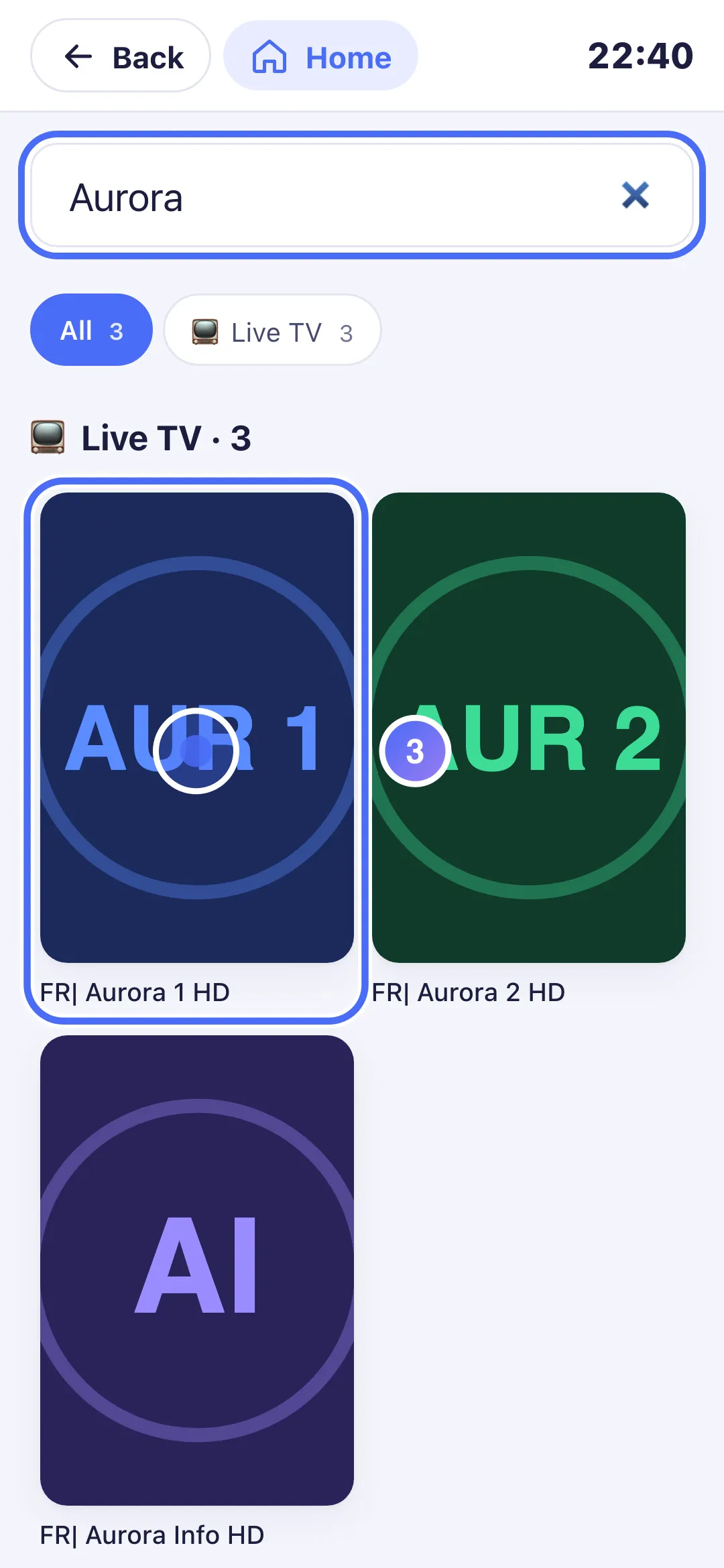
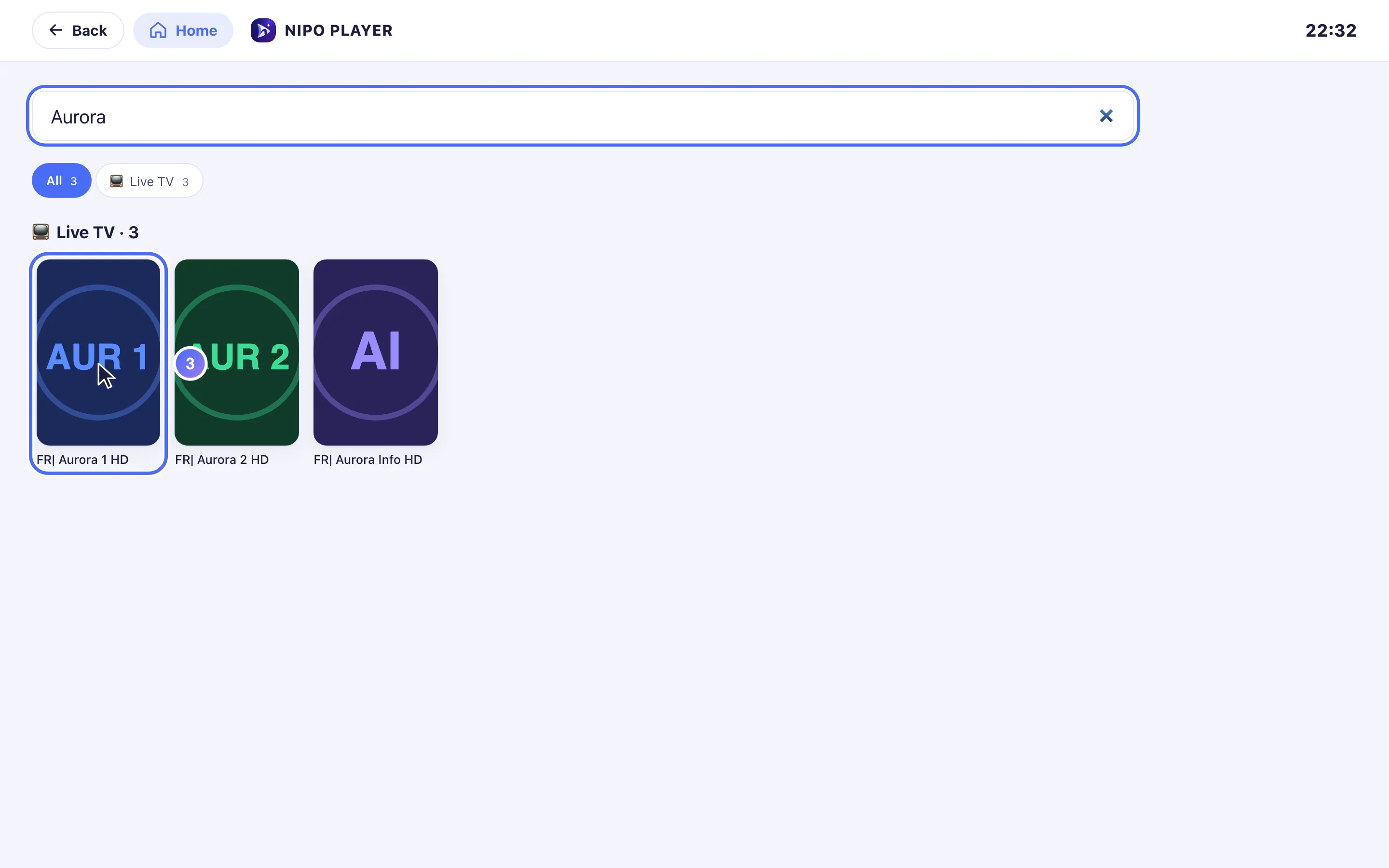
Tap a result to open it directly.
- 04
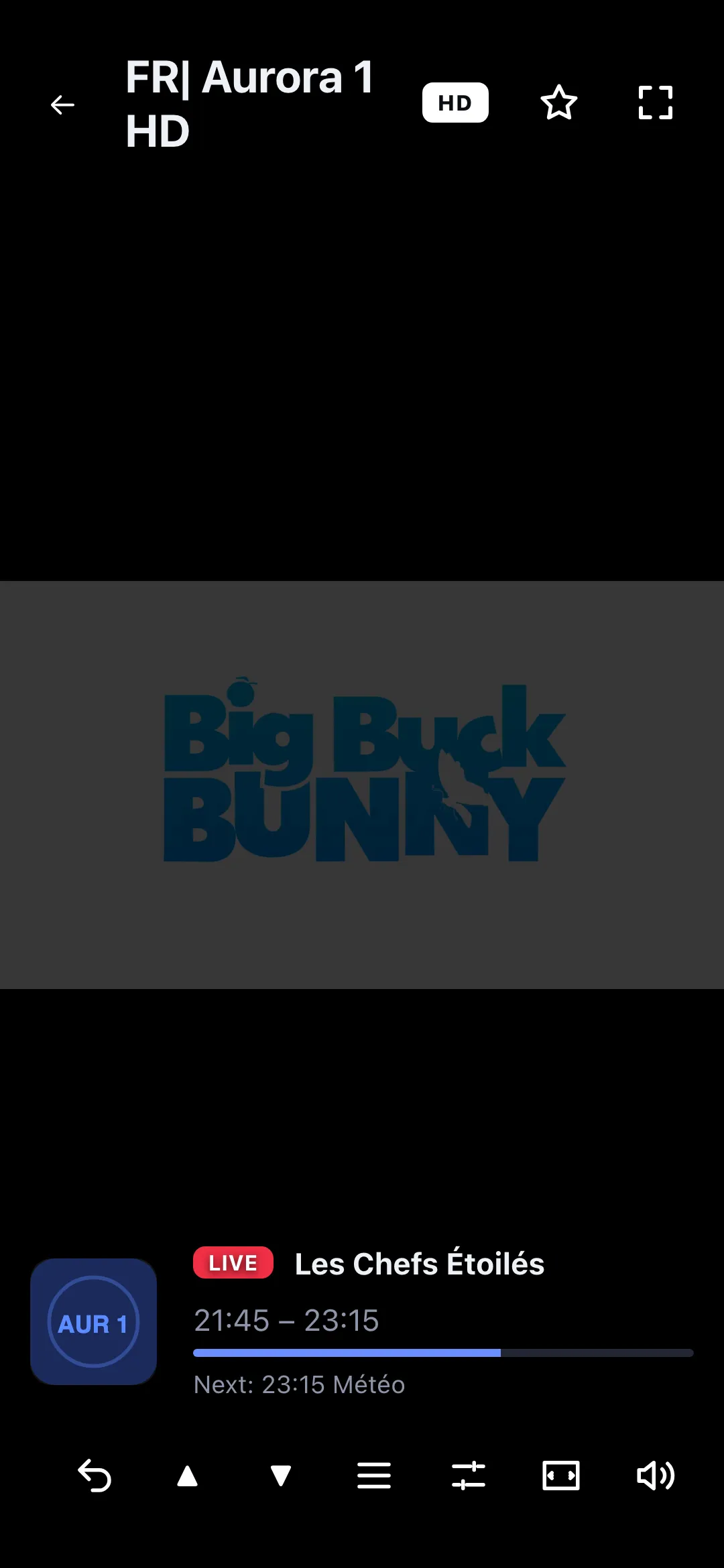
The channel you found opens in the player.
- 01
From Home, click the “Search” icon.
- 02
Type a word: channels, movies, series and TV guide programmes all appear together.
- 03
Click a result to open it directly.
- 04
The channel you found opens in the player.

Steps
- From Home, tap the Search icon.
- Type one or more words (a team, channel, movie or series name).
- Filter the result with the chips: 🔴 On air now, 📅 Coming up, or by type (channels, movies, series).
- A region filter is offered if your playlist covers several countries.
Tip
Search also covers TV guide programmes, not only channel names: searching a show's title finds when and on which channel it airs. If the TV guide is still loading, programme results appear with a short delay.
Updated on 28 September 2026
Did this article help you?
Can’t find the answer?
Write to us: we answer about the app and how it works. We can’t recommend a playlist.