
M3U player remote control shortcuts on a TV
Colour keys, a long press on OK for a quick menu, CH+/CH-, number keys, previous channel and the A–Z rail: Nipo Player's remote shortcuts on TV.
Nipo doesn’t provide, sell or host any channel, movie or playlist: it plays what you already own.
Nipo Player, the media player for your own playlists, runs entirely with the remote on TV, with a few shortcuts that speed up navigation.
Step by step, with pictures
- 01
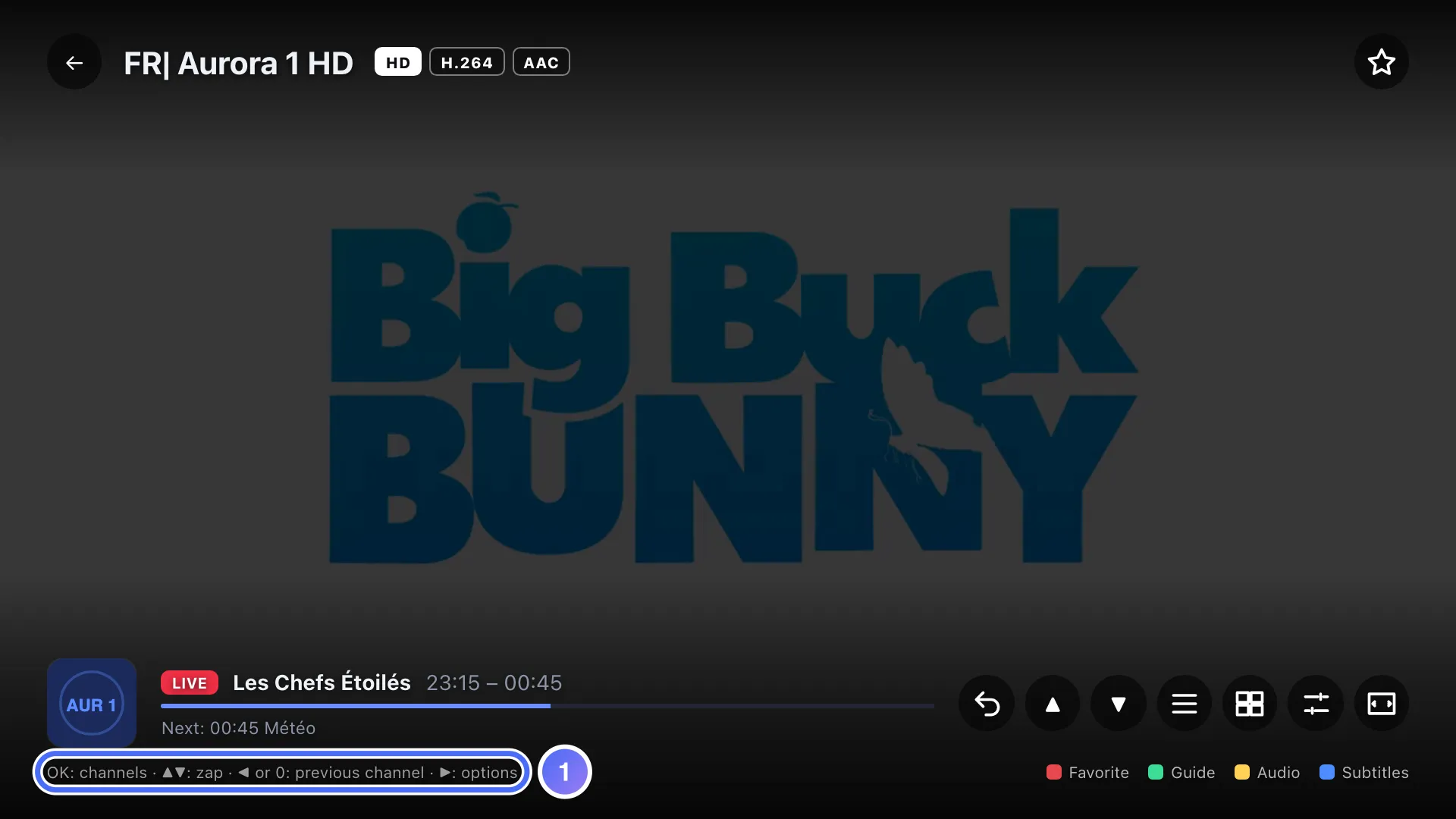
In the player: red = favorite, green = mini-guide, yellow = audio track, blue = subtitles.
- 02
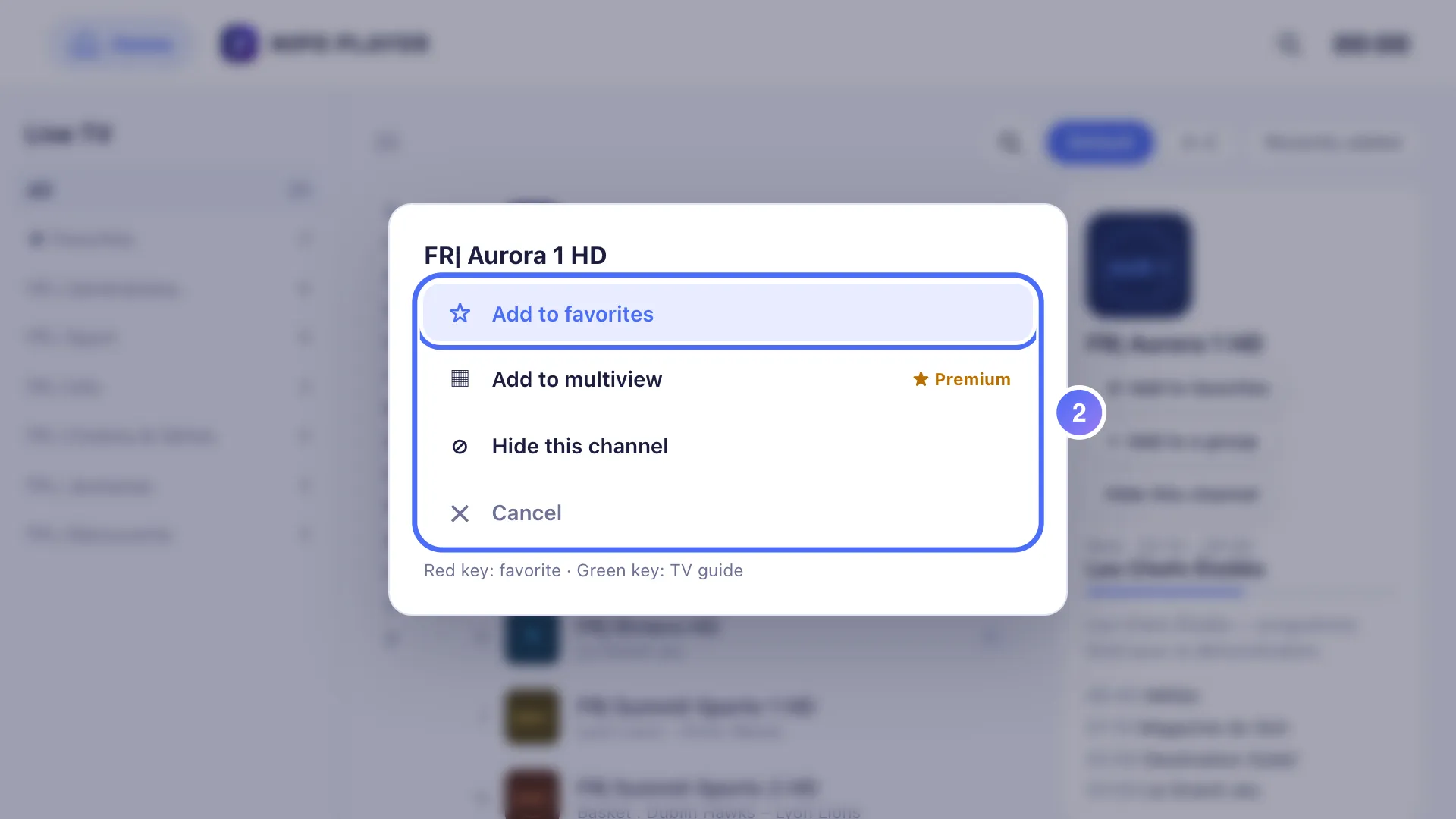
A long press on OK (about a second) opens the quick menu: favorite, hide, move.
- 03
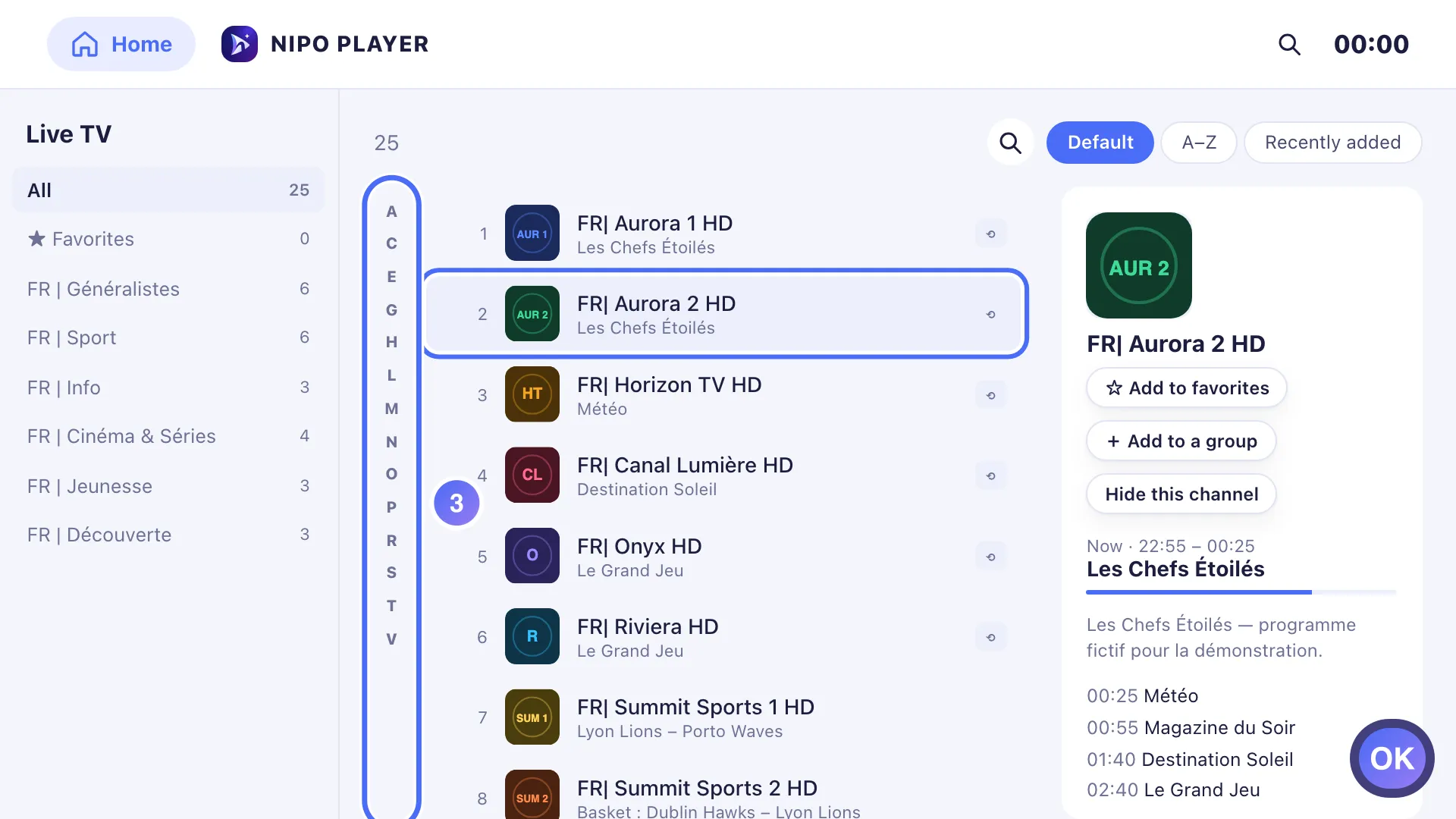
On a long list, an arrow to the left opens the A–Z rail: OK jumps to the first channel with that letter. Key OK
Colour keys
On remotes that have them (red, green, yellow, blue):
- In lists (channels, movies, series): red adds or removes the current favourite, green opens the TV guide.
- In the player, during playback: red favourite, green mini-guide, yellow audio track, blue subtitles.
Long-press OK: the quick menu
A short press on OK normally opens the selected channel or movie. A long press on OK (about a second) on a channel or a poster opens a quick menu instead: add or remove the favourite, hide the item, or move it in the list. A right-click (computer) or a touch-and-hold (phone) opens the same menu.
Zapping and previous channel
- CH+ / CH- change channel in the list's order.
- The number keys type a channel number directly, with a preview before you confirm.
- Pressing 0, PRE-CH or LAST, depending on your remote, returns to the previously watched channel.
The A–Z rail in long lists
On a long enough list of channels or movies, an arrow to the left from the list's edge opens an alphabet rail: the up/down arrows walk through the letters present, OK jumps straight to the first item of that letter, and an arrow to the right (or Back) returns to the list.
Tip
These shortcuts work just as well with a physical remote as with your phone as a remote (Premium). On an LG Magic Remote, see also LG Magic Remote.
Updated on 29 September 2026
Did this article help you?
Can’t find the answer?
Write to us: we answer about the app and how it works. We can’t recommend a playlist.