
How do I use my phone as a remote?
On the TV, Settings → Phone as a remote shows a QR code and a short code. From the phone, the "Remote" tile then finds the TV again in one tap. Premium feature.
Nipo doesn’t provide, sell or host any channel, movie or playlist: it plays what you already own.
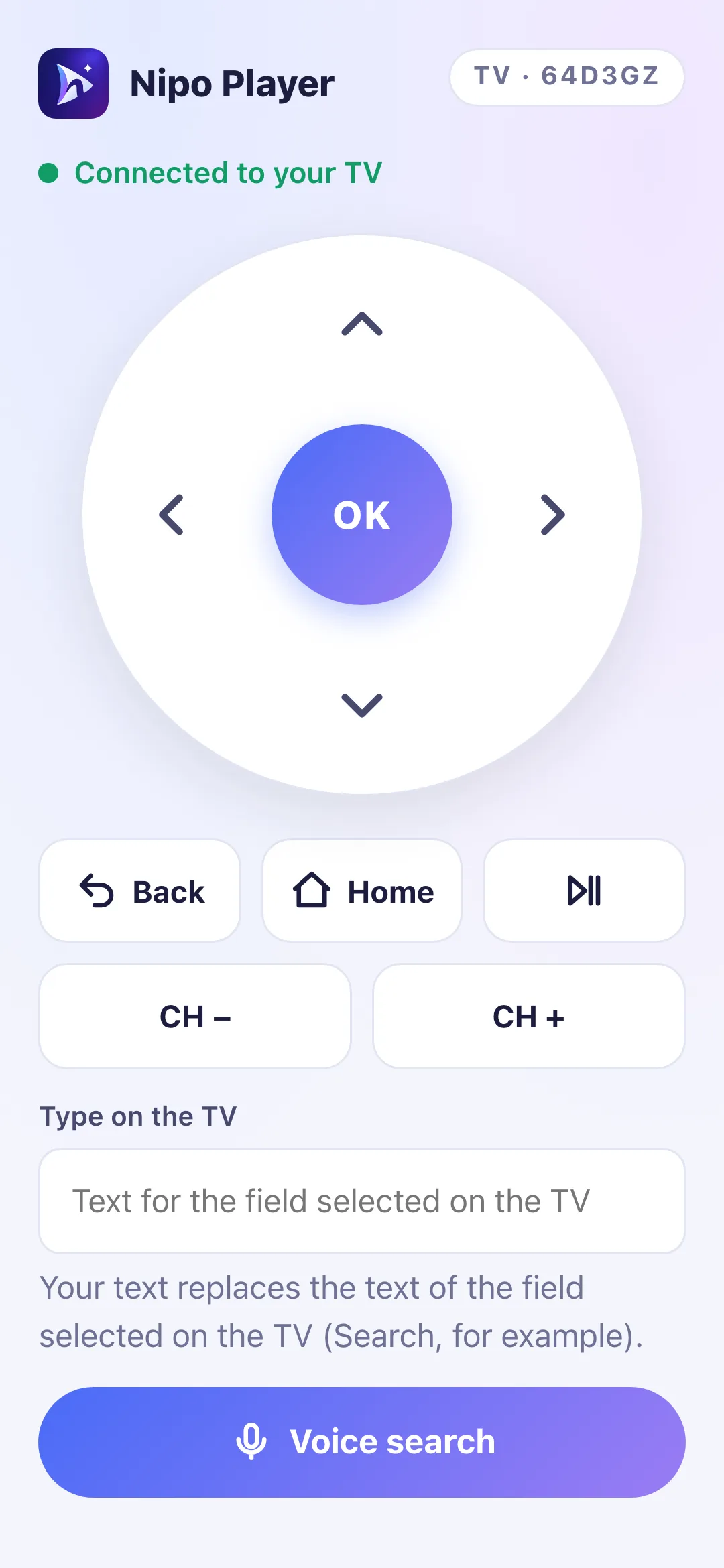
Once connected, your phone becomes a full remote for the TV: arrows, OK, Back, a keyboard and voice search, all end-to-end encrypted. Phone as a remote is part of Nipo Premium and Nipo Family.
Step by step, with pictures
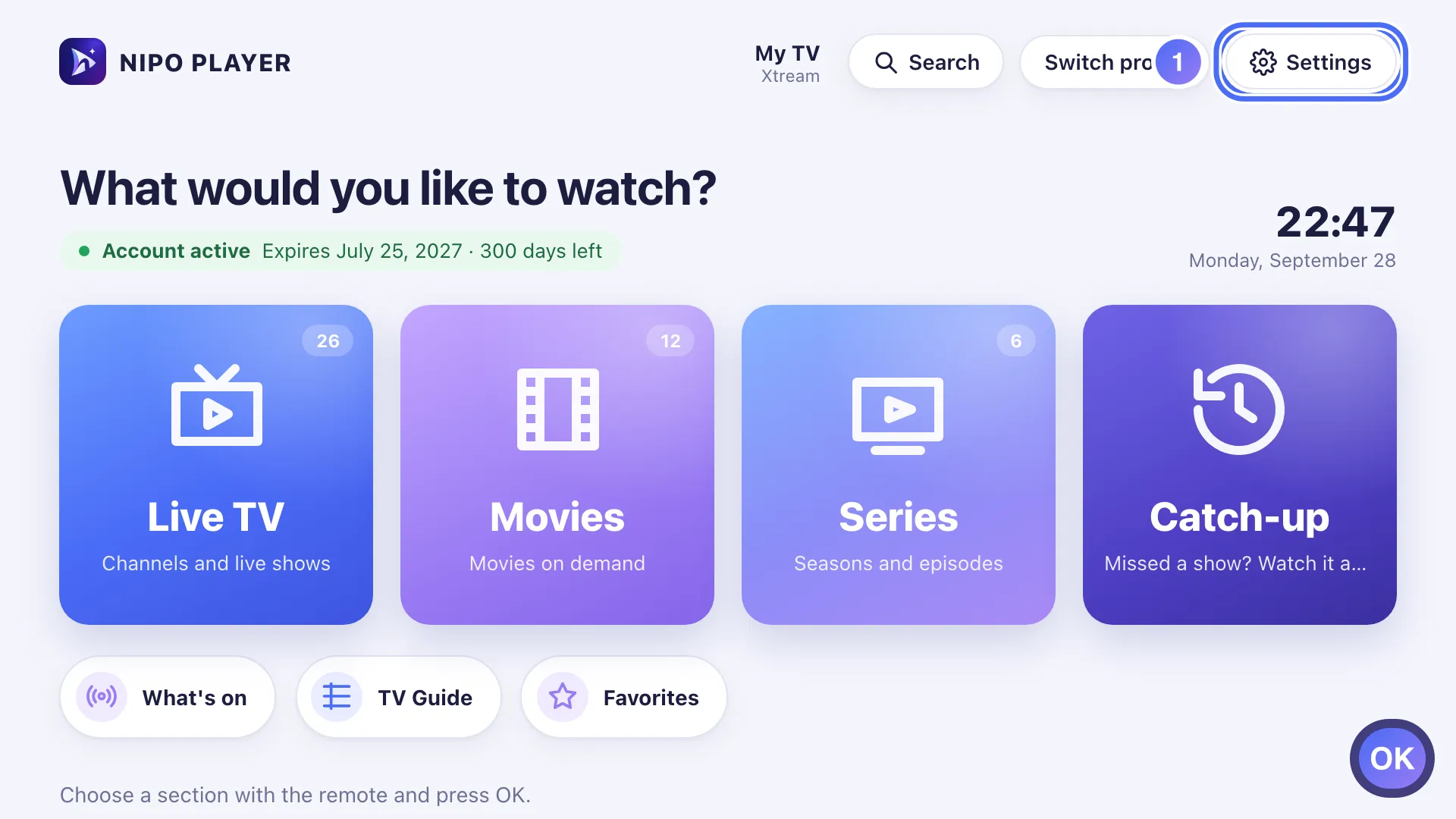
- 01
On Home, go to Settings and press OK. Key OK
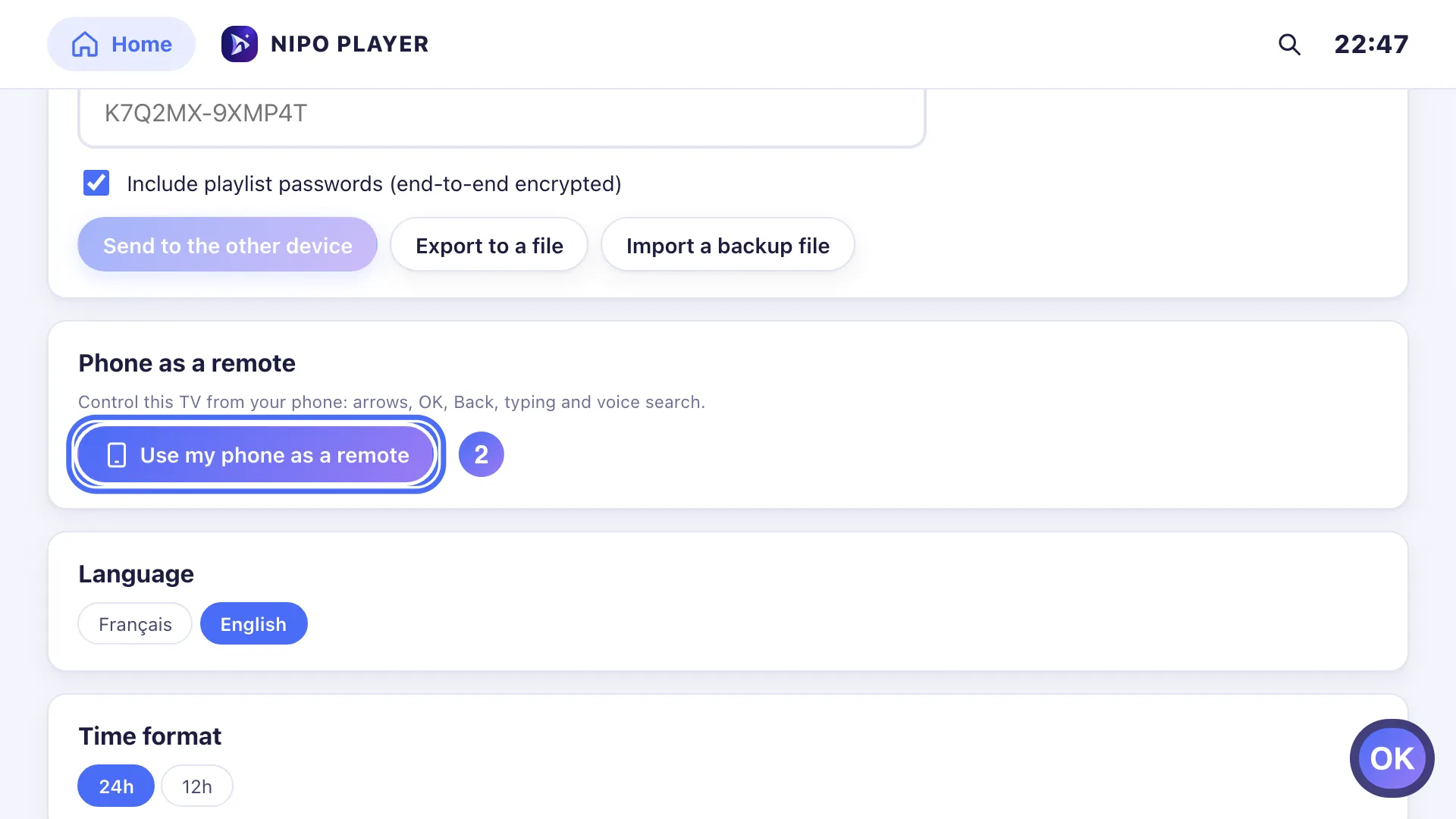
- 02
Go down to Phone as a remote and press OK on Use my phone as a remote. Key OK
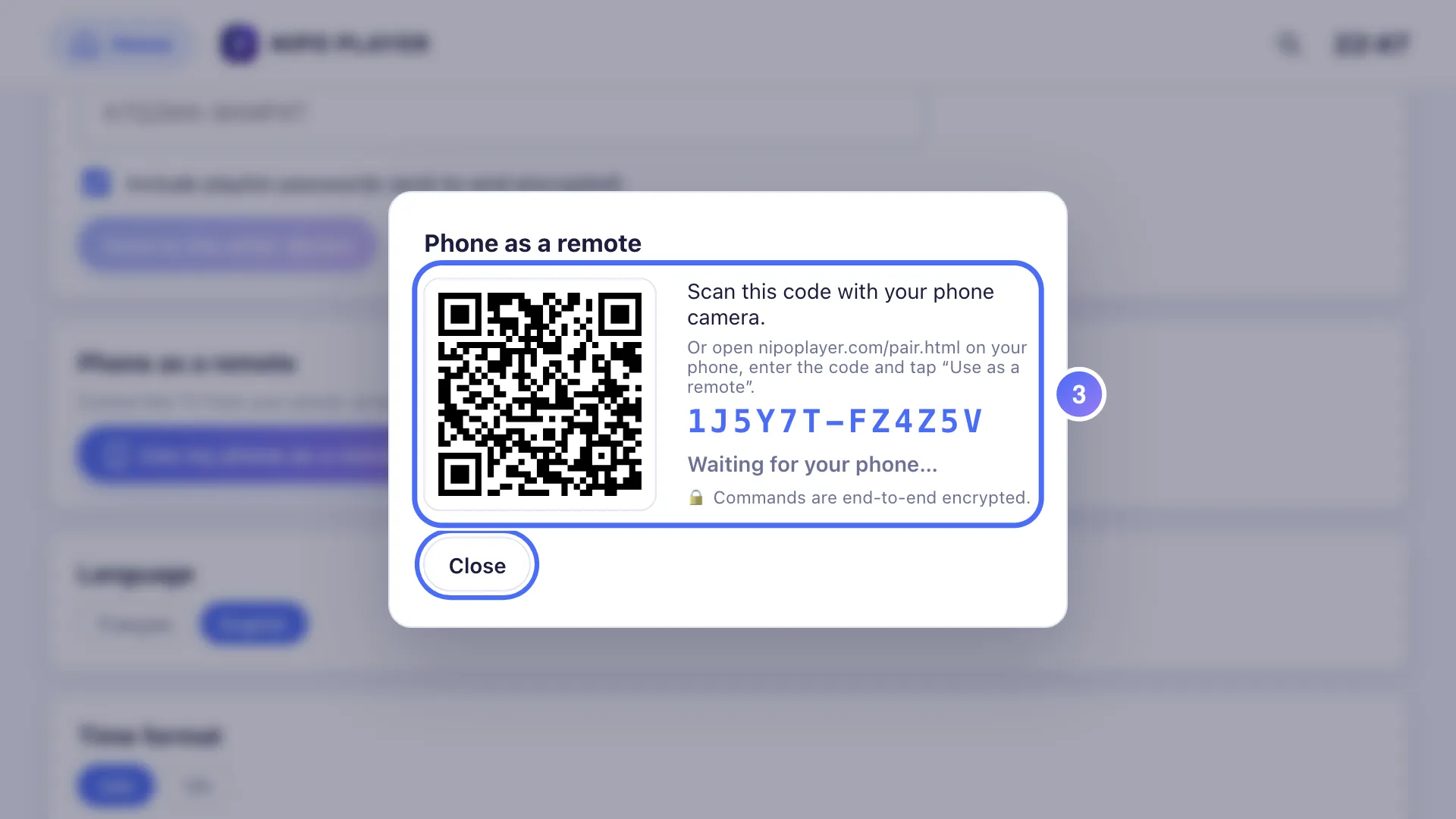
- 03
Scan the code with your phone: it becomes a remote, a keyboard and a voice search for this TV.
Connecting from the TV
- On the TV, open Settings, then go down to Phone as a remote.
- Press OK on Use my phone as a remote: a QR code and a short code appear.
- Scan the code with your phone's camera, or open the address shown on your phone and type the code, then choose "Use as a remote".
- Once connected, the phone's arrows, OK and Back drive the TV the same way a physical remote would.
Connecting from the phone ("Remote")
If Nipo Player is also installed on your phone, the Remote tile on the home screen opens My TVs directly: tap Add a TV, scan the QR code shown on the TV (or type its code), and the remote opens inside the app. The TV is then remembered: one tap reconnects it while Nipo Player is open on that TV, with no code to scan again. Rename or forget a TV from the same My TVs list.
On the TV side, Settings → Phone as a remote → Remembered phones lists the phones that reconnect with one tap, with a Forget button for each.
Tip
When a text field is selected on the TV, typing directly from the phone's keyboard is faster than the arrows. The connection doesn't require the same Wi-Fi network: it goes through the same secure relay as adding a playlist by QR code.
Updated on 29 September 2026
Did this article help you?
Can’t find the answer?
Write to us: we answer about the app and how it works. We can’t recommend a playlist.