
"Connection limit reached": what should I do?
Your playlist only allows a certain number of screens at the same time: stop playback on another device, or wait a minute.
Nipo doesn’t provide, sell or host any channel, movie or playlist: it plays what you already own.
This message means the maximum number of screens allowed by your playlist is already in use at the same time — it isn't Nipo Player blocking anything.
Step by step, with pictures
- 01
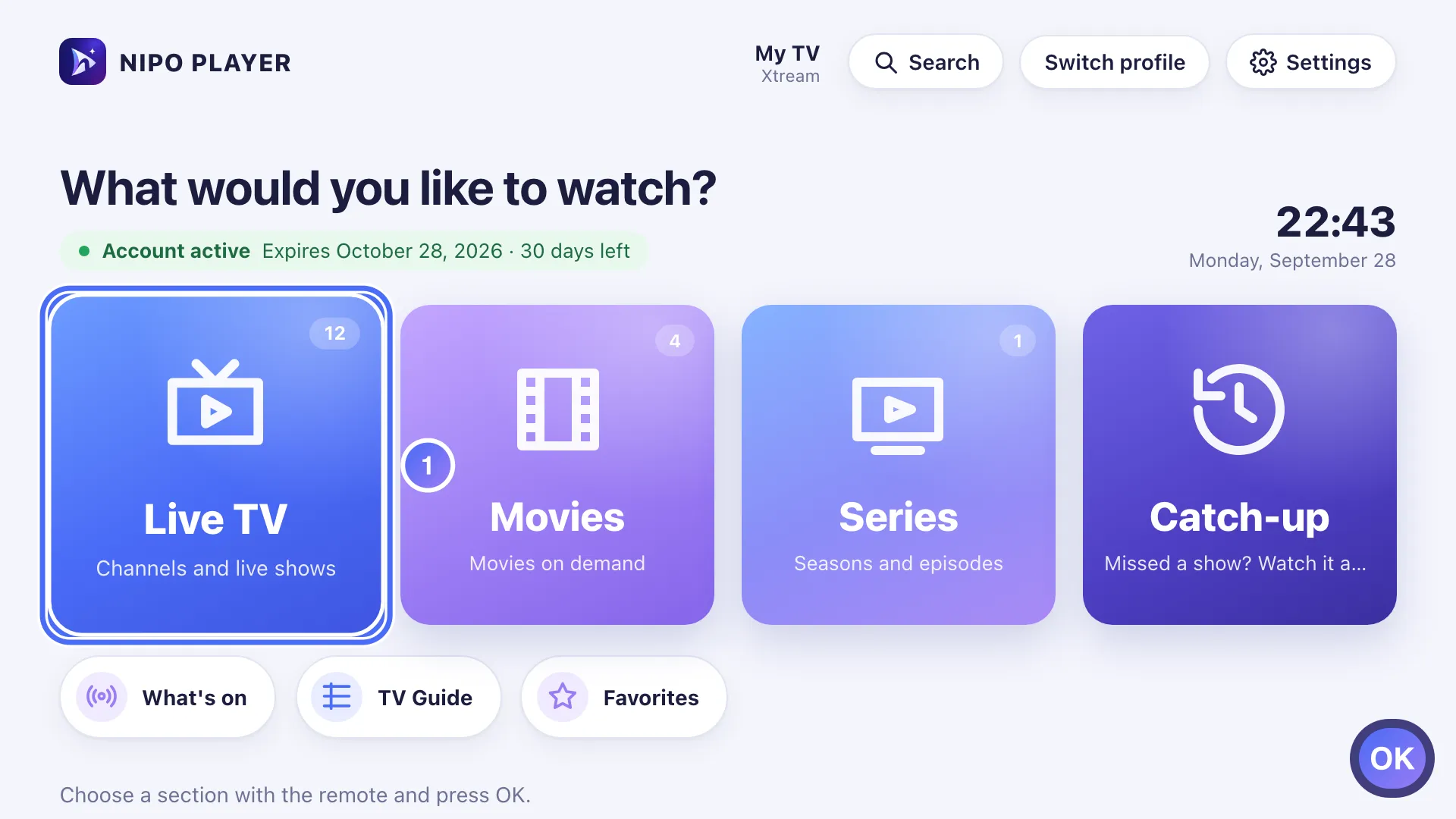
On Home, move to Live TV with the arrows and press OK. Key OK
- 02
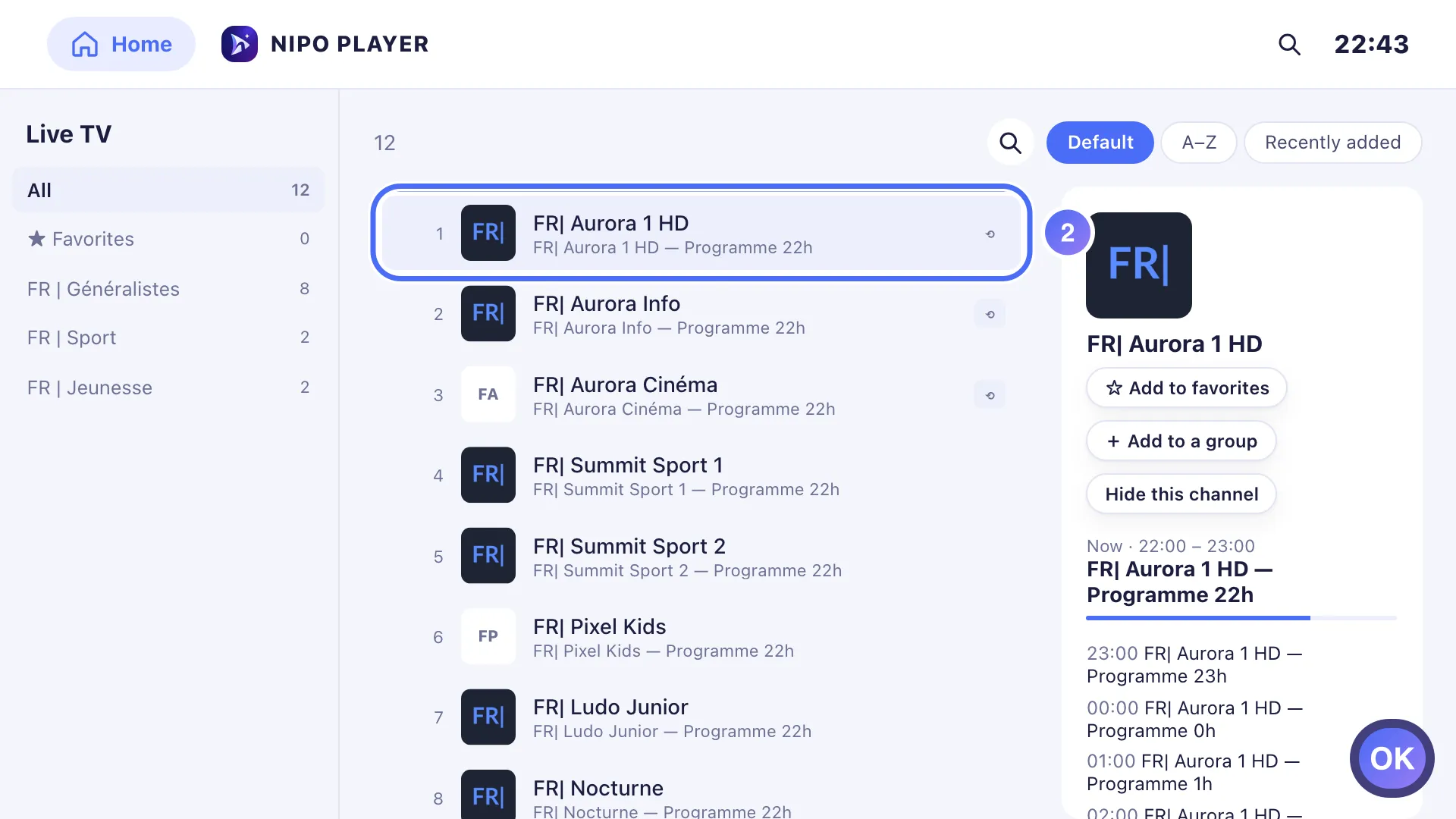
Pick a channel and press OK to watch it. Key OK
- 03
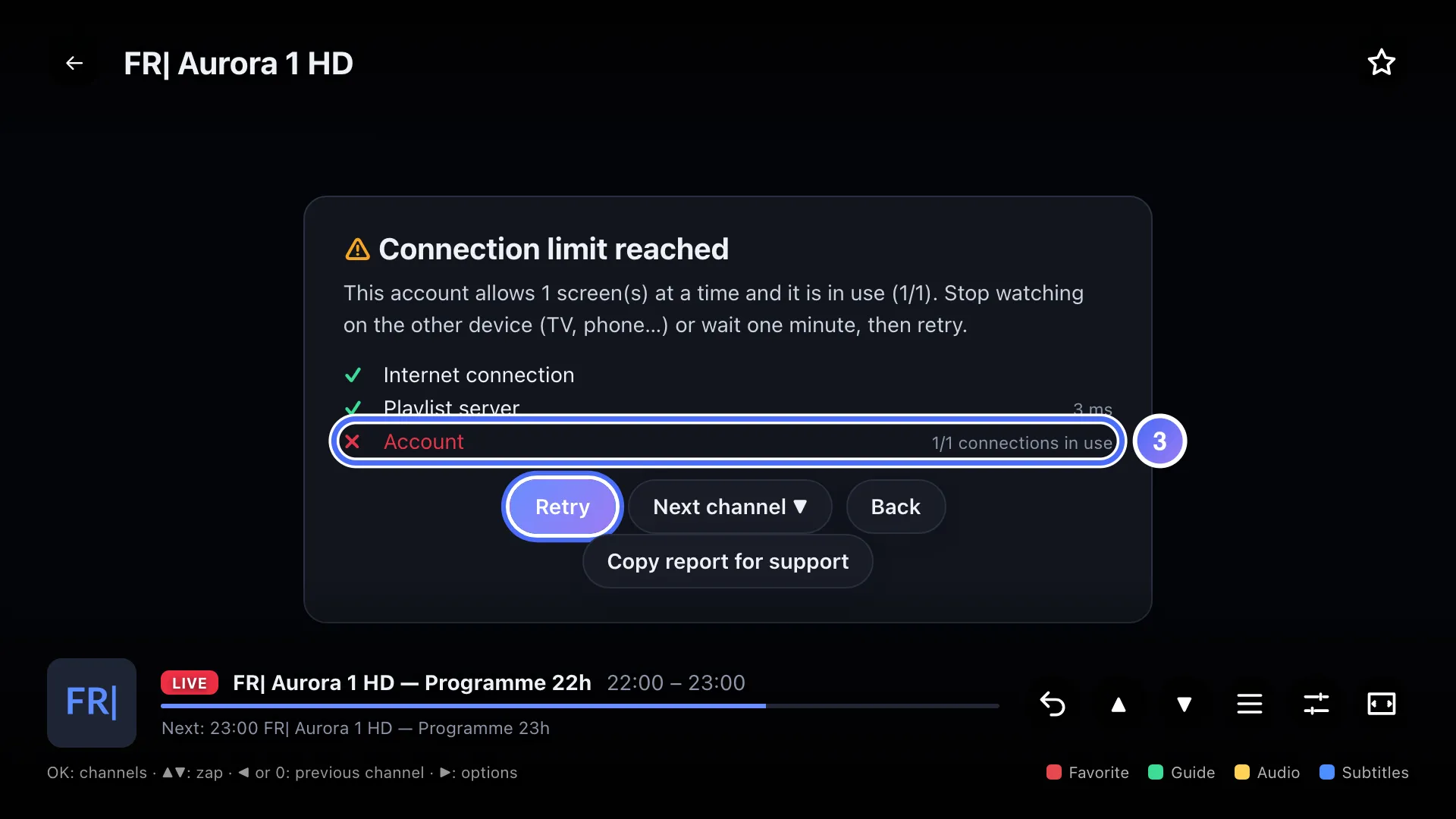
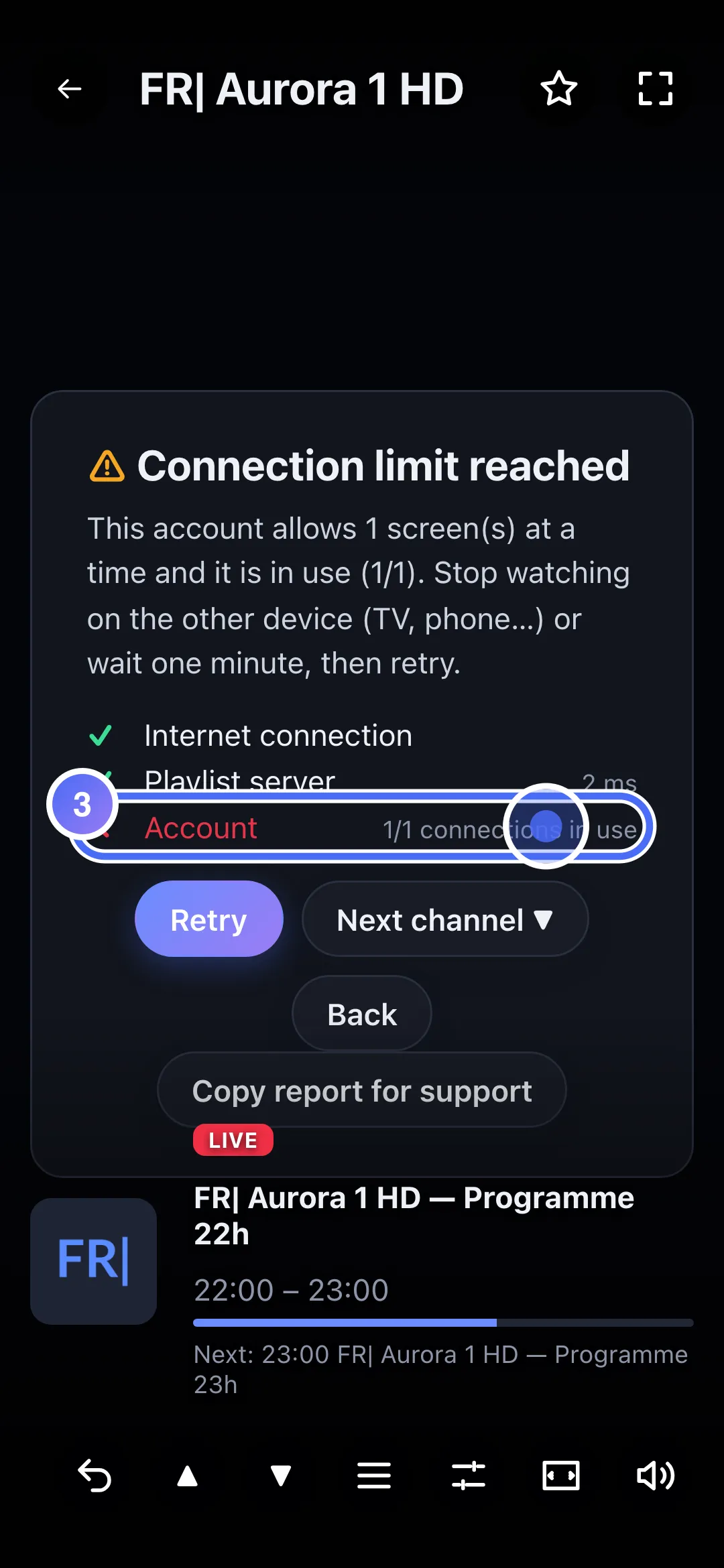
The diagnosis shows “Connection limit reached”: your playlist’s allowed number of screens is already in use.
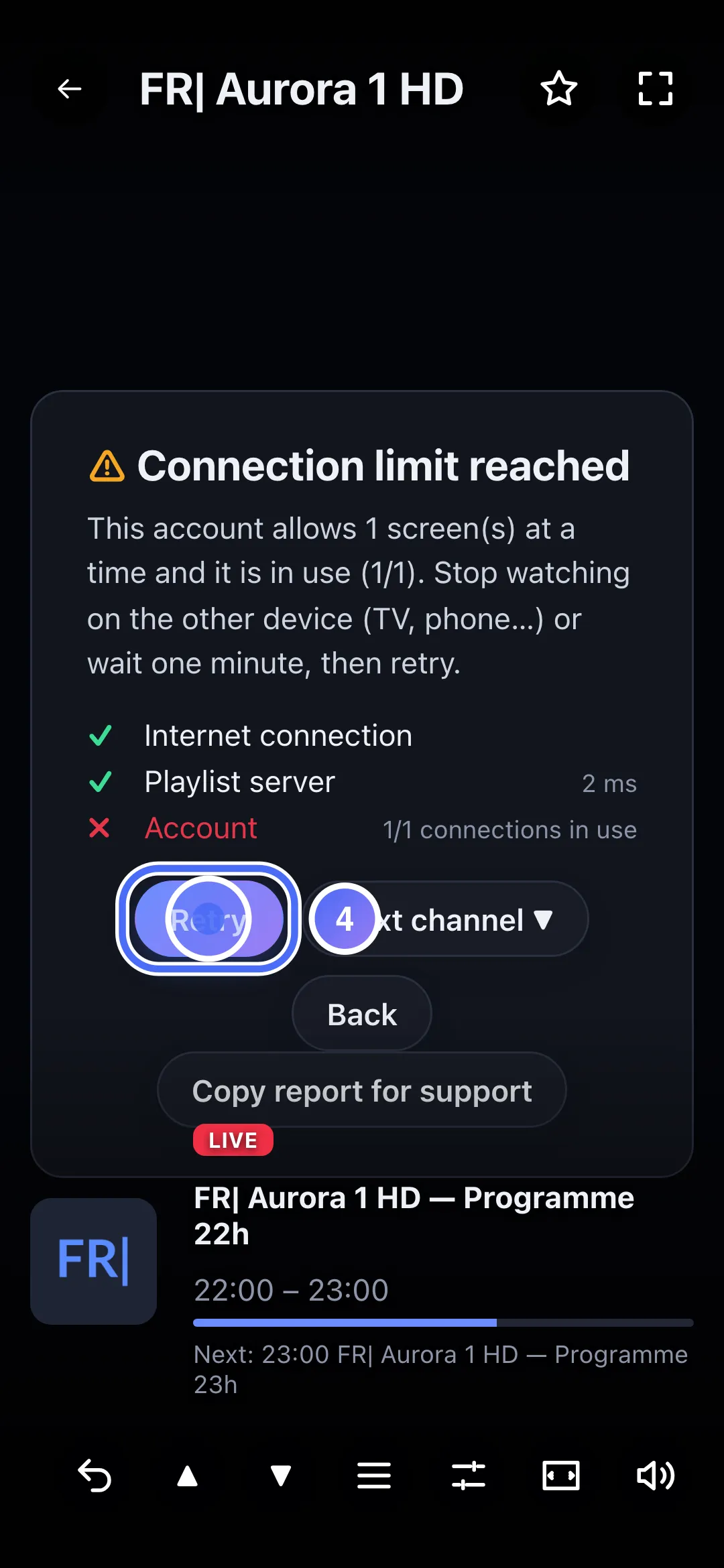
- 04
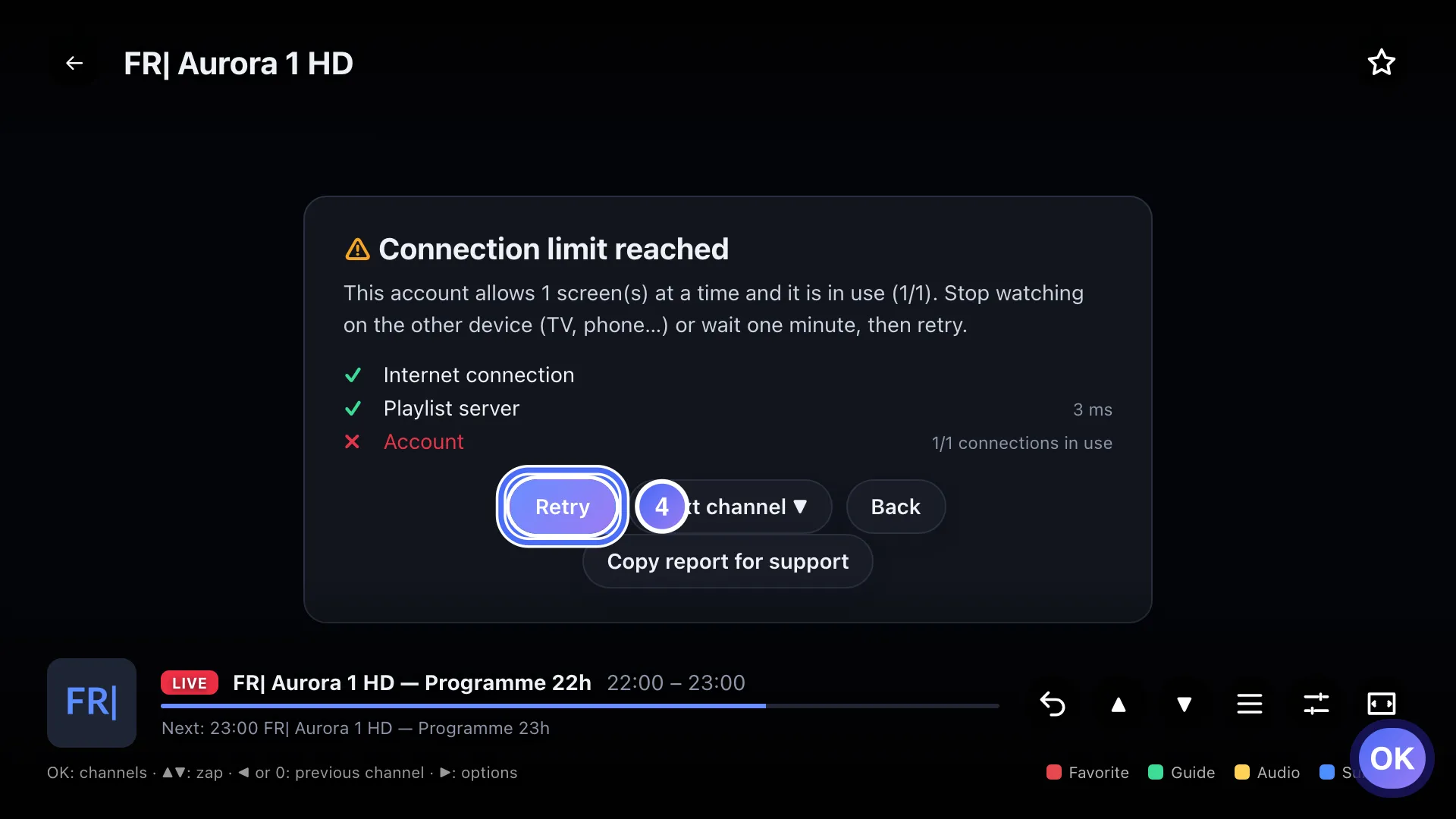
Stop watching on the other device, then press OK on “Retry”. Key OK
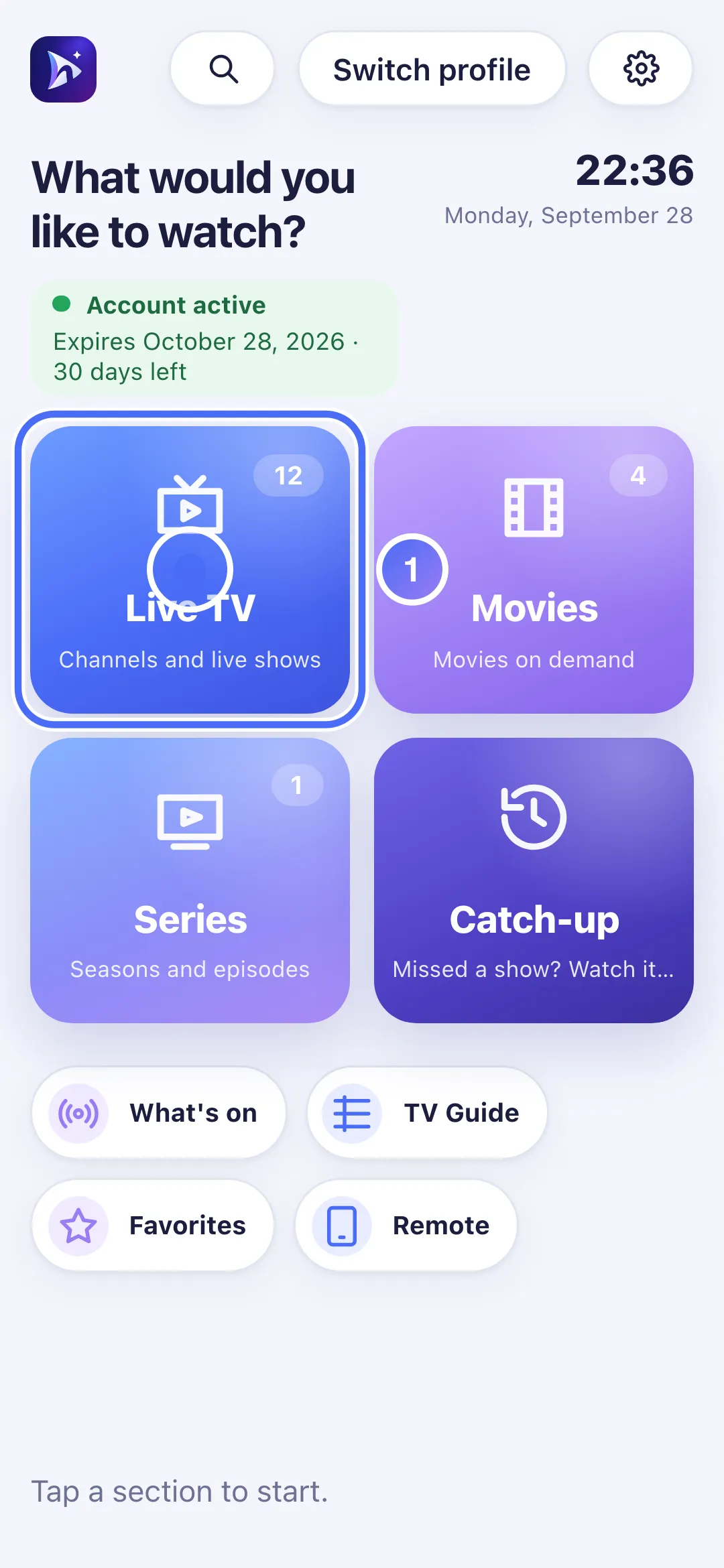
- 01
On Home, touch Live TV.
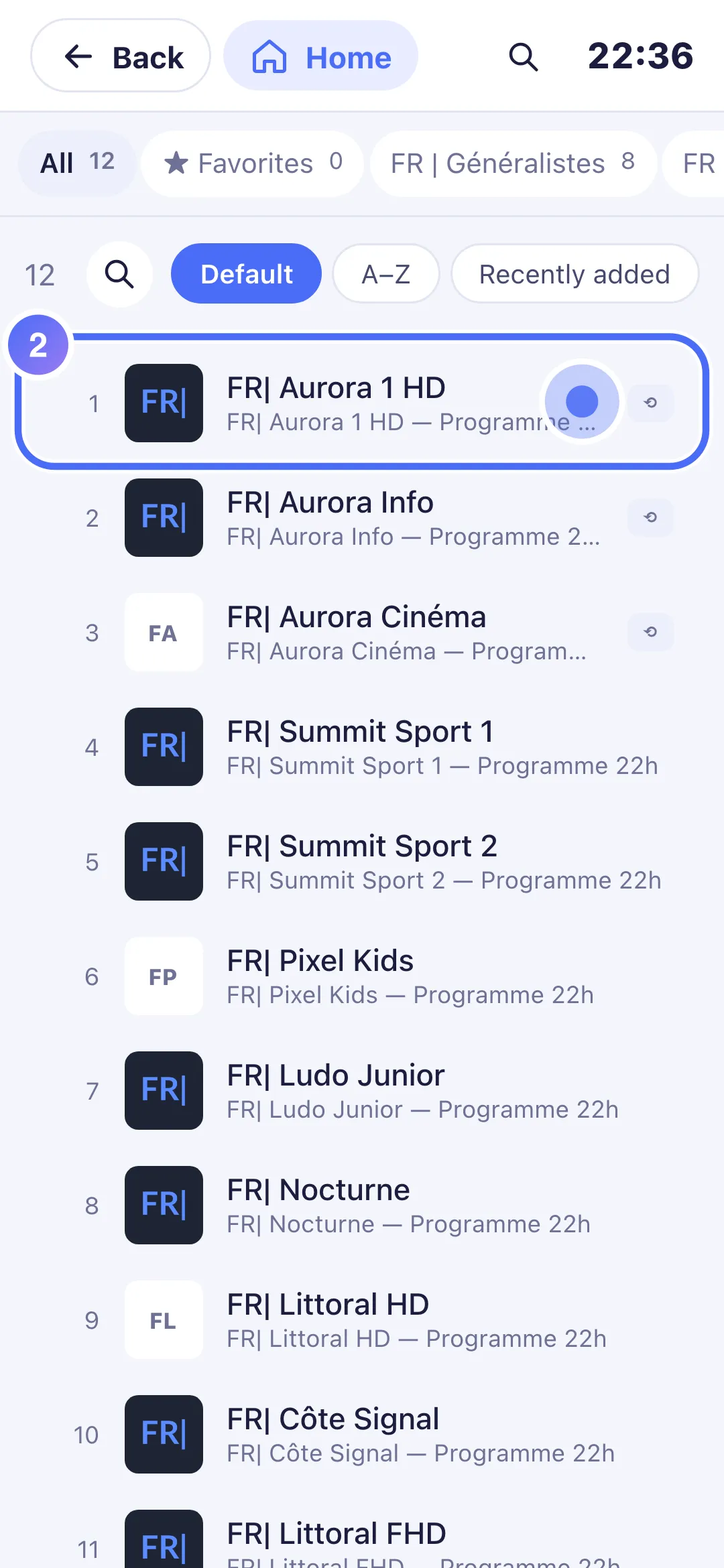
- 02
Touch a channel to watch it.
- 03
The diagnosis shows “Connection limit reached”: your playlist’s allowed number of screens is already in use.
- 04
Stop watching on the other device, then touch “Retry”.
Steps
- Check the diagnosis screen for how many connections are in use out of how many are allowed (e.g. "1/1").
- Stop playback on the other device (another TV, a phone, a computer) using this same playlist.
- Wait a minute: a connection that wasn't closed properly frees itself automatically after a short while.
- Start playback again with Retry.
Tip
This number of allowed screens is set by the service that manages your playlist, not by Nipo Player: the app never limits how many devices you install it on. If this happens often with several people in the household, it's a sign you need an account that allows more simultaneous screens.
Updated on 28 September 2026
Did this article help you?
Can’t find the answer?
Write to us: we answer about the app and how it works. We can’t recommend a playlist.