
Start directly on live TV (like a decoder)
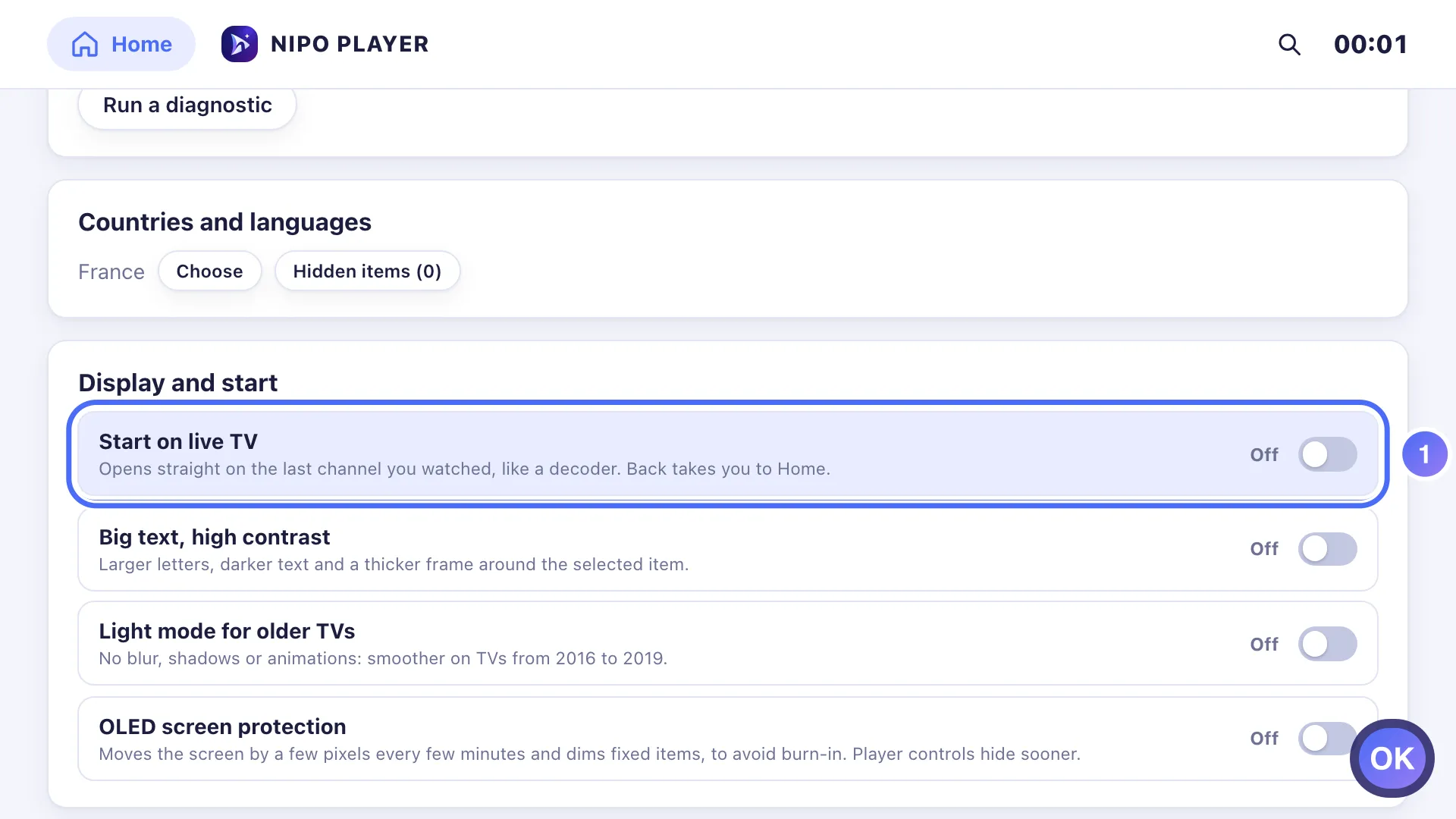
Settings → Display and start → "Start on live TV" opens Nipo Player straight on the last channel you watched, like a decoder. Premium feature.
Nipo doesn’t provide, sell or host any channel, movie or playlist: it plays what you already own.
On TV, Nipo Player can open directly on the last channel you watched instead of the home screen, the way a decoder would.
Step by step, with pictures
- 01
Open Settings → Display and start and turn on Start on live TV. Key OK
- 02
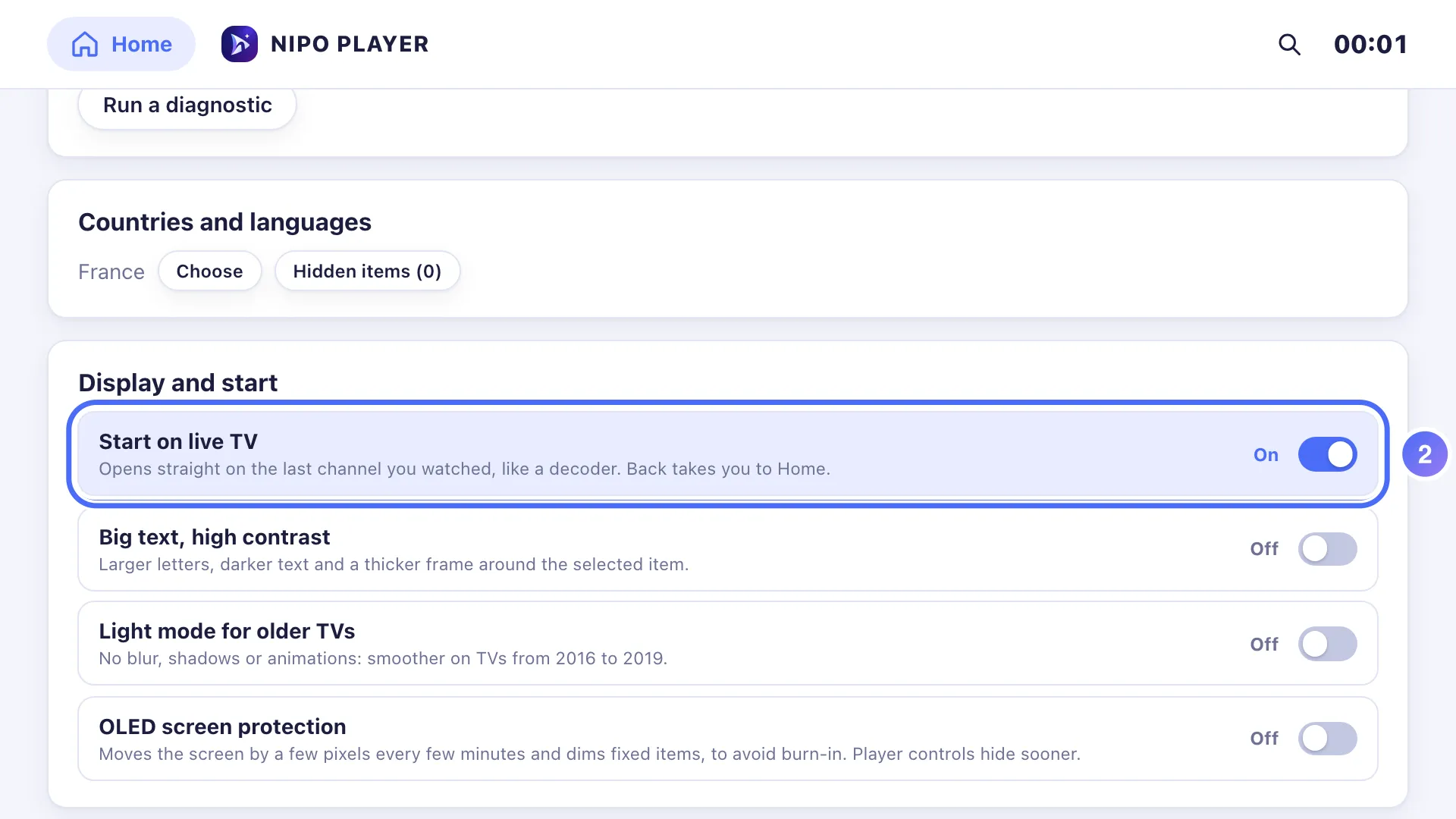
Next time it launches, Nipo Player opens straight to the last channel watched.
Turning it on
- Open Settings → Display and start.
- Turn on Start on live TV.
- The next time the app launches (or the TV turns on, depending on your setup), Nipo Player opens straight on the last channel watched.
Good to know
The Back button still always returns to the normal home screen, to reach Movies, Series or Catch-up. If the app runs into a problem on launch, it automatically falls back to the usual home screen instead of getting stuck on this setting.
Tip
"Start on live TV" is part of Nipo Premium and Nipo Family, like OLED screen protection, set on the same screen.
Updated on 29 September 2026
Did this article help you?
Can’t find the answer?
Write to us: we answer about the app and how it works. We can’t recommend a playlist.