
Big text, high contrast and light mode for older TVs
Settings → Display and start offers big high-contrast text and a light mode with no blur or animation for 2016–2019 televisions. Both free, no Premium needed.
Nipo doesn’t provide, sell or host any channel, movie or playlist: it plays what you already own.
Two visual comfort settings, free on every device, no Premium needed.
Step by step, with pictures
- 01
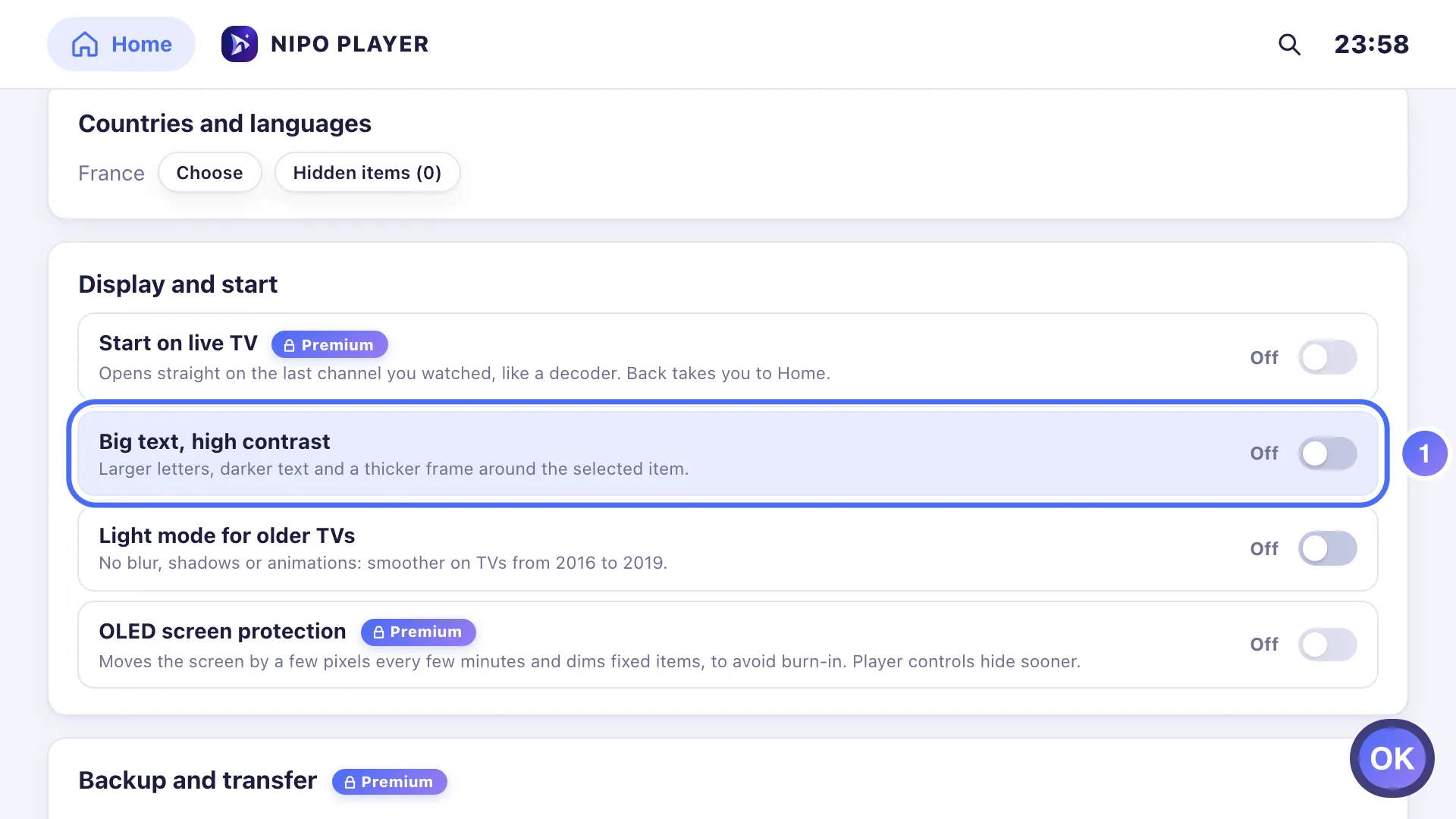
Turn on Big text, high contrast for larger letters and a thicker focus ring. Key OK
- 02
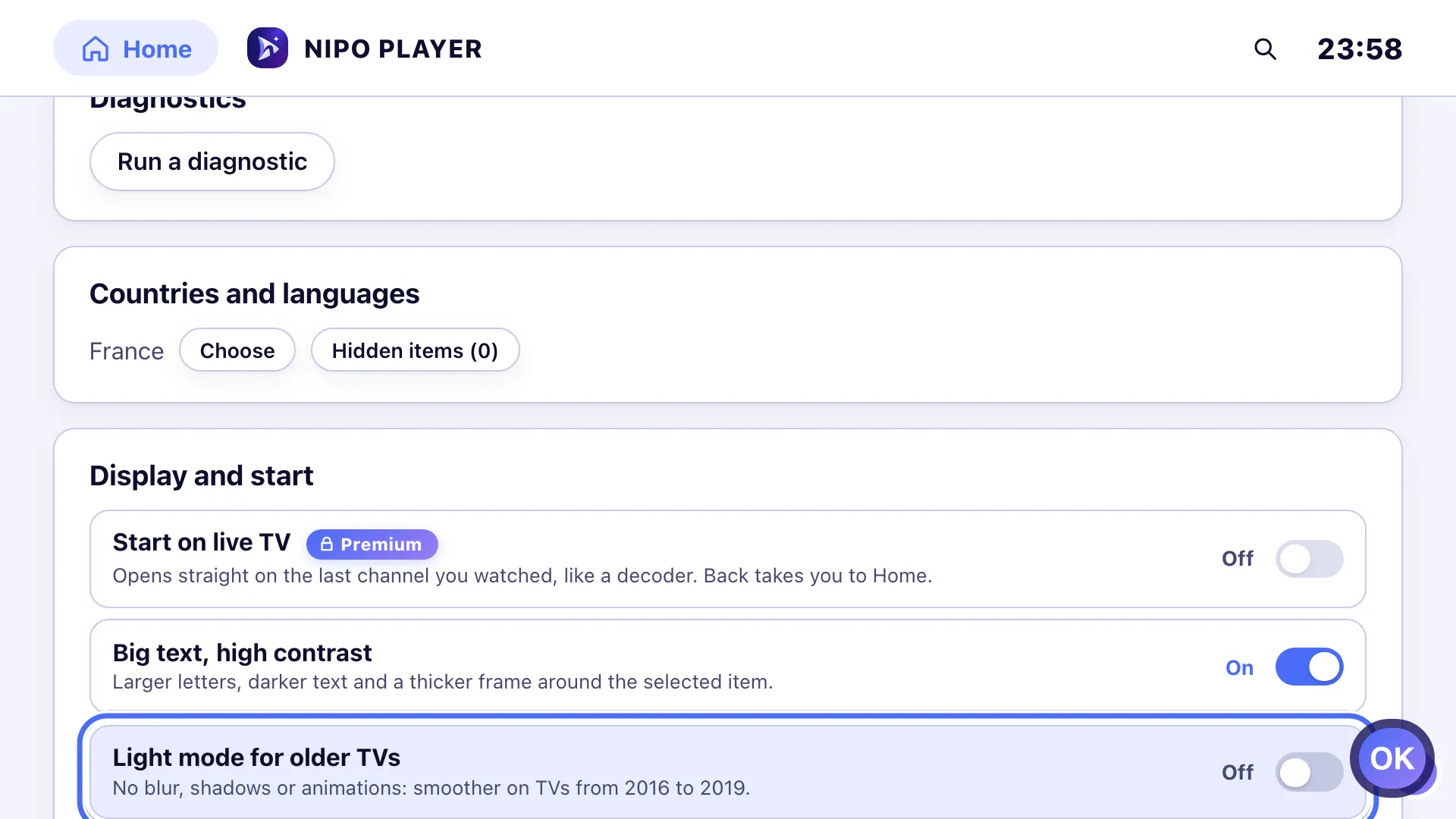
Light mode removes blur, shadows and animations for 2016–2019 TVs. Key OK
- 01
From Settings → Display and start, turn on Big text, high contrast.
- 01
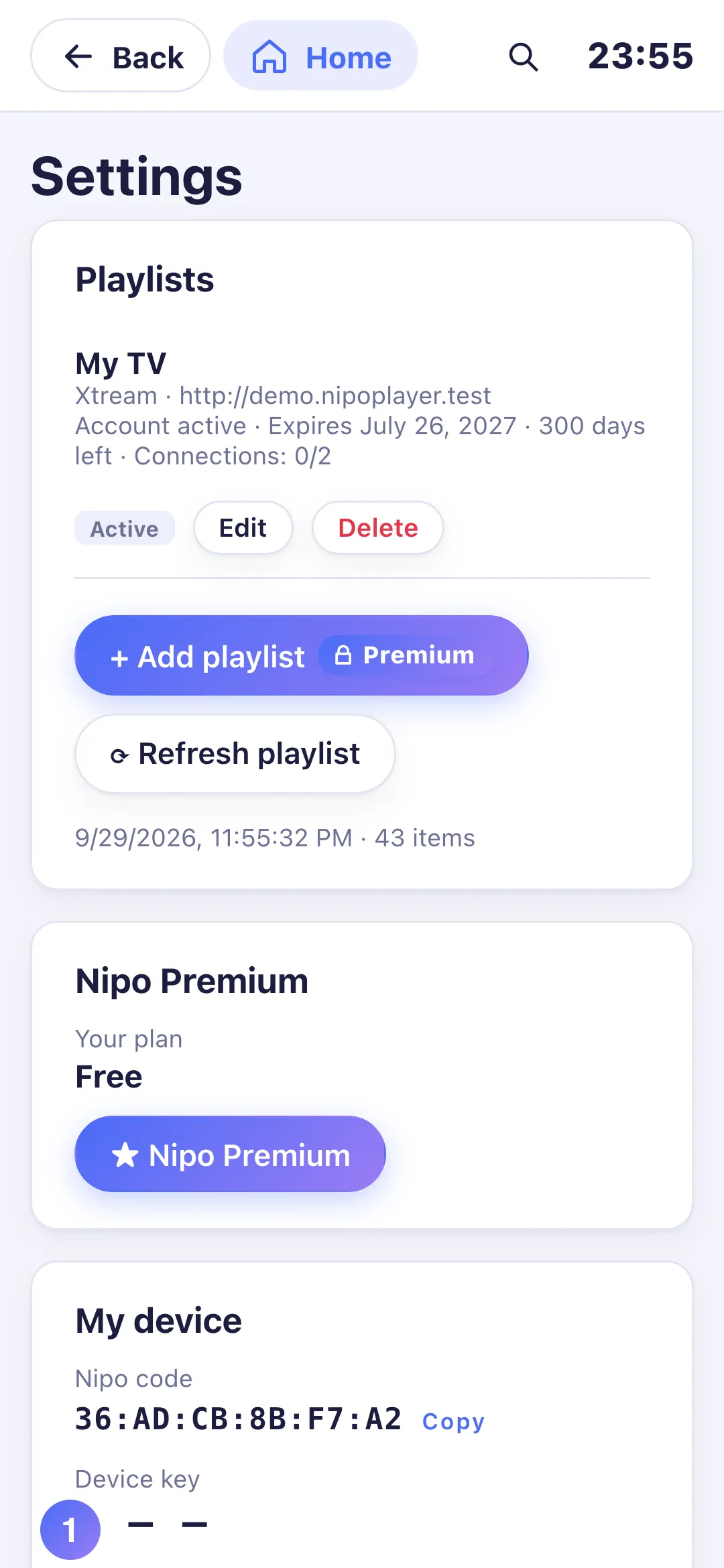
From Settings → Display and start, turn on Big text, high contrast.
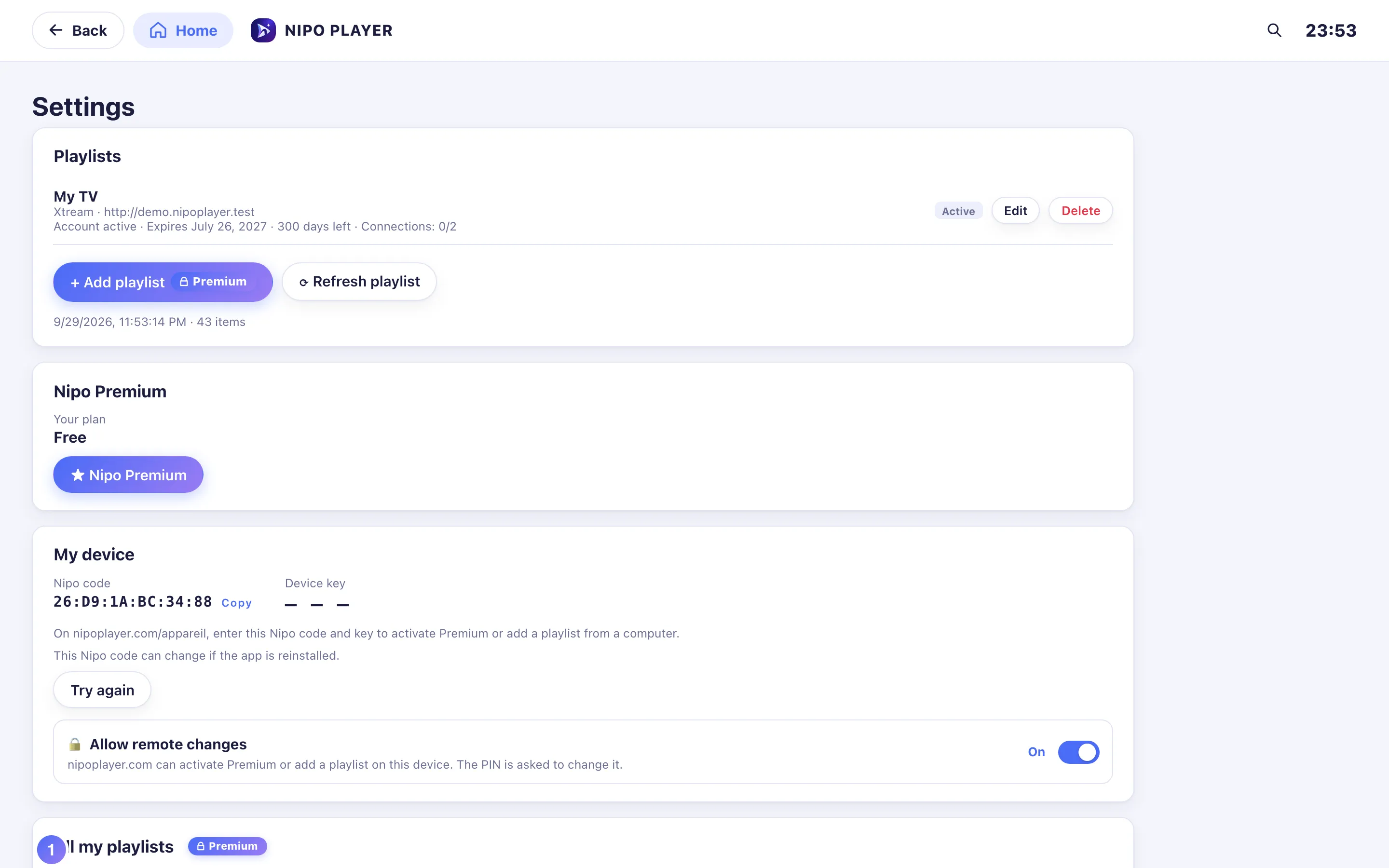
Big text, high contrast
From Settings → Display and start, turn on Big text, high contrast for larger letters, darker text and a thicker frame around the selected item: easier to read from a distance or for tired eyes.
Light mode for older TVs
Light mode removes blur, shadows and animations from the interface, for smoother navigation on older televisions (2016 to 2019).
- On a television recognised as old, this mode turns on automatically.
- It stays adjustable by hand on other devices, if the interface feels sluggish.
Tip
Both settings combine freely with Start on live TV and OLED screen protection, on the same settings screen.
Updated on 29 September 2026
Did this article help you?
Can’t find the answer?
Write to us: we answer about the app and how it works. We can’t recommend a playlist.