
Choosing your default audio and subtitle language
In the player, "Preferred languages" sets the audio and subtitle language to favour; "Subtitles" sets when to show them: never, other languages, always.
Nipo doesn’t provide, sell or host any channel, movie or playlist: it plays what you already own.
With no particular setting, Nipo Player automatically picks the app's language first, then French or English if the stream doesn't offer it. This choice can be made more precise.
Step by step, with pictures
- 01
Under Preferred languages, choose your Language: it is used as soon as the stream offers it. Key ▶
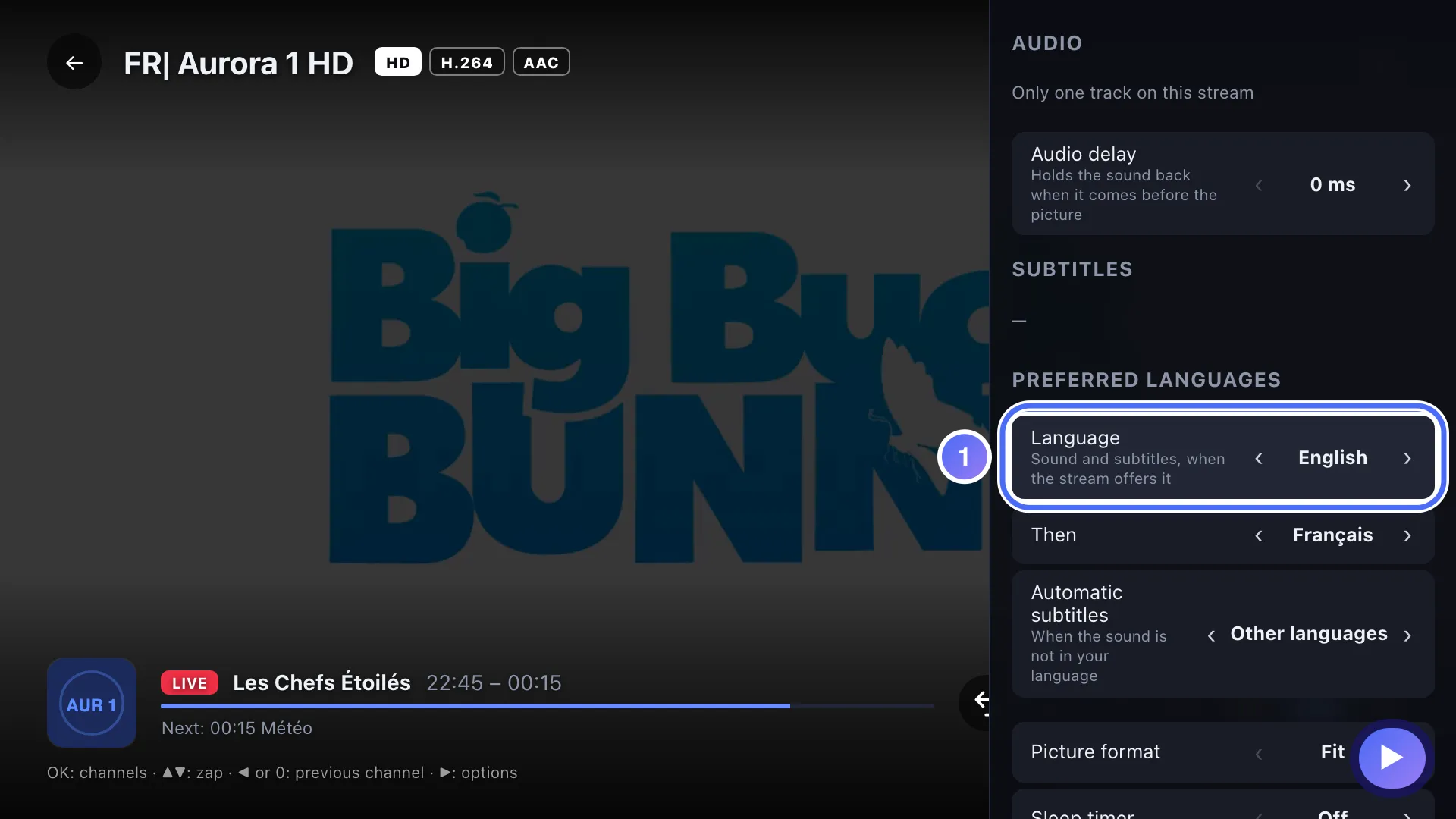
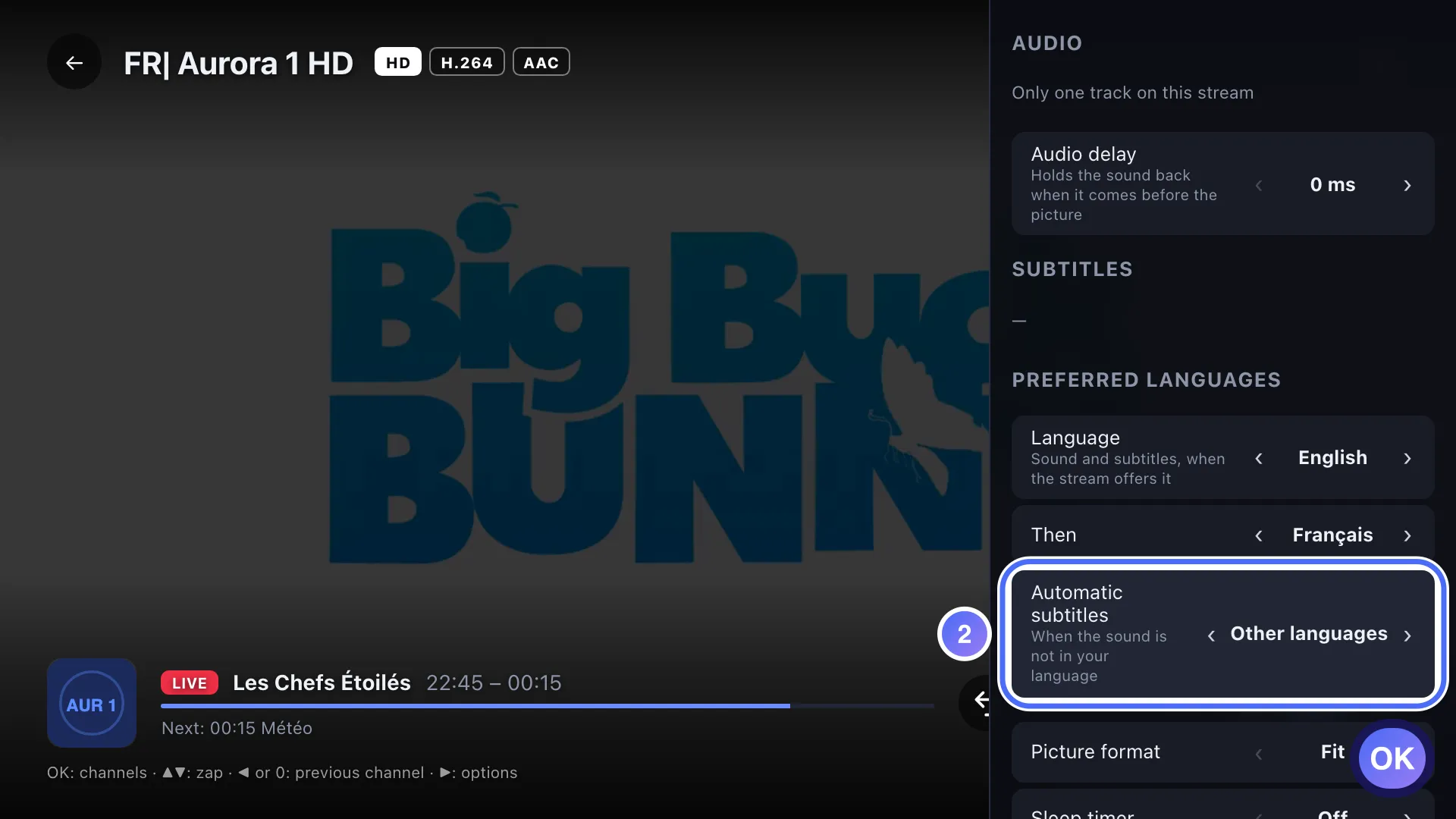
- 02
Subtitles: Never, Other languages (only when the audio isn’t in your language) or Always. Key OK
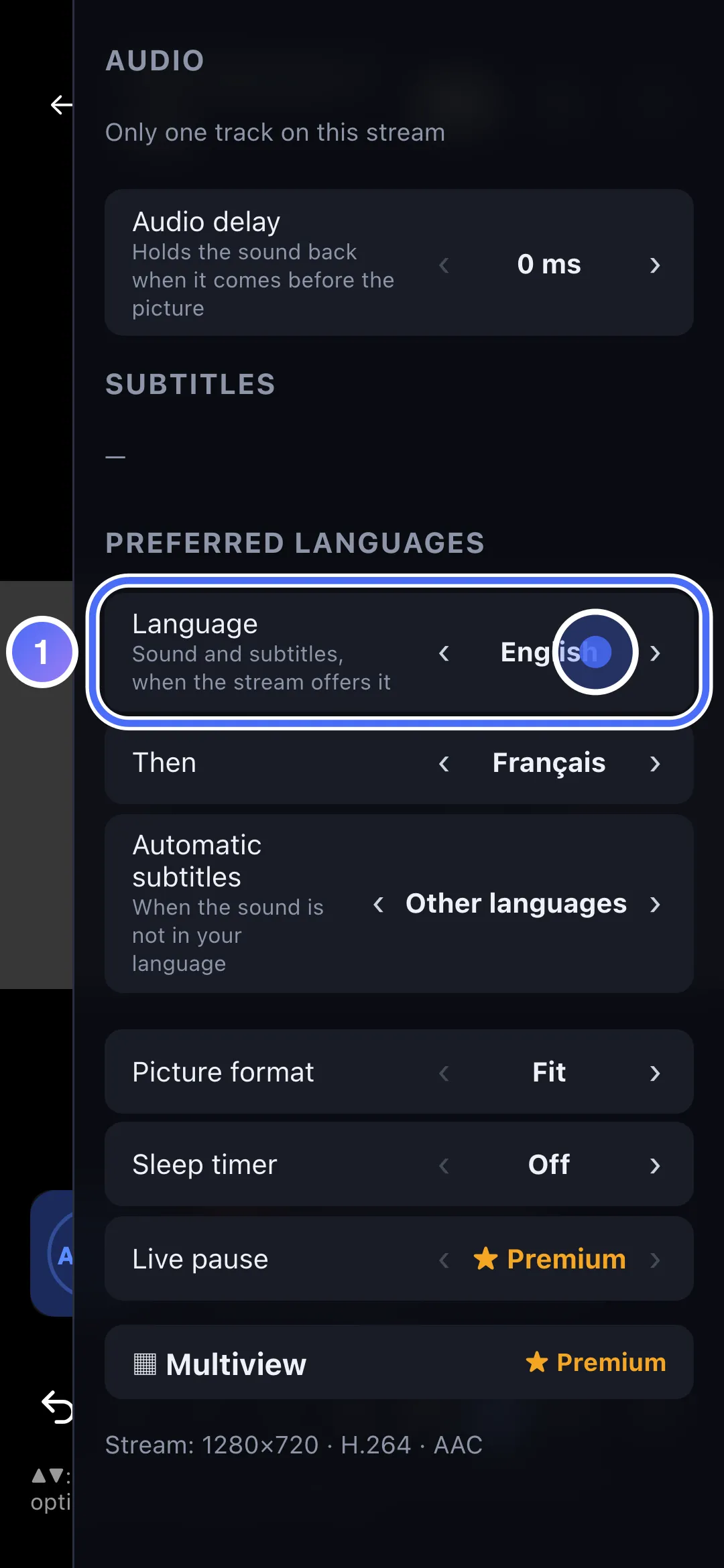
- 01
Under Preferred languages, choose your Language.
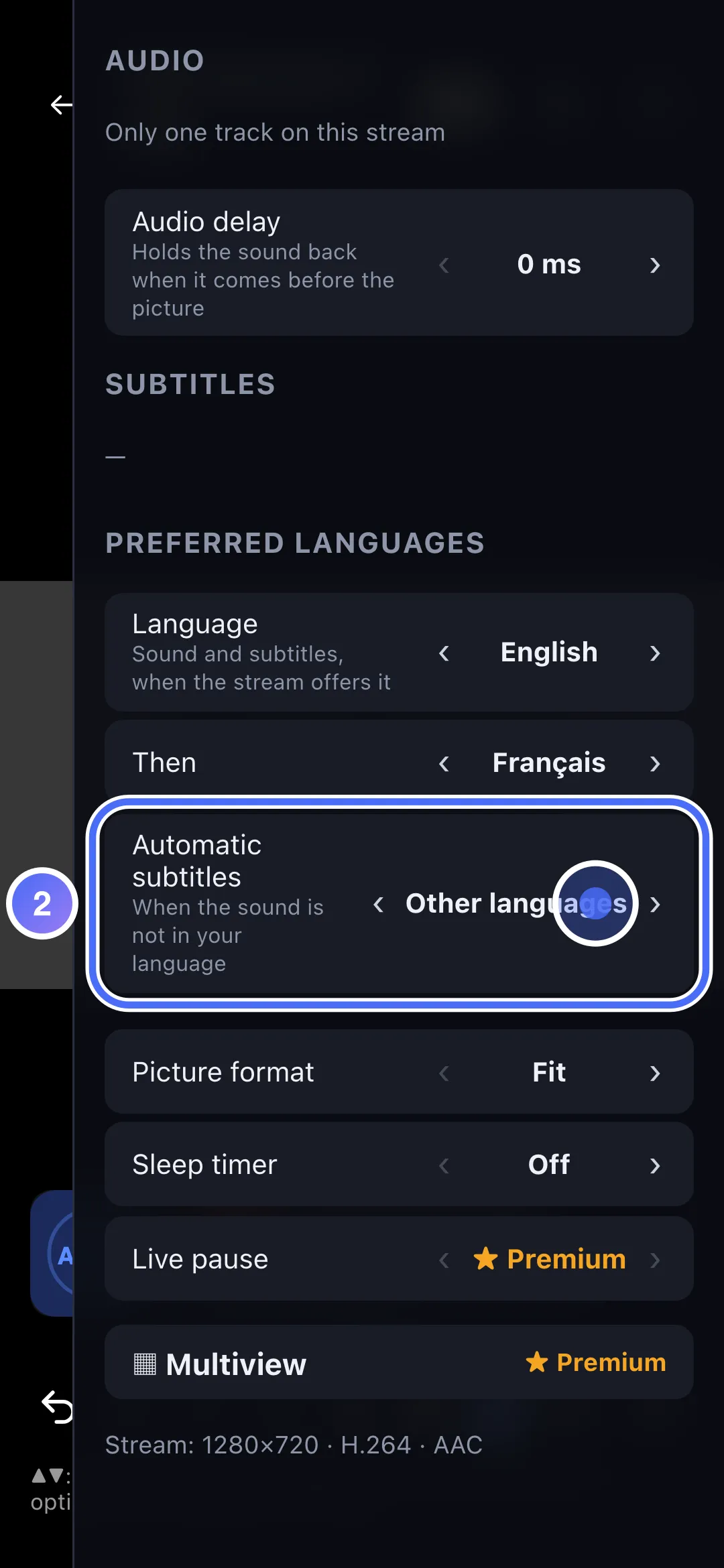
- 02
Subtitles: Never, Other languages or Always.
- 01
Under Preferred languages, choose your Language: it is used as soon as the stream offers it.
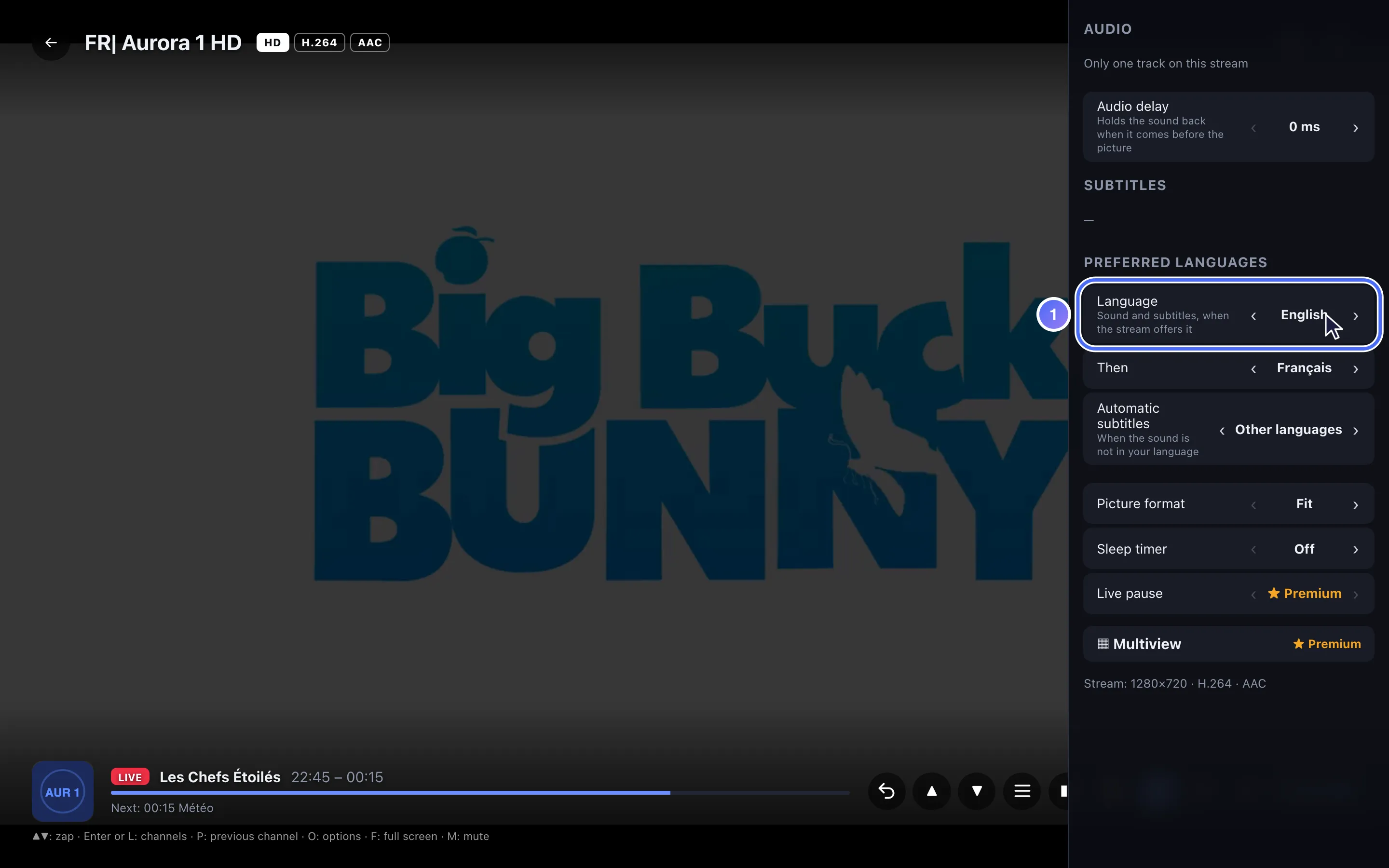
- 02
Subtitles: Never, Other languages (only when the audio isn’t in your language) or Always.
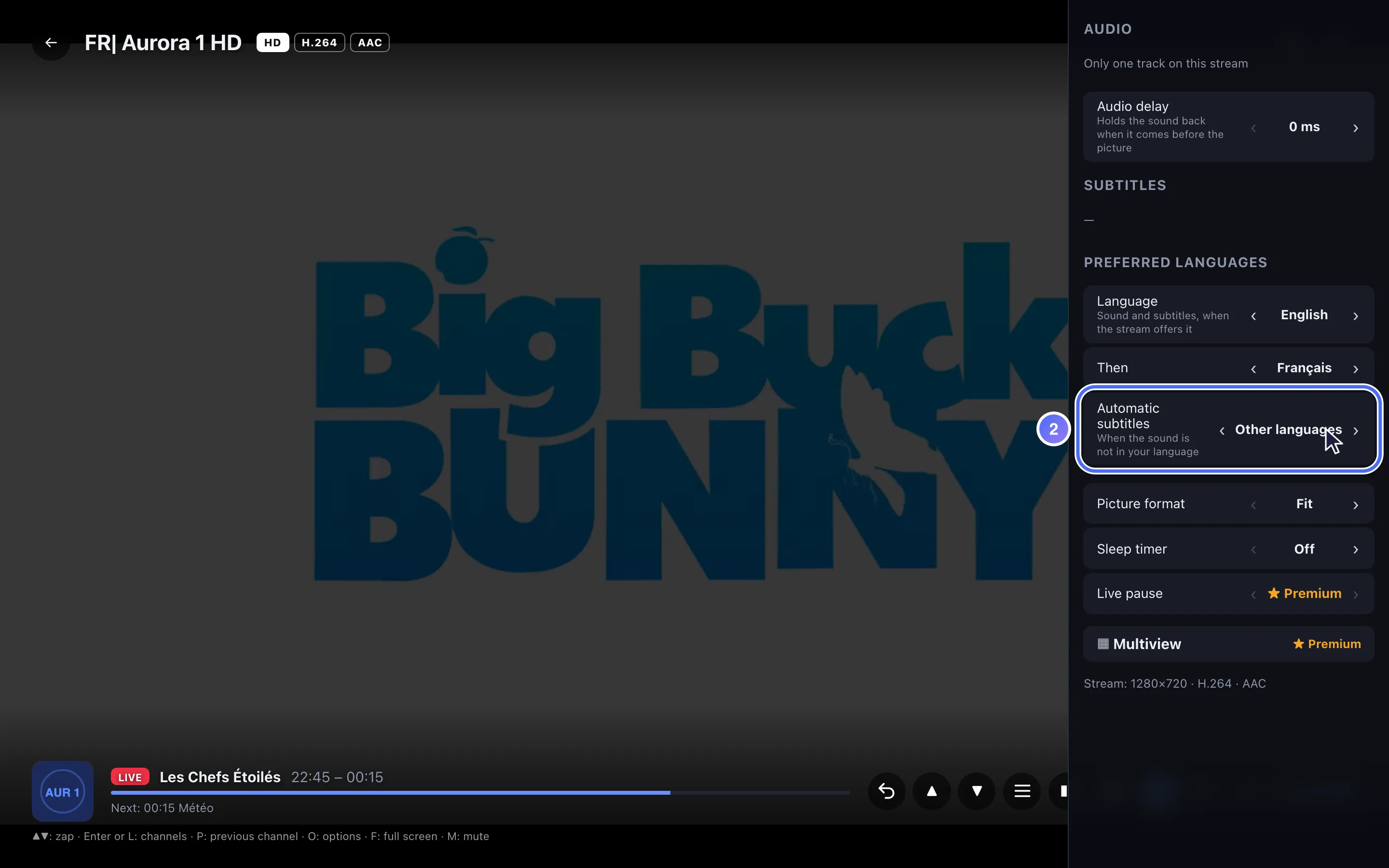
Preferred languages
- During playback, open the Audio, subtitles and format panel (▶ on live, ▼ on VOD).
- Under Preferred languages, choose your Language: sound and subtitles in that language are used as soon as the stream offers it.
- Then choose a fallback language with Then, used when the first one isn't available.
When to show subtitles
The Subtitles setting offers three options:
- Never: subtitles stay off until you choose them yourself.
- Other languages: subtitles show up only when the sound isn't in your language.
- Always: subtitles show up in your language whenever the stream offers them.
Tip
This choice only affects the language to favour automatically. For the size, colour or delay of subtitles and sound, see Subtitles and audio delay.
Updated on 29 September 2026
Did this article help you?
Can’t find the answer?
Write to us: we answer about the app and how it works. We can’t recommend a playlist.