
Backup: what's free and what's part of Premium
On a computer, "Export to a file" is free and keeps your data in your hands. "Send to another device" and "Import a backup file" come with Premium.
Nipo doesn’t provide, sell or host any channel, movie or playlist: it plays what you already own.
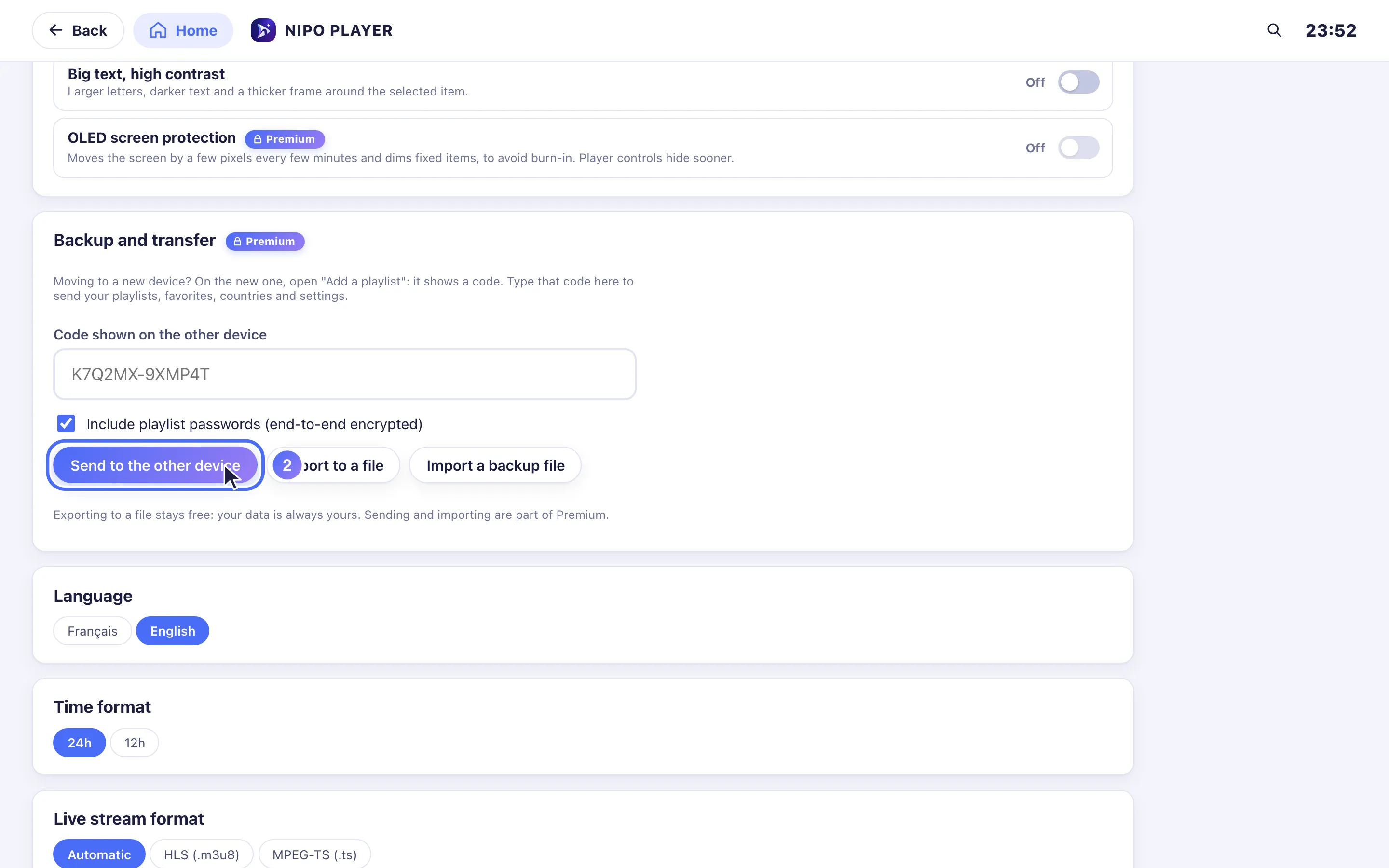
The Settings → Backup and transfer screen offers three actions: one stays free, two are part of Premium.
Step by step, with pictures
- 01
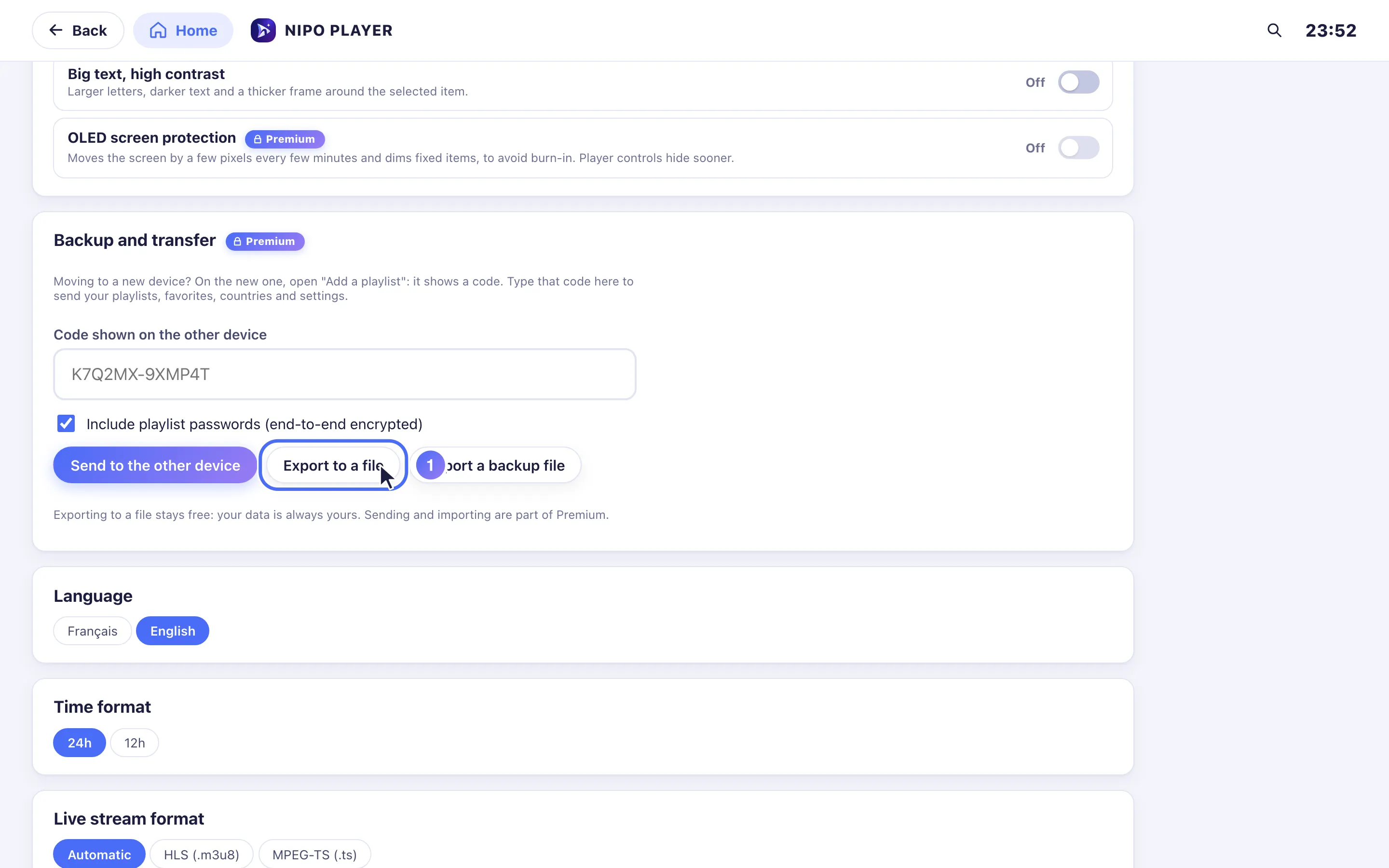
Open Settings → Backup and transfer, then Export to a file: a .json downloads with your playlists, favorites and settings.
- 02
On the same screen, Send to the other device and Import a backup file are part of Nipo Premium and Nipo Family.
Export to a file (free)
- Open Settings → Backup and transfer, on a computer (Mac or Windows).
- Tap Export to a file: a
.jsonfile downloads, with your playlists, favourites, countries and settings. - Keep that file somewhere safe (a USB drive, your own cloud storage…): it's your backup.
Exporting stays free on every account, no Premium needed: your data stays yours, even without Premium. It's only offered on a computer (mobile browsers don't allow this kind of direct download).
Send to another device, or import a backup (Premium)
From the same screen, Send to the other device (with a code, see How do I transfer my setup to a new device?) and Import a backup file (from a .json file exported earlier) are part of Nipo Premium and Nipo Family.
Tip
A file exported before you had Premium stays a normal .json file: it can be imported later, once Premium is active on the device receiving it. Nothing is deleted or overwritten by an export.
Updated on 29 September 2026
Did this article help you?
Can’t find the answer?
Write to us: we answer about the app and how it works. We can’t recommend a playlist.