
Update Nipo Player, or go back to the previous version
Stores update automatically; a manually installed build updates by reinstalling the file from the Download page.
Nipo doesn’t provide, sell or host any channel, movie or playlist: it plays what you already own.
Step by step, with pictures
- 01
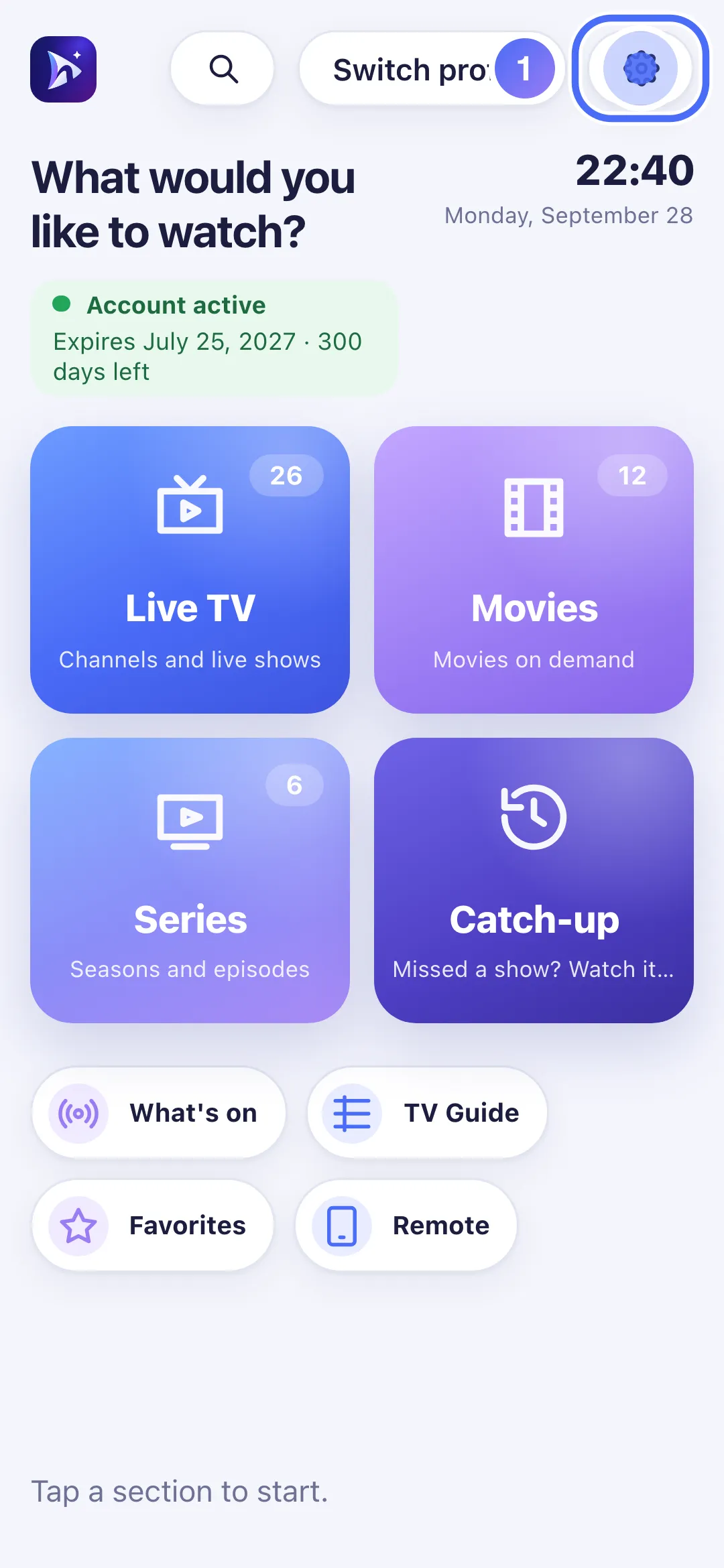
From Home, tap “Settings”.
- 02
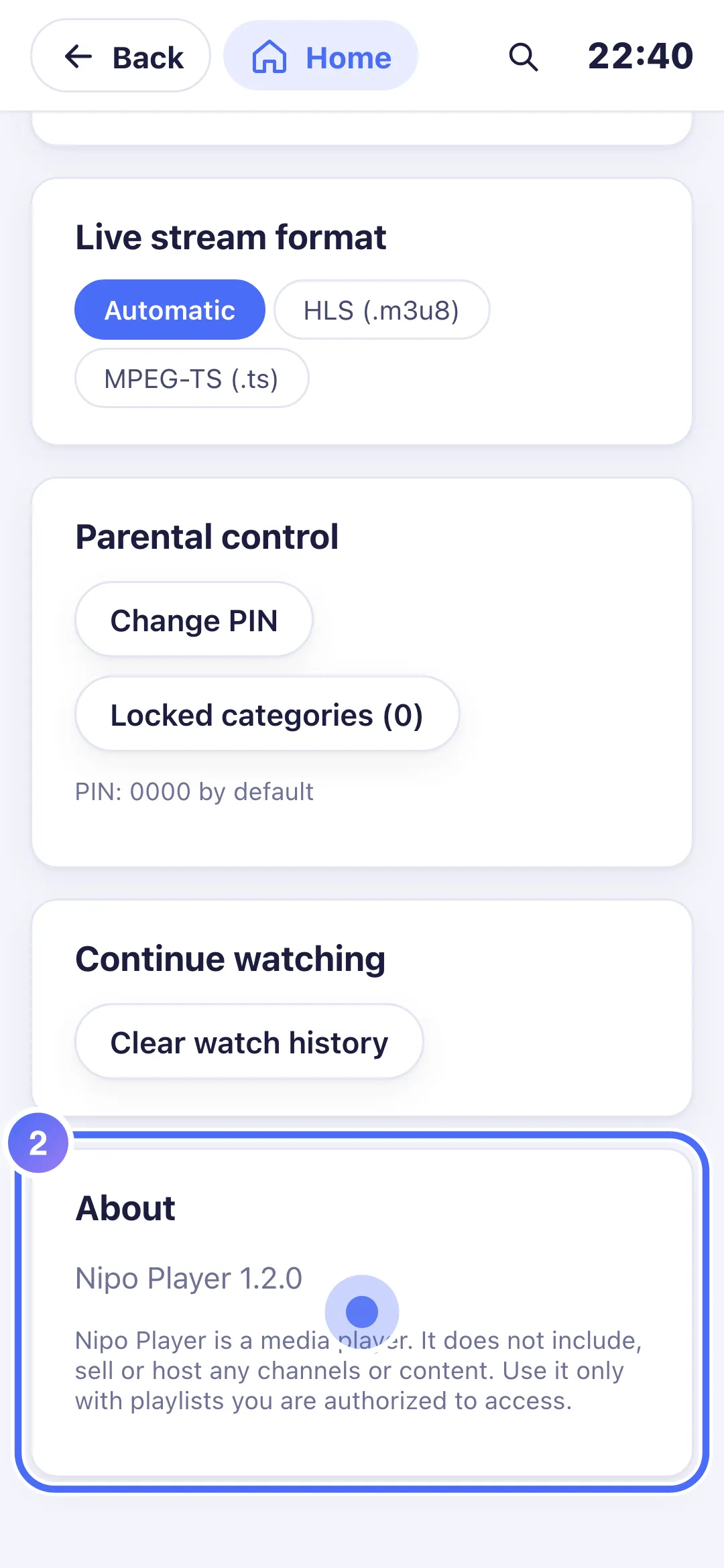
At the bottom, “About” shows the installed version number.
- 01
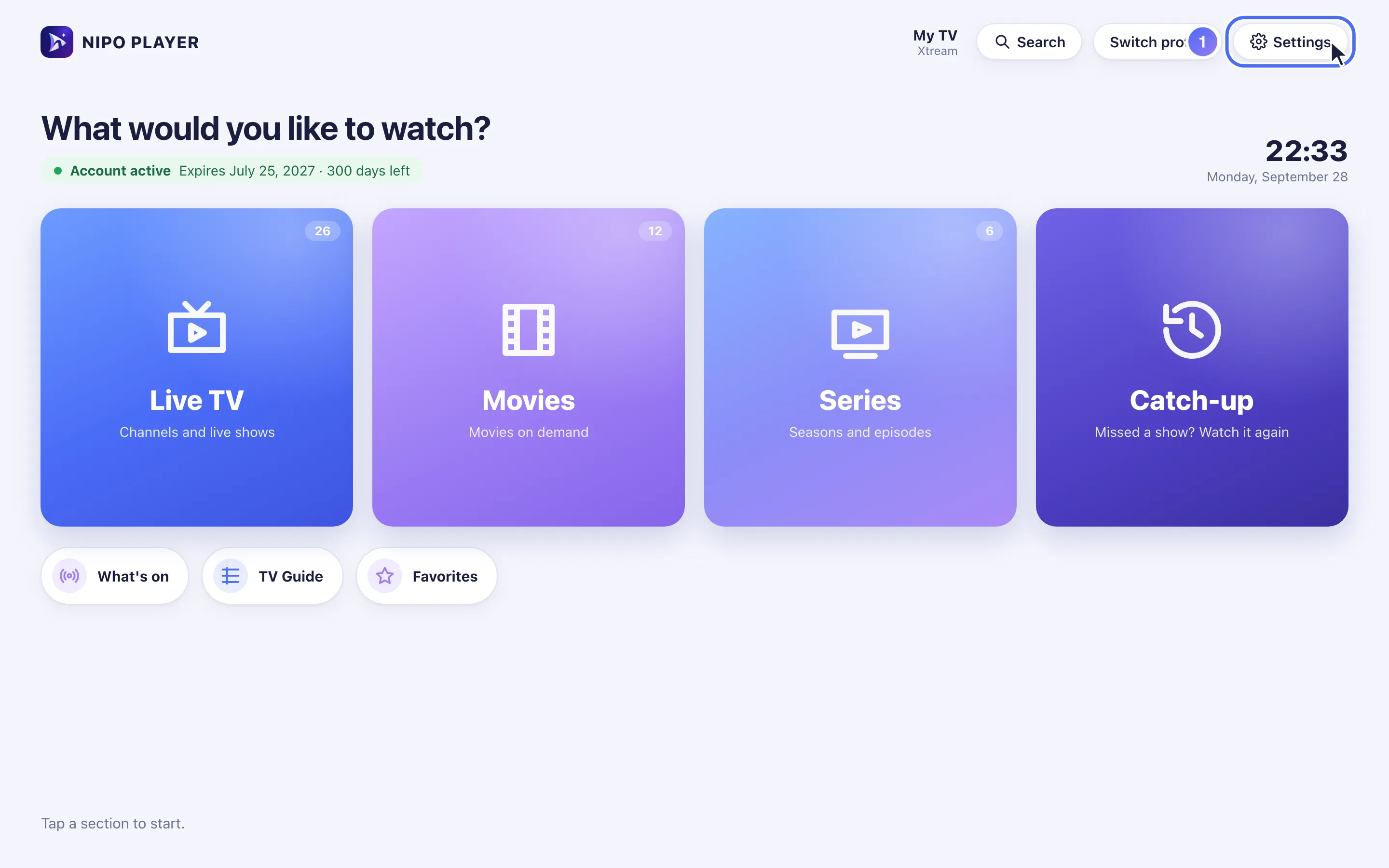
From Home, click “Settings”.
- 02
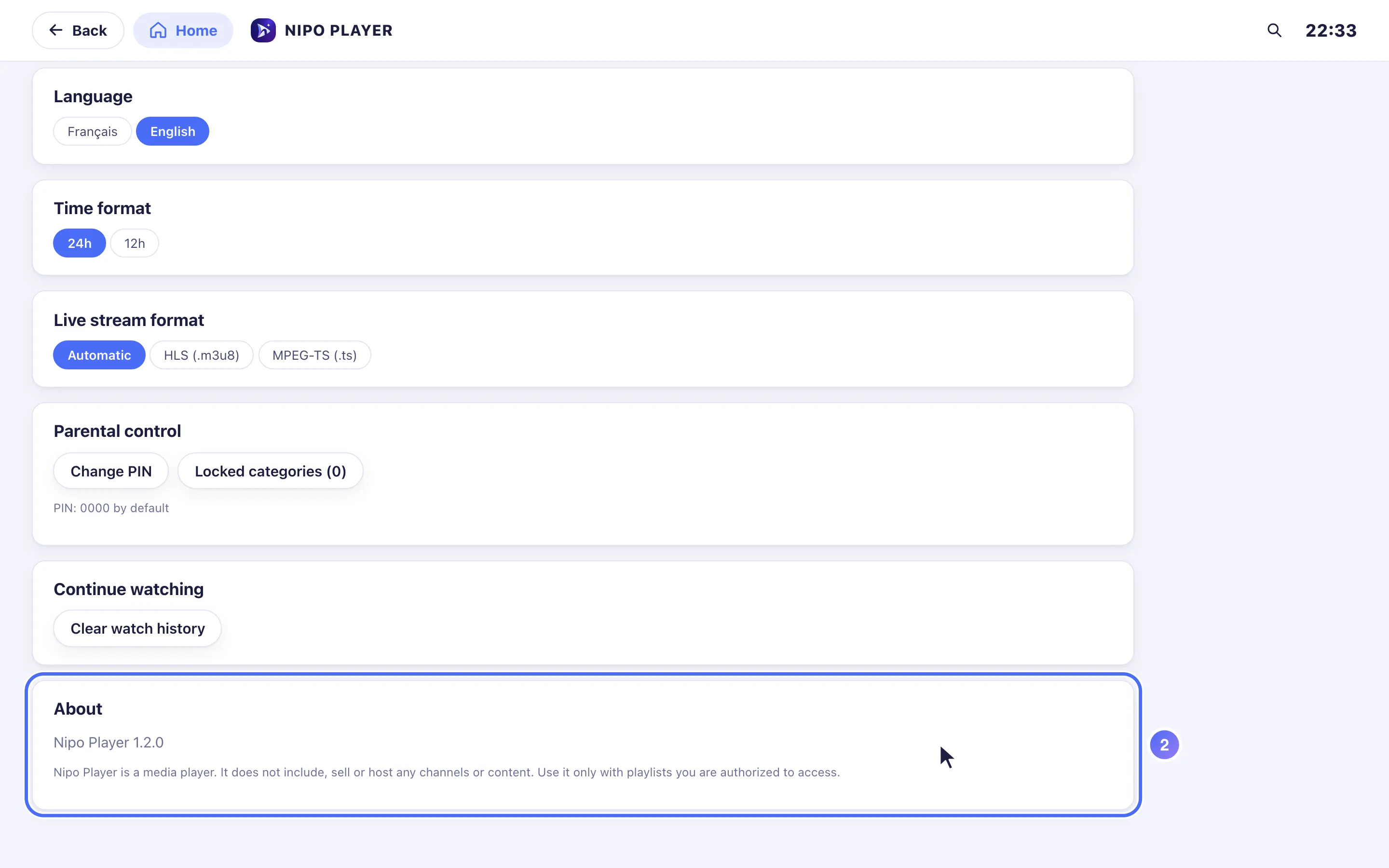
At the bottom, “About” shows the installed version number.
How you update Nipo Player depends on how you installed it.
Check the installed version
Open Settings → About: Nipo Player's version number shows at the top of the block.
Installed from a store (Google Play, App Store, Amazon)
The store handles updates automatically, following your usual settings (automatic updates on or off). To check for or force an update, open Nipo Player's page in that store.
Installed manually (.apk, .exe or .dmg file)
A manually installed build (downloaded directly from nipoplayer.com, outside a store) doesn't update itself: download the new version from the Download page and reinstall it over the old one. Your playlists and settings are kept.
Go back to a previous version
If an update causes a problem, the Download page has an "Old versions" accordion with the last three versions of each platform: open it, download the version you want, and reinstall it over the current one.
Updated on 29 September 2026
Did this article help you?
Can’t find the answer?
Write to us: we answer about the app and how it works. We can’t recommend a playlist.