
Avviare direttamente sulla diretta (come un decoder)
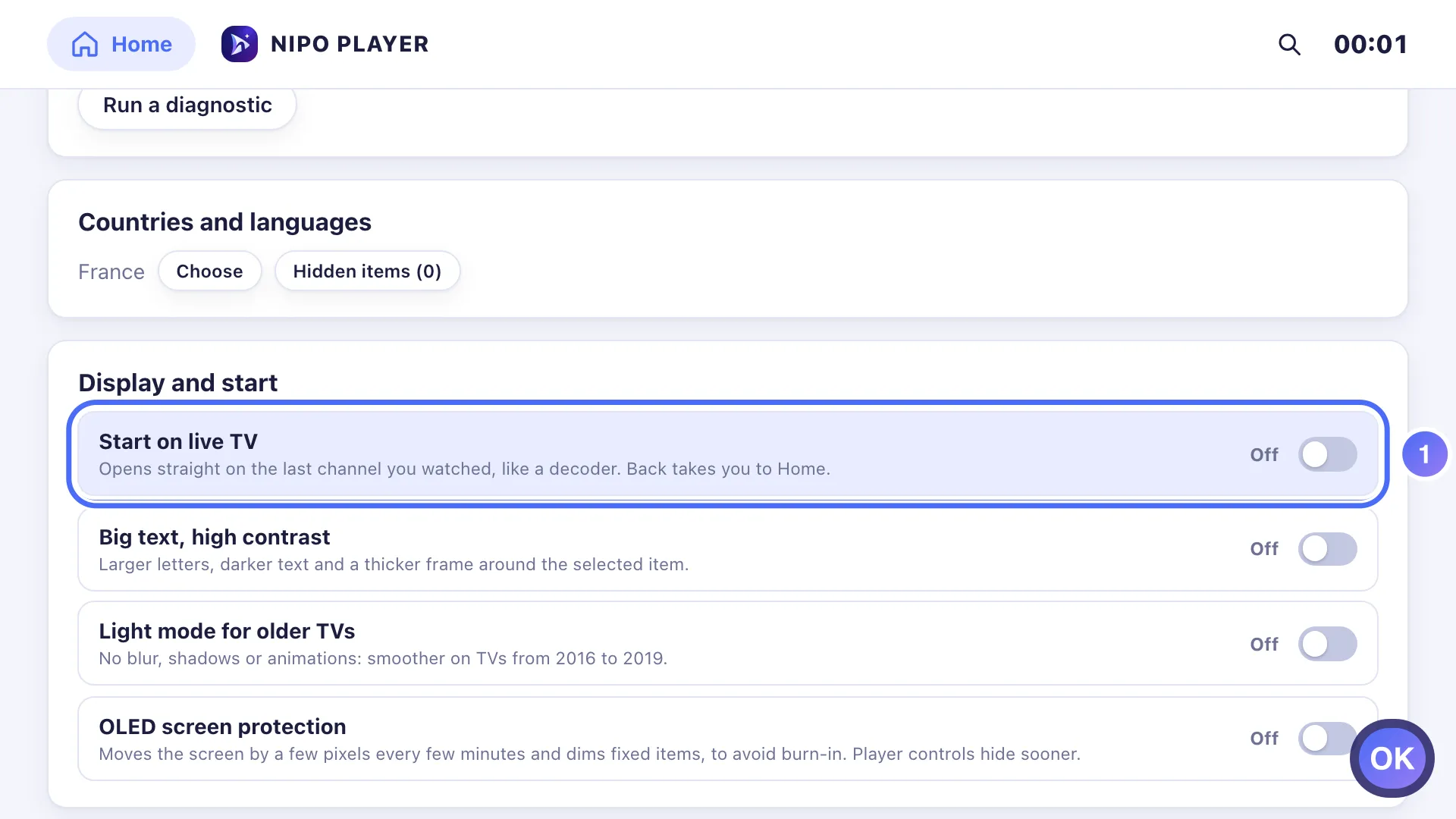
Settings → Display and start → «Start on live TV» apre Nipo Player direttamente sull'ultimo canale guardato, come un decoder. Funzione Premium.
Nipo non offre, vende né ospita alcun canale, alcun film o alcuna playlist: riproduce quello che possiedi già.
Passo dopo passo, con immagini
Le immagini mostrano l’app in inglese.
- 01
Open Settings → Display and start and turn on Start on live TV. Tasto OK
- 02
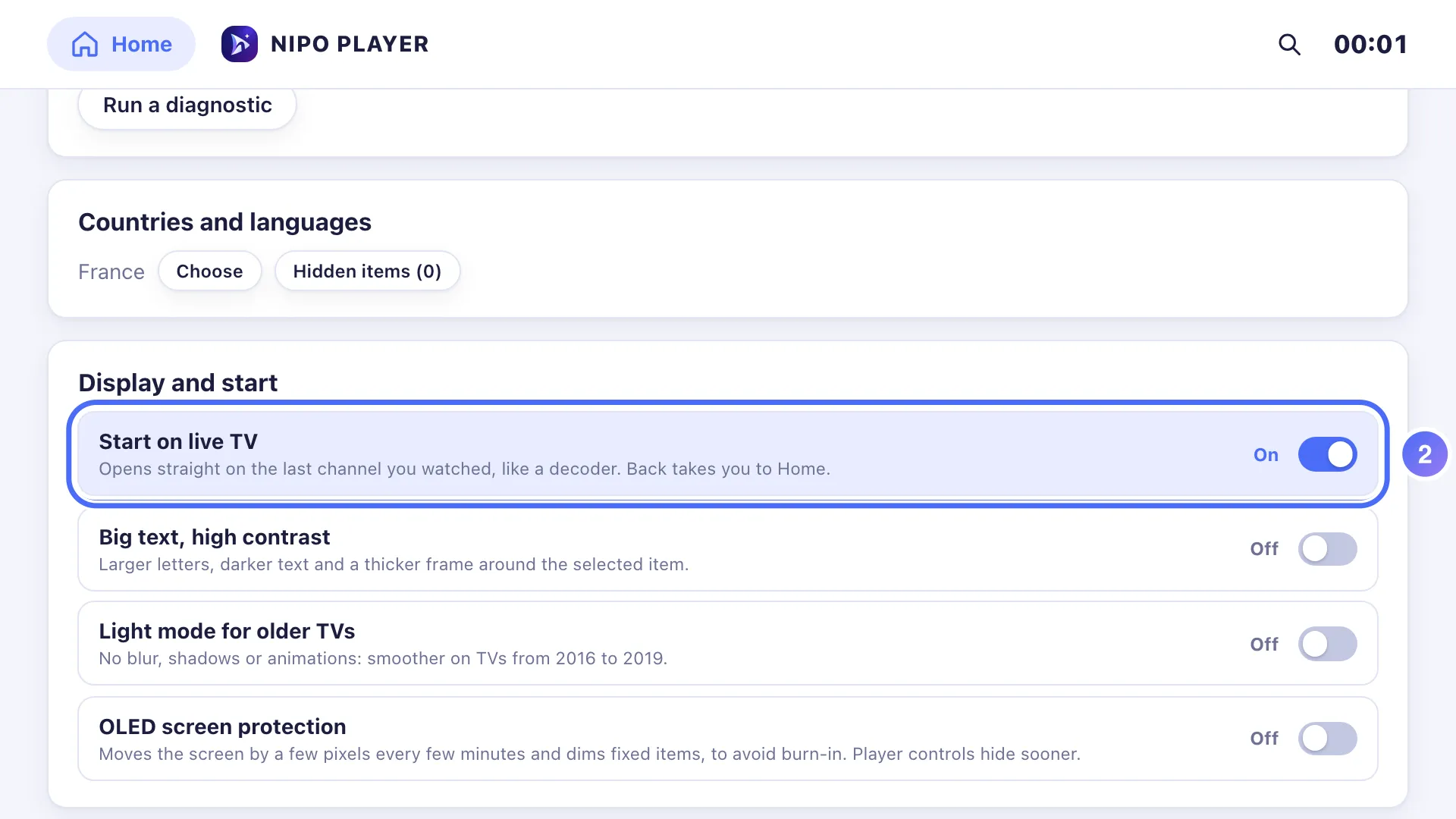
Next time it launches, Nipo Player opens straight to the last channel watched.
Su TV, Nipo Player può aprirsi direttamente sull'ultimo canale guardato invece che sulla schermata Home, come farebbe un decoder.
Attivarla
- Apri Settings → Display and start ("Impostazioni → Schermo e avvio").
- Attiva Start on live TV ("Avvia sulla diretta").
- Alla successiva apertura dell'app (o all'accensione della TV, a seconda della tua configurazione), Nipo Player si apre direttamente sull'ultimo canale guardato.
Utile da sapere
Il pulsante Back ("Indietro") continua sempre a riportare alla normale schermata Home, per raggiungere Film, Serie o Catch-up. Se l'app incontra un problema all'avvio, torna automaticamente alla schermata Home abituale invece di rimanere bloccata su questa impostazione.
Suggerimento
"Start on live TV" fa parte di Nipo Premium e Nipo Family, come Protezione dello schermo OLED, impostata sulla stessa schermata.
Aggiornato il 29 settembre 2026
Questo articolo ti è stato utile?
Non trovi la risposta?
Scrivici: rispondiamo su come funziona l’app. Non possiamo consigliarti nessuna playlist.